Simplify Check-Ins Experience
You can now create and manage check-ins more efficiently with enhancements that simplify template selection, enrich discussions topics with questionnaires, conversation summary, and feedback, and also, improve the usage of AI in check-in notes. These improvements reduce manual effort, streamline the check-in creation process, and provide richer context for more meaningful employee and manager discussion.
Questionnaire and conversation summary
When scheduling a check-in, you can add questionnaires and conversation summary as discussion topics when scheduling a check-in.
Note: The questions added as a discussion topic depend on the questionnaire configurations defined in the check-in template.
You can respond to the questionnaire only after scheduling the check-in.
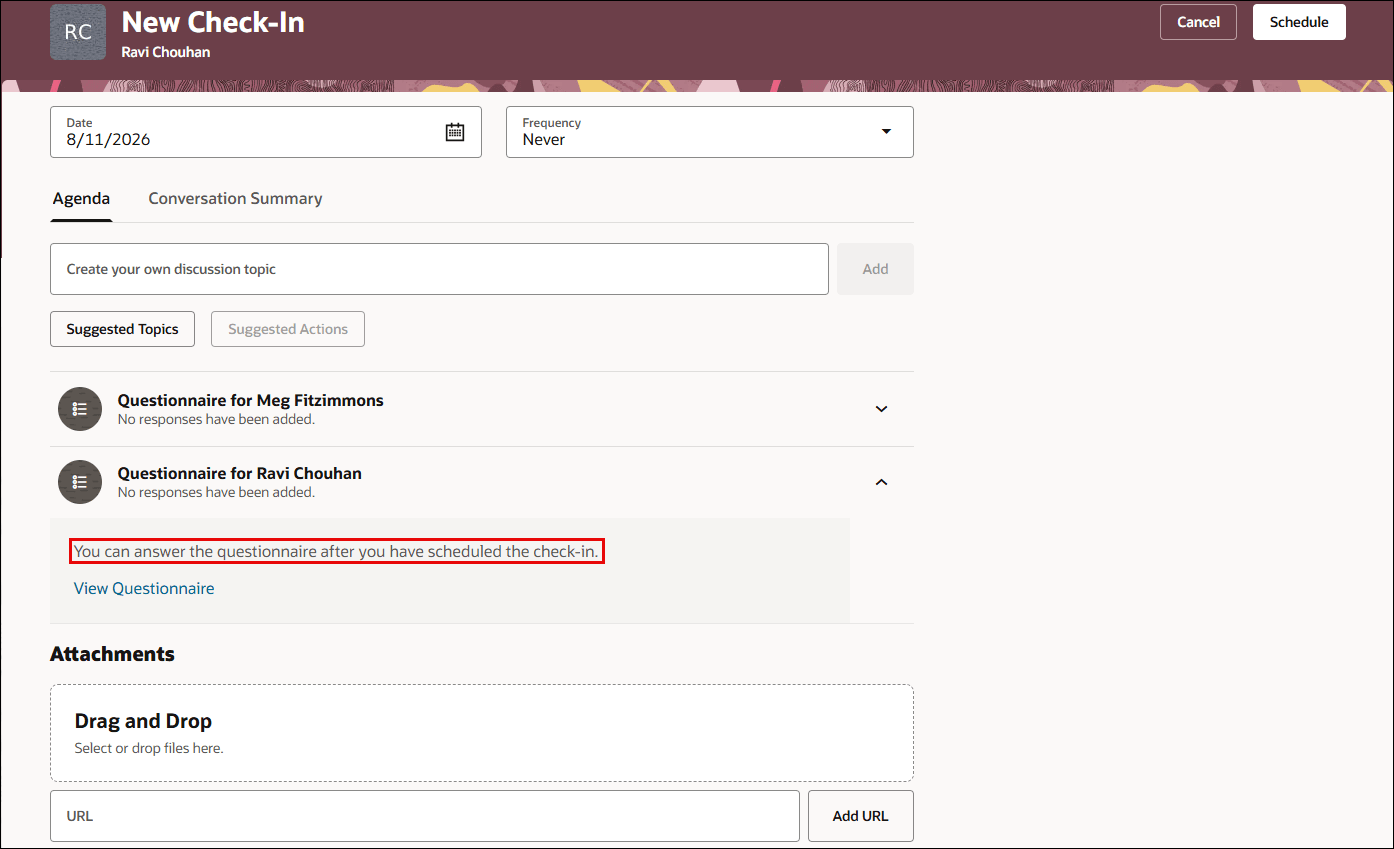
Questionnaire response
Note: The questionnaire is displayed based on the questionnaire visibility rules defined when defining the check-in template.
Display feedback in check-ins
Check-in documents now display anytime feedback and requested feedback received for the past 12 months in the Feedback tab in the Discussion topics panel. You can add them as a check-in discussion. The feedback is listed in the descending order thereby providing the recent context first.
Enhanced AI assistance for check-ins
The AI Assist feature released in 26A has been updated to include questionnaire responses, conversation summary, and feedback responses when writing notes for a check-in.
Default check-in templates and review periods
When creating or updating a check-in template, HR specialists can now designate the default template by enabling the Default template option.
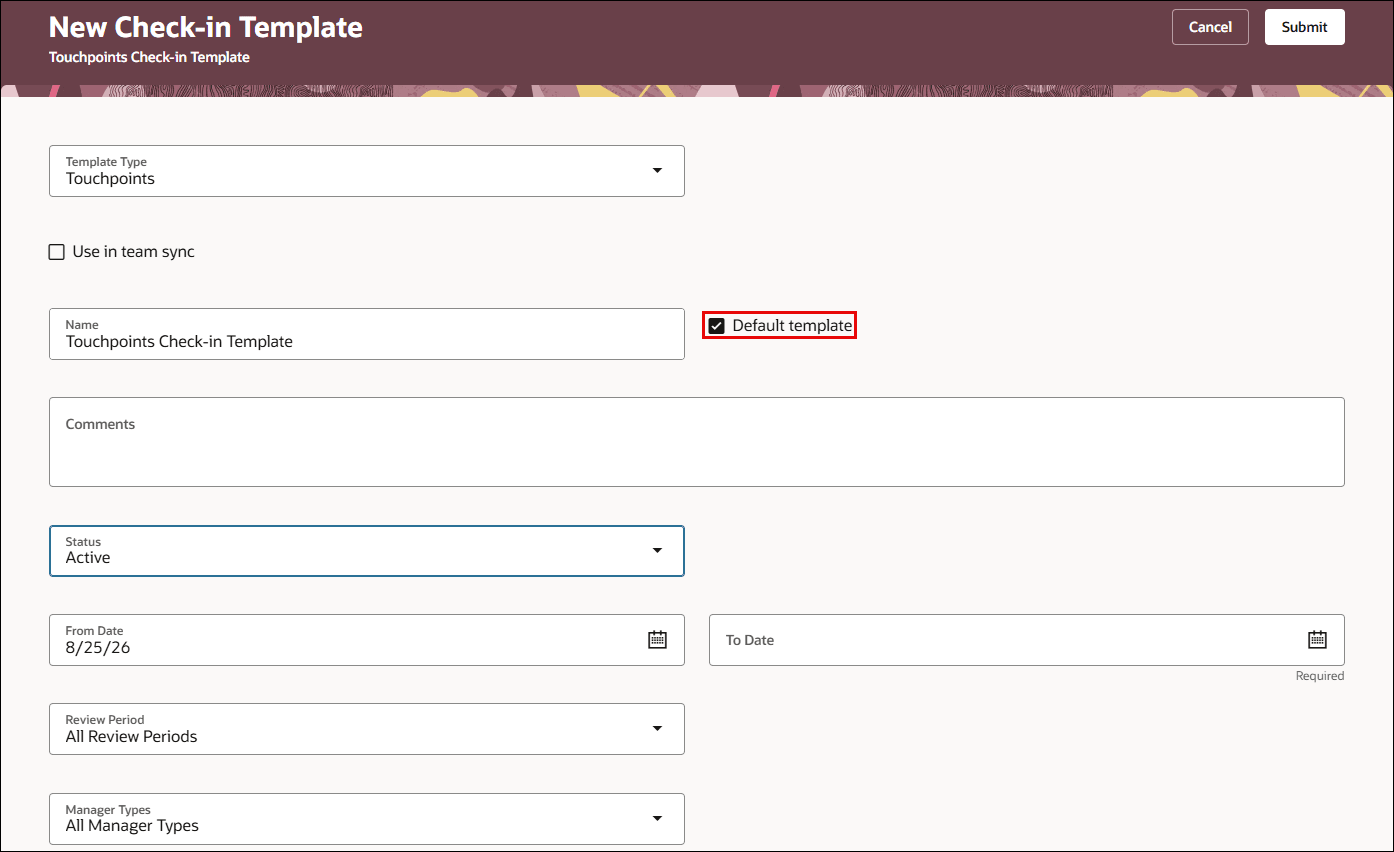
Check-In default template
Note: Only one template for each type, Performance or Touchpoints, can be designated as the default check-in template.
When managers, employees, or HR specialists create a new check-in document, the review period and check-in template fields are autopopulated based on the eligible default check-in template.
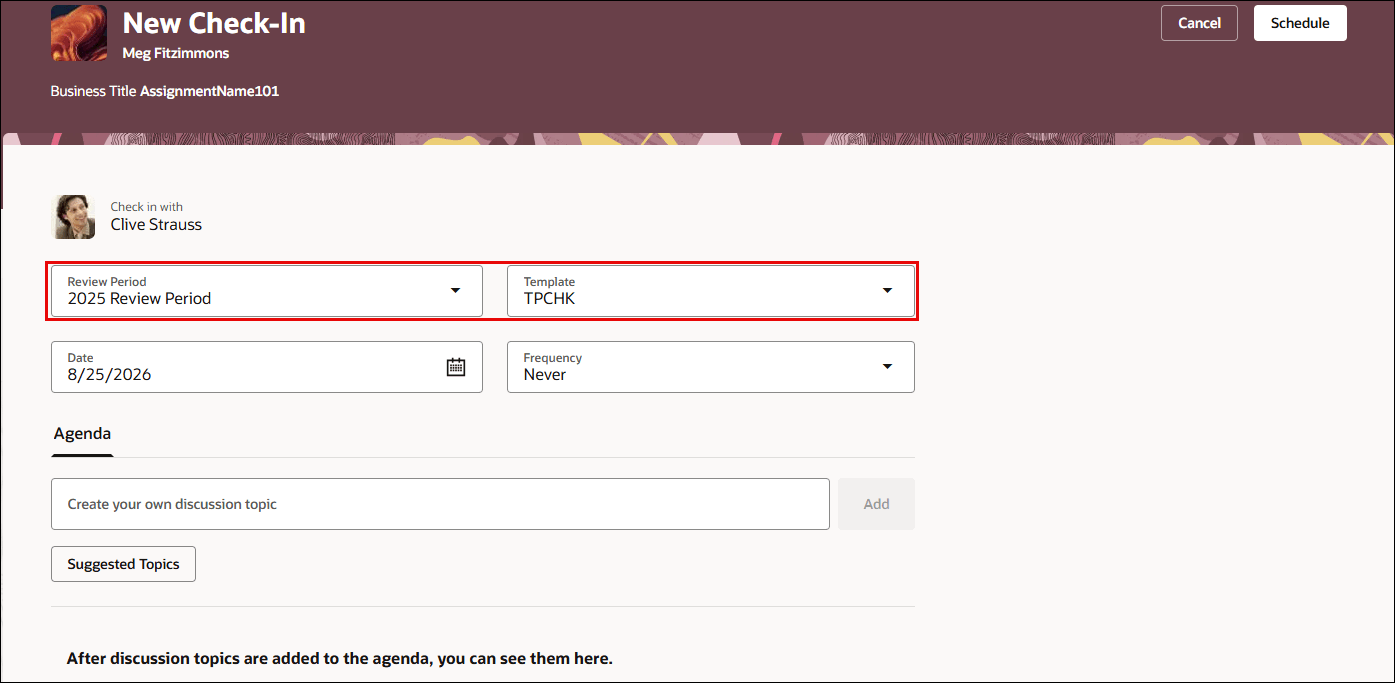
Auto selection of template and review period
The autopopulated fields are visible on these pages:
- New Check-In for Touchpoints and Performance
- Create Check-Ins
- Mass Actions Processes for Check-In Documents
- Check-In Documents
Note: For Team Check-Ins, the team sync template is defaulted if it’s configured, else, the default Touchpoints template is used. If the configured default template isn't eligible for the selected employee, no template is displayed.
Business benefit
These enhancements streamline the check-in experience by
- Reducing manual configuration during check-in creation
- Enriching check-in discussions by adding questionnaires and conversation summary as discussion topics
- Using enhancing AI-generated recommendations to surface recent feedback to enrich discussions
- Getting additional contextual from feedback and questionnaire responses
Steps to enable and configure
For details to set a check-in template as a default template, see: How to enable a check-in template as a default template?
Tips and considerations
- Automatic template selection occurs only when the template is active, designated as the default one, and applicable to the selected review period.
- If the configured default template isn't eligible for the selected employee, the template field is blank.
Key resources
Access requirements
To access all applicable Touchpoints features, managers and employees must have appropriate user roles.
| Duty Roles | Role Code | Job or Abstract Role | Privileges |
|---|---|---|---|
|
Access Touchpoints by Worker |
ORA_HRE_ACCESS_TOUCHPOINTS_BY_WORKER | Employee Contingent Worker |
HRE_ACCESS_TOUCHPOINTS_BY_WORKER_PRIV |
| Access Touchpoints by Manager | ORA_HRE_ACCESS_TOUCHPOINTS_BY_MANAGER | Line Manager | HRE_ACCESS_TOUCHPOINTS_BY_MANAGER_PRIV |
| Human Resource Specialist | ORA_PER_HUMAN_RESOURCE_SPECIALIST_JOB | Human Resource Specialist | N/A |