Organization Calendar Events in Calendar and Calendar Synchronization
Select an organization event in the Redwood Calendar to open a read-only details drawer. The drawer shows the event name, category, description, dates, and time when those values are available.
In What to Sync, select Organization events to include assigned organization events with your shifts and absences in your personal calendar. The synchronized event can include the event category and name, dates, time when applicable, and description.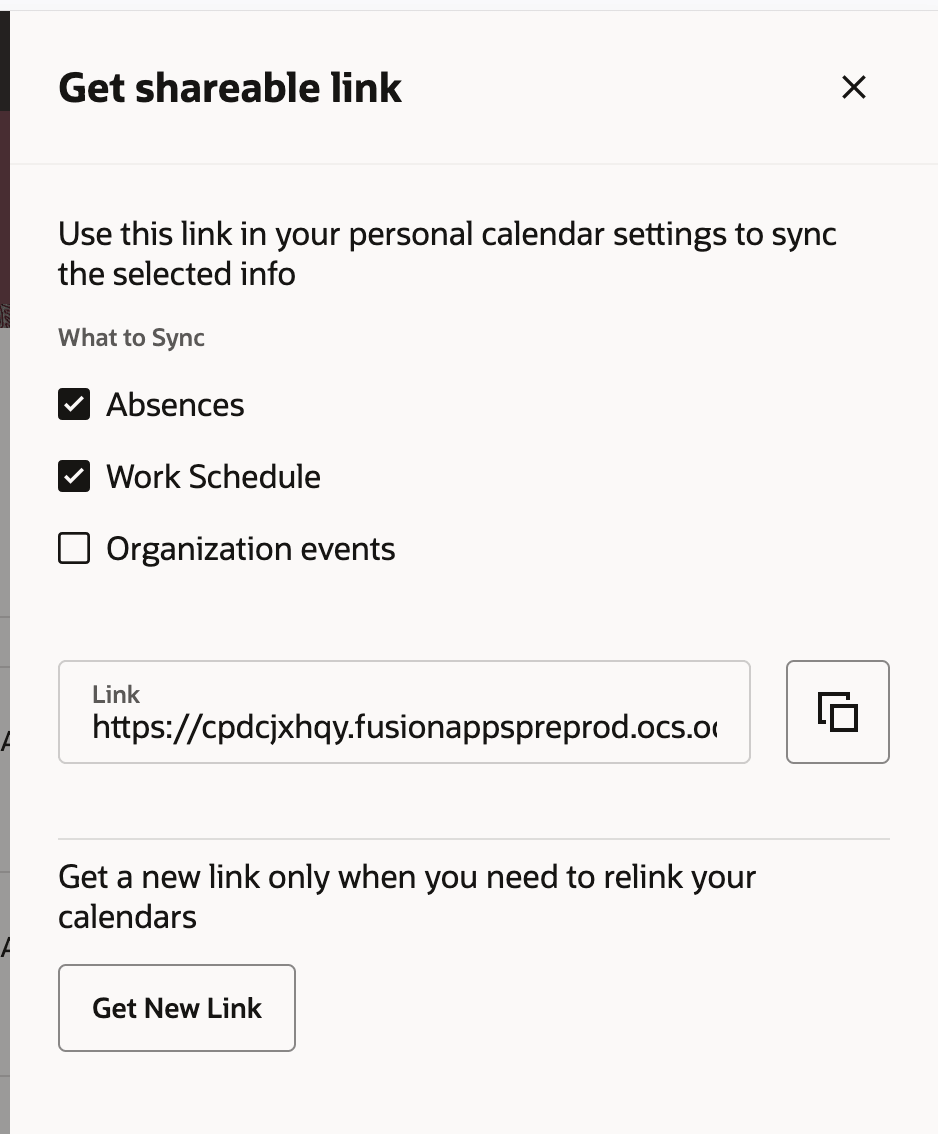
The Organization events option for calendar synchronization
Give workers a more complete view of work and non-work events to improve scheduling transparency and help reduce planning confusion and scheduling conflicts.
Steps to enable and configure
- Go to Me > Time and Absences > Calendar > Get shareable link.
- Select Organization events to include assigned organization events in the next synchronization cycle.
The Organization events option is disabled by default.
Tips and considerations
- Fields without values aren't displayed in the details drawer or included in synchronized events.
- All organization events, including partial-day events, are exported as floating DATE values without a time zone.
- Changes to assigned organization events appear during the next synchronization cycle.
- Existing one-way synchronization, provider frequency, rules, and time frames remain unchanged.