Workbench Table - Display Unit of Measure (UOM) Fields As Entered
This feature provides the option to display your Screen Set configured UOM fields so that they are displayed in their As Entered UOM value. This feature extends this capability to included both the Enhanced Workbench Table(s) and the previously enhanced As Entered view provided with the Finder Results.
In the example below, the user's User Preference for Weight and Volume are configured as shown below, Weight is set to Tons (TON) and Volume is set to Cubic Meters (CUMTR).
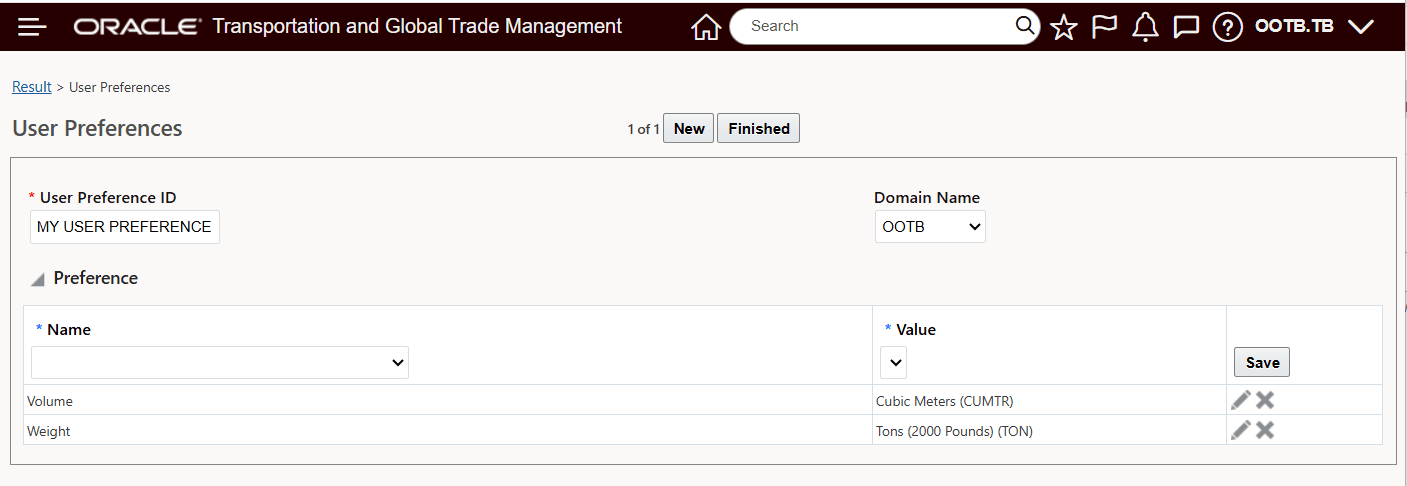
User Preference - Weight and Volume
With the User Preference as shown above, the Enhanced Workbench Order Release table shows the values for Weight and Volume in the User Preference UOM value.
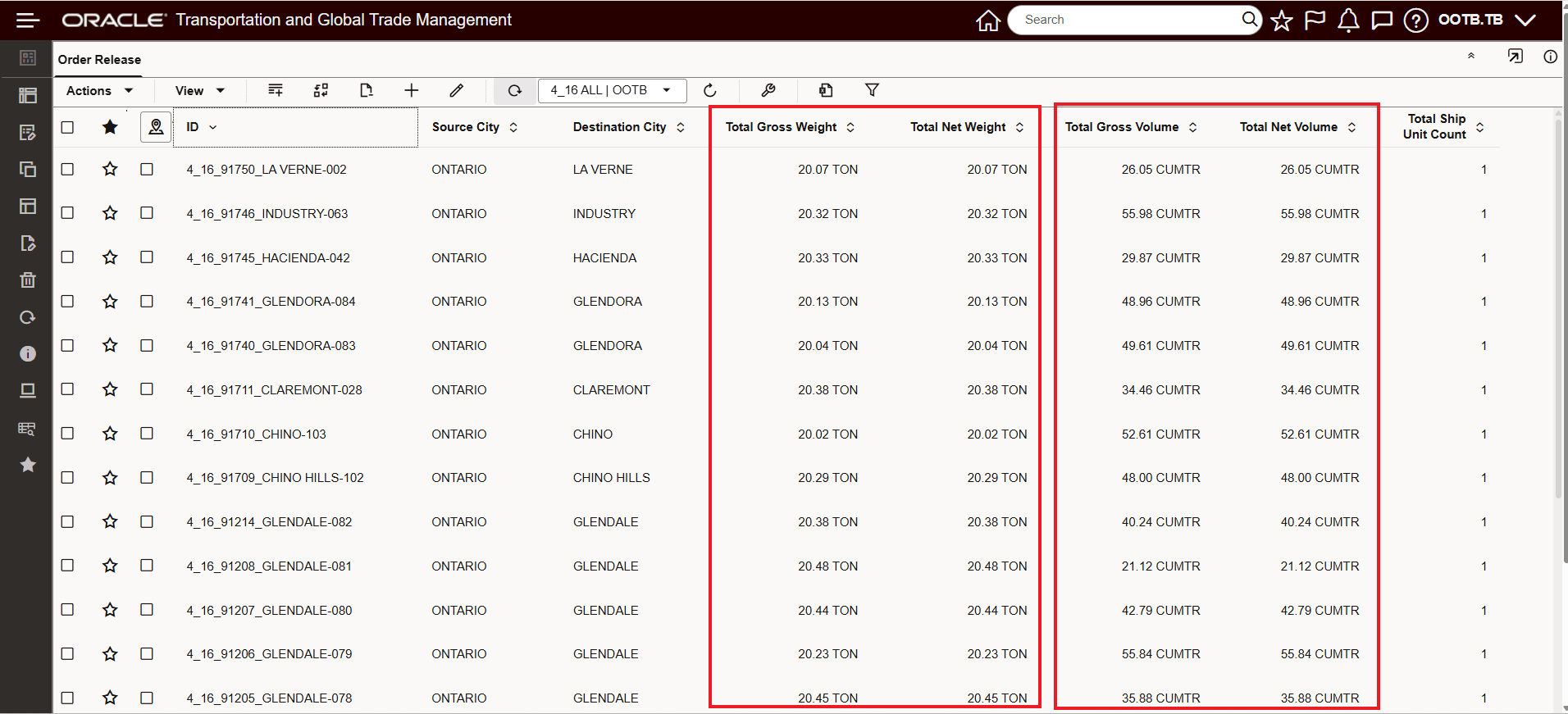
Enhanced Workbench - User Preference UOM View
Changing the Screen Set used above to show Total Net Weight and the Total Net Volume in their As Entered UOM, provides the view below. In this example, the As Entered UOM for Total Net Weight is LB and the As Entered UOM for the Total Net Volume field is CUFT. By contrast, the Total Gross Weight and Total Gross Volume fields are still using the User Preference UOMs of TON and CUMTR.
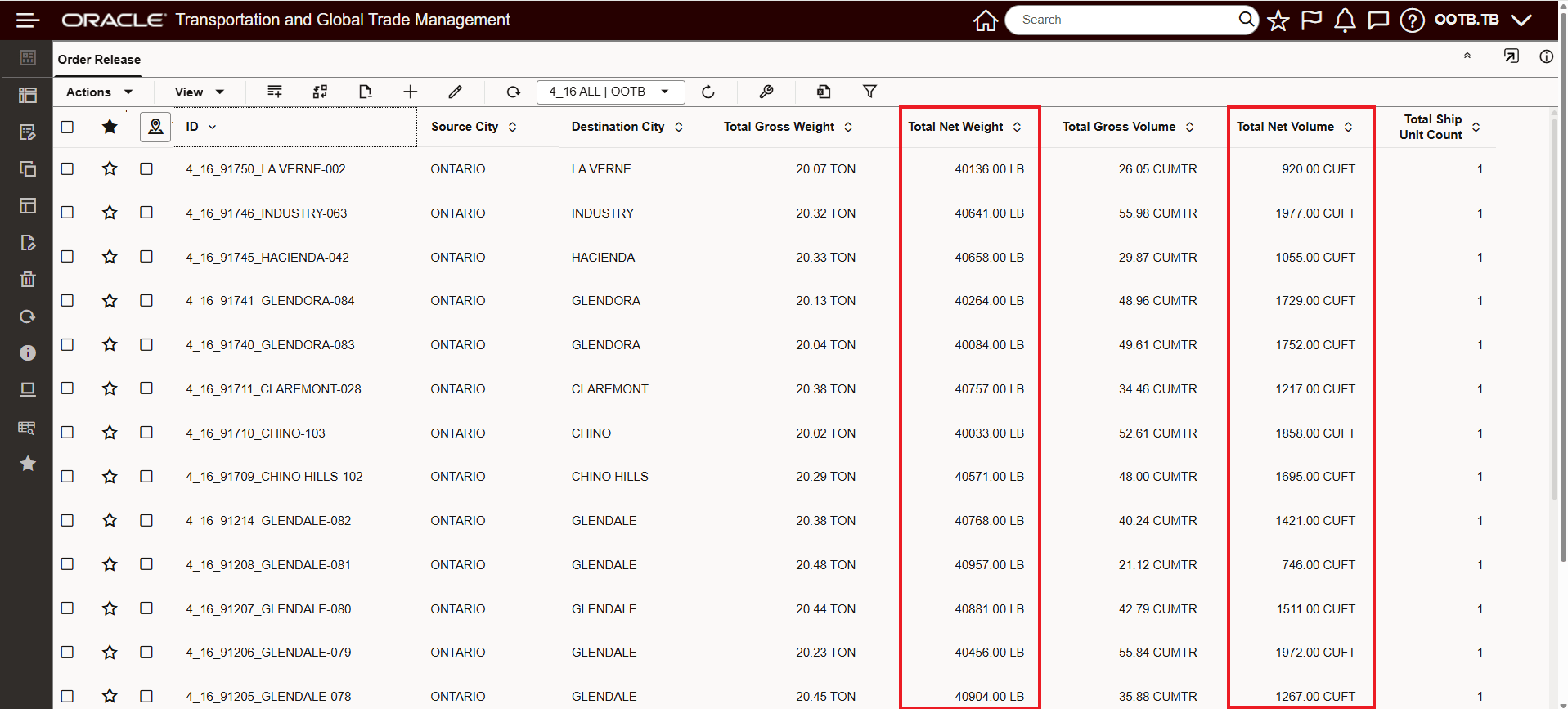
Enhanced Workbench - As Entered UOM View for Total Net Weight and Total Net Volume
Business Benefit: This feature allows you to display the UOM used for entering the value which allows you, for the configured fields, to view these fields in a UOM that is different from the UOM value you may have defined in your User Preference.
Steps to enable and configure
To configure your UOM fields to display As Entered - you will need to navigate to Configuration and Administration > User Configuration > Screen Set Manager. You can create or edit an existing Screen Set record, then go to the Results tab. For the fields you wish to configure to show their As Entered UOM values, select the More button for the desired field(s), and then select the As Entered option. The images below capture the steps.
Edit the desired Screen Set - navigate to the Results tab, then select the More button for the fields you wish to show As Entered. In the example below the Total Net Weight fields is used to demonstrate the steps.
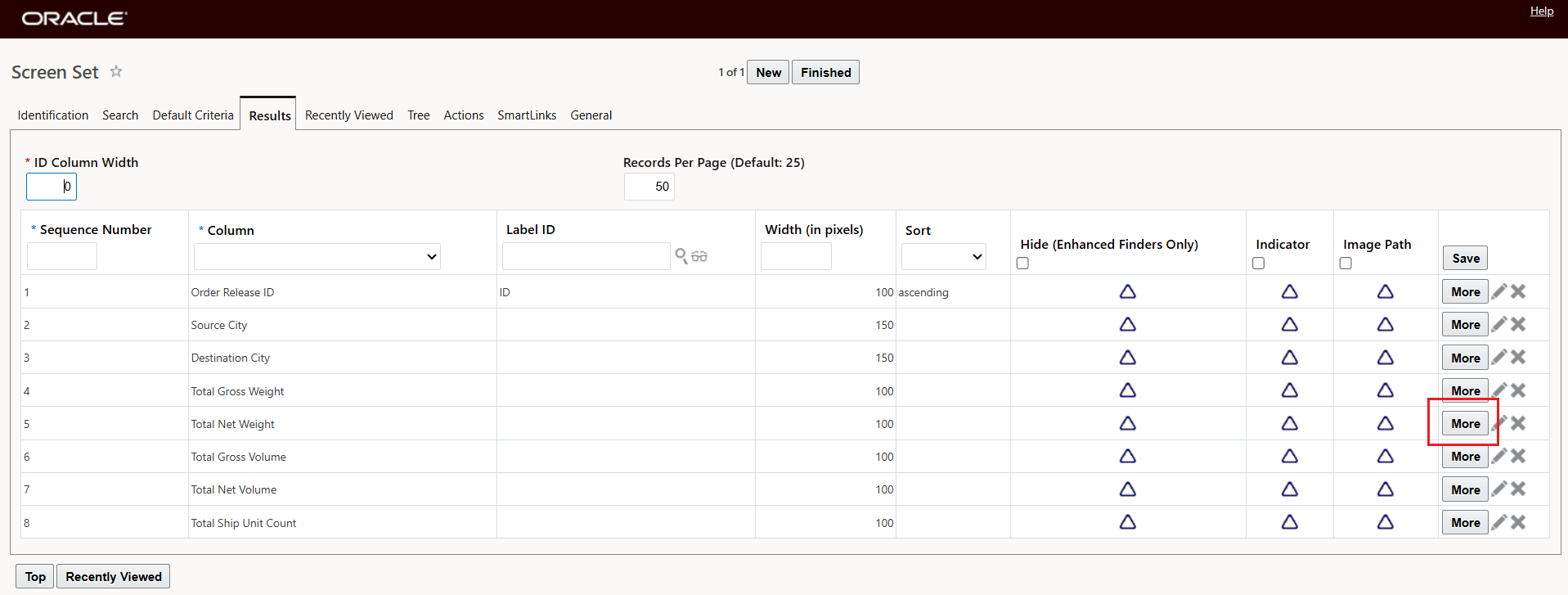
Edit Screen Set - Select Field to Configure for As Entered Display
After selecting More, as shown above, the screen below will be displayed.
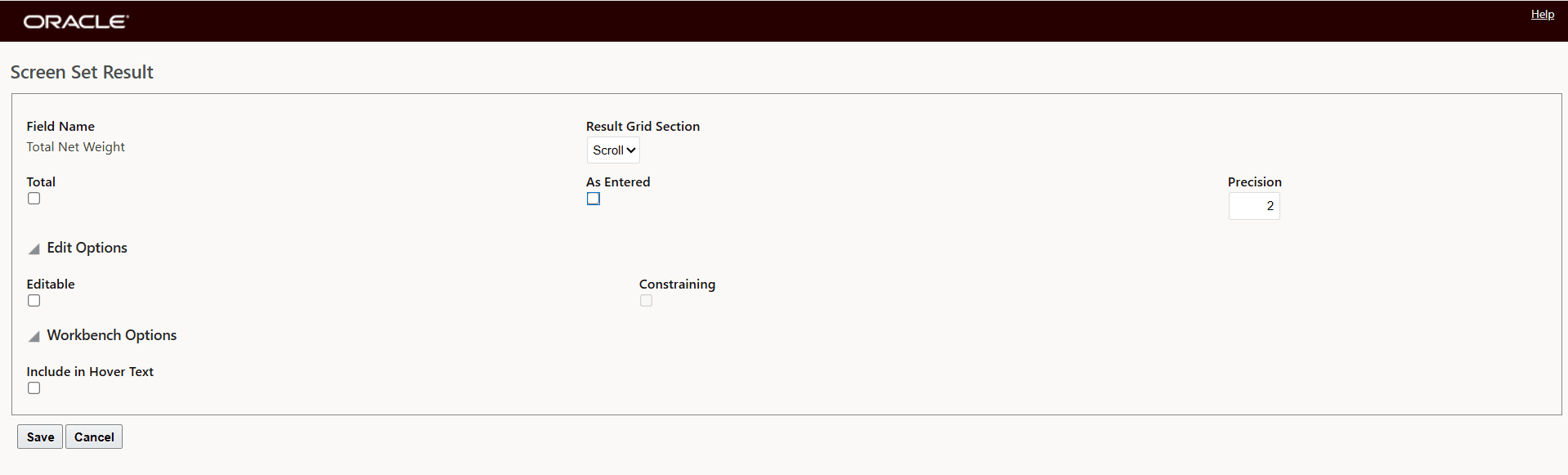
Screen Set Result Field Level More Options
To set the field UOM value to As Entered just select the As Entered check box, as shown below, for the Total Net Weight field. Note that selecting the As Entered option causes the Total option to be grayed out. Configuring either one of the option (Total or As Entered) grays out the other - you cannot have both options (Total and As Entered) selected at the same time.
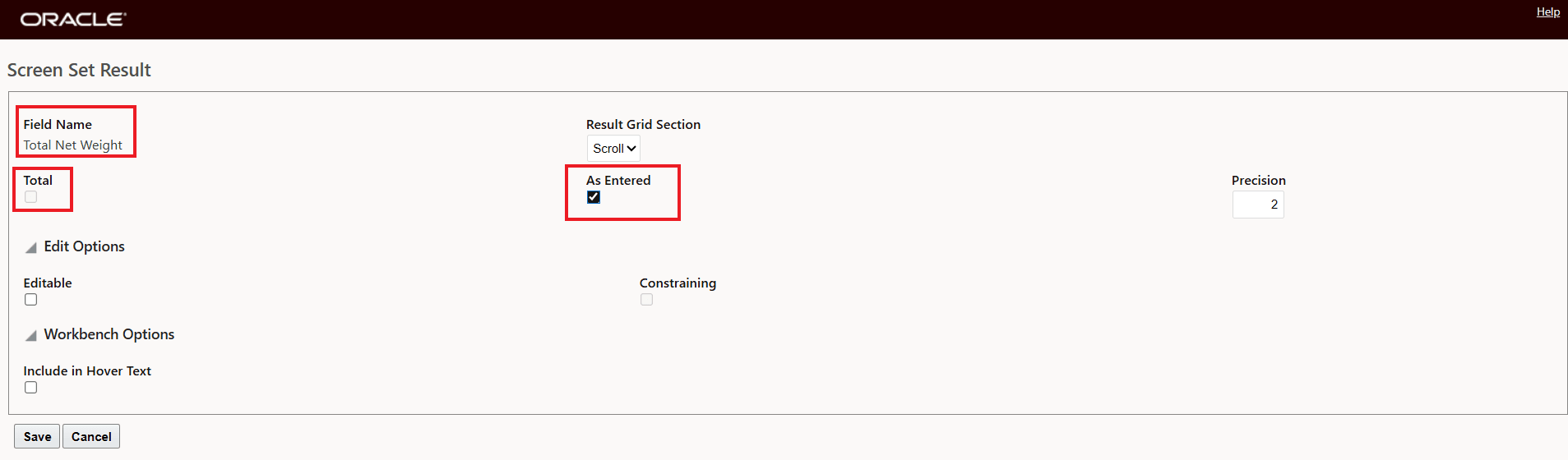
As Entered for Total Net Weight
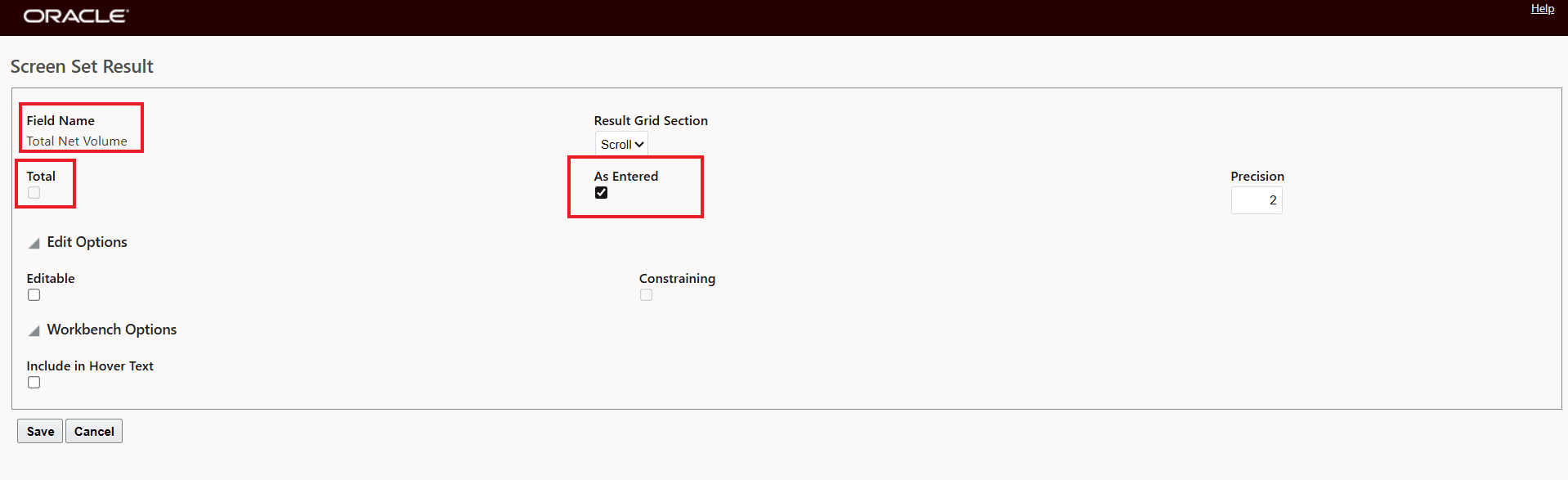
As Entered for Total Net Volume
Tips and considerations
The As Entered option is not compatible with the Total option on the screen set, meaning this is an either-or option - either you opt to provide Totals or you select As Entered, but both options cannot be selected.