 Enhancements to Improved Adhoc Restricted Party Screening UI
This feature enhances the improved ad hoc Restricted Party Screening UI introduced in 26A by adding the following:
- Ability to save entered party data to GTM Party manager
- Usability enhancements
Navigation: Restricted Party Screening > Restricted Party Screening
Save a Party in Party Manager
You can save a party to the GTM Party manager directly from the ad hoc Restricted Party Screening UI by clicking the Save Party button. This action stores the entered information as a party record in GTM. After saving, GTM displays the Party ID of the newly created party.
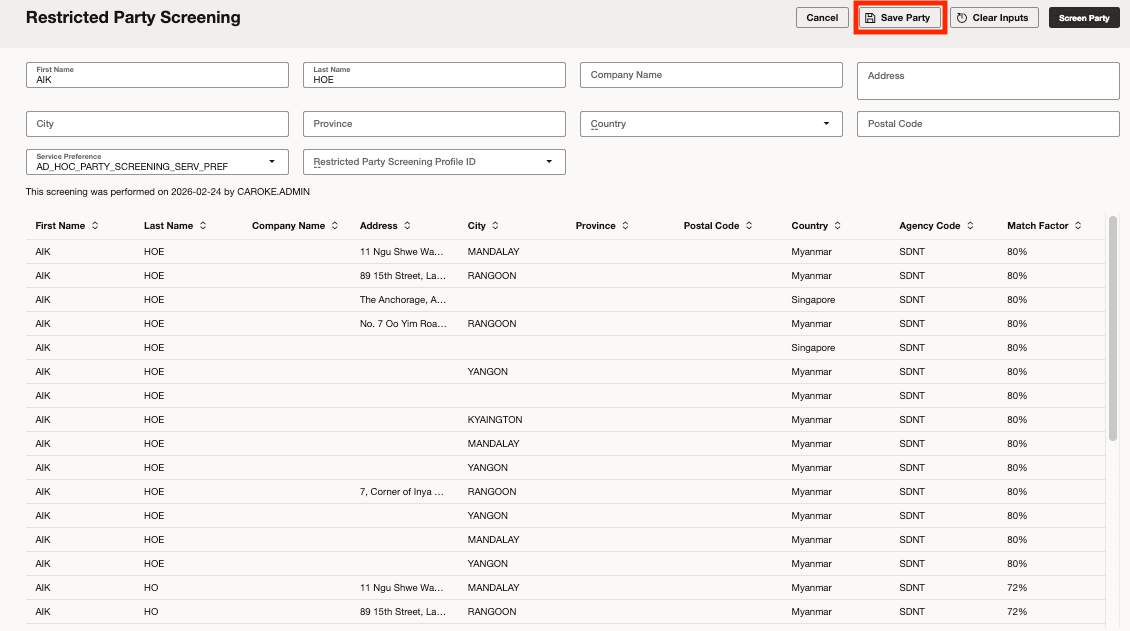
Adhoc Restricted Party Screening - Save Party
Usability Enhancements
Several usability enhancements have been added to the improved ad hoc Restricted Party Screening UI:
- After clicking Screen Party, a progress indicator appears while GTM processes the request. Upon completion, either a list of denied parties is displayed, or a message indicates that no data is available.
- When screening is complete, a message displays the date and the user who performed the screening.
- The GTM property gtm.rpsservice.maxresponse sets the maximum number of denied parties retrieved during screening (default value: 500).
- The Cancel button returns you to the previous screen.
- The Clear Inputs button resets the page and clears all entered data.
Business Benefit: Saves time and reduces errors by letting users save screened party details to GTM Party manager and improving the ad hoc screening UI for faster, more consistent compliance processing.
Steps to enable and configure
To enable saving a party from the ad hoc Restricted Party Screening UI to the GTM Party manager, you must update the user's access control list in the user manager:
- Log in to GTM as DBA.ADMIN.
- Navigate to Configuration and Administration > User Management > User Manager.
- For the user requiring access, add the following two access control records in the Access Control List section:
- Set Access Control to REST - Contact - Update and select Granted.
- Set Access Control to REST - Location - Update and select Granted.
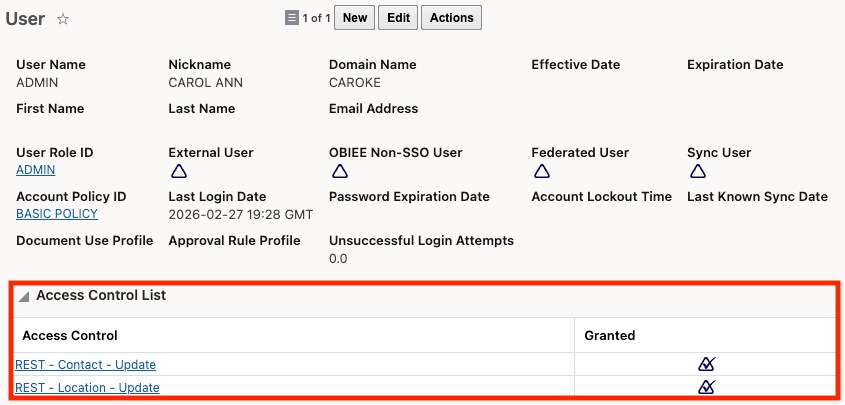
User - Access Control List