Analyze SQL Using AI
This feature provides you with access to an LLM to help you improve the syntax, and performance of the SQL Statements entered for your Automation Agents. In this application, the LLM acts as an expert assistant, providing you with immediate feedback on both the correctness and efficiency of Oracle SQL statements entered.
In the example below, the OTM Assistant will be run against a SQL Statement written for an Automation Agent.
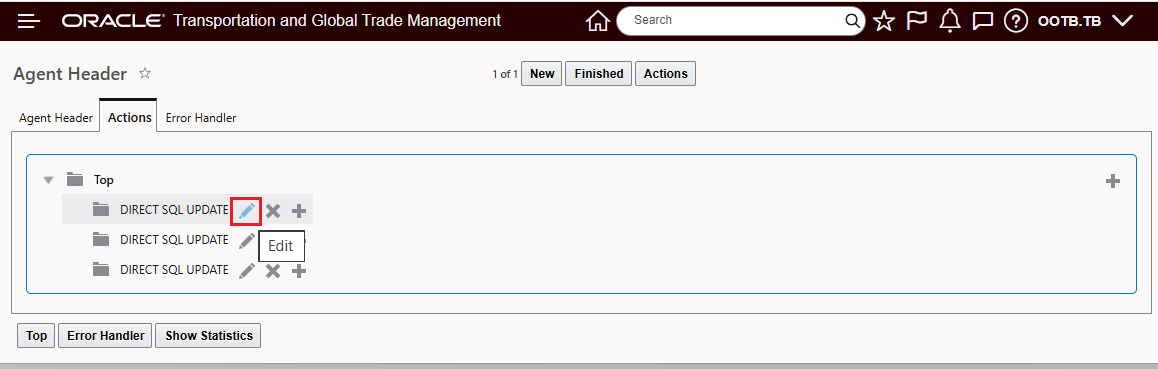
Automation Agent - Edit The Direct SQL
When you enter/edit the Direct SQL for your Automation Agents, you will see Explain Plan option (provided in a previous release) and the OTM Assistant option. The OTM Assistant option is used for the Analyze SQL Generative AI option.
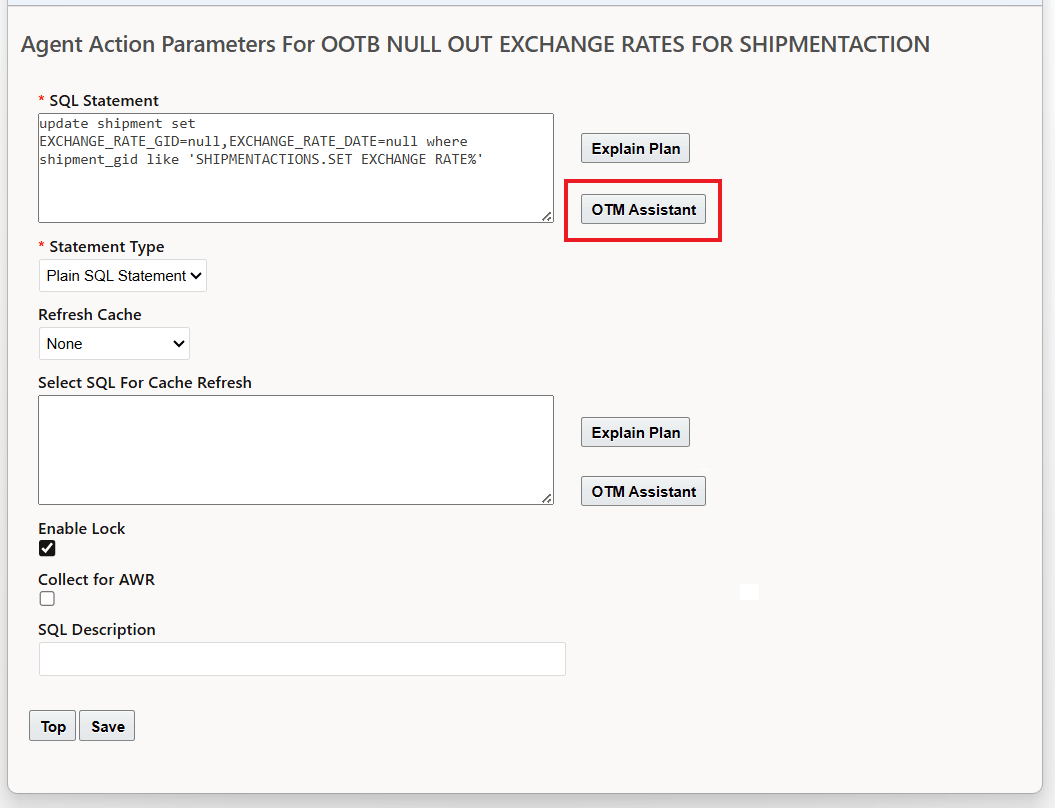
Run the OTM Assistant
When the OTM Assistant is selected, you are provided with a set of possible options to consider for Generating the LLM Summarization.
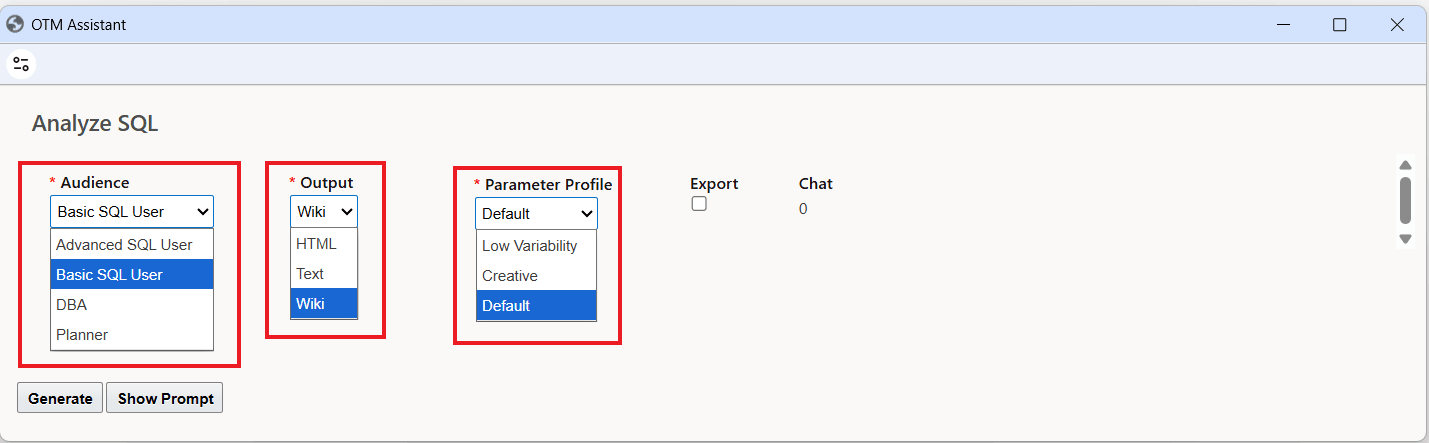
Analyze SQL Options
The Analyze SQL allows you to generate the summary selecting a different Audience (Advanced SQL User, Basic SQL User - the default, DBA, or Planner) - the different Audience values are used in the prompt to guide the LLM's generated output considering the "Audience's" SQL level of knowledge. The Output selection allows you to select different output formats for the generated response. The Parameter Profile allows for some control with regards to the "freedom" the LLM can take with regard to generating the response.
In the example below, the defaults will be used to generate the LLM Summarization.
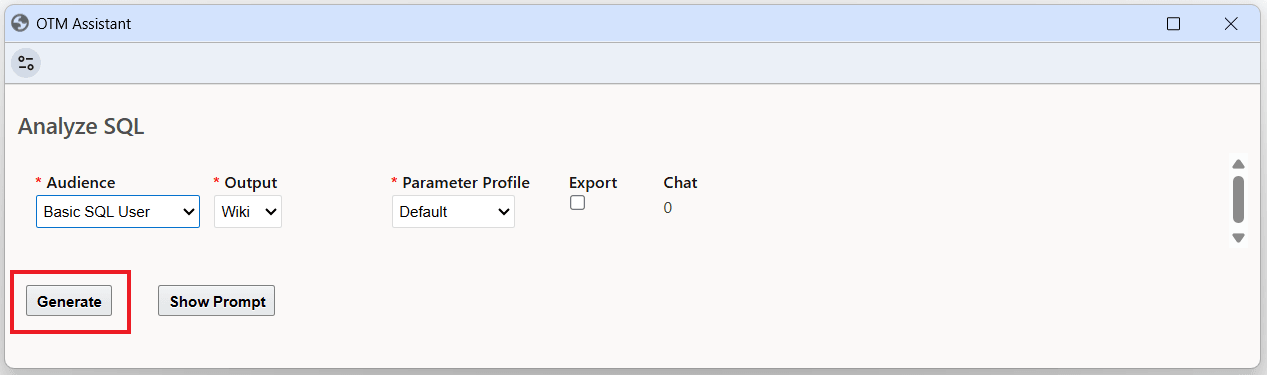
Analyze SQL - Defaults
Using the default values, the Analyze SQL for the SQL Statement above is provided below.
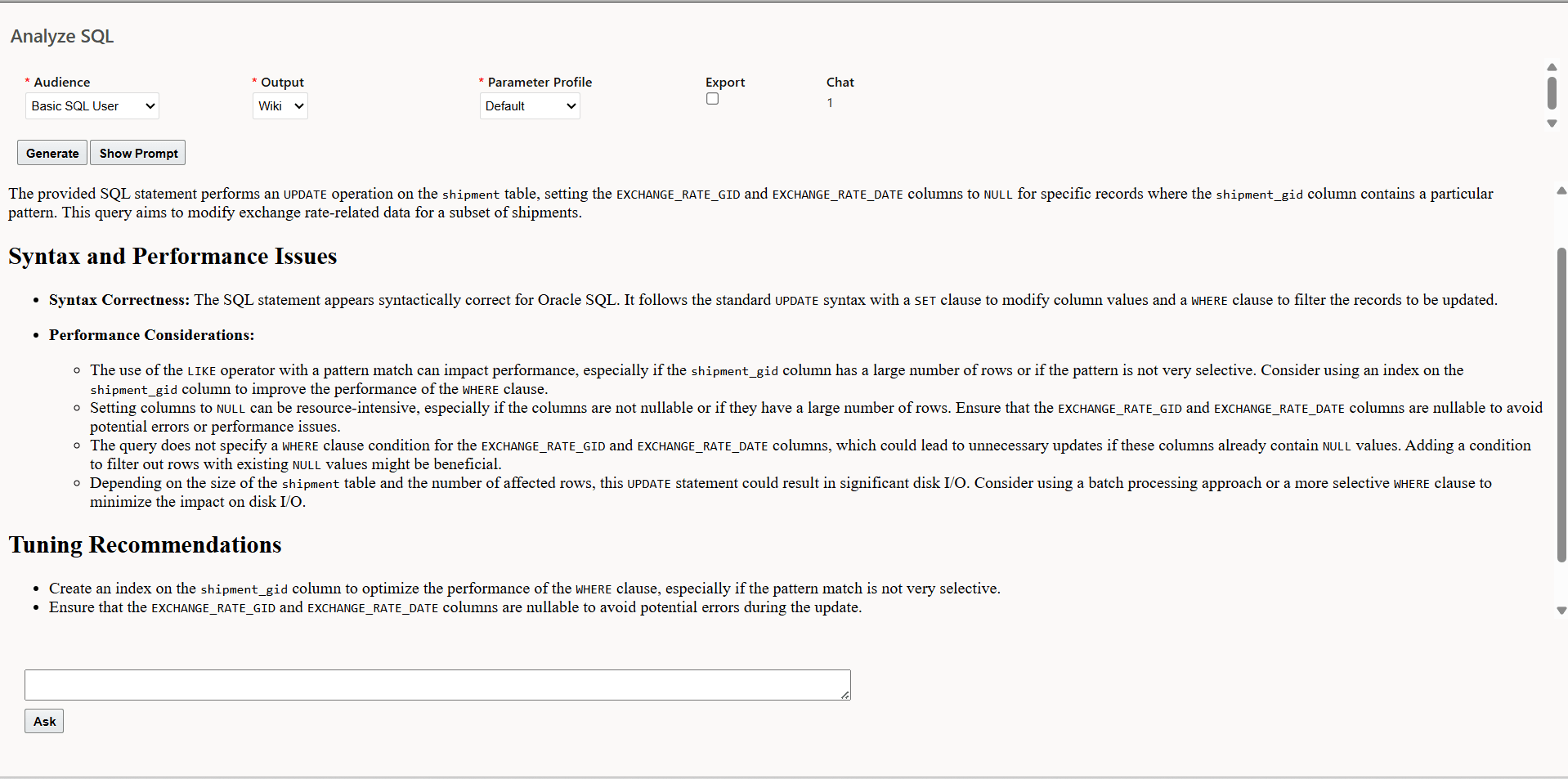
Analyze SQL Example
By comparison - the Analyze SQL for the Planner Audience is provided below.
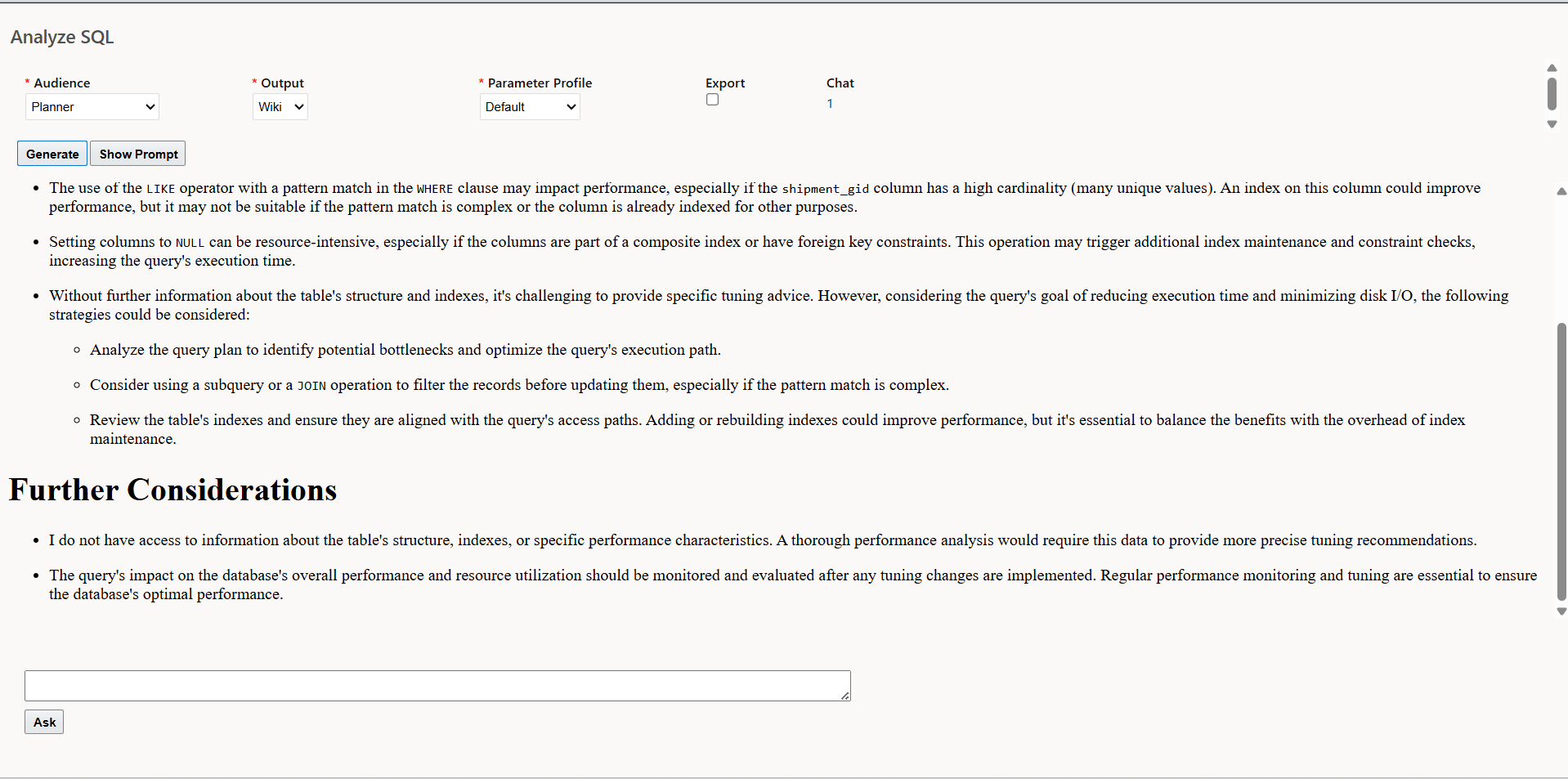
Analyze SQL Audience = Planner
Ask
The Ask options allows you engage in an LLM interactive chat regarding the current Analyze SQL result. You can use the Ask chat feature to interactively ask follow-up questions or request clarifications about the Analyze SQL output.
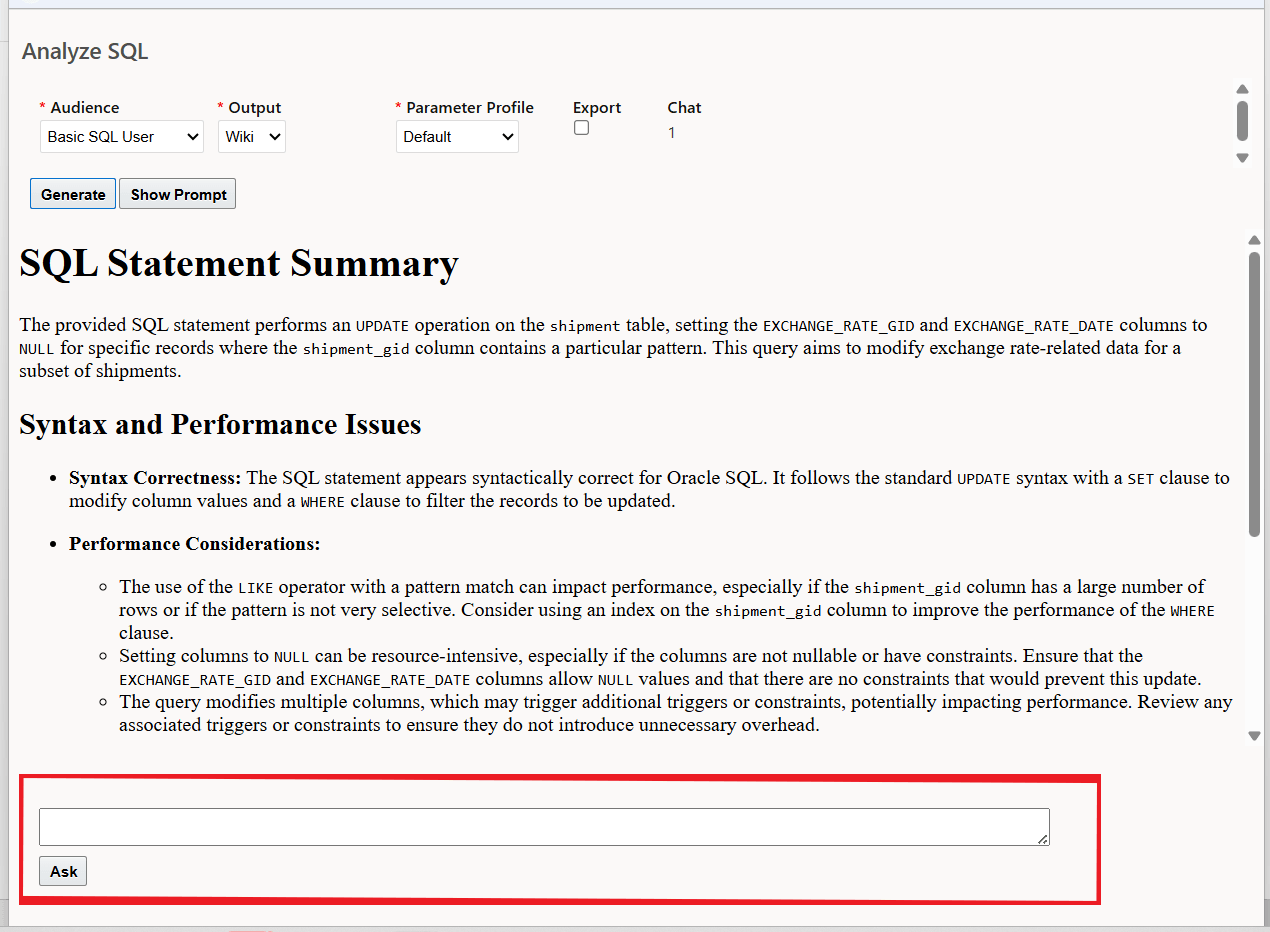
Ask Chat Option
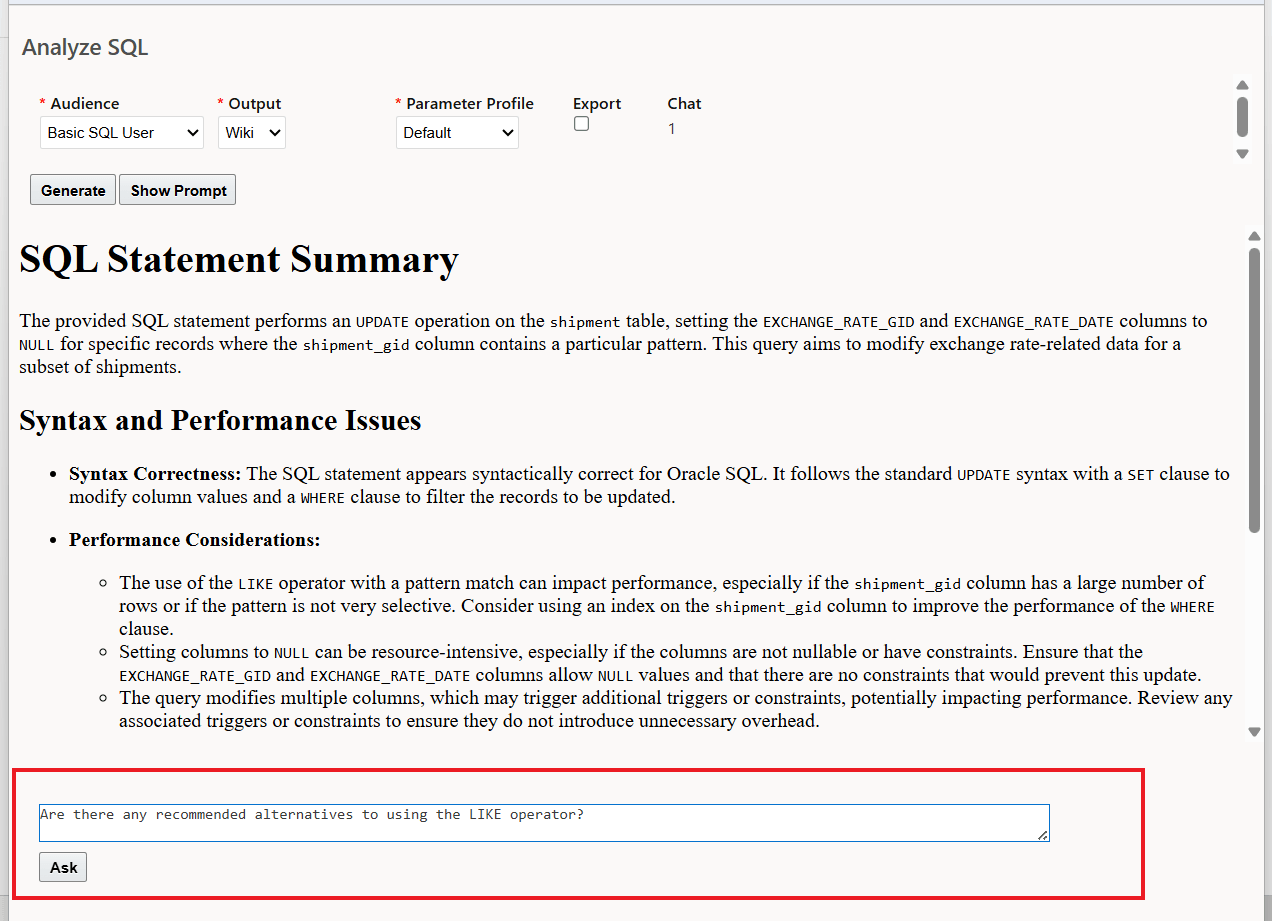
Ask/Chat Example
Shown below is the response from the chat/query raised above.
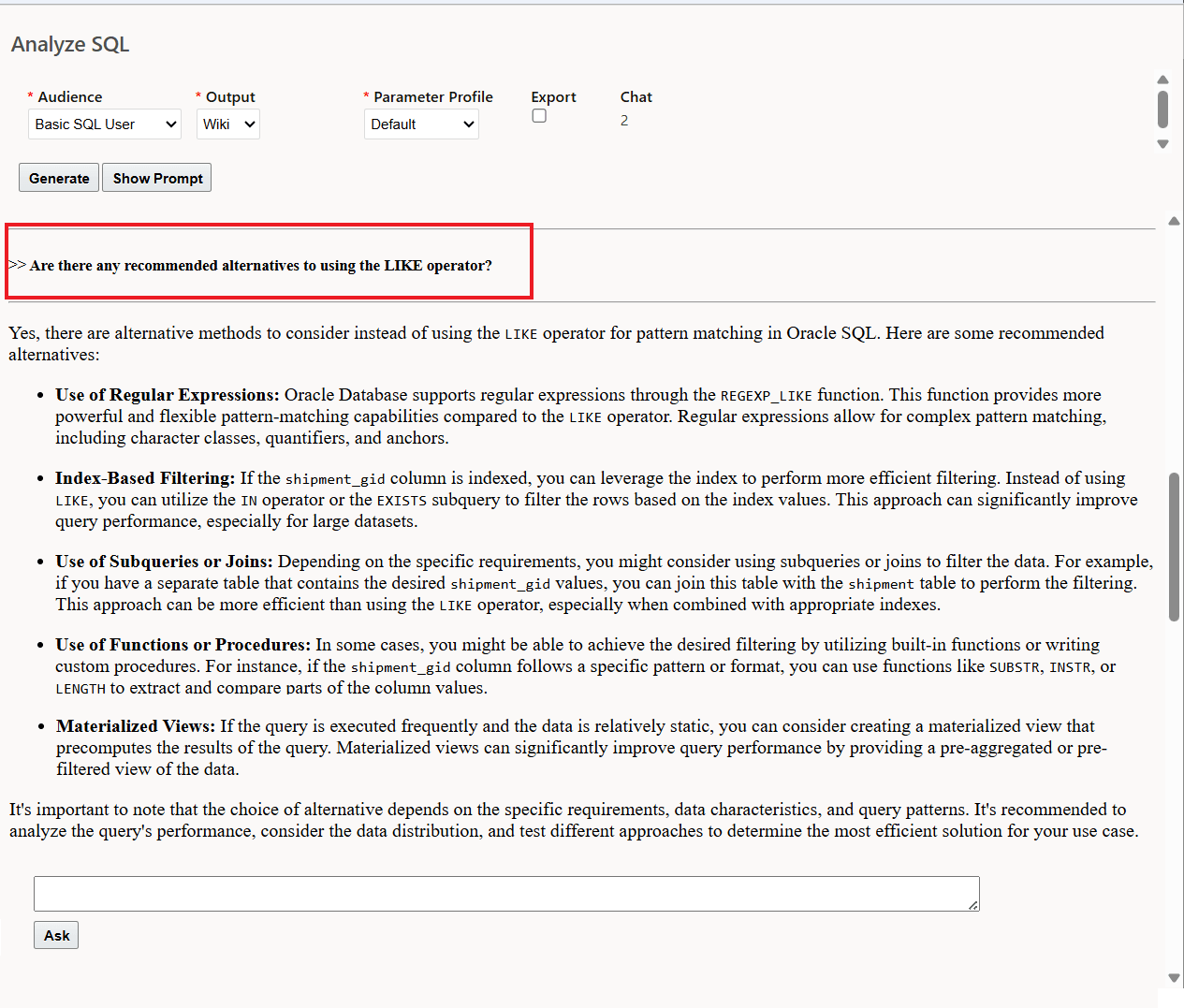
Ask/Chat Response
Ask/Chat Response
Show Prompt
The Show Prompt option provides you with a view into the Prompt used with the LLM.
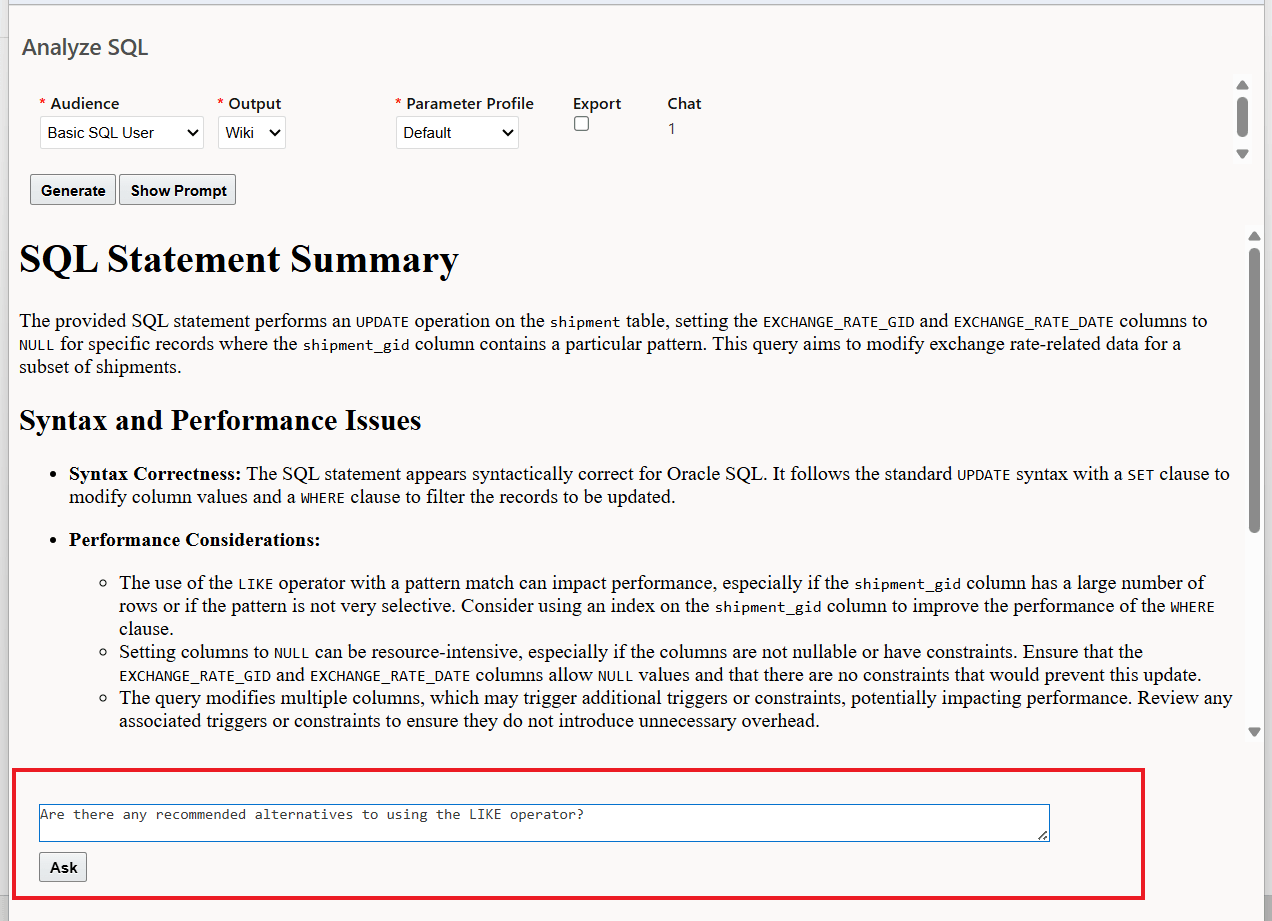
Show Prompt
Business Benefit: This feature provides you with structured and reliable feedback on the correctness of your SQL Statement - helping you to quickly improve the performance and correctness of your SQL.
Steps to enable and configure
To take advantage of the Generative AI features, you will need to set the property glog.genAI.enabled to true, the default is false. This property only needs to be set once to gain access to all the Generative AI features.
- Navigate to Configuration and Administration > Property Management > Property Sets.
NOTE: Only the DBA.ADMIN user can access and use the Property Sets page.
- Set the property glog.genAI.enabled to true
Note: If you are hosted from the Asia Pacific or Middle East regions, you will need to open an SR requesting to have GenAI feature enabled. Once this has been completed then the glog.genAI.enabled property noted above should be set to true.
Tips and considerations
Connection to the large language model for your Analyze SQL use case usage is handled automatically as part of your upgrade or provisioning.
Note - the large language model (LLM) used for the Analyze SQL use case is Cohere. Cohere's large language model (LLM) is an enterprise-focused, secure, and private AI, distinguishing itself from consumer-focused competitors by prioritizing data privacy, customizability, and specialized retrieval-augmented generation (RAG). Cohere focuses on integrating its models directly into existing business workflows, enterprise applications and highly regulated industries like finance, healthcare, and government.