 Display Appointment Options - Current Time Forward
This feature provides a new property that will, in situations where stop arrival times are in the past, limit the displayed appointment options to the current time versus displaying appointment options in the past based on the stop arrival time. This feature will prevent displaying appointment slot time options that are no longer realistic.
In the example below, the estimated stop arrival time for the stop that needs to be scheduled for an appointment is on the 20th of February, however, the Schedule Appointment action is being run on the 24th of February (current) time. With the proper the property glog.appointment.schedule.useCurrentTime set to the default value of false, when the Schedule Appointment action is run, the appointment options provided are starting with the stop arrival time on February 20th, 4 days in the past.
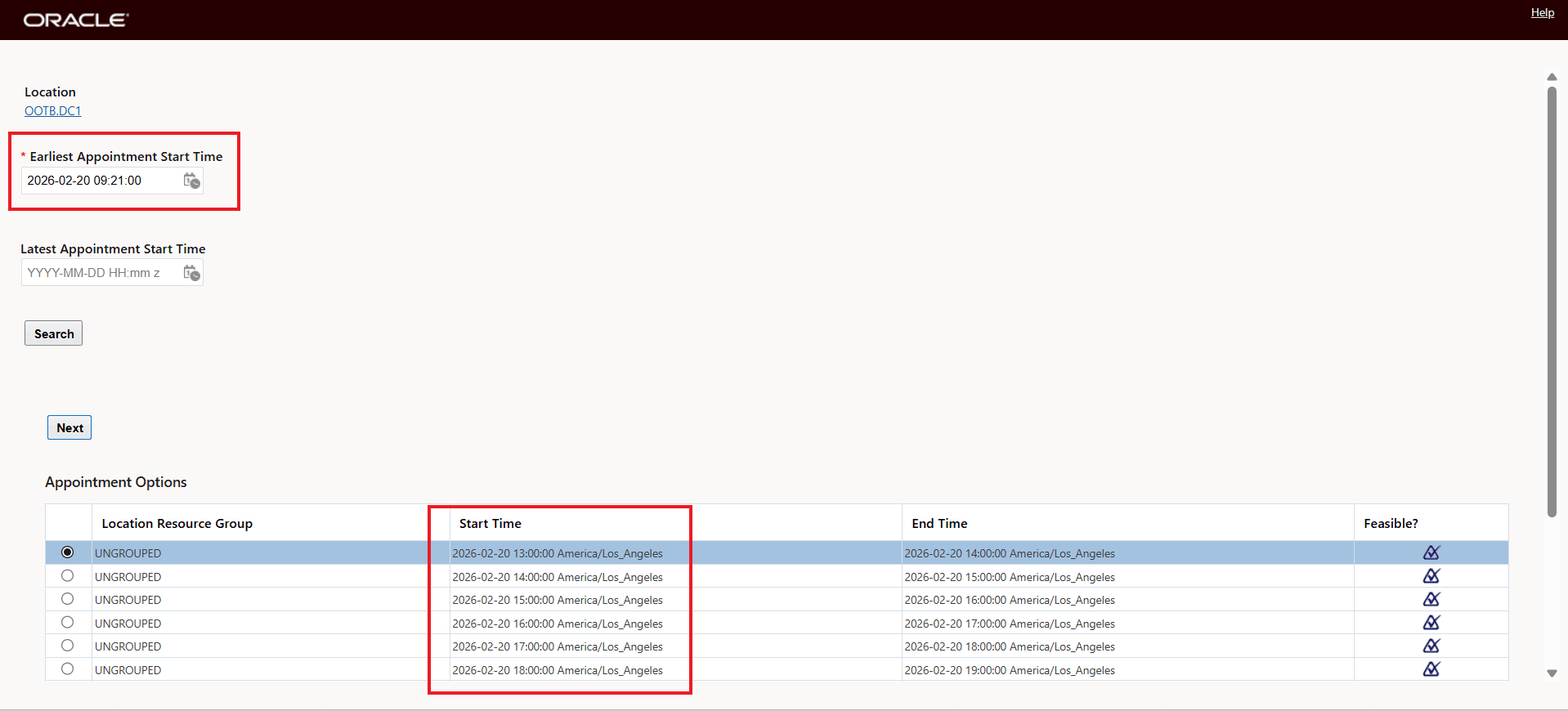
Property Set to Default - False - Appointment Options in the Past
Running the Schedule Appointment action against the same stop, but with the glog.appointment.schedule.useCurrentTime set to true, the appointment options are now starting from the current time on February 24th.
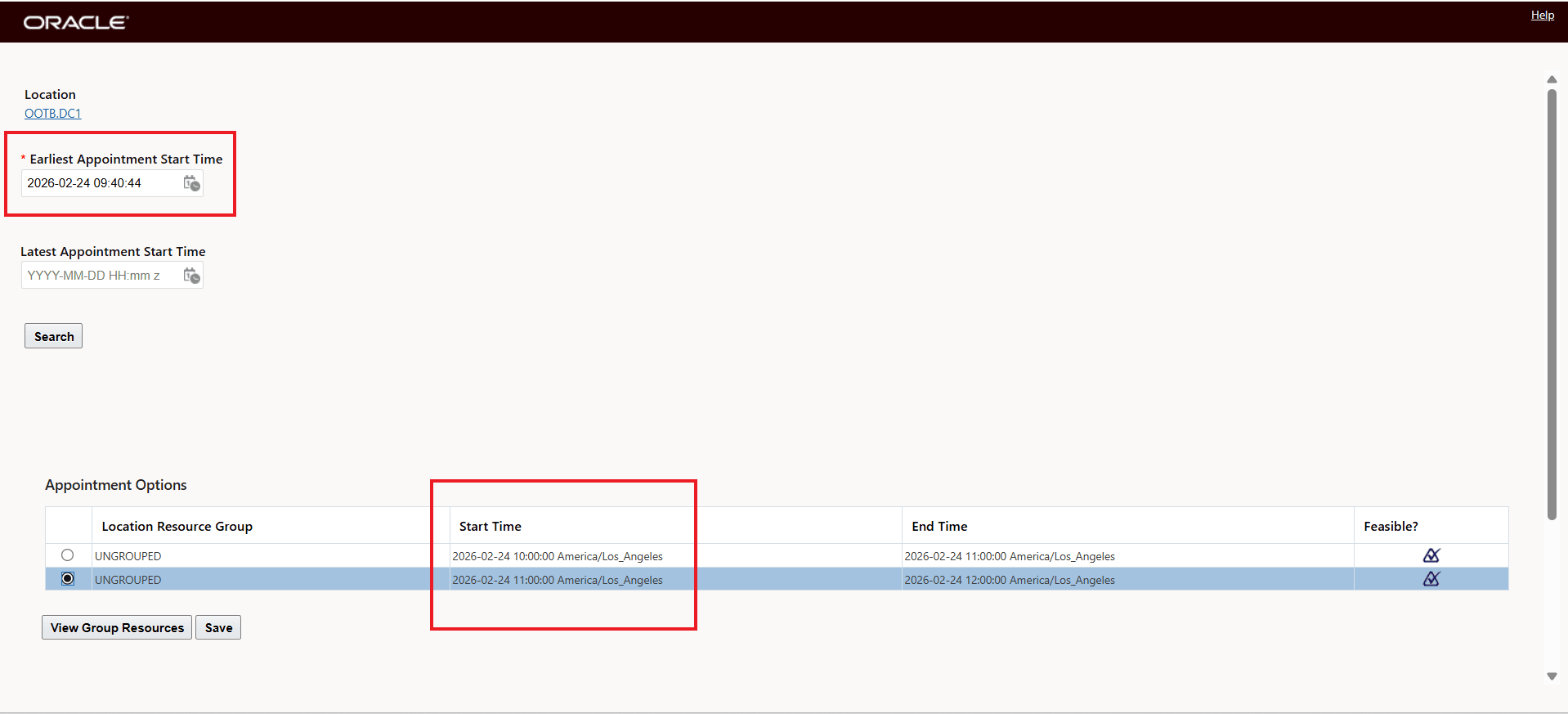
Property Set to True - Appointment Options Current Time Forward
The selected and assigned Appointment - on February 26th at 11:00 am - is shown below.
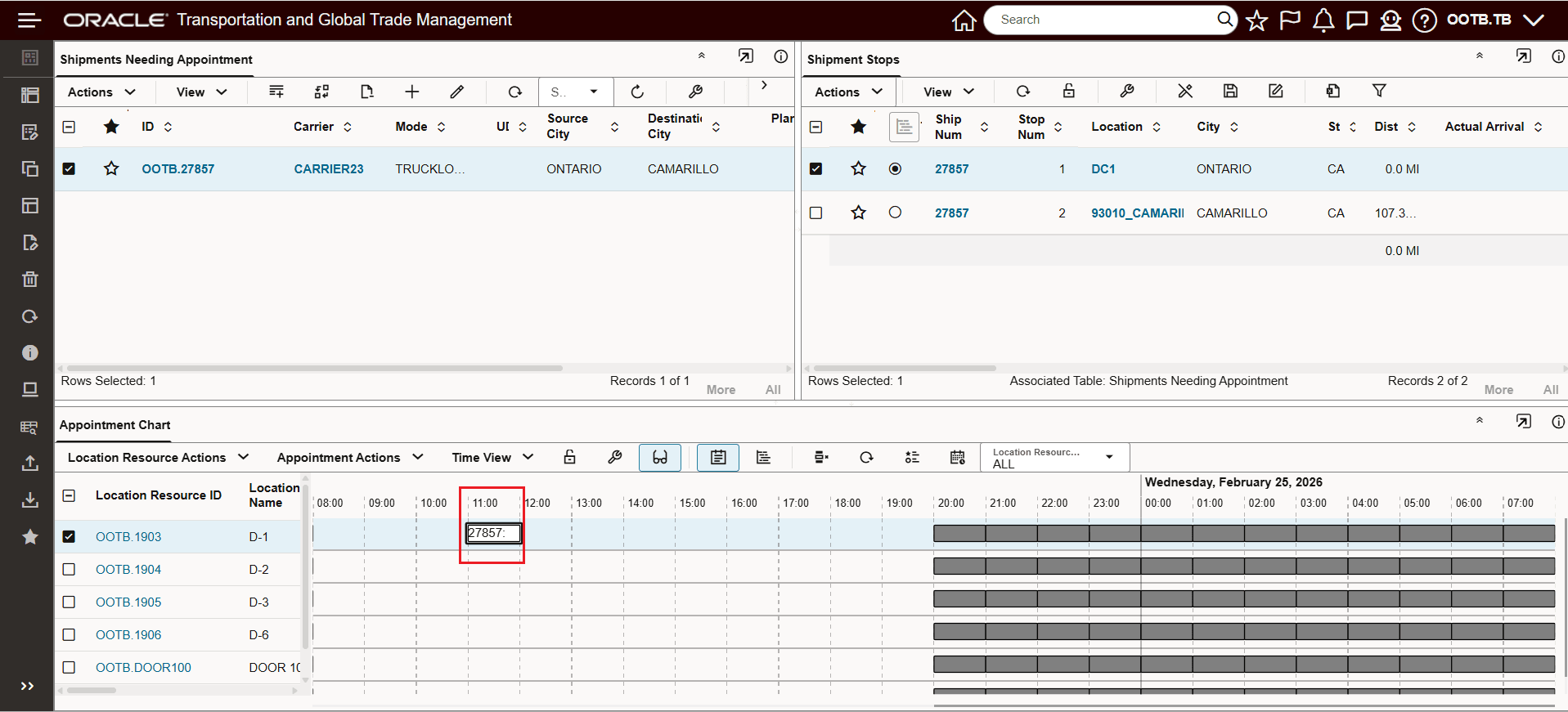
Current Time Appointment Slot Assigned
Business Benefits: This enhancement helps you and your service providers schedule appointments considering only current and future slot appointment times.
Steps to enable and configure
To enable this feature - set the property glog.appointment.schedule.useCurrentTime to true. When set to true, OTM uses the location's current local time for displaying and scheduling appointments if the shipment arrival time is in the past. The default is false - which keeps the previous behavior.
This property does not apply if 'Schedule Infeasible Appointments' is enabled for the location. This property affects the following actions: Schedule Appointment, Schedule Partial Stop Appointment, Schedule Appointment - Show Options, and drag and drop actions. It does not apply to Adjust Appointment Time.
Tips and considerations
- This property affects the following actions: Schedule Appointment, Schedule Partial Stop Appointment, Schedule Appointment - Show Options, and drag and drop actions. It does not apply to Adjust Appointment Time.
- The new behavior applies only when shipment estimated arrival time is in the past. If the estimated arrival time is in the future, the system continues to use that future time as it does today.
- If you manually select a past date/time on the Appointment Options page, the system will stop and display the message below:
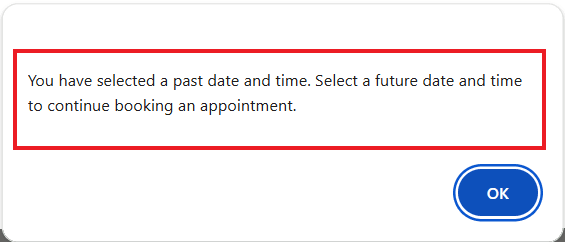
Error Message Manually Selecting Past Date/Time
- If the location setting “Schedule Infeasible Appointments” is checked, the new property is not applied and the existing behavior is preserved
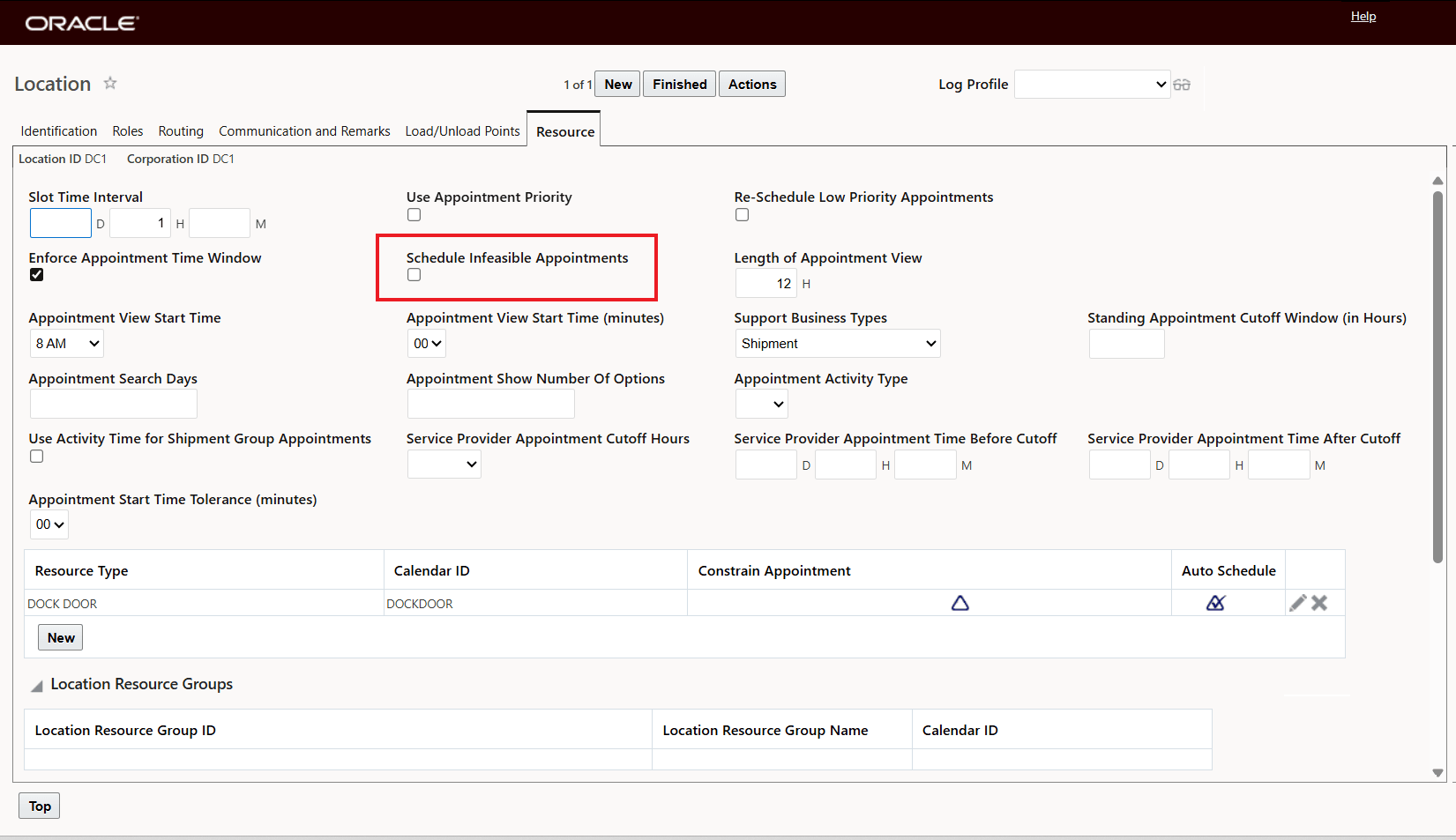
Location Schedule Infeasible Appointment Must Be Unchecked