Cancel Carton Action to Support Cancelling Packed OBLPNs in Bulk
Today, WMS allows you to multi-select a OBLPN (Outbound Created status) and cancel in bulk from OBLPN UI. Also, users could also cancel a packed OBLPN from the Redwood mobile through a one scan, slowing the outbound process.
In 26B, we’ve enhanced the system to bulk cancel OBLPN (Picked and Packed) from the OBLPN UI.
SUPPORT BULK CANCEL PACKED OBLPNS
In 26B, we’ve extended Cancel Cartons action button to perform bulk cancel Picked and Packed OBLPNs from the OBLPN UI.
- This button is enabled only for Outbound Created, Picked, and Packed statuses and is disable it for all other statuses.
- On selecting one or more Packed OBLPN, a new Cancel Cartons confirmation pop-up is displayed with following optional fields:
- Reason Code: Lists all the active Reason codes valid for the logged in user Group and captures the reason codes for cancelling Packed OBLPNs. This dropdown adopts the reason code authorization logic.
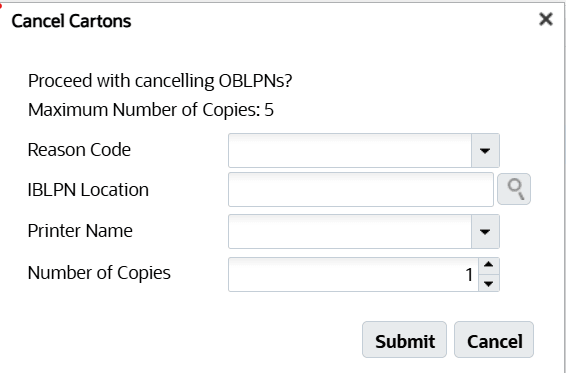
Cancel Bulk OBLPN
- IBLPN Location: You can choose a location (active, reserve, drop) to locate the IBLPNs generated post cancelling OBLPNs.
- Printer Name: Lists printer name to print LPN labels after receipt.
NOTE: If the IBLPN location is blank and you proceed to cancel the OBLPN, the system will only cancel and create IBLPN, and does not locate OBLPN to a location In such cases, LPN will be in received status and are required to manually putaway the LPN. Similarly, if the Printer field is blank, the IBLPNs will be created without generating any LPN labels.
- On confirmation, the system creates one IBLPN per cancelled OBLPN for reusing the respective OBLPN numbers.
For example, if OBLPN01 and OBLPN02 were cancelled, the system creates two IBLPNs as OBLPN01 and OBLPN02.
- If the system finds a duplicate IBLPN number while generating IBLPNs by reusing OBLPNs, the entire cancellation process is stopped, and the system displays an error message: “Cancellation aborted. Duplicate IBLPN detected while reusing OBLPNs. Conflicting IBLPN: {%IBLPN_NUMBER}”
IMPORTANT KEY POINTS:
- If one or more Packed OBLPNs are cancelled, the order status is calculated appropriately and corresponding inventory history is written.
- If OBLPNs are assigned to a load, the corresponding OBLPN is unassigned from the OB LOAD.
- If OBLPNs are assigned to a manifest, the corresponding OBLPN is de-manifested from the manifest.
- If an order is fully packed, cancelling the corresponding OBLPNs will cancel the order, if the 'Only Deallocate on short' flag on the order type is unchecked.
GENERATE CONTAINERS FOR THE CANCELLED OBLPN INVENTORIES
As we enhance cancelling the Picked and Packed OBLPN via UI and Redwood, the system allows reuse of OBLPN nums as IBLPN and the source OBLPN is captured in the respective inventory history records as ref values.
IHT Updates
To capture the source OBLPN names in the Create Container IHTs for reference, a new REF code OLN is introduced on the REF CODE 10 for both IHT-29 - Create Allocatable Container and IHT-30 - Create Unallocable Container.
NOTE: The Cancelled packed OBLPN number is captured from both Cancel Carton Action and the MOD CANCEL OBLPN UI and Mobile transactions.
We’ve extended this capability of displaying the OBLPN numbers in the IB Container View UI and Redwood by adding a new column “Reference OBLPN Nbr”. This column is populated when a packed OBLPN is cancelled from RF MOD/CANCEL OBLPN, Cancel OBLPN and Bulk cancel OBLPN API, or OBLPN UI Cancel Action transaction.
The column is also exposed in the IBLPN Label Designer, so that the corresponding OBLPN number can be added while printing an IBLPN number.
API SUPPORT FOR CANCELLING THE OBLPN | ALLOW PROVIDING IBLPN LOCATION
Currently, you can modify or cancel picked and packed OBLPNs from the cancel /bulk cancel OBLPN API transactions but restrains from capturing the IBLPN location and thereby the received IBLPNs remains in Received status.
Now, you can bulk cancel OBLPNs in 'Picked’ and Packed' status from the existing API and pass an IBLPN location in the Cancel OBLPN and Bulk Cancel OBLPN API payloads via two new parameter “reuse_oblpn_nbr" and "iblpn_location".
- Cancel OBLPN URL:
POST .../entity/oblpn/cancel
- Bulk Cancel OBLPN URL:
POST .../entity/oblpn/bulk_cancel
NOTE: Ensure, the "reuse_oblpn_nbr" is set to true, when an OBLPN is cancelled. Otherwise, the system does not auto generate a new IBLPN number and uses the OBLPN number to generate an IBLPN instead, by deafult.
For more information, please refer to WMS REST API Guide.
Steps to enable and configure
- Go to IB container View
- Select one or more order in Outbound Created, Picked or Packed status.
- Click the Cancel Cartons action button. If the selected records have Packed status, the system displays a confirmation pop-up message with optional fields.
- Click Submit.