 Multi-Day Calendar Overrides
The Multi-Day Calendar Override feature allows you to define both a start date and time and an end date and time for your calendar override entries. With the addition of the end date, you can now apply closures or schedule exceptions across a continuous date range without needing to create multiple records.
With this feature, you can block an entire continuous time period (for example, closure across several days), or you can apply a recurring daily time window where you need to model reduced operating hours for across multiple days within a date range. This added flexibility allows you easily model real-world scenarios like seasonal shutdowns, holiday hours, or temporary service adjustments.
This functionality is available within the calendar override action screen and applies across operational areas such as dock scheduling, driver calendars, and work assignments.
The Calendar Override Action input screen is shown below. The additions for this release include the End Date and the User Calendar Hours checkbox. The Use Calendar Hours checkbox allows you either have the entered override apply to the Start Date to the End Date date range - this is the unchecked option or, if you select Use Calendar Hours option the override will apply both the specific Start TIme and End Time time window to the Start Date and End Date date range.
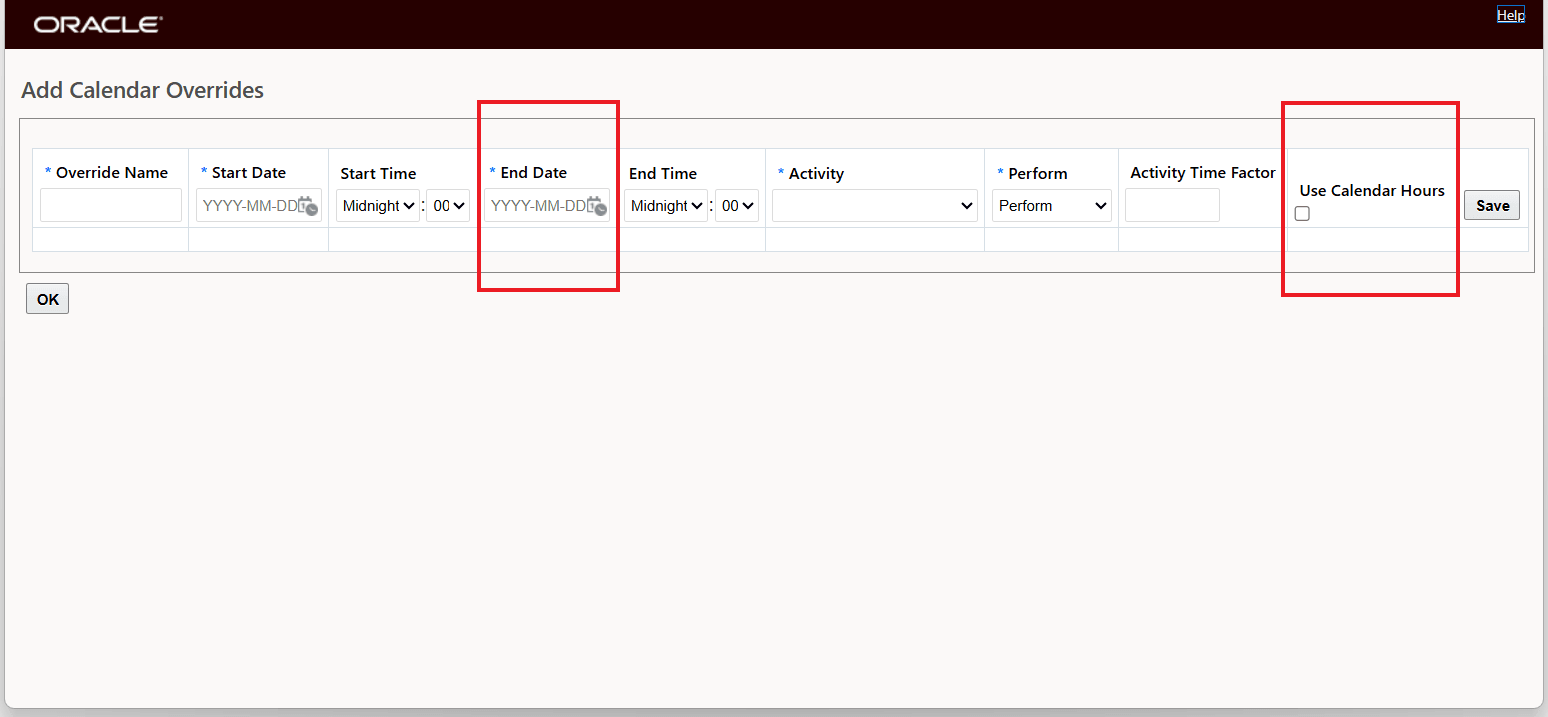
Add Calendar Overrides UI
In the example below, the calendar override covers the date range from April 1st to April 6th - in this case the activities of Load and Receive will be set To Do Not Performed during this date range.
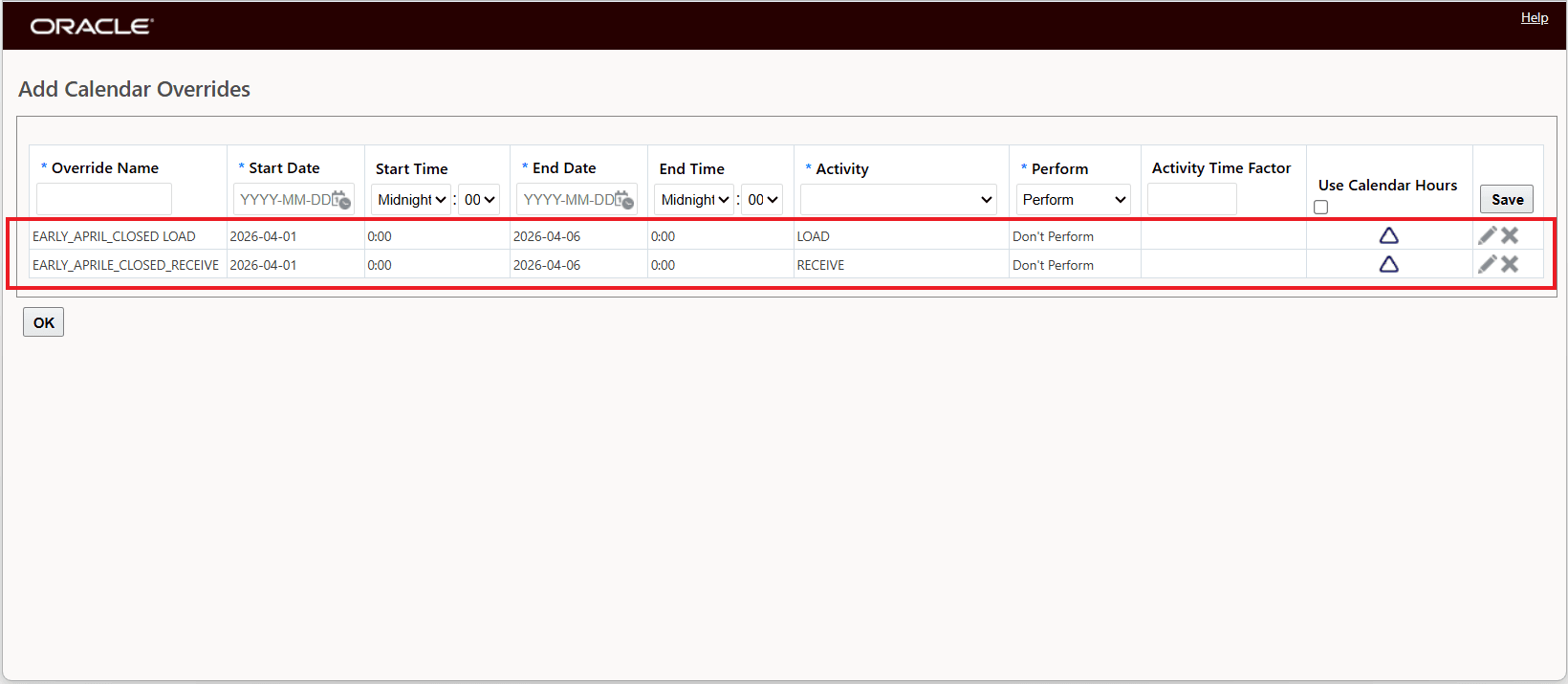
Enter Override Details April 1st to April 6th - Load and Receive - Don't Perform
When you select OK, the applications provides a warning that the entry you are making is covering multiple days - which will result in the generation of multiple override records.
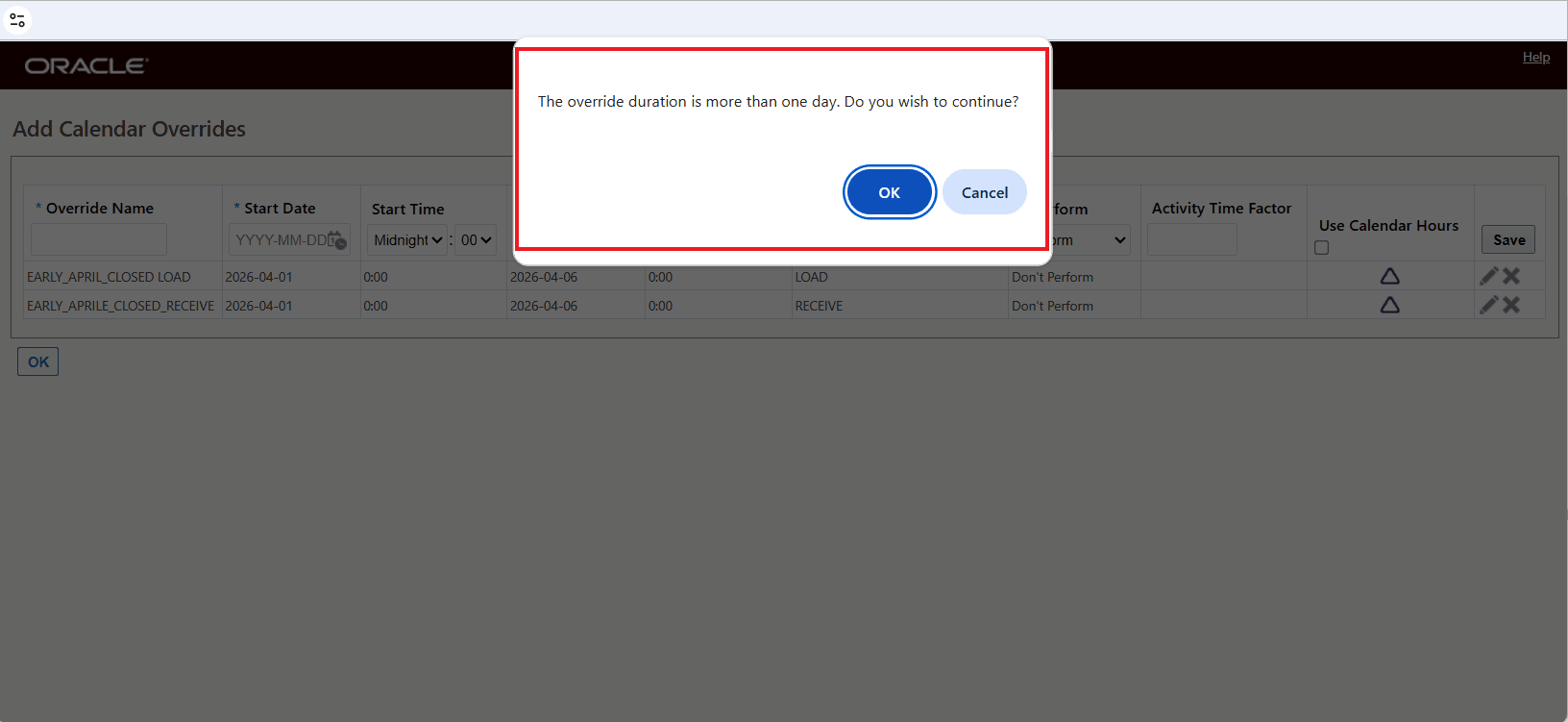
Multi-day Override Duration Warning Message
When the action is completed, the following Override Records will be created for the activities and date range entered.
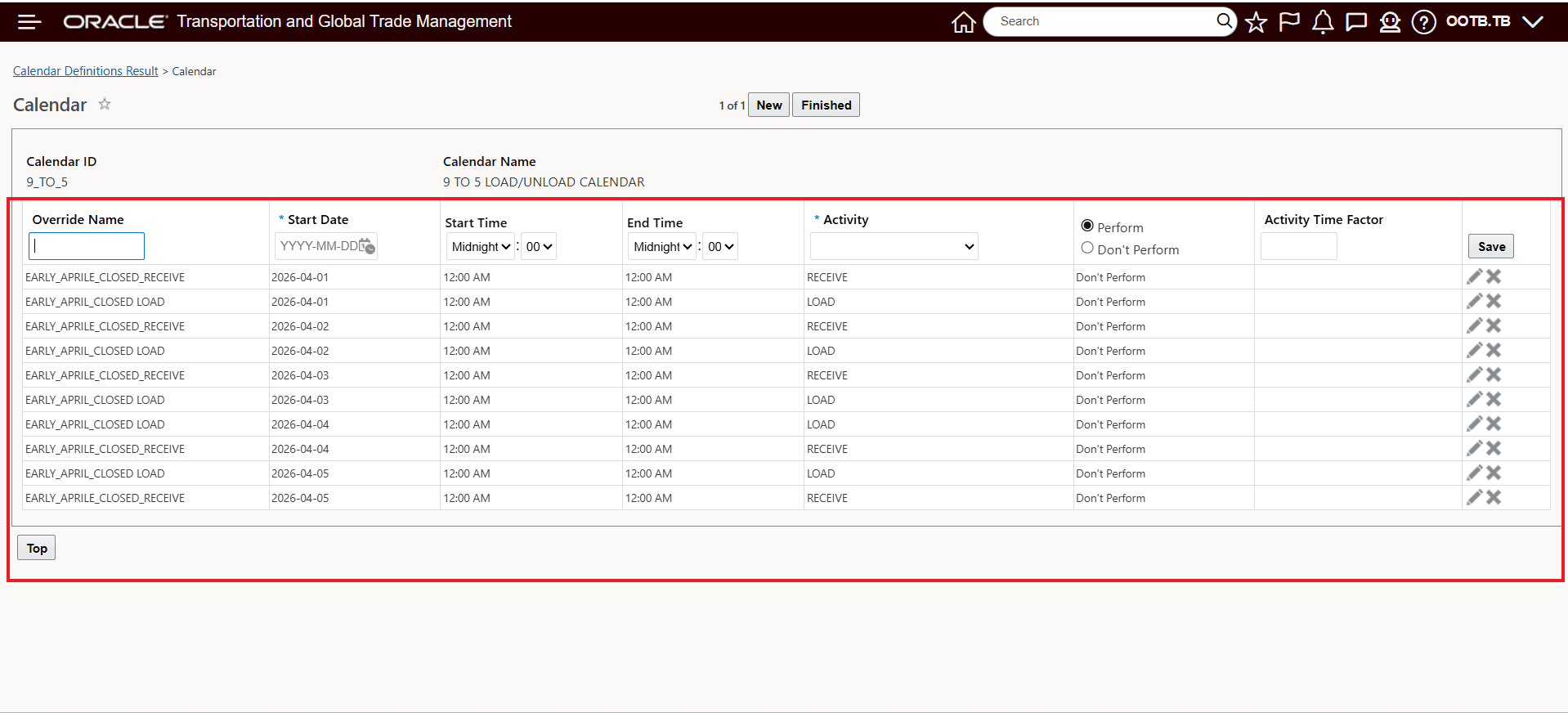
Created Override Records - Multi-Day Duration
In the example below, the same date range will be used, but in this case the override will only apply to a portion of the day, so the Use Calendar Hours options is selected.
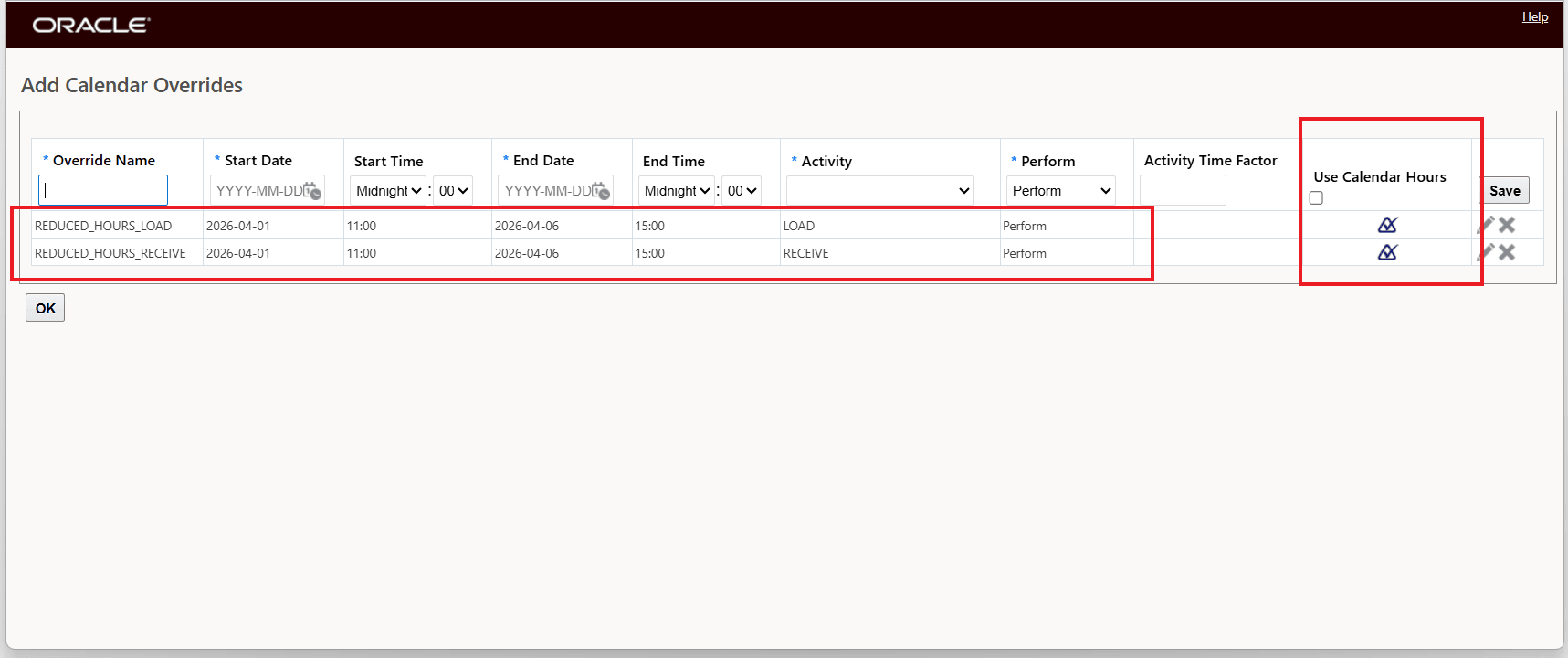
Enter Override Details April 1st to April 6th - Load and Receive Perform - Use Calendar Hours Option
.When the action is completed, the following Override Records will be created for the activities date range and times entered.
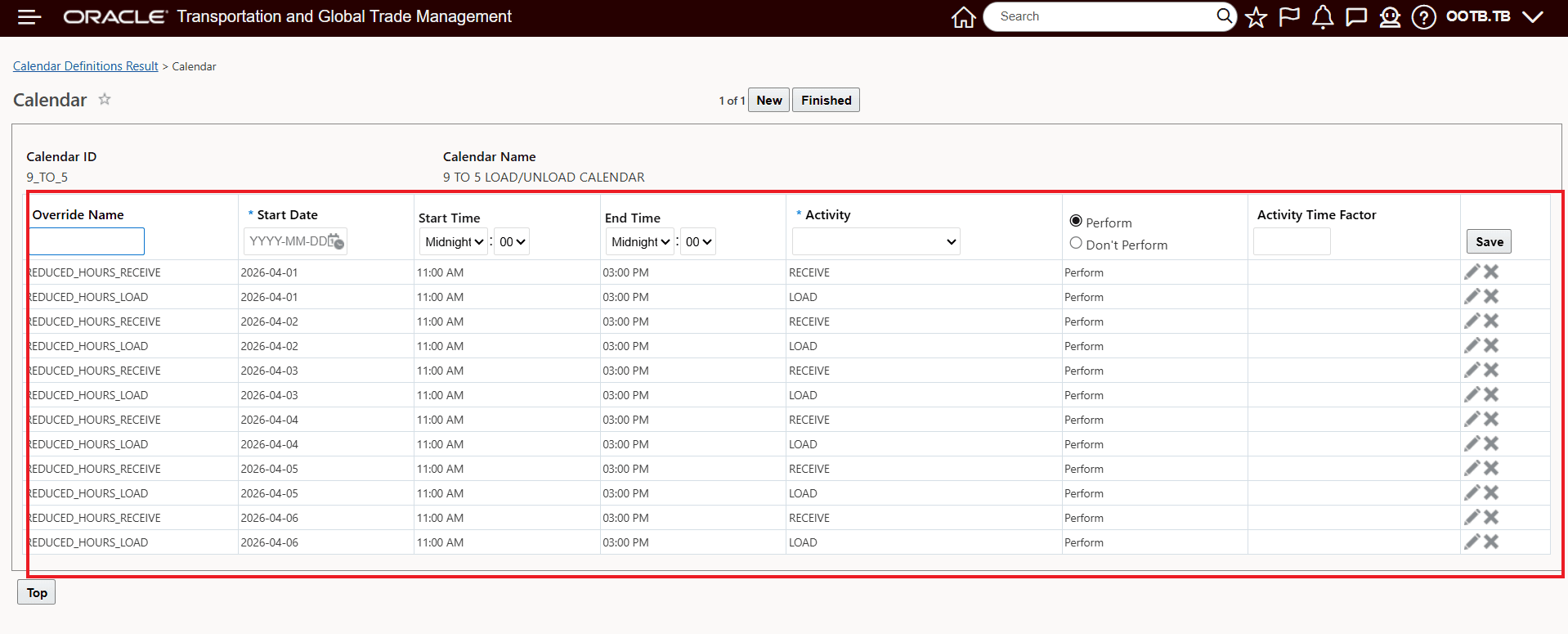
Created Override Records - Multi-Day Duration With Use Calendar Hours
-
Navigate to the relevant calendar (such as Dock Scheduling, Driver Calendar, or Work Assignments).
-
Select the option to create a new calendar override.
-
Enter the Start Date (and time, if applicable).
-
Enter the End Date (and time, if applicable).
-
If no End Date is entered, it defaults to the Start Date.
-
-
Choose how the override should apply:
-
Leave Use Calendar Hours unchecked to block the entire time range continuously.
-
Select Use Calendar Hours to apply a specific time window repeatedly for each day in the date range.
-
-
Review the confirmation message for multi-day entries and confirm to proceed.
-
Save the override record.
Activity Calendar Overrides
This page is accessed via Shipment Management > Power Data > Calendar > Calendar Definitions. Then select the option button to create a cyclical calendar. Then from the activities page, click Next.
An Override Activity takes precedence over the regular activities defined on the calendar. For example, if your calendar is set up for the activity of office hours, Monday through Friday, 8:00 a.m. to 6:00 p.m., but the office closes for Thanksgiving, set up an override activity for that day. Override activities are set up by specific date and time.
To set up an Override Activity, define the Date/Time of the override and the Activity that you want to act as the override action.
You can define a Start Date, Start Time, End Date, and End Time for the override record based on two scenarios below.
- When the checkbox Use Calendar Hours is unchecked, the application will apply the override continuously for the entire duration from the Start Date/Time to the End Date/Time.
- Example: You can specify the Start Date/Time on 12th March at 8AM and the End Date Time on 20th March at 5PM, then the override will be applied to the entire duration of this time period.
- When the checkbox Use Calendar Hours is checked, the application will only apply the override during the specific time slot defined by the Start Time and End Time for each individual day within the date range.
- Example: If the range is from March 12 to March 20 and the time slot is between 1:00 PM and 5:00 PM, the override occurs only during those four hours on each of those days.
You can also specify if you want the activity you selected to occur during the period you defined, in which case select Perform, or if you want to exclude the activity you selected from occurring between the start and end time, in which case select Don't Perform. You can also specify an activity time factor.
Business Benefit: This feature simplifies the effort required to model real-world operational scenarios like closures, reduced hours, holidays etc.
Steps to enable and configure
You don't need to do anything to enable this feature.
Tips and considerations
-
Ensure the Start Date is earlier than or equal to the End Date; the system validates this automatically and will, by default, copy the Start Date to the End Date.
-
For Calendar Overrides for a specific day - where Start Date will equal End Date - you will need to add the End Time - as was the case previously.
-
When using multi-day ranges, the system prompts for confirmation to avoid unintended bulk changes.
-
Use full-duration overrides (without selecting Use Calendar Hours) for complete shutdowns or continuous closures.
-
Use daily time-slot overrides (with Use Calendar Hours) for recurring partial-day adjustments, such as limited operating hours.
-
Be mindful of overlapping overrides, as multiple entries may affect scheduling outcomes.
-
This feature is especially useful for managing seasonal closures, maintenance windows, or recurring daily restrictions.