 Mobile Invoice Enhancements
This feature provides a set of mobile usability improvements that enhance the mobile invoice experience by giving you greater control over how invoices are displayed, edited, and maintained.
Feature enhancements:
Sort option added to the invoice list screen. You can now sort the invoice list using both standard and custom fields, including date and numeric attributes that are relevant to your business. This allows you to organize invoices in a way that aligns with your operational priorities, such as reviewing the most recent submissions or focusing on high-value transaction. Ability to support custom sort-by fields for attribute date and attribute number fields has been implemented.
sortList array has been added to the mobile layout to define the custom attribute date and attribute number fields.
"invoiceList": {
"defaultSortCriteria": "startDate",
"sortList":[
{
"label":"",
"value":"",
"type":""
}
]
}
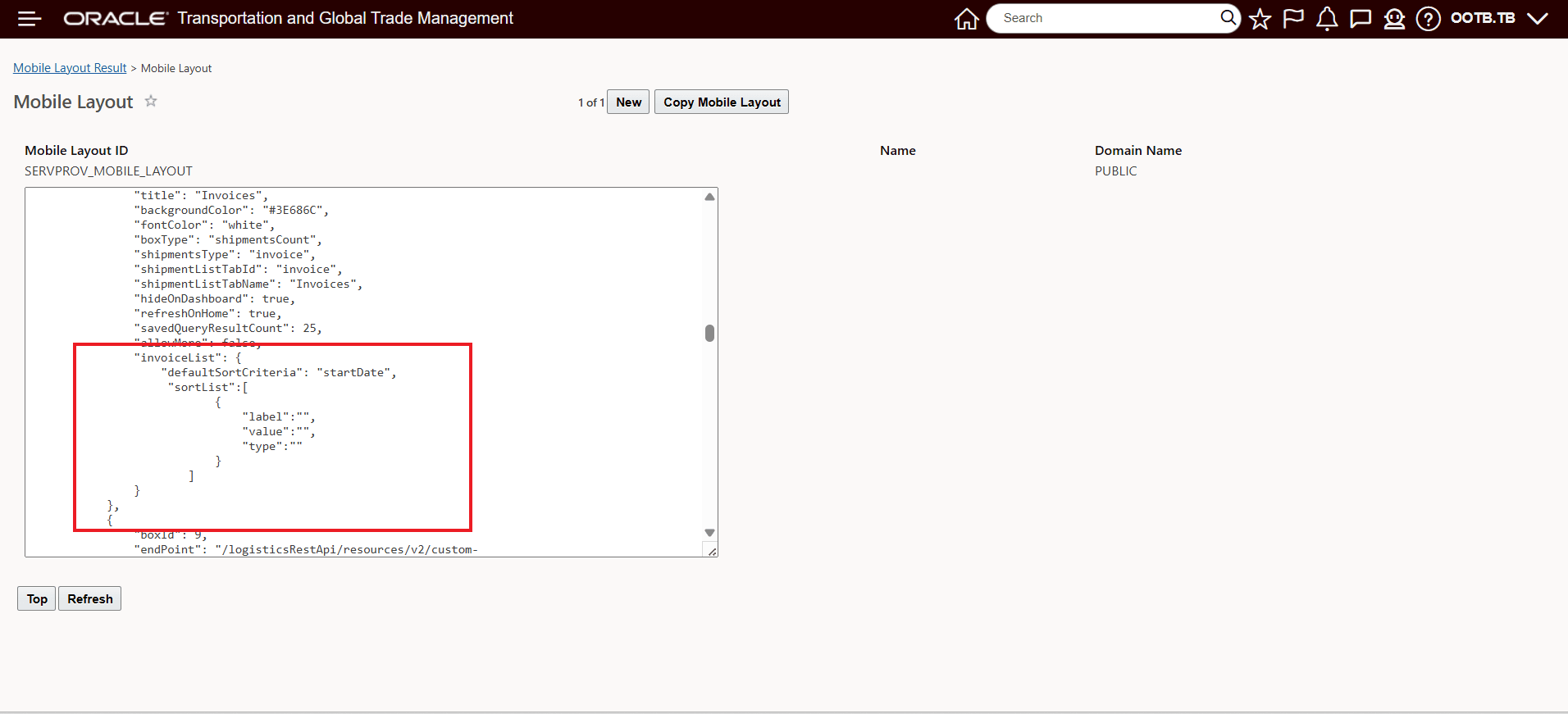
Invoice Sort Criteria
In the example below Date Received has been added as an Invoice List sort criteria.
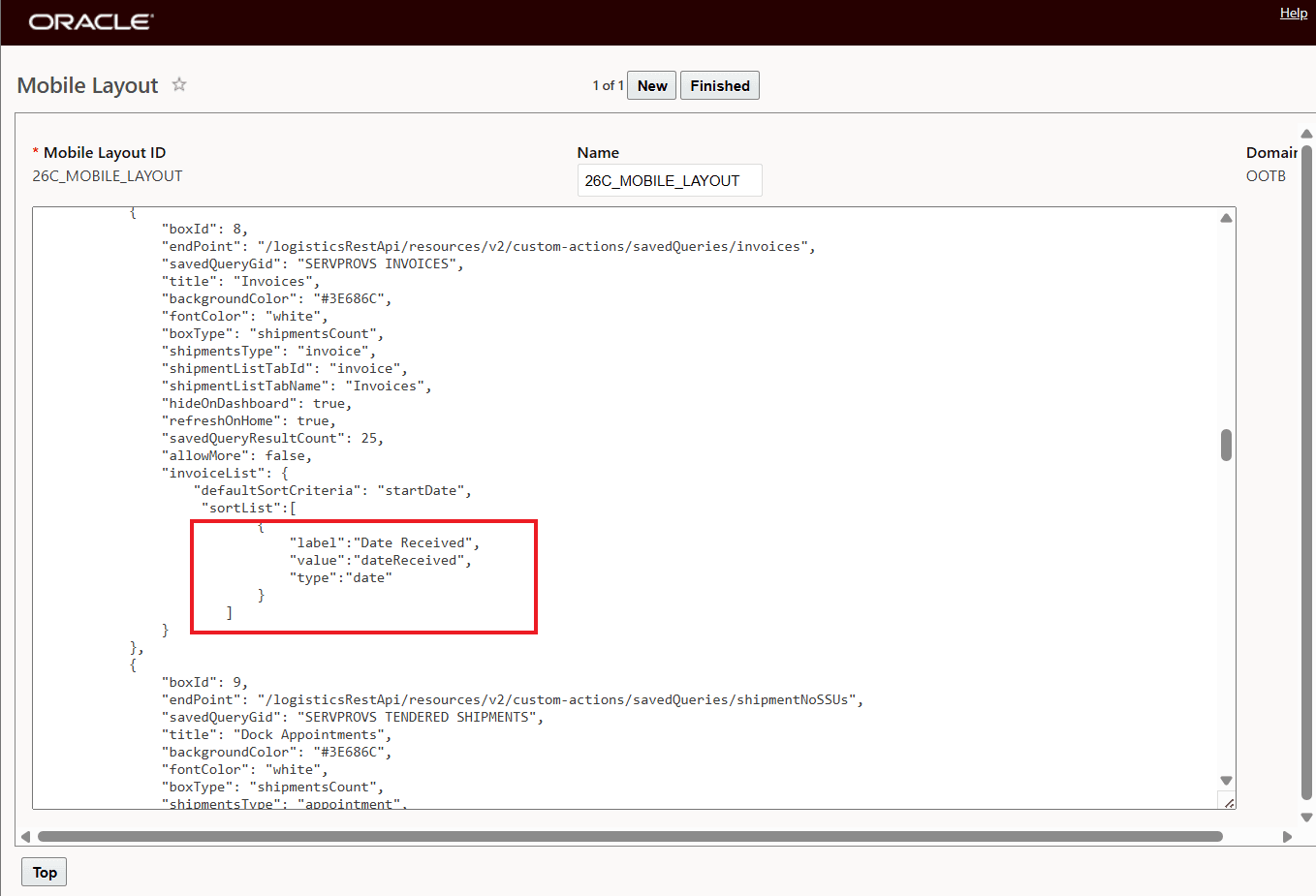
Date Received Sort Criteria
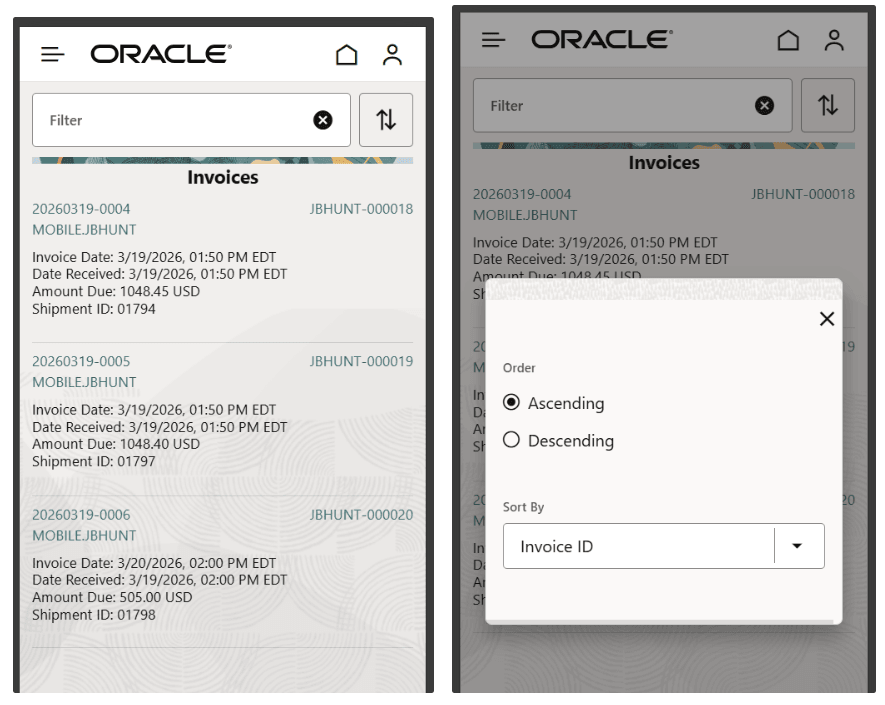
Sort Criteria Added
Ability to edit invoice number, invoice date and custom attribute date fields. You can update key invoice details—such as invoice number, invoice date, and selected custom date attributes—directly from the invoice details screen. This reduces delays caused by minor data entry errors and helps ensure accuracy without requiring rework in other systems.
- Edit Icon appears next to Invoice Header fields as shown below. By default, the Edit Icon is not displayed.
- allowEditInvoiceHeader has been added to invoiceDetails section in mobile layout.
- You need to set allowEditInvoiceHeader: true in mobile layout for the Edit icon to be seen on the details page.
- Only invoice number, invoice date and custom attribute date (must be present in the "dataFieldHeader") will be editable.
"invoiceDetails": {
"primaryHeader": "invoiceXid",
"secondaryHeader": "invoiceNumber",
"dataFieldHeader": [
{
"name": "Invoice Date",
"value": "invoiceDate"
},
{
"name": "Date Received",
"value": "dateReceived"
},
{
"name": "Invoice Number",
"value": "invoiceNumber"
},
{
"name": "Custom Attr",
"value": "attributeDate1"
}
]
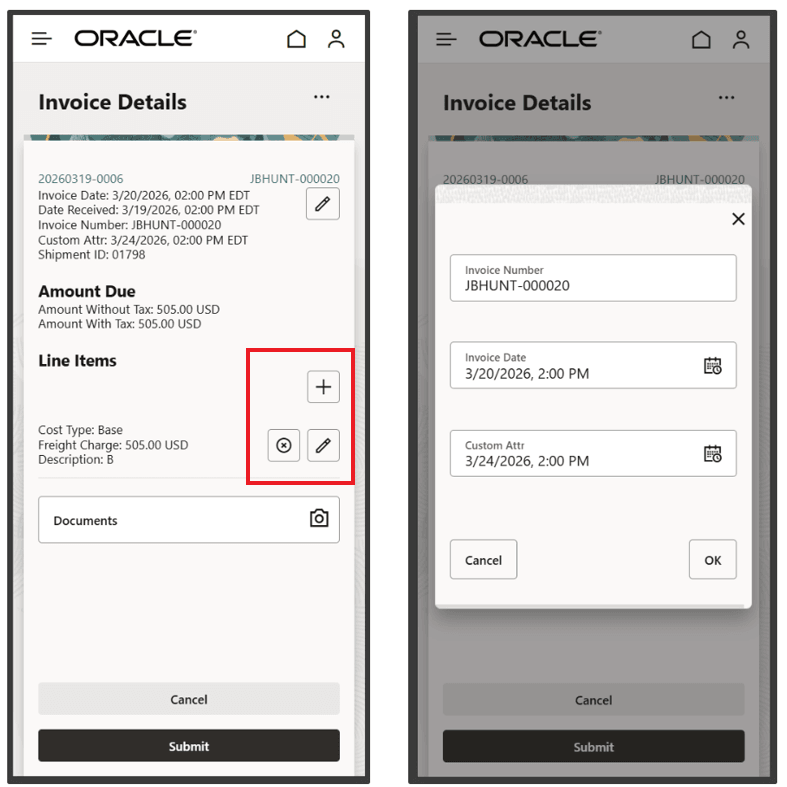
Editable Invoice Fields
Ability to delete line item also available.
Delete Icon displayed along with the Edit (Pencil) Icon.
Invoices with status of APPROVAL_APPROVED_AUTO, no longer displayed. Approved invoice are now excluded from the invoice query so that the mobile workspace is focused on work-in-process invoices and too also reduce performance concerns related to querying for a growing list of previously processed and approved invoices.
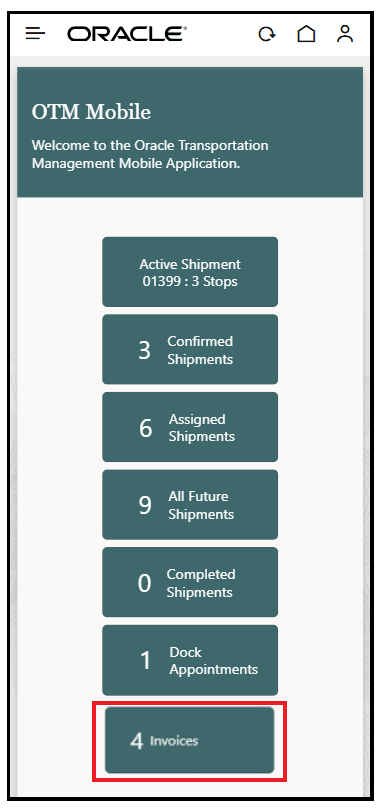
Excluded Approved Invoice
Business Benefit: This feature improves efficiency and data accuracy in mobile invoice workflows by:
- Reducing the need to switch to desktop for sorting or minor edits
- Allowing faster identification and prioritization of invoices
- Minimizing errors through quick in-app corrections
- Keeping the invoice list focused on actionable items
Steps to enable and configure
- Copy and configure your mobile layout. Mobile Layout accessed via Configuration and Administration > User Configuration > Mobile Layout.
- To enable custom sorting:
- Navigate to the invoice list configuration section.
- Define the fields you want available for sorting (including custom date or number attributes).
- To enable editing of invoice header fields:
- Locate the invoice details configuration section.
- Set the option to allow editing of invoice header fields to enabled.
- Ensure the fields you want editable (such as invoice date, invoice number, or custom date attributes) are included in the header field configuration.
- Save and publish the updated mobile layout.
- Open the mobile app to access the updated invoice list and detail screens.
No additional setup is required for:
- Automatic exclusion of fully approved invoices
- Line item deletion capability (available by default in the invoice detail view)
Tips and considerations
- Only specific fields can be edited: invoice number, invoice date, and configured custom date attributes.
- Custom fields must be included in the header configuration to be editable.
- The edit option is not visible unless explicitly enabled in the mobile layout.
- Sorting options depend on how the layout is configured; ensure relevant fields are defined for your users.
- Invoices that are automatically approved are no longer visible in the list, which may affect reporting or historical lookup workflows.
- Use line item deletion carefully, as removing items may impact invoice totals and downstream processing.
Key resources
Review all Mobile Help Topics including:
- About the Mobile Application
- How to Configure the Mobile Application
- Mobile Layout
- Mobile Metadata Expression Syntax