Redwood Experience for Inspector Application with Offline Mode
The Inspector Application displayed using the Redwood Experience user interface now supports offline use by allowing inspectors to activate data caching on their mobile phone, iPad, or tablet. To enable offline mode, the agency first turns on data caching in the mobile management settings, then the inspector can turn on Offline Mode on their devices.
When working in the cached data time period as set up by the agency, inspectors can perform their inspections, and when back online, updates get synced to the system. You can also add an offline version of a new inspection to be created in the system when you’re online again.
Using the inspector application with offline mode allows your inspectors to update their inspections from anywhere.
Steps to enable and configure
Offline mode in the Inspector Application is delivered enabled.
To disable the offline settings:
- Navigate to Setup and Maintenance > Offering: Permits or Business License > Permit Inspections or Business License Inspections > Manage Mobile Offline Settings.
- Clear the "Enable Offline Data Caching" switch. This is a global setting and will disable the offline setting for all inspectors.
However, if you keep the global setting enabled, individual inspectors can still disable the setting in the Inspector application.
- When you're in the Inspector Application, click on the Profile avatar.
- Click Offline Settings.

Offline Settings
- Toggle the Offline Mode switch to off.
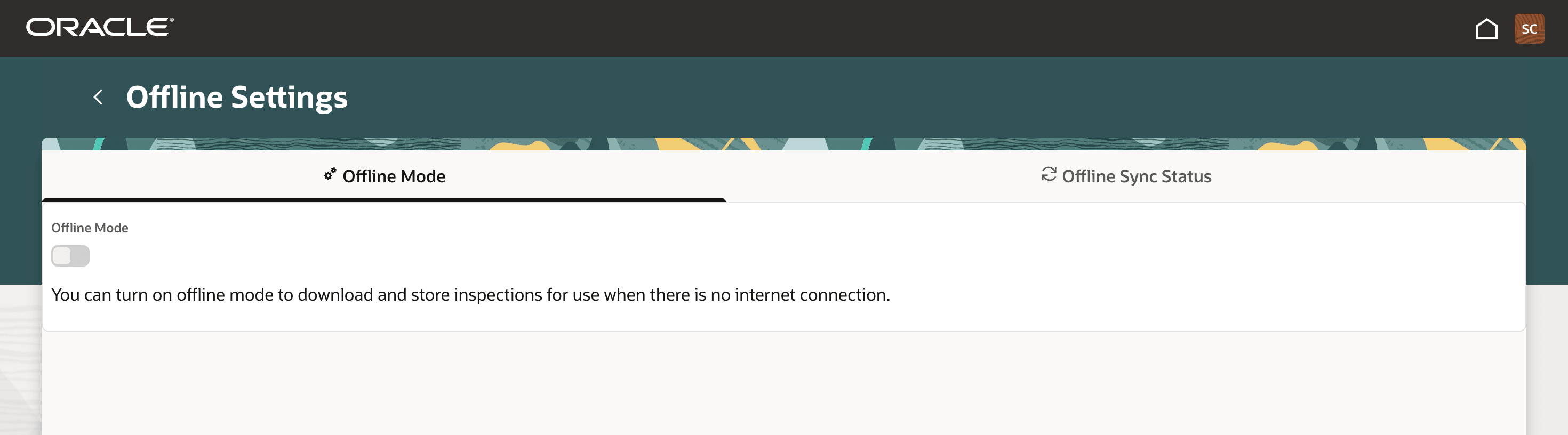
Offline Mode switch
Tips and considerations
Inspectors need to be online for the system to cache the data on their devices, and data should be refreshed daily. When you create a new inspection while offline, the inspection needs to be synced to the system first for the system to create the checklist and checklist items.
Reference entity details and maps including inspection routing can’t be accessed while offline.
Key resources
-
See Implementing Permitting and Licensing, “Setting Up Inspections,” Managing Offline Mode for Inspections on the Oracle Help Center.
-
See Using Community Development Permits and Using Business Licenses, “Using the Inspector Application,” Using Offline Mode for Inspections on the Oracle Help Center.