Redwood Experience for Cashier Session and Reconcile Cashier Session
The enhanced user experience is now available for the Cashier Session and Reconcile Cashier Session pages.
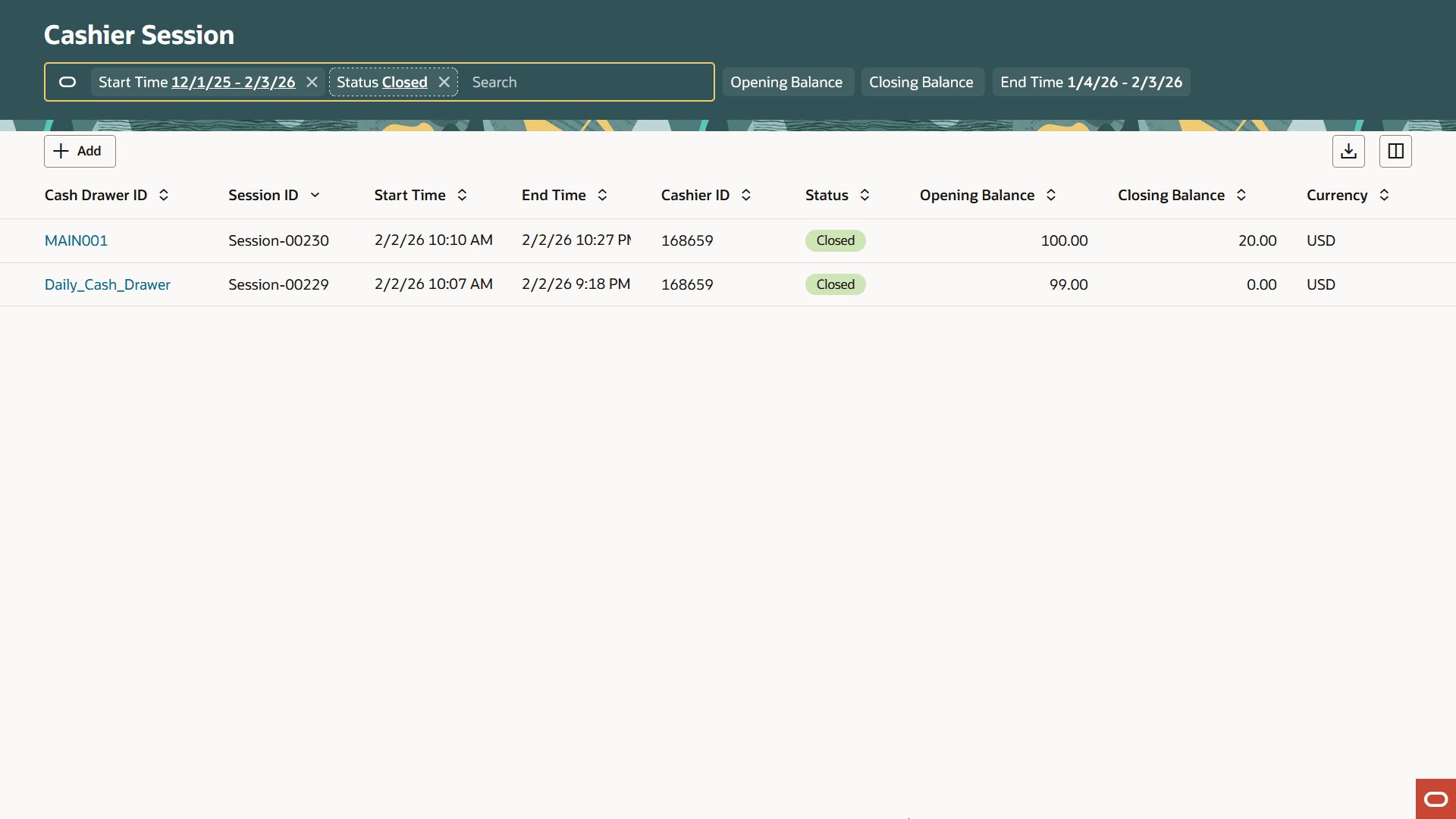
Cashier Session Page
The new enhanced user experience streamlines the look and feel of the cashier session pages.

Reconcile Cashier Session Page
The new enhanced user experience built with Visual Builder Studio streamlines the look and feel of the Cashier Session and Reconcile Cashier Session pages.
Steps to enable and configure
In order to use the Cashier Session and Reconcile Cashier Session pages in the Redwood Experience, you first need to have the Redwood Experience for Billing and Payment enabled. Once this is enabled and the search indexes are run (as detailed below), you will be able to access these pages.
To enable the Redwood Experience for Billing and Payment:
- Navigate to Setup and Maintenance > Offering: All > Change Feature Opt In.
- In the Public Sector <Any> row, click the pencil icon in the Features column.
- Under the "Redwood Experience Billing and Payment" select the "Enable" checkbox.
- Click Done.
Once you enable this feature you will need to run the ESS job to create index definitions to ensure that your Incident list and details pages populate properly.
- Log into the Fusion home page as an administrator/super user.
- Navigate to Tools > Schedule Processes page.
- Run the ESS job, "ESS job to create index definition and perform initial ingest to OSCS".
- Give the Index Name parameter for the following indexes:
- fa-psc-applications
- fa-psc-ce-case
- fa-psc-ce-incident
- fa-psc-inspections
- fa-psc-ce-citation
- fa-psc-apo-address
- fa-psc-apo-parcel
- These pages will populate only after running these ESS jobs successfully.
Key resources
- See Using Community Development Permits, "Working with Payments," Working with Cashier Sessions on the Oracle Help Center.
- See Using Community Development Permits, "Working with Payments," Reconciling Cashier Sessions on the Oracle Help Center.