Redwood Experience for Worklists
With our continued move to the Redwood Experience, Oracle Permitting and Licensing has updated the following worklists:
- Common
- Used by all agency staff
- License
- Used by Business Specialists
- Code Enforcement
- Used by Code Officers and Code Technicians
- Permits
- Used by Permit Technicians and Plan Reviewers
- Planning and Zoning
- Used by Planners and Plan Reviewers
These worklists are utilized by agency staff to help view and manage tasks. Each of these worklists can be dynamically controlled by user roles and security settings. Users can perform key task actions - such as claiming, updating, reassigning, or releasing tasks—directly within the interface, with real-time updates to task counts and statuses. The system supports contextual navigation to detailed record workflows and condition views, improving task visibility and efficiency.
Worklist permissions are based on agency users roles and only those worklists that required for that role are available. For example, the code officer will only have access to the Code Enforcement worklist.
Common Worklist
The common worklist is a centralized, metadata-driven interface that consolidates multiple worklist pages into a single, configurable workspace. It allows agency users to view and manage tasks across different offerings, such as Permits, Planning and Zoning, Business Licenses, and Code Enforcement, from one location, with content dynamically controlled by user roles and security settings.
This example illustrates the Common Worklist with the drop-down list showing the various offerings. Only users with permissions for multiple roles will be able to see the Common (All) worklist.
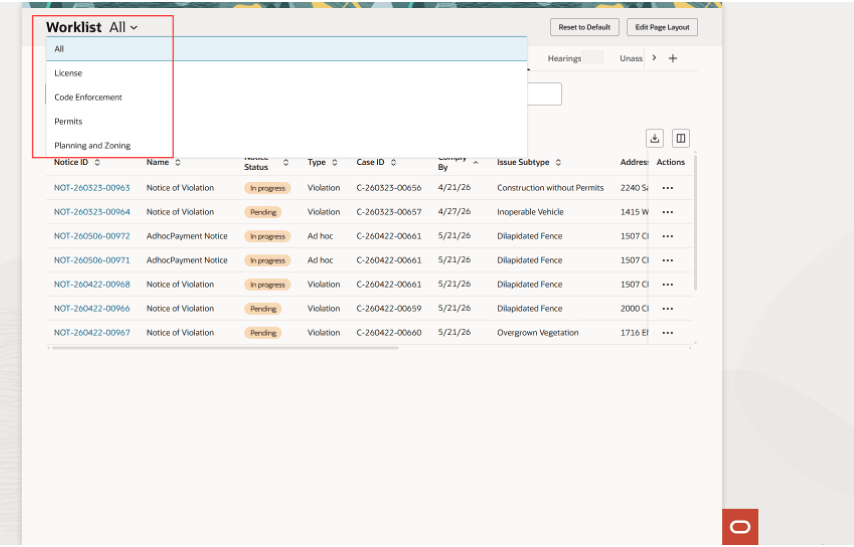
Common Worklist page
Plan reviewers can access the Plan Reviews tab from the Common (All), Permits, and Planning and Zoning worklists, depending on their roles and permissions. The tab helps reviewers prioritize assigned reviews with overdue indicators, due-date sorting, Overdue and Due Today filters, and a calendar view for assigned plan reviews.
License Worklist
The License worklist, used primarily by Business License Specialists, displays your My License Applications, Incoming Tasks, My Tasks, and Unassigned License Applications. You can click on each tab to search and find the workspace to navigate to the detailed records that you need. For example, by reviewing My Tasks, you can see the tasks you have lined up for you. These are listed by the date they were assigned, with the oldest listed first. You can also select the Assigned Today filter chip which will search on the tasks that were assigned today and list only those.
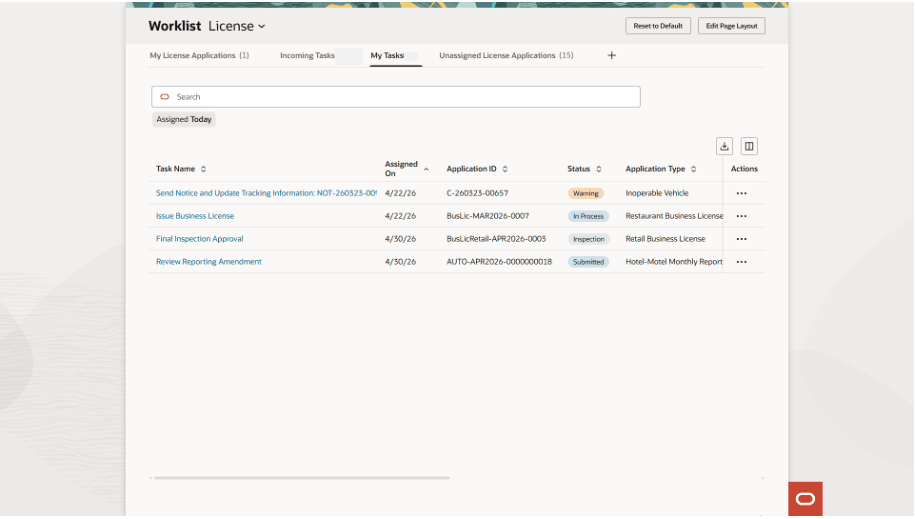
License Worklist
Code Enforcement Worklist
The Code Enforcement Worklist, used by Code Officers and Code Technicians, will display specifically for the role of the agency user.
When a code officer or code technicaian opens the worklist, the Code Enforcement worklist appears, and the code officer or code technician is automatically added to the search field and their tasks are displayed on the Inspections worklist based on their role. The Status of "Scheduled" is also included in the search giving the list of inspections on the Inspections tab as their first tasks of the day.
Code Officers can use the Actions menu, on the Inspections tab, to work on each inspection directly from the worklist.
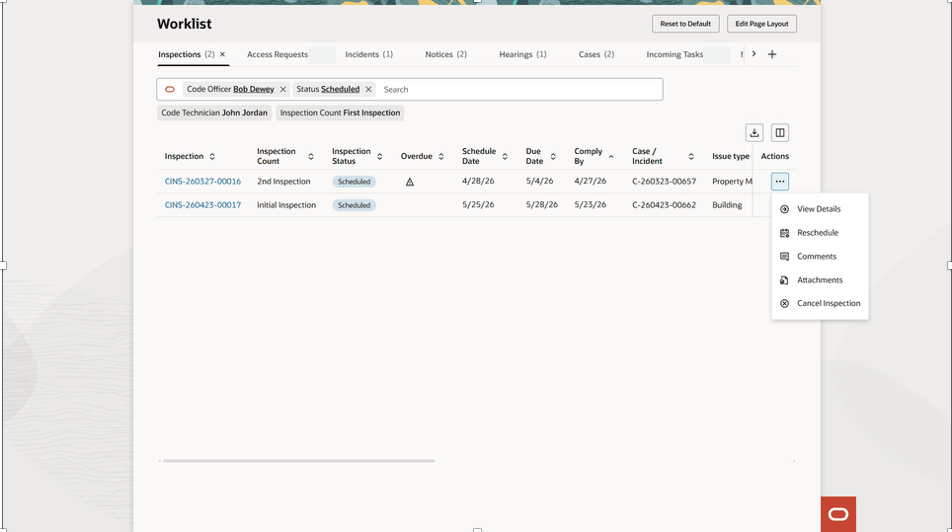
Code Enforcement Worklist Inspections tab
When a code technician opens the worklist, they will see tasks based on their specific role as well. Code Technicians can navigate to the Unassigned Incidents tab and use the Actions menu to claim or add an attachment to incidents directly from the worklist.
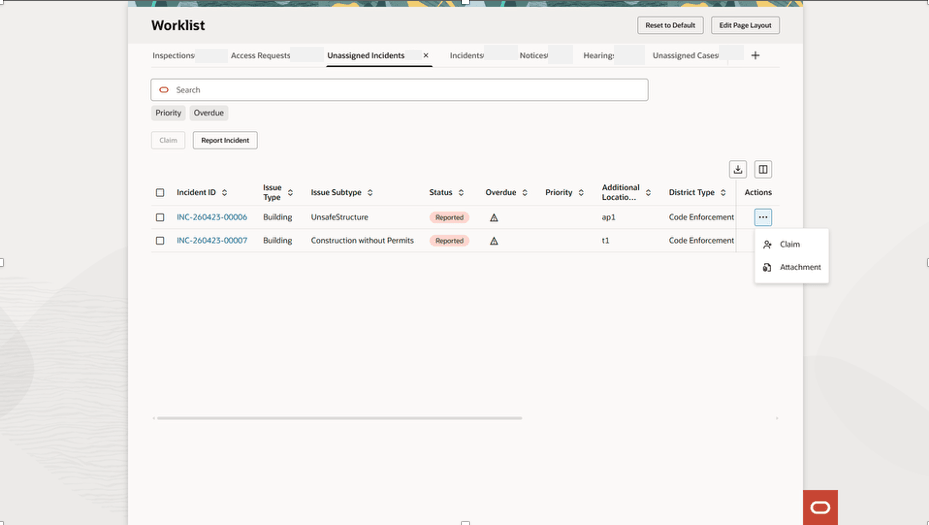
Code Enforcement Worklist Unassigned Incidents tab
As the code officer or code technician navigates through the tabs, their name will remain the search field keeping their tasks in the worklist for each tab. Each tab also has specific filter chips that they can select to help filter the task lists.
Permits Worklist
The Permit worklist is used primarily by permit technicians and inspectors, displays Incoming Tasks, My Tasks, Plan Reviews (if applicable), Faulted Transactions, Alerted Tasks, and Billing Account (if applicable). You can click on each tab to search and find the workspace to navigate to the detailed records that you need. For example, to review My Tasks, you can see the tasks you have lined up for you. These are listed by the date they were assigned, with the oldest listed first. You can also select the Assigned Today filter chip which will search on the tasks that were assigned today and list only those. As with all the worklists, users will see what is driven by their permissions including the tabs, such as the Plan Review and Billing Account tab. If a permit technician has plan reviews assigned to them, then the Plan Review tab will appear.
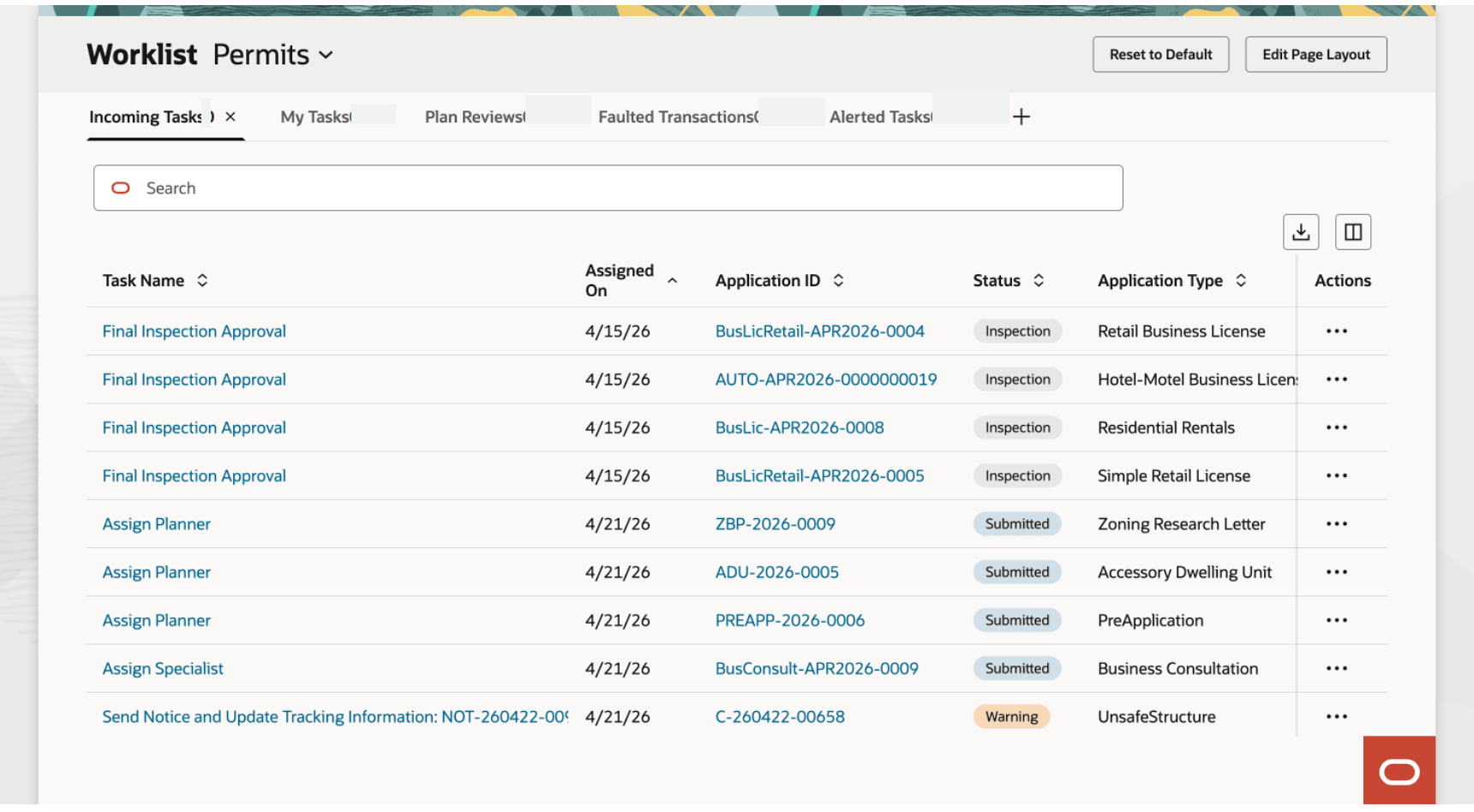
Permit Worklist
Planning and Zoning Worklist
As with the Code Enforcement worklist, the Planner worklist will also add the planner to the search field when they open the worklist. When they select the Planning Applications tab, the task list will be filtered on their assigned applications. They can also add the "Type" filter chip to narrow down their task list to specific application types if they want. If planners have Plan Reviews assigned to them they will also see the Plan Review tab. Additionally, they can use the Actions menu to work directly with the plan review for certain tasks.
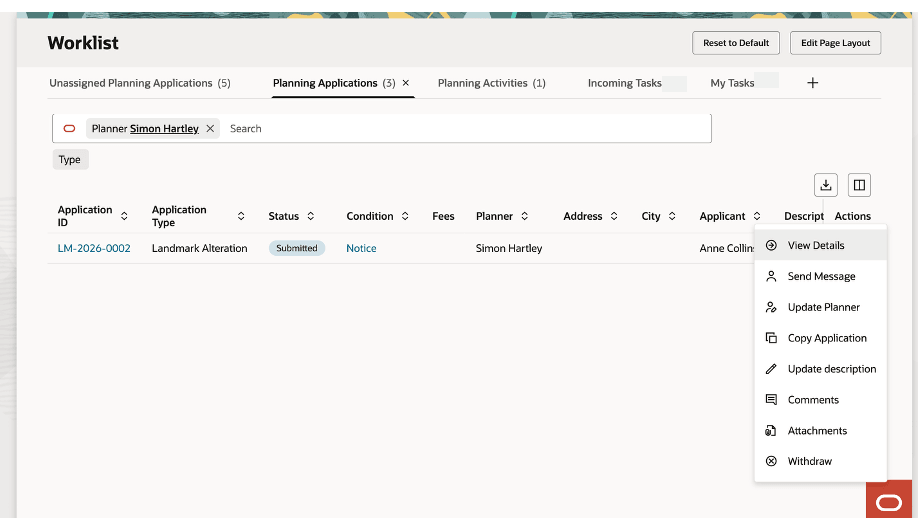
Planner Worklist, Planning Applications tab
The new enhanced user experience streamlines the look and feel for all worklists.
Steps to enable and configure
Use the Opt In UI to enable this feature. For instructions, refer to the Optional Uptake of New Features section of this document.
Offering: Multiple Offerings No Longer Optional From: Update 26D
The Redwood Experience for the worklist is delivered as enabled for 26C.
Important! Oracle recommends you run the index parameters as outlined below to ensure that the worklists work as expected.
To run the search indexes:
- From Home with Ask Oracle navigate search for Schedule Processes.
- Run the ESS job, "Ess job to create index definition and perform initial ingest to OSCS".
- Give the Index Name parameter "fa-psc-applications".
- Repeat this process for the following indexes:
- fa-psc-ce-case (Code Enforcement)
- fa-psc-ce-citation (Code Enforcement)
- fa-psc-ce-incident (Code Enforcement)
- fa-psc-inspections (Permits, Planning and Zoning, Business Licenses)
- fa-psc-apo-parcel (Permits, Planning and Zoning, Business Licenses)
- fa-psc-apo-address (Permits, Planning and Zoning, Business Licenses)
- fa-psc-business-entity (Business Licenses)
To revert to the classic experience, complete the following steps:
- Navigate to Setup and Maintenance of Offerings > Offering: Any > Change Feature Opt In.
- In the Public Sector <Offering> row, click the pencil icon in the Features column.
- Under the "Common Worklist and All Tasks" clear the "Enable" checkbox.
- Click Done.
Tips and considerations
You must have the "Common Worklist and Tasks" feature enabled for all other worklists to function in Permitting and Licensing.
Key resources
- See Using Community Development Permits, "Using Common Interface Pages and Elements", Viewing Tasks in the Worklist on the Oracle Help Center.
- See Using Business Licenses, "Using the Agency Springboard and the Task List", Using the Business License Worklist on the Oracle Help Center.
- Using Community Development Code Enforcement, "Overview of Working with Incidents and Cases", Using the Code Technician Worklist on the Oracle Help Center.
- Using Community Development Code Enforcement, "Managing Inspections", Using the Code Officer Worklist on the Oracle Help Center.
- Using Planning and Zoning, "Using the Agency Springboard and Worklists", Using the Planner Worklist on the Oracle Help Center.