Automated Recurring Inspection Scheduling for Permits
Recurring inspection scheduling reduces manual inspection administration by automatically creating pending inspections, reinspections, and recurring inspections based on agency-defined permit type setup. The feature reduces manual inspection scheduling by using configured inspection groups, recurrence patterns, base dates, inspection results, and inspector availability to determine whether additional inspections are needed and when they should be scheduled.
Agency staff can define inspection automation rules at the permit type level, including which inspection types should be created, when they should be scheduled, which inspection results should trigger recurrence, and whether recurrence should repeat after the final scheduled occurrence.
When an inspection is resulted by the user and the inspection status is set to Completed in the system, the application evaluates the agency’s permit type setup and creates the next inspection or set of inspections as configured. This supports automatic reinspection creation after failed inspections, automatic recurring inspection creation based on selected inspection results, and automatic pending inspection creation for permit renewals.
Agency staff can configure:
- Pending inspections
Automatically created for permit or renewal inspection groups. - Reinspections
Automatically created when a completed inspection has a failed result. - Recurring inspections
Automatically created when a completed inspection has a configured result. - Recurrence schedules
Based on scheduled date or resulted date. - Recurring frequency
Including daily, weekly, monthly, or yearly patterns. - Number of occurrences
Up to 99. - Repeat recurrence on last occurrence
Allows a new recurrence cycle to begin after the final recurring inspection is completed. - Renewal inspection groups
Renewed permits can use a different inspection group than the original permit.
This example illustrates the actions available for configuring automatically created permit inspections.
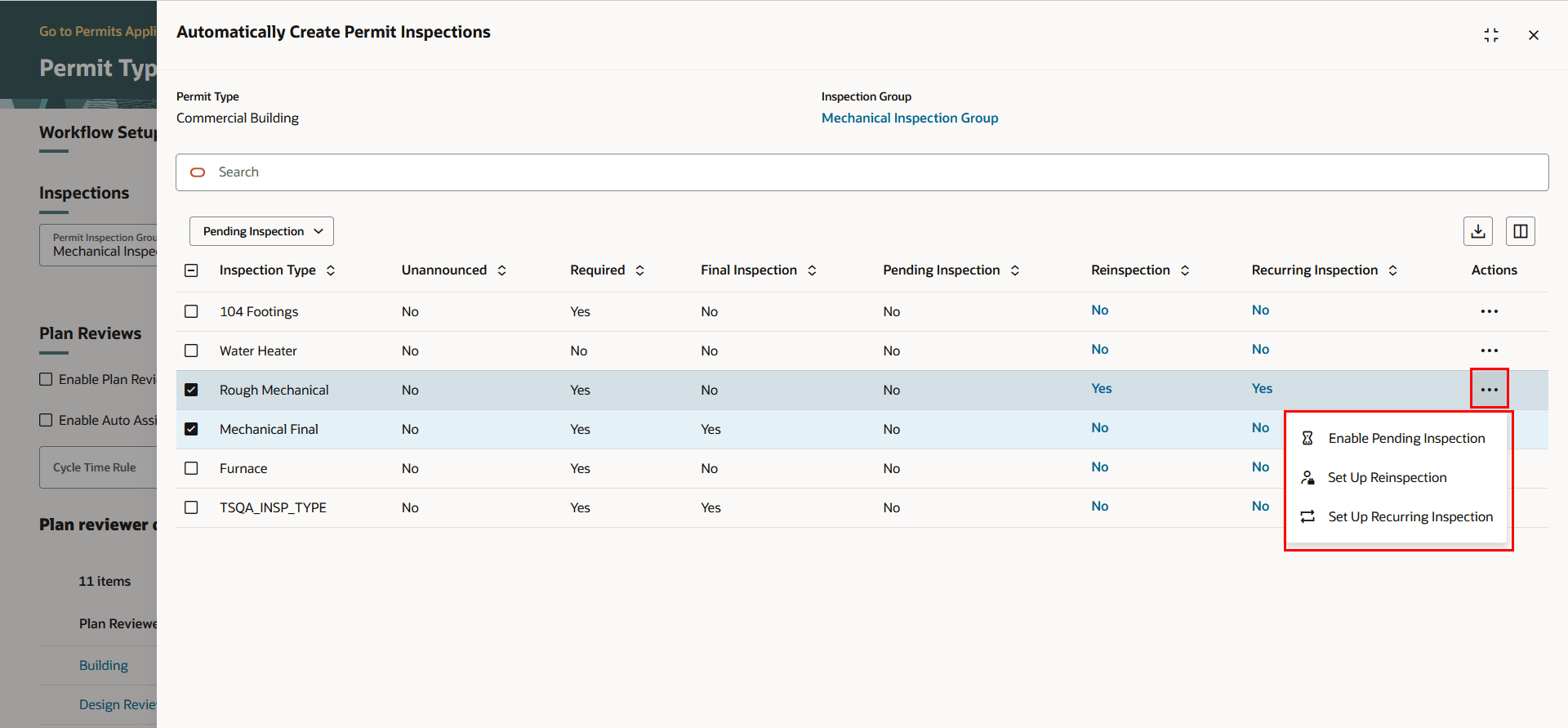
Permit Type - Automatically Create Permit Inspections Drawer with Actions
Business Benefit: This automates the scheduling process for inspections that need to recur over a period of time.
Steps to enable and configure
To enable this feature:
- Navigate to Setup and Maintenance of Features > Offering: Permits > Permit Types > Manage Permit Types.
- Click the row for the permit type where you want to add the inspection group.
- Scroll to the Inspections section, and select the appropriate inspection group:
- Permit Inspection Group for inspections used during the original permit activity.
- Renewal Inspection Group for inspections used during permit renewal activity.
- Select one of the following buttons:
- Automatically Create Permit Inspections
- Automatically Create Renewal Inspections - This is only enabled when a Renewal Inspection Group is selected.
- In the Automatically Create Permit Inspections drawer, select one or more inspection type rows.
- Use the Pending Inspection action to set the selected rows to:
- Enabled: Automatically creates the inspection as pending.
- Disabled: Does not automatically create the inspection as pending.
- For an inspection type, select the value in the Reinspection column to open the Set Up Reinspection dialog box.
- Complete the following fields and click Save:
- Base Date: Scheduled Date or Resulted Date.
- Days to Reinspection: Required when enabled; cannot be blank or zero.
- Enabled: Turn on to activate automatic reinspection creation.
- Select the value in the Recurring Inspection column to open the Set Up Recurring Inspection dialog box.
- Complete the following fields and click Save.
- Create Inspection Type: Inspection type to create. This defaults to the resulted inspection type but can be changed.
- Base Date: Scheduled Date or Resulted Date.
- Inspection Result: One or more results that trigger recurring inspection creation.
- Enabled: Turn on to activate recurring inspection creation.
- Periodic Recurrence: Daily, Weekly, Monthly, or Yearly.
- Interval: Recurrence interval based on the selected recurrence type.
- Number of Occurrences: Required; maximum value is 99 and cannot be negative.
- Repeat Recurrence Pattern: Optional; creates a new recurrence set after the last recurring inspection is completed.
- Save the Permit Type.
You also need to configure the Business Rules Framework rule for the rule "Default Rule for Recurring and Reinspections".
- Navigate to the Business Rules Framework.
- Select Permits.
- Use the Search function to find the following events:
- Permit Inspection Complete
- Open the Permit Inspection Complete rule.
- Ensure that the Default Rule for Recurring and Reinspections rule is added and enabled.
- Click on the Event Process Details link.
- Select Run Type to ESS Immediate.
- Turn on the Enabled switch.
- Click Save.
See Implementing Permitting and Licensing, "Implementing the Business Rules Framework," Working with Event Processing Details.
Tips and considerations
Agency needs to go to the inspections and configure if they want the inspection type to recur by how often and when.
For copied or cloned application types, automatic inspection setup is not copied from the source type. Review and configure automatic inspection settings manually after cloning.
For migrated inspections, recurring inspections and reinspections are not automatically created during migration.
When changing or removing an inspection group, review the warning messages carefully. Removing or changing an inspection group discards the previous automatic inspection setup for that group.
Key resources
- See Implementing Permitting and Licensing, "Setting Up Permits," Setting Up Permit Types on the Oracle help Center
- See Implementing Permitting and Licensing, "Setting Up Permits," Setting Up Recurring and Reinspections (NEW) on the Oracle Help Center
- See Implementing Permitting and Licensing, "Implementing the Business Rules Framework":