AI Agent: Code Enforcement Incident Workspace
The Code Enforcement Incident Workspace is an agentic app designed to help code enforcement teams review, prioritize, and act on incoming incidents more efficiently. It brings incident analysis, recommended actions, active incident summaries, and communication support into a single workspace so users can move from review to action without navigating across multiple pages or manually analyzing each incident one at a time.
The workspace supports code technicians and agency users who manage reported code enforcement incidents. When an incident is submitted, AI analysis is performed and stored for later use. The workspace then displays that analysis across all relevant incoming incidents, helping users understand what needs attention and what action is recommended. Rather than requiring users to open each incident individually, compare it against existing records, determine whether it may be a duplicate, or decide whether an inspection should be scheduled, the workspace presents the recommended next step directly in the incident list.
The app currently uses several workflow agents, including:
| Agent | Description |
|---|---|
| Code Enforcement Incoming Incident Evaluation Assistant | Reviews reported incidents and displays AI-generated recommendations, such as closing a duplicate, updating priority, or scheduling an inspection. |
| Code Enforcement Active Incident Summary Generator | Generates workspace-level summaries, active incident insights, priority actions, and communication content. |
| Inspection Scheduling Agent | Supports the scheduling flow when an inspection needs to be created. |
The primary purpose of the agentic app is to help users triage code enforcement incidents faster and more consistently.
For incoming reported incidents, the app can surface recommendations such as:
| Recommendation | Description |
|---|---|
| Close as Duplicate | Indicates that the reported incident appears to duplicate an existing active incident. |
| Update Priority | Recommends changing the incident priority, for example when prior violations or safety concerns are detected. |
| Schedule Inspection | Indicates that the incident is ready for inspection scheduling when no duplicate or priority issue is identified. |
| Reroute | Mentioned as a future or incomplete action path. |
The user remains in control of the action. While the agent recommends and prepares the action, the user initiates it by selecting the appropriate button in the workspace. After the user selects an action, the workflow agent executes the related business process, such as closing the incident, updating the priority, or scheduling the inspection.
You can access the workspace from Home with Ask Oracle by searching on Code Enforcement Incident Workspace. Once it's invoked the workflow agents run and the information is populated in the various panels of the workspace. You can find the initial summary which gives the user a summary of the information from the entire workspace. The Reported Incident Smart Analysis lists the active reported incidents for Code Enforcement. The Active Incidents panel provides visual analytics for the current code enforcement incident population. Priority Actions are listed at the top, so users can take immediate action for any critical incidents. Additionally, communications are listed under the priority actions so users can easily send communications from the workspace.
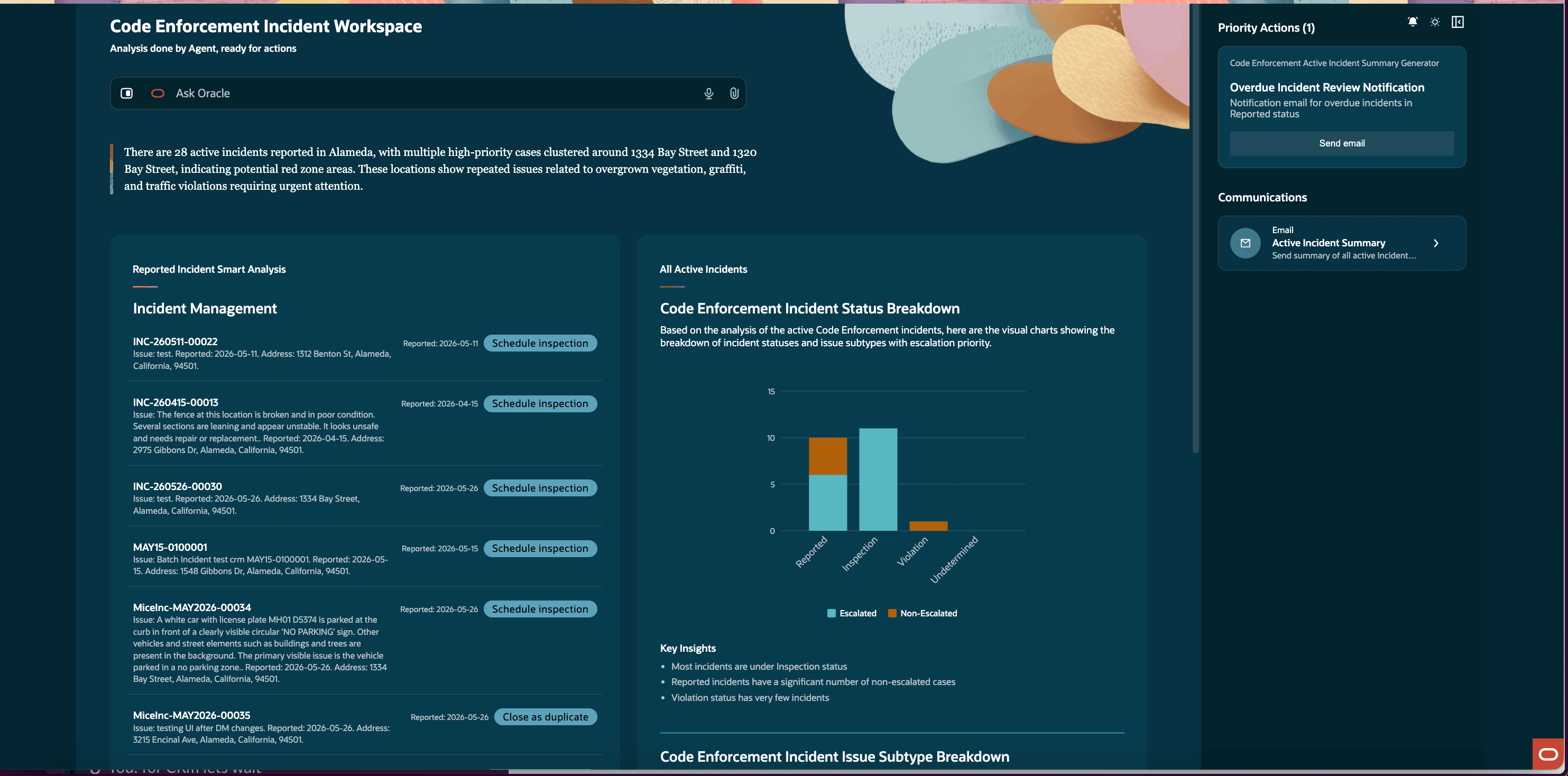
Code Enforcement Incident Workspace Agentic App
The Reported Incident Smart Analysis panel can be expanded in a wider workspace view giving the user the ability to directly interact with the incidents from the workspace. The page displays the following information for the active reported incidents:
- Incident ID
- Issue summary
- Reported date
- Incident address
- AI-recommended next action
- Action button to execute the recommendation
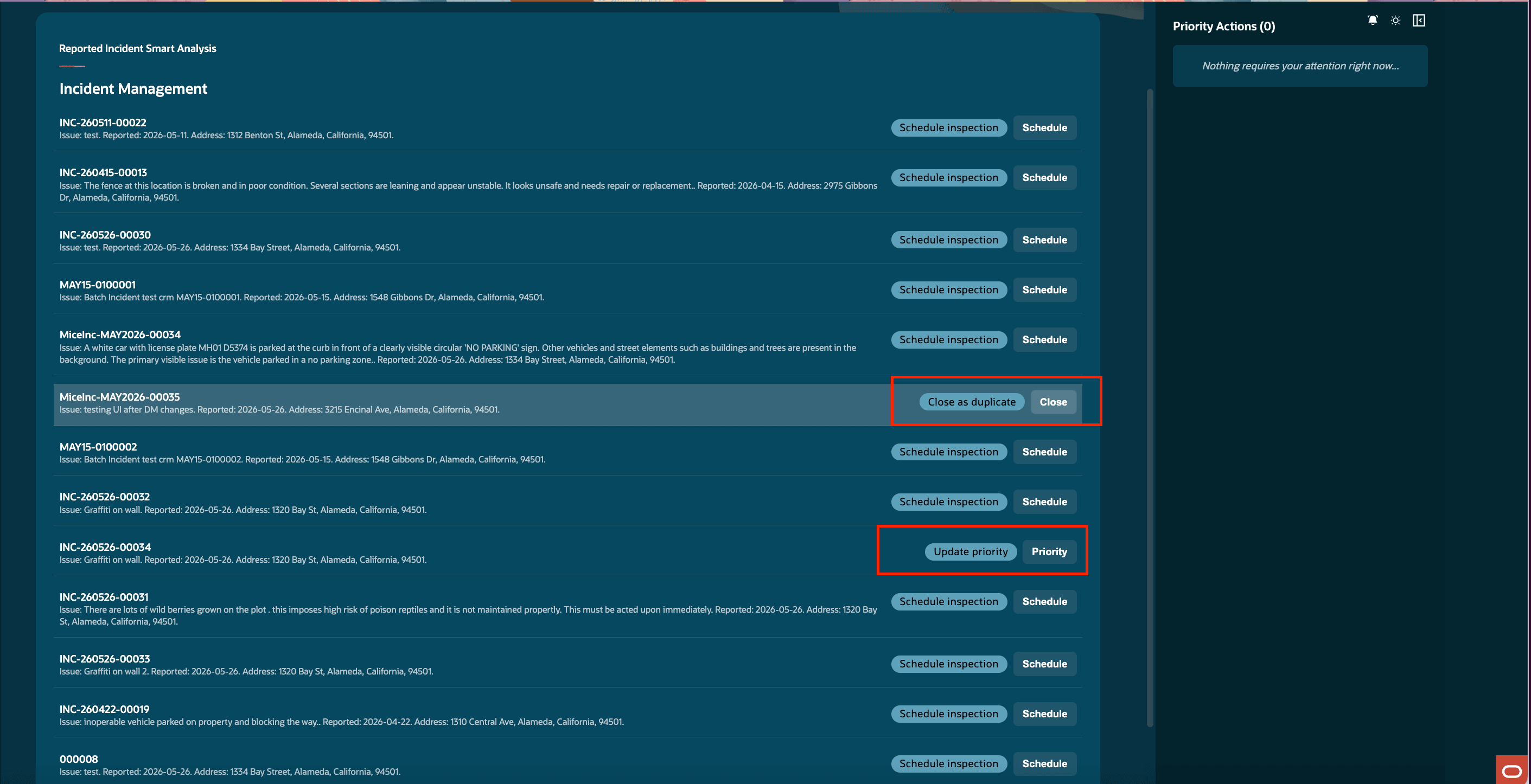
Reported Incident Smart Analysis panel
The All Active Incidents analytics section helps users understand incident volume, status distribution, issue subtype patterns, and escalation priority. The section includes the Ask Oracle prompt so users can ask follow-up questions directly from the analytics view. These charts provide a clear view of where active code enforcement work is concentrated and help users focus attention on high-volume or escalated issue categories.
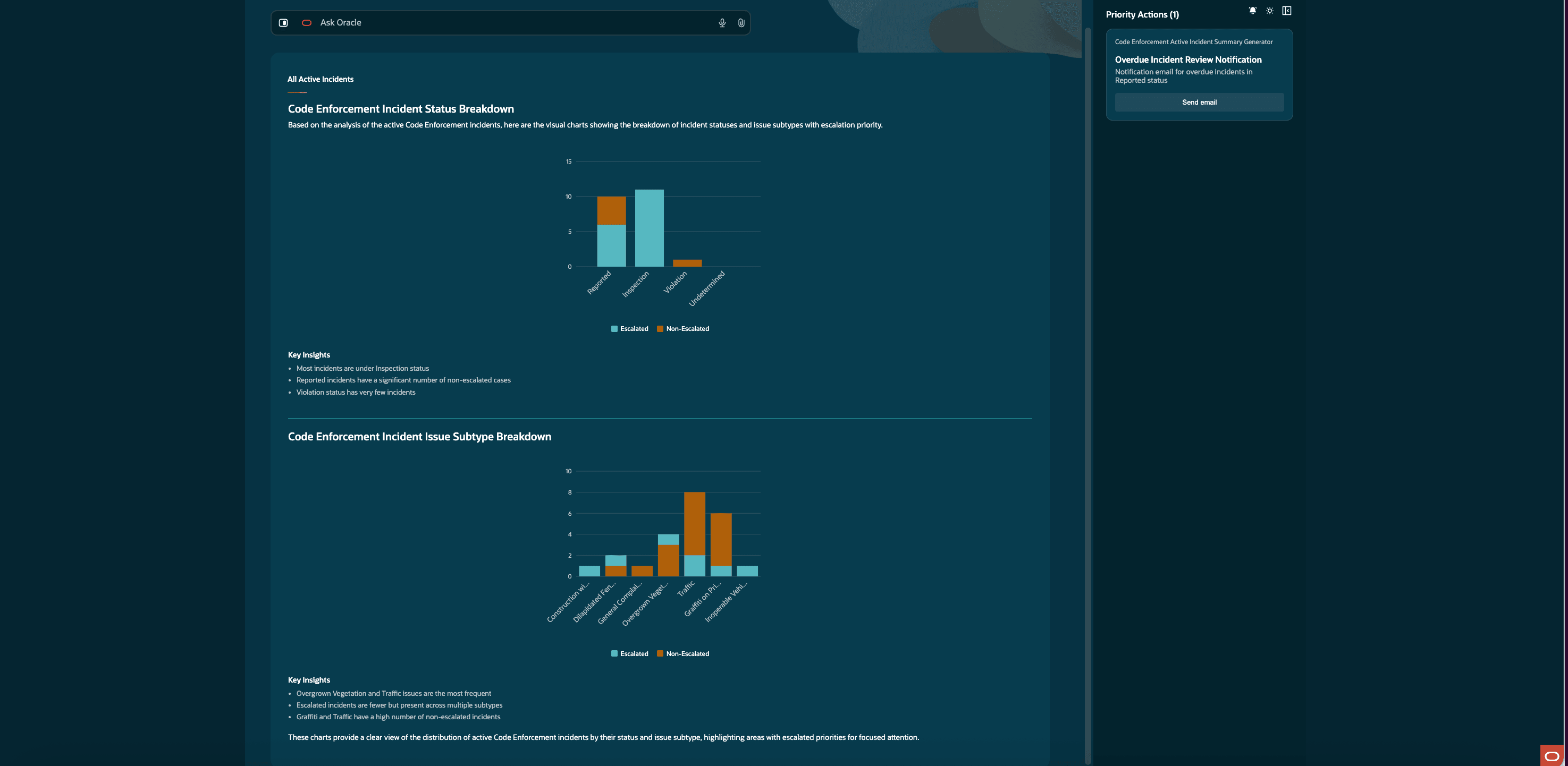
All Active Incidents analytics
In the Priority Actions section, users can take direct action as needed from the workspace. Some of these actions include assigning critical overdue incidents and some actions can be as critical as sending an notification email for an overdue incident in Reported status.
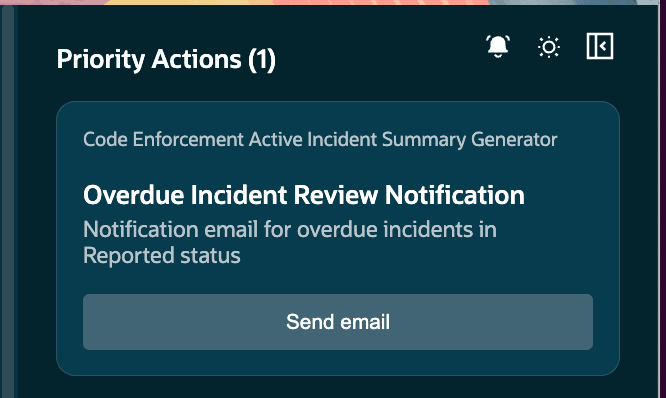
Priority Actions
When the user clicks on the Send email button, the workspace opens a send email form that is pre-populated by the agent but requires review by the user. The following is predefined by the agent:
- Email action title is "Overdue Incident Review Notification"
- Email body contains generated "incident review summary" including incident IDs, reported dates, review due dates, overdue days, and assigned technicians.
- Subject is "Overdue Incident Review Notification".
There are mandatory fields and validations run for the email and the "Send email" button is disabled until all required information is provided. Users can modify the email content using the prompt field and edit the generated email body using the rich text formatting controls. Users can also include attachments as needed before sending. The agent prepares the email, but the user always reviews and ensures that the information is correct and any additional information is added prior to sending the email.
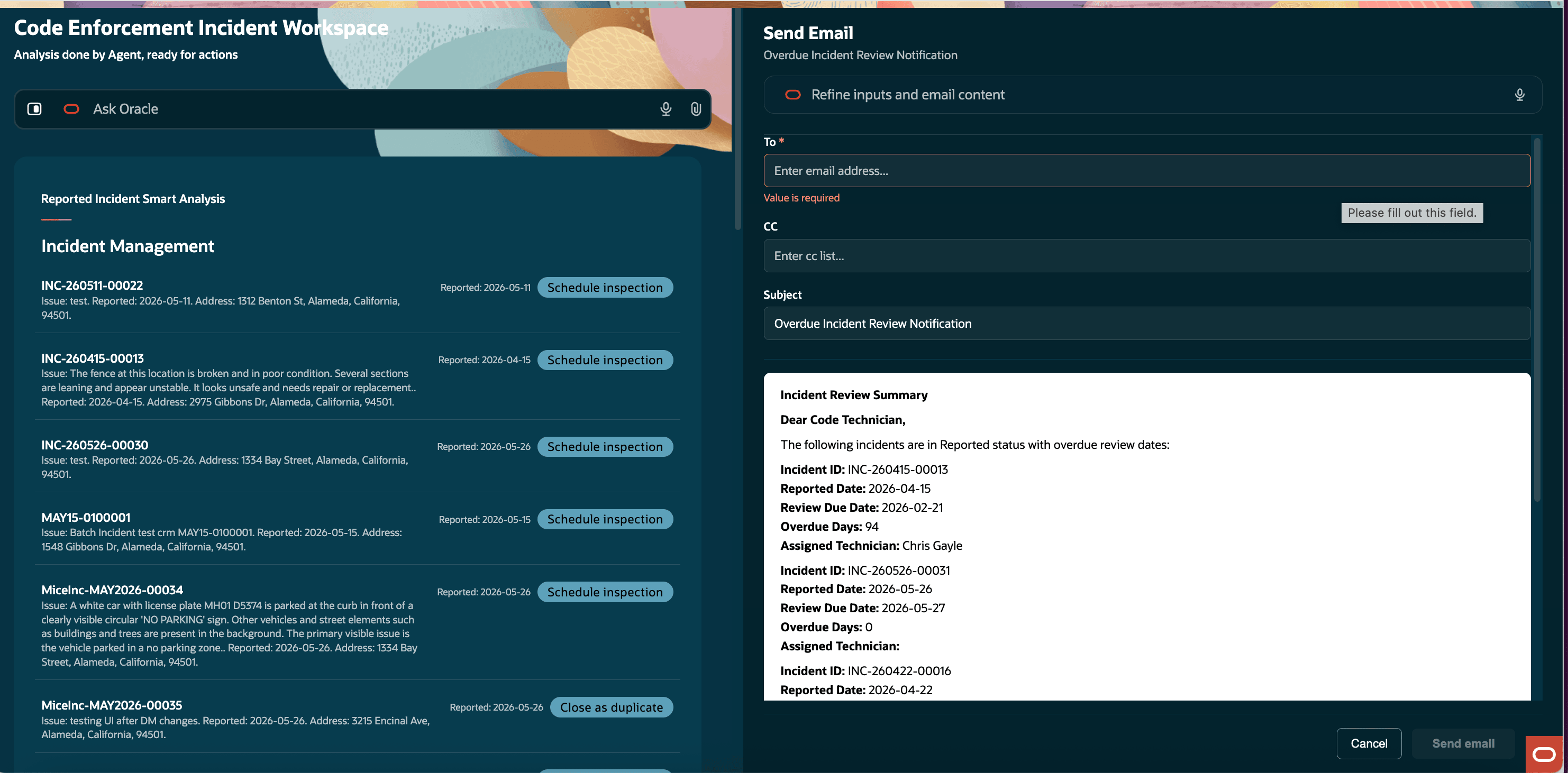
Send email
The Code Enforcement Incident Workspace Agentic App improves the incident review process by combining AI analysis with direct operational actions.
Business Benefit: This feature is intended to help code enforcement teams make faster, better-informed decisions while preserving user oversight of important incident actions.
Benefits of the agentic app include:
- Faster triage: Users can review AI recommendations for multiple reported incidents from one workspace.
- Reduced manual analysis: The app surfaces duplicate checks, priority concerns, and inspection readiness without requiring the user to manually investigate each incident first.
- Improved consistency: Recommendations and action execution follow defined workflow logic.
- Human-controlled automation: The agent prepares and executes actions, but the user decides when to initiate them.
- Better visibility into workload: Active incident summaries, priority actions, and communication support give users a broader view of current work.
- More efficient follow-through: Users can move directly from recommendation to action, such as closing a duplicate or scheduling an inspection.
Steps to enable and configure
Agentic apps are delivered enabled and only require set up through functional set up manager and security. Complete the steps below to enable the Code Enforcement Incident Workspace.
Enable AI for Code Enforcement
- Navigate to Setup and Maintenance for Offerings > Code Enforcement > Change Feature Opt In.
- Select the pencil icon in the Features column of the Public Sector Code Enforcement column.
- Select the Enable checkbox for "Enable AI Functionality for Code Enforcement".
- Select Done.
Set up Security
- Ensure you have set up the correct security for AI Agents as outlined in How do I use AI Agent Studio? , "Access Requirements for AI Agent Studio", Provide Access to Configure AI Agents in Oracle Permitting and Licensing on the Oracle Help Center. This includes the Profile Option ORA_HCM_VBCS_PWA_ENABLED is set to Y.
- In the Security Console, create a new custom role. [CUSTOM_PSC_AI_AGENT_END_USER_CUSTOM_ROLE].
- Give this role a meaningful name such as PSC AI Agent End User Custom Role.
- Choose Role Category Financials - Job Role.
- In the "Basic Information" section, check Enable Permission Groups.
- In the "Function Security Policies" section, click on Add Function Security Policy and add the following privilege:
- Access Intelligent Agent Chat (HRC_ACCESS_AI_AGENT_CHAT_PRIV)
- In the "Data security policy" section, create a new "Data Security Policy" with the following information:
- Enter the Policy Name as "Grant on AI Agent Workflow" and Data Resource as AI Agent Workflow.
- Select Data Set to ”Select by Instance set".
- Condition Name – Access…
- Parameter as “PSC”
- Select the Actions as "View AI Agent Workflow".
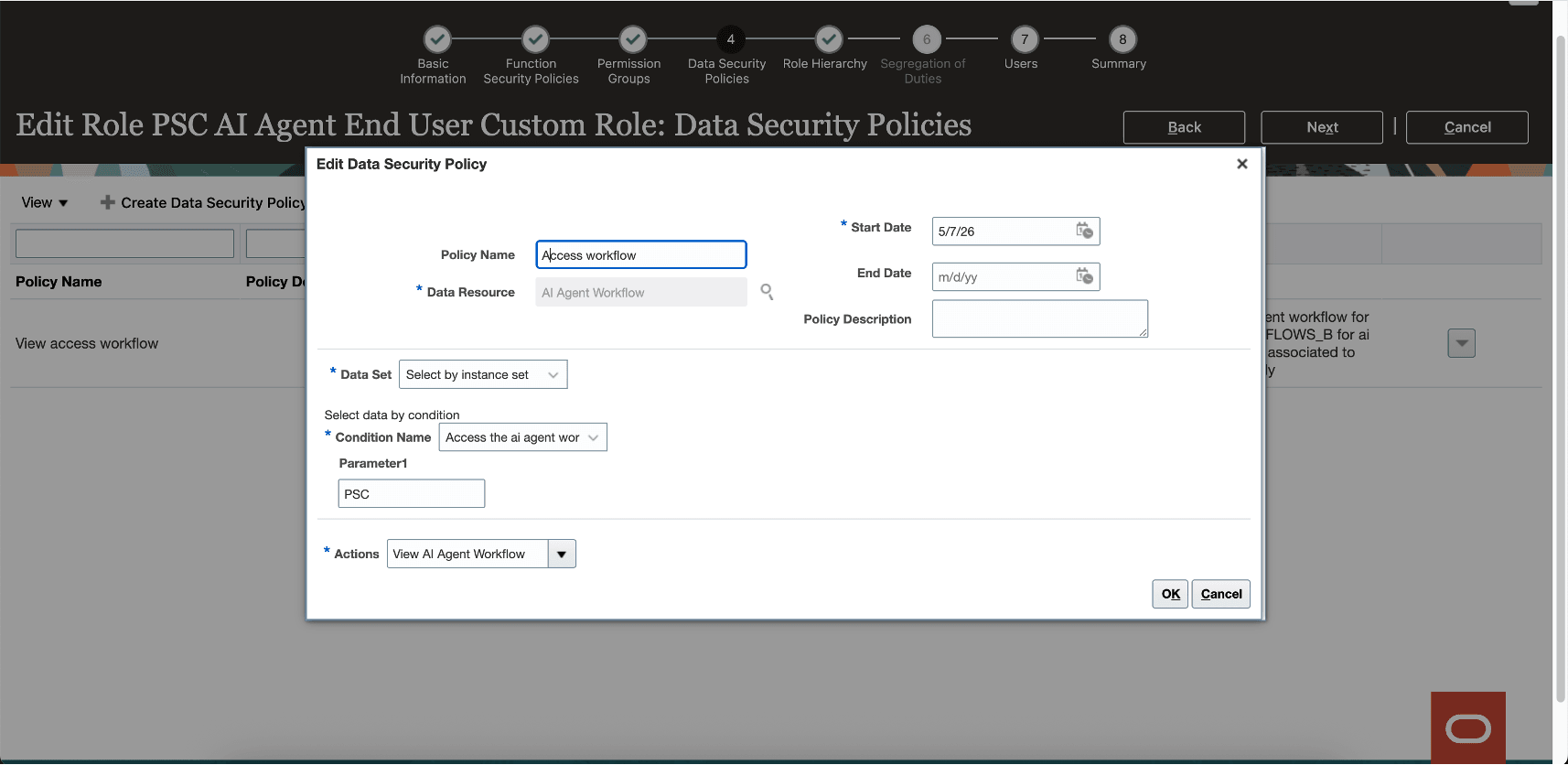
Data Security Policy
- Create new Data Security Policy for Data Resource: AI Agent, AI Agent Tool , AI Business Object , Deep Link using the steps above.
- In the "Role Hierarchy" section, click on the Roles and Permission Groups tab. Add the following duty role:
- FAI Genai Agent Runtime Duty (ORA_DR_FAI_GENERATIVE_AI_AGENT_RUNTIME_DUTY).
- Save the custom role.
- Make sure following roles have the newly created custom role assigned:
- CUSTOM_PSC_MANAGE_PERMITS_AGENCY (Permit Agency)
- CUSTOM_PSC_MANAGE_PNZ_AGENCY (Planning Agency)
- CUSTOM_PSC_MANAGE_BL_AGENCY (Business License Agency)
- CUSTOM_PSC_MANAGE_CE_AGENCY (Code Enforcement Agency)
- CUSTOM_PSC_REGISTERED_PUBLIC_USER (Registered Public User)
- Run Security Sync process.
Once security is set up, you can access the Code Enforcement Incident Workspace by using Home with Ask Oracle and searching for "Code Enforcement Incident Workspace".
Key resources
- See How do I use AI Agent Studio? , "Access Requirements for AI Agent Studio", Provide Access to Configure AI Agents in Oracle Permitting and Licensing on the Oracle Help Center.