AI Agent: Code Enforcement Reported Incident Review Assistant
The Code Enforcement Reported Incident Review Assistant is an AI-assisted review feature that helps agency users evaluate newly reported incidents more quickly and consistently. When an incident is submitted, the assistant analyzes the incident details and presents a concise summary of recommended follow-up actions directly on the incident record. The feature is designed to support the early triage process. It helps users determine whether an incident is categorized correctly, whether it may be a duplicate of an existing record, whether the priority should be increased, and whether there are related cases, incidents, permits, or other transactions that provide useful context.
The assistant reviews a reported incident and generates recommendations in several key areas. First, it evaluates whether the selected issue subtype appears to match the incident description. If the description better aligns with a different subtype, the assistant can recommend that the incident be rerouted Second, it searches for potential duplicate incidents or cases. It compares the reported incident with previously reported incidents and cases and looks for similarities in issue type, issue subtype, location, and description. When a likely duplicate is found, the assistant can recommend identifying another incident or case as the parent or primary record. Third, it reviews related history for the location. For example, if the property has prior violations or related activity, the assistant may recommend increasing the priority of the incident, especially when the description suggests urgency or a potential public safety concerns. Finally, the assistant identifies related transactions such as nearby cases, incidents, permits, or parcel-related activity, so users can make decisions with better context.
The assistant is invoked when an incident is submitted. The system passes the incident identifier to the agent, which then retrieves the incident details needed for analysis. This includes the incident description, issue type, issue subtype, address, parcel or location details, and latitude/longitude information. Using that information, the assistant searches related application data, including nearby incidents, cases, permits, and other transactions associated with the same or nearby locations. It then uses this data to evaluate potential duplicates, subtype accuracy, priority concerns, and related activity. The incident page retrieves that stored result and displays it as an AI-generated summary for the user.
The assistant appears on the Incident Detail page for incidents in Reported status.
You navigate to the incident from the worklist or incident list, but the AI-generated review is displayed on the incident detail view itself. The summary is intended to support the user before they take the next action on the reported incident.
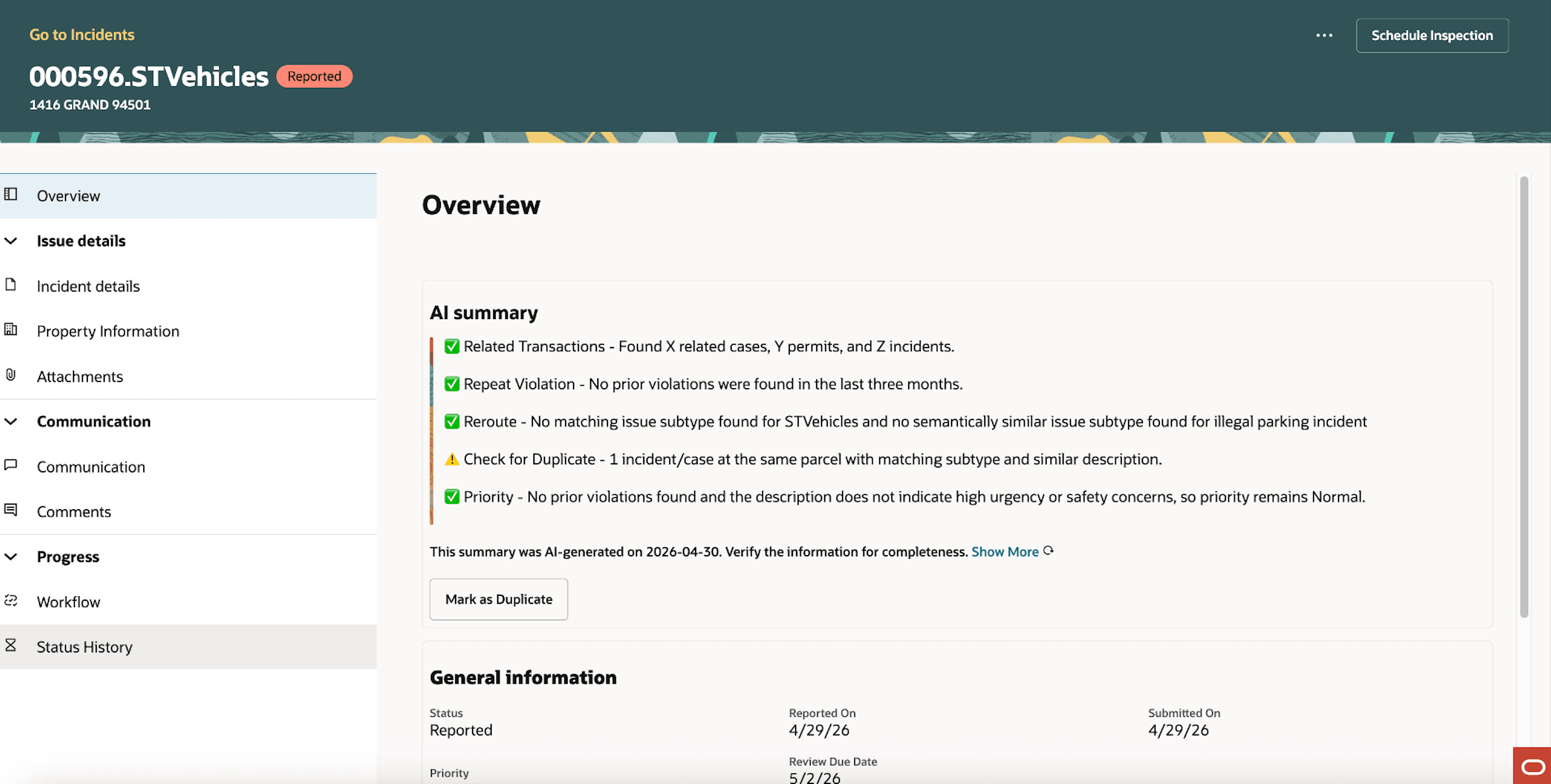
Incident Page AI Summary
The summary is shown only while the incident remains in Reported status. If the incident moves to another status, the AI summary is no longer displayed. If an incident is reopened, the existing stored result may be shown unless the assistant is explicitly rerun. Clicking "Show More" displays the details of the summary.
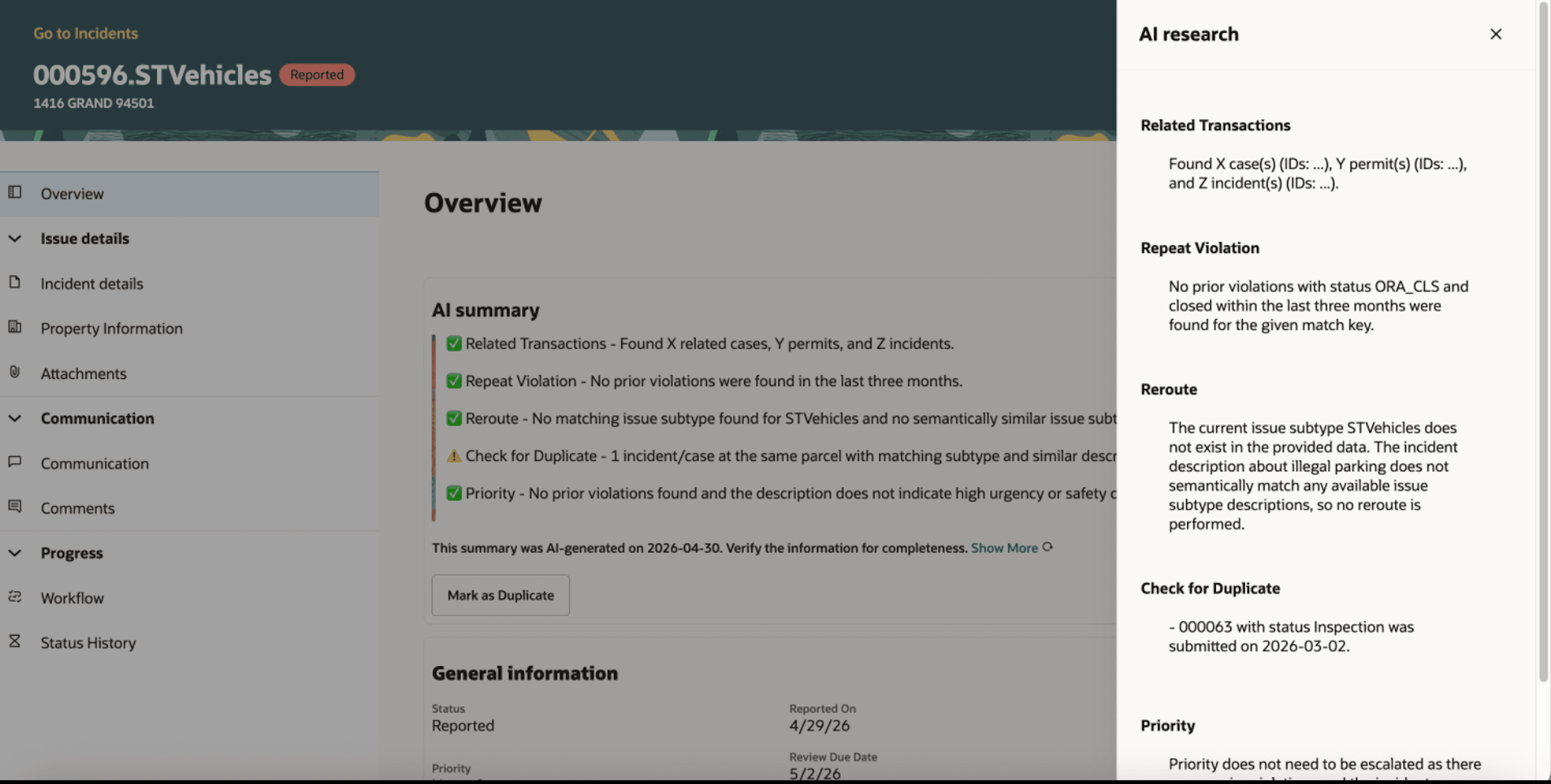
AI research drawer
If you refresh the page, the summary will run again and the analysis will update. Once the incident is moved out of "Reported" status, the summary is no longer available.
The CE Reported Incident Review Assistant is delivered as a runnable, packaged agent that agencies can enable through configuration. The assistant is invoked through Business Rules Framework action called Call AI Agent. You can configure this action through BRF and provide the runnable agent name. This approach gives you control over when and where the assistant is used.
For example, you may choose to enable the assistant for:
- a single issue subtype
- a selected group of issue subtypes
- all reported incident issue subtypes
Business Benefit: The CE Reported Incident Review Assistant helps agencies improve the speed, consistency, and quality of incident triage.
Steps to enable and configure
This AI Agent is a runnable agent and is configured through Business Rules Framework. There are various steps needed to enable this agent.
- Enable AI functionality for Code Enforcement
- Ensure security is set correct for AI Agents
- Set up BRF actions for Call AI Agent
To enable AI Functionality for Code Enforcement
If you do not have AI functionality enabled for Code Enforcement, complete the steps below.
- Navigate to Setup and Maintenance of Offerings > Offering: Code Enforcement > Change Feature Opt In.
- Click on the pencil icon in the Features column in the Public Sector Code Enforcement row.
- In the "Enable AI Functionality for Code Enforcement" row select the checkbox in the Enable column.
- Click Done.
Set up Security
For runnable agents, you need to set up security to ensure that your users can explore and interact with the agents.
- Ensure you have set up the correct security for AI Agents as outlined in How do I use AI Agent Studio? , "Access Requirements for AI Agent Studio", Provide Access to Configure AI Agents in Oracle Permitting and Licensing on the Oracle Help Center. This includes the Profile Option ORA_HCM_VBCS_PWA_ENABLED is set to Y.
- In the Security Console, create a new custom role. [CUSTOM_PSC_AI_AGENT_END_USER_CUSTOM_ROLE].
- Give this role a meaningful name such as PSC AI Agent End User Custom Role.
- Choose Role Category Financials - Job Role.
- In the "Basic Information" section, check Enable Permission Groups.
- In the "Function Security Policies" section, click on Add Function Security Policy and add the following privilege:
- Access Intelligent Agent Chat (HRC_ACCESS_AI_AGENT_CHAT_PRIV)
- In the "Data security policy" section, create a new "Data Security Policy" with the following information:
- Enter the Policy Name as "Grant on AI Agent Workflow" and Data Resource as AI Agent Workflow.
- Select Data Set to ”Select by Instance set".
- Condition Name – Access…
- Parameter as “PSC”
- Select the Actions as "View AI Agent Workflow".
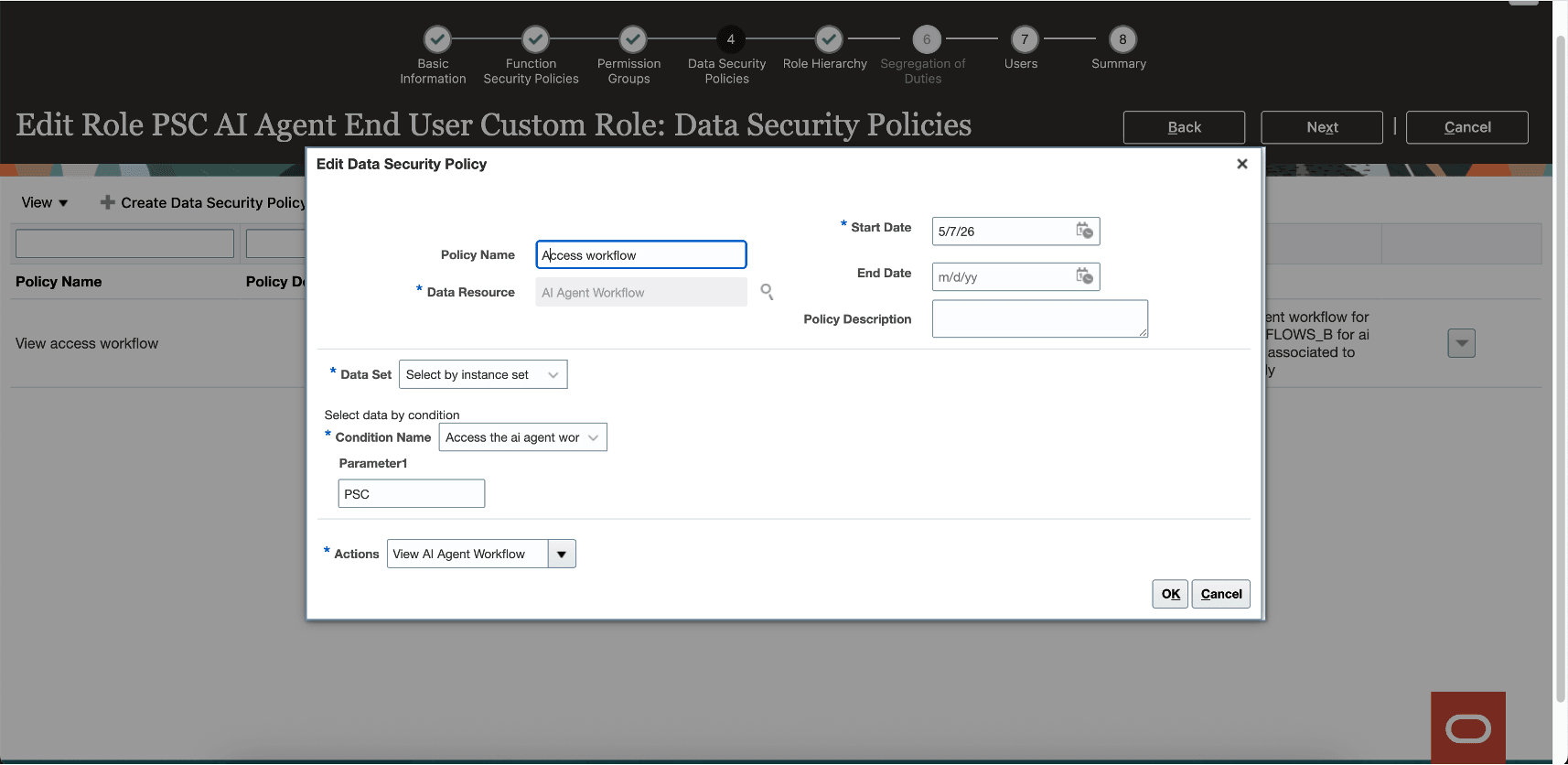
Data Security Policy
- Create new Data Security Policy for Data Resource: AI Agent, AI Agent Tool , AI Business Object , Deep Link using the steps above.
- In the "Role Hierarchy" section, click on the Roles and Permission Groups tab. Add the following duty role:
- Fai Genai Agent Runtime Duty (ORA_DR_FAI_GENERATIVE_AI_AGENT_RUNTIME_DUTY).
- Save the custom role.
- Make sure following roles have the newly created custom role assigned
- CUSTOM_PSC_MANAGE_PERMITS_AGENCY (Permit Agency)
- CUSTOM_PSC_MANAGE_PNZ_AGENCY (Planning Agency)
- CUSTOM_PSC_MANAGE_BL_AGENCY (Bl Agency)
- CUSTOM_PSC_MANAGE_CE_AGENCY (CE Agency)
- CUSTOM_PSC_REGISTERED_PUBLIC_USER (RPU)
- Run Security Sync process.
Enable Business Rules Framework Rule
- Navigate to Business Rules Framework.
- Select Code Enforcement.
- Select Incident Status Updated.
- Add a new Business Rule. For example:
- Rule Name: Incident review agent on incident creation.
- Rule Description: Call agent for smart analysis on incident submission.
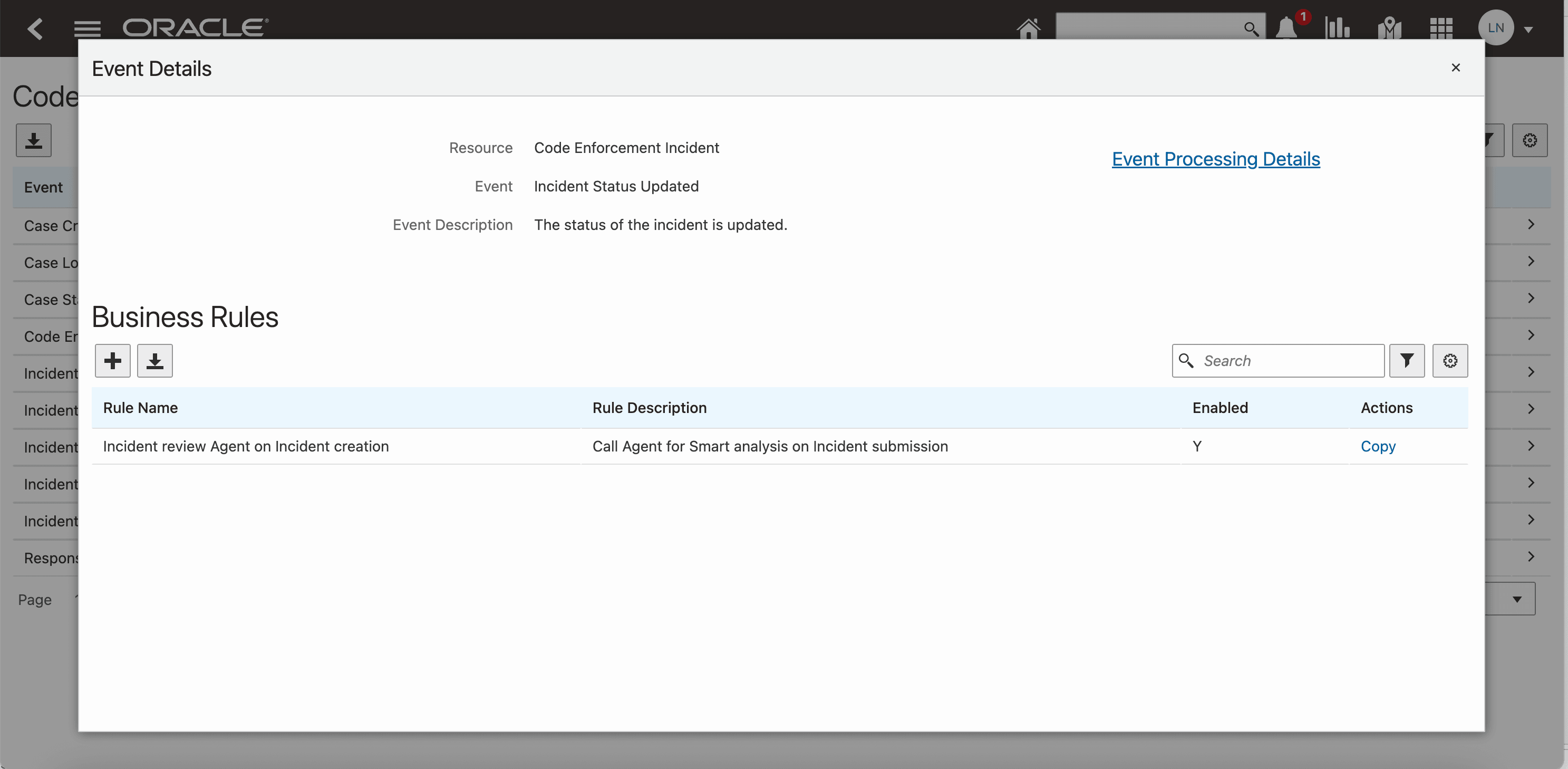
Business Rule Details
- Add Rule Criteria - Status = Ora_Rep.

Rule Criteria
- Add Actions - Call workflow agent.

Actions
- Click Configure.
- Family - PSC
- Product - Code Enforcement
- Agent Name - Code Enforcement Reported Incident Review Assistant
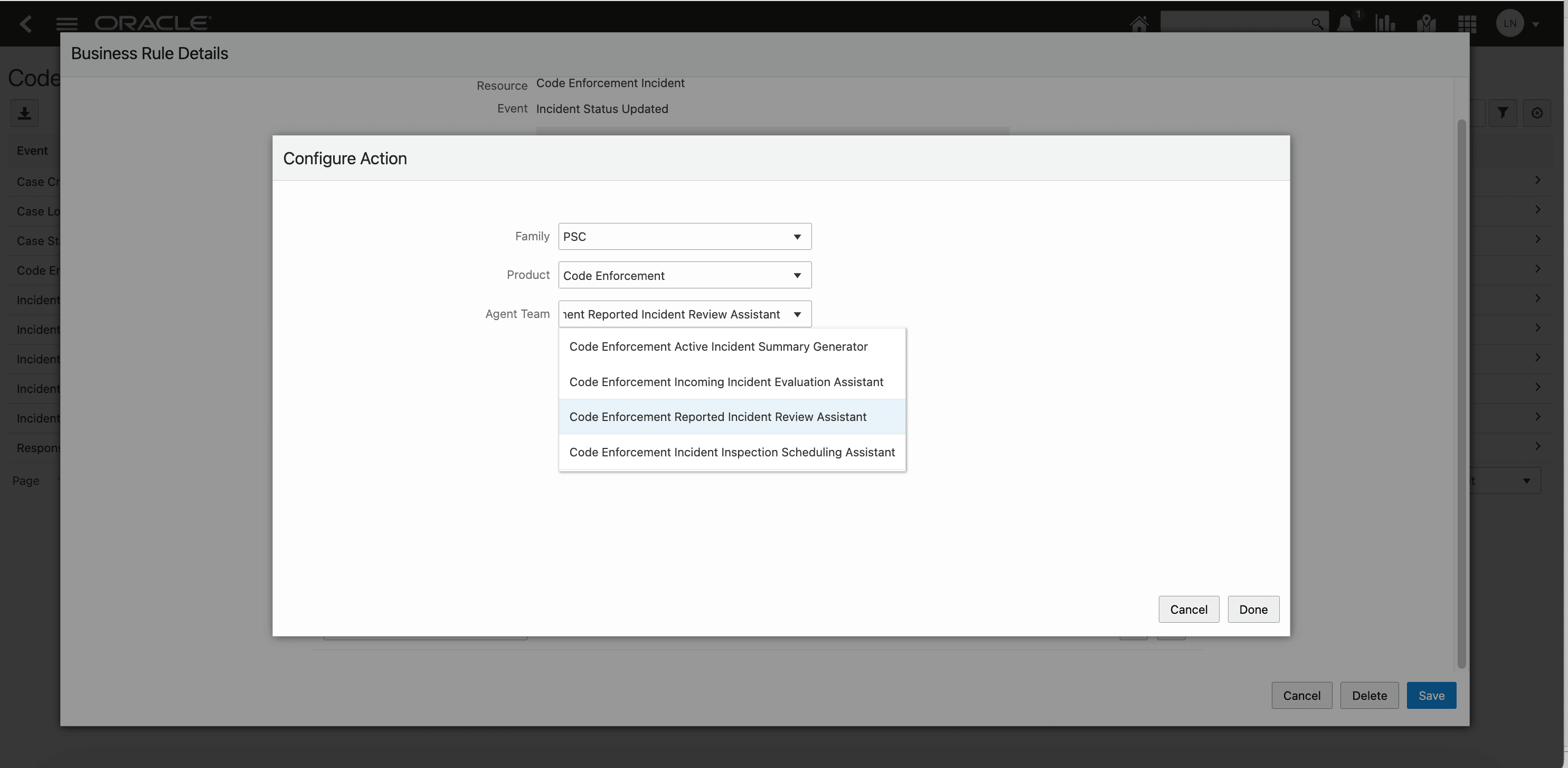
Configure
- Click Done.
- Click Save.
Once the following is enabled, the AI Summary will appear for newly submitted incidents on the Incident Overview page.
Tips and considerations
The assistant does not automatically rerun when the incident description is edited after submission.
The assistant also does not currently save the AI analysis as an incident comment after the incident moves out of Reported status.
Note. Only incidents that move to the "reported" status after the Business Rules are enabled will run through Code Enforcement Incident Review Assistant. Any incidents in the "reported" status prior to the enablement of this feature will not have the AI Summary populated on the Incident Overview page.
Key resources
- See Implementing Permitting and Licensing, "Implementing the Business Rules Framework", Business Rules Framework Event Details on the Oracle Help Center.
- See Oracle AI for Fusion Applications: How do I use AI Agent Studio?, "Create AI Agents", Create AI Agents using Preconfigured Templates on the Oracle Help Center.
- See Implementing Your Cloud Integrations, "Implementing AI Agents", Delivered AI Agents on the Oracle Help Center.
Access requirements
Assign the Duty Role PSC Access Code Enforcement Incident AI agent: ORA_DR_PSC_CE_INCIDENTS_AI_ASSISTANT_DUTY to PSC Custom Manage Incident and Cases as CE Agency User under Roles and Permission Groups tab in the Security Console.
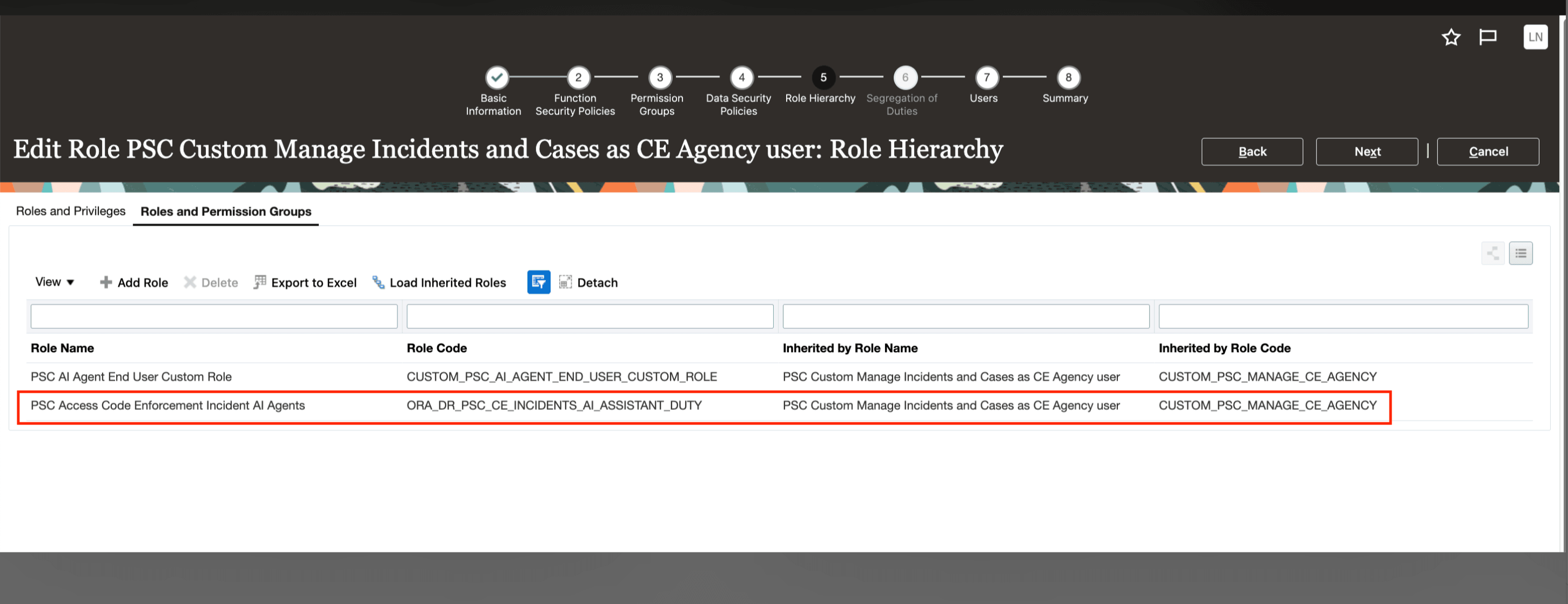
Security console