Transaction search for Explore Your City
Transaction Search for Explore Your City lets agency staff and public users view transactions associated with a selected address or parcel on the Explore Your City map. You can also search for transactions near that location within a configurable distance.
Users select an address or parcel from the map or search results. Explore Your City displays the transactions associated with that location and provides a Nearby Transactions option.
You can specify a distance and unit of measure, and filter results by:
- Transaction type, such as permits, planning and zoning applications, business licenses, and cases
- Status
- Date range
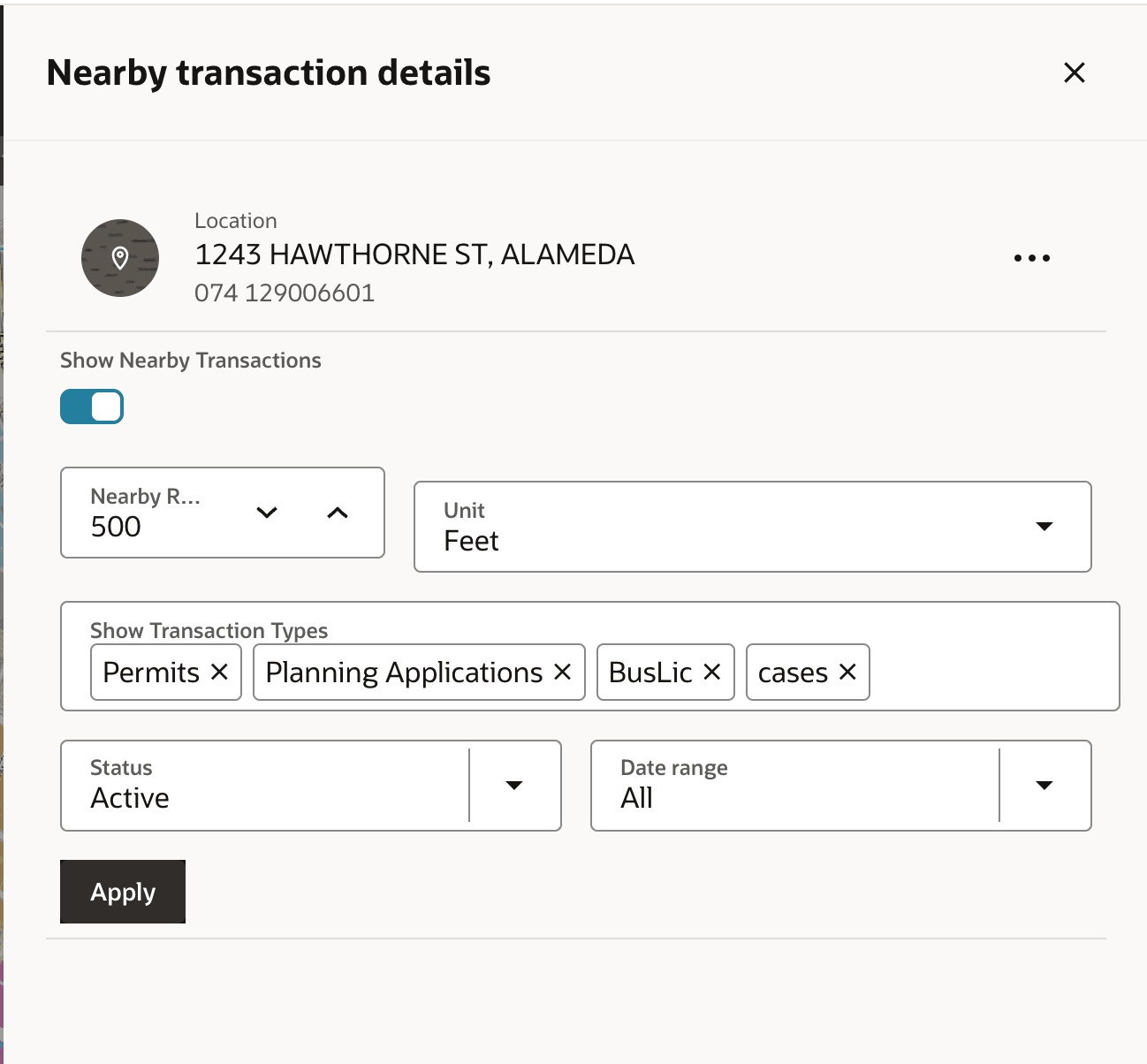
Nearby transaction details
Matching transactions are displayed as markers on the map and in a list organized by transaction type. The results identify transactions directly associated with the selected location separately from transactions found within the nearby search area. Users can select transactions to view additional details and, where permitted, navigate to related transaction, address, or parcel details.
The context switch in the search allows you to select a transaction type and enter criteria to search for matching transactions. You can only search for permits, planning applications, business licenses, or cases based on the entered search criteria.
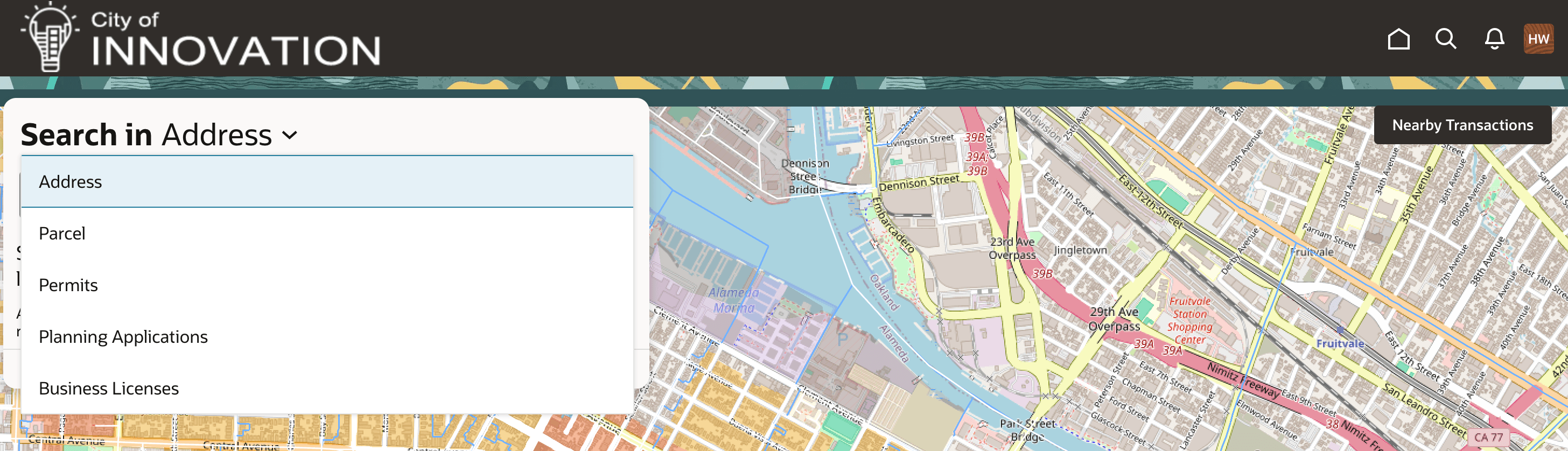
Explore your city search
Business Benefit: This feature helps users quickly understand activity at and around a property without searching for transactions individually. It gives agency staff and the public a clearer view of nearby development, permitting, licensing, planning, and case activity, supporting faster research and more informed decisions.
Steps to enable and configure
To use this feature, you must have the Redwood Experience for Explore Your City enabled. If you have already enabled Explore Your City, you do not need to do anything further.
- Navigate to Setup and Maintenance > Offering: Any > Change Feature Opt In.
- In your offering row, select the pencil icon.
- Enable the checkbox for Redwood Experience for Explore Your City.
- Click Done.
Key resources
- See Using Community Development Permits, "Working with Maps", Using the Main Map and Explore Your City Map on the Oracle Help Center.