Code Enforcement Inspection Summary Assistant
The Code Enforcement Inspection Tasks page now provides code enforcement officers and other authorized staff with an option to view a preinspection summary to prepare for a scheduled inspection or while completing an inspection. The Code Enforcement Inspection Summary Assistant generates a concise, read-only summary for the selected inspection, including prior incident and case inspections, outcomes, code violations, corrective actions, notices, and comments. Users can also manually refresh the summary to see their latest updates.
This example illustrates the Inspection Tasks page where the code officer selects the action to view the preinspection summary.
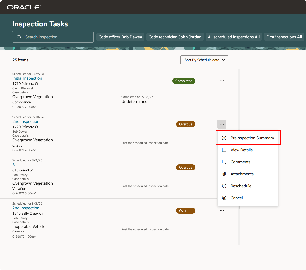
Inspection Tasks page
This example illustrates the Preinspection summary drawer where the code officer views the AI-generated preinspection summary for an inspection.
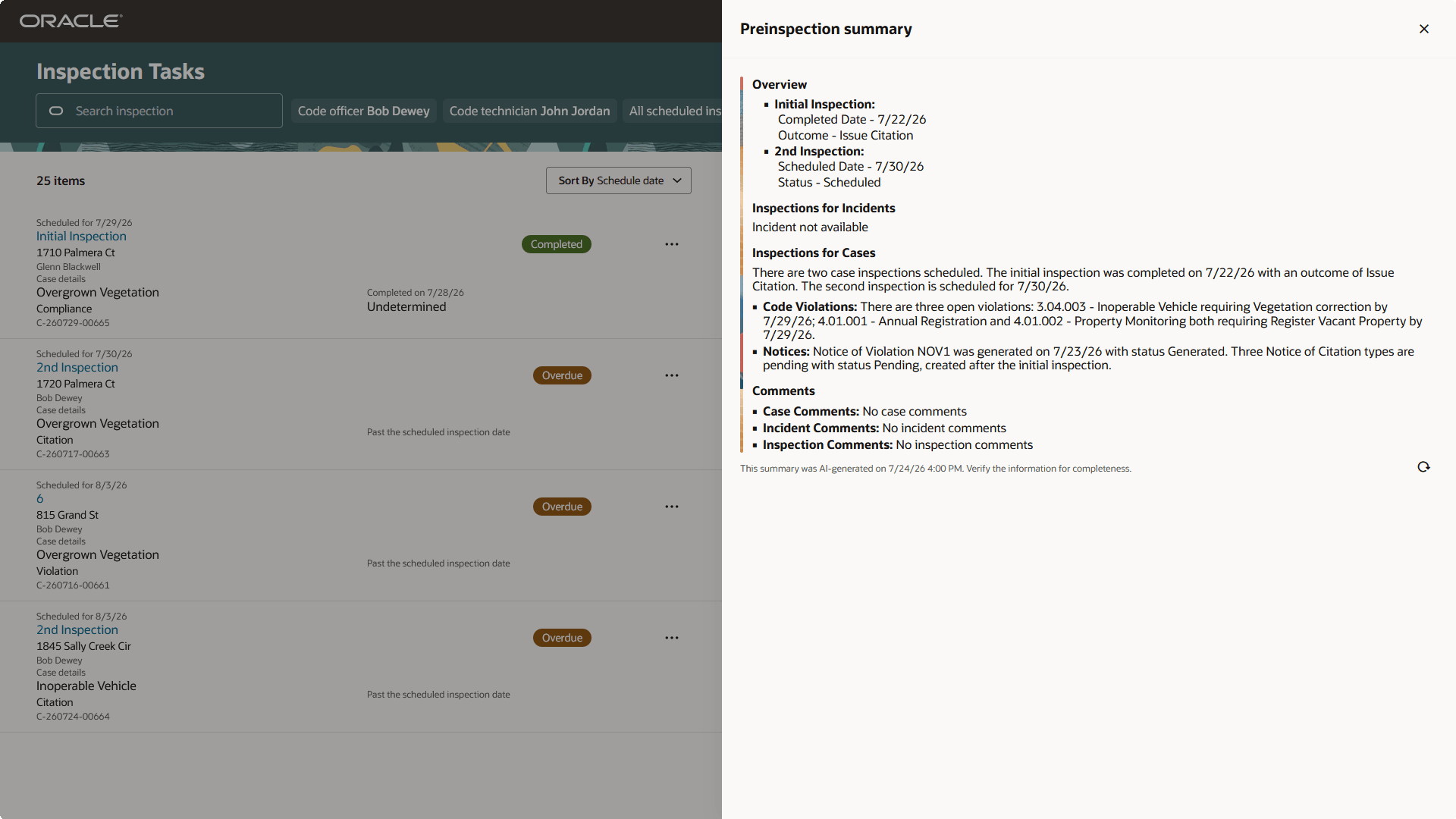
Preinspection Summary drawer
Business Benefit: This inspection summary assistant gives code officers and staff a quick overview of prior incident and case inspections, comments, corrective actions and more, quickly and easily saving valuable time when on site.
Steps to enable and configure
These are the steps to enable this agent for Permitting and Licensing:
- Enable AI for your offerings in Permitting and Licensing.
- If you have already enabled AI for your offerings, you can skip this step.
- Set up the appropriate security for AI Agents.
- If this has been configured previously, you can skip this step. (Note: These instructions were updated for 26C. If you configured your security prior to 26C, you should verify that you have the correct setup.)
- Verify agent is published from AI Agent Studio
- Run process monitor for inspections.
- Run Pre Inspection Summary.
1. Enable AI Functionality for Code Enforcement. If you have already enabled AI functionality, you can skip this step.
- Navigate to Setup and Maintenance > Offering: Code Enforcement > Change Feature Opt In.
- Click on the pencil icon in the Features column for the Public Sector Code Enforcement row.
- In the "Enable AI Functionality for Code Enforcement" row select the checkbox in the Enable column.
- Click Done.
2. Ensure security is set up for AI Agents. If you have already set up your security you can skip this step.
- Set up correct security for AI Agents as outlined in How do I use AI Agent Studio? , "Access Requirements for AI Agent Studio", Provide Access to Configure AI Agents in Oracle Permitting and Licensing on the Oracle Help Center.
3. Verify Code Enforcement Inspection Summary Assistant is published from AI Agent Studio.
- Open AI Agent Studio.
- Click the Agent Team tab.
- Click the Published tab.
- Search for Code Enforcement Inspection Summary Assistant and verify that it is published.
4. Run Process Monitor to pick inspections scheduled before or after 90 days from today and queue up these cases to generate the inspection summary.
- Navigate to Permitting and Licensing Process Monitor.
- Click Schedule New Process.
- Select Create Incident and Case Inspection Summary.
- Submit the process.
5. Run Inspection Summary
- Log in to the Code Officer Inspection Task.
- Navigate to the inspection row and select Preinspection summary.
- Open the drawer to find the summary.
Key resources
- See Using Community Development Code Enforcement, "Using the Code Officer Application", Viewing Code Officer Inspection Tasks on the Oracle Help Center.
- See Implementing Your Cloud Integrations, "Implementing AI Agents and Agentic Apps", Setting Up Code Enforcement Inspection Summary Assistant (New) on the Oracle Help Center.
Access requirements
To run the batch process in Process Monitor, you must have the following roles:
- PSC System Administrator
- PSC Code Enforcement Application Administrator
For access to the Code Enforcement Inspection Summary AI Agent, you need the following roles:
- PSC Code Enforcement Technician
- PSC Code Enforcement Officer
- PSC Code Enforcement Supervisor