Code Enforcement Incident Image Intake Assistant
The Code Enforcement Incident Image Intake Assistant streamlines the issue intake process by analyzing user-uploaded images to automatically identify potential code violations and pre-populate incident details. This agent operates within the Report Issue workflow as a new embedded fragment when the feature configuration is enabled. It helps authenticated users (both agency staff and registered public users) create incidents quickly by reducing manual data entry while maintaining the option to complete the report manually at any stage.
In the example below, users upload an image when they report an issue and the Image Intake Assistant analyzes the image:
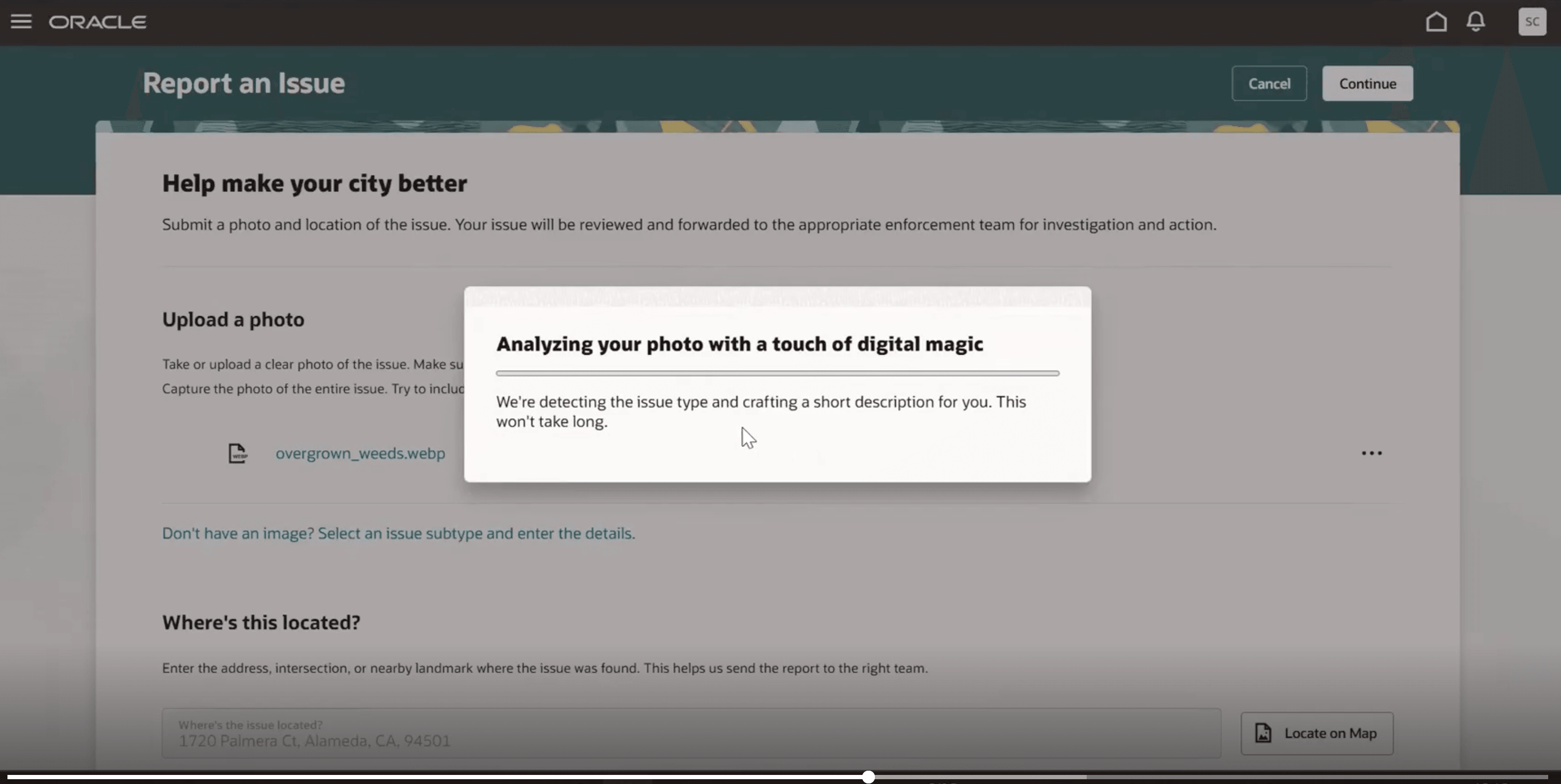
Upload an image
Once uploaded, the assistant determines the violations and opens the appropriate issue subtype and completes the issue description:
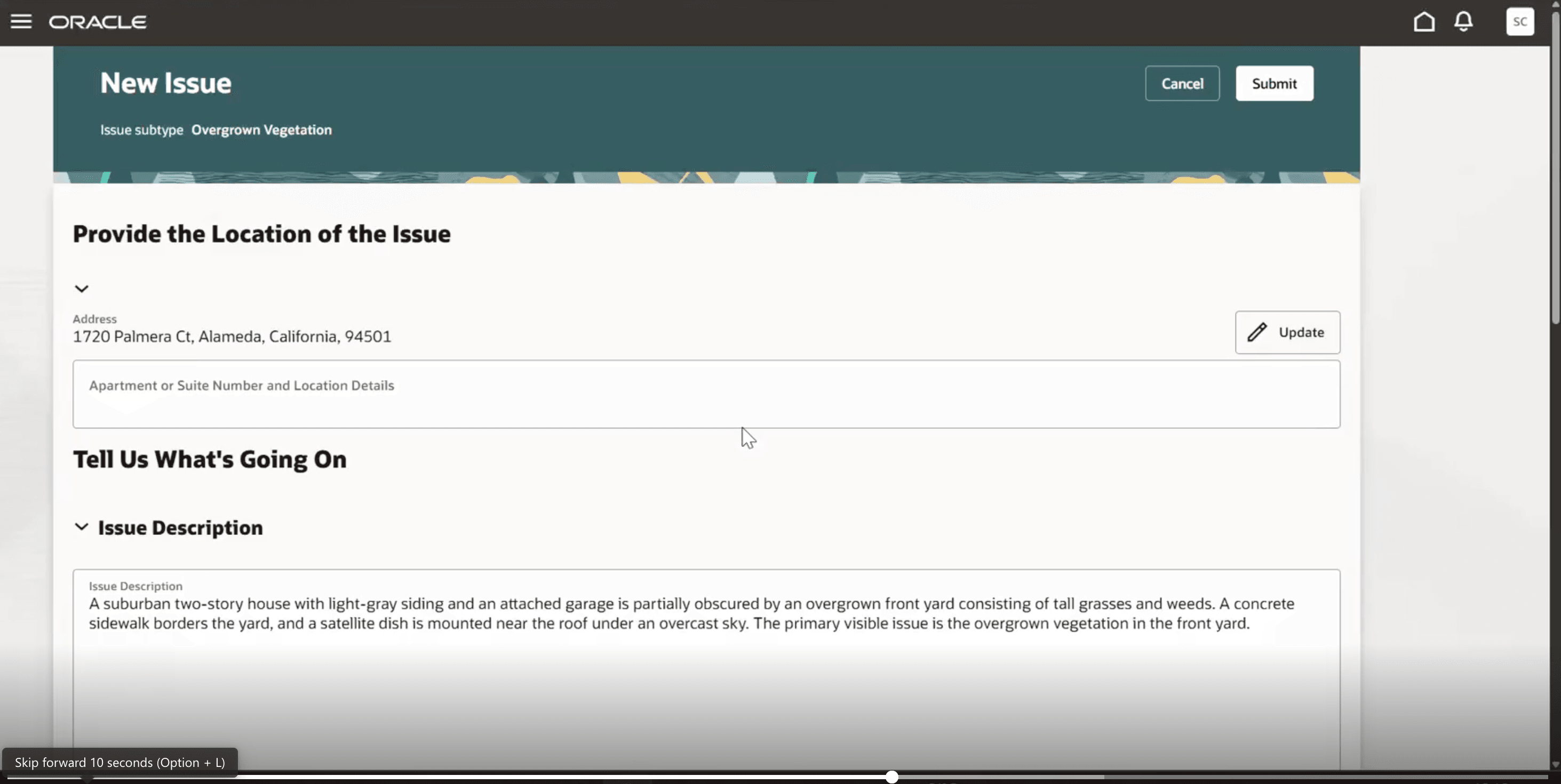
Issue description
After reviewing the issue description, you can make any necessary changes. The assistant also includes any additional information required for the issue type. When you submit the incident, the information is used to create the incident and the incident appears on the incident details page.
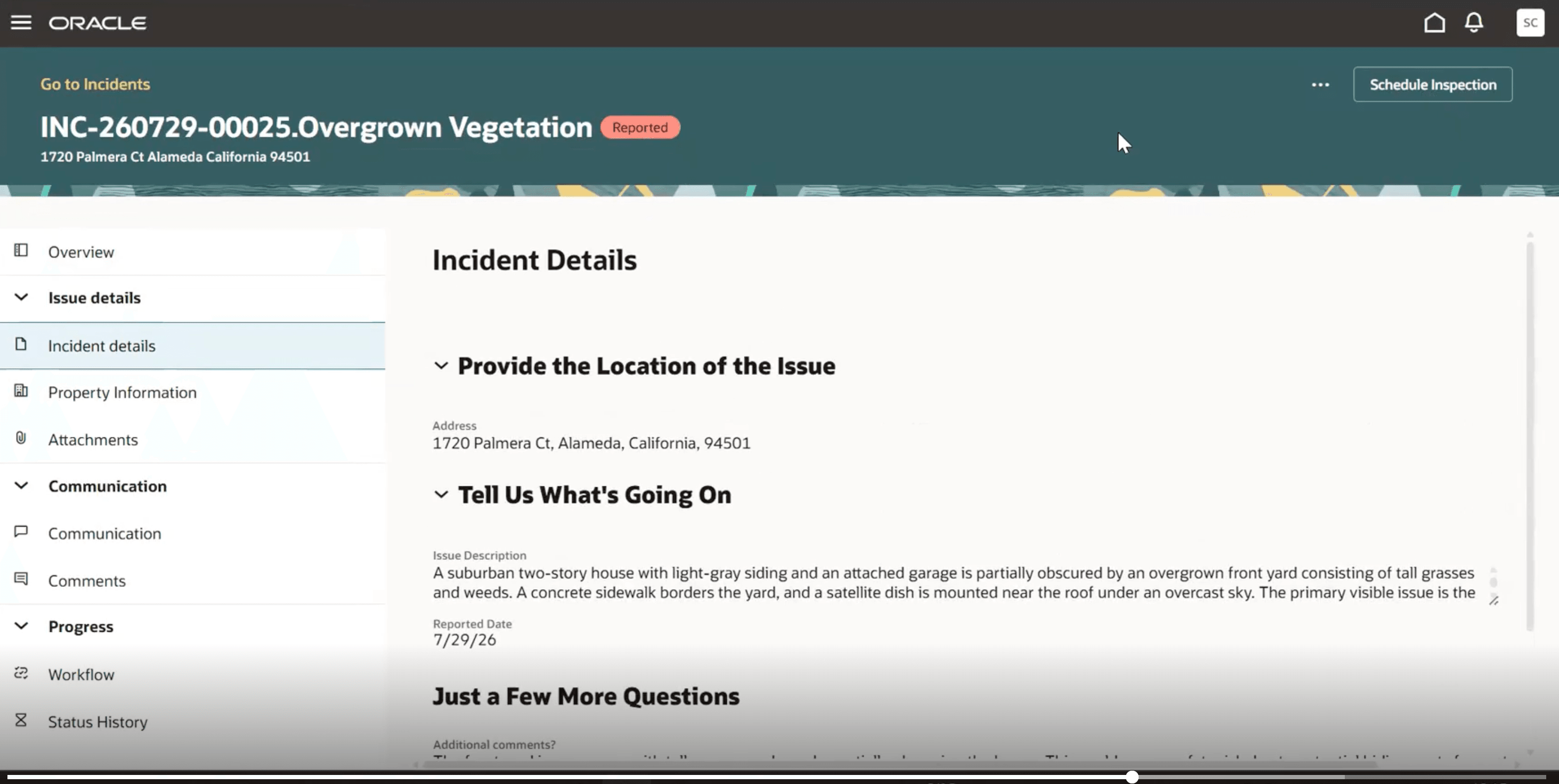
Incident Details page
Technically, the Code Enforcement Incident Image Intake Assistant is an embedded, pre-configured Retrieval-Augmented Generation (RAG)-based agent that uses an underlying document processor to analyze uploaded images. It generates a natural-language description of the scene, detects potential violations, maps the results to configured issue types, and populates matching fields when the required information is present in the image. The quality and completeness of the populated data depend on the document processor's image analysis and the application's configured issue types and fields.
The feature is controlled by an FSM option that allows administrators to enable or disable the AI-assisted experience without affecting the existing reporting workflow.
This example illustrates the FSM page where the agency can enable the option for AI assistance while reporting an issue.
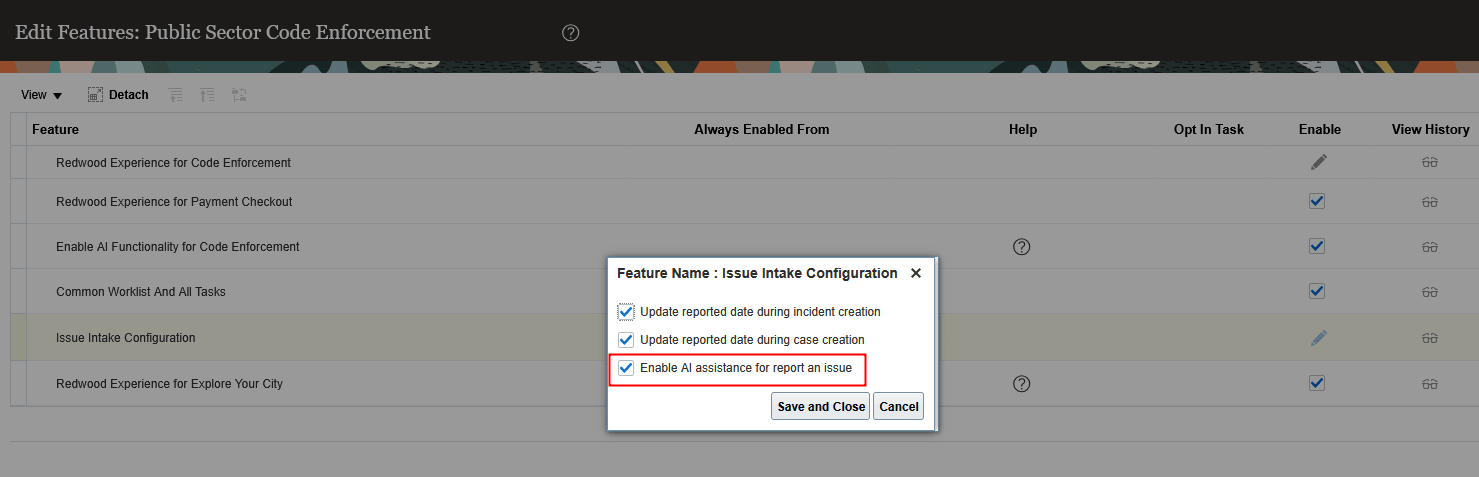
Edit Features: Public Sector Code Enforcement Page
Business Benefit: This agent accelerates code enforcement incident reporting by using AI to identify potential violations from uploaded images and prepopulate details, reducing manual entry while preserving user review and control.
Steps to enable and configure
These are standard steps to add AI Agents for Permitting and Licensing:
- Enable the AI agent for in Code Enforcement.
- Setup the appropriate security for AI Agents.
- Complete the set up as outlined in How do I use AI Agent Studio? , "Access Requirements for AI Agent Studio", Provide Access to Configure AI Agents in Oracle Permitting and Licensing on the Oracle Help Center.
- If this has been configured previously, you can skip this step. (Note - these instructions were updated for 26C. If you configured your security prior to 26C, you should verify that you have the correct setup.)
1. Enable AI Functionality in Code Enforcement.
You will need to first enable the AI functionality in Code Enforcement.
- Navigate to Setup and Maintenance > Offering: Code Enforcement > Change Feature Opt In.
- Select the pencil icon in the Issue Intake Configurator row.
- Select the Enable checkbox for "Enable AI assistance for report an issue".
- Select Save and Close.
2. Set up Security for AI Agents
Complete the steps outlined in How do I use AI Agent Studio? , "Access Requirements for AI Agent Studio", Provide Access to Configure AI Agents in Oracle Permitting and Licensing on the Oracle Help Center.
Key resources
- See Using Community Development Code Enforcement, "Code Enforcement Activities for Public Users", Reporting Issues on the Oracle Help Center.