Create Sales Contacts from Email Signatures using Agentic AI
With the 25C update, sellers can use AI to enrich existing Sales contacts directly within the Oracle Sales Add-in for Outlook. As part of this capability, when reading an email from an existing Sales contact, AI scans the email signature, identifies newly available or updated details such as job title or phone numbers, and surfaces a recommendation to update the contact record. See Enrich Sales Contacts based on Email Signatures for more.
Now with the 26B update, this capability is extended to new contact creation. When an email includes participants categorized as Contacts Not in Sales, AI proactively analyzes the email conversation and signature blocks to identify relevant contact details and highlight the Create action on the Share page. Upon selection, fields such as name, job title, Sales account, and phone numbers are pre-filled on the contact creation page. Sellers can review and confirm the information before creating the contact.
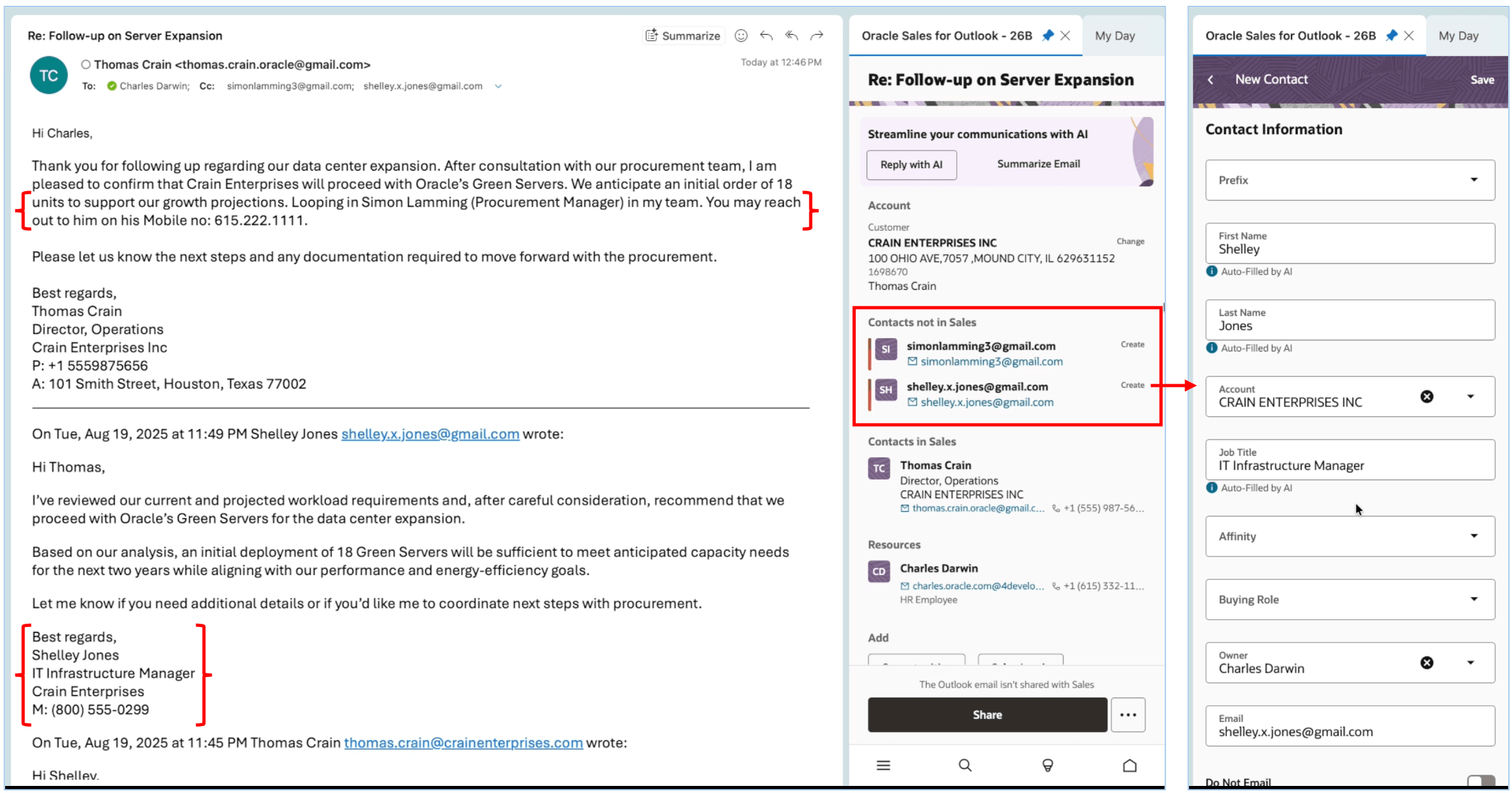
Create Sales Contacts using Agentic AI
As a direct benefit, sellers keep their address book continuously up to date, while minimizing manual data entry and improving the accuracy and completeness of contact information captured in Sales.
Steps to enable and configure
Leverage Application Composer to expose and adjust page layout and attributes. To learn more about extending your application using Application Composer, visit Oracle Help Center > your apps service area of interest > Books > Configuration and Extension.
As a prerequisite, this is an AI Agent–powered capability and requires AI Agent Studio to be enabled. Add-in users must also be assigned the appropriate roles. See How do I use AI Agent Studio? to get started.
If you previously enabled the Enrich Contacts feature in the Redwood Sales Add-in prior to the 26B update, this enhancement is automatically available after upgrade.
To enable the feature:
- In a publishable sandbox, navigate to Application Composer > Productivity Application Setup > Oracle Sales for Outlook.
- In the Application Features pane, click Settings, then expand Generative AI Settings pane.
- Expand the subsection: Generative AI for Contacts.
- Use the toggle next to Enrich Contacts feature to enable it. Access control options: Assigned Regions and Assigned Roles are also available.
- Click Save.
See Streamlined Setup for Generative AI Features for more details.
Tips and considerations
- AI verification for creating new contacts is triggered for emails received in last 72 hours.
- When AI identifies contact information, users see AI bloom(s) beside Contacts Not in Sales on the Add-in homepage, signaling that AI-assisted creation is available.
- Users can click Create, review the Auto-filled by AI contact details and complete the flow.
- If users select Create before the AI response is returned, they are still presented with an option once the response becomes available, allowing them to proceed with AI-assisted contact creation.
- As with all AI features, it's important that your users verify the generated content for correctness and accuracy.
Access requirements
Follow Access Requirements for AI Agent Studio chapter in How do I use AI Agent Studio?