Author Contract Terms with AI Powered Word Add-In
You can use the new AI powered Word Add-in, that works well for Windows as well as Mac computers, to author contract terms. You can, not only add, modify, delete, sections and clauses, but also take the help of the out-of-the-box AI Agents to improve the clause language compared to the earlier methods of editing the language.
1. Structured Terms:
You can perform the following actions for this flow.
- Search Recent Contracts by Keyword
- Download Contract
- Upload Contract
- Unlock
- Refresh
- Edit Variable Values
- Refresh System Variable Values
- View Contract Advisor
- View Contract Details
- Export to External Party
- Import Revision
- Close
- Add Section
- Delete Section
- Add Clause
- Delete Clause
- Revert to Standard
- Suggest Text
First View on Click of Add-in: When you click the add-in icon, you can see the recent contracts pane, in case you have already logged into the application previously.
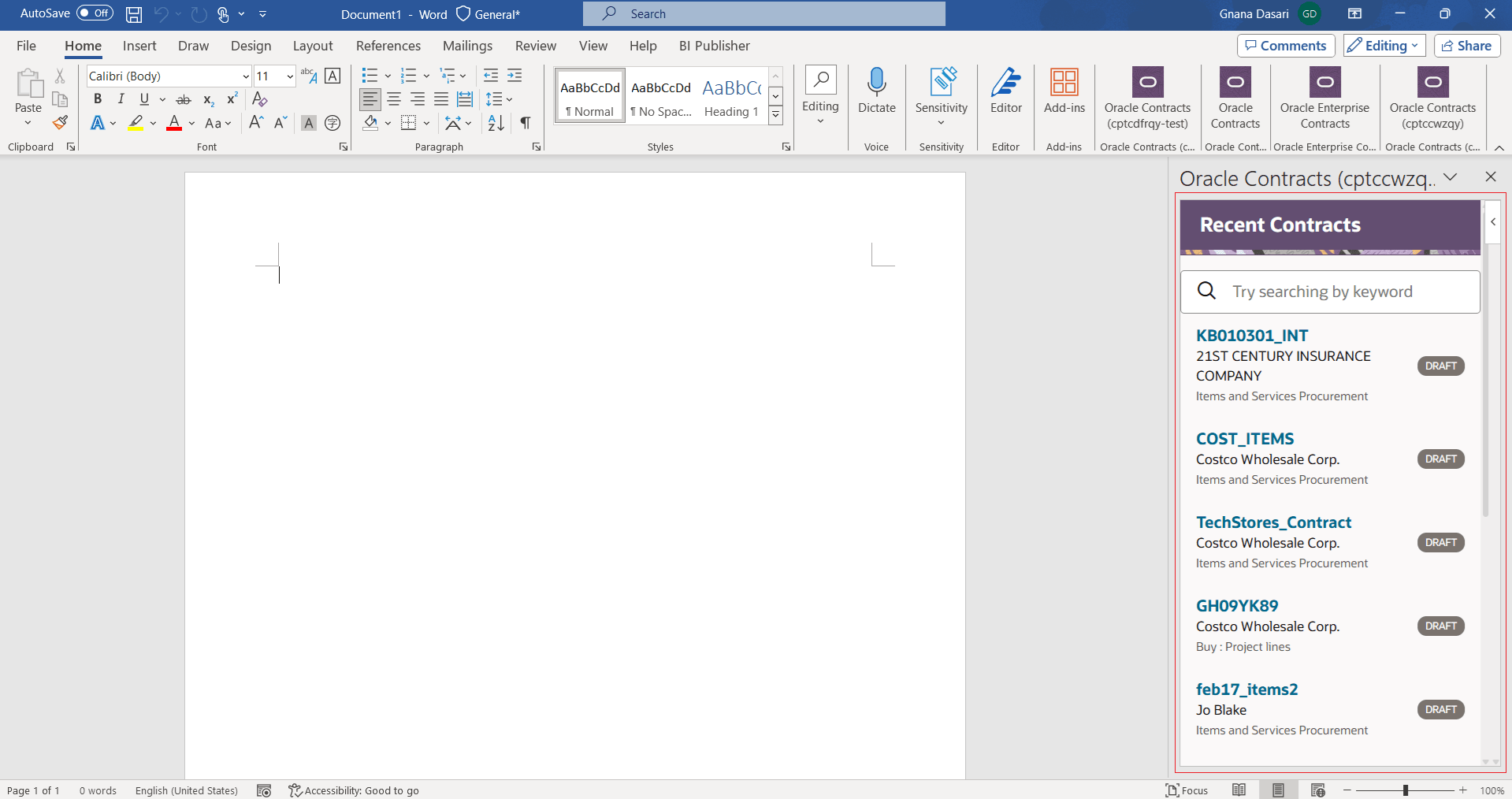
Recent Contracts Pane
In case you are using the add-in for the first time without a login to the application, you will be prompted to enter the login details for the application.
Search by Keyword: You can narrow down your search by entering a keyword for the search.
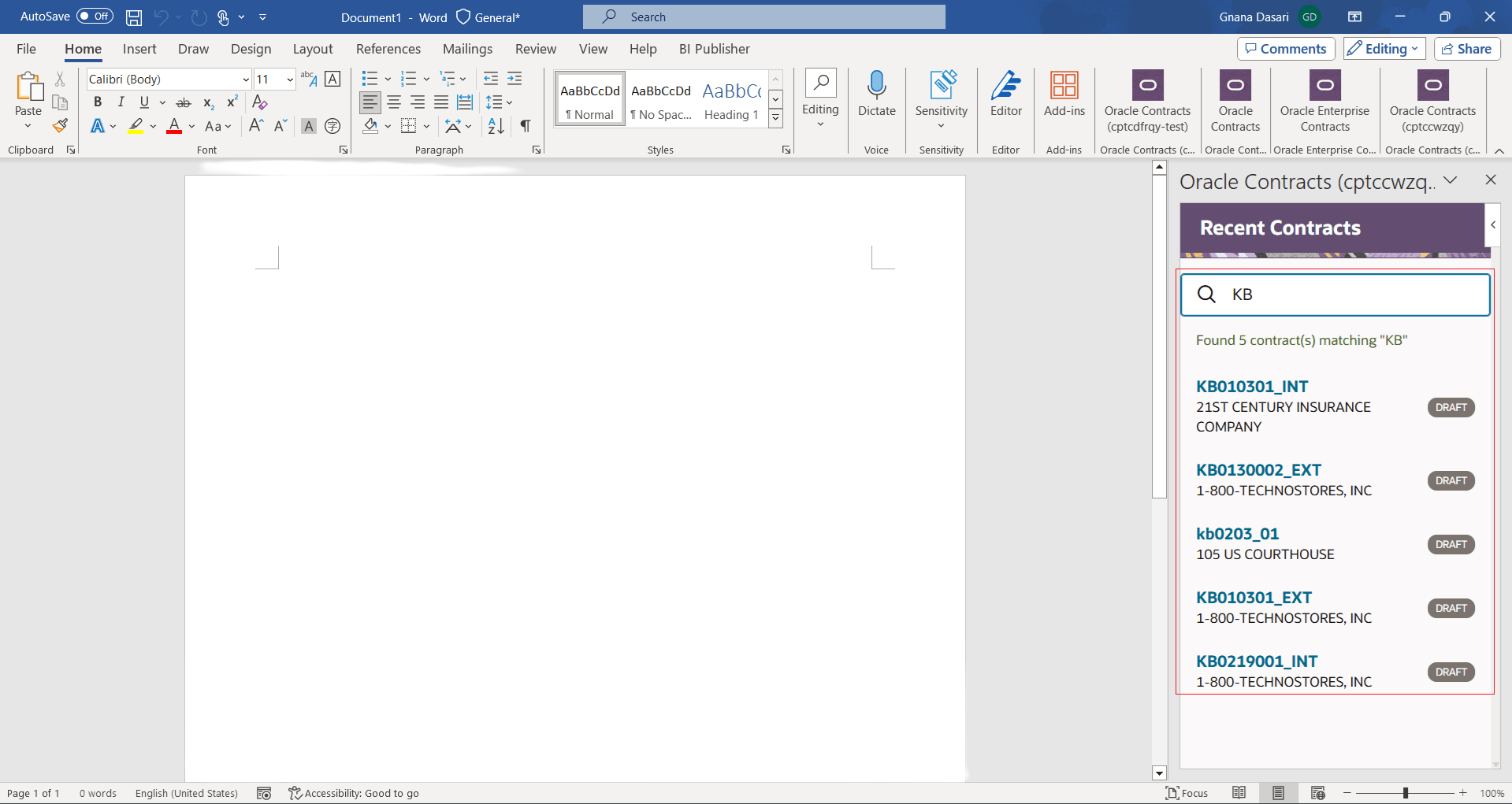
Search by Keyword
Download Contract: You can click on a contract to download. Note that the contract is opened in two modes depending on whether it is locked by another user or not. If the contract is not previously locked by another user, it will be opened in an edit mode with all the (header and node level) actions enabled. If it is locked by another user, the contract will be opened in a read-only mode with 'Edit Contract' action that allows you to unlock the contract for you to make the changes. Note that when you use 'Edit Contract', the changes done by the other user, if any, are lost and they must be redone by that user. Hence, exercise caution while using 'Edit Contract' action to unlock the contract. Also, on download, you will see the list of sections and clauses in a tree structure.
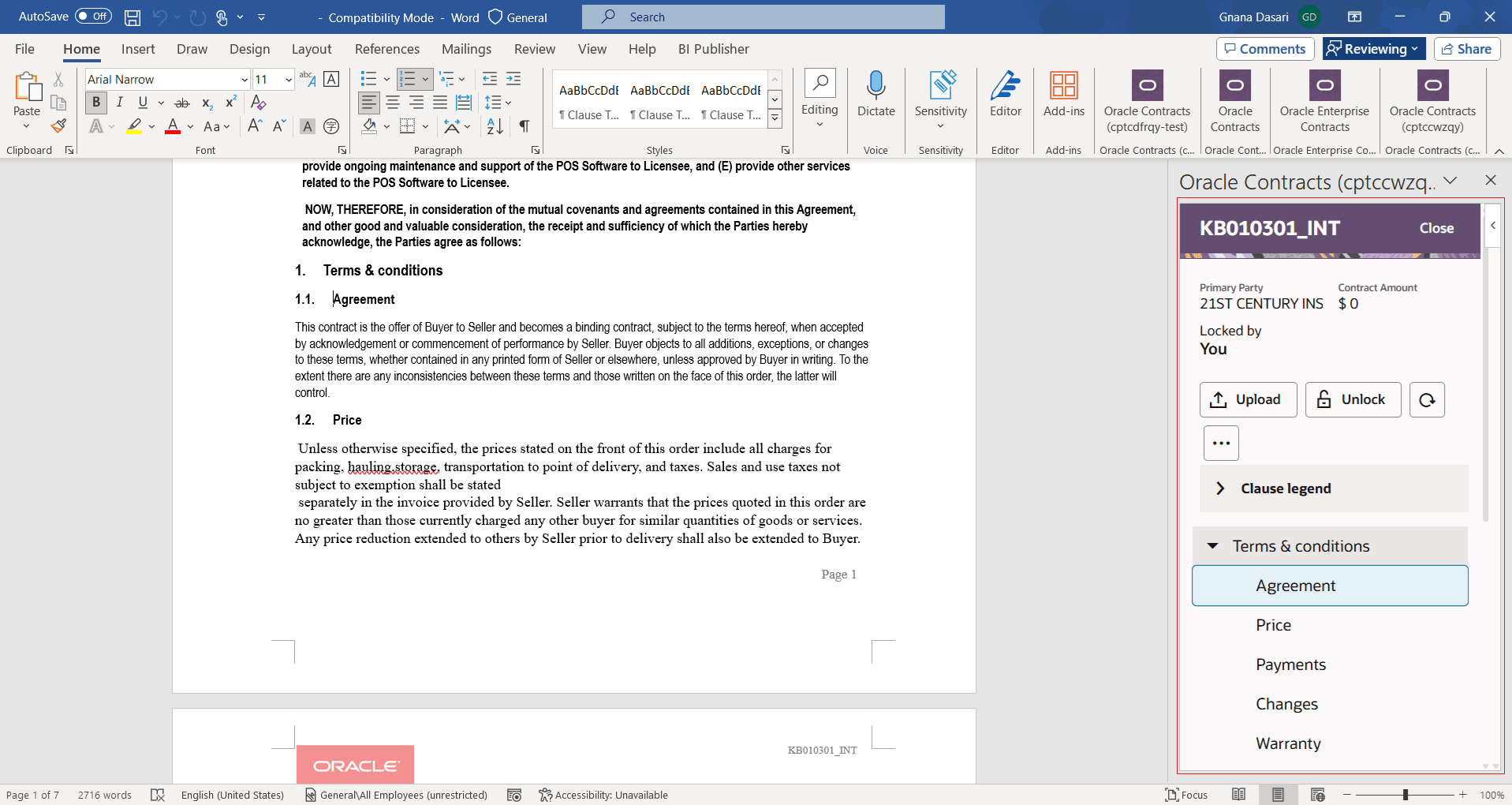
Download Contract
Each of the clause nodes shown in the tree structure follow the clause legend as shown below:
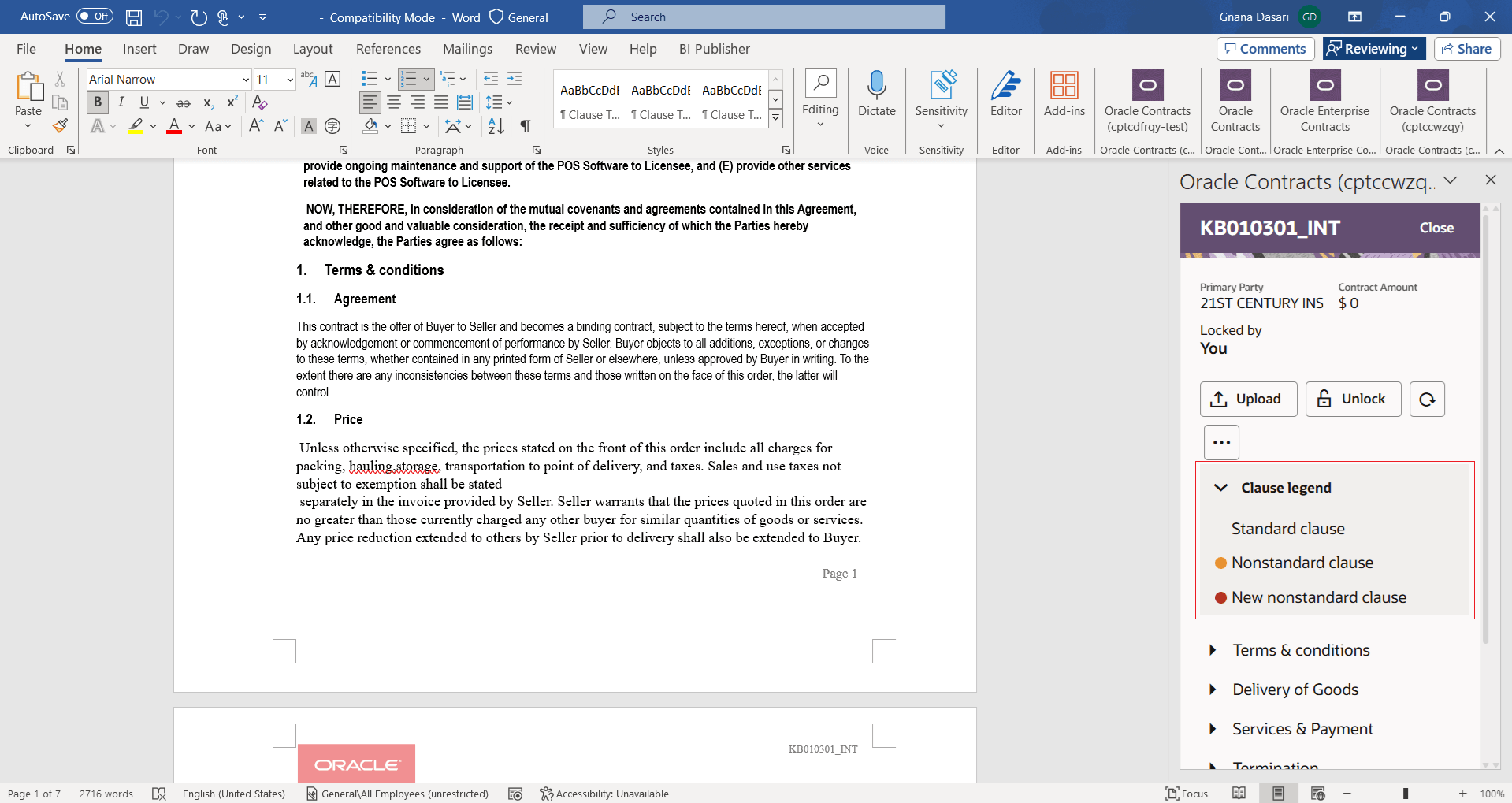
Clause Legend
Depending on whether a clause is standard, nonstandard, new nonstandard, the actions that can be performed on these clauses vary. For example, for a nonstandard clause, you can use 'Revert to Standard' action, whereas for a new nonstandard action you can use 'Suggest Text' action.
Upload Contract: After making a set of changes, when you are ready to make a logical pause to the modifications, you can upload the contract that will create three versions and upload to the system. While uploading you will be prompted to say whether this upload is the final upload and hence you want to release the lock or not. If the upload is not final, you can keep uploading the contract any number of times without releasing the lock on the contract.
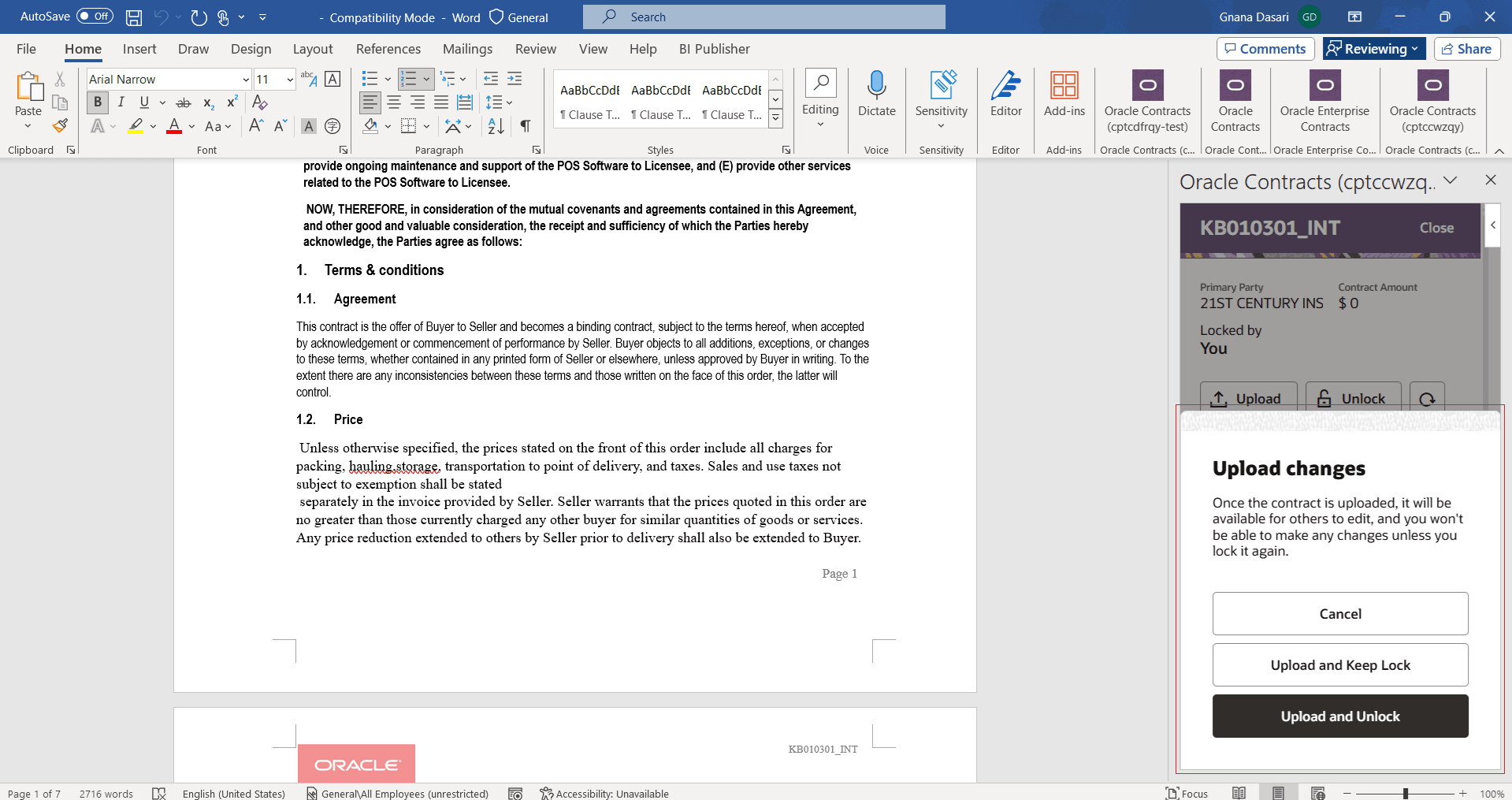
Upload Contract
Unlock Contract: In case you don't intend to make any changes to the contract, you may unlock the contract so that it is available for edits by another user. When you unlock the contract, it is displayed in the read-only mode till you click Edit Contract action again.
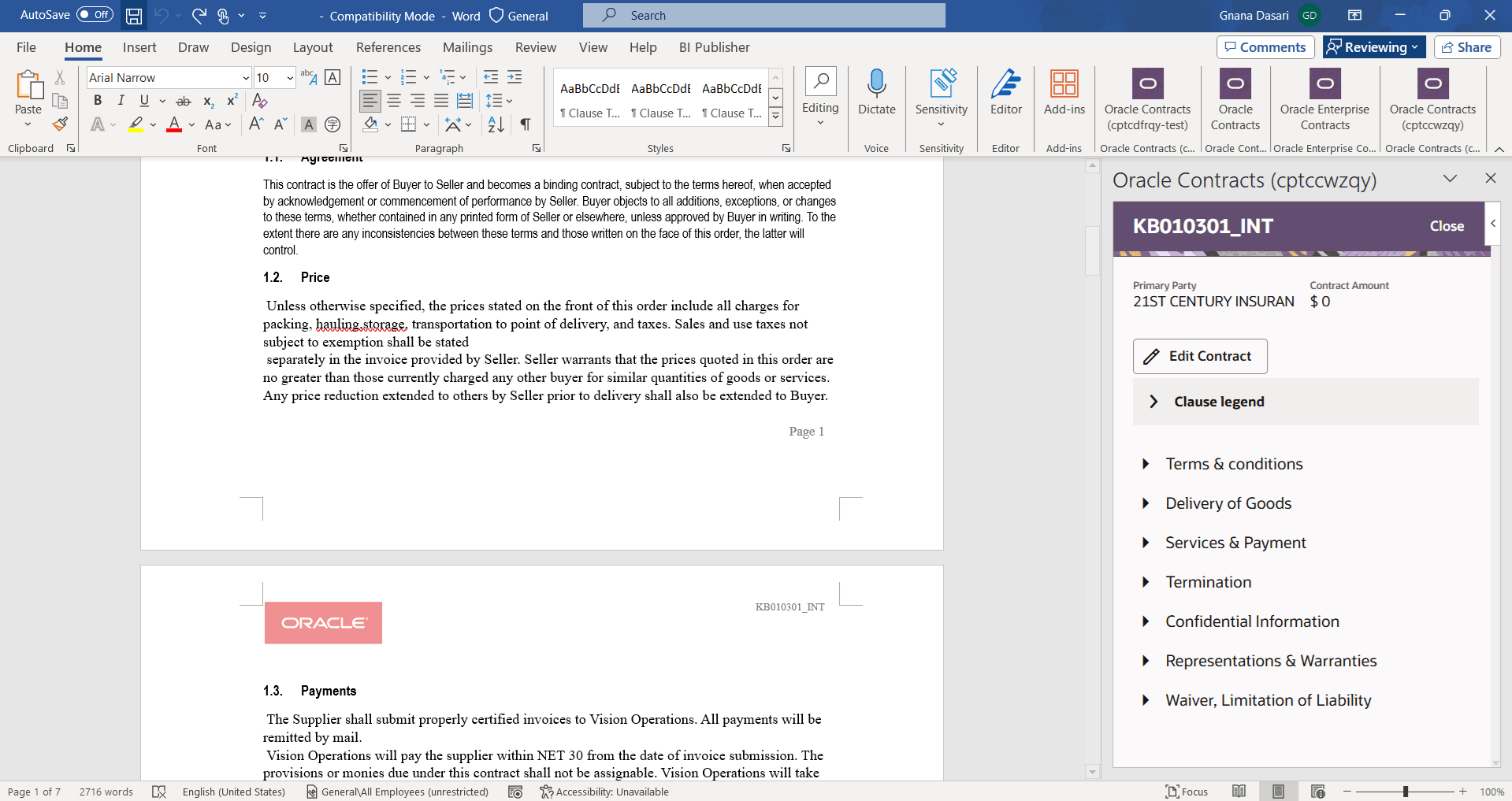
Read-Only Contract
Refresh: You may refresh to update the section / clause tree with changes done directly in the word document on the left-hand side window.
Edit Variable Values: You can edit variable values of the contract. You can use the 'Pending Variables' toggle to switch between seeing only the pending variables or all the variables.
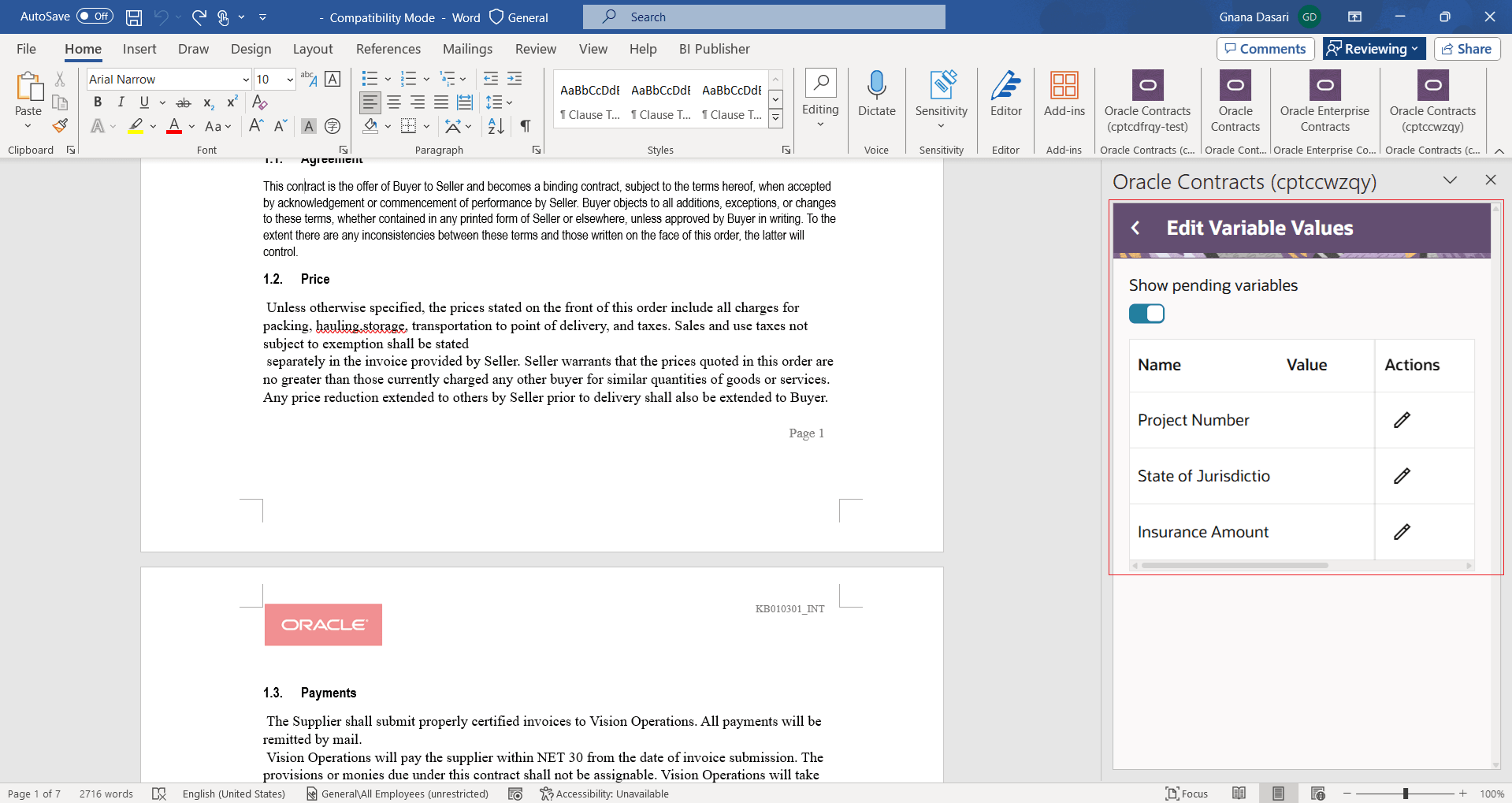
Edit Variable Values
Refresh System Variable Values: You can refresh the system variable values periodically to synchronize the changes done in the contracts application with the word document being edited in the word add-in.
View Contract Advisor: You can take AI help to ask more questions about the contract and take an informed decision on the changes that must be made.
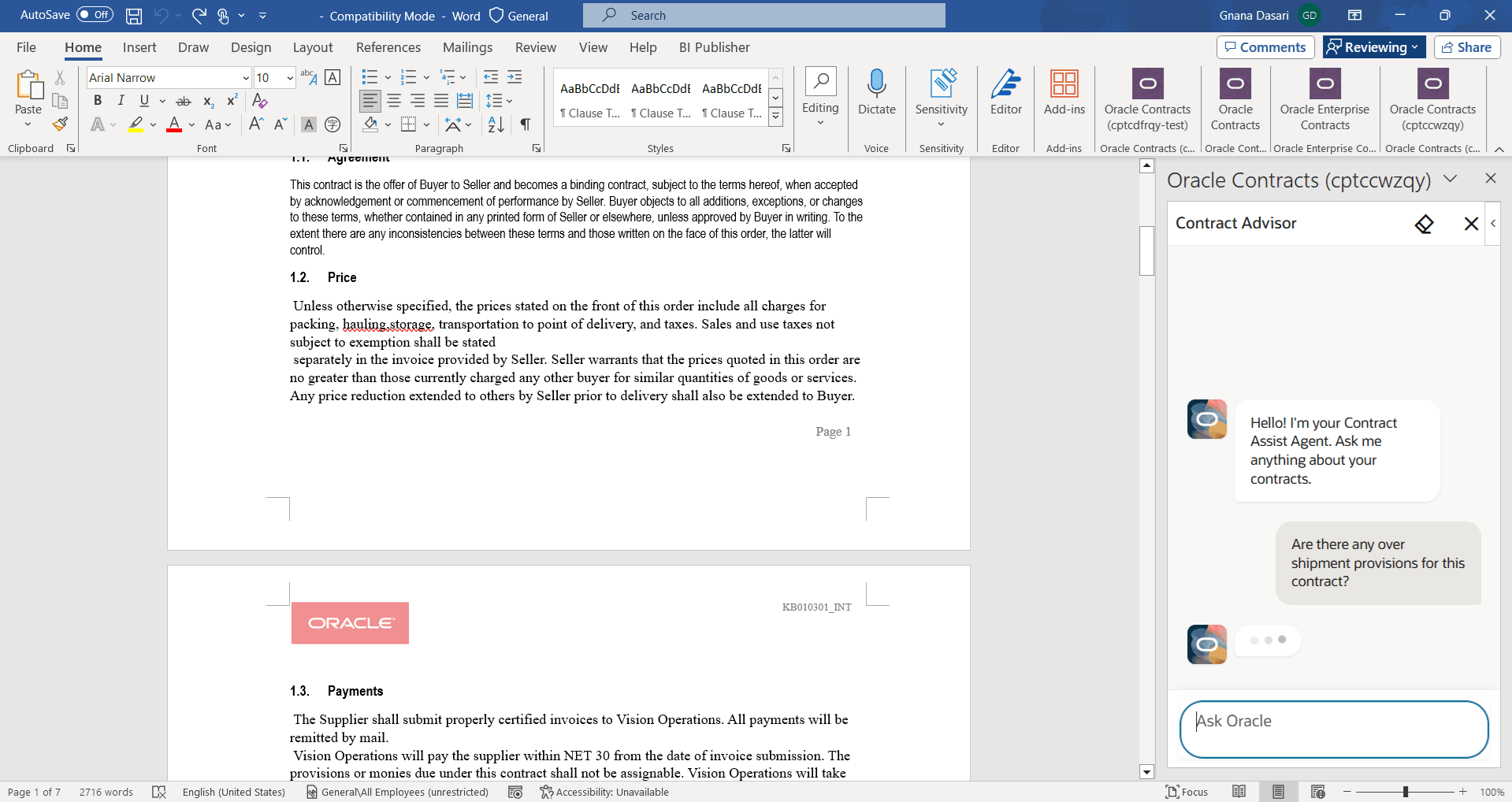
Contract Advisor - 1
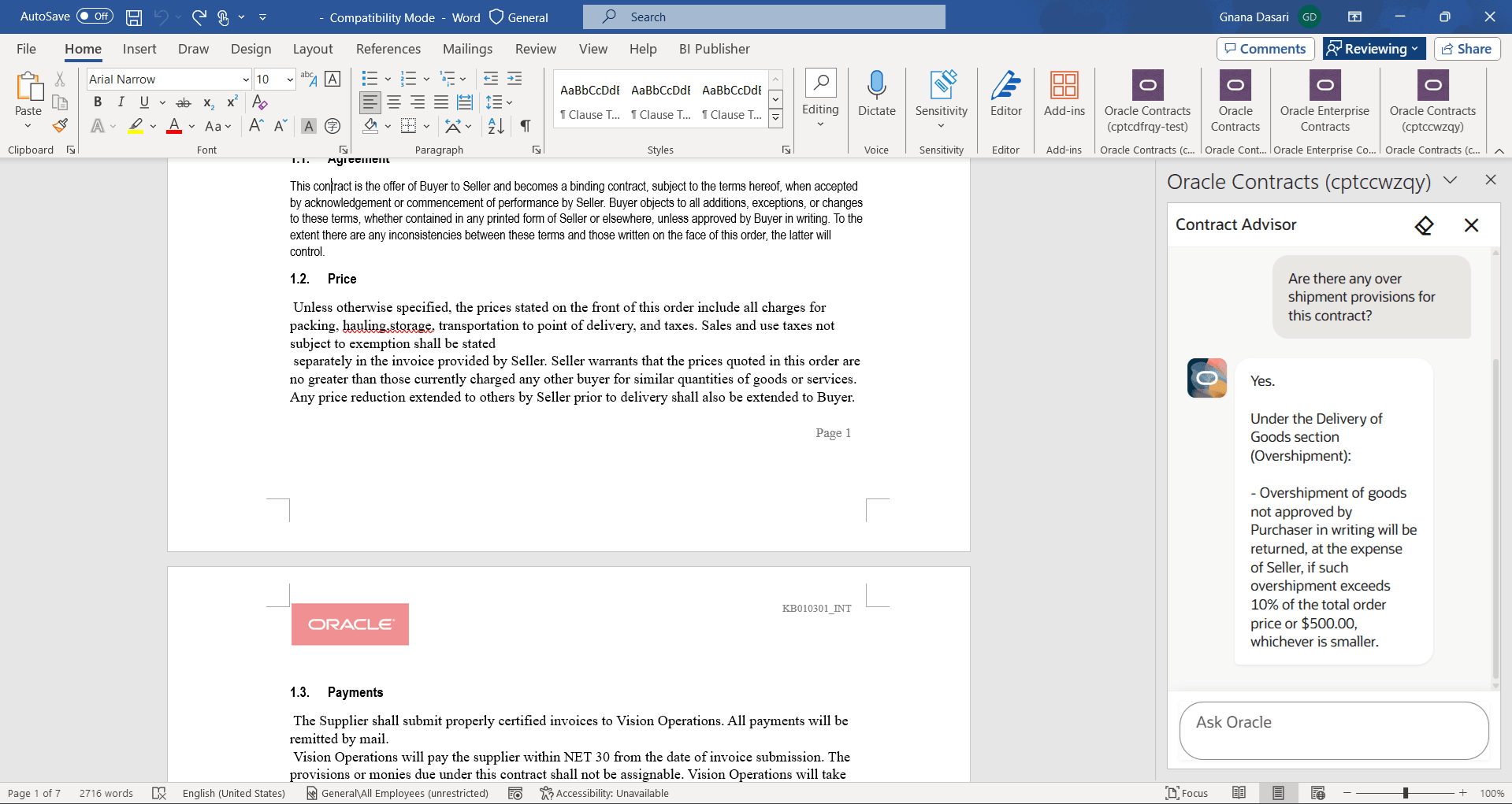
Contract Advisor - 2
View Contract Details: You can view more details such as Primary Party, Contract Type, Intent, Business Unit, Terms Template of the contract.
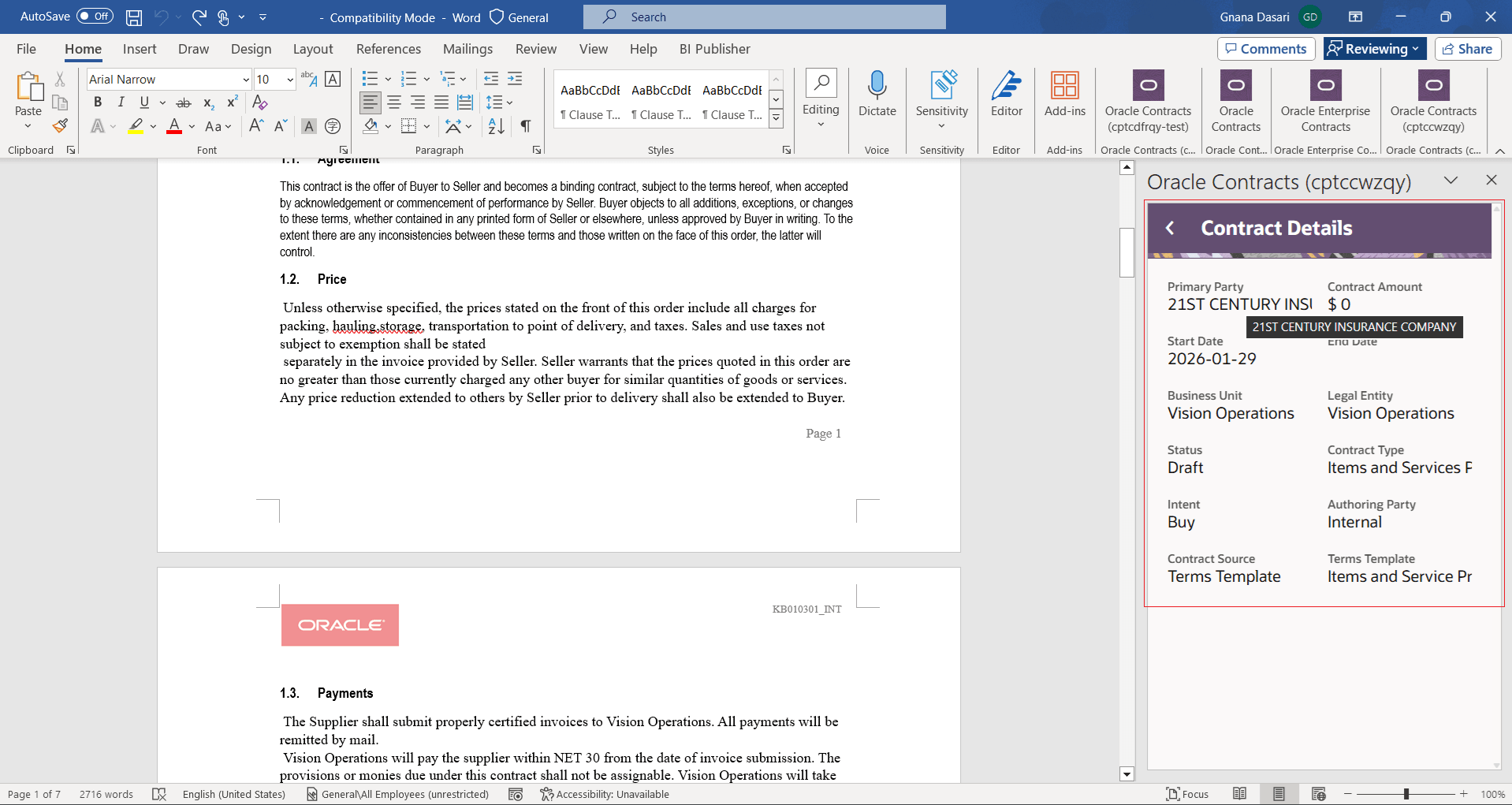
Contract Details
Export to External Party: You can export the contract to make a copy of the contract that can be shared with the external party for their review.
Import Revision: You can import the revision sent by the external party and compare the changes with your version of the contract.
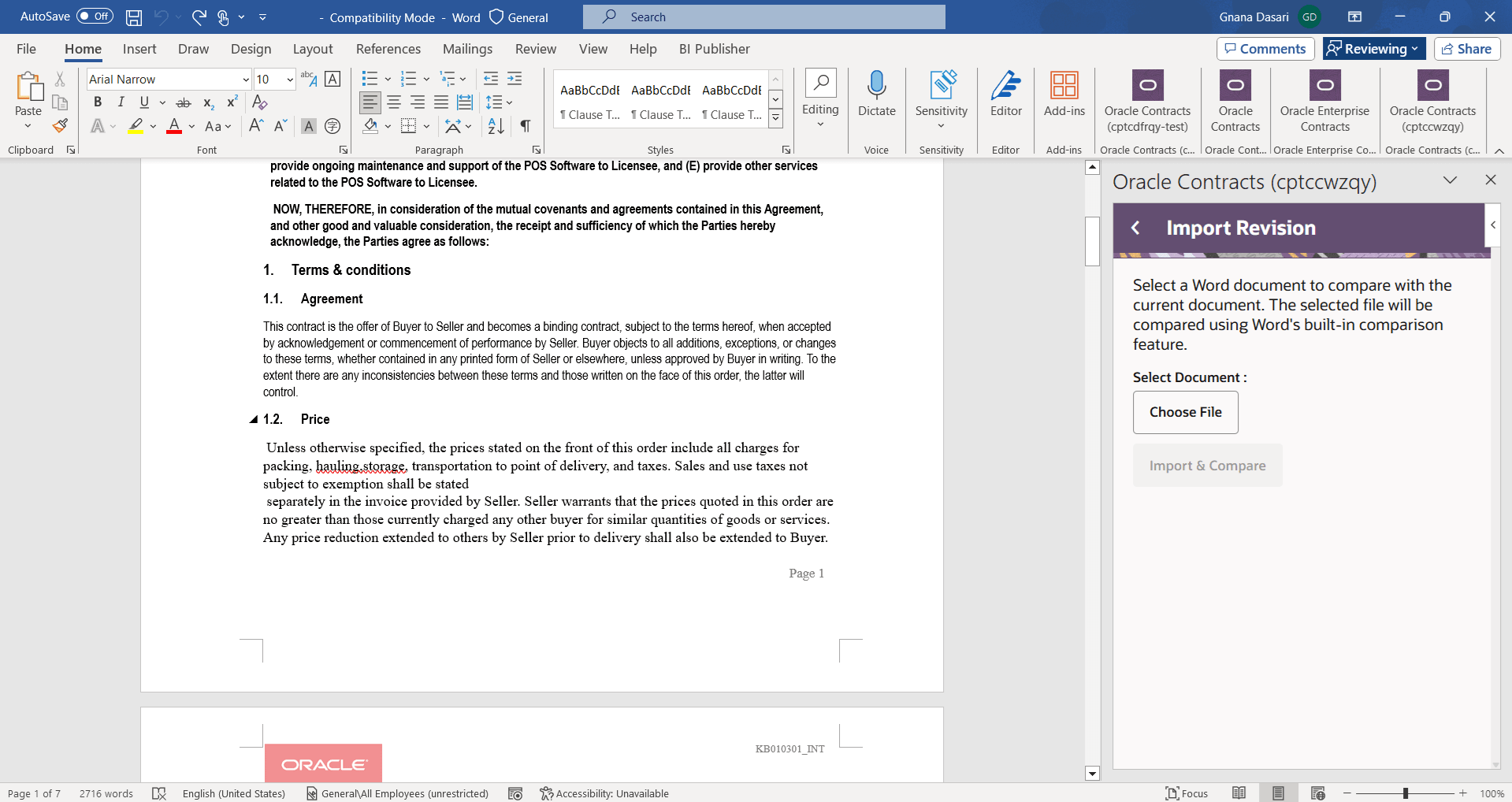
Import Revision
Close Contract: Once you are done with the changes for a specific contract, you can navigate to another contract by clicking close action that's on the top right-hand corner of the add-in. This will take you to the Recent Contracts pane from where you can search the new contract and go forward from there.
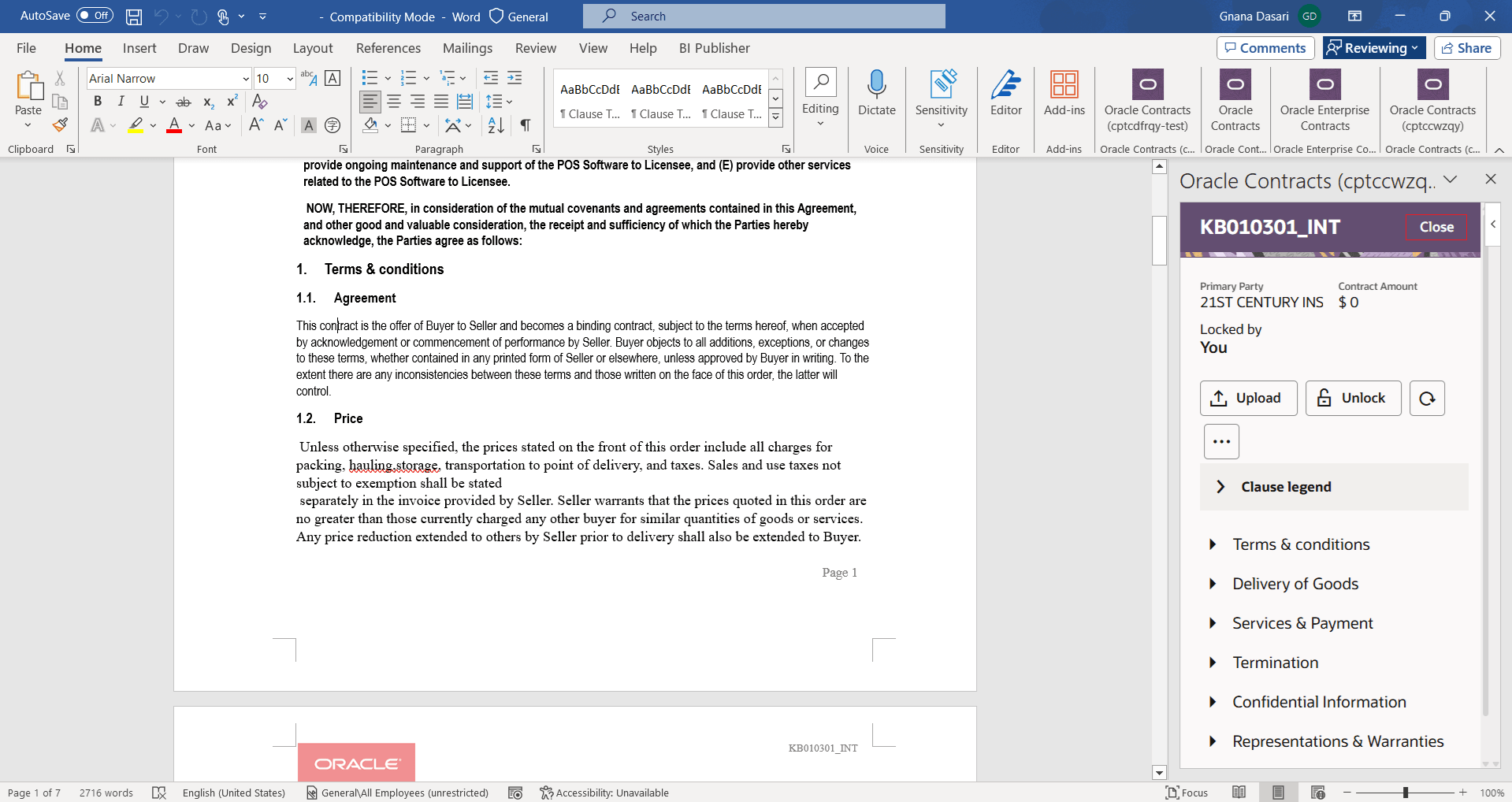
Close Contract
Add Section: You can a new section after, before, or within an existing section. You can add a section from the library or add a new section from the scratch.
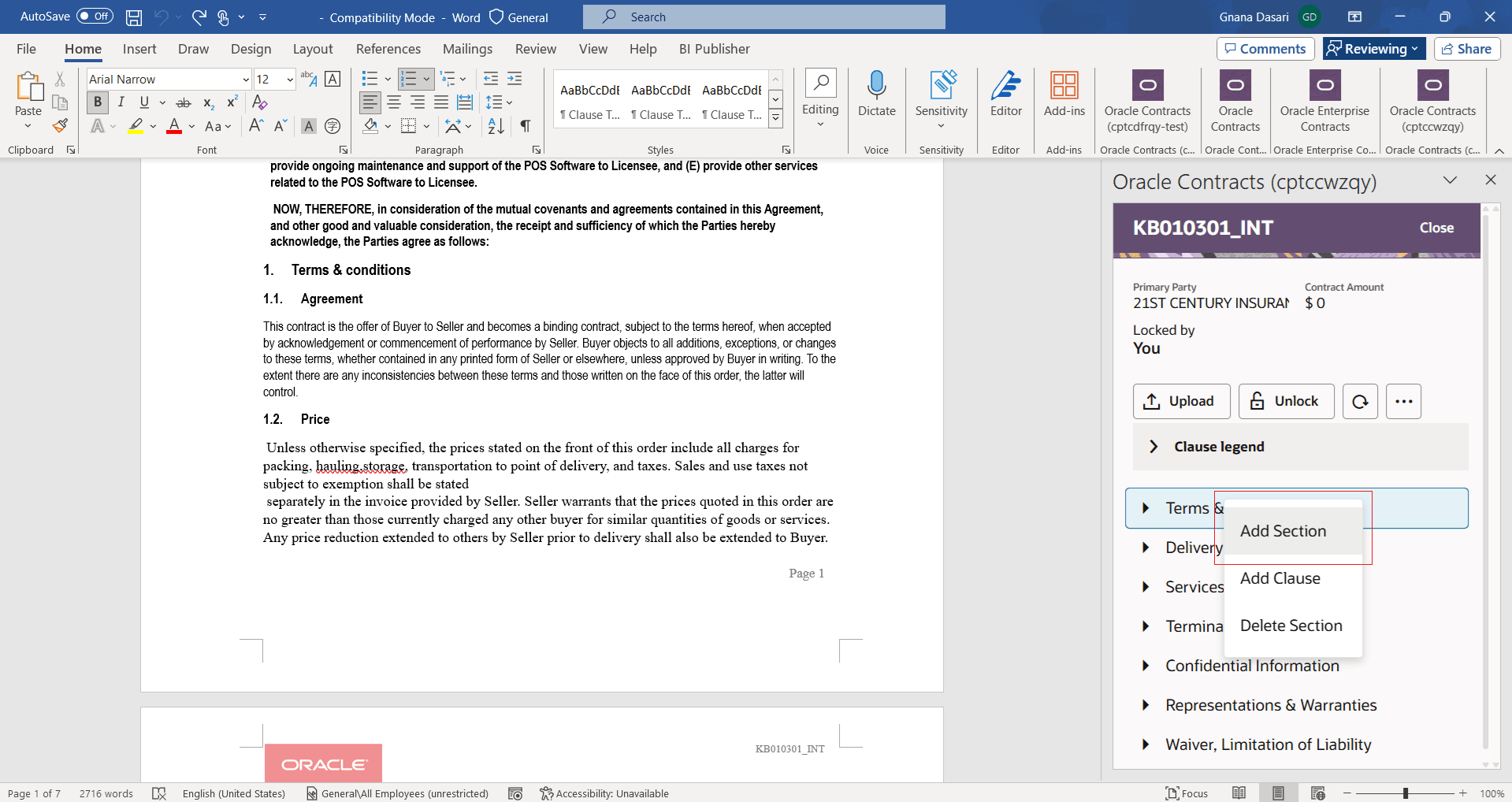
Add Section - 1
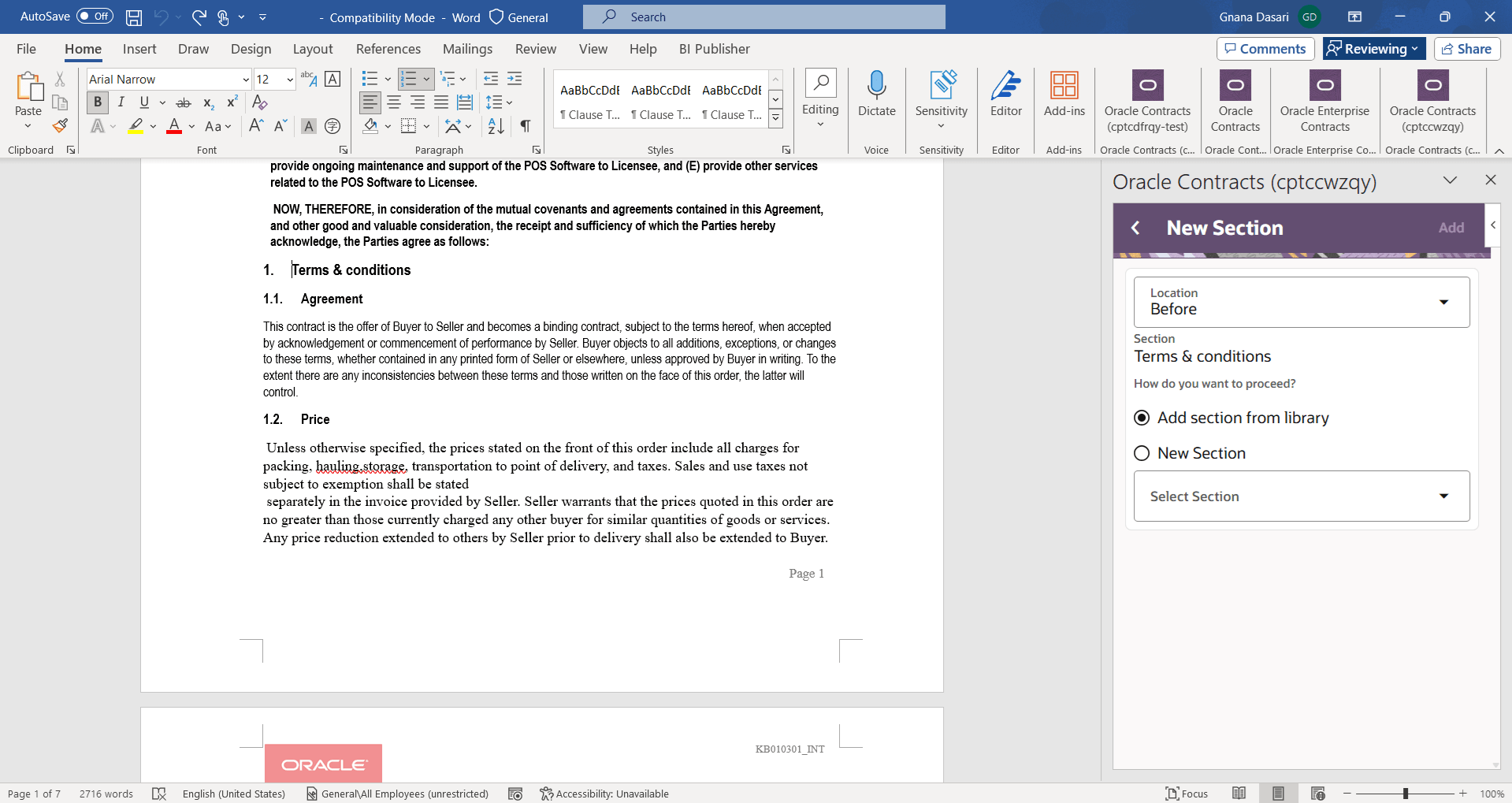
Add Section - 2
Delete Section: You can delete an existing section.
Add Clause: You can add a new clause from the standard library or a net new nonstandard clause. You can add a clause to an section without any clauses. You can add a clause before or after a specific clause.
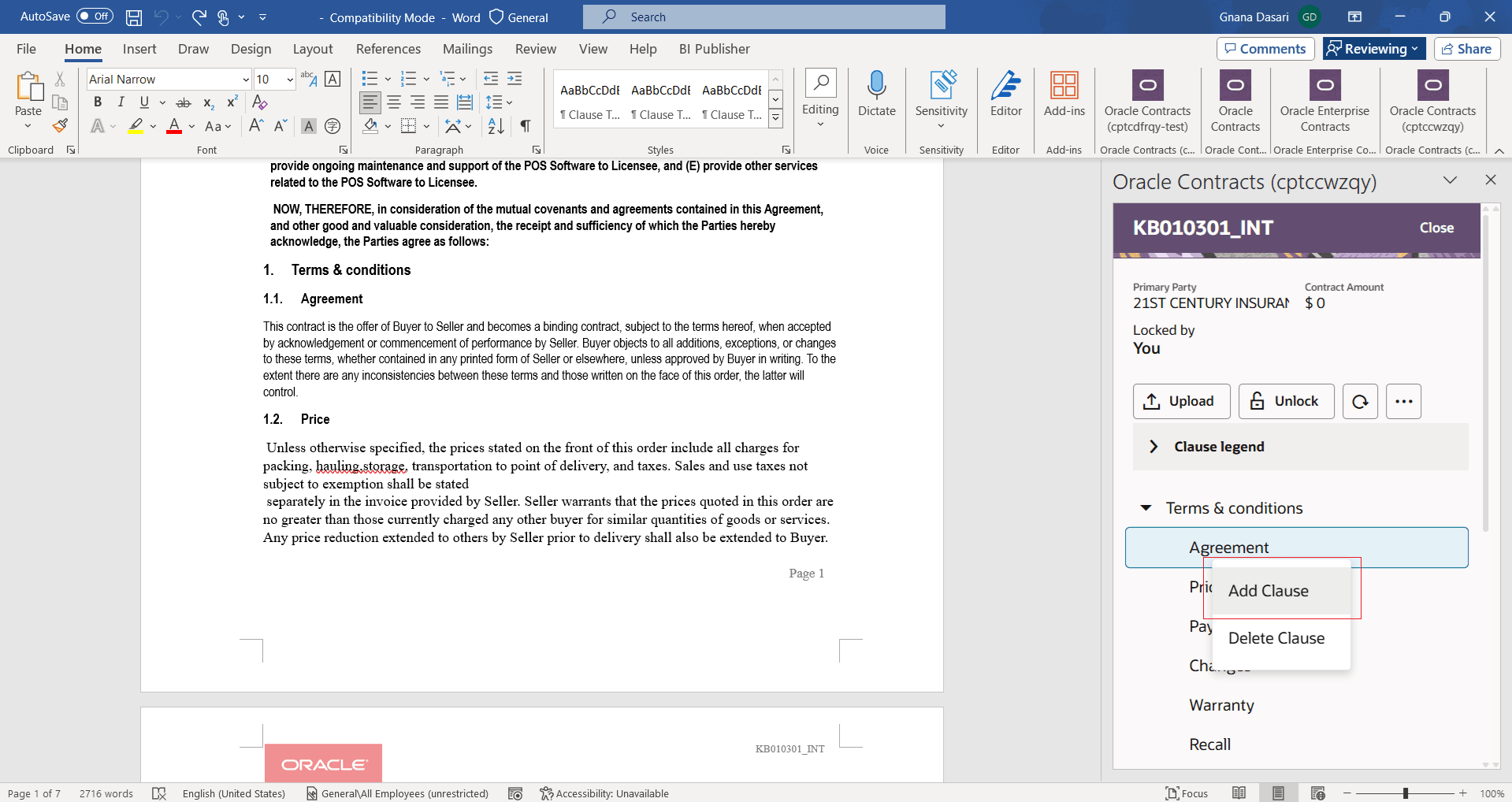
Add Clause - 1
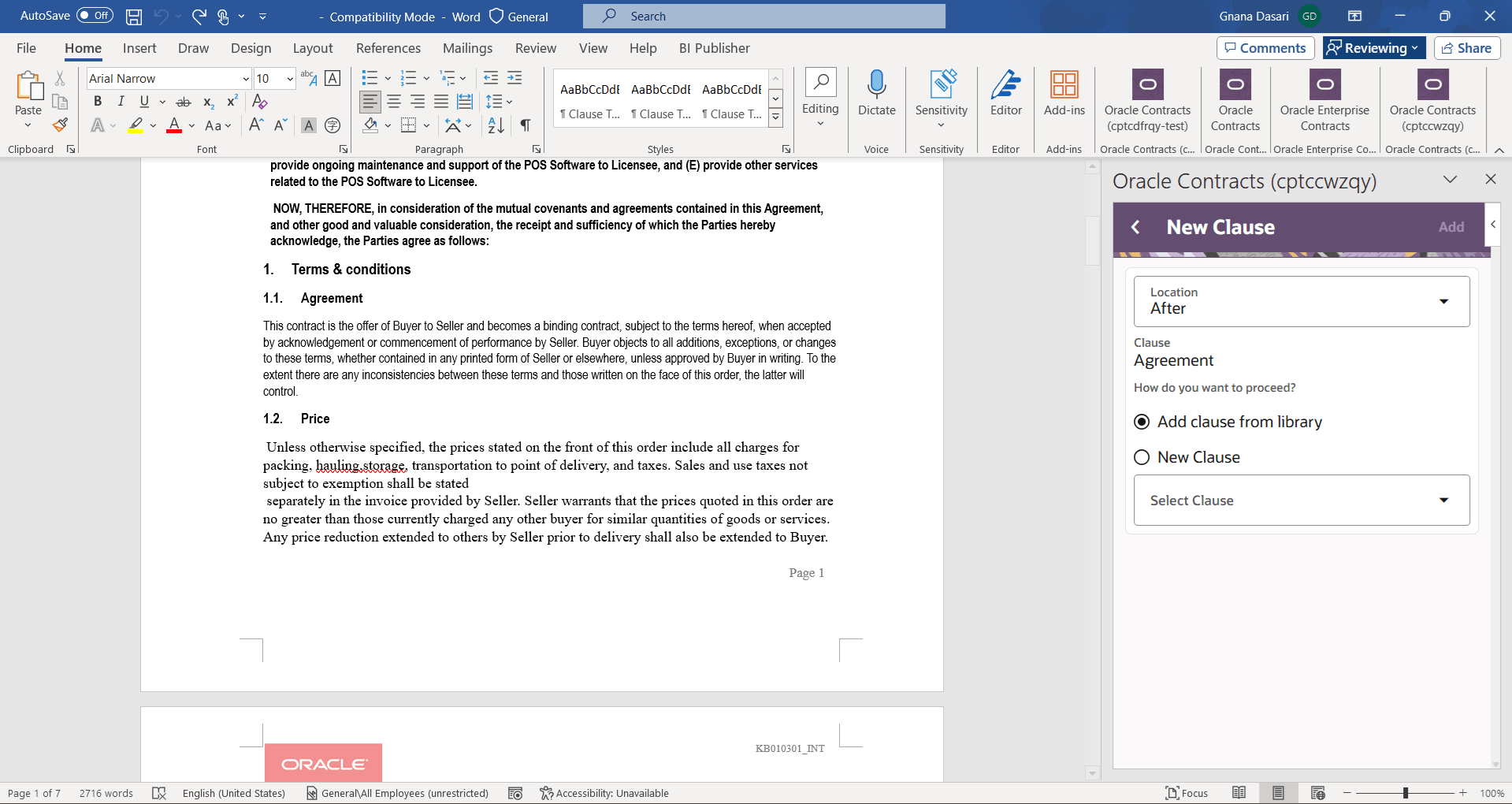
Add Clause - 2
Delete Clause: You can delete an existing clause.
Revert to Standard: You can revert a clause to standard clause in cases where a standard clause has been changed to nonstandard by making changes to it.
Suggest Text: You can use AI help to come up with suggestions for the clause language. You can use three options while coming up with AI suggestions for the clause language. 1) As per standards 2) As per prior contracts of this party 3) As per prior contracts across all the parties.
- As per standards: AI suggests the clause modifications based on the clauses available in the terms library.
- As per prior contracts of this party: AI looks into the prior contracts of this party and comes up with clause suggestions from that party
- As per prior contracts across all the parties: AI looks into the prior contracts across all the parties and comes up with the clause suggestions
Refer to the Third Party Paper flow documented below for more details on the Suggest Text functionality.
2. Third Party Paper (Attached Document authored by External Party)
You can perform the following actions for this flow.
- Search Recent Contracts by Keyword
- Download Contract
- Upload Contract
- Unlock
- Analyze Document
- View Contract Details
- Get Standard Clause
- Replace with Standard Clause
- Suggest Text
- Delete Clause
Search Recent Contracts by Keyword: When you launch the word add-in, you can see the recent contracts pane with few contracts. You can narrow down your search by entering a keyword for the search.
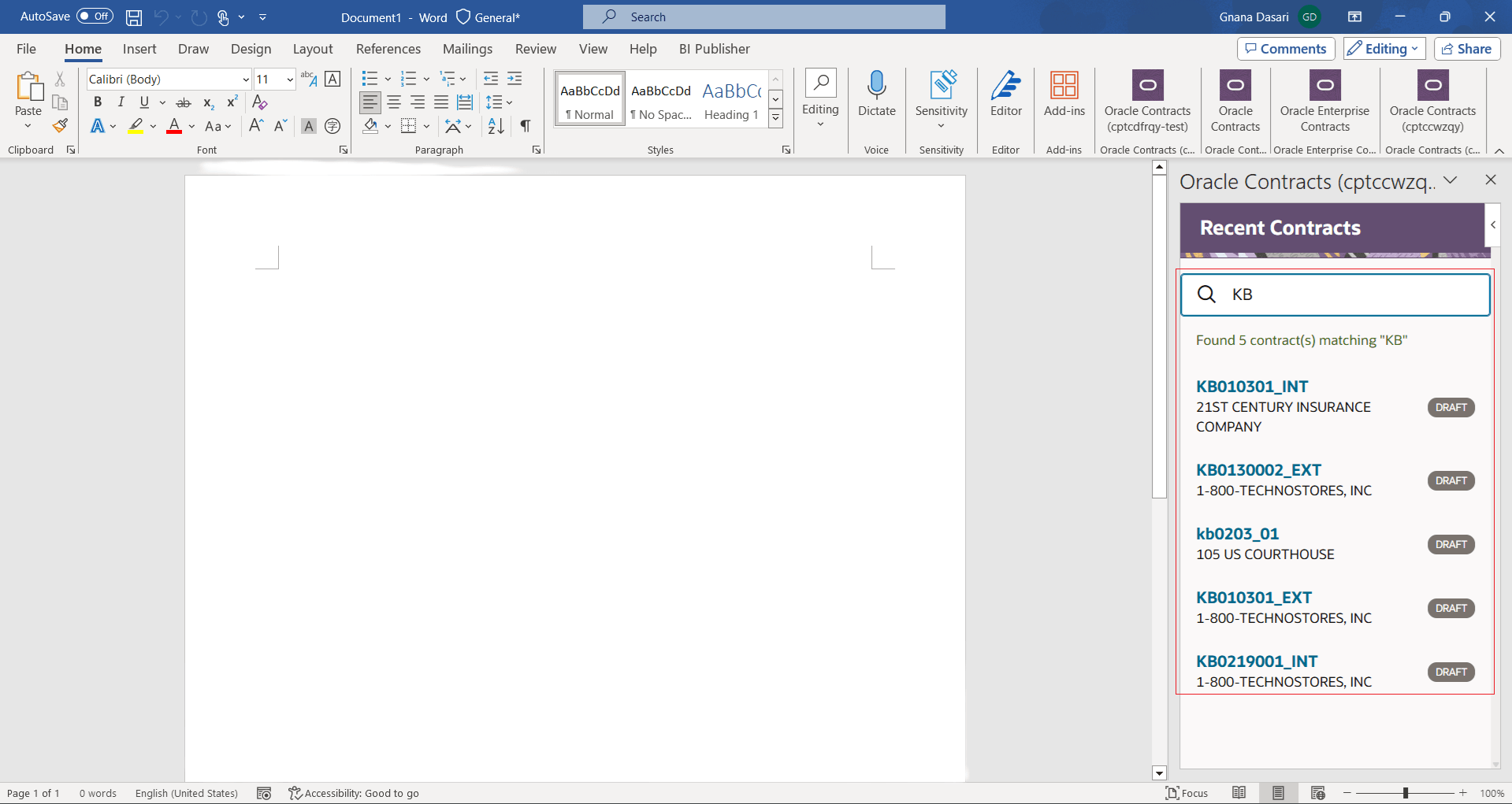
Search by Keyword
Download Contract: You can click on a contract to download. Note that the contract is opened in two modes depending on whether it is locked by another user or not. If the contract is not previously locked by another user, it will be opened in an edit mode with all the (header and node level) actions enabled. If it is locked by another user, the contract will be opened in a read-only mode with 'Edit Contract' action that allows you to unlock the contract for you to make the changes. Note that when you use 'Edit Contract', the changes done by the other user, if any, are lost and they must be redone by that user. Hence exercise caution while using 'Edit Contract' action to unlock the contract.
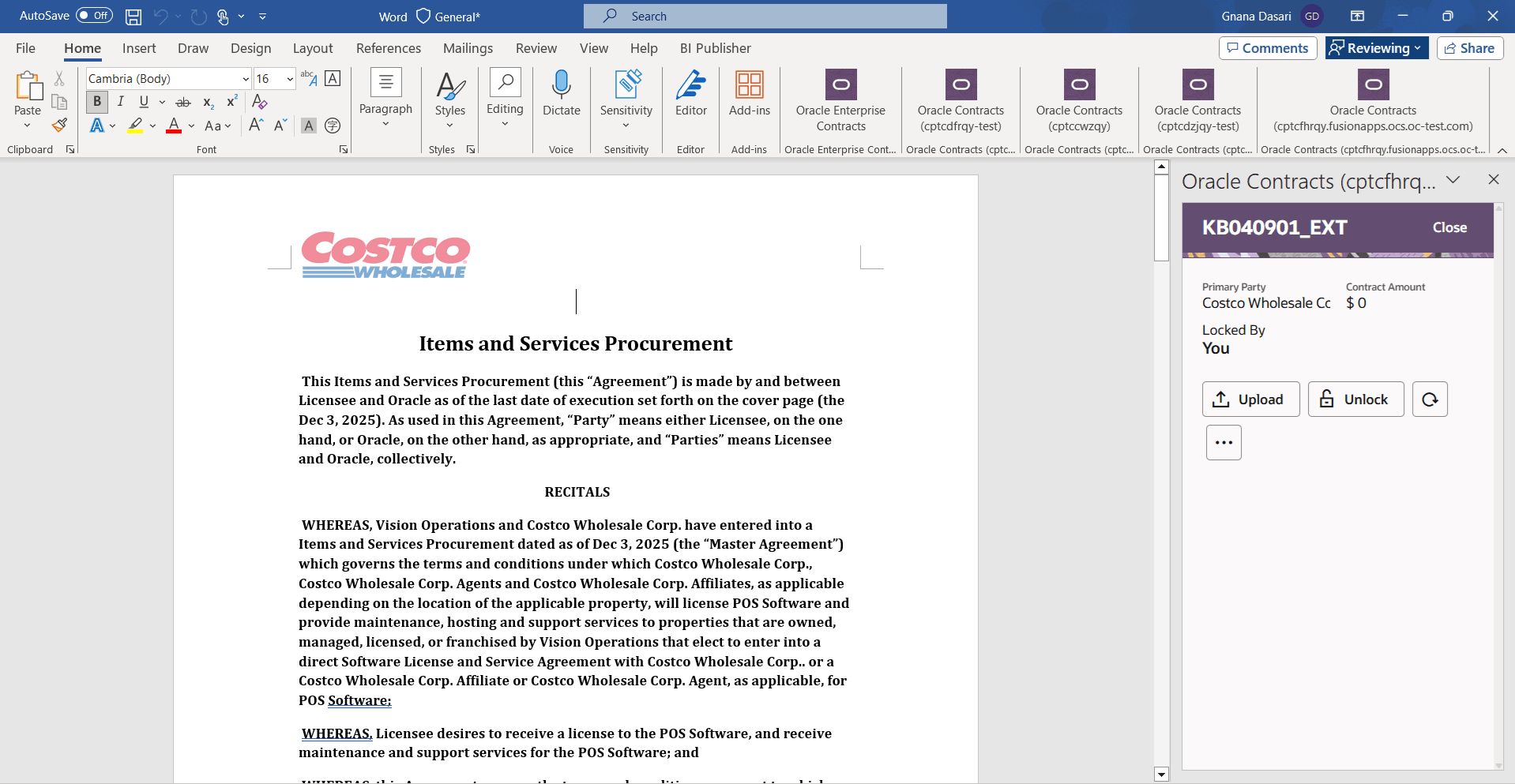
Download Contract
Upload Contract: After making a set of changes, when you are ready to make a logical pause to the modifications, you can upload the contract that will create three versions and upload to the system. While uploading you will be prompted to say whether this upload is the final upload and hence you want to release the lock or not. If the upload is not final, you can keep uploading the contract any number of time without releasing the lock on the contract.
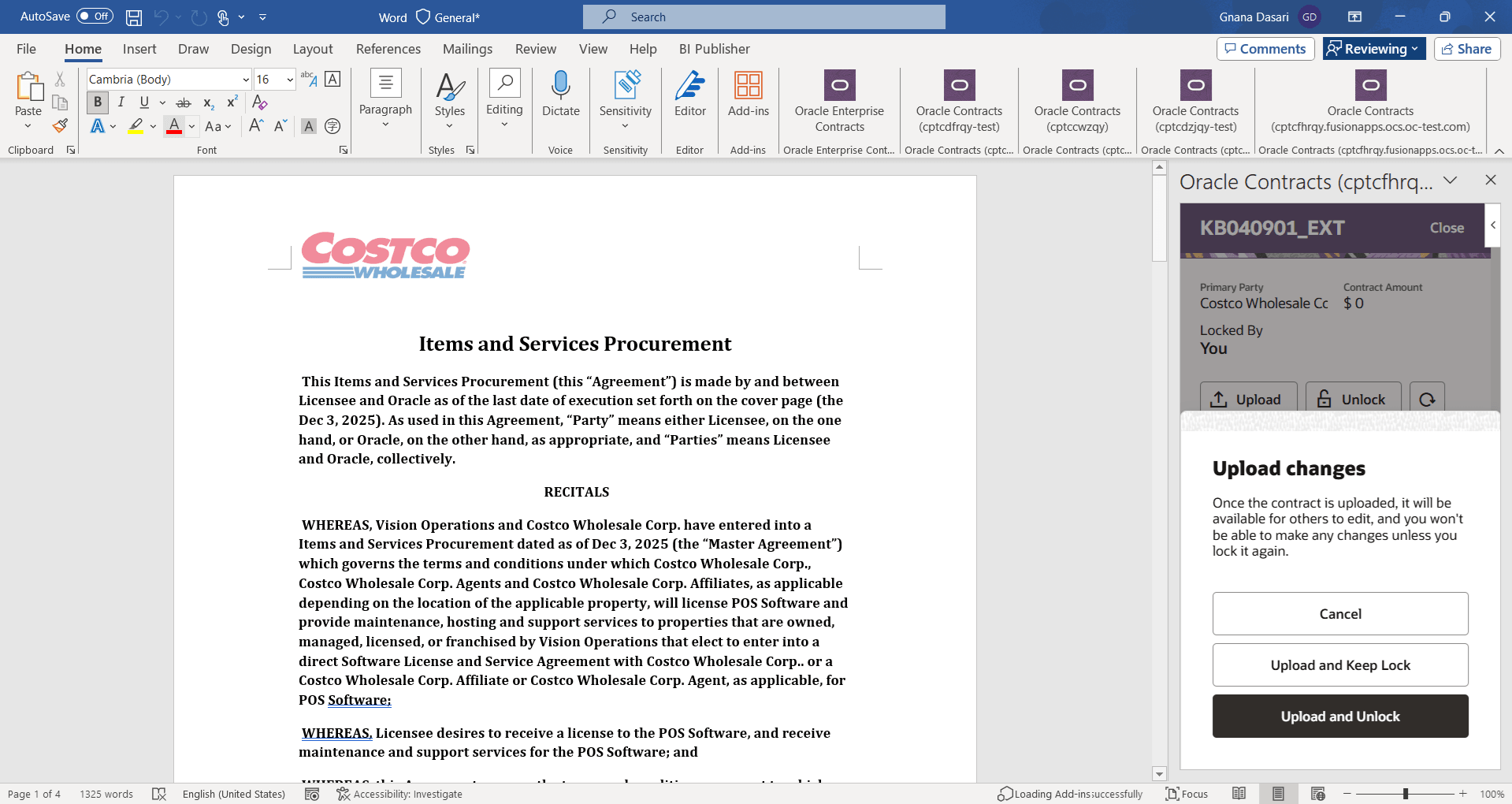
Upload Contract
Unlock Contract: In case you don't intend to make any changes to the contract, you may unlock the contract so that it is available for edits by another user.
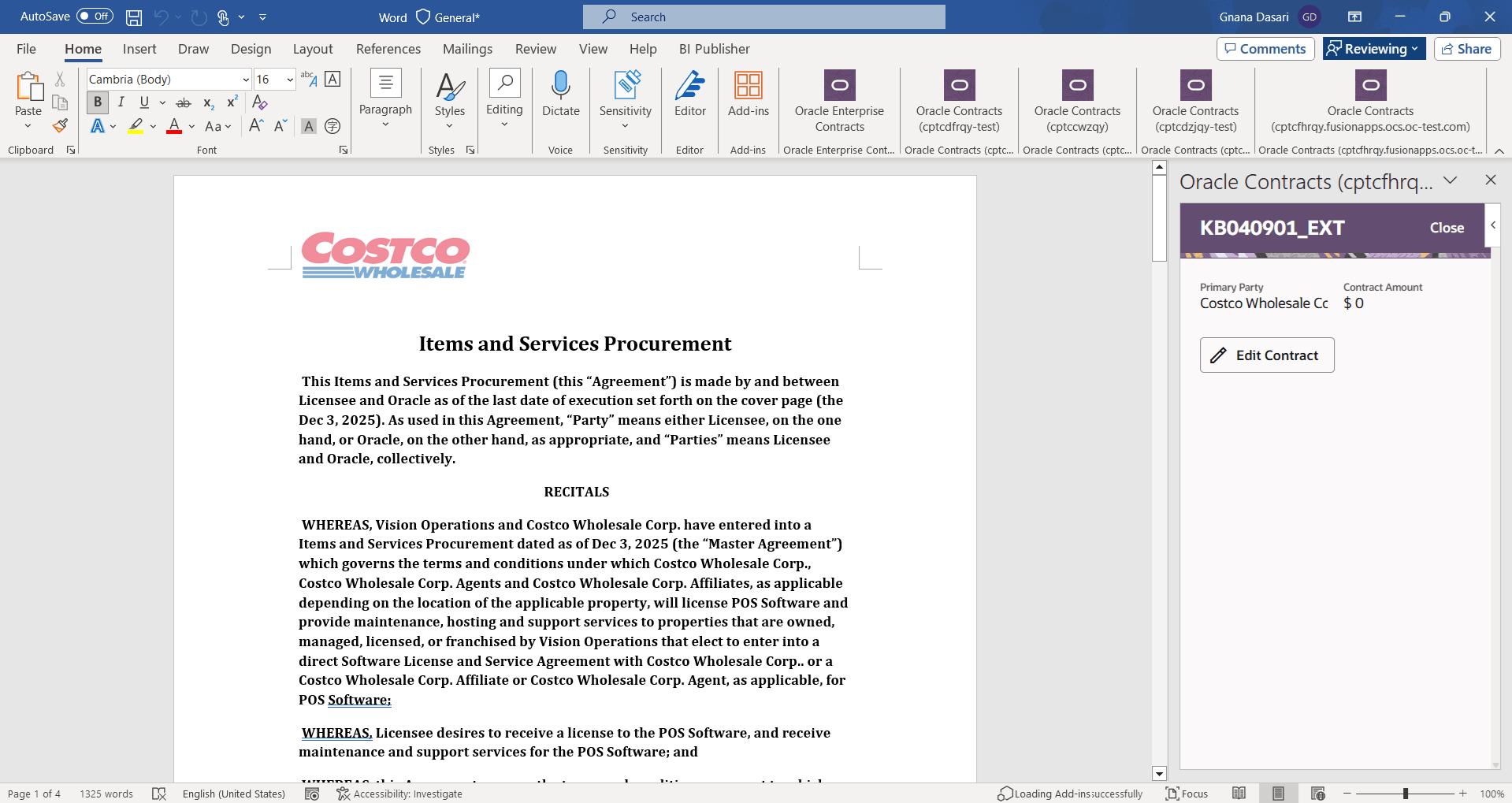
Read-only Contract
Analyze Document: You can ask AI to analyze the attached document (received from the external party) and compare it with the reference terms template that has a list of clauses associated with it. Based on the analysis, word add-in displays a list of clauses with a classification for each of the clauses.
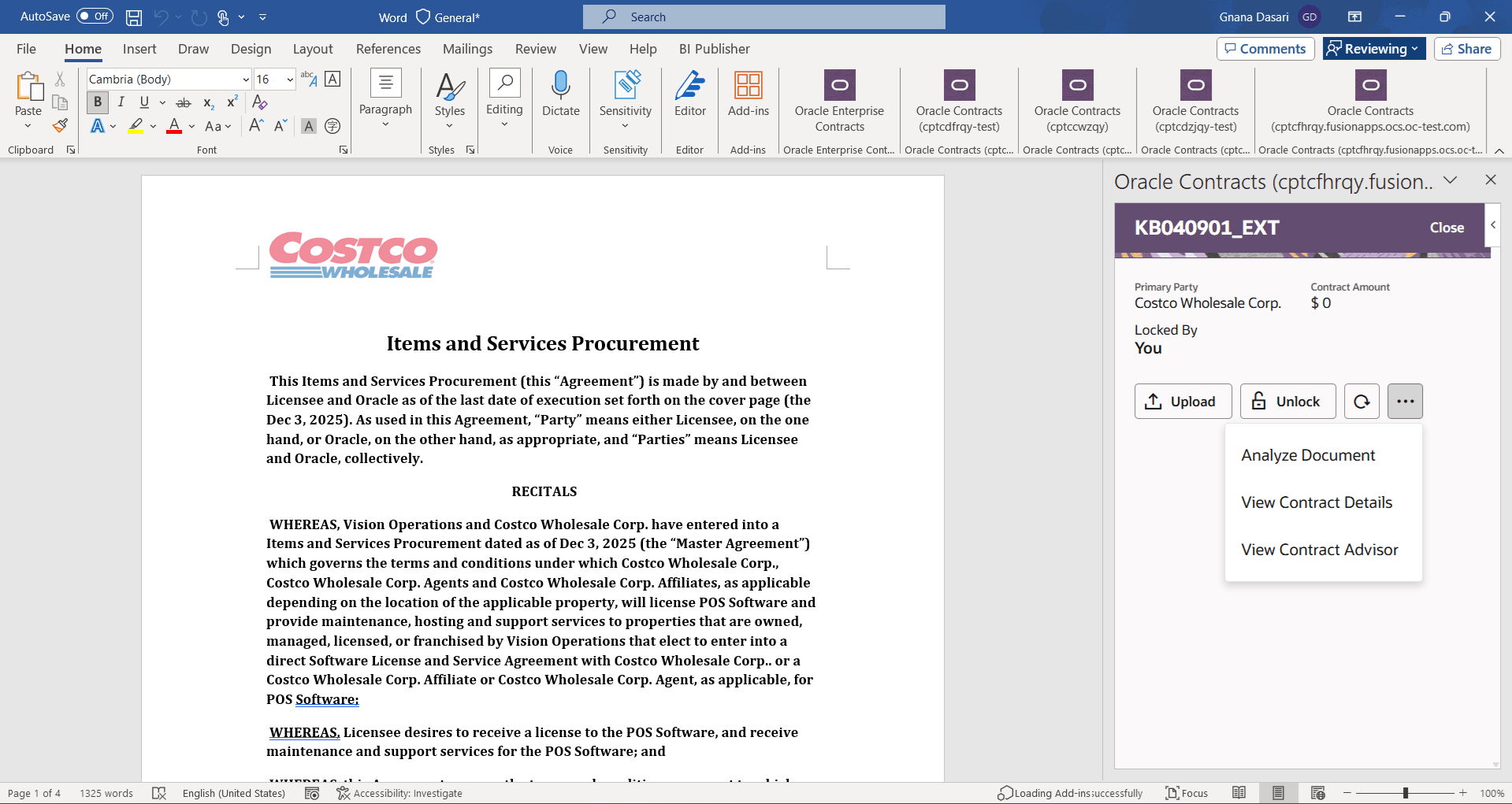
Analyze Action
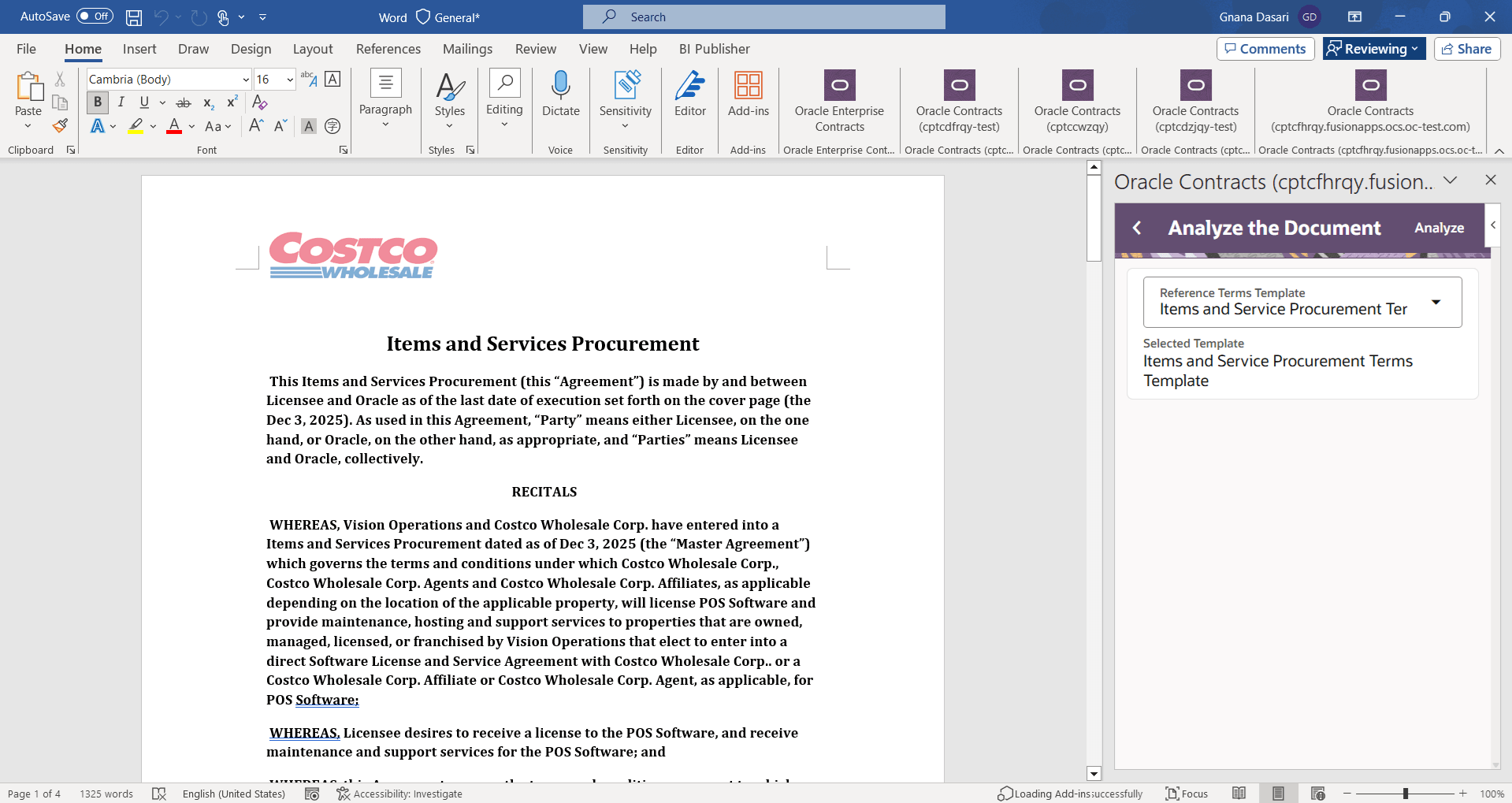
Choosing Reference Terms Template
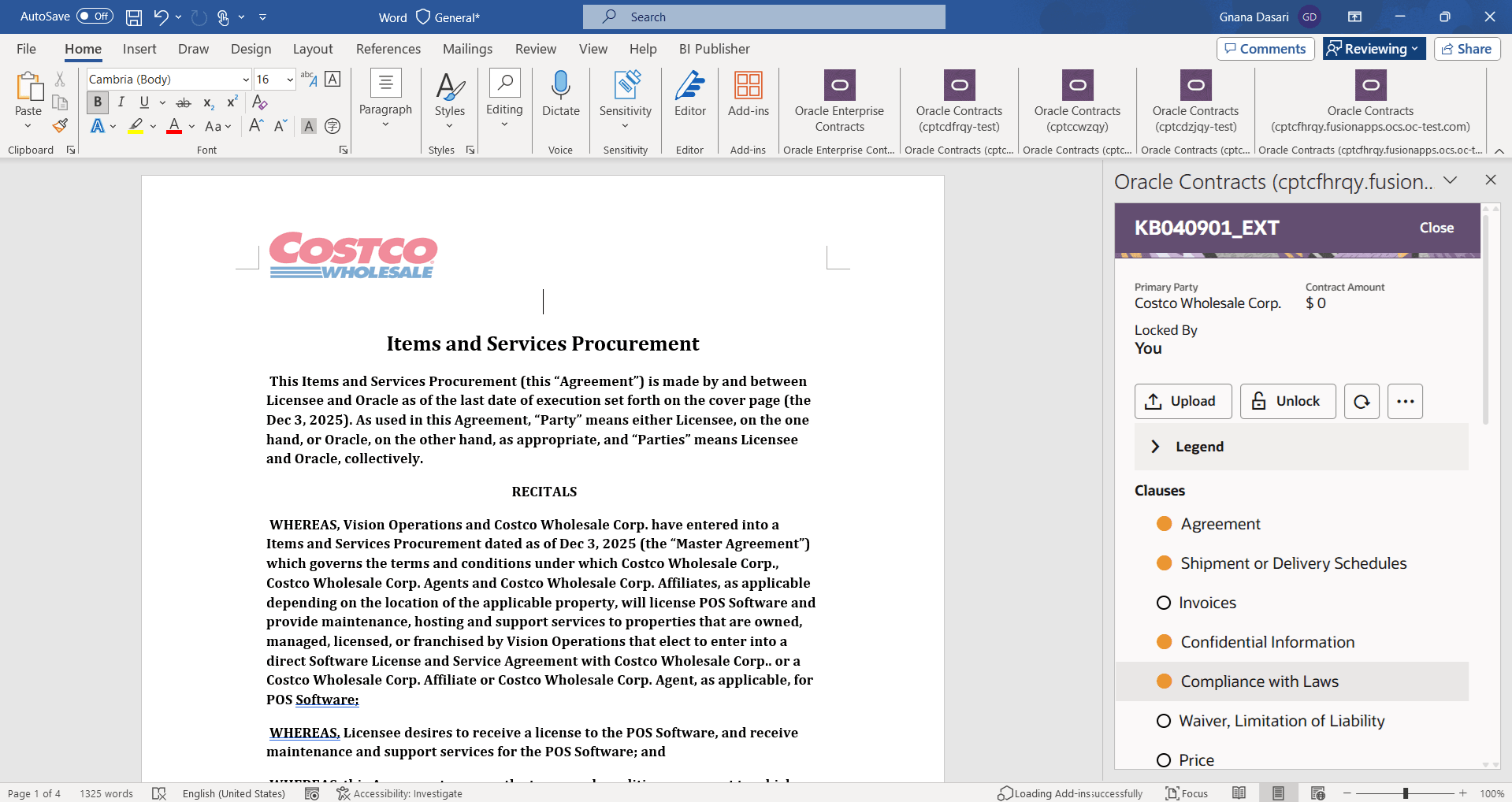
Results of the Analysis
Note that there are three kinds of clauses show up. 1. Clauses that are only in the template. 2. Clauses that are only in the document. 3. Clauses that are in both document and the template.
View Contract Details: You can view more details such as Primary Party, Contract Type, Intent, Business Unit, Terms Template of the contract using the view contract details.
Get Standard Clause: For clauses that are only in the terms template, you can use the Get Standard Clause action to include standard clause text in the document.
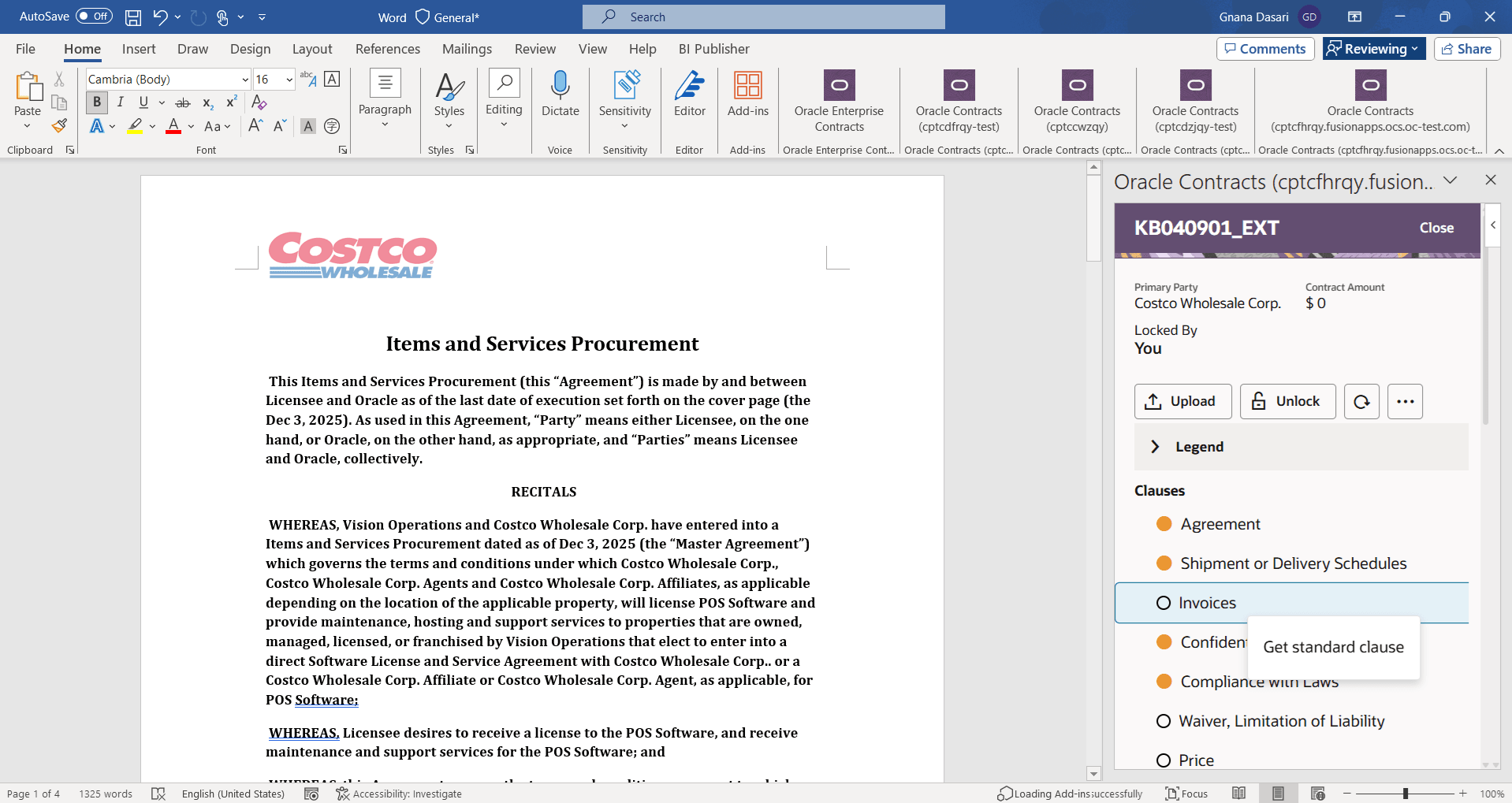
Get Standard Clause
Replace with Standard Clause: For clauses that are present in both the document and the template, you can choose to replace the document text with the standard clause text by using Replace with Standard action.
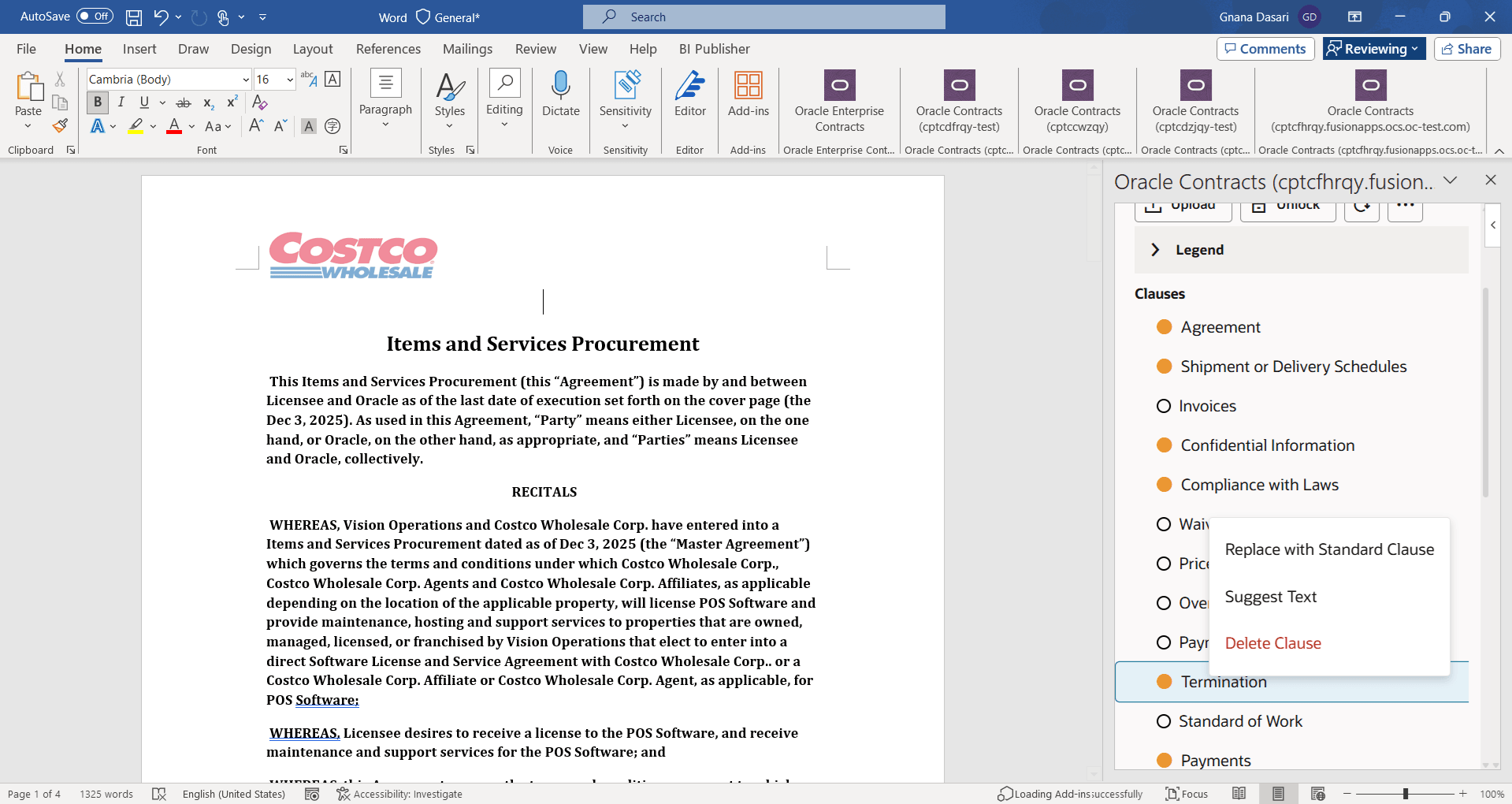
Replace with Standard
Suggest Text: You can use AI help to come up with suggestions for the clause language. You can use three options while coming up with AI suggestions for the clause language. 1) As per standards 2) As per prior contracts of this party 3) As per prior contracts across all the parties.
- As per standards: AI suggests the clause modifications based on the clauses available in the terms library.
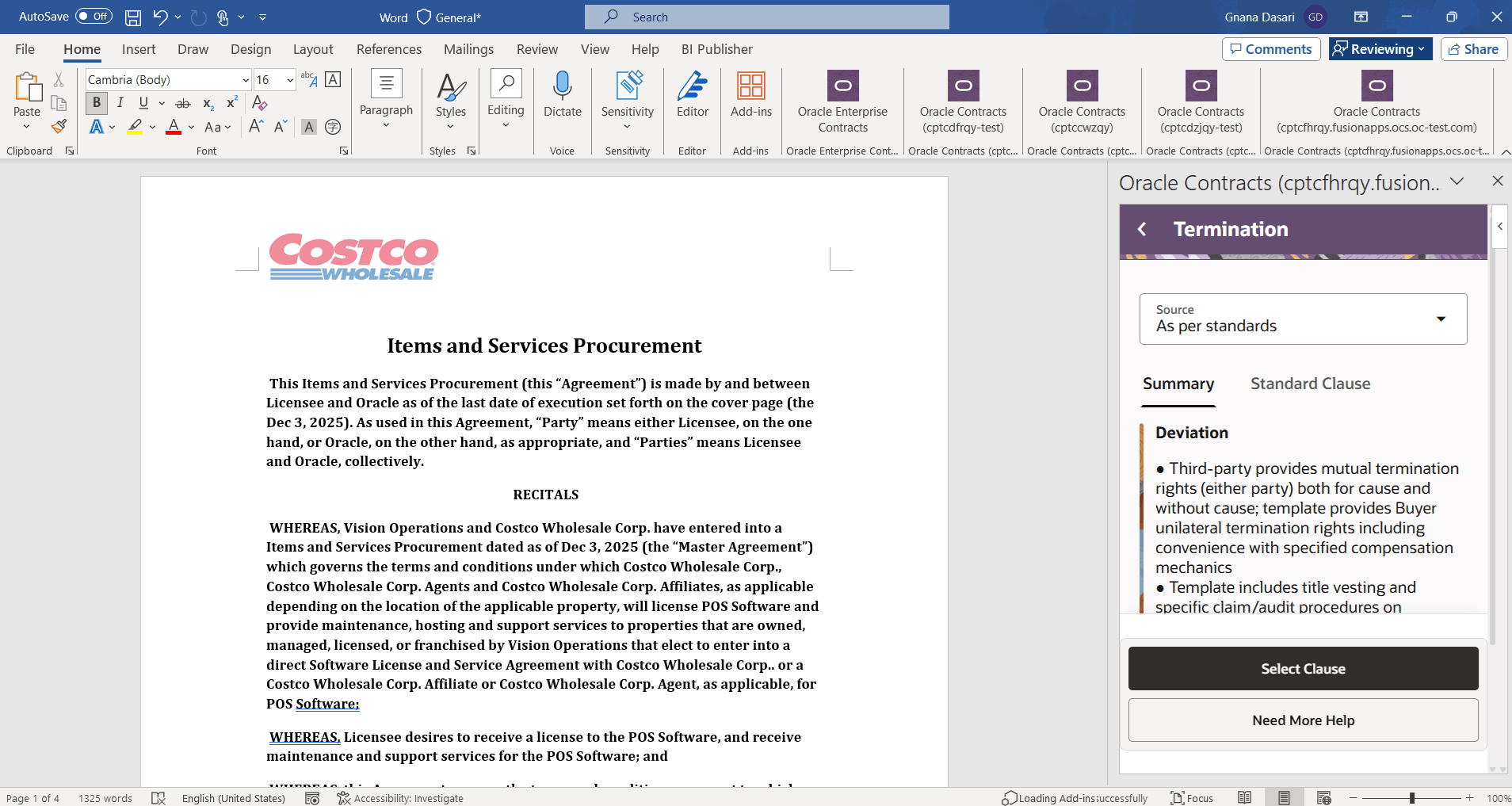
As per Standards
- As per prior contracts of this party: AI looks into the prior contracts of this party and comes up with clause suggestions from that party
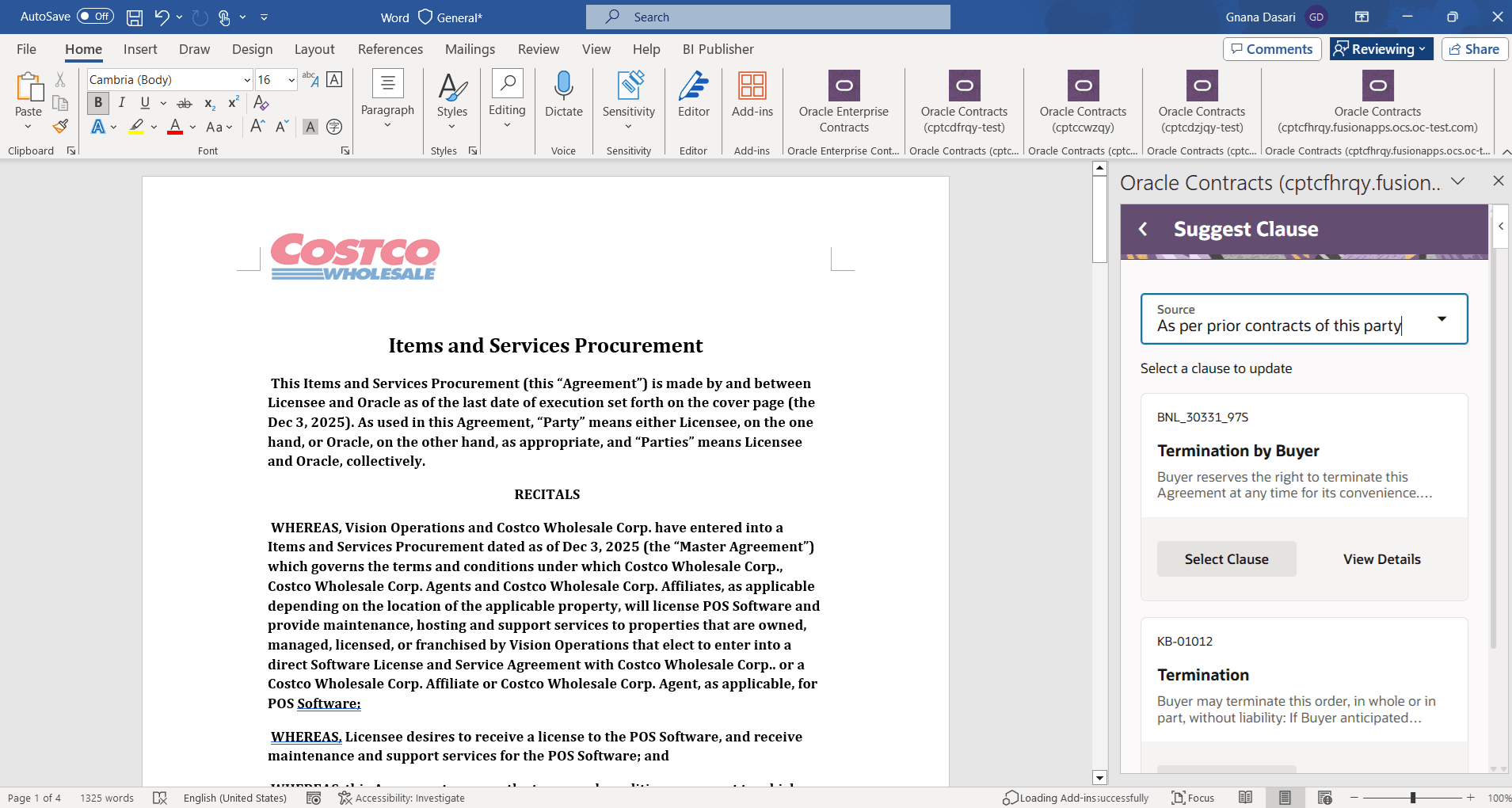
As per Prior Contracts for this Party
- As per prior contracts across all the parties: AI looks into the prior contracts across all the parties and comes up with the clause suggestions
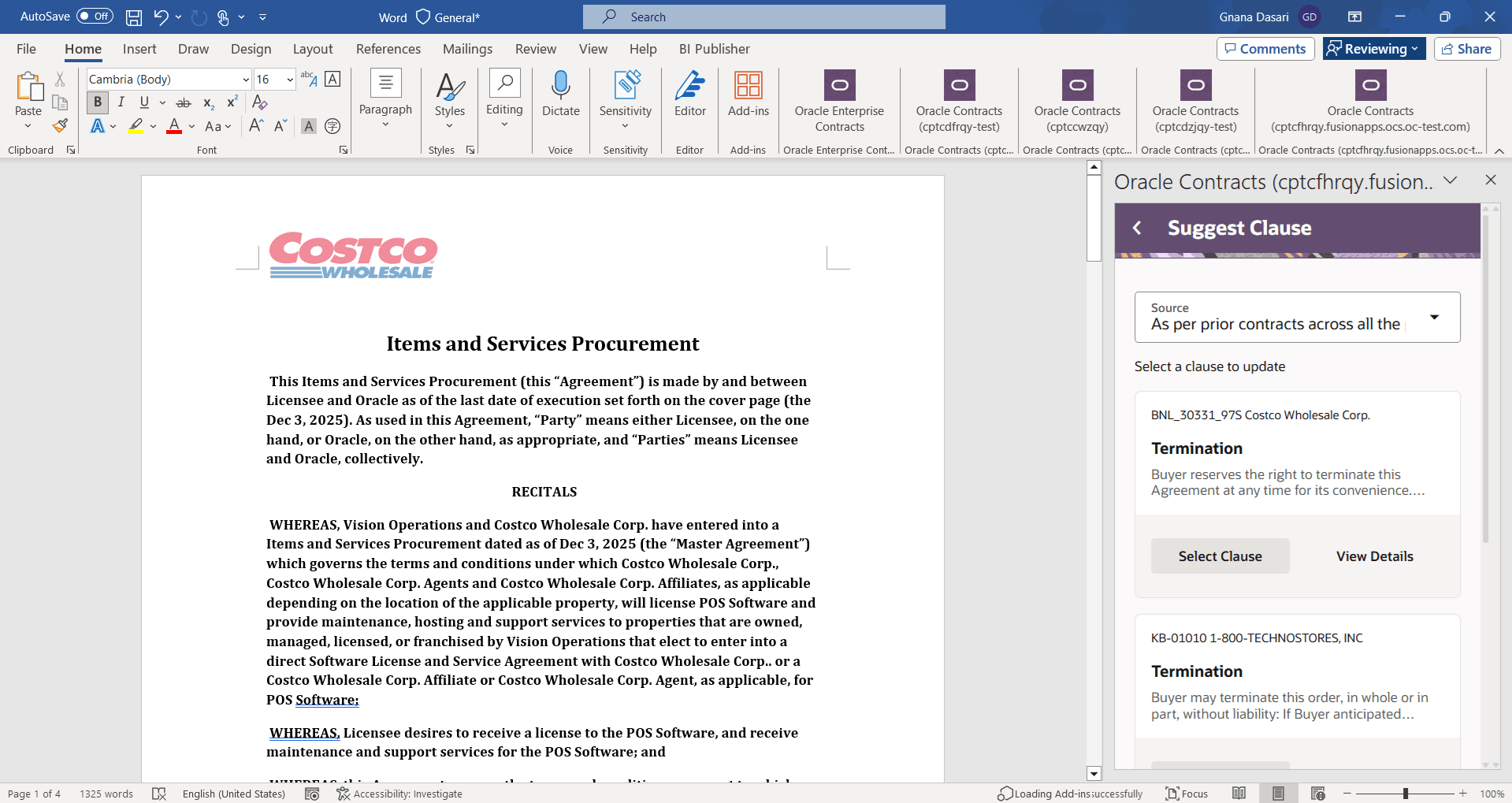
As per Prior Contracts across Parties
Delete Clause: You can delete a clause from the document using the Delete Clause action.
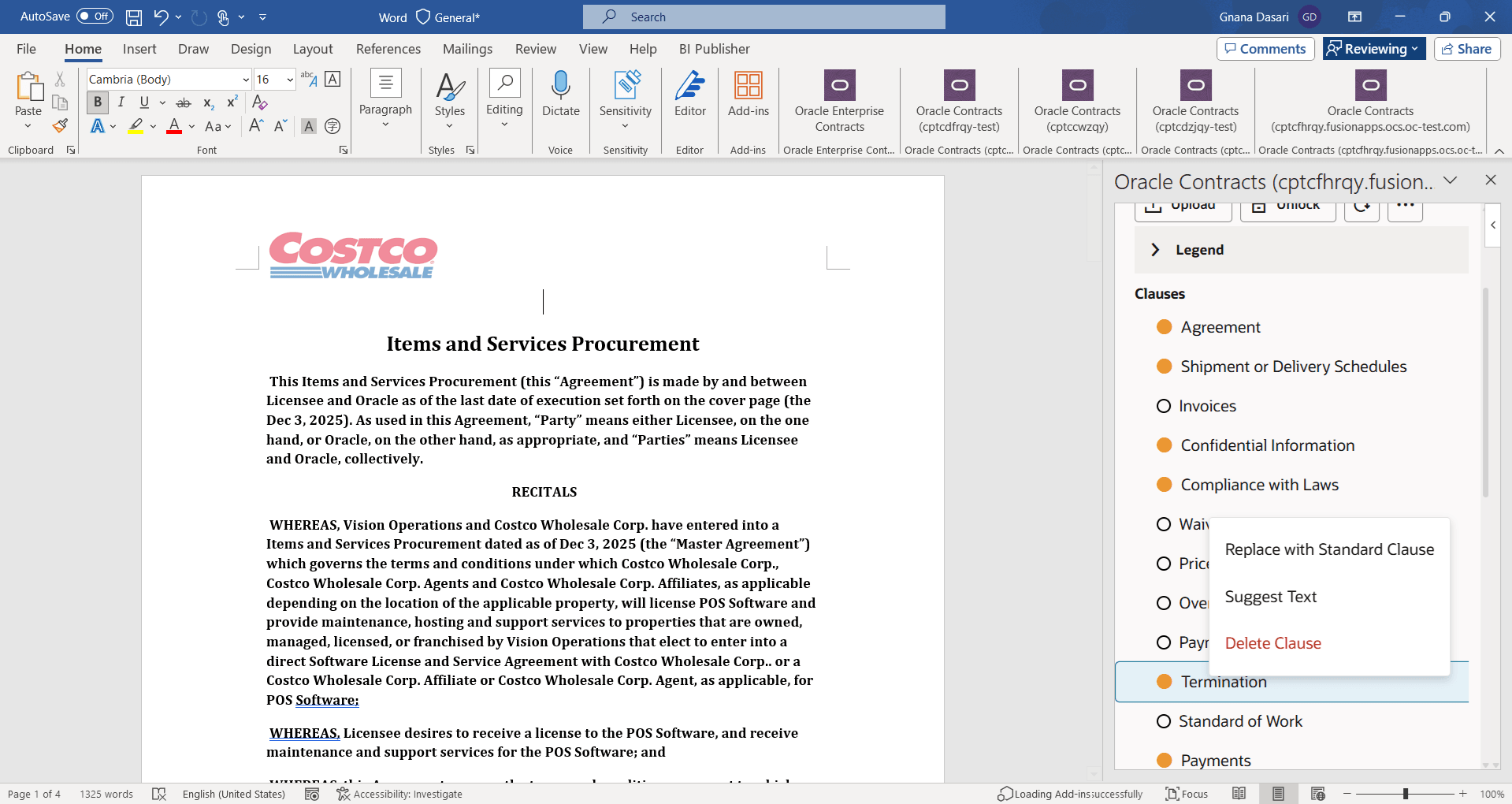
Delete Clause
Helps legal and contract administrators author changes to contract terms (including redlining) seamlessly using the new word add-in with AI functionality.
Steps to enable and configure
Step 0: Create Confidential Application in IDCS
Sign in to My Console in (IDCS) by navigating to www.oracle.com > View Accounts > Sign In to the cloud.
IDCS Landing Page
In the menu, in Identity & Security, click Domains.
On the next screen, the UI might display one of the compartments. If it's not the correct compartment, then select one from the drop-down list. Once you're in the correct compartment, click into the Domain for that compartment.
On the Identity Domain page, click Integrated Applications in the navigation bar.
Integrated Applications
Click Add Application in the Integrated Applications tab.
Add Application
Choose 'Confidential Application' and click Launch Workflow.
Enter Confidential Application Details
Enter the name and Description for the confidential application and click 'Next'
Application Details
Click 'OAuth Configuration' tab.
OAuth Configuration
Click 'Edit OAuth Configuration' button.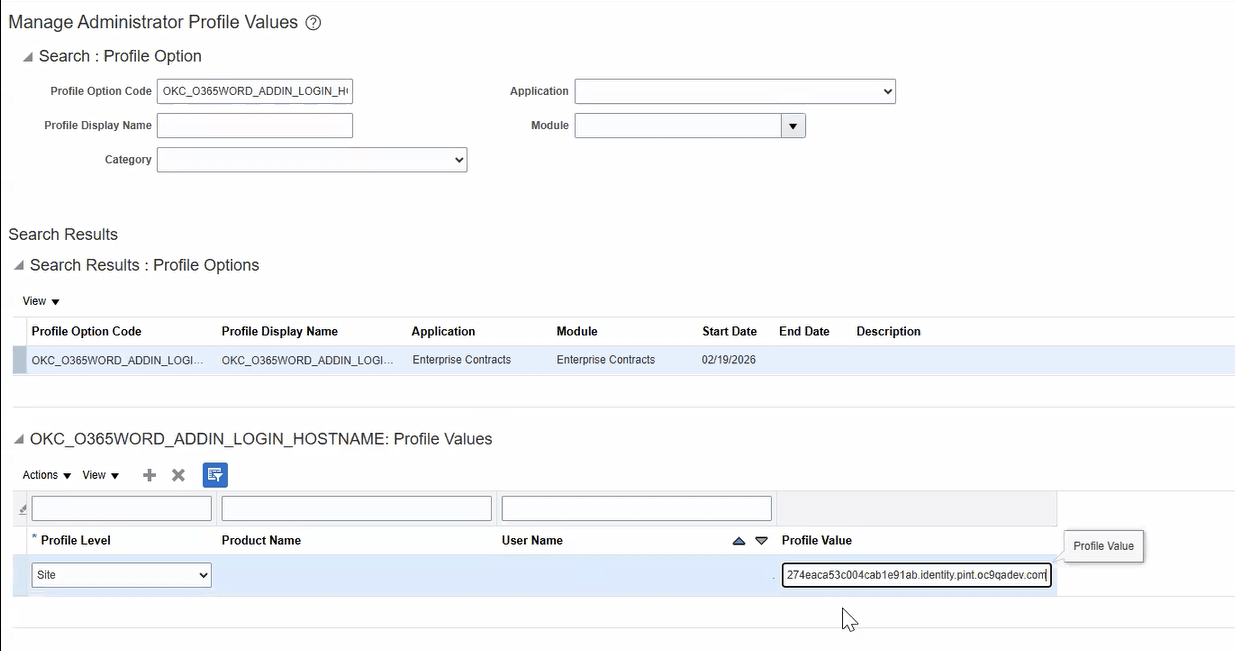
Edit OAuth Configuration
Select 'Configure this application as a client now' radio button under 'Client Configuration.
Select 'Refresh token' and 'Authorization code' check boxes for Allowed Grant Types under Authorization.
More settings
Check 'Allow non-HTTPS URLs' toggle.
Enter a Redirect URL in the format: {FaHostUrl}/fscmUI/o365Contracts/web/faTokenRedirect.html?authType=oAuth.
Select the Client Type as 'Confidential'.
Client IP Address & Token Issuance Policy
Select 'Anywhere' radio button for Client IP Address.
Select 'Specific' radio button for Token Issuance Policy.
Add Resource and Scope
Check the 'Add Resource' toggle.
Click 'Add Scope' under Resources region.
Add Scope
Select checkbox for 'Fusion Applications Cloud Service'.
Select checkbox under 'Select scope'. Also, note down the scope for subsequent use / reference.
Click 'Add' at the bottom.
Submit OAuth
Click Submit at the bottom.
Show Client Secret
Click 'Show' action from the ... (three dots) dropdown
View Client Secret
Note down the Client Secret for subsequent reference.
Activate the Application
Activate the application by clicking 'Activate' option from the Actions in the top.
Step 1: Security changes:
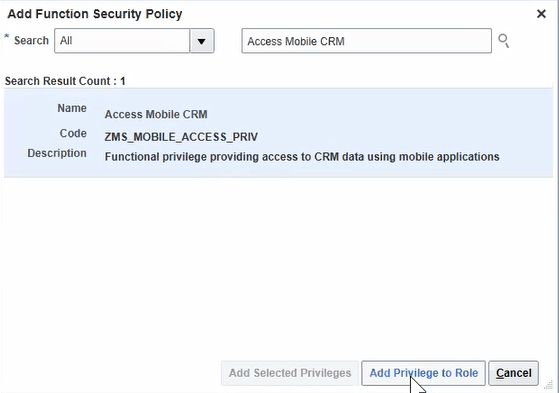
Privilege Details
Make sure the privilege 'Access Mobile CRM' (ZMM_MOBILE_ACCESS_PRIV) is mapped to the duty or job roles you're using, irrespective of whether you're using seeded roles or custom roles.
Step 2: Creating Profile Options using Manage Profile Options setup task:
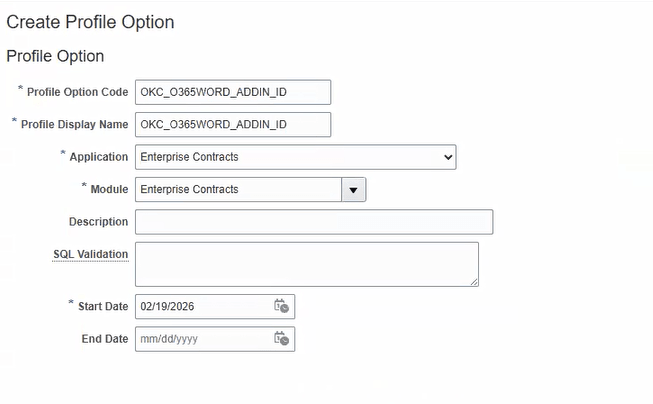
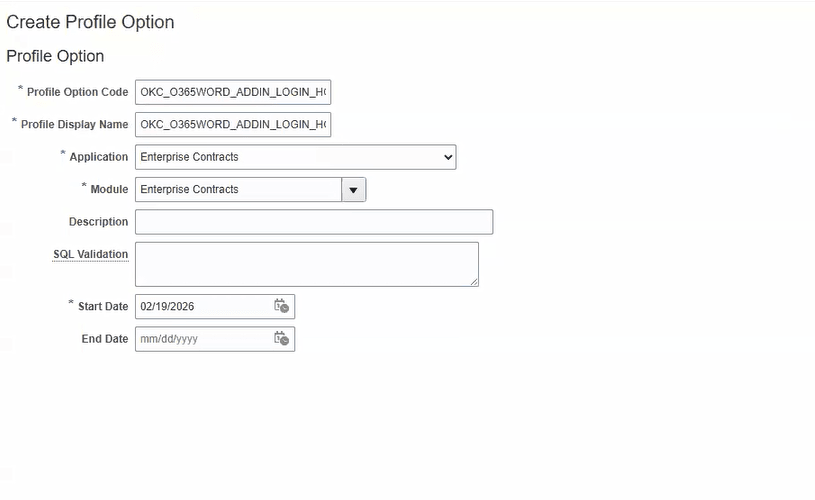
Profile
Create a profile option for Word Add-in ID using the above screenshot.
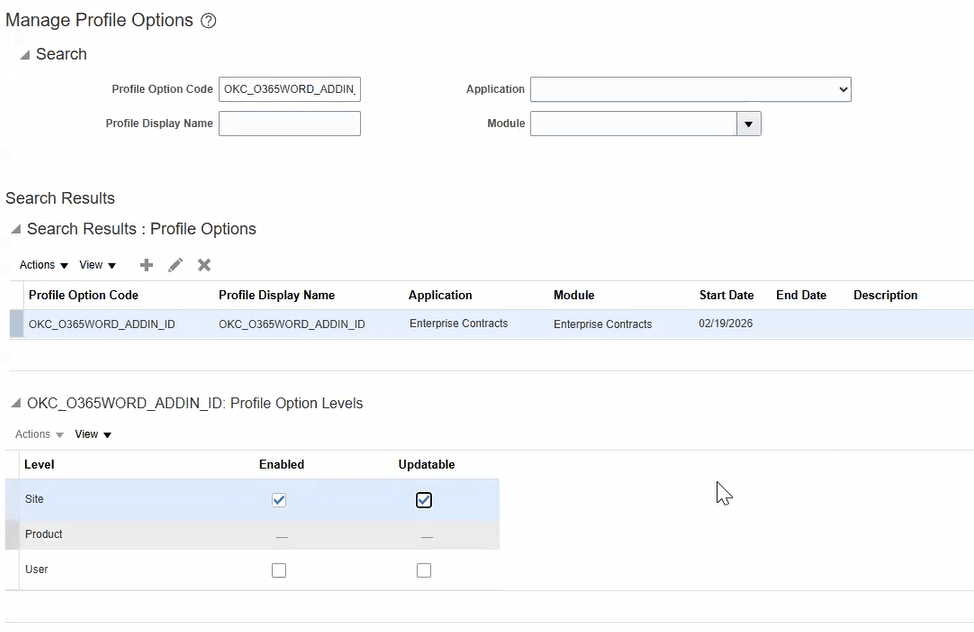
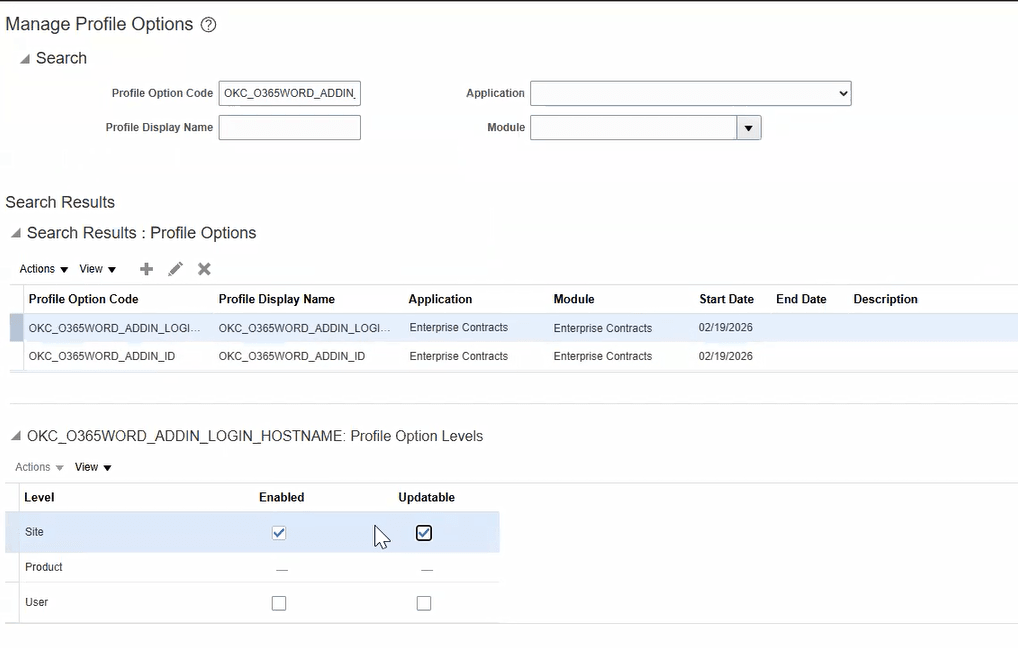
Profile Option Level
Set the profile option level to 'Site'. Check 'Enabled' and 'Updatable'.
Profile
Create a profile option for Word Add-in Login Hostname using the above screenshot.
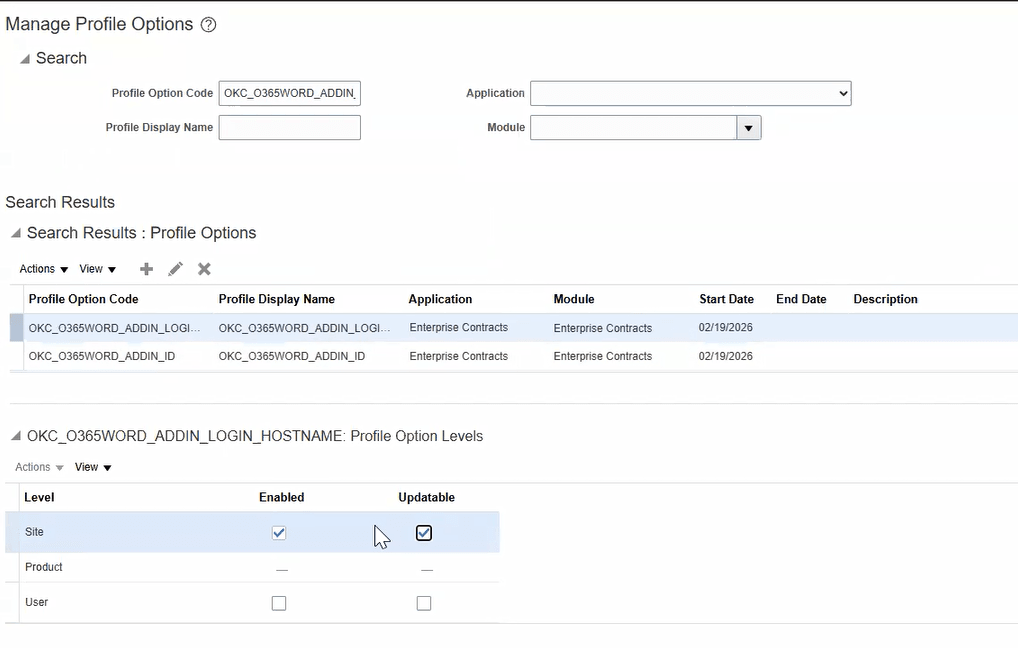
Profile Option Level
Set the profile option level to 'Site' and mark 'Enabled' and 'Updatable'.
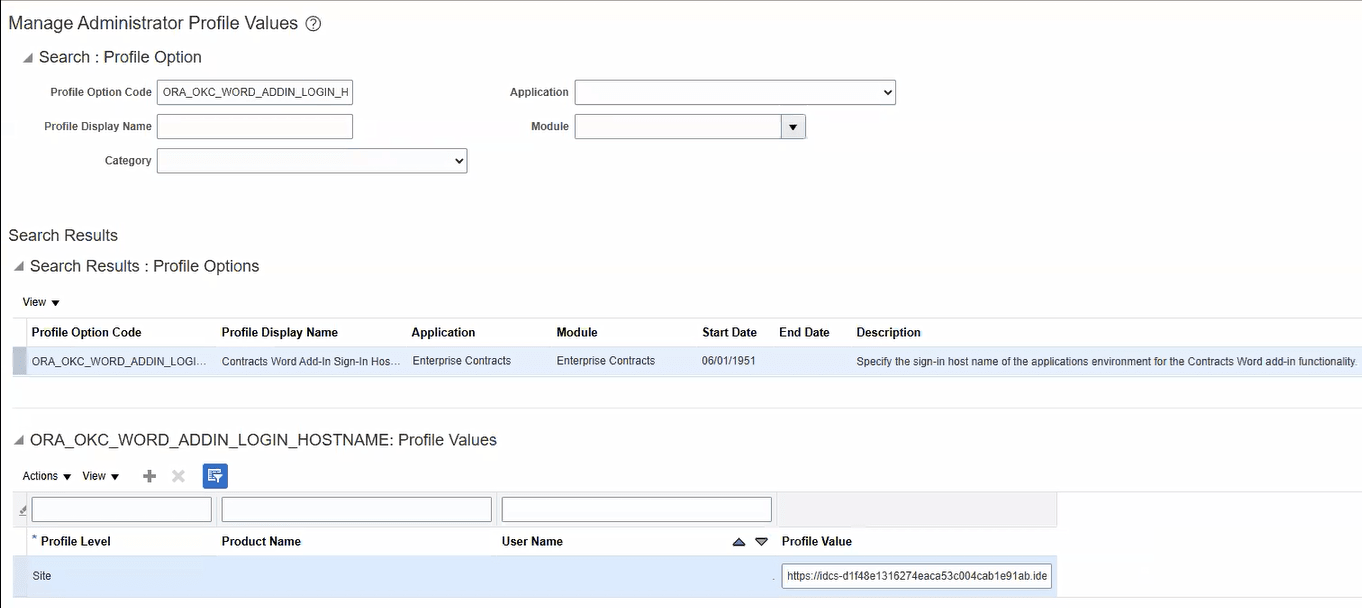
Step 3: Set Profile Option Values using Manage Administrator Profile Values:
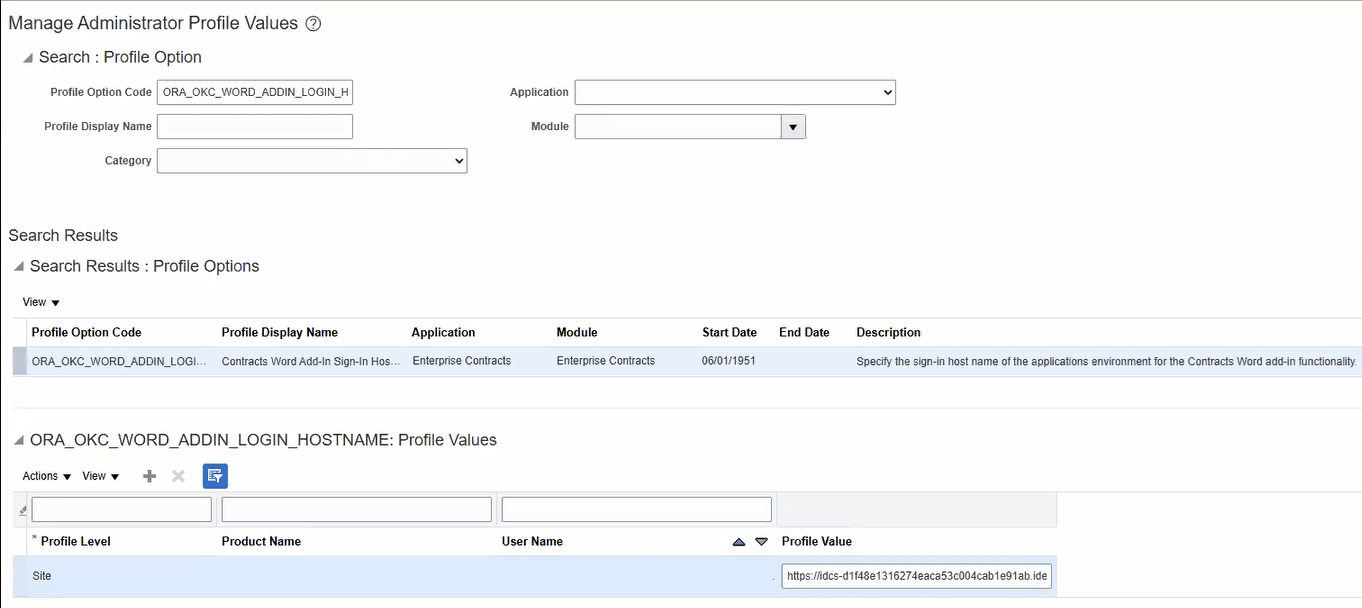
Set Profile Value
Set the value of the above profile option to IDCS environment details.
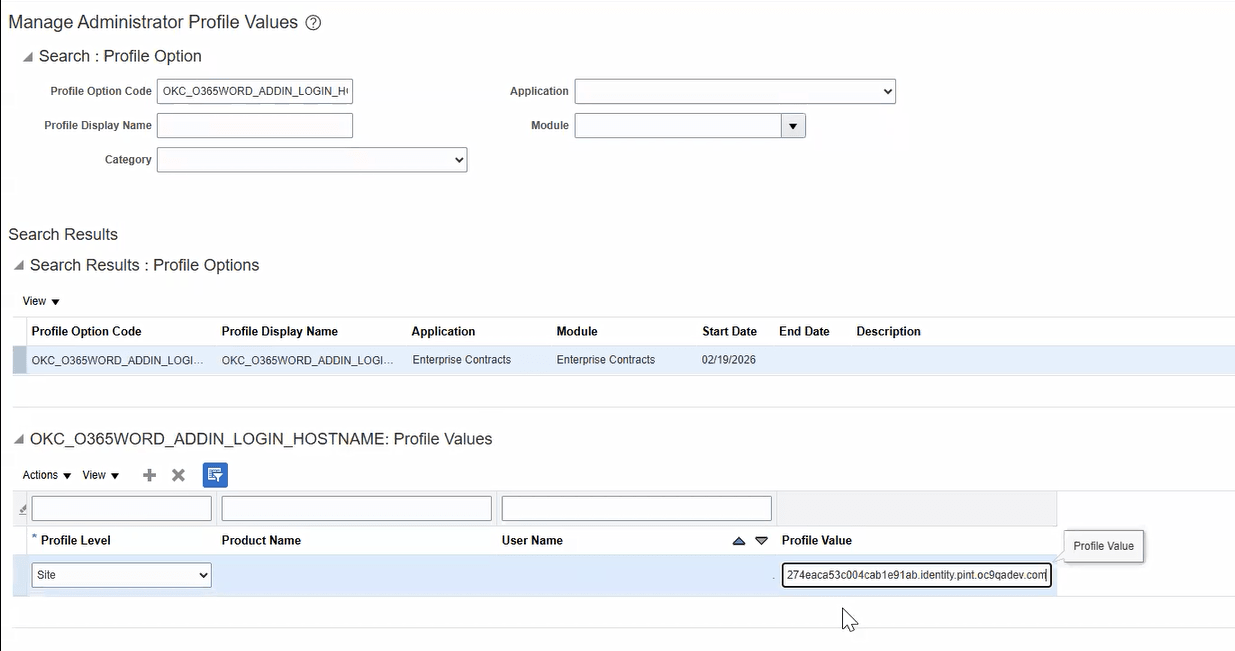
Set Profile Value
Set the value of the above profile option to IDCS environment details.
Step 4: Set OAUTH Settings
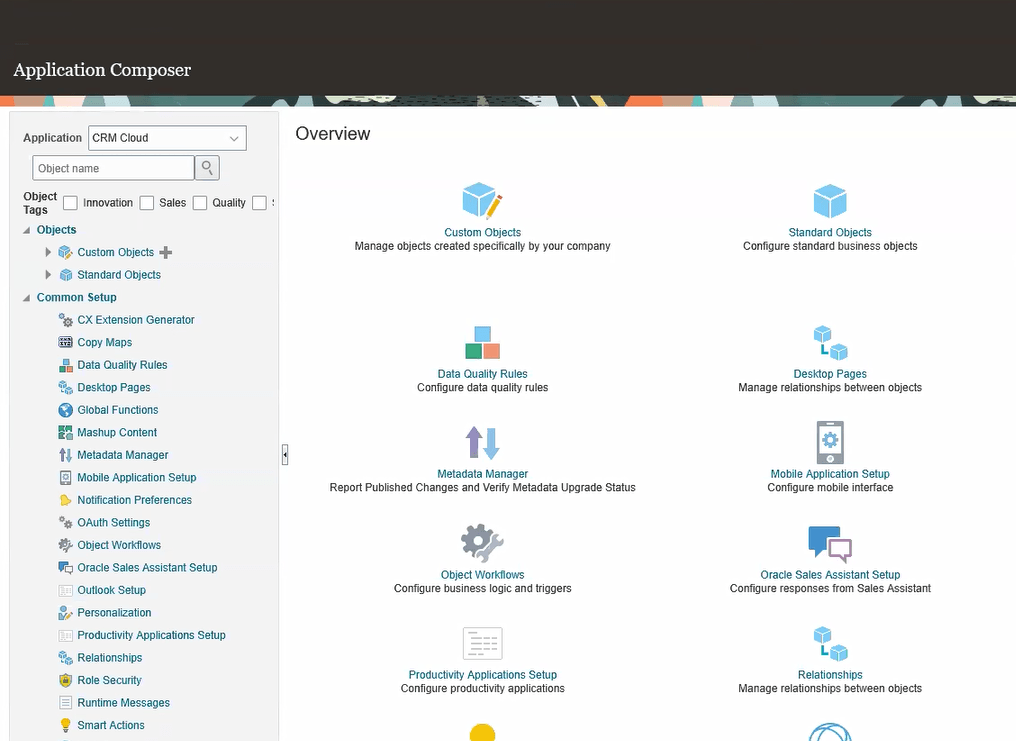
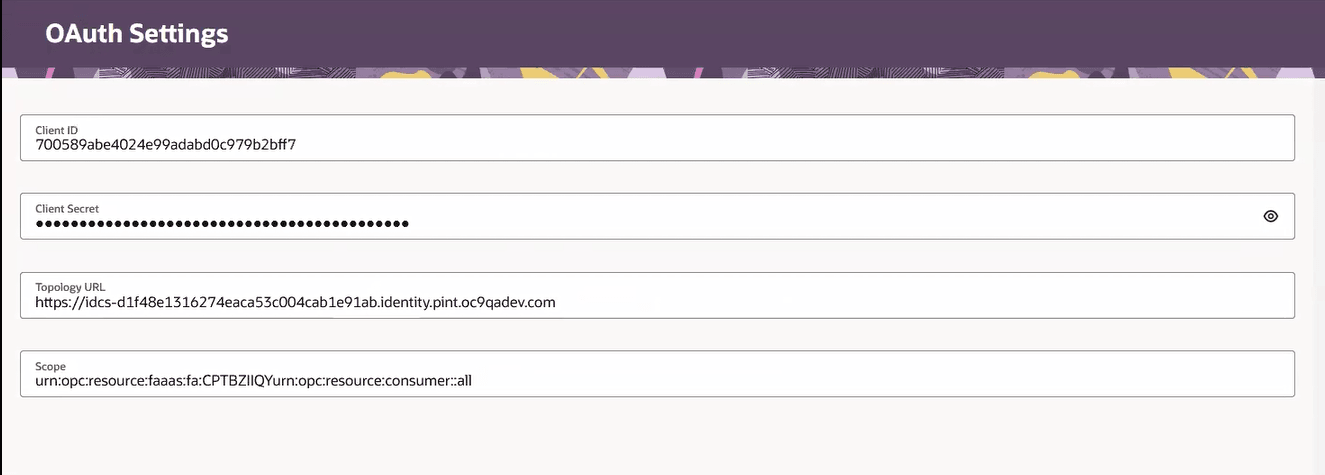
OAuth Settings
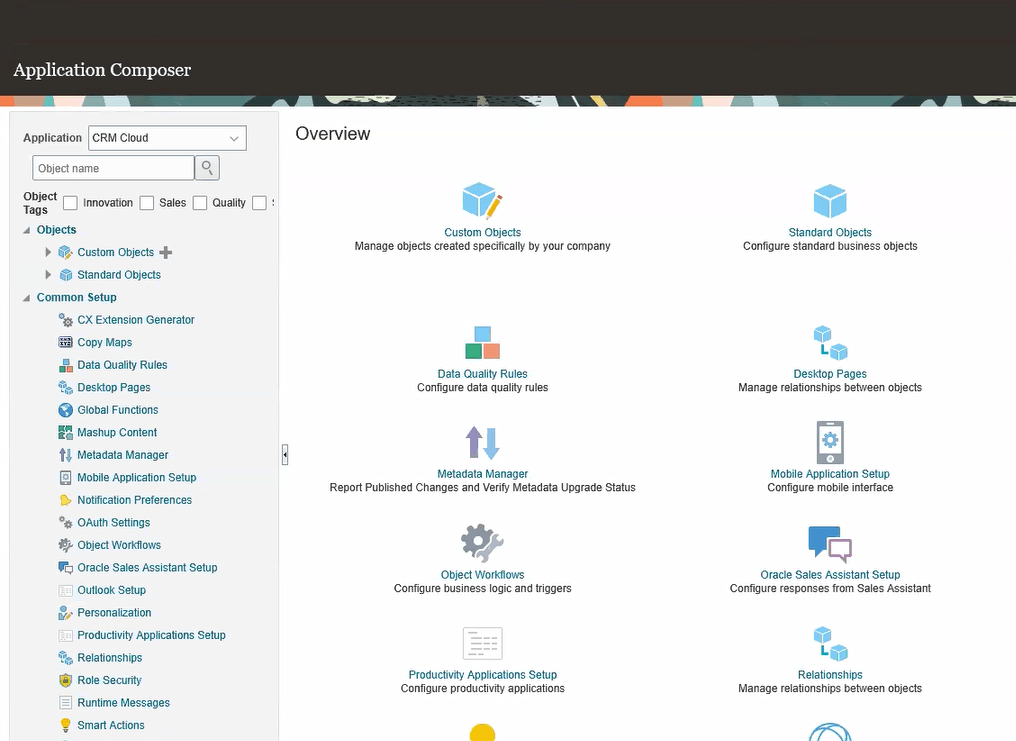
Navigate to OAuth Settings page from Application Composer inside your sandbox.
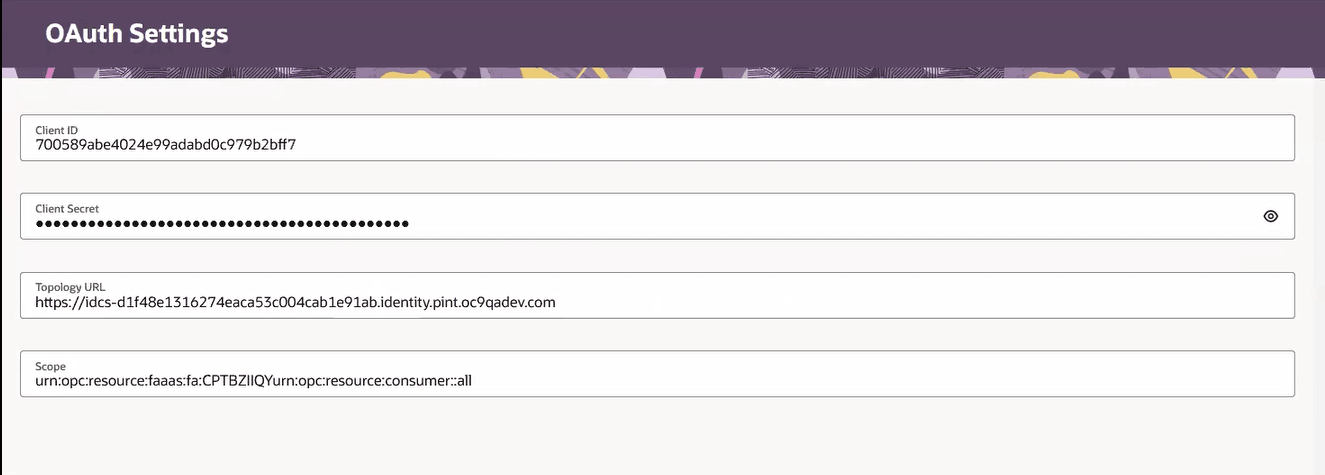
OAuth Settings
Enter the Client ID, Client Secret, Scope values you noted from the step 0 of this setup and enter the Topology URL as the IDCS environment link.
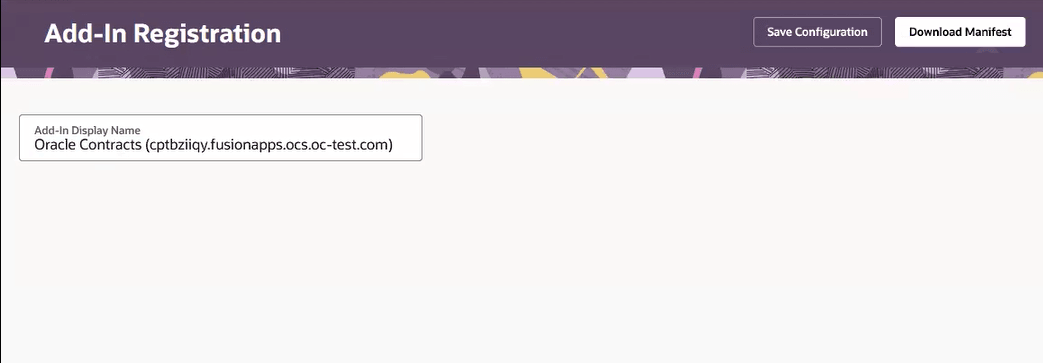
Step 5: Add-in Registration and Download Manifest
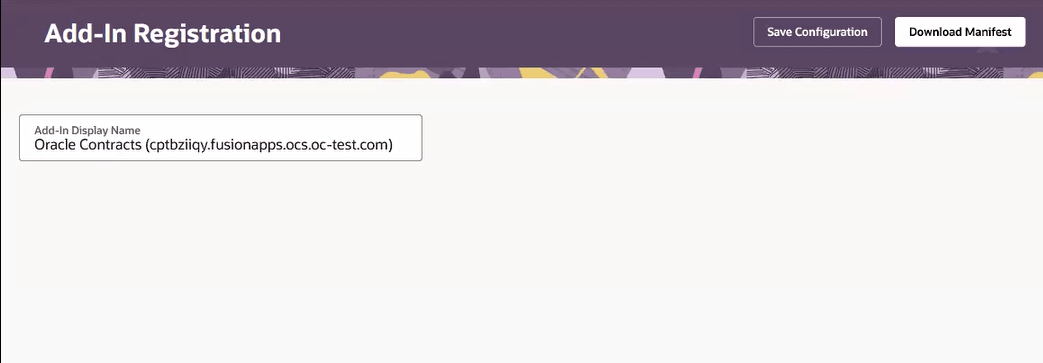
Add-in Registration
Enter an identifiable name for the add-in, click Save Configuration and click Download Manifest. Save the manifest file to your local folder.
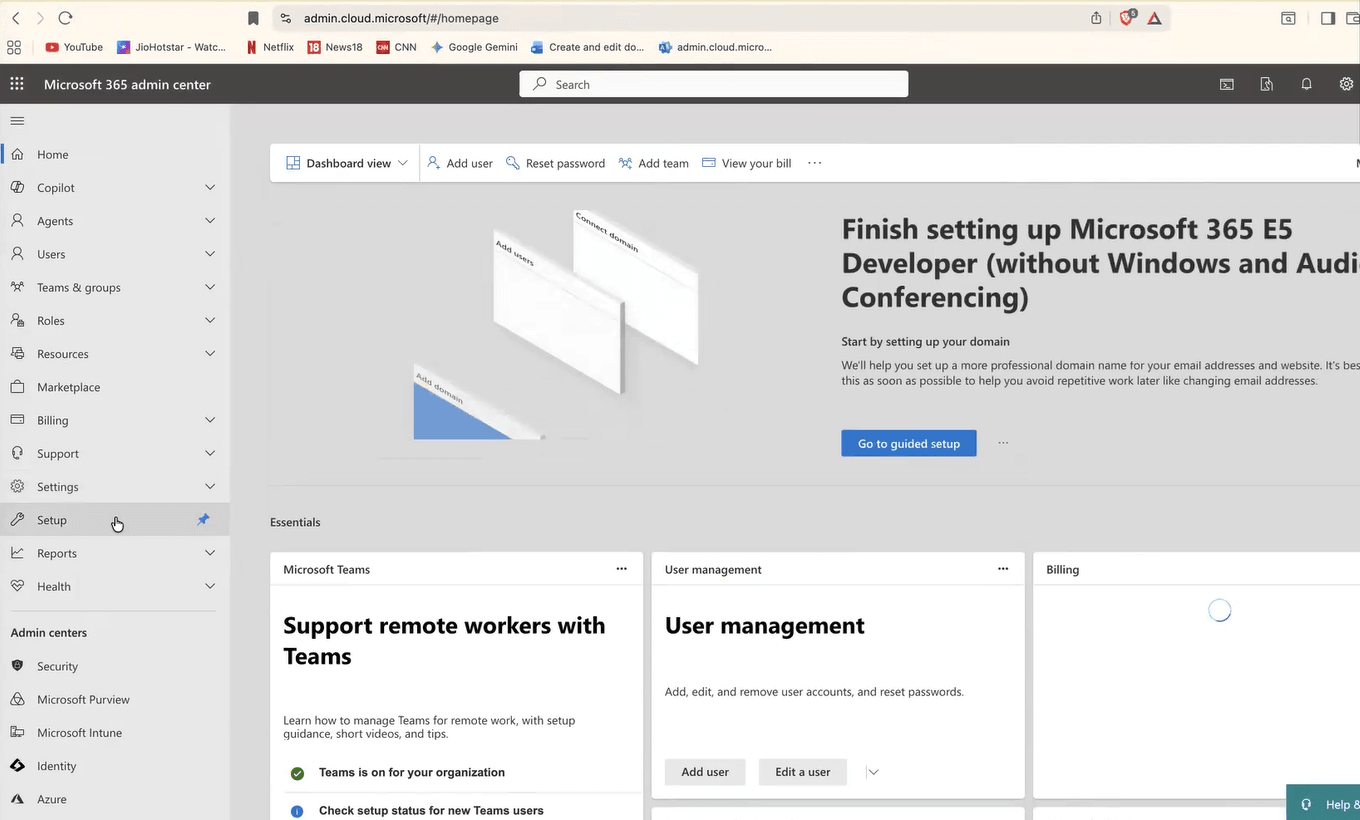
Step 6: Azure setup
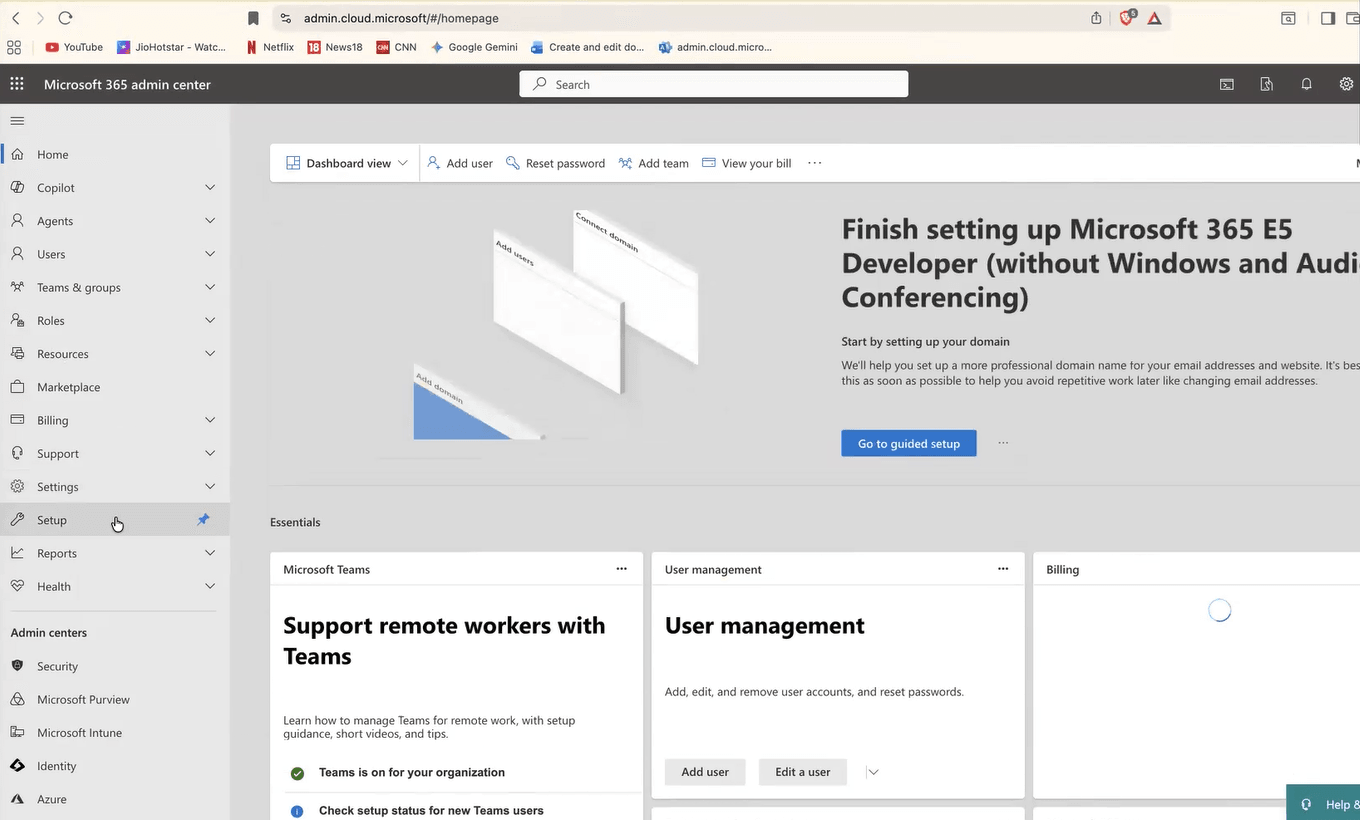
Azure Administration
Navigate to admin.cloud.microsoft.com
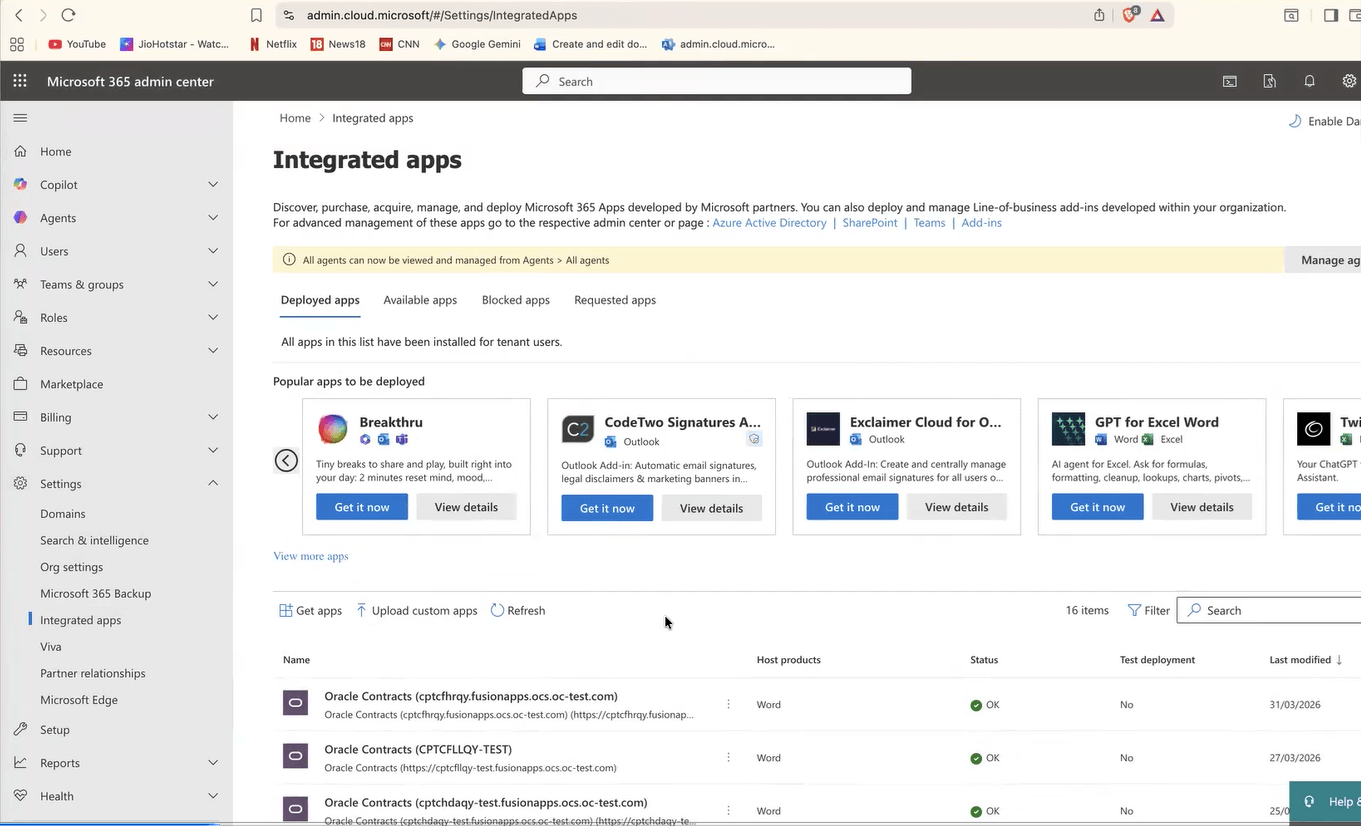
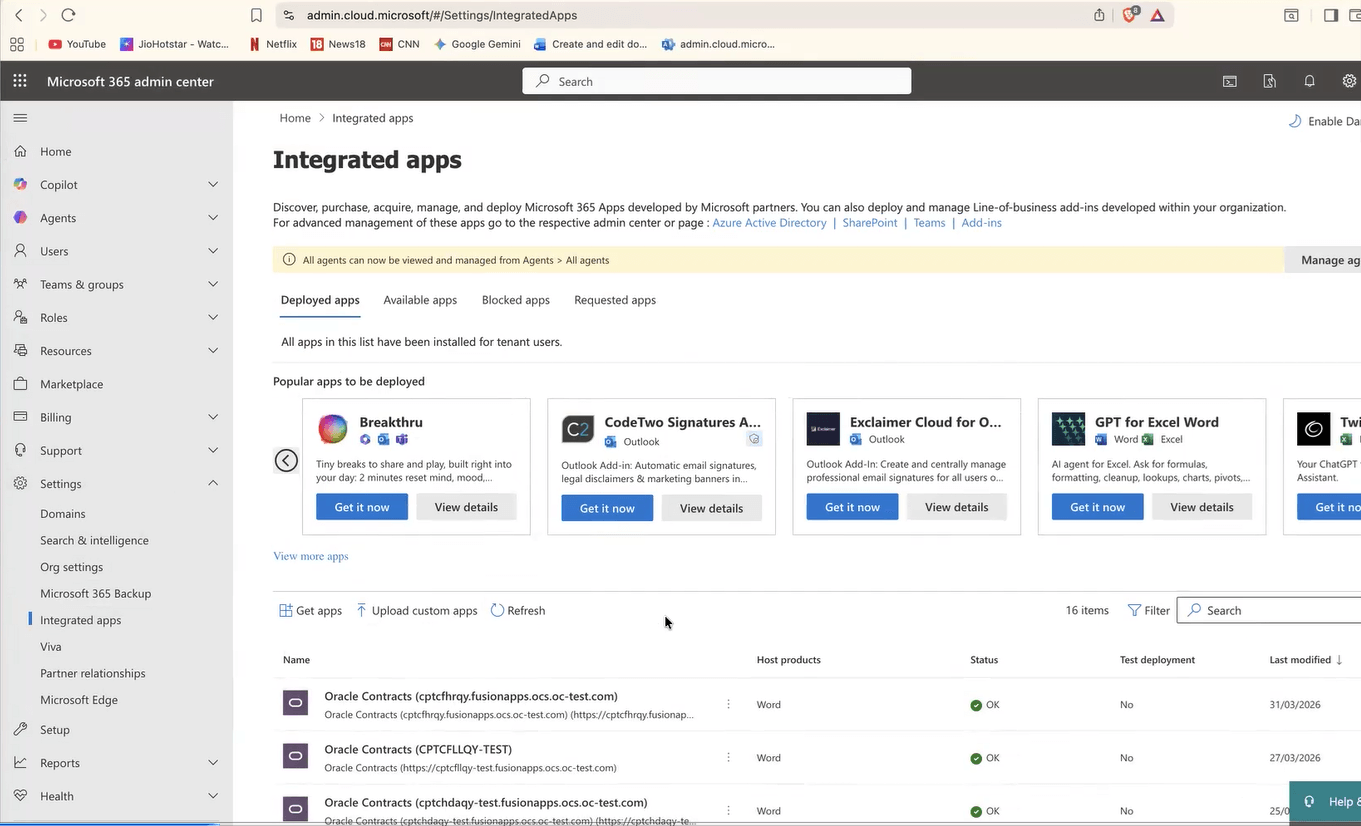
Integrated Apps
Navigate to Integrated Apps under Settings.
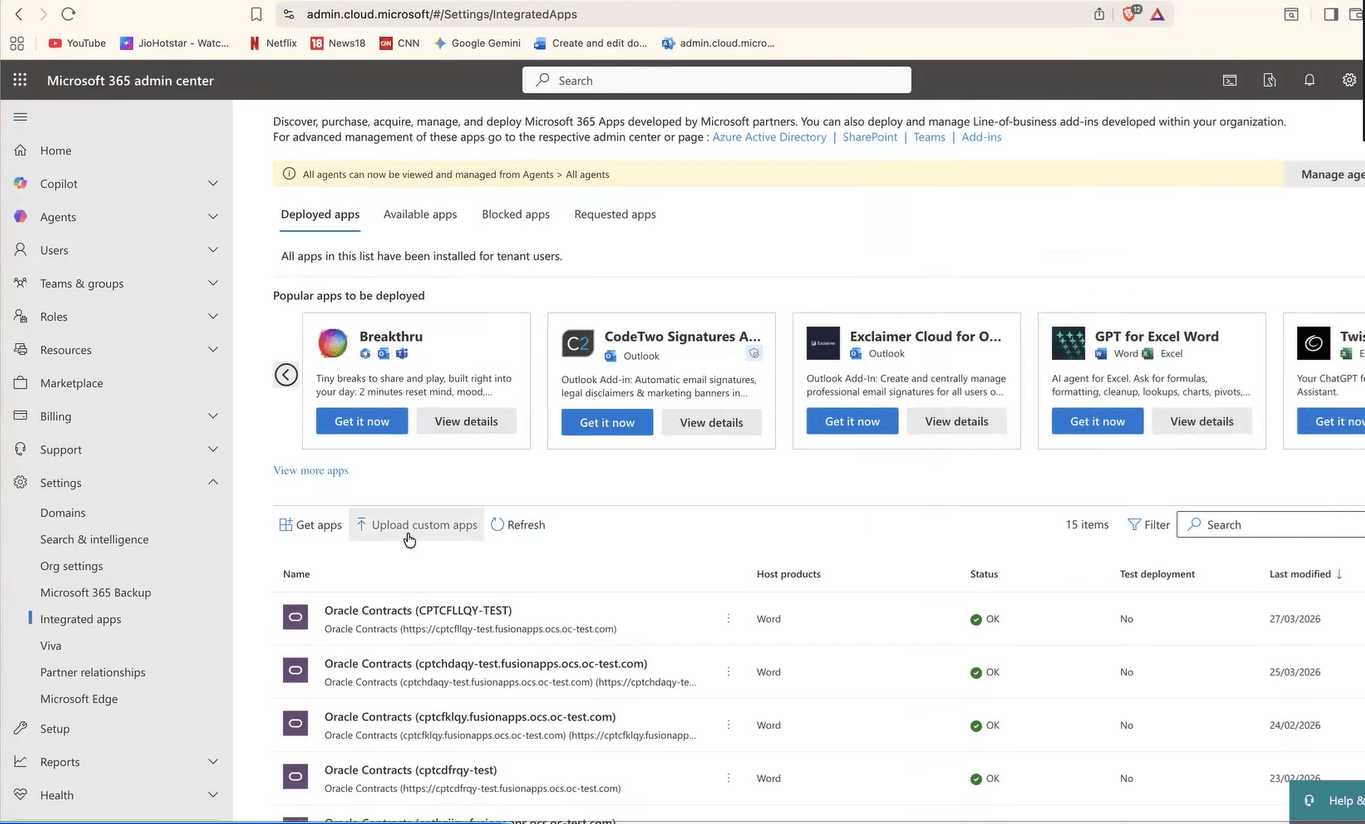
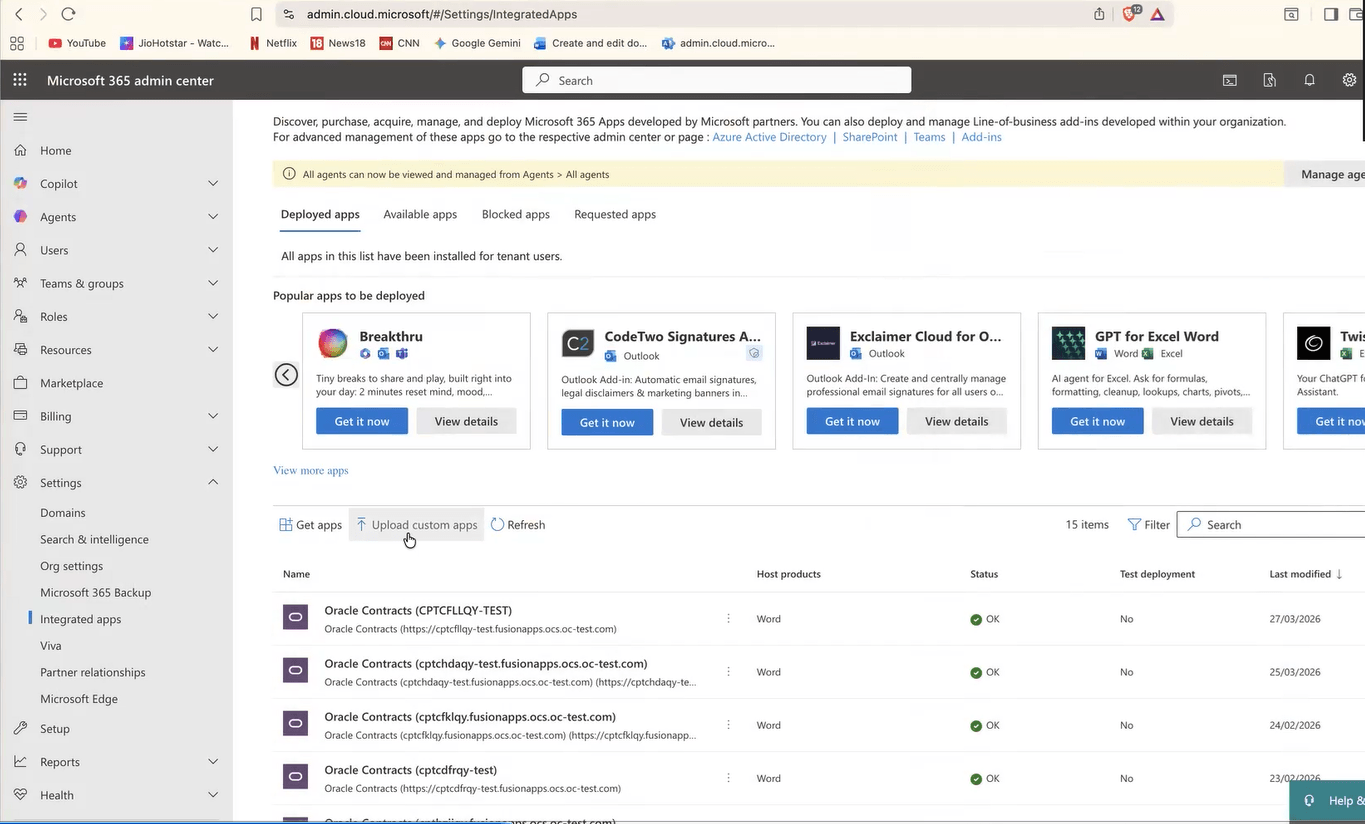
Upload Custom Apps
Click Upload Custom Apps action.
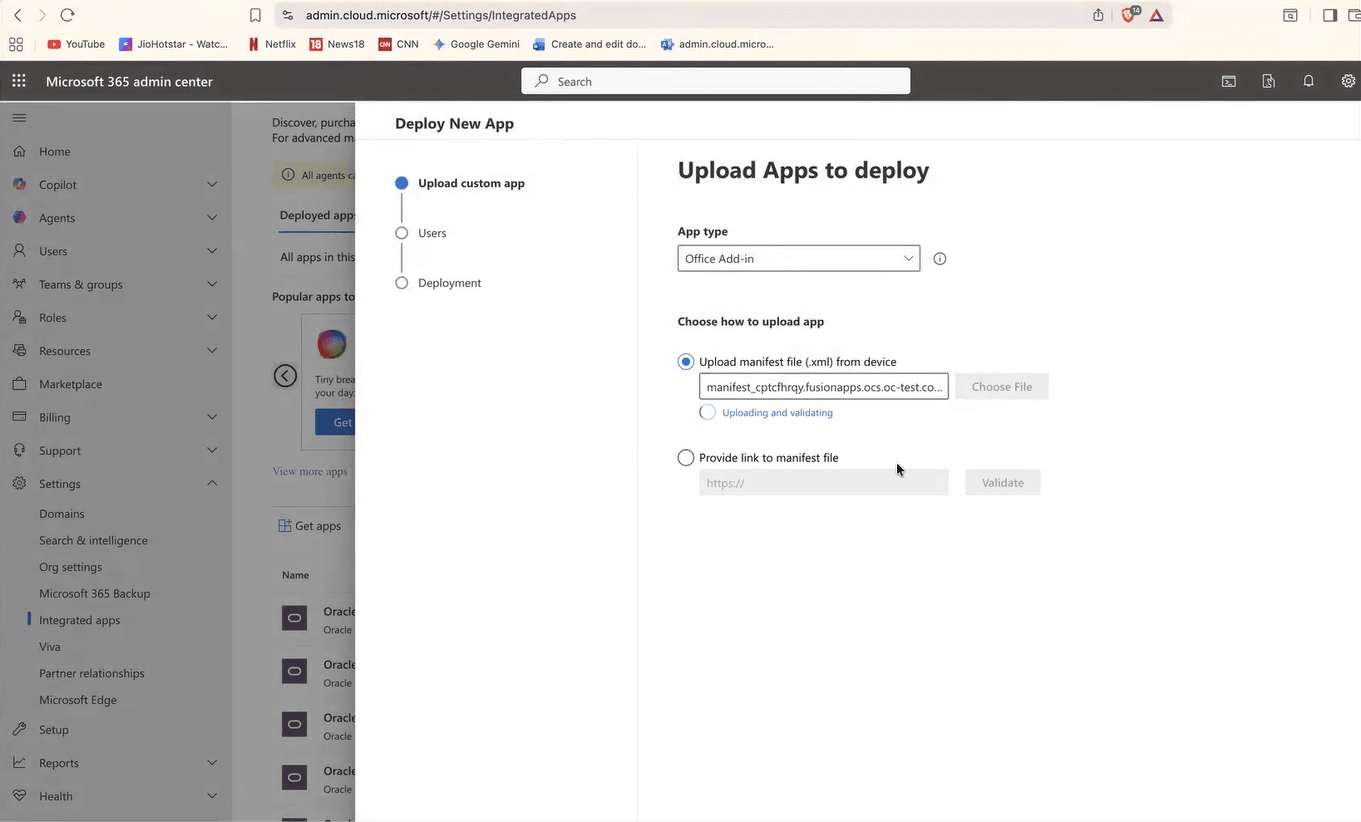
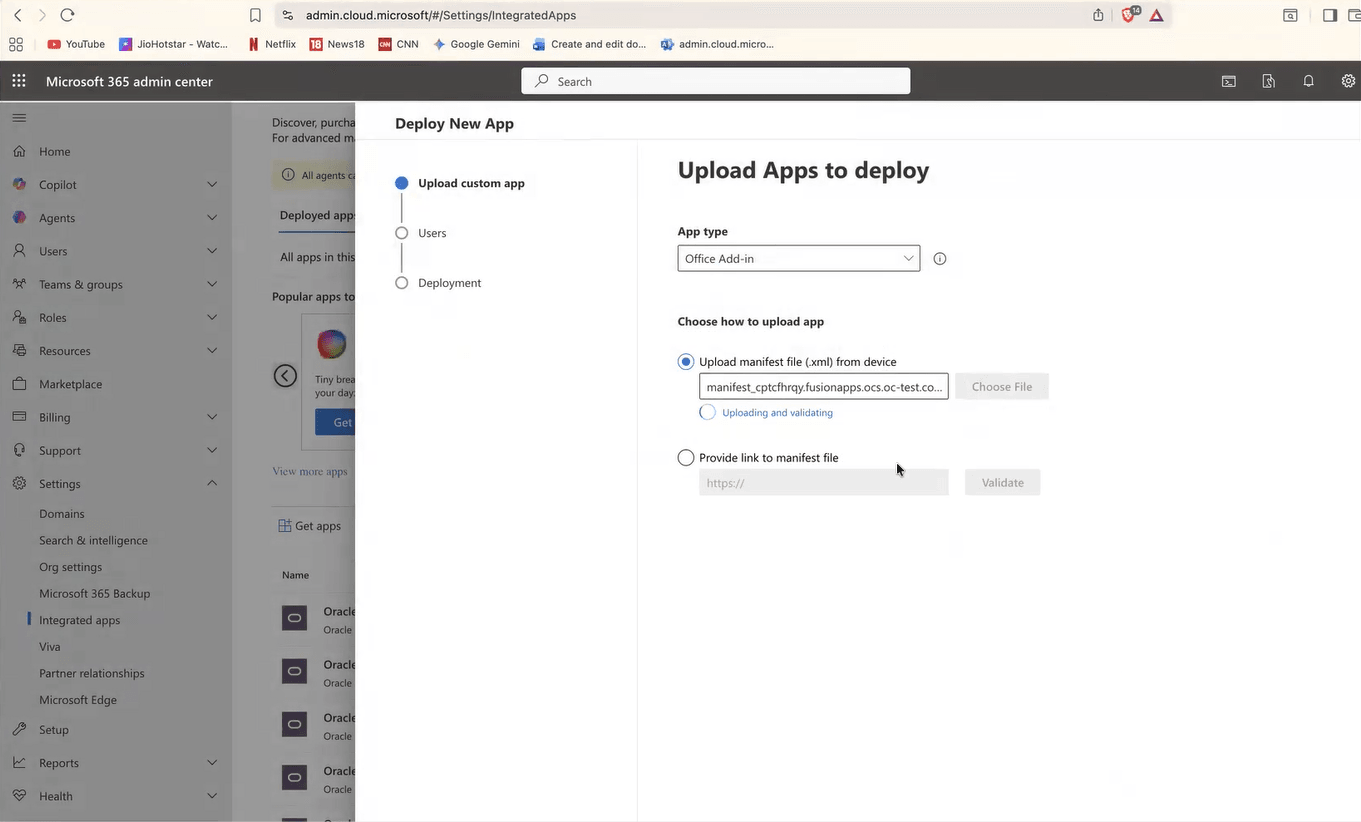
Upload Manifest File
Select App Type as Office Add-in. Upload the manifest file (from the previous setup step 5) Click Next at the bottom of the page.
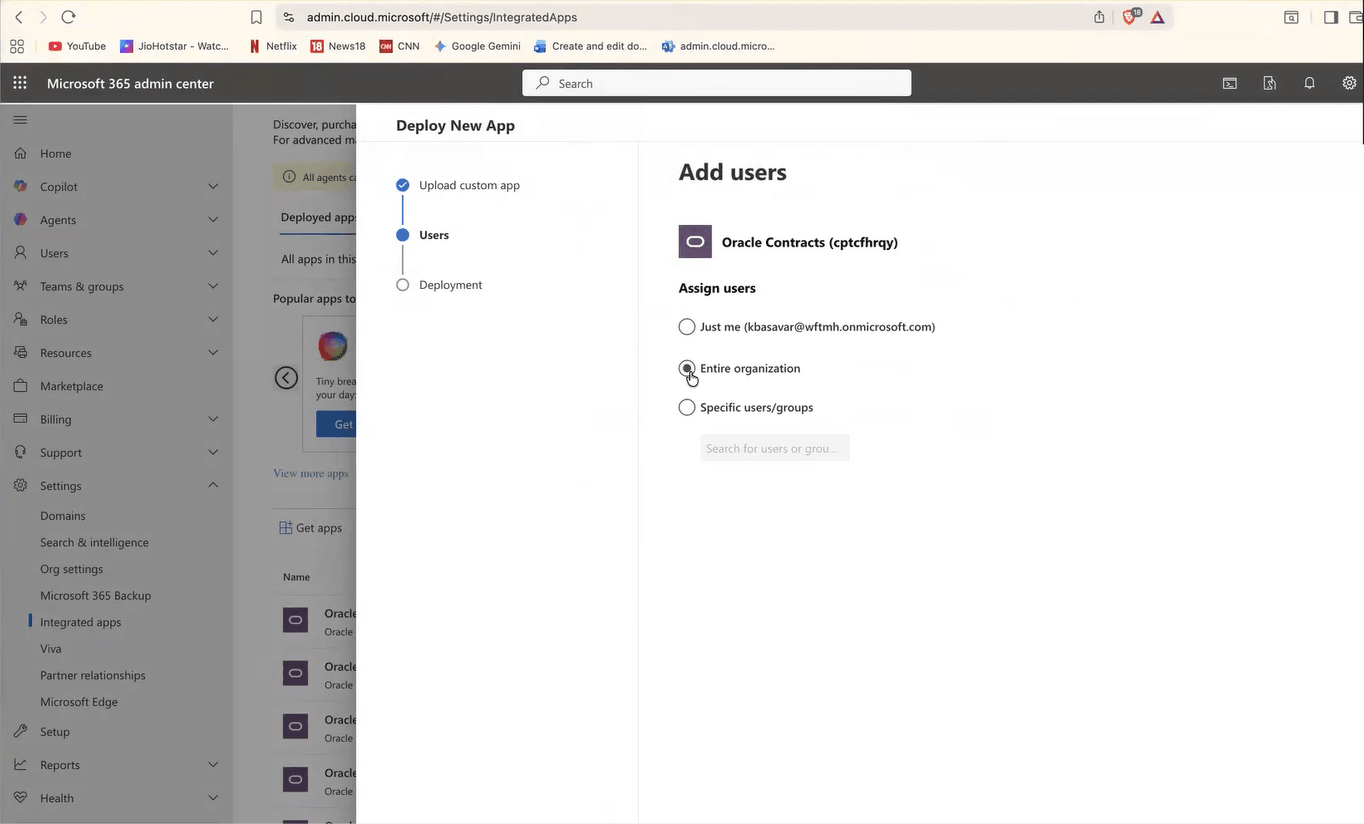
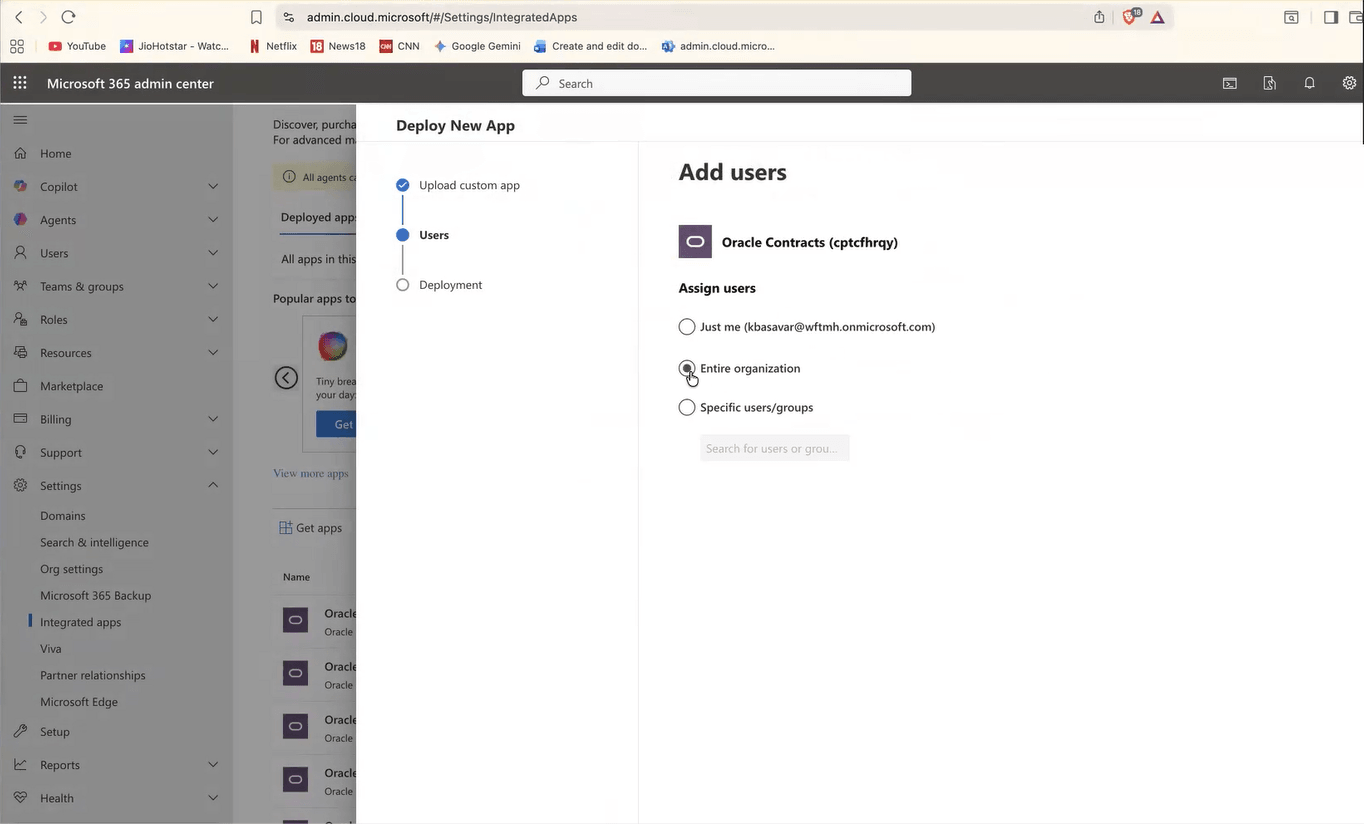
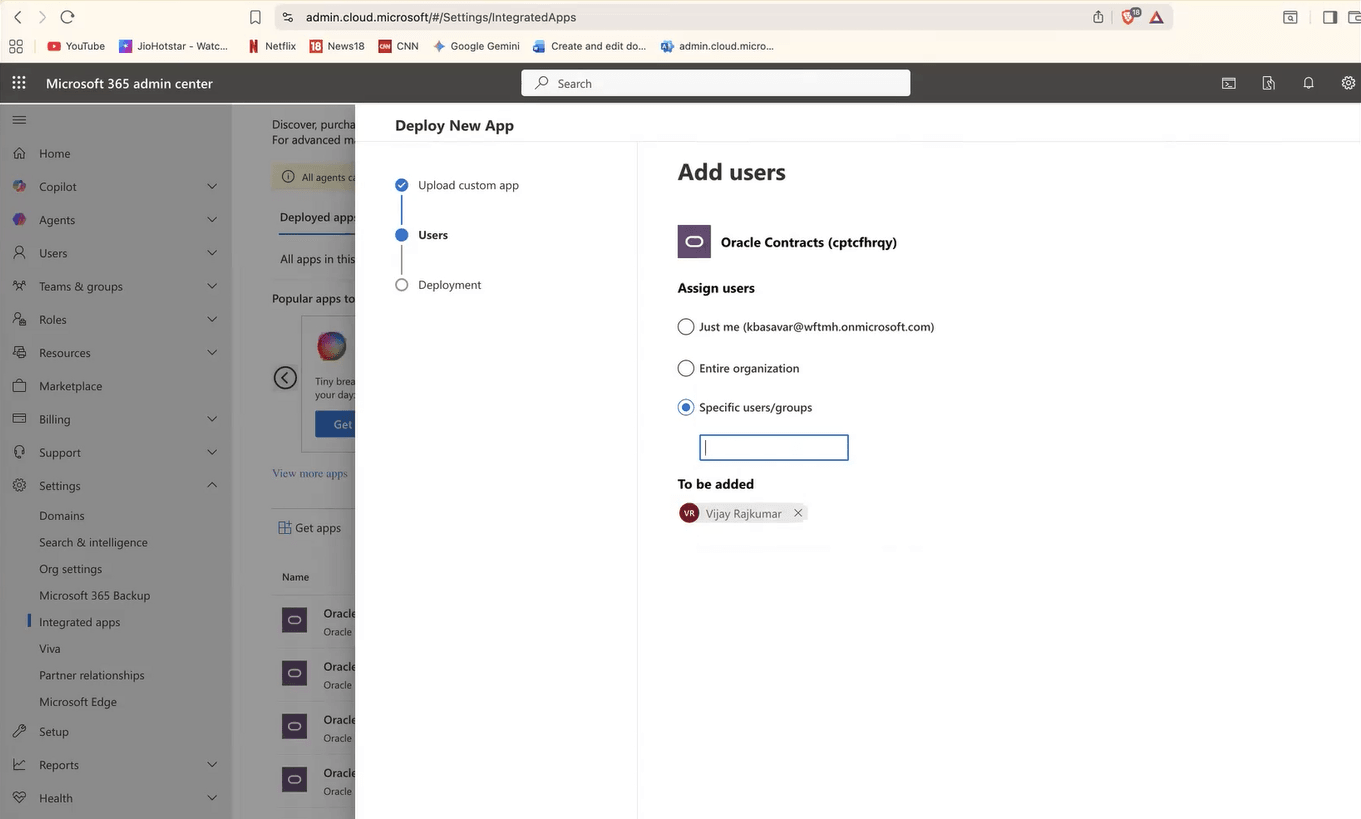
Choose Users
Choose entire organization if you want to give access to all the users in your organization.
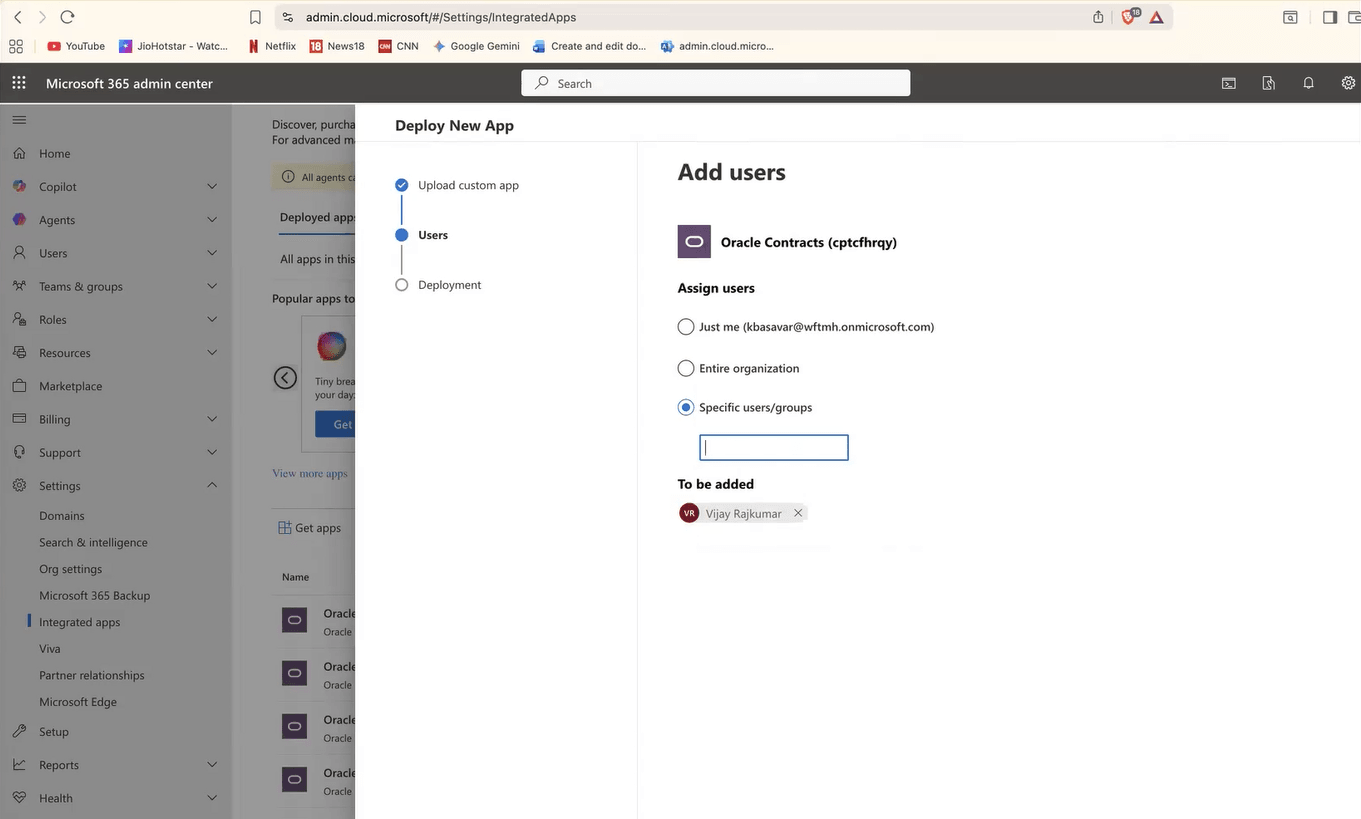
Choose Specific Users
Choose specific users one by one. Click Next at the bottom of the page.
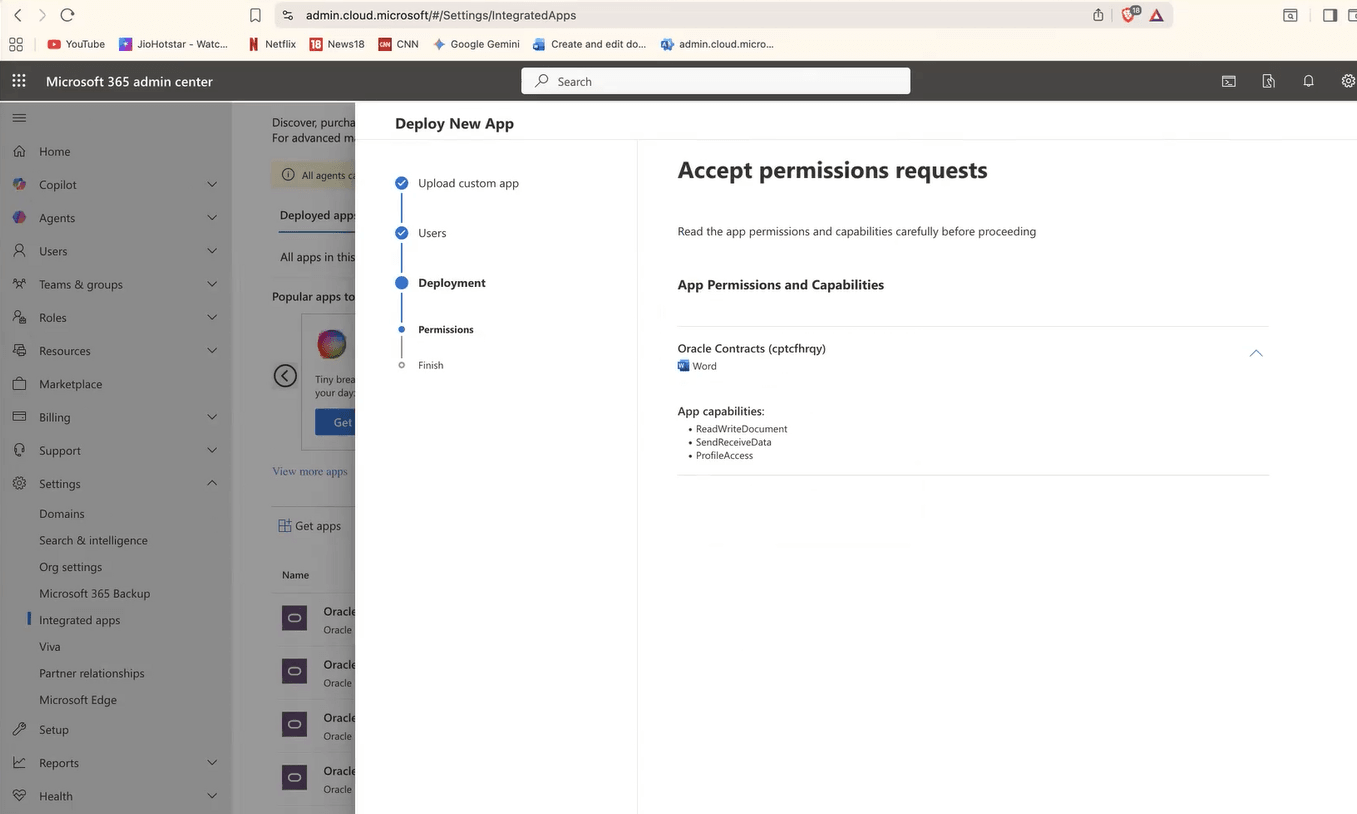
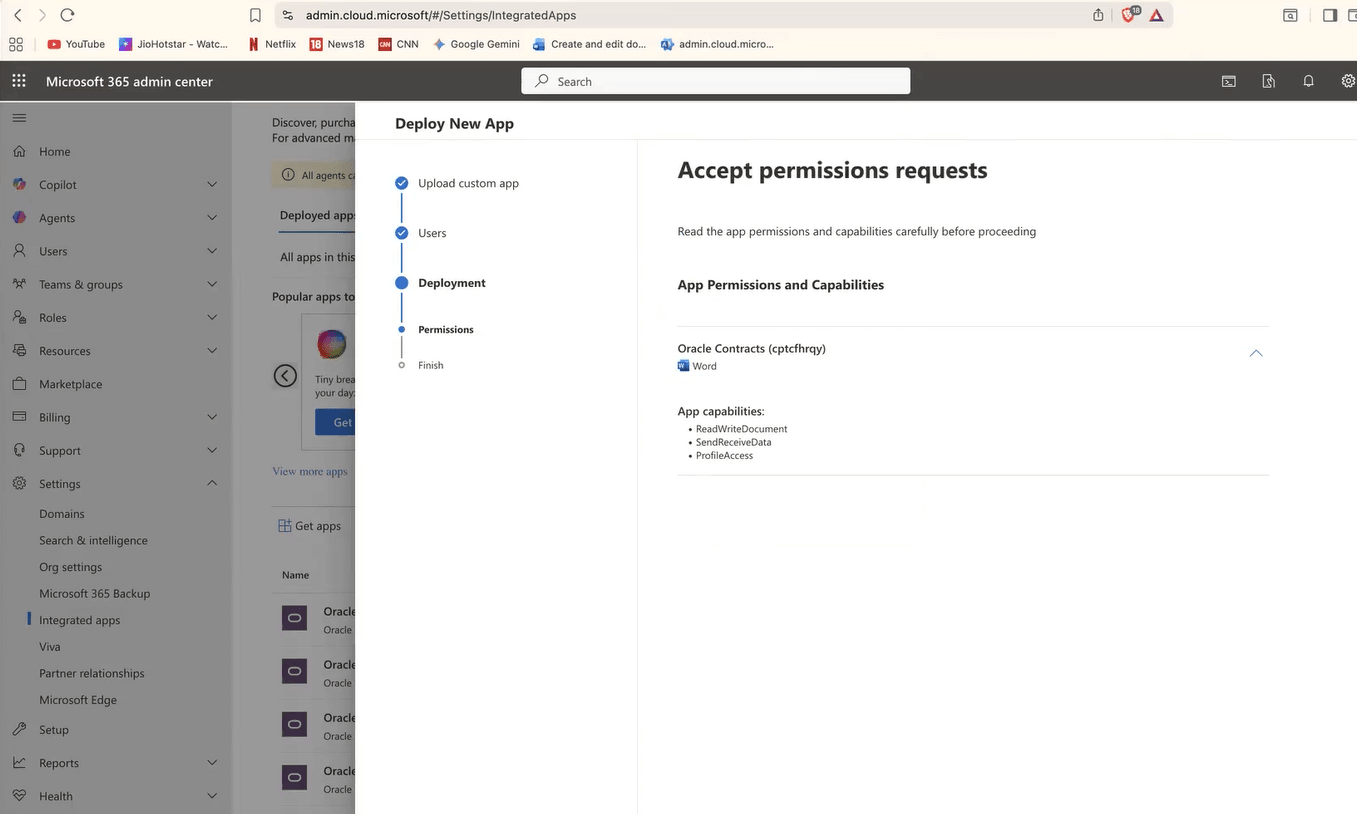
Accept permission requests - Deployment
Permission requests are processed during the deployment.
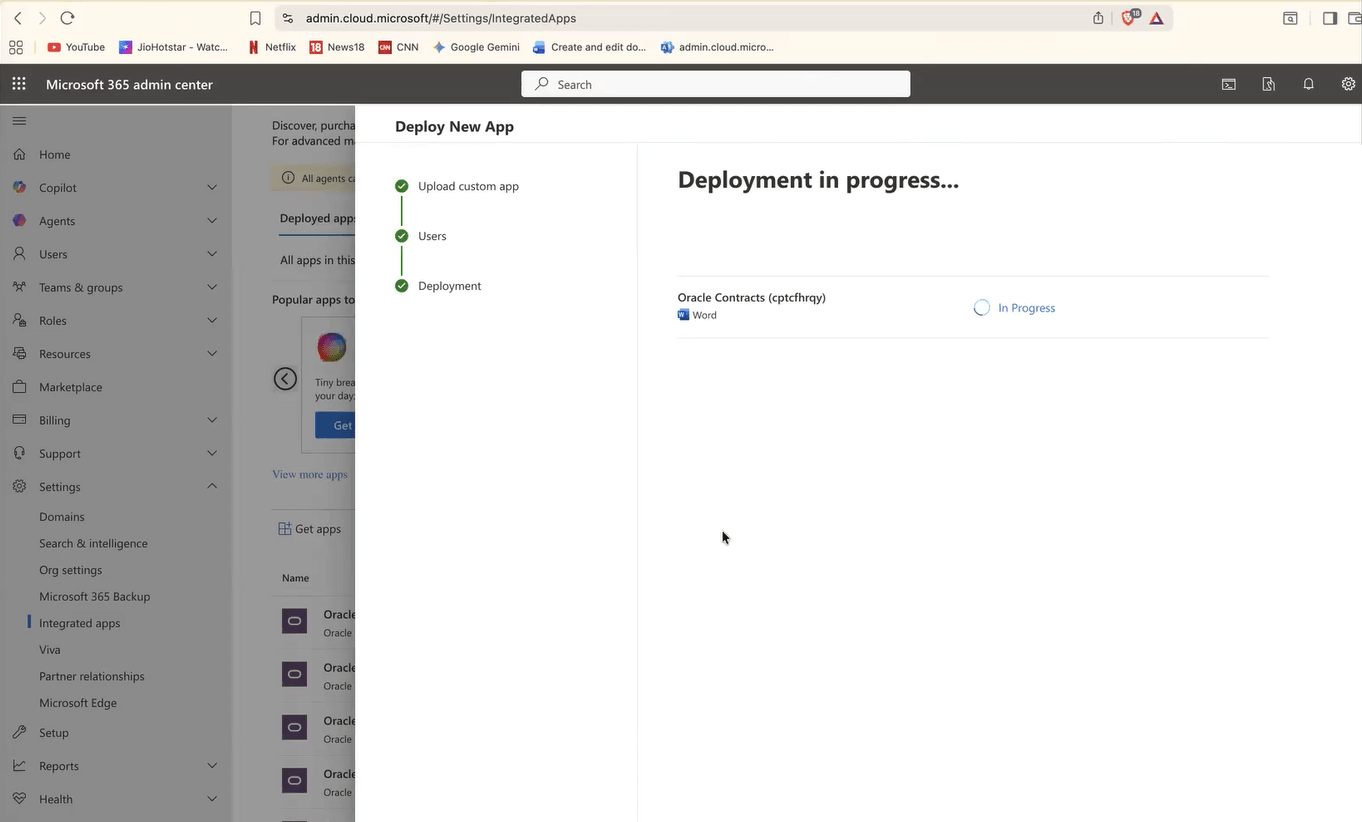
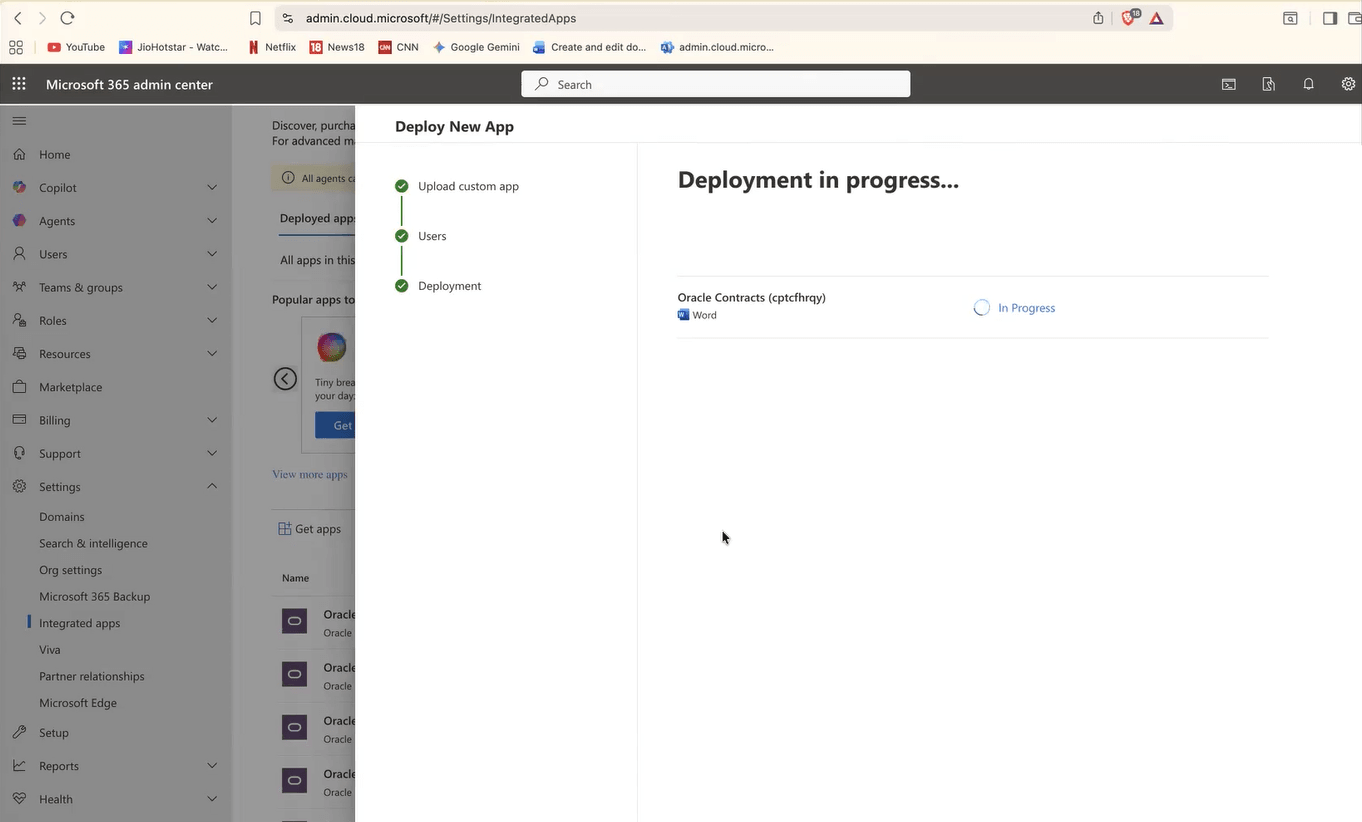
Deployment In-progress
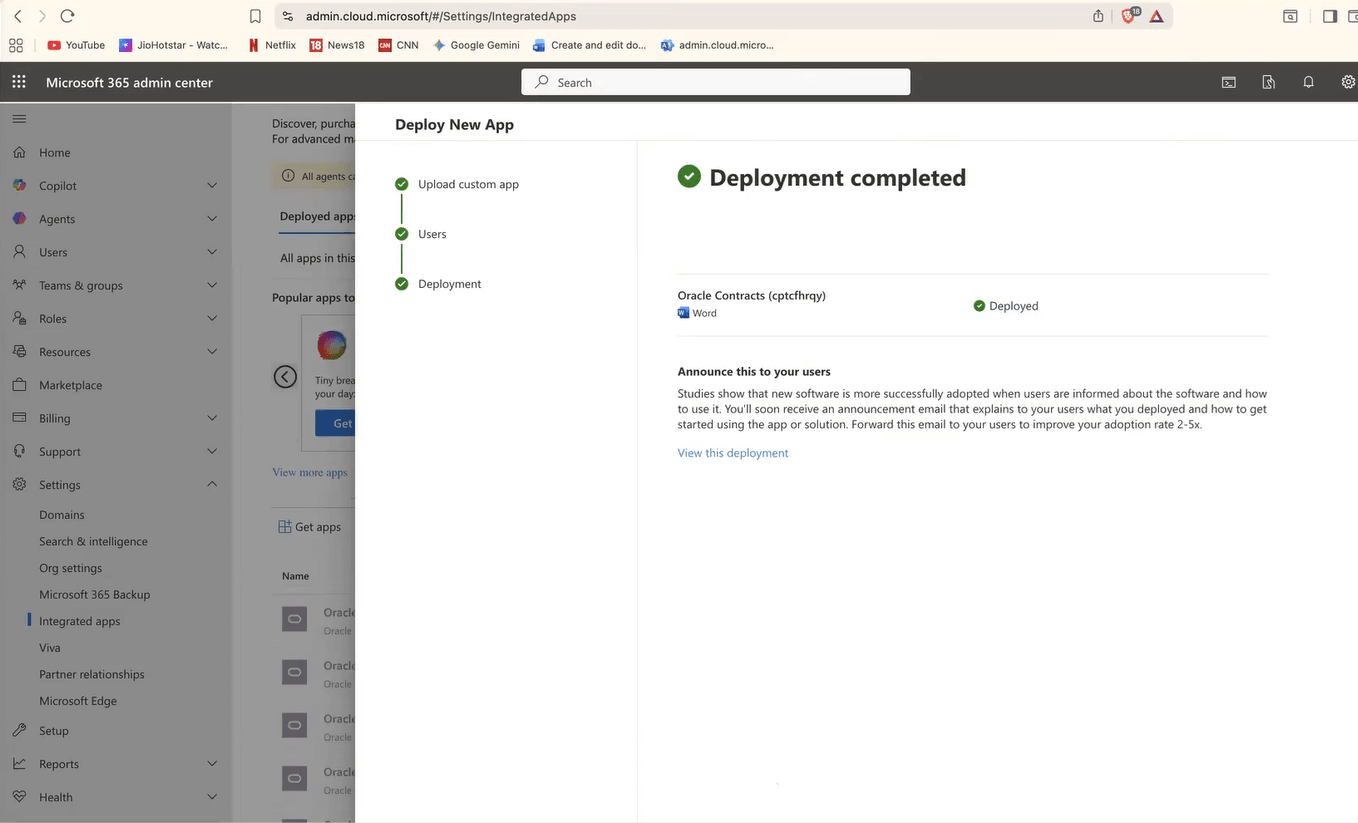
Manifest is deployed.
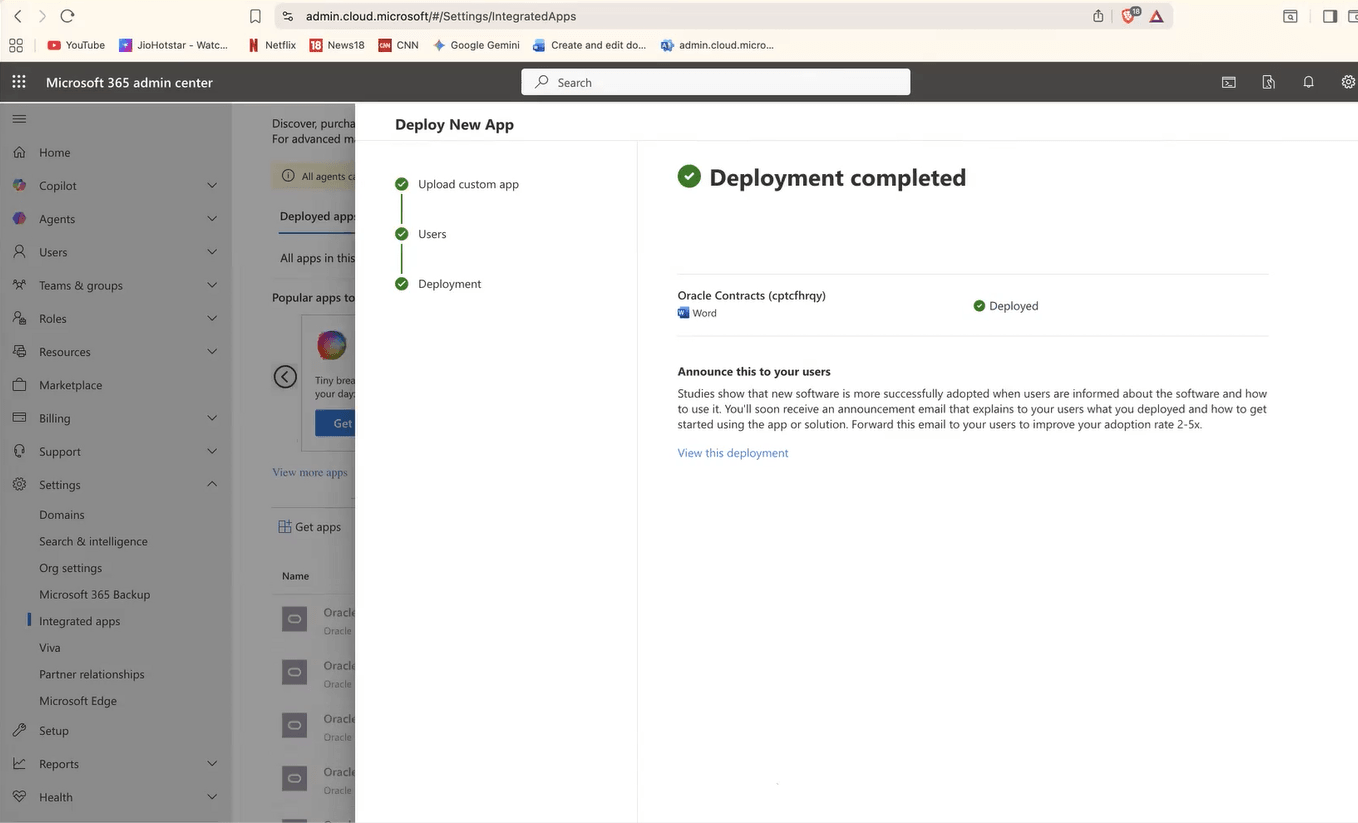
Deployed
Click Done at the bottom of the page to complete the Azure setup.
Step 7: Contracts AI Counsel setup: For this, refer to the steps documented in the what's new documentation for Sales Force Automation, Enterprise Contracts 26B.