Add new subscription products to an existing subscription with end date alignment
Beginning in 26C, Organization buyers can now add new subscription products to an existing subscription and align end dates. The experience provides a clear summary of the updated subscription, including the resulting end date and any prorated charges, helping buyers make informed decisions before checkout.
Capability Highlights
- Allow organization buyers to search and add new subscription products to existing subscriptions
- Provide a summary of the merged subscriptions, highlighting the new end date and any prorated charges
- Automatically take the end date of the longest contract when merging subscriptions, or allow buyers to set a custom end date
- Ensure compliance by preventing the sale of subscriptions with a shorter period than allowed, unless an approved exception is in place
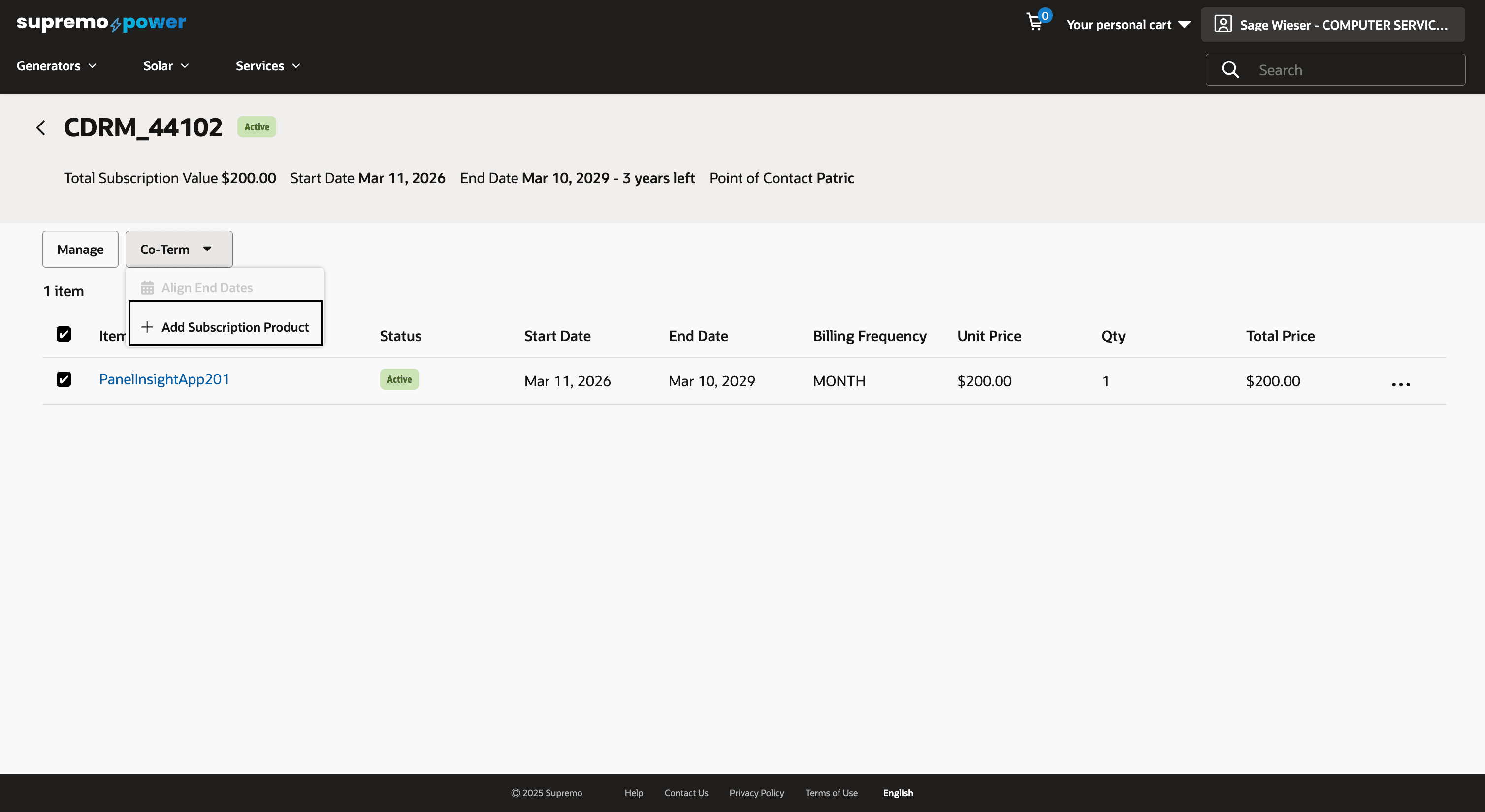
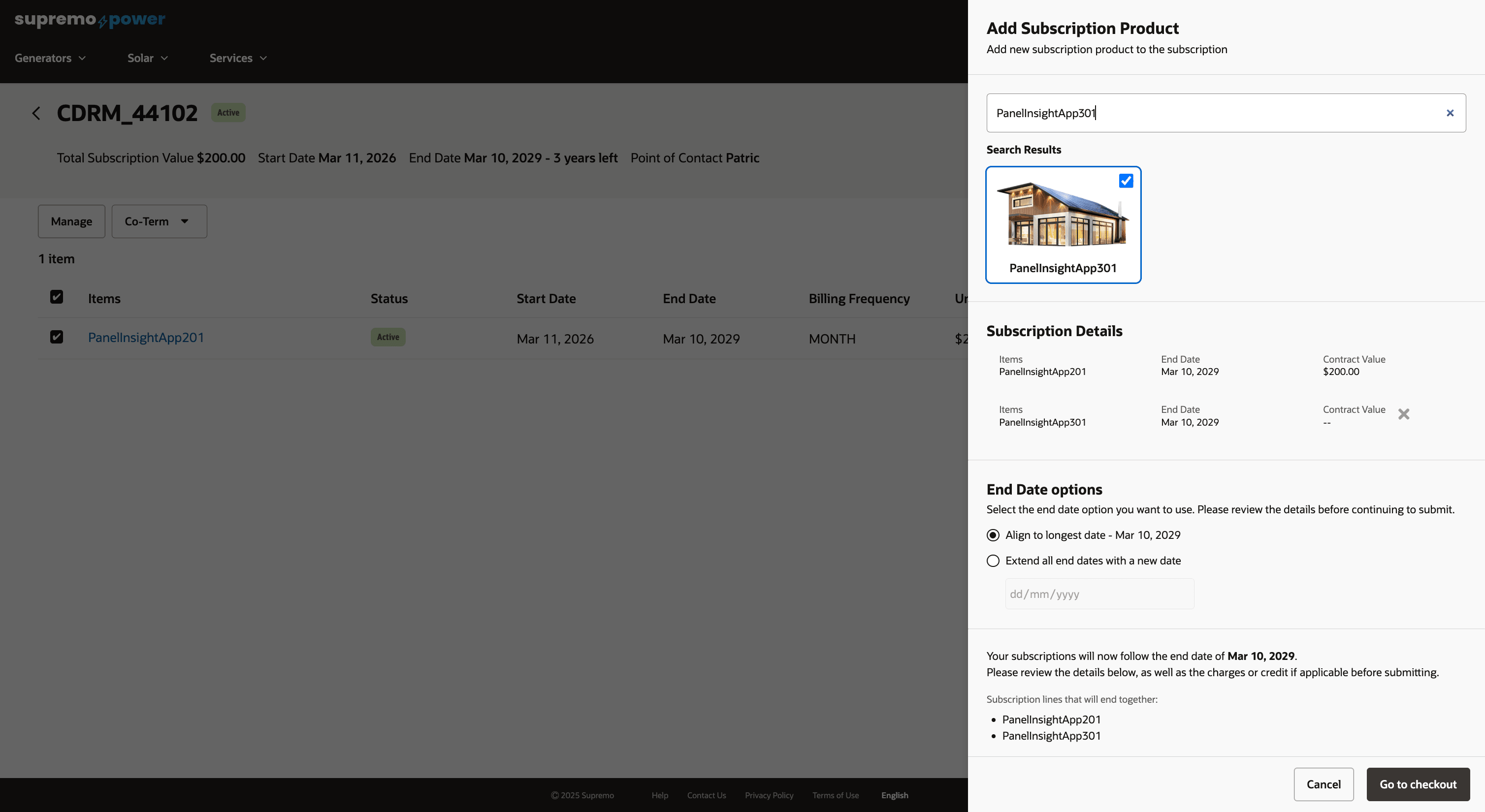
This feature provides organization buyers with a streamlined approach to managing their subscription portfolios. By enabling the addition of new subscription products to existing ones, it enhances flexibility and ensures that all relevant services are consolidated under a single contract. The feature offers clear visibility into subscription details and end dates, making it easier for buyers to understand their commitments. Additionally, automatic alignment of end dates and the option for custom settings ensure that businesses can tailor their subscriptions to fit their needs.
Steps to enable and configure
Enable Self Service CPQ Settings
- In the Administration Console, navigate to Settings > Oracle Integrations. Select Self Service CPQ from the drop down and configure the integration settings. Please refer to the section 'Set Up the Integration of OCC and Oracle CPQ for Self Service' of the Self Service Setup guide for more information.
- In Self Service CPQ settings, set CPQ Rest API Version to 19. Publish the changes.
- Enable CPQ Pricing:
URI: PUT /ccadmin/v1/priceSettings
Payload:{
"enabled": true
} - Enable Standard Asset-Based Ordering feature in Oracle CPQ. For more information on Standard ABO, refer to this documentation.
Enable Search on the product.salesProductType Property
Use this following steps to make the product.salesProductType property searchable, available in search results, and filterable.
-
Allow product.salesProductType property to be searched:
-
In the Administration Console, navigate to Catalog.
-
From Manage Catalogs, select Product Types, and then select Base Product.
-
Locate the Sales Product Type product property.
-
Edit the property and select Allow property to be searched.
-
Publish your changes.
-
-
Expose product.salesProductType in search results:
-
Send a GET request to retrieve the current catalog page configuration: GET {OCC-ADMIN-URL}/gsadmin/v1/cloud/pages/Default/osf/catalog.
-
In the response payload, add product.salesProductType to: contentItem.results.attributes.
-
Then send the updated payload using a PUT request: PUT {OCC-ADMIN-URL}/gsadmin/v1/cloud/pages/Default/osf/catalog
-
-
Make product.salesProductType filterable:
-
Send a POST request: POST {OCC-ADMIN-URL}/gsadmin/v1/cloud/attributes/system/product.salesProductType with the following payload:
{
"propertyDataType": "ALPHA",
"isRecordSearchEnabled": true,
"ecr:type": "property",
"isRecordFilterable" : true,
"ecr:createDate": "2026-06-22T14:32:18.400680Z",
"ecr:lastModifiedBy": "interserver",
"ecr:lastModified": "2026-06-22T14:32:18.400680Z"
}
-
-
Add the field to Searchable Field Ranking:
-
In the Administration Console, navigate to Search tab.
-
Select Searchable Field Ranking, and then click All.
-
In the Add Field input box, search for product.salesProductType and select it.
-
-
Finally, initiate a baseline full export using a requestIndex REST API.
Tips and considerations
- Existing Package ABO merchants who want to move to Standard ABO will need to be on the Standard Commerce Process. This may involve moving transactions from the existing Commerce process to the Standard Commerce Process or sunsetting the existing Commerce process.
- Existing customers looking to use this functionality must refer to Oracle CPQ Administration Online Help > Integrations > Oracle Integrations > Commerce Cloud > Self-Service Portal: Administration section. Ensure to perform steps documented in the Enable Self-Service Cart to CPQ Transaction Synchronization for Oracle Commerce Cloud Orders section.
- This feature is only available when merchants use native order integration with Oracle CPQ.
- Ensure the subscription products being added exist in OCC and the Sales Product Type property on the product is set to SUBSCRIPTION.
- Use the Search API to filter products of type SUBSCRIPTION: /ccstore/v1/assembler/pages/Default/osf/catalog?Ntt=${searchText}&Ntk=All&Nrpp=10&Nr=product.salesProductType:SUBSCRIPTION.
- Only contacts with Organization Buyer role will be able to use this feature.
- This feature is built-in on the htim-reference-store. Please make sure to upgrade to the latest version of this reference storefront.
- This feature is applicable only for Commerce on CPQ customers.