Payee Advisor and Dispute Assistant
The Payee Advisor & Dispute Assistant provides a unified payee experience for compensation questions and dispute support. Payees can ask questions about credits, earnings, performance, plan details, and company policy, and receive guided answers that combine compensation data with relevant plan and policy context.
When questions cannot be resolved through guided explanation, the assistant can initiate a dispute using Oracle Help Desk. The assistant carries forward the conversation context so the dispute is easier for the payee to submit and results in a higher-quality ticket handoff to the compensation team through a proven service-management application.
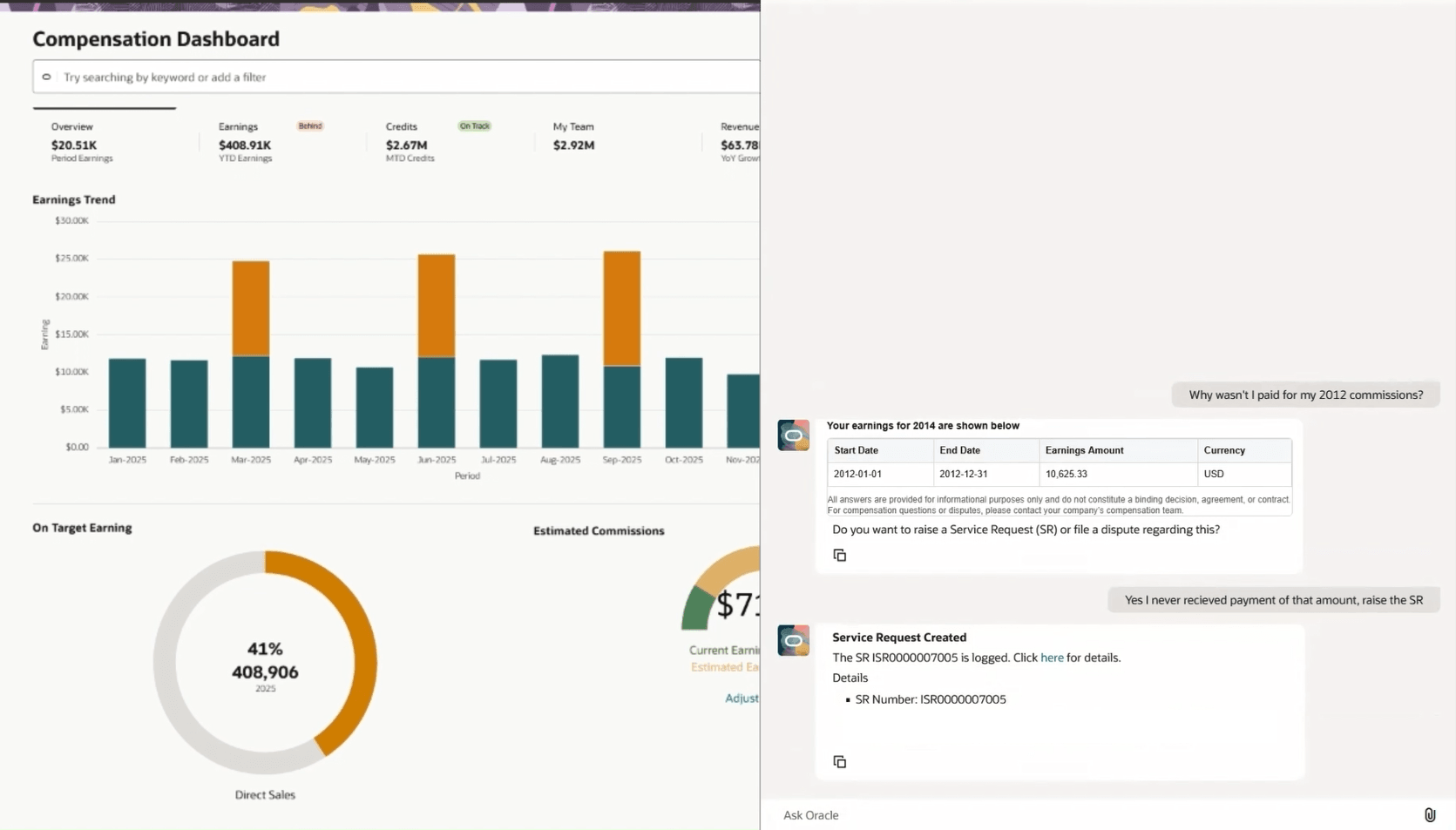
Payee Dispute Assistant
- Unified Payee Guidance: Give payees one place to ask questions about credits, earnings, performance, plan details, and company policy.
- Fewer Avoidable Disputes: Help resolve more compensation questions through guided explanation before they become formal cases.
- Better Ticket Quality: Carry conversation context into Oracle Help Desk dispute submission so the compensation team receives a more complete issue record.
- Proven Case Management: Use Oracle Help Desk to manage dispute tickets in an established service-management application.
- Faster Issue Handoff: Use structured dispute intake to support more efficient review and follow-up by the compensation team.
Steps to enable and configure
- Navigate to AI Agent Studio and search for agents within Incentive Compensation.
- Use Template or Copy the Payee Advisor & Dispute Assistant and give it a suffix as needed.
- Publish the agent.
- Create a publishable sandbox that includes Application Composer.
- Enter the sandbox.
- Open Application Composer.
- Open Smart Actions.
- Create a new Smart Action.
- Select Global Action.
- Provide a name for the action, such as Payee Advisor.
- Select Sales as the application.
- Select the parent object or Redwood page where the agent should be available.
- Set Action Type to Agent Team.
- Select the published agent team code.
- Leave the confirmation message blank unless a confirmation is required.
- Submit the action.
- Publish the sandbox.
Tips and considerations
Help Desk Enablement
- This agent leverages Oracle Help Desk capabilities for dispute ticket management. Additional security and setup may be required if Help Desk has not been previously enabled.
First time AI Agent Security Setup
- For first-time AI agent security setup, navigate to Setup and Maintenance.
- Open Manage Administrator Profile Options.
- Search for profile code ORA_ASE_SAS_INTEGRATION_ENABLED.
- Ensure the profile is set to Yes.
- Run Import Resource Application Security Data.
- Run Import User and Role Application Security Data.
- Navigate to Security Console.
- Create a new role and make sure Enable Permission Groups is selected.
- Add the function security policy Access Intelligent Agent Chat.
- In the role hierarchy, add Access Groups Enablement and Manage All Intelligent Agents.
- In Roles and Permission Groups, add Fai Genai Agent CX Administrator Duty.
- Assign the new role to the user, then sign out and sign in again.
Key resources
Video Tutorial on Security Enablement
Access requirements
- Participant
- Participant Manager