Redwood Configuration UI for Sales Users
Oracle CPQ 26C introduces Configuration for Sales Users in Redwood, delivering a modern, flexible, and highly configurable user experience for sales users. Administrators can design and tailor sales pages using Redwood design principles, enabling streamlined layouts, enhanced usability, and greater control over how information is presented.
This feature provides the following benefits:
- Administrator can configure a header section with one title, up to four secondary attributes, and an action bar.
- Create new views, reorder them, and set the orientation (horizontal or vertical).
- Add sections with collapsible, horizontal, vertical, and custom grid orientations, along with support for displaying section content in drawers.
- For a section, configure labels, background, and a one to four column layout.
- Configure fields to span the full row or hide the label.
Steps to enable and configure
This capability is intended for users with the Administrator role who manage and maintain CPQ configuration layouts.
Complete the following steps to enable the Redwood Configuration UI for sales users:
-
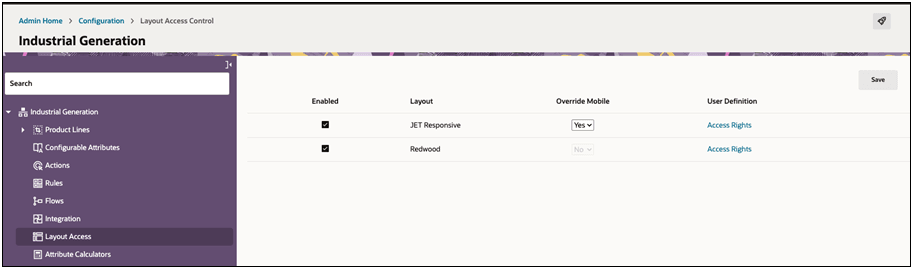
Navigate to CPQ Admin > Configuration > Layout Access (per Product Family)
-
Select the Enabled checkbox for the Redwood Layout.
-
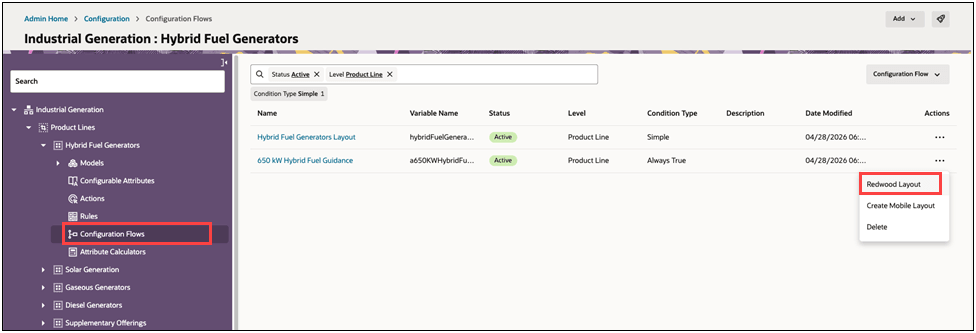
Navigate to Configuration Flows in the left-side navigation.
-
Click Redwood Layout under Actions for the desired configuration flow.
-
You can use the Redwood Configuration Layout Editor to design your configuration layout pages.
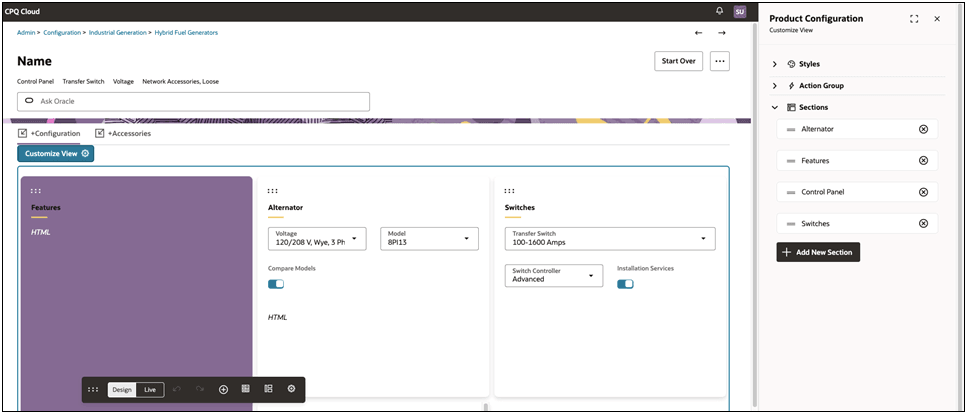
6. When the layout is complete, deploy the new cofiguration layout.
Once deployed, sales users can access the Redwood configured layouts.