Support for changing currency for quotes with line items
You can now change the currency on an in-progress Oracle CPQ quote even after line items have been added. Previously, the Change Currency action was supported only for quotes without line items, which meant sales users often had to recreate quote work when the customer’s preferred currency changed.
With this feature, Oracle CPQ reprices the quote as part of the same Change Currency action. Existing configurations, line items, transaction details, and cloned quote content can remain in place while prices, discounts, totals, and currency-sensitive values are recalculated in the updated currency.
When a user changes the currency on a quote with line items, Oracle CPQ performs the following sequence of activities:
- Updates the transaction currency.
- Reprices existing line items in the new currency.
- Uses target-currency prices when those prices are available.
- Uses configured currency conversion behavior when target-currency prices aren’t available.
- Recalculates currency-dependent values, including base price, list price, net price, discounts, line totals, and quote totals.
- Updates currency symbols and values across the quote UI.
- Applies the updated currency in document and email designer outputs.
- Records currency-change details in transaction history.
This enhancement reduces quote rework for sales teams that support multi-currency regions, cloned quotes, and customer-specific currency preferences. Sales users can adapt an existing quote to a different billing currency without starting over, helping preserve configuration work and improve proposal consistency.
Steps to enable and configure
To enable this feature, complete the following steps:
- Navigate to CPQ Admin Home > Manage Transaction > Actions.
- Select the Change Currency action.
- Select Enable Change Currency with Line Items.
- From the Document Views tab, make the action available for the required steps and participant profiles.
- Deploy the process.
To change currency for an in-progress quote with line items, complete the following:
- Navigate to CPQ Admin Home > Quote List.
- Open an in-progress quote that contains line items.
- Select the target currency.
- Click Change Currency.
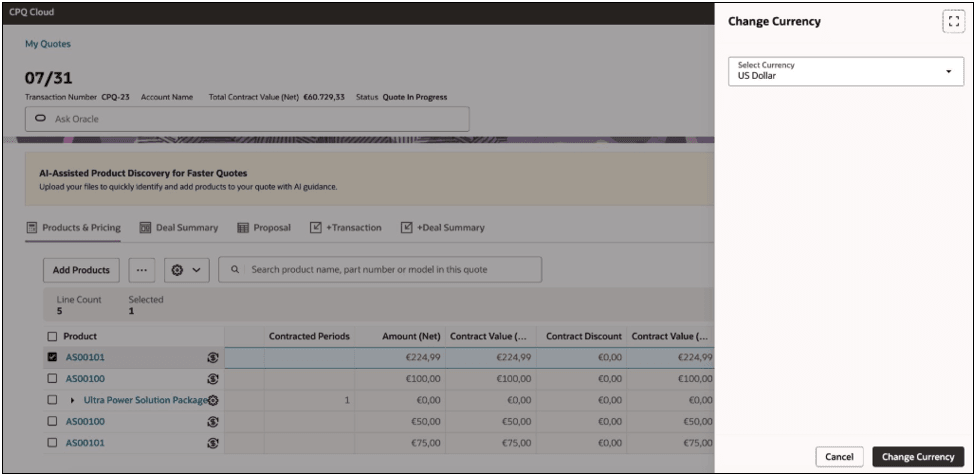
- Wait for the action to complete before making additional quote updates.
- Review the updated prices, discounts, totals, and currency symbols across the quote.
Tips and considerations
- Users should wait for the Change Currency action to complete before making additional quote updates. Processing can take longer for quotes with many lines, complex pricing rules, or multiple dependent calculations.
- Existing configurations and line items don’t need to be recreated after the currency change.
- New line items added after the currency change use the updated transaction currency.
- Quotes with ad hoc or quick-key line items remain restricted in specific flows.
- Locked transactions continue to prevent currency changes.
- If freeze price is applied, pricing recalculation doesn’t occur and an error is shown.
- Favorites can be added only when the saved amount currency matches the transaction currency, consistent with existing behavior.
- The Change Currency action shows a warning because prices and negotiation data may be reset and recalculated.