Show product availability on quotes with Fusion Pricing for Oracle CPQ running in Fusion
Sales users can check product availability on active quotes using Fusion Available-to-Promise before order creation. The Check Availability action helps sales teams review estimated availability timelines, shipping dates, arrival dates, and availability quantities while they configure and negotiate quotes, without creating inventory reservations or fulfillment commitments.
Feature Highlights:
- Check availability on demand for selected quote lines or all eligible quote lines in an active quote.
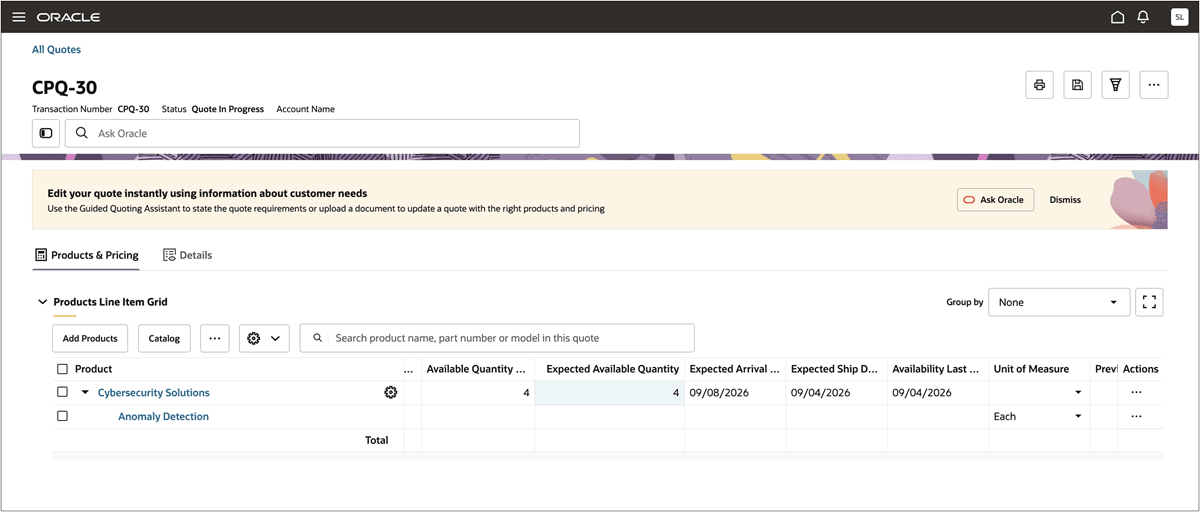
- View quote line availability details such as expected ship date, expected arrival date, available quantity on the requested date, expected available quantity, and latest availability checked date.
- Continue quoting while the availability request runs asynchronously.
- Process eligible Fusion Global Order Promising (GOP) requests in batches of 200 quote lines.
- Preserve availability results on quote lines so the values can be used in proposals or documents where configured after the quote is saved.
Sales teams can set more accurate fulfillment expectations while configuring, quoting, and negotiating deals. Availability visibility helps reduce quote-to-order uncertainty for high-value or large-volume quotes without creating inventory reservations or fulfillment commitments.
Steps to enable and configure
Prerequisites:
- Oracle CPQ site is running in Fusion. Refer to Oracle Fusion and Oracle CPQ Initial Setup.
- Oracle CPQ is running in Redwood layout.
- Complete the required Fusion Order Management, Product Information Management, Global Order Promising, and Planning Data Repository setup.
To enable this feature, complete the following steps:
-
Configure the Standard Process so the Check Availability main document action is available for quote lines.
-
Make the standard quote line availability attributes available in the buy-side line item grid:
- Availability Last Checked Date
- Expected Arrival Date
- Expected Ship Date
- Available Quantity on Requested Date
- Expected Available Quantity
-
Enable the required item attributes in the Part Attribute Set, including item type and item subtype.
-
Add the Check Availability action to the buyside Redwood layout.
-
Deploy the commerce process.
-
(Optional) Configure proposals or documents to use the standard quote line availability fields after quote save.
To show product availability on a quote, complete the following:
-
Open an active quote.
-
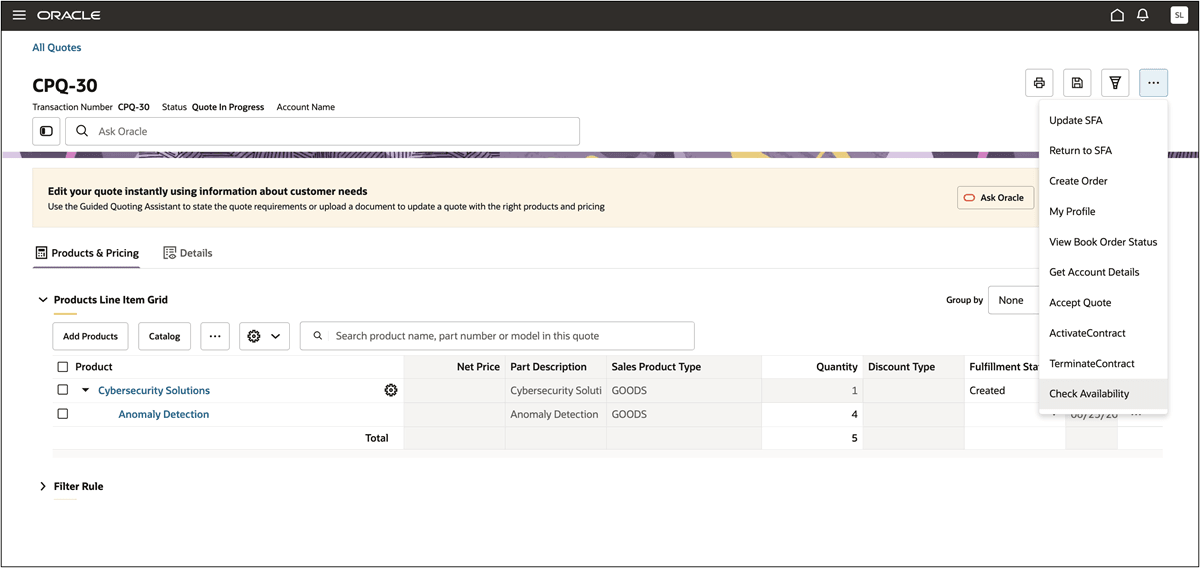
Select the quote lines that need availability details. If no lines are selected, Check Availability runs for all eligible quote lines in the quote.
-
Run the Check Availability action.
-
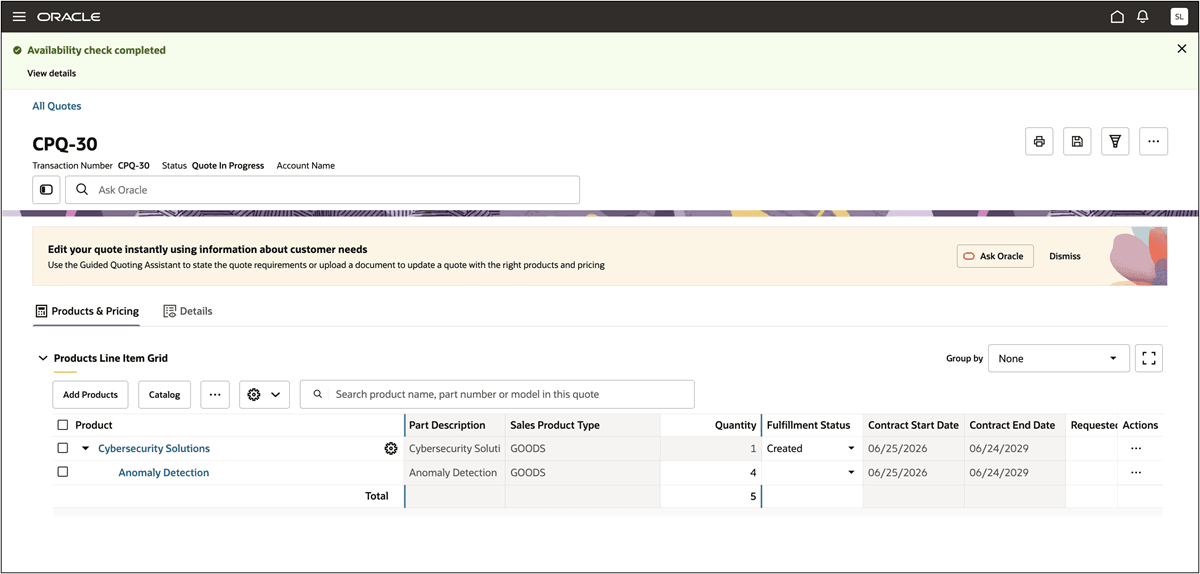
Continue working in the quote while CPQ processes the asynchronous availability request.
-
Review the updated quote line availability details after processing completes.
Tips and considerations
- Availability data is for quoting simulation only. It doesn’t create inventory reservations, soft booking, request holds, or guaranteed fulfillment.
- Availability data can become stale after invocation.
- Users can continue other quote operations while Check Availability is running.
- If Fusion Global Order Promising (GOP) can’t return a result because of missing data, timeout, unsupported items, or service issues, Oracle CPQ displays a descriptive message and doesn’t block quoting.
- Proposal and document usage of the availability fields is available only after the quote is saved.
- When a quote is created, the following two attributes must be populated: Ship To Party ID (
_s_shipToPartyID_t)and Ship To Party Site ID (_s_shipToPartySiteID_t).These two attributes are populated during TCA Account integration. - Check Availability is relevant only for GOODS type of items. It is not relevant for subscriptions, coverages, etc.