Redwood: Manage Analysis Hierarchies for Related Items Using a New User Experience
You can use the Redwood user experience to view, create, modify, delete, or export Product dimension hierarchies so that interchangeable items can be analyzed together at the aggregate or prime level. This capability helps you evaluate plan results and analytics at the prime and item levels and aggregates measure values across related items for more efficient decision-making. Additionally, you can run the scheduled process named Create Analysis Hierarchies for Related Items.
An analysis hierarchy is a Product dimension hierarchy that consists of a catalog, categories (primes), and associated items with bidirectional relationships. You can use these categories in tables and graphs to view the results of replenishment planning at the aggregate (prime) level for your substitution and supersession chains.
For example, consider an organization that contains these items with bidirectional substitution or supersession chains:
- A < > B < > C < > D
- X < > Y < > Z < > Z1
- F1 < > F2 <> F3 < > F4
For these substitution or supersession chains, you can create a Product dimension hierarchy for a catalog called North America that contains these categories (primes):
- Category D that contains A, B, C, and D.
- Category Z1 that contains X, Y, Z, and Z1.
- Category F4 that contains F1, F2, F3, and F4.
Use the page named Analysis Hierarchies for Related Items to manage analysis hierarchies.
To open the page, follow these steps:
- In your replenishment plan, on the More Actions menu, select View More.
The Actions drawer opens.
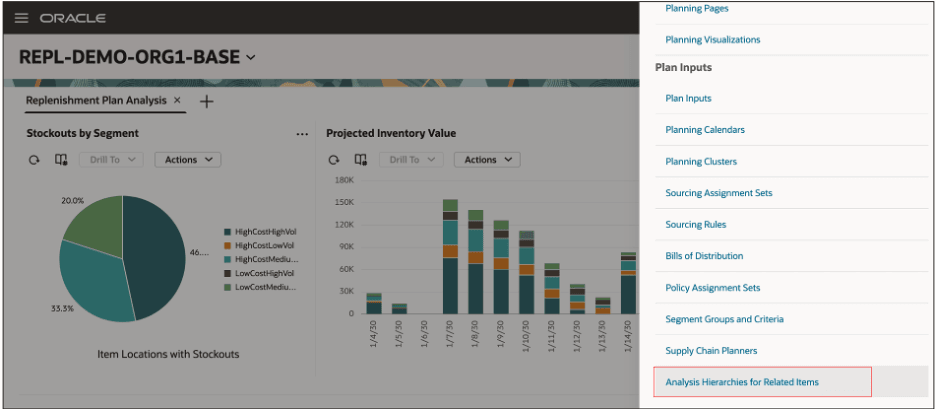
Actions Drawer for Replenishment Plan
- In Plan Inputs, click Analysis Hierarchies for Related Items.
The page titled Analysis Hierarchies for Related Items opens.
On the page, you can do these tasks:
- Search for Product dimension hierarchies, and refresh the displayed list.
- Filter the search results.
- Sort the Product dimension hierarchies in the ascending or descending order using the columns.
- Export the list of Product dimension hierarchies to a Microsoft Excel workbook file.
- Create, build, edit, or delete a Product dimension hierarchy.
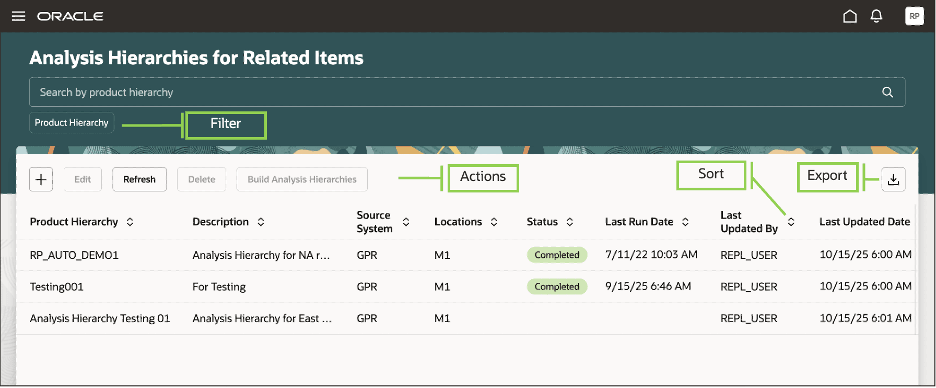
Page Titled Analysis Hierarchies for Related Items
To create a Product dimension hierarchy, follow these steps:
- Click the Create icon.
The New product hierarchy drawer opens.
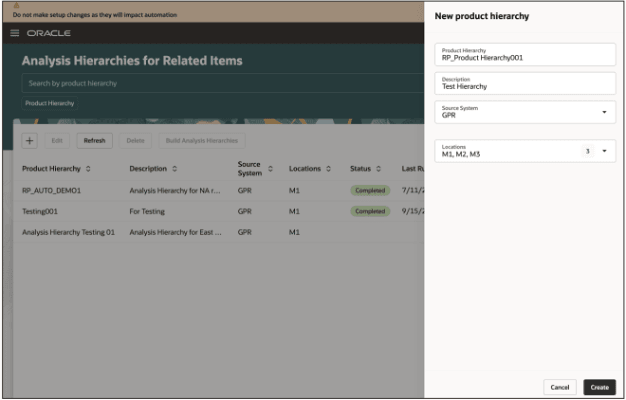
New Product Hierarchy Drawer
- Enter the name and description for the Product dimension hierarchy.
- Select the source system and locations for the hierarchy.
- Click Create.
You’ll return to the page titled Analysis Hierarchies for Related Items.
- Select the hierarchy, and click Build Analysis Hierarchies to run the scheduled process named Create Analysis Hierarchies for Related Items.
Once the analysis hierarchy is built, its status on the page changes to Completed.
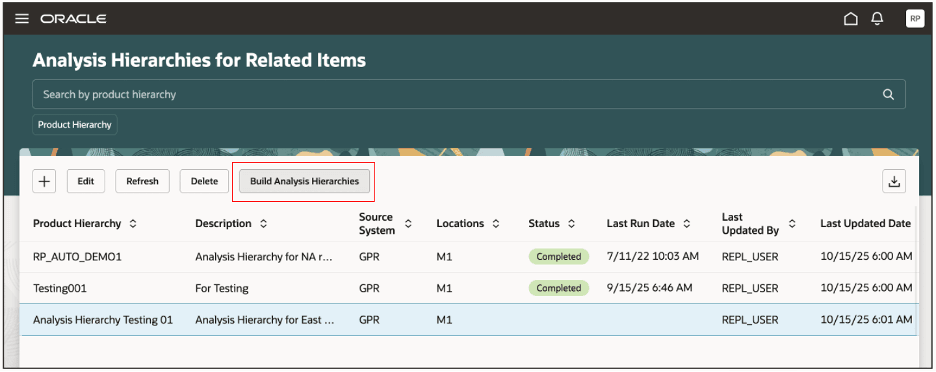
Build Analysis Hierarchies Button
Steps to Enable and Configure
Use the Opt In UI to enable this feature. For instructions, refer to the Optional Uptake of New Features section of this document.
Offering: Supply Chain Planning
Tips And Considerations
If you want to use the Redwood: Manage Analysis Hierarchies for Related Items Using a New User Experience feature, then you must opt in to its parent feature: Replenishment Planning. If you’ve already opted in to this parent feature, then you don’t have to opt in again.
You need to rebuild the analysis hierarchies whenever you add items to your substitution and supersession chains or there’s a change in these relationships.
Follow these steps to enable or disable this feature:
- In the Setup and Maintenance work area, search for and select the Manage Administrator Profile Values task.
- On the Manage Administrator Profile Values page, search for and select the ORA_MSC_REPLENISHMENT_PLANNING_REDWOOD_ENABLED profile option code.
- In the Profile Values section, set the Site level to Yes or No. The default value is Yes.
- Yes = enables the feature
- No = disables the feature
- Click Save and Close.
Changes in the profile value will affect users the next time they sign in.
Key Resources
- For examples of analysis hierarchies, refer to the topic titled Examples of Analysis Hierarchies in the Using Replenishment Planning guide.
- Visit https://redwood.oracle.com/ for more information about the Redwood experience.
Access Requirements
Users who are assigned a configured job role that contains these privileges can access this feature:
- Monitor Replenishment Planning Work Area (MSC_MONITOR_REPLENISHMENT_PLANNING_WORK_AREA_PRIV)
- Manage Segments (MSC_MANAGE_SEGMENTS_PRIV)
These privileges were available prior to this update.