AI Agent: Planning Measure Expression Assistant
Deploy an AI agent through the AI Agent Studio to translate business requirements supplied in natural language into syntactically correct measure expressions for Oracle Fusion Cloud Supply Chain Planning. The AI agent leverages comprehensive knowledge of the syntax for measure formulas to generate production-ready expressions, accelerating implementation timelines and reducing technical-skill barriers.
The Planning Measure Expression Assistant is an AI agent that provides access to useful information on measure expressions and guidance through a simple chat experience.
You can ask this AI agent to:
- Build an expression for a business requirement.
- Troubleshoot syntax errors in measure expressions.
- Explain the business logic of predefined or user-defined measure expressions.
- Explain a specific measure function (for example, GetTimePeriod) or all functions within a category (for example, Number) with examples.
The Planning Measure Expression Assistant derives its knowledge of the supported measure functions, syntax, mathematical operators, logical condition operators, and best practices for Oracle Supply Chain Planning from the Supply Chain Planning Measure Expression Assistant Document. Refer to the “Key Resources” section to download this document.
You can initiate the deployed AI agent by clicking the AI Assist button in the Expression step of the guided process for creating, editing, or duplicating measures. A drawer will open in which you can enter your questions.
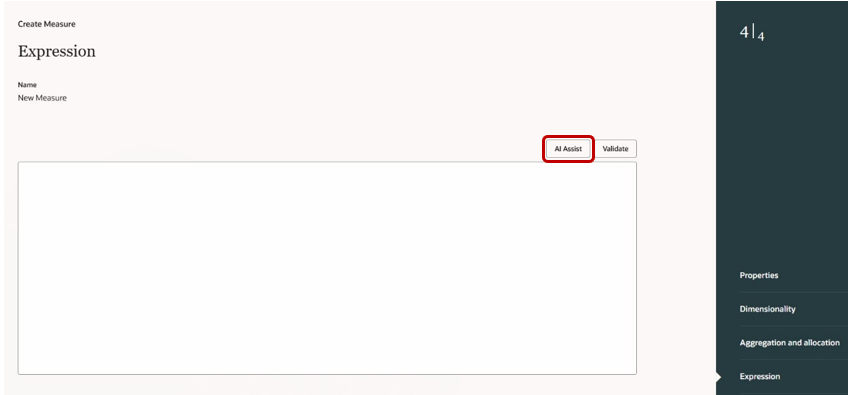
AI Assist Button in Expression Step in Guided Process for Measures
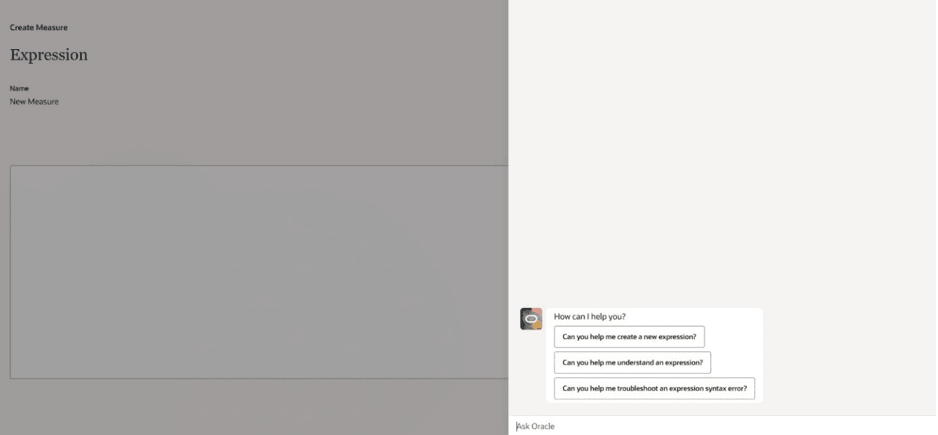
Drawer for AI Agent
You can ask the AI agent questions such as the following:
- Can you provide an expression to cumulate the sales orders for the current time period and the next n time periods, where n is specified by the Lead Time measure?
- Can you provide an expression that provides the product of the Average Daily Demand measure and Order Rhythm measure? Order Rhythm is a text measure, and 5 should be returned when the measure value is A, 10 when the value is B, and 60 when the value is C. Otherwise, 0 will be returned.
- Can you provide the list of available time-related measure functions in Oracle Supply Chain Planning with examples?
- Can you explain the expression of the Weighted Forecast measure?
- Can you troubleshoot this expression:
Safe_division((Nvl(Final Shipments Forecast, 0)*Nvl(Final Shipments Forecast Weight,1)+Nvl(Final Sales Forecast,0)*Nvl(Final Sales Forecast Weight,0)+ Nvl(Final Marketing Forecast,0)*Nvl(Final Marketing Forecast Weight,0)),(Nvl(Final Shipments Forecast Weight,1)+Nvl(Final Sales Forecast Weight,0)+Nvl(Final Marketing Forecast Weight,0))),0)
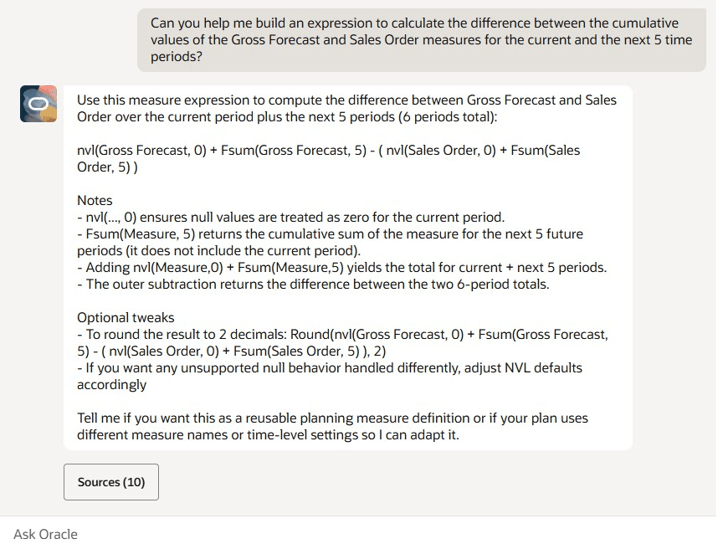
Example Question and Response
The expression recommended by the AI agent isn’t automatically copied into the field in the Expression step. After reviewing the AI agent’s response, you must manually copy the suggested expression, close the drawer, paste the expression in the field, and validate the expression by clicking Validate.
Steps to Enable and Configure
Use the Opt In UI to enable this feature. For instructions, refer to the Optional Uptake of New Features section of this document.
Offering: Supply Chain Planning
Follow these steps to enable this functionality:
Create Agent Team for Planning Measure Expression Assistant
- Click Navigator > Tools > AI Agent Studio.
The page named AI Agent Studio will open.
- On the tab named AI Agent Studio, search for the Planning Measure Expression Assistant, and click Copy Template.
The Copy Template dialog box opens.
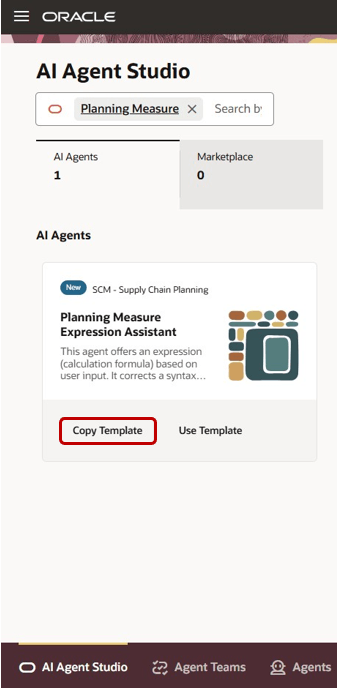
Template Named Planning Measure Expression Assistant on Tab Named AI Agent Studio
- Enter a suffix for the name of your agent team. This suffix is appended to the names of the agent team’s worker agents so that they can be identified. Duplicate suffixes aren’t allowed.
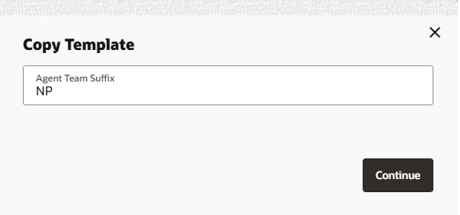
Copy Template Dialog Box
- Click Continue.
You will see a graphical representation of the new agent team with the provided suffix.
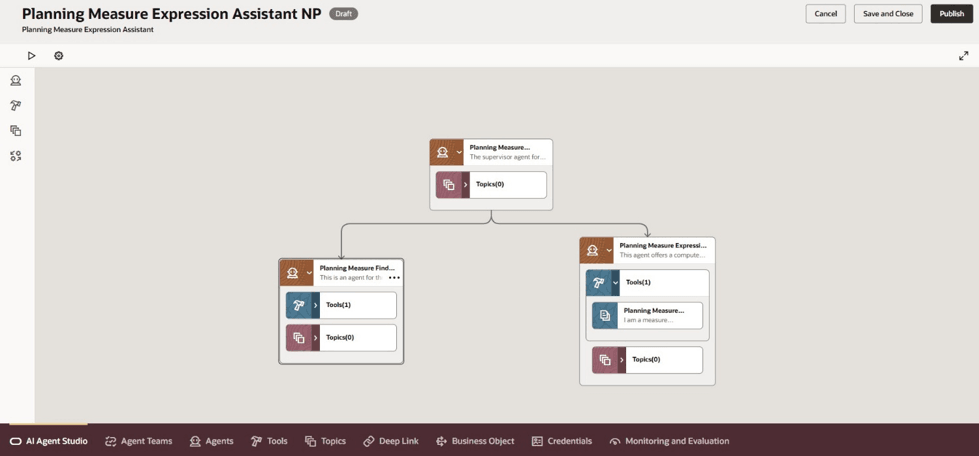
Graphical Representation of New Agent Team
Each of the worker agents within the agent team has an assigned role:
- Planning Measure Expression Supervisor <Suffix>: This agent manages and orchestrates measure expression-related queries from planning users by routing them to the appropriate worker agent.
- Planning Measure Expression Builder <Suffix>: This worker agent creates, explains, and troubleshoots expressions for planning measures. The worker agent derives its knowledge of the supported functions, syntax, mathematical operators, logical condition operators, and best practices from the document uploaded to the tool named Planning Measure Expression Document.
- Planning Measure Finder <Suffix>: This worker agent is responsible for verifying whether a measure exists and retrieving its expression. The worker agent uses the business object tool defined with this REST resource: fscmRestApi/resources/11.13.18.05/planningMeasures/getall_planningMeasures.
- Click Save and Close.
Upload Supply Chain Planning Measure Expression Assistant Document
- On the page named AI Agent Studio, navigate to the Tools tab.
- Search for the tool named Planning Measure Expression Document, and click the Edit icon.
The fields for the tool will appear.
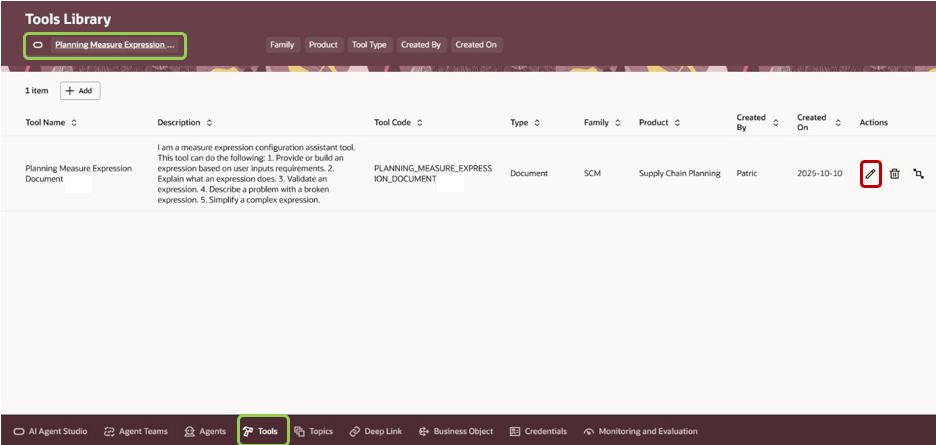
Planning Measure Expression Document on Tools Tab
- In the Documents section, click Add.
The fields for adding the document will appear.
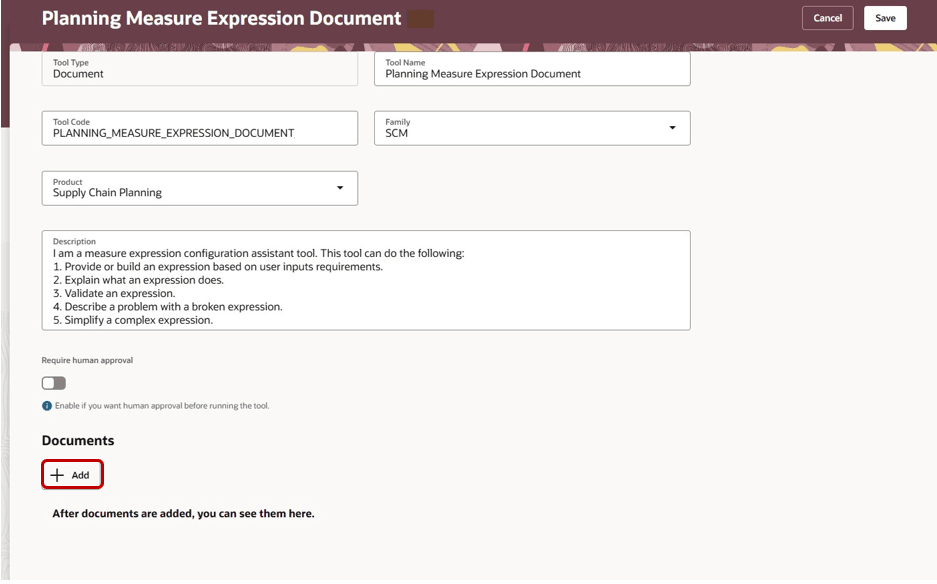
Add Button on Tools Tab
- Provide a name and description, upload the document, and click Save.
Note: You can upload only a PDF document. For the document, refer to the section titled "Key Resources."
- After the document is successfully added, change the status from Draft to Ready to publish, and click Save.
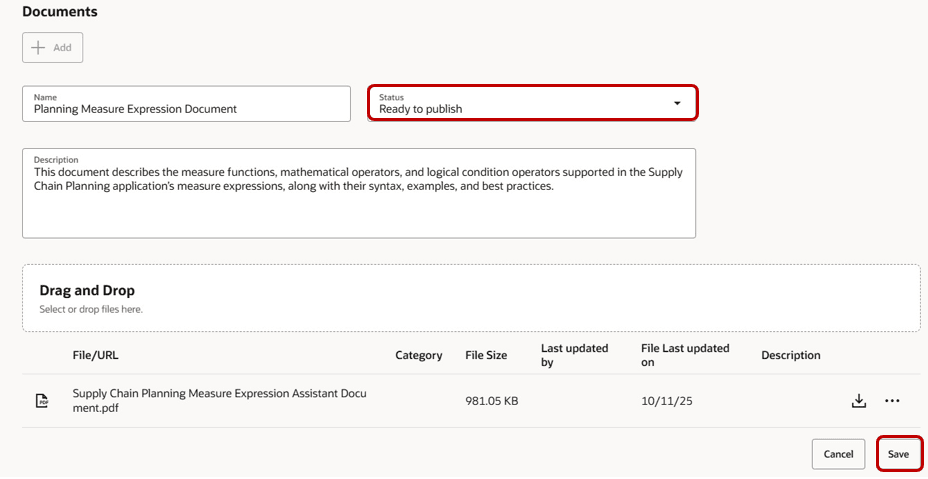
Fields for Adding Document
- Click Save on the top of the Tools tab to save the changes made to the tool named Planning Measure Expression Document.
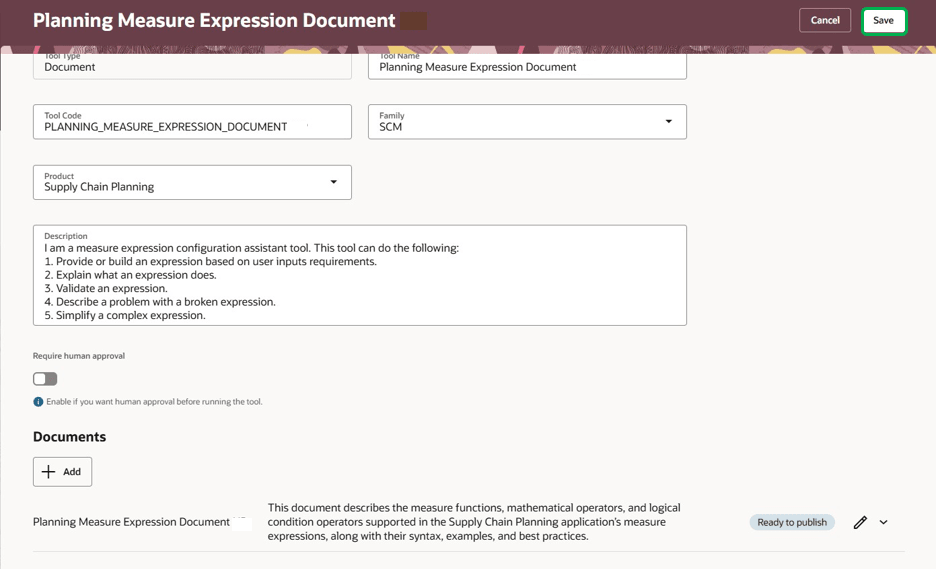
Save Button on Tools Tab
Run the Scheduled Process
In the Scheduled Processes work area, search for and submit the scheduled process named Process Agent Documents.
Verify Document Status
- On the page named AI Agent Studio, navigate to the Tools tab.
- Search for the tool named Planning Measure Expression Document.
- Select the row, and click Edit.
The fields for the document will appear.
- Verify that the status of the added document is Published.
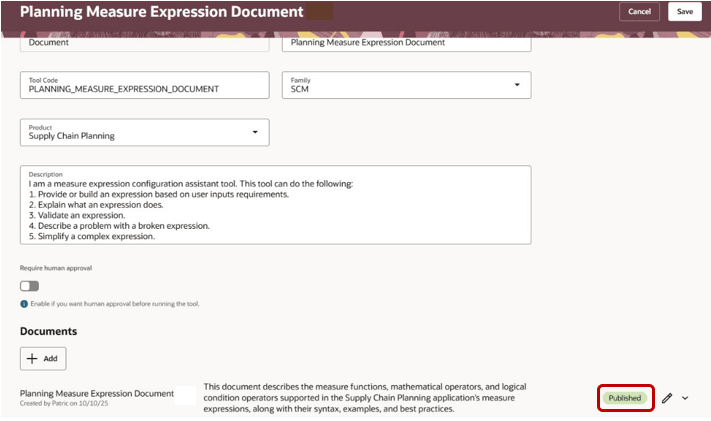
Published Status for Document
Publish the Agent Team
- On the page named AI Agent Studio, navigate to the Agent Teams tab.
- Click the Draft button, and search for the agent team named Planning Measure Expression Assistant <suffix>.

Draft Button on Agent Teams Tab
- For the agent team, click the Edit icon.
A graphical representation of the agent team is displayed.
- Click Publish.
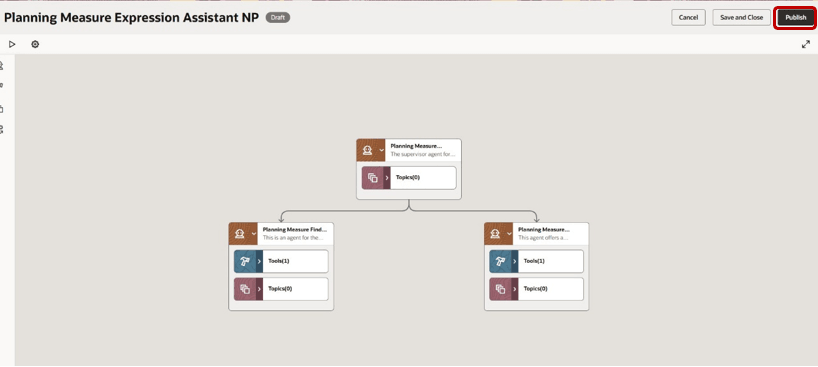
Button for Publishing Agent Team

Published Status for Agent Team
- Note the agent team code for the published agent team (for example, PLANNING_MEASURE_EXPRESSION_ASSISTANT_NP).
Edit the Page in Oracle Visual Builder Studio
Note: Oracle recommends that you perform the steps in this section using Google Chrome.
- In the Supply Chain Planning work area, for a plan, click More Actions > View More, and in the Actions drawer, click Measures in the Configuration section.
The Measures page will open on a new tab.
- Click the Edit icon for any measure.
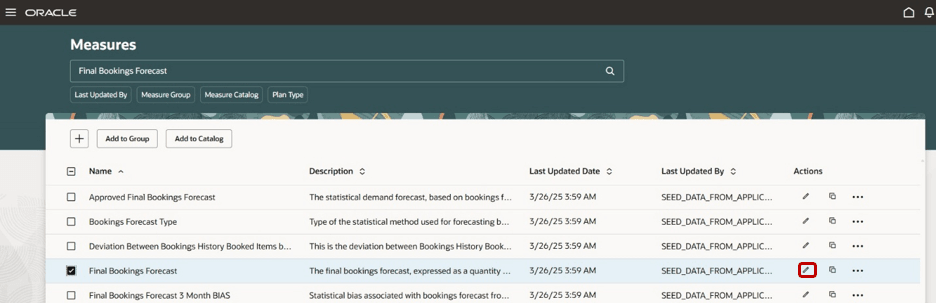
Edit Icon on Measures Page
- On the Settings and Actions menu, in Administration, select Edit Page in Visual Builder Studio.
The page will open in Oracle Visual Builder Studio on a new tab.
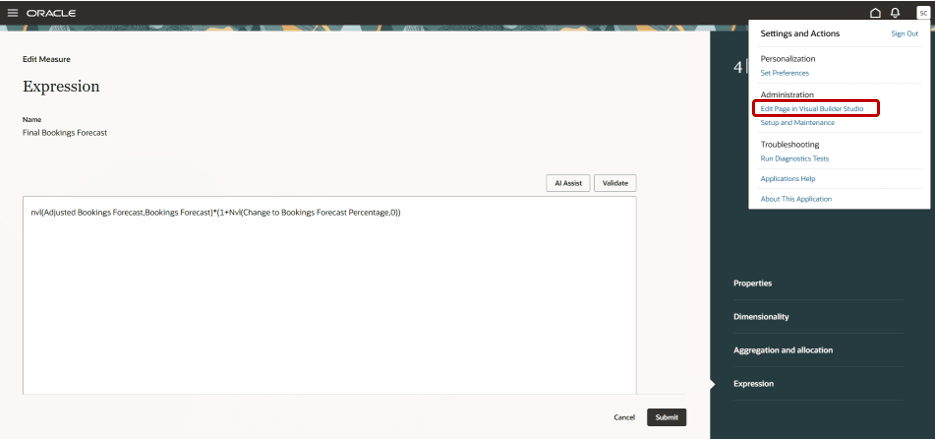
Settings and Actions Menu
- Enter the code for the published AI team in the page property field named PlanningMeasureExpressionAssistantCode.
The default value is PLANNING_MEASURE_EXPRESSION_ASSISTANT.
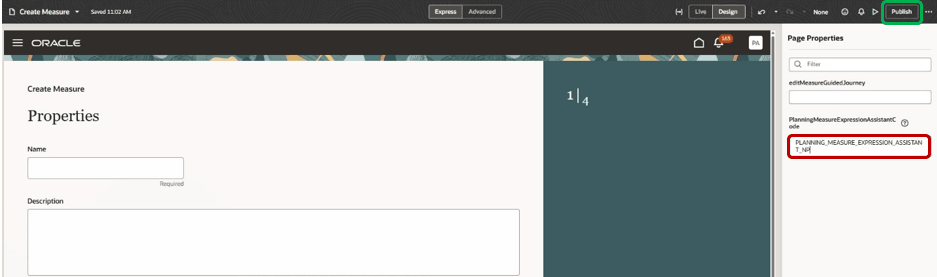
Page Property Field in Oracle Visual Builder Studio
- Click the Publish button at the top of the page.
- Provide a justification for the change, and click the Publish button.
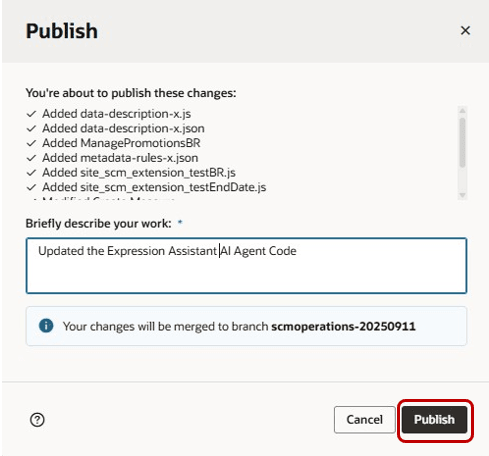
Publish Button
- Close the tab for Oracle Visual Builder Studio.
When you click the AI Assist button in the Expression step of the guided process for measures, the AI agent that you created and published will be invoked.
To enable permission groups for roles, take these steps:
- In the Setup and Maintenance work area, search for the Manage Administrator Profile Values task using the Search link on the Tasks panel tab.
- Search for the Enable Security Console External Application Integration (ORA_ASE_SAS_INTEGRATION_ENABLED) profile option, and set the Site profile level to Yes.
Tips And Considerations
If you want to use the AI Agent: Planning Measure Expression Assistant feature, then you must opt in to its parent feature: Replenishment Planning. If you’ve already opted in to this parent feature, then you don’t have to opt in again.
- Refer to the “Key Resources” section to download the PDF and Microsoft Word XML document file (.docx) versions of the Supply Chain Planning Measure Expression Assistant Document.
The .docx version of the document has been provided in case you want to modify the content. After making your changes, you must convert the document to a PDF file before uploading it as described in the subsection titled “Upload Supply Chain Planning Measure Expression Assistant Document.” If there’s another document in the Published status, change its status to Ready to delete before you run the scheduled process named Process Agent Documents.
- The expression recommended by the AI agent isn’t automatically copied into the field in the Expression step in the guided process for measures. After reviewing the AI agent’s response, you need to copy the suggested expression, close the drawer for the AI agent, paste the expression in the field, and click Validate.
Key Resources
- Supply Chain Planning Measure Expression Assistant Documents (for downloading the document for the tool named Planning Measure Expression Document)
- Access Requirements for AI Agent Studio
- How can I give users access to AI agents?
- Create AI Agents Using Preconfigured Agent Team Templates
Access Requirements
To access the Oracle AI Agent Studio for Fusion Applications and manage SCM AI agents, users must be assigned a configured job role that contains these duty roles:
- SCM Intelligent Agent Management Duty (ORA_RCS_SCM_AI_AGENT_MANAGEMENT_DUTY)
- SCM Intelligent Agent Management Duty (ORA_RCS_SCM_AI_AGENT_MANAGEMENT_DUTY_HCM)
- Fai Genai Agent SCM Administrator Duty (ORA_DR_FAI_GENERATIVE_AI_AGENT_SCM_ADMINISTRATOR_DUTY)
To interact with AI agents on product pages, users must be assigned a configured job role that contains this duty role:
- Fai Genai Agent Runtime Duty (ORA_DR_FAI_GENERATIVE_AI_AGENT_RUNTIME_DUTY)
To allow users to interact with agents, you must also enable permission groups in the Security Console on those users' configured job roles that contain the Fai Genai Agent Runtime Duty role. You can enable permission groups when you manage the basic information of your configured job roles.
Users' configured job roles must also contain privileges that allow access to the pages where AI agents are enabled.
See Access Requirements for AI Agent Studio (for administrators) and How can I give users access to AI agents (for end-users) for more information.
Users who are assigned a configured job role that contains these privileges can edit the Redwood page for the guided process for measures in Oracle Visual Builder Studio and publish the changes:
- View Administration Link (FND_VIEW_ADMIN_LINK_PRIV): This privilege lets users see the Edit Page in Visual Builder Studio link if it’s enabled on pages in Oracle Fusion Cloud Applications.
- Administer Sandbox (FND_ADMINISTER_SANDBOX_PRIV): This privilege lets users deploy and manage the extension lifecycle from Oracle Visual Builder Studio.
These privileges were available prior to this update.