Redwood: Manage Suppliers Using a New User Experience
You can use the Redwood user experience to manage suppliers of your planning organizations, items, supplier sites, and key supplier attributes needed for planning, such as lead times, UOM, and fixed lot multipliers. From the supplier page, you can navigate to Items, Supplier Exceptions, and Supplies and Demands pages. Together, these capabilities modernize your supplier data stewardship and accelerate planning analysis in a single, consistent user experience.
In the Suppliers visualization in Oracle Supply Chain Planning, you manage item-supplier data to support effective supply planning. It offers a comprehensive view of all supplier attributes, required to plan the procurement of different items from supplier sites. Through this interface, you can easily review lead times and make informed decisions when adjusting supply plans. The page enables you to filter, search, and drill down into supplier details.
Accessing the Suppliers visualization
You can access the Suppliers visualization through Supply Planning, Replenishment Planning, Sales and Operations Planning, and Plan Inputs or through simulation set depending on your role.
To view or modify the Suppliers visualization, you need the required user role or privilege.
To open the Suppliers visualization, click the + icon on any page and select Suppliers.
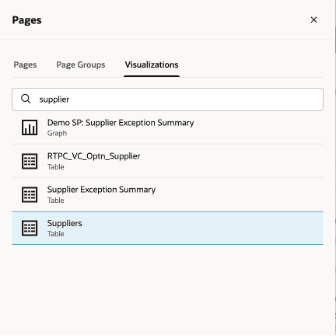
Selecting Supplier Visualization
The Suppliers page opens.
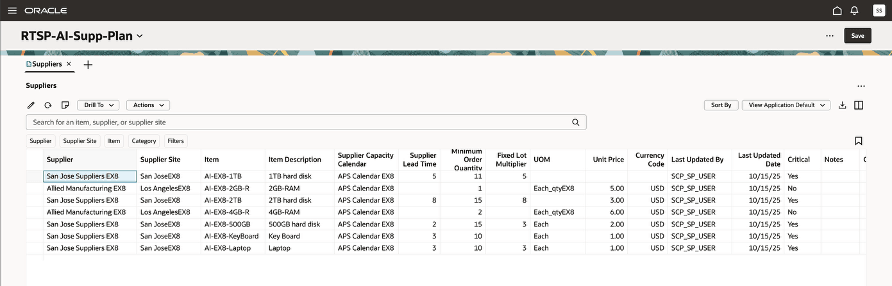
Suppliers Visualization
The following planning attributes are displayed in the Suppliers page:
- Supplier
- Supplier Site
- Item
- Item Description
- Category
- Supplier Capacity Calendar
- Supplier Lead Time
- Minimum Order Quantity
- Fixed Lot Multiplier
- UOM
- Unit Price
- Currency Code
- Last Updated By
- Last Updated Date
- Critical
- Notes
The Suppliers Page
Manage the data in the Suppliers page through the toolbar.

Toolbar
- Edit: You can make both inline and mass edits directly in the items table. The editable fields in the Redwood version of the Suppliers table are same as those in the classic version.
To perform an inline edit, double-click a field to enter the edit mode. After making your edits, ensure you click the Save button at the page level to commit the changes.
To perform mass edits, select the rows in the items table that you want to update, then click the Edit icon. This will open the Edit drawer, where you can modify the editable attributes for the selected rows.
You can modify the attributes related to items such as Fixed Lot Multiplier, Minimum Order Quantity, Supplier Lead Time, Unit Price, UOM, and Currency and indicate if the supplier is critical or not.
- Refresh: Select this option to:
- Notify you if there are unsaved changes. Any unsaved changes made to the table are discarded.
- Remove any column filters or column sorting that you’ve applied. See the Applying Column Filters and Sorting section for more information.
- Query the data again using existing filters, such as drill-to context or selected filters.
- Notes: Click the icon to add, edit, or delete notes for the selected row.
- Drill To: Pass the context to another table, graph, page or external link by selecting one or more items. This action will open the selected link on a different temporary page. To add more Drill To actions, select Manage Links from the More Actions menu.
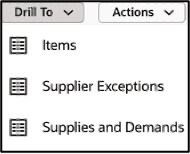
Drill To Option
You can drill to the Items, Supplier Exceptions, or Supplies and Demands pages.
- Actions:
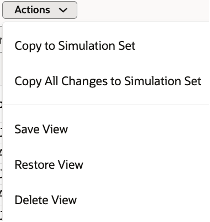
Actions
- Copy to Simulation Set: If you've updated any data, you can add the changes to a simulation set from the plan. You can also add the data to simulation sets without making changes from plan inputs and other simulation set. After copying the data, you can open a simulation set to verify your changes. You can then include this updated data in subsequent plan runs.
To copy plan data to a simulation set:
- Select the rows that you have edited and save the table.
- From the Actions menu, select one of the following options:
- Copy to simulation set: Copies data from the selected cells.
- Copy All Changes to Simulation set: Copies all changed data.
- In the Copy to Simulation Set drawer, select an existing simulation set or create a new one.
- Select an existing simulation set from the drop-down list if you want to copy the changes to an existing one.
- Select Copy.
- Save View, Restore View, and Delete View: Save, restore, or delete views. Views are equivalent to Layouts option in the classic Suppliers page version. To create a new view, make changes to the view as needed and click Save View. After saving, the view would appear in the view list.
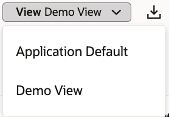
Views
- Sort Columns: Hover over the column heading. Click the Sort icon to modify the order in which the resources are displayed. Click the Sort icon to toggle the sorting order in ascending or descending order.
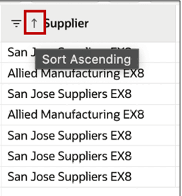
Ascending or Descending sorting
You can also provide an advanced sorting order by clicking the Sort by button which invokes a sort by drawer.
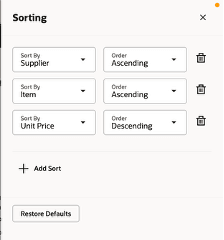
Sort Columns drawer
You can select the multiple columns in a priority order by which the sorting should appear on the view.
Viewing and arranging Columns
You can view the columns relevant to your plans and reorder them.
Click the Columns icon to open the Columns drawer. The drawer displays all the available columns. Select all those columns that you want to be displayed. Reorder the column by dragging it up or down. For example, in the given image the Critical column is currently hidden. To make the column visible, select the column name and then click Show.
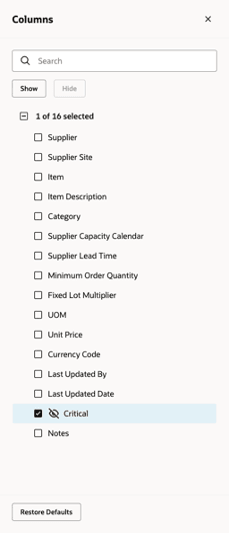
Viewing and Arranging Columns
Searching and Filtering Data on the Suppliers page
You can search for items using the search bar and the suggested filters.

The Search Bar
Use the search and suggested filters to assist in locating and filtering specific suppliers, supplier sites, items or categories as follows:
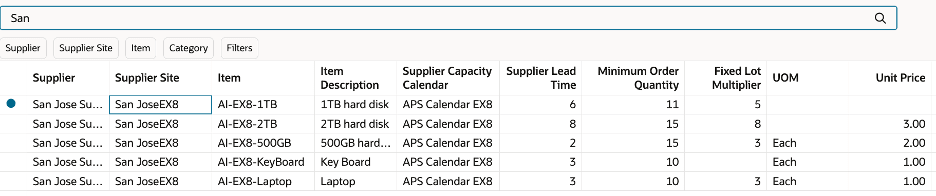
Keyword search bar: Search across multiple columns based on the text entered. The keyword search operates specifically over the Suppliers, Supplier sites, and Items and Item descriptions using the contains operator.
Using Search Bar and Suggested Filters
For example, in the given screenshot typing the term San in the keyword search field and pressing Enter or clicking the search icon displays a list of all matching names containing San, as seen in the Supplier and Supplier Site column. Keyword search isn’t case sensitive.
Suggested filters: You can search for items using the suggested column-specific filter criteria. For example, you can filter items by selecting multiple item names and one or more suppliers from the Supplier filter. After you select the filter criteria, press Enter or click outside the filter. The table updates to display only the rows that match the selected criteria.
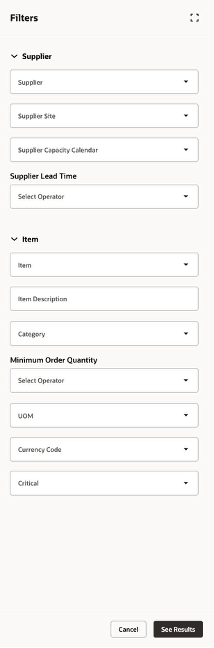
Filters button: Select this suggested filter to access additional filtering options, that aren’t available through the suggested filters. Use these filters for more data refinement.
The following search filters exist for the Suppliers page:
Filters Drawer
Saved Searches: You can save and name your current keyword search and suggested filters. You can reuse the saved searches so that you can quickly reapply frequently used search criteria without manually resetting the filters each time.
Steps to Enable and Configure
You don't need to do anything to enable this feature.
Access Requirements
Users who are assigned a configured job role that contains these privileges can access this feature:
- View Supplier Information
- (MSC_VIEW_SUPPLIER_INFORMATION_PRIV)
- Edit Supplier Information
- (MSC_EDIT_SUPPLIER_INFORMATION_PRIV)
These privileges were available prior to this update.