Redwood: Manage Item Descriptive Attributes Using a New User Experience
You can use the Redwood user experience to define and manage item descriptive flexfields (DFF). You can personalize layouts by showing or hiding specific DFF columns, reordering them, and applying filters, sorts, and searches similar to the standard attributes. These attributes are available across the application in plan inputs, plan outputs, and simulation sets. However, these attributes can’t be edited. This capability improves discoverability, accelerate analysis, and provide a user experience for item attributes across the planning application.
Descriptive Flexfields Overview
In the Items table, when you open the Filters drawer, Descriptive flexfield columns are grouped under Descriptive Flexfields.
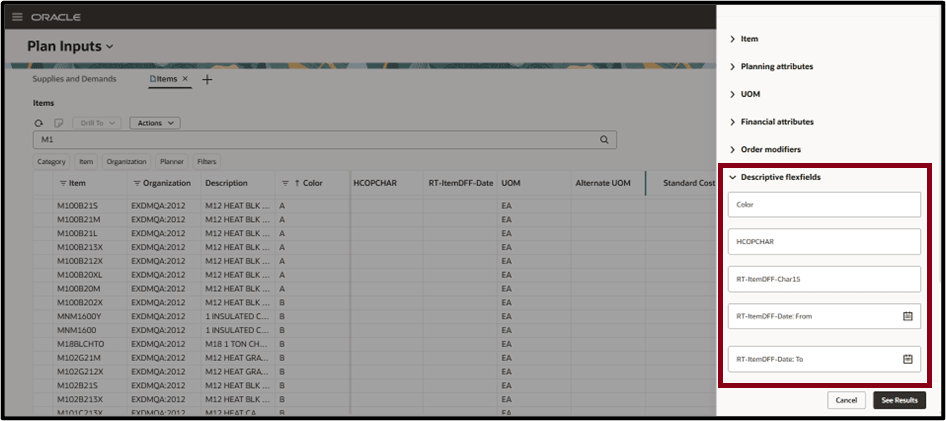
Descriptive Flexfields
Descriptive flexfield columns are now implemented as regular standalone columns.
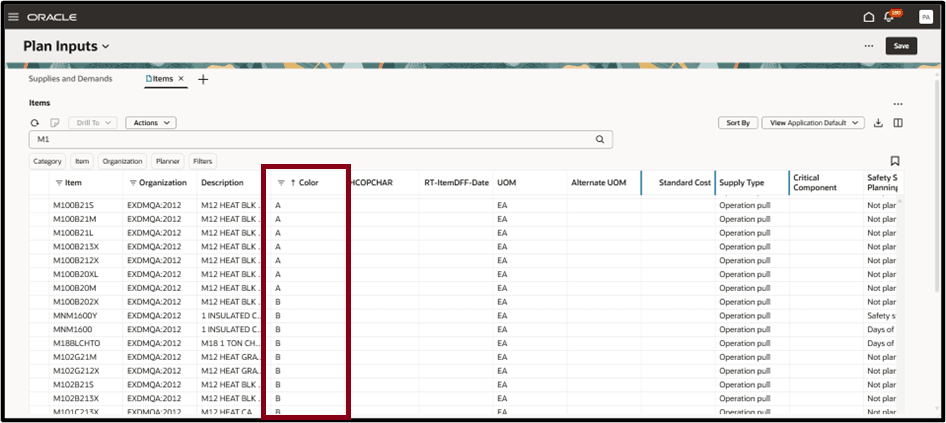
Descriptive Flexfields Column
Sorting or filtering data
You can sort or filter the columns as shown in the following screenshot:
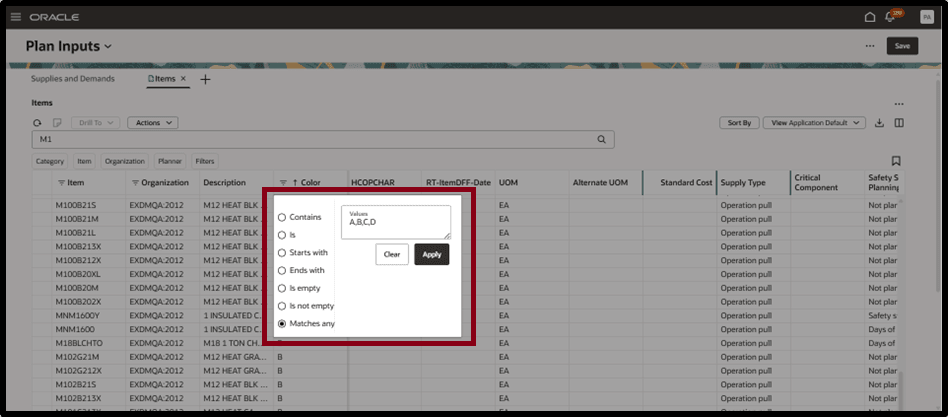
Sorting or Filtering Flexfield Columns
Steps to Enable and Configure
You don't need to do anything to enable this feature.
Key Resources
- See Redwood: Analyze Supply Plans Using a Configurable Redwood Page feature.
Access Requirements
Users who are assigned a configured job role that contains these privileges can access this feature:
- View Planning Items (MSC_VIEW_PLANNING_ITEMS_PRIV)
- Edit Planning Items (MSC_EDIT_PLANNING_ITEMS_PRIV)
View Planning Items and Edit Planning Items privileges were available prior to this update.