Redwood: View License Plate Number in Electronic Records
Companies in highly regulated industries, such as research, development, manufacturing, and quality control rely on Electronic Records and Electronic Signatures to meet regulatory compliance requirements throughout their product lifecycle. These regulations are designed to ensure data integrity, system reliability, security, and availability within electronic systems.
If you are using advanced inventory with electronic record and electronic signature compliance requirements, it is necessary to review the License Plate Number (LPN) information during transaction approvals and retain all transacted LPNs in the electronic records to support audit and regulatory requirements.
Now, you can view LPN data in the electronic record during approval and review processes.
Here are the conditions to display LPN information in the electronic record (PDF):
- Miscellaneous Transaction and Serial Numbers UIs:
- The LPN is displayed in the electronic record only if the organization is LPN-enabled.
- Put away Lines, Receive Lines, Correct Lines, Shipment Lines, and Shipment Details UIs:
- The LPN is displayed in the electronic record even if the organization is not LPN-enabled. These UIs utilize the LPN attribute as a packing unit for informational purposes. In such cases, the LPN details are not processed through Inventory as true LPNs.
- For Put away, Receive, and Correct transactions, the value entered in the To LPN field is displayed under the LPN attribute in the report.
- For Shipping transactions, the value entered in the parent LPN field is displayed under the LPN attribute.
- If the LPN is not mandatory for a transaction, but the organization or transaction type is LPN-enabled, the LPN attribute in the report appears blank.
Other than the addition of the LPN attribute, all other content of the Electronic Record (E-Record) displayed in the PDF remains unchanged.
Display of LPN Details in Reports
Miscellaneous Transactions: E-Record now displays the LPN value.
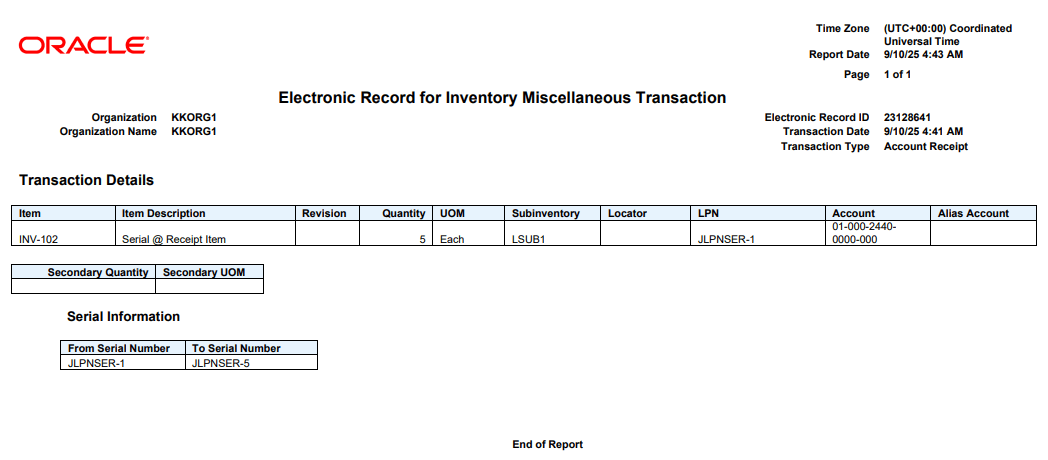
Miscellaneous Transaction with LPN Details
Put away Transactions: E-Record now displays the LPN value.
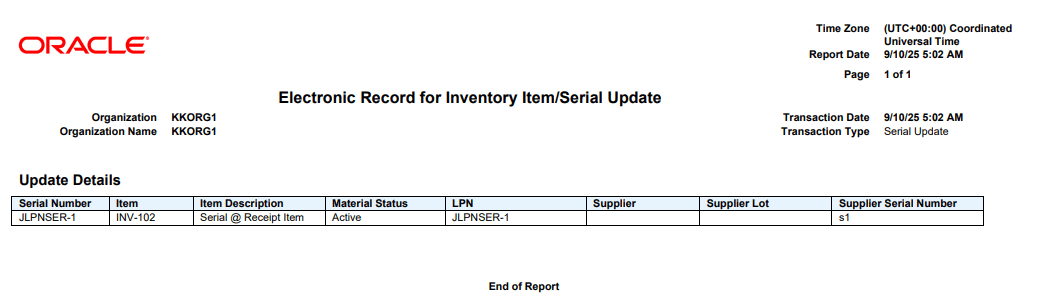
Put Away Transaction with LPN Details
This feature helps ensure compliance with guidelines and regulations related to Electronic Record and Electronic Signature requirements.
Steps to enable and configure
Use the Opt In UI to enable this feature. For instructions, refer to the Optional Uptake of New Features section of this document.
Offering: Manufacturing and Supply Chain Materials Management No Longer Optional From: Update 26D
Configure E-Signature Preferences:
You can use the Configure E-Signature Preferences page to enable electronic signature for your organization.
Follow these steps to enable or disable this feature:
- In the Setup and Maintenance work area, search for and select the Configure E-Signature Preferences task.
- Add a new organization or select an existing one.
- Click the Edit icon, check the Signature Enabled checkbox, and choose the appropriate Signature Type.
- Click the check mark icon to save your changes.
- To enable or disable electronic signatures for multiple or all transactions at once, use the Manage E-Signature action.
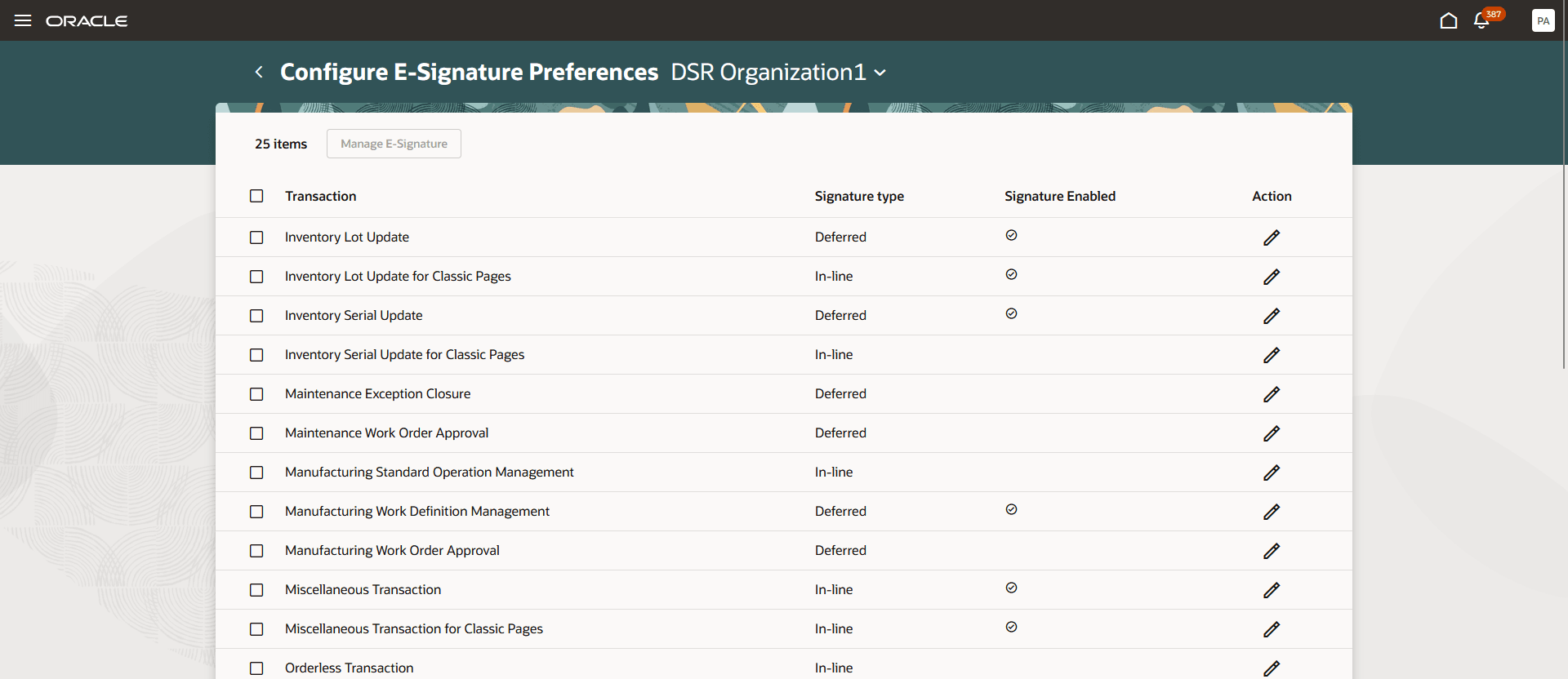
Configure E-Signature Preferences
Key resources
- Oracle Fusion Cloud SCM: Using Inventory Management guide, available on the Oracle Help Center.
- Oracle Fusion Cloud SCM: Implementing Manufacturing and Supply Chain Materials Management guide, available on the Oracle Help Center.
- Oracle Fusion Cloud SCM: Reauthenticate E-Signature Users Using Oracle Access Manager available on the Oracle Help Center.
- Oracle Fusion Cloud SCM: Overview of Oracle Electronic Signatures and Electronic Records available on the Oracle Help Center.
- Oracle Fusion Cloud SCM: Sign for Inventory E-Records Using Single Sign-on Through an External Authentication System available on the Oracle Help Center.
- Oracle Fusion Cloud SCM: Use Redwood Template for ERES Approval Notifications and Approve Using Deferred Mode available on the Oracle Help Center.
Access requirements
1. Privileges to Access Modes
Users who are assigned a configured job role that contains these privileges can access this feature:
Inline E-Signature Approval Mode:
- Add Electronic Signatures (EDR_ADD_ESIGNATURES_TRANSACTIONS_PRIV)
Deferred E-Signature Approval Mode:
- Add Electronic Signature with Deferred Approval Using Redwood Inventory (INV_ADD_ELECTRONIC_SIGNATURE_DEFERRED_PWA_PRIV)
These privileges were available prior to this update.
2. Privileges to Perform Withdraw action
Users who are assigned a configured job role that contains these privilege can access this feature:
Ship Confirm Withdraw: This privilege allows you to reset the approval status of ship confirm transactions that are in a pending approval status.
- Reset Ship Confirm Electronic Signature Approval Status (WSH_RESET_SHIP_CONFIRM_ELECTRONIC_SIGNATURE_APPROVAL_STATUS_PRIV)
Inventory Lot Update and Inventory Serial Update Withdraw: This privilege allows you to reset the approval status of inventory lot update and inventory serial update withdraw transactions that are in a pending approval status.
- Reset Ship Confirm Electronic Signature Approval Status (WSH_RESET_SHIP_CONFIRM_ELECTRONIC_SIGNATURE_APPROVAL_STATUS_PRIV)
These privileges were available prior to this update.
3. Privileges to access ERES template
Users who are assigned a configured job role that contains these privileges can access this feature:
For viewing Receive, Putaway & Correction templates:
- Print Receiving Receipt Traveler Report (RCV_PRINT_RECEIVING_RECEIPT_TRAVELER_REPORT_PRIV)
For viewing Miscellaneous Transaction, Lot Update & Serial Number Update templates:
- Print Material Status Where Used Report (INV_PRINT_MATERIAL_STATUS_WHERE_USED_REPORT_PRIV)
For viewing Ship Confirm templates:
- Print Shipping Reports (WSH_PRINT_SHIPPING_REPORTS_PRIV)
These privileges were available prior to this update.