Redwood: Assign On-Shift Employees to Tasks
Recording daily attendance of your employees is crucial when you assign them tasks. Factors like vacations, shift swaps, and unexpected absence impacts your team’s availability and leads to operational delays resulting unfinished work. With Oracle Workforce Scheduling, you can easily access, create, and update shift schedules when you assign inventory tasks, to ensure that you assign tasks only to employees who are confirmed to be present.
With this feature:
- You can specify the department for each zone to identify available workers from the workforce schedule.
- You can specify the job or scheduling group for each activity type to refine the worker list, and to ensure that only workers with the required job role can perform specific activities.
- You can find available workers by shift and date when you assign tasks.
- Before you assign new tasks, you can review the number of tasks already assigned to a worker within the current shift and across other shifts.
Workforce Schedules
Workforce Scheduling allows you to manage employee shift schedules. This means when and where employees will work in the coming days, weeks, and months. It supports both managers and employees to plan and define work schedules. Managers can create schedules in advance with visibility into employees’ availability, approved absences, and work preferences.
Navigate to the workforce schedules from the Inventory Task Assignments page to view generated schedules and override assignments for schedules that are in progress.
Refer to the Oracle Fusion Cloud Human Resources: Implementing and Administering Workforce Scheduling guide, available on the Oracle Help Center, for detailed instructions on creating and managing workforce schedules.
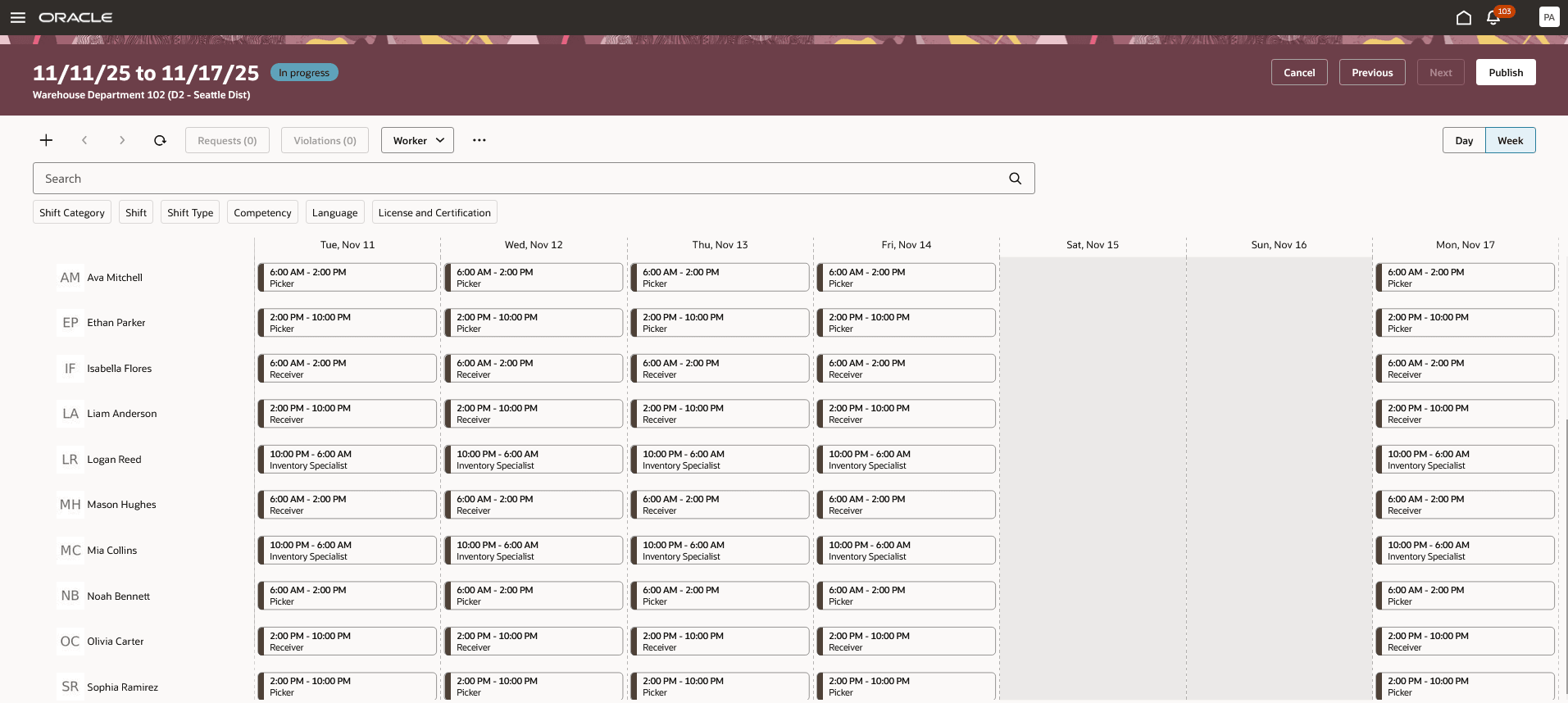
Workforce Schedules
Worker Assignment to Inventory Tasks
When you assign workers to a task, the Assign worker drawer display workers based on the Zone Worker Assignments configuration or shows all the available workers. However, when a zone is configured to use workforce scheduling, the Assign worker drawer displays available workers from the workforce schedule as per the selected date and shift. In this case, the zone worker assignments configuration is not used.
The list of available workers is derived from the workforce schedule of the department associated with the inventory zone. The list is further refined by using the job or scheduling group linked to the activity type within that zone.
When you assign a new task to a worker, you can also view the number of tasks already assigned to that worker within the current shift and across shifts.
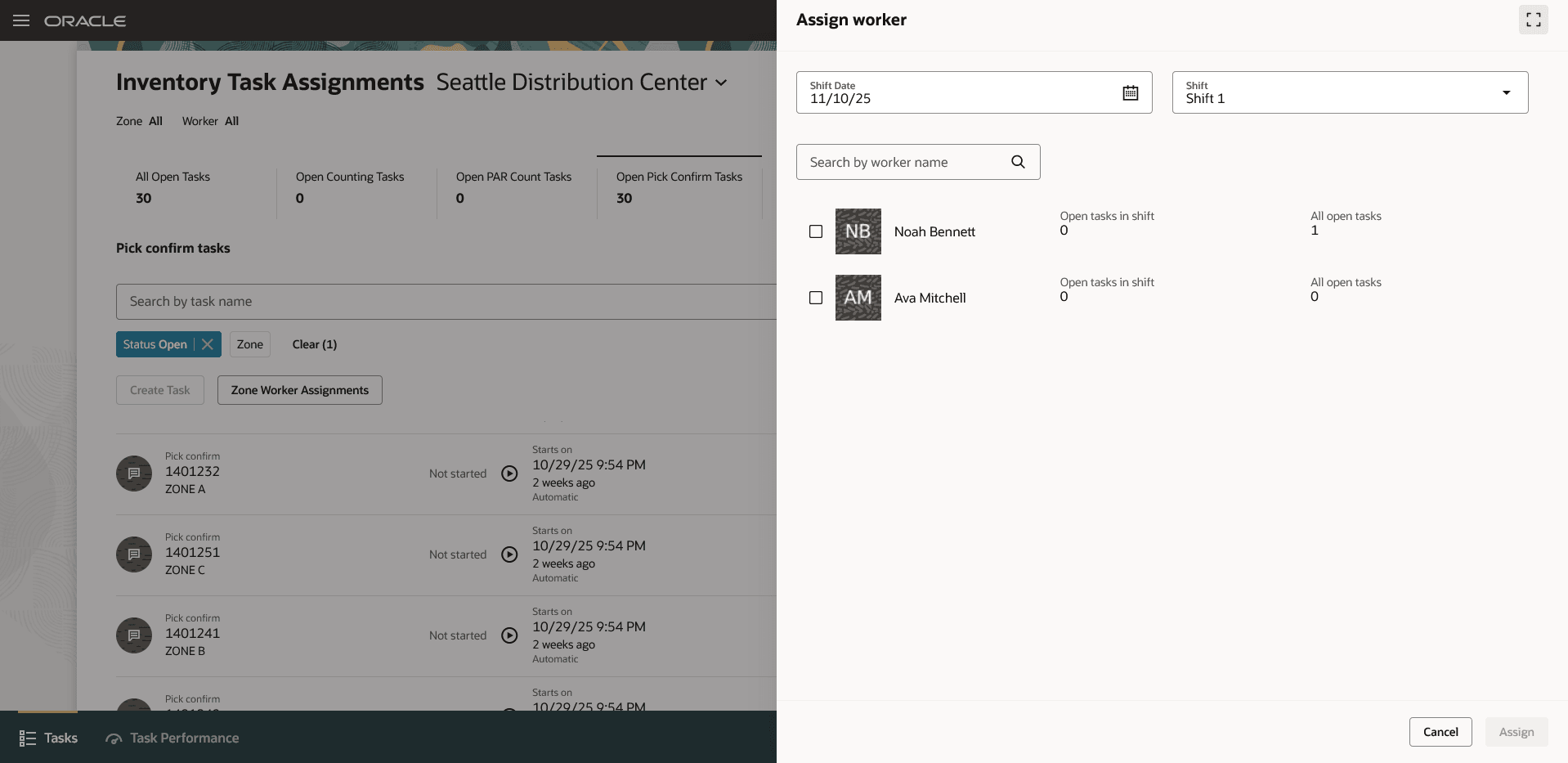
Assign Worker
Inventory and Workforce Scheduling Integration Mapping
Map Zone to Department
Use the Inventory Zones task to link each zone to the appropriate department for which workforce schedules are generated.
- Use workforce scheduling: A new checkbox is now available to indicate whether the zone uses workforce scheduling.
- Department: If the Use workforce scheduling checkbox is selected, you must specify the department to which the zone is assigned. This department determines which schedules and workers are considered during task assignment, and for tasks created in that zone.
After you complete this setup, when a task is created for a zone and the manager views available workers, the system automatically uses the zone-to-department mapping to identify the corresponding department’s work schedule and determine eligible workers for that zone and shift. You can configure each zone to use workers from a dedicated department or allow multiple zones to share workers by mapping the same department to multiple zones.
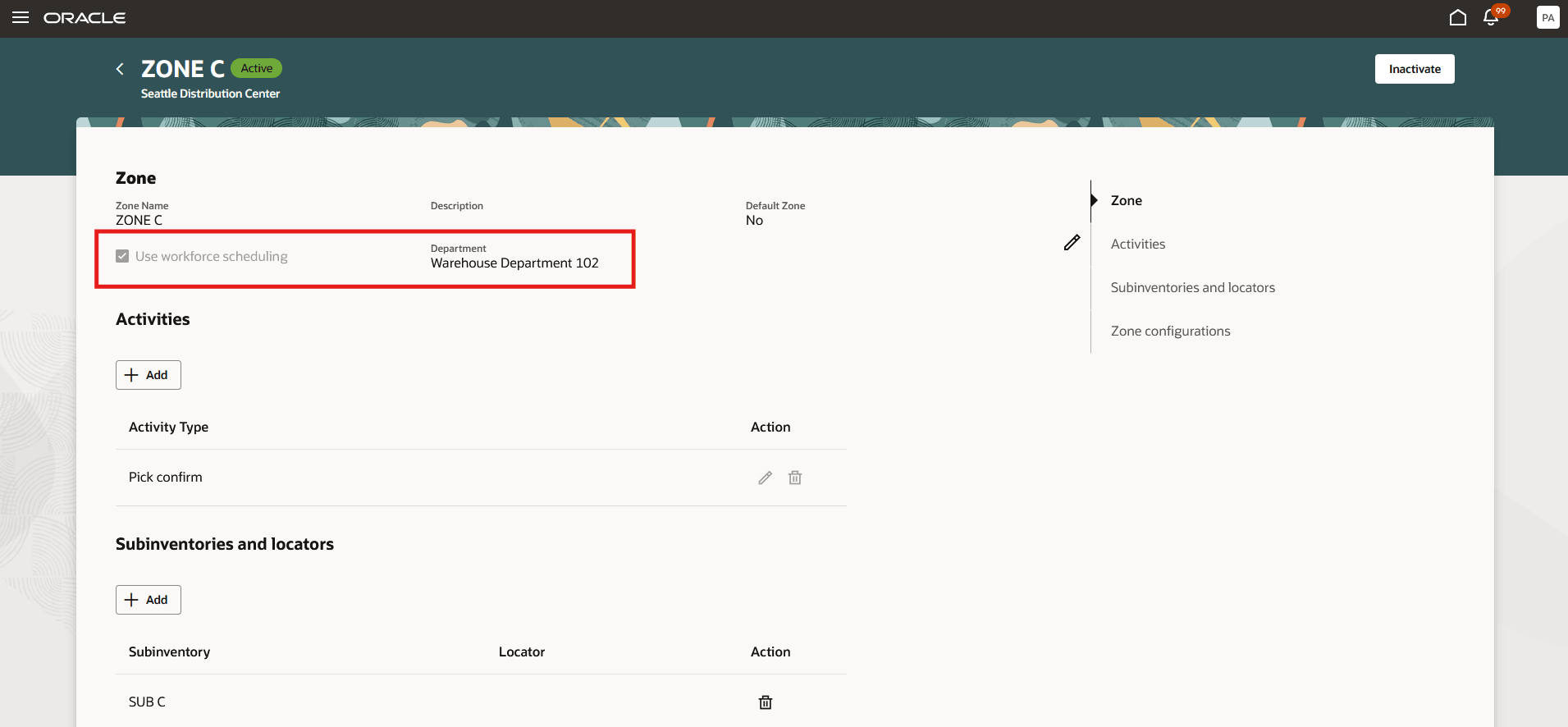
Inventory Zone
Map Activity Type to Jobs or Scheduling Group
Use the activity type definition within the inventory zone to map each activity type to a job or to a scheduling group.
- Map to jobs if you schedule workforce by individual job roles.
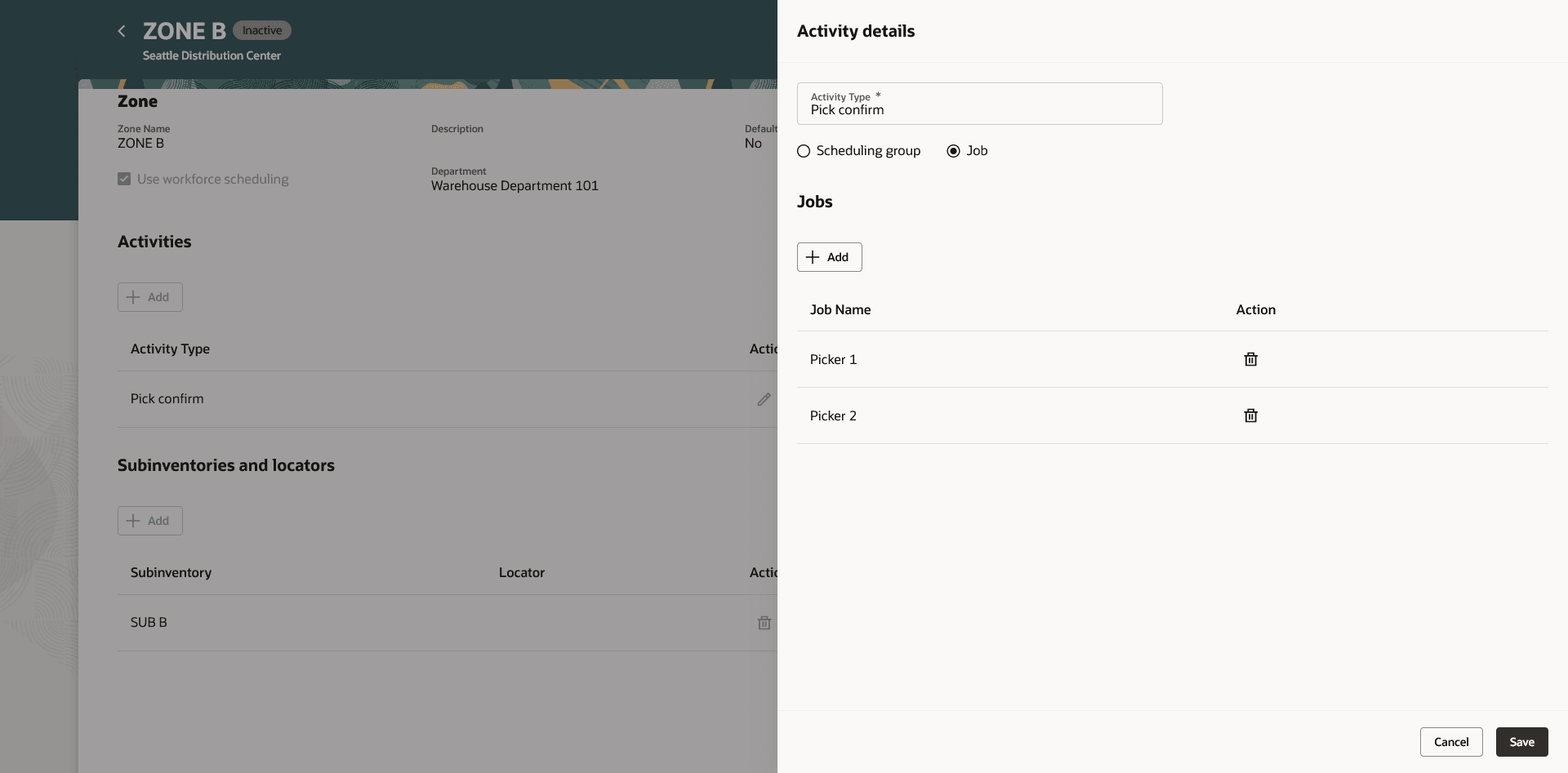
Activity Type to Jobs Mapping
- Map to a scheduling group if you use scheduling groups to manage workforce assignments. A scheduling group represents a collection of related jobs used for workforce scheduling.
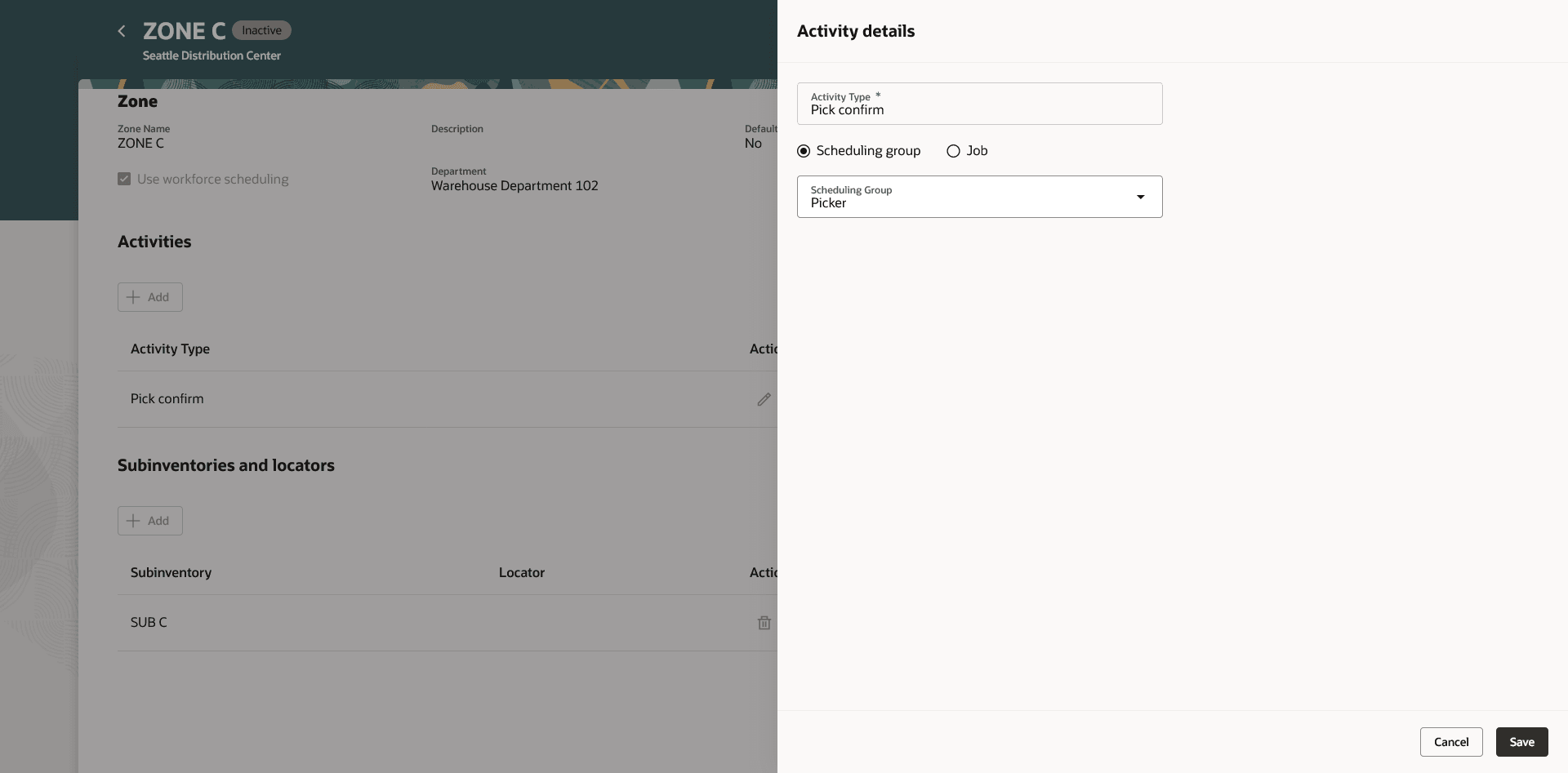
Activity Type to Scheduling Group Mapping
This mapping enables the system to filter and display eligible workers during task assignment. Workers whose job or scheduling group matches the mapped activity type will be considered for assignment. This is useful when a department schedule includes schedules for multiple roles, such as warehouse operators, supervisors, and administrators, but you want only warehouse operators to be eligible to perform specific tasks.
If no mapping is defined, the system won’t apply eligibility filters. As a result, all workers assigned to the department and shift regardless of their job role and will be available for selection during task assignment.
This feature boosts operational efficiency by ensuring open tasks are assigned to employees who are currently on shift, helping tasks get completed promptly and reducing the need for reassignment.
Steps to enable and configure
Refer to the What’s New documentation for the 25C feature Redwood: Assign Pick Slips, PAR Counts, Cycle Counts, Physical Counts, and Deliveries to a User for details on the setup required to enable task management and zones in Inventory.
Enable Workforce Scheduling for Tasks in a Zone
- Navigate to the Setup and Maintenance work area. Search for and select the Inventory Zones task.
- Select the Use workforce scheduling checkbox, and then choose the Department associated with the zone.
- (Optional) To map jobs to an activity type, click the Edit icon next to the activity type and add the jobs that qualify for that activity type.
- (Optional) To map a scheduling group to an activity type, click the Edit icon next to the activity type and add the scheduling group that qualifies for that activity type.
Key resources
- Oracle Fusion Cloud SCM: Using Inventory Management guide, available on the Oracle Help Center.
- Oracle Fusion Cloud SCM: Implementing Manufacturing and Supply Chain Materials Management guide, available on the Oracle Help Center.
- Oracle Fusion Cloud Human Resources: Implementing and Administering Workforce Scheduling guide, available on the Oracle Help Center.
- Oracle Fusion Cloud Human Resources: Implementing Global Human Resources guide, available on the Oracle Help Center.
Access requirements
Users who are assigned a configured job role that contains this duty role can access the Inventory Zones page to set up this feature:
- Inventory Administration Duty (ORA_INV_INVENTORY_ADMINISTRATION_DUTY)
This duty role was available prior to this update.
Users who are assigned a configured job role that contains this duty role can access the Inventory Task Assignments page:
- Advanced Inventory Management (ORA_INV_ADVANCED_INVENTORY_MANAGEMENT_DUTY)
This duty role was available prior to this update.
Refer to the Workforce Schedule Administrator and Workforce Schedule Manager job roles in the Oracle Fusion Cloud HCM: Security Reference for HCM guide, available on the Oracle Help Center, for details about the privileges required to set up, generate, and manage workforce schedules.