 Redwood: Count Lot and Serial Numbers in a Quantity-Tracked PAR Location
Periodic automatic replenishment (PAR) is an inventory management method that sets PAR levels for items at specific locations and relies on periodic counts to determine when items need replenishment. While PAR locations are typically not quantity tracked, there are cases where monitoring item quantities at a particular PAR location is necessary. Previously, it wasn't possible to record on-hand lot and serial numbers at quantity-tracked locations, which prevented automatic adjustment of on-hand quantities based on count results. With this update, you can now record lot and serial numbers in quantity-tracked PAR locations, enabling automatic transactions to align on-hand quantities with physical counts. Additionally, you can automatically transact revision-controlled items by specifying the revision, and consigned items by indicating the owning party.
The Automatically Transact Goods Based on PAR Counts for Quantity-Tracked PAR Locations feature is applicable when all these conditions are met:
- Opt-in enabled: The Automatically Transact Goods Based on PAR Counts for Quantity-Tracked PAR Locations feature must be enabled.
- Quantity-tracked subinventory: The subinventory where the PAR count is conducted must have Quantity Tracked enabled.
- PAR settings:
- Replenish Count Method: Count
- Default Replenish Count Type: On-hand quantity
- Items: Plain items, Lot items, Serial number items, Lot and serial number items, and Consigned items.
If the quantity counted during the PAR count differs from the system recorded on-hand quantity, the system automatically generates a Miscellaneous Receipt or Miscellaneous Issue transaction.
- Receipt: If the counted quantity is greater than the on-hand quantity.
- Issue: If the counted quantity is less than the on-hand quantity.
NOTE: You can perform PAR counting using the PAR Count mobile page, Replenishment Requests Using a Spreadsheet, or the Inventory Replenish Requests REST resource.
This feature provides you the ability to ensure that inventory levels remain accurate by adjusting them based on the actual PAR count. Offline counting is supported for all the above scenarios.
PAR Count for Lot Item
Scan or select the item to begin. Choose the lot, enter the counted quantity, and review or change the default count UOM if needed. Click Add Lot to move it to the Counted Items list. Click Done to exit and view the counted items.
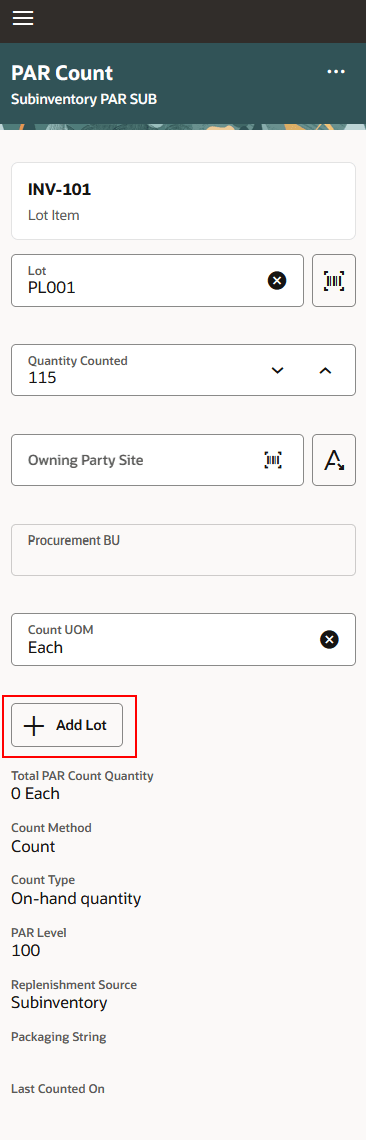
Lot Item
PAR Count for Serial Number Item
Scan or select the item and then the serial number. Selecting the serial number automatically adds it to the Counted Items list.
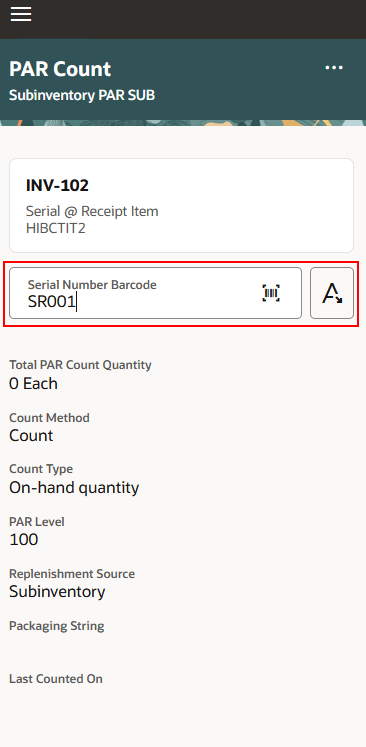
Serial Number Item
PAR Count for Lot and Serial Number Item
Scan or select the item and then the serial number. The associated lot details default automatically. For serial-controlled items, to record a zero PAR count, simply scan or select the serial number, click Done, and end the PAR count. This will be treated as a zero quantity.
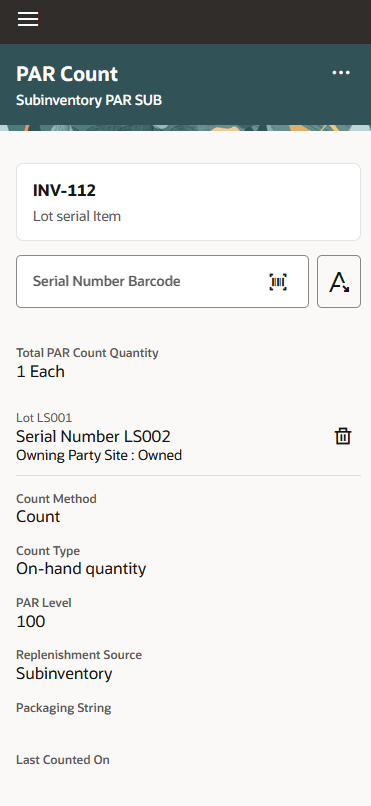
Lot and Serial Number Item
PAR Count for Consigned Item
Specify the owning party site. If not selected, the item is treated as owned. For mixed owned and consigned quantities, record each separately and end the PAR count. Missing owned or consigned counts are considered zero, and the system adjusts accordingly.
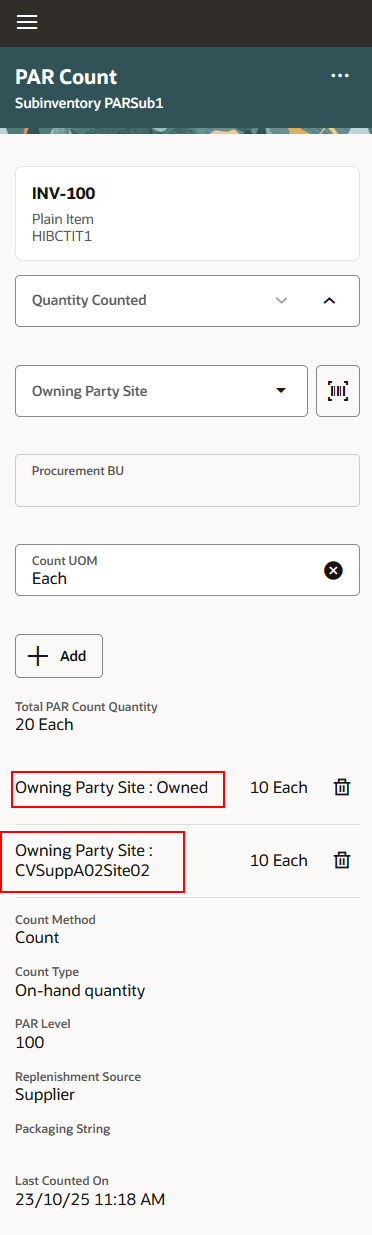
Consigned Item
After entering the PAR counts, click Done to exit the PAR Count page and view the items under Counted Items. To close the PAR count, go to More Actions and select End PAR Count. This confirms the count and applies adjustments based on the difference between the counted quantity and the on-hand quantity.
Behavior of Actions
- Add: For Plain, Lot, and Plain and Lot Consigned items, when the user clicks Add, the item is immediately moved to the Counted section, even if Done isn't clicked.
- Done: Use Done to confirm the entries and exit the PAR Count page. The count is only finalized when End PAR Count is clicked.
- Cancel:
- Clicking Cancel deletes only the information entered in the Additional Information section.
- The entered PAR count details are retained and displayed when the user revisits the page. These remain until End PAR Count is performed.
- If users don't wish to retain items in the Counted List, they can delete them any time before clicking End PAR Count.
- End PAR Count: The PAR count is finalized and confirmed only when the user clicks End PAR Count.
This feature increases your on-hand accuracy by extending support for automatic on-hand quantity adjustments to lot, serial, and revision-controlled items, as well as supplier-owned items.
Steps to enable and configure
Use the Opt In UI to enable this feature. For instructions, refer to the Optional Uptake of New Features section of this document.
Offering: Manufacturing and Supply Chain Materials Management
Opt-in enabled: The Automatically Transact Goods Based on PAR Counts for Quantity-Tracked PAR Locations feature must be enabled.
- Quantity-tracked subinventory: The subinventory where the PAR count is conducted must have Quantity Tracked enabled.
- PAR settings:
- Replenish Count Method: Count
- Default Replenish Count Type: On-hand quantity
Tips and considerations
- For serial-controlled items, to record a zero PAR count, simply scan or select the serial number, click Done, and end the PAR count. This will be treated as a zero quantity.
- You can perform PAR counting using the PAR Count mobile page, Replenishment Requests Using a Spreadsheet, or the Inventory Replenish Requests REST resource.
Key resources
- Oracle Fusion Cloud SCM: Using Inventory Management guide, available on the Oracle Help Center.
- Oracle Fusion Cloud SCM: Implementing Manufacturing and Supply Chain Materials Management guide, available on the Oracle Help Center.
- Oracle Fusion Cloud SCM: Count Your PAR Locations Using a Mobile Device, available on the Oracle Fusion Cloud Inventory Management 24B What's New.
- Watch the Count Your PAR Locations Using a Mobile Device Demo.
- Oracle Fusion Cloud SCM: Overview of PAR Replenishment, available on the Oracle Help Center.
- Oracle Fusion Cloud SCM: Redwood: Review Replenishment Requests Using a Spreadsheet, available on the Oracle Fusion Cloud Inventory Management 25C What's New.
- Oracle Fusion Cloud SCM: REST API for Oracle Fusion Cloud SCM guide, available on the Oracle Help Center.
Access requirements
Users who are assigned a configured job role that contains these privileges can access this feature:
- Record PAR Count Using Responsive Inventory (INV_RECORD_PAR_COUNT_PWA_PRIV)
- Receive Inventory Replenishment Request Web Service (INV_RECEIVE_INVENTORY_REPLENISHMENT_REQUESTS_WEB_SERVICE_PRIV)
- Manage Inventory Replenishment Requests (INV_MANAGE_INVENTORY_REPLENISHMENT_REQUESTS_PRIV)
These privileges were available prior to this update.