Redwood: Use Document Output Preferences for Label Printing
With document output preferences, you can automatically route documents to a designated delivery method such as a specific printer or email address—based on user name, job role, organization, or subinventory. Now, you can also use document output preferences to automatically send your labels to a selected printer, email, or fax.
Accurate and timely labeling is essential for smooth warehouse and inventory operations. This feature simplifies that process by allowing organizations to default printers and email destinations for label printing, ensuring that item, delivery, LPN, and LPN content labels are sent to the right output location without manual setup. This helps reduce labeling errors, saves time, and keeps operations consistent across shifts and facilities.
You can only set up preferences for these label types:
- Item Labels (includes lot and serial number labels)
- Delivery Labels
- LPN Labels
- LPN Content Labels
Users can define default printers or email destinations for these label types, and the system will automatically apply them during transactions. However, printing still requires a user action. The defaults simply make the process faster and more consistent. Users also have the flexibility to override the default printer and email address at runtime whenever needed.
You can access the Label Output Preferences task from the Setup and Maintenance work area. This feature is available by default and doesn’t require any additional steps. However it becomes functional once you configure it using the Label Output Preferences task in the Setup and Maintenance work area for the respective label type.
Using the new Label Output Preferences page, you can:
- Search for and view label output preferences
- Edit label output preferences that allow you to define options such as email and printer
- Update existing label output preferences
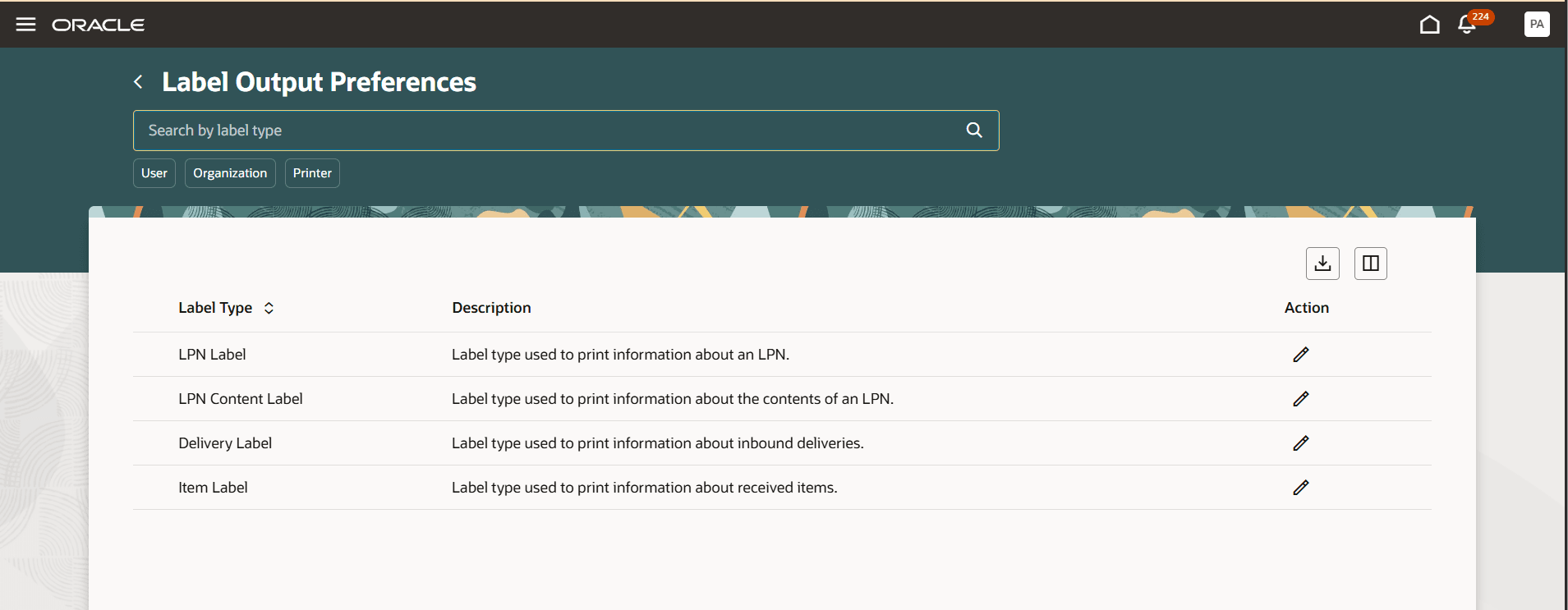
Label Output Preferences
You can update output preferences at the label level. You can configure output preferences based on the user, job role, organization, and subinventory.
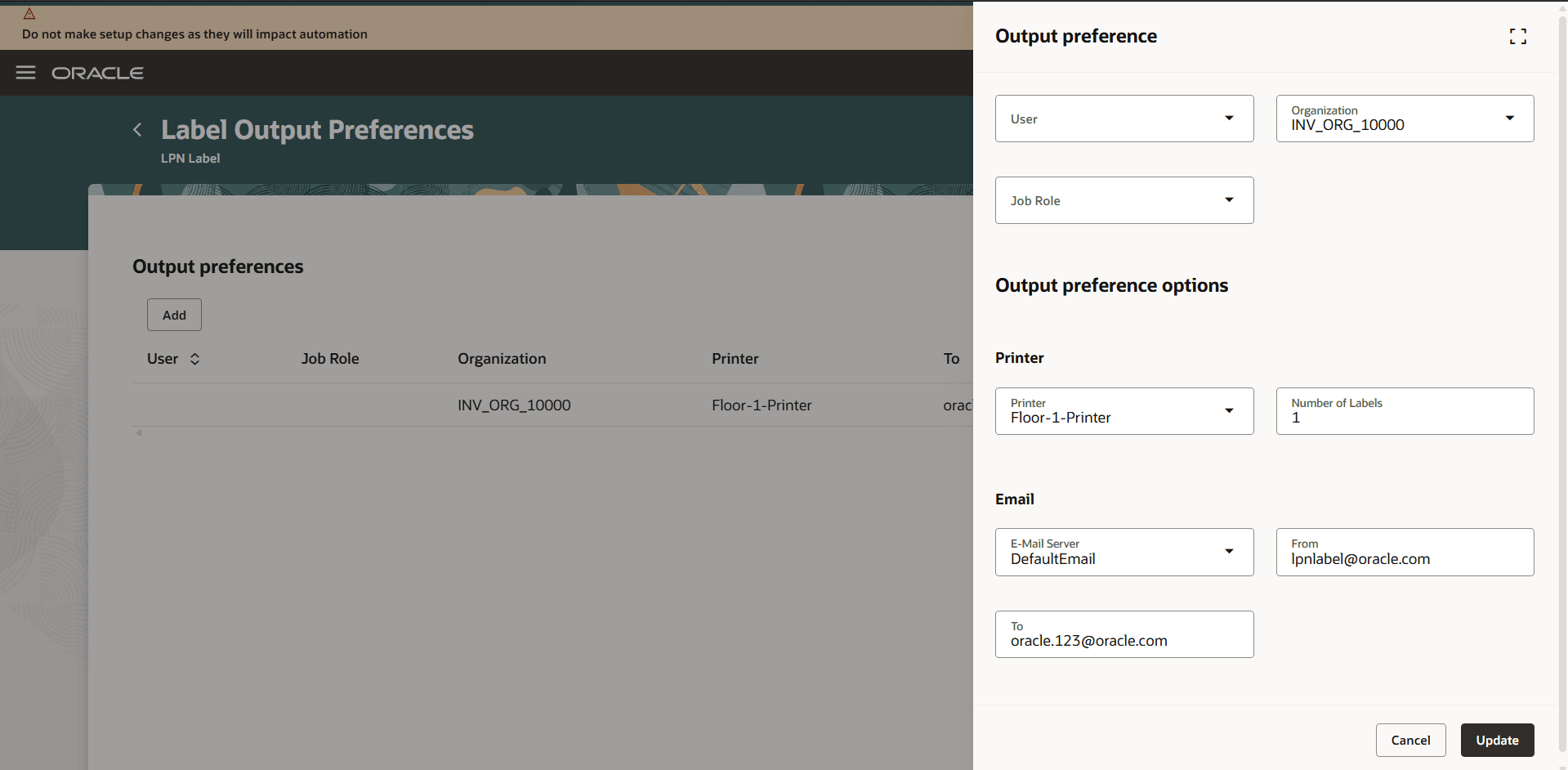
Add Output Preference
NOTE: You can set up output preferences for Inventory documents using the Inventory Document Output Preferences task.
You can set up output preferences for Receiving documents using the Receiving Document Output Preferences task.
You can set up output preferences for Shipping documents using the Shipping Document Output Preferences task.
This feature offers greater flexibility and improves operational efficiency by enabling automatic routing of specific label output to the chosen delivery method, eliminating the need for manual intervention.
Steps to enable and configure
You don't need to do anything to enable this feature.
Tips and considerations
- You can set default printers and email addresses for each label type to simplify printing and emailing.
- The system supports these predefined label types: Item (includes lot and serial number), Delivery, LPN, and LPN Content.
- Custom label types can't be added. You can only change preferences for the existing ones.
- For LPN and LPN content labels, the Subinventory field won't be available in preferences.
- Labels can be emailed as PDF attachments to selected recipients.
- If the email server or From Email isn't configured, the To Email field on the Print Label screen will be disabled.
Key resources
- Oracle Fusion Cloud SCM: Implementing Manufacturing and Supply Chain Materials Management guide, available on the Oracle Help Center.
Access requirements
Users who are assigned a configured job role that contains this duty role can access this feature:
- Inventory Administration (ORA_INV_INVENTORY_ADMINISTRATION_DUTY)
This duty role was available prior to this update.