Manage B2B Cross-References
When you exchange messages with trading partners, your values for specific data elements in Oracle applications may differ from the values your trading partners provide.
You can now use B2B Cross-Reference to map your values to partner values for elements such as state, country, currency, and so on. For example, a trading partner may use the abbreviated term MA and you may use the complete name Massachusetts, while a cross-reference allows you to map both terms.
Here are some of the benefits of this feature:
- Better Usability: The new approach simplifies mapping setup and maintenance because it allows teams to manage their cross-references directly in the B2B messaging system. You can create, edit, or find cross-reference records quicker.
- Increased Efficiency: You no longer need to create supplier or customer B2B properties to associate domain value maps to your suppliers or customers.
- Hierarchical Lookup: It increases the flexibility and precision of value mapping, especially when multiple qualifiers and attributes are involved. This process maximizes the chance of finding a match without returning an error unless no cross-reference exists at all.
- Flexible Value Mapping: During message transformation, a function used within the XSLT retrieves mapping values based on input codes and qualifier-value pairs from cross-reference data.
Steps to enable and configure
You can access this functionality by enabling the feature Simplify Configuration and Processing for B2B Messaging or the feature Manage B2B Cross-References.
After you opt in, perform the following steps to set up and use your B2B Cross-References:
- Define your B2B Cross-References: A B2B Cross-Reference has a code, name, and description, and it is made up of qualifiers and attributes.
- Add B2B Cross-Reference qualifiers.
- Add B2B Cross-Reference attributes.
- Configure Cross-Reference Values: After the structure of the cross-reference has been defined, you can enter values for each combination of qualifiers and attributes.
- Validate Cross-Reference Values: This tool allows you to find a matching attribute for the qualifiers entered.
- Upload and Download Cross-Reference Values: You can upload and download the records in the B2B Cross-Reference Values.
- Specify the Cross-Reference Lookup in the message XSL: Update the XSL file to include the b2bCrossRefLookup() function.
Define B2B Cross-References
- Select B2B Cross-Reference from the Tasks panel tab.
- Click Add to define a new B2B Cross-Reference.
- Enter the details and click Save.

Add a New B2B Cross-Reference
Add B2B Cross-Reference Qualifiers
- Under the Qualifiers tab, enter Code, Name, and Level.
- Under Actions, click Create to add your entries.
- Enter the details and click Save.
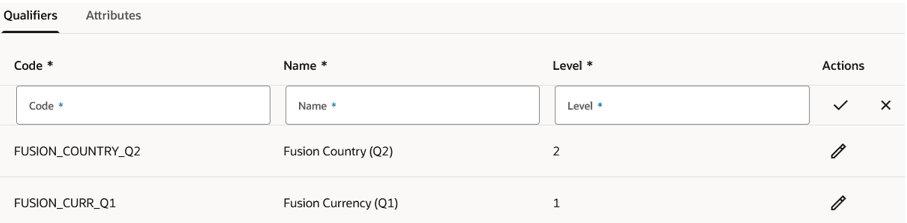
B2B Cross-Reference Qualifiers
Add B2B Cross-Reference Attributes
- Under the Attributes tab, enter Code, Name, and Level.
- Under Actions, click Create to add your entries.
- Click Save and Submit after you have added the details.

B2B Cross-Reference Attributes
Configure Cross-Reference Values
- On B2B Cross-References page, click Cross-Reference Values.
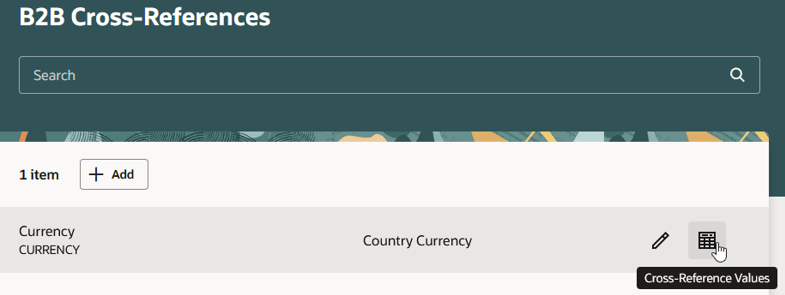
B2B Cross-References: Cross-Reference Values icon
- The qualifiers and attributes created earlier display as column headers.
- Click Add.
- Enter the details and click Save.
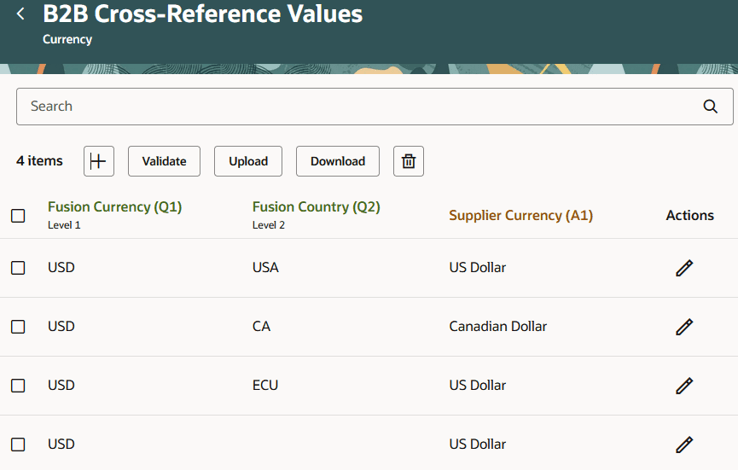
B2B Cross-Reference Values
Validate Cross-Reference Values
- On the B2B Cross-Reference Values page, click Validate.
- Enter a value for each of the qualifier fields. If a matching attribute value exists, it will be displayed in the result.
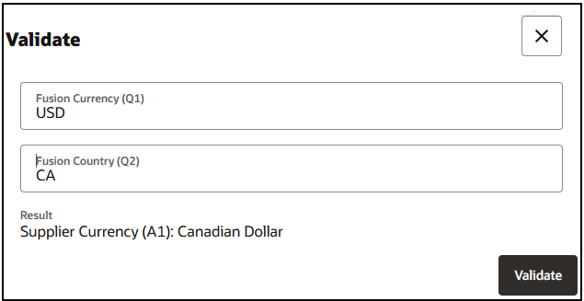
Validate
Upload and Download Cross-Reference Values
- Click Download to generate and save .csv on your computer.
- To make changes, open the .csv and modify the intended values. Format the ID cell as Text without changing its value.
- To add new rows, enter the qualifier and attribute values. Leave the ID cell blank.
- Save the .csv.
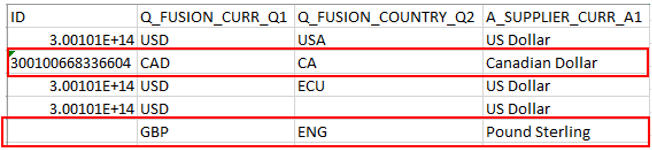
.csv File With a Change to Existing Row and With a New Row Added
- Click Upload. The values will appear on the page.
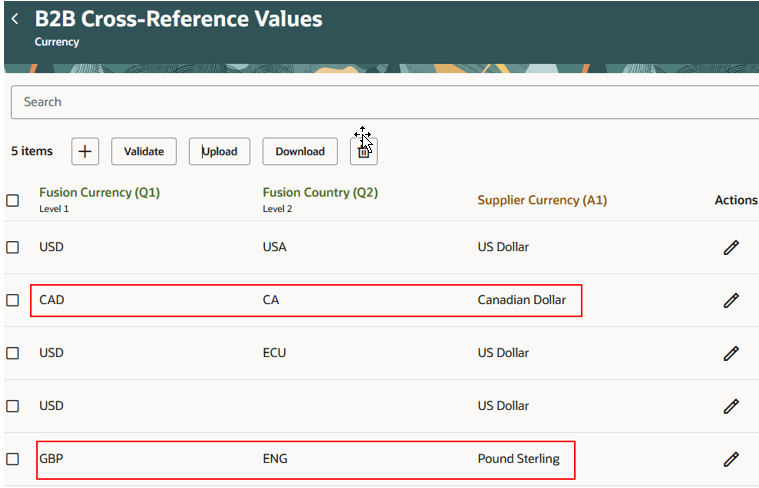
Updated B2B Cross-Reference Values
Specify Cross-Reference Lookup in the Message XSL
- Select B2B Message Definitions from the Tasks panel tab.
- Under Collaboration Message Definitions, export the Transformation Package for your message.
- Navigate to the XSL folder and open the file.
- Make these updates:
- The class below needs to be added to the namespaces area at the top of the XSL:
xmlns:b2bmessage="http://www.oracle.com/XSL/Transform/java/oracle.apps.cmk.model.B2BMessagingFunctions"
-
- b2bmessage needs to be added to the exclude-result-prefixes:
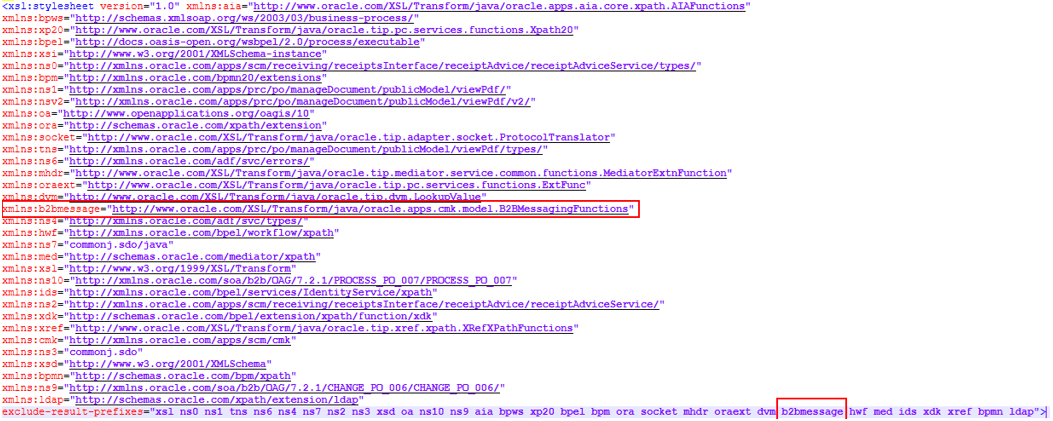
Stylesheet Declaration Area
-
- Look for the dvm:lookupValue that you need to cross-references. For example, CURRENCY_CODE.
- Comment it out.
- Add the b2bCrossRefLookup() function:
<xsl:value-of select="b2bCrossRefLookup('DecisionCode','DefaultValue','AttributeCode','QualifierName1','QualifierValue1','QualifierName2','QualifierValue2',...)"/>
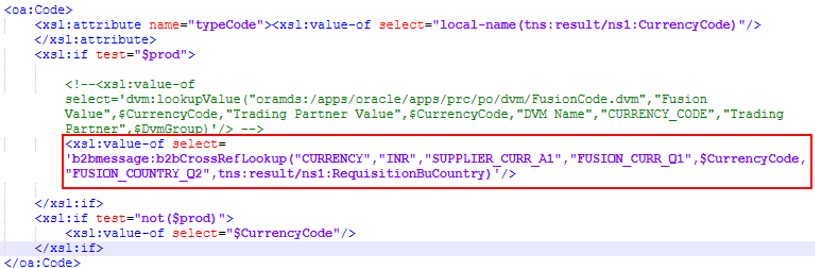
b2bCrossRefLookup() Function
-
- Save the XSL file changes.
- On the B2B Message Definitions > Collaboration Message Definitions tab, create a duplicate of the message you downloaded the transformation package for. Upload the customized XSL.
- Click Submit after you have added all other details.
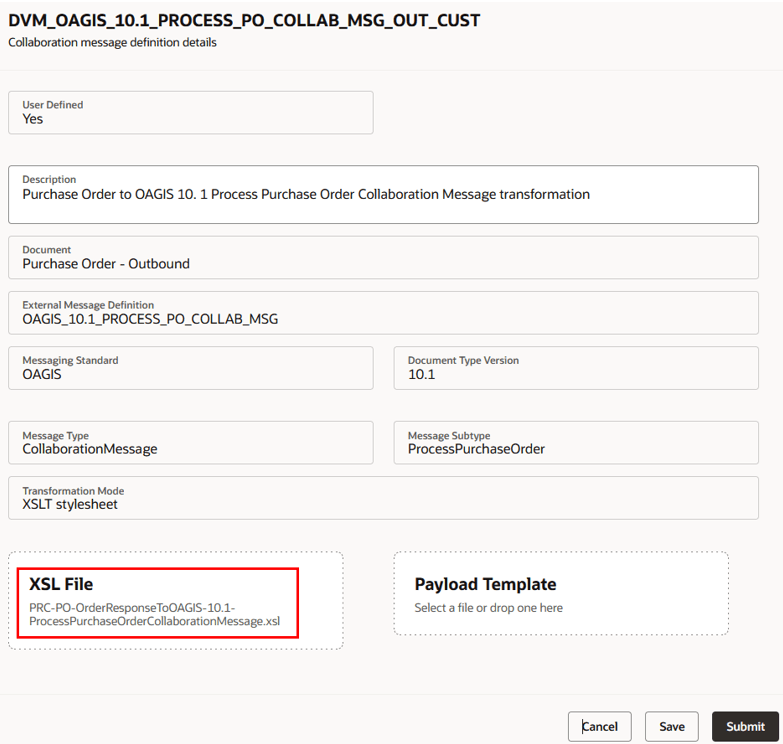
Duplicate Message Definition - Upload Custom XSL
- Proceed with the rest of these setup tasks:
- Define your providers (direct and service providers) if you are not using one of the predefined service providers.
- Configure your delivery methods.
- Create new connections if you're not using the predefined connections.
- Configure document properties and assign connections to your outbound documents.
- After the message is processed, the transformed file will show the value of the attribute.
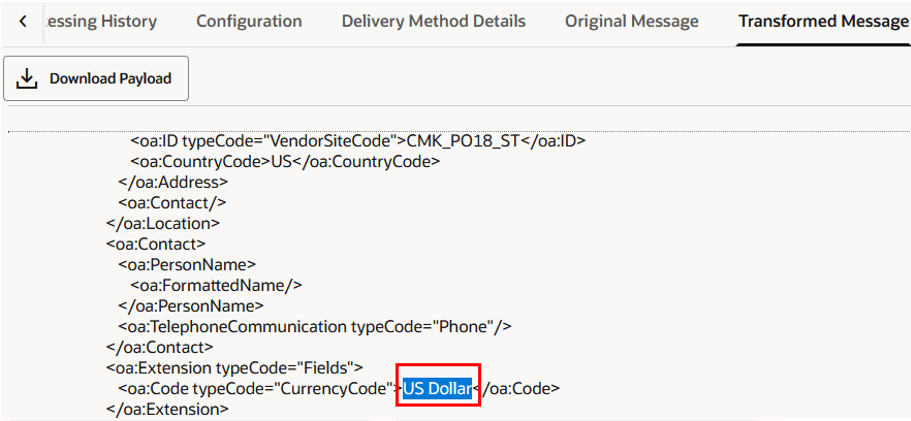
Transformed Message payload
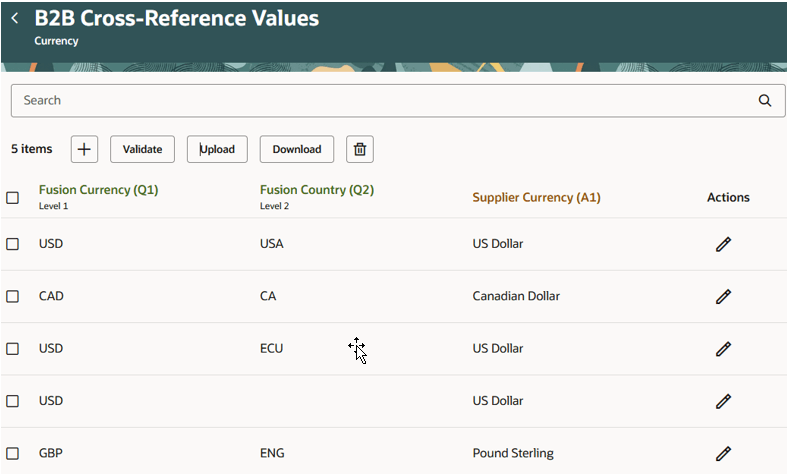
B2B Cross-Reference Values - Structure
The b2bCrossRefLookup() function first looks for a match for FUSION_CURR_Q1=USD and FUSION_COUNTRY_Q2 = US. Since it doesn't find one, it removes the qualifier with the highest level, which is FUSION_COUNTRY_Q2 = US. At this point, it finds a match for FUSION_CURR_Q1=USD which is would be SUPPLIER_CURR_A1= US Dollar.

b2bCrossRefLookup() function
Tips and considerations
- A qualifier helps distinguish between entries that might look identical otherwise. By adding one or more qualifiers to a cross-reference, you can clarify the distinctions.
- An attribute is a data element used to store the values that are derived by the qualifiers.
- The level determines the hierarchy or priority during lookup operations. Qualifiers and attributes with a higher level are considered more specific and are checked first to find an exact match.
- If a match including all levels is looked for, but doesn't exist, the qualifier with the highest level is removed from the matching criteria. This continues until a match is found. If no match is found, the default value specified in the function is returned.
- The b2bCrossRefLookup() function arguments are:
- DecisionCode: The context or rule set for lookup. For example, what you’re trying to map is CURRENCY, CARRIER, UOM_CODE, and so on.
- DefaultValue: The value that's returned if no match is found.
- AttributeCode: The specific field you want the value for.
- Qualifier pairs: One or more pairs of qualifier names and values to further narrow the lookup.
- SOA DVM will still work when using the original XSL dvm:lookupValue implementation.
- The same B2B Cross-Reference structure can't be used for both outbound and inbound messages. There has to be one setup for each direction.
- When no entries have been added to the B2B Cross-Reference Values task, and you want to upload them in bulk, click Download to generate an empty .csv. Enter the qualifier and attribute values, and keep the ID blank.
Access requirements
Users who are assigned a configured job role that contains these privileges can access this feature:
- Manage Collaboration Message Definitions by Web Service (CMK_MANAGE_COLLAB_MESG_DEFINITION_WEB_SERVICE_PRIV)
- View Collaboration Message Definitions by Web Service (CMK_VIEW_COLLAB_MESG_DEFINITION_WEB_SERVICE_PRIV)
These privileges were available prior to this update.