Redwood: Improve Usability with Additional Service Logistics Setup Pages
The additional Service Logistics setup pages provide improved usability including more intuitive user interactions.
1. Enhanced Auto Processing Rules for Charges with Redwood UI
The new Auto Processing Rules for Charges interface, built on Redwood UI, simplifies the process of searching for and creating auto processing rules for charges with various conditions and qualifiers.
Users can now easily search for existing auto processing rules using attributes such as Rule Name and Description. Once a rule is located in the search results, actions such as Edit or Delete are available. The Edit action allows users to update all rule details or disable the rule to prevent further use, while the Delete action removes the rule entirely.
To add a new auto processing rule, click Add Rule on the search page. Select the desired qualifier and condition from the available list of values (LOV), and select at least one condition before saving the rule.
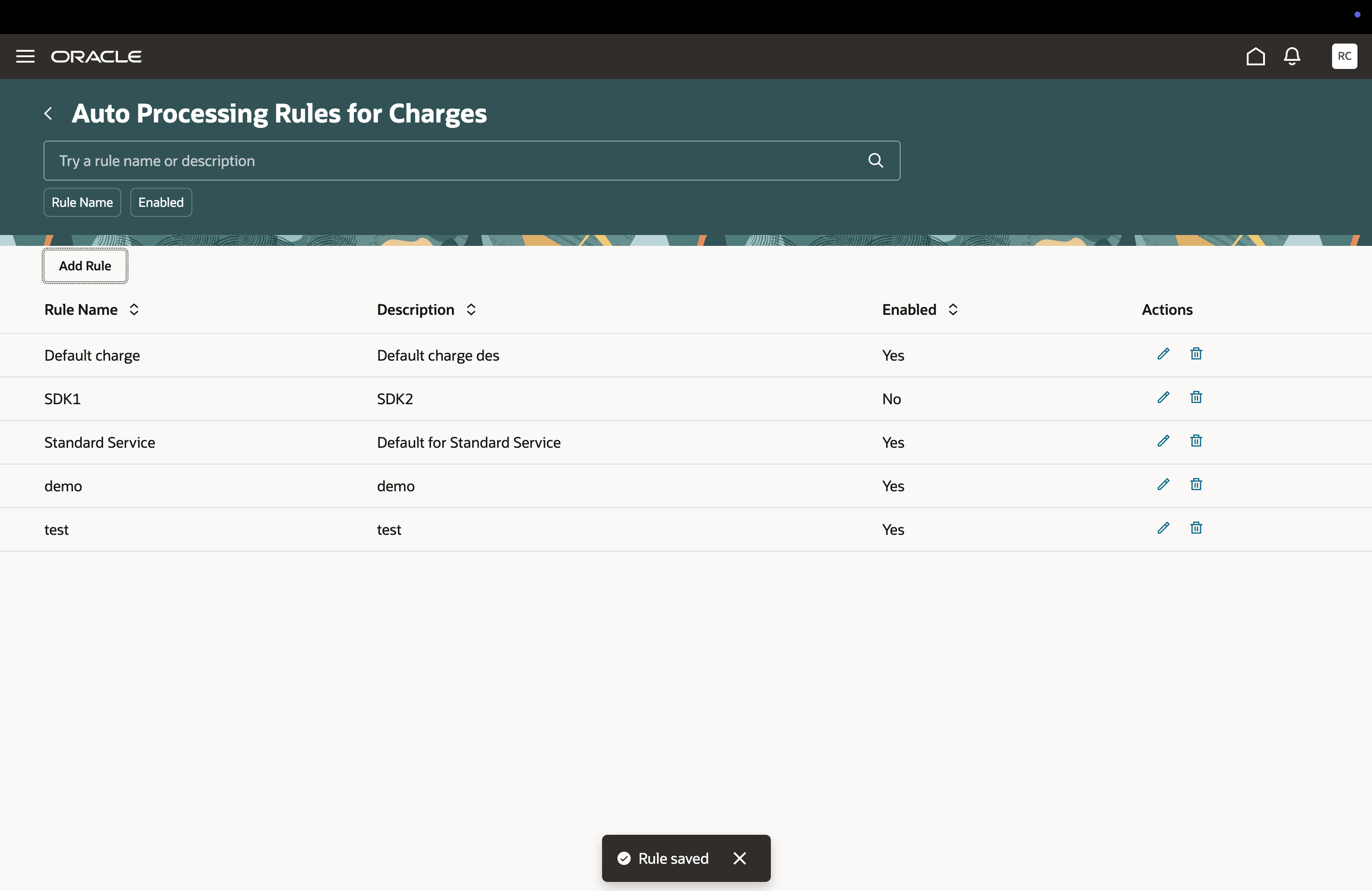
Search List: Auto Processing Rules for Charges
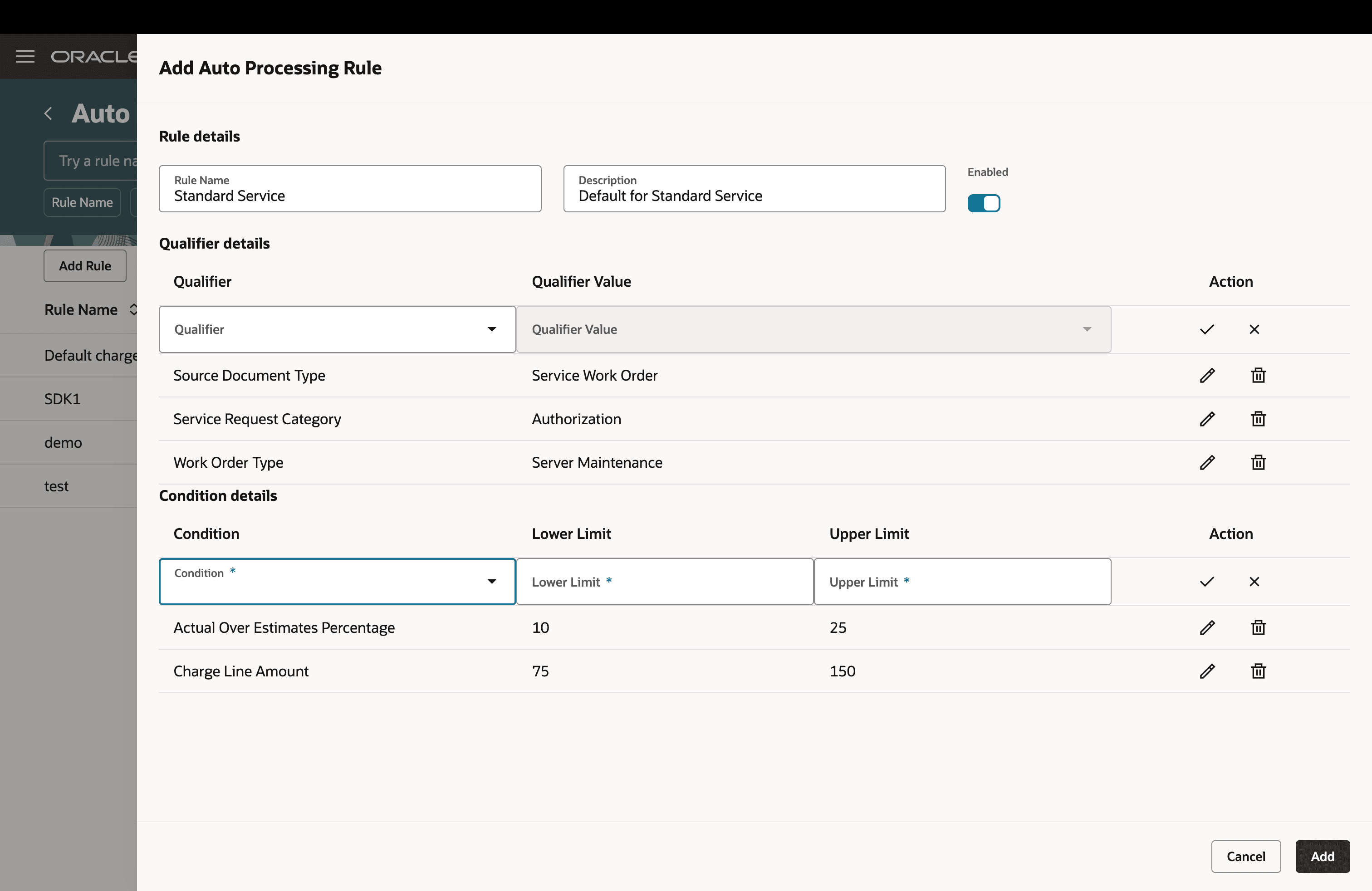
Add or Edit: Auto Processing Rules for Charges
2. Enhanced Field Service Technician with Redwood UI:
The new Field Service Technician interface, built on Redwood UI, streamlines the process of searching for and creating field service technicians with various associations, including Organization, Subinventory, and other default parameters.
The enhanced search functionality allows users to easily locate existing field service technicians using attributes such as Organization and Technician. Once a technician is displayed in the search results, users can perform actions such as Edit or Delete. The Edit action enables users to update all association details or disable the technician’s associations to prevent further use, while the Delete action permanently removes the rule.
To add a new technician, click Add Field Service Technician on the search page and specify the relevant organization, subinventory, and condition.
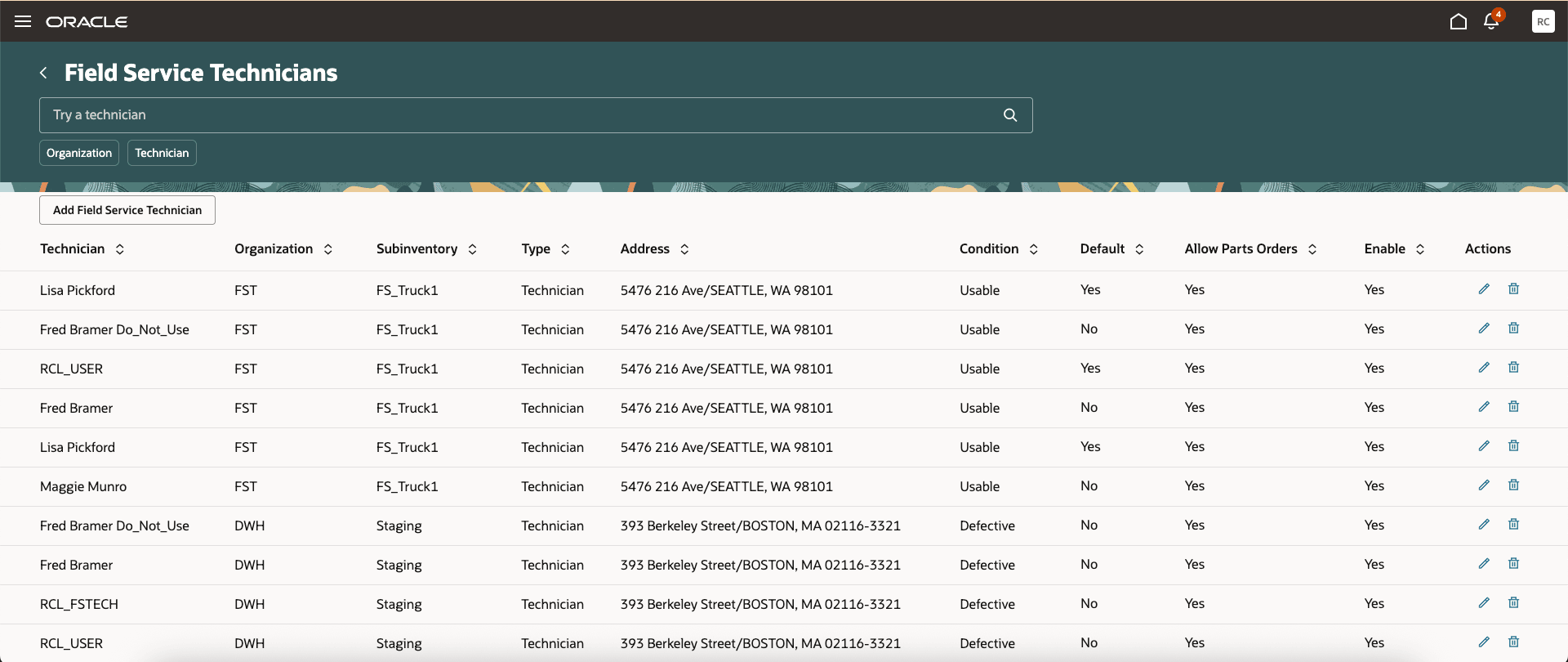
Search List: Field Service Technician in Redwood UI
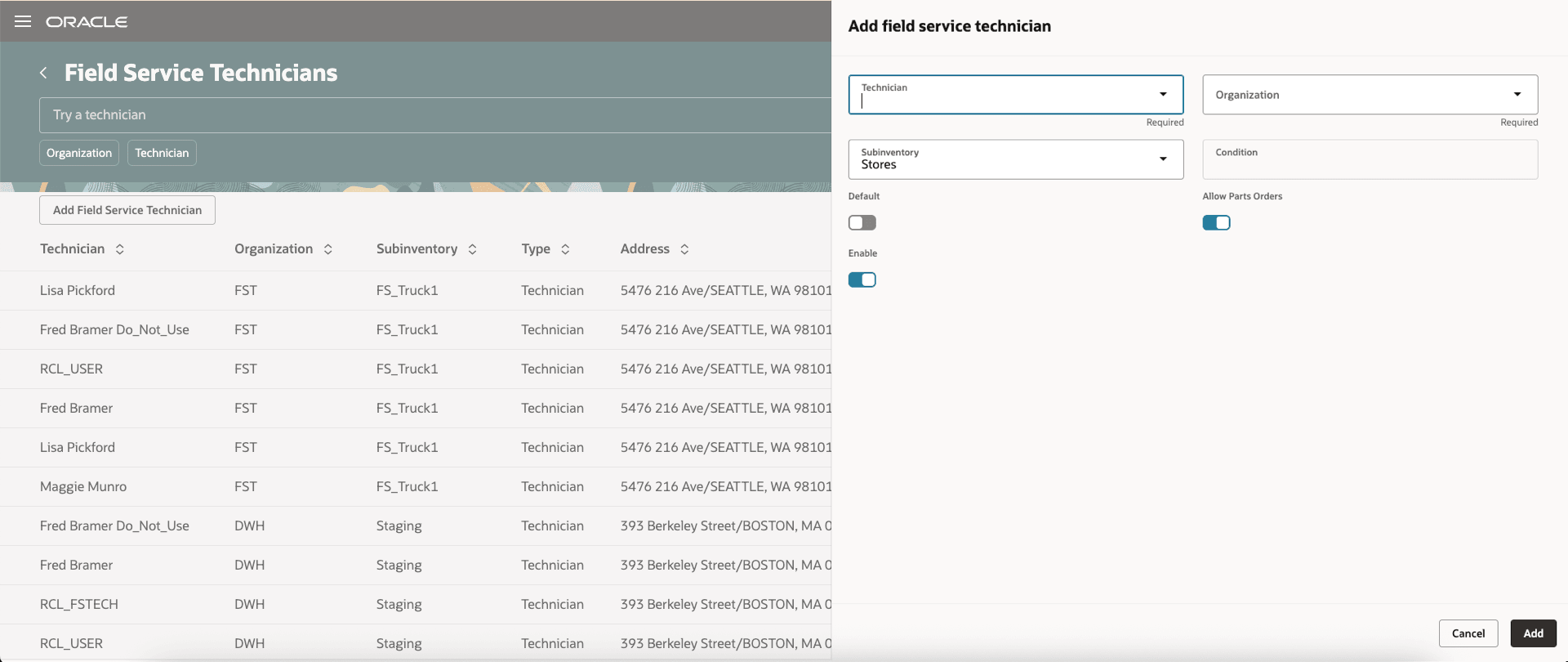
Add or Edit: Field Service Technician in Redwood UI
3. Enhanced Stocking Location with Redwood UI:
The new Stocking Location interface streamlines the process of searching for and creating stocking locations that associate an organization with a subinventory, so that the stocking locations can be assigned to technicians and various warehouse types.
The enhanced search functionality allows users to easily find existing stocking locations using attributes such as Organization, Type, and Condition. Once a stocking location appears in the search results, users can take actions such as Edit or Delete. The Edit action enables users to update all association details, while the Delete action permanently removes the rule.
To add a new location, click Add Stocking Location on the search page and link the appropriate organization to a subinventory. For site-dedicated warehouses, add a warehouse address after creating the stocking location.
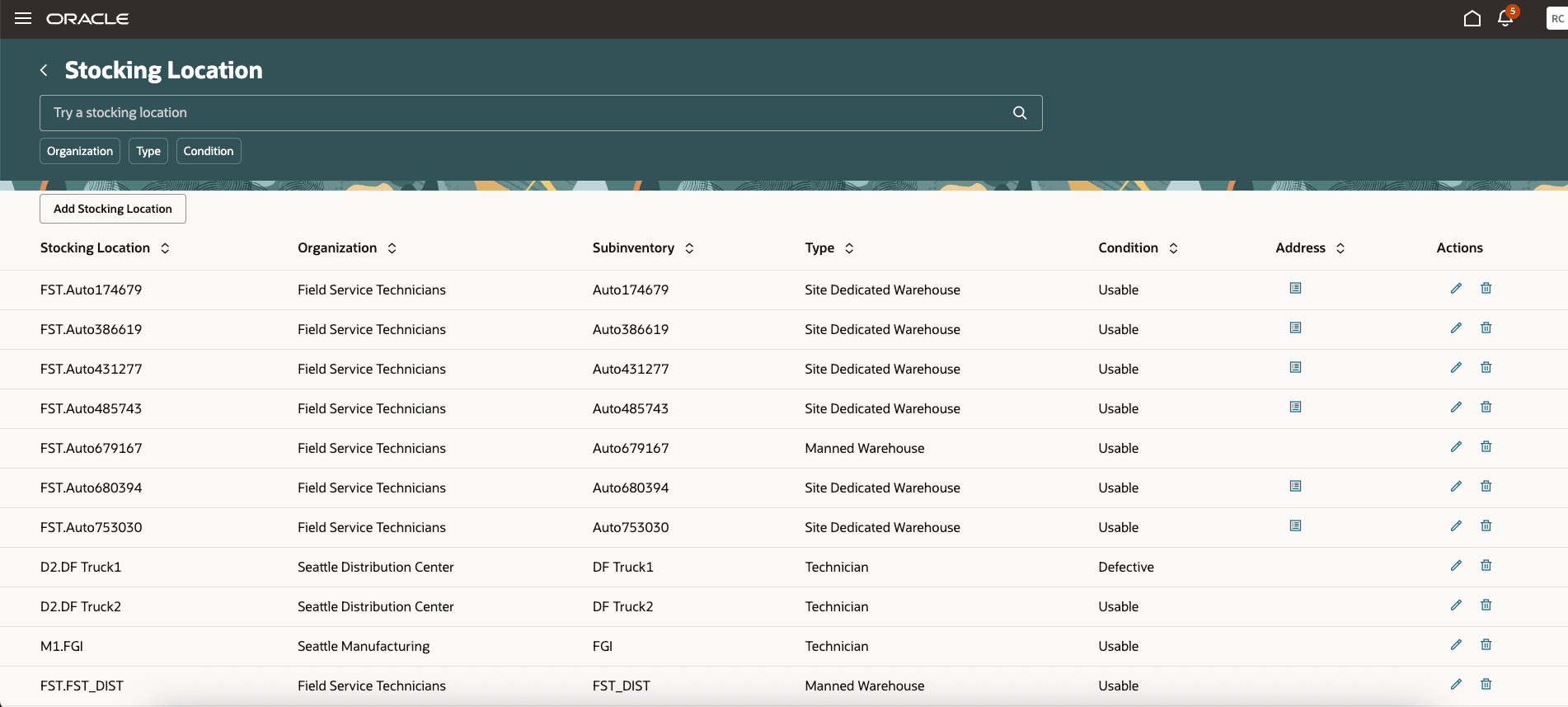
Search List: Stocking Location with Redwood UI
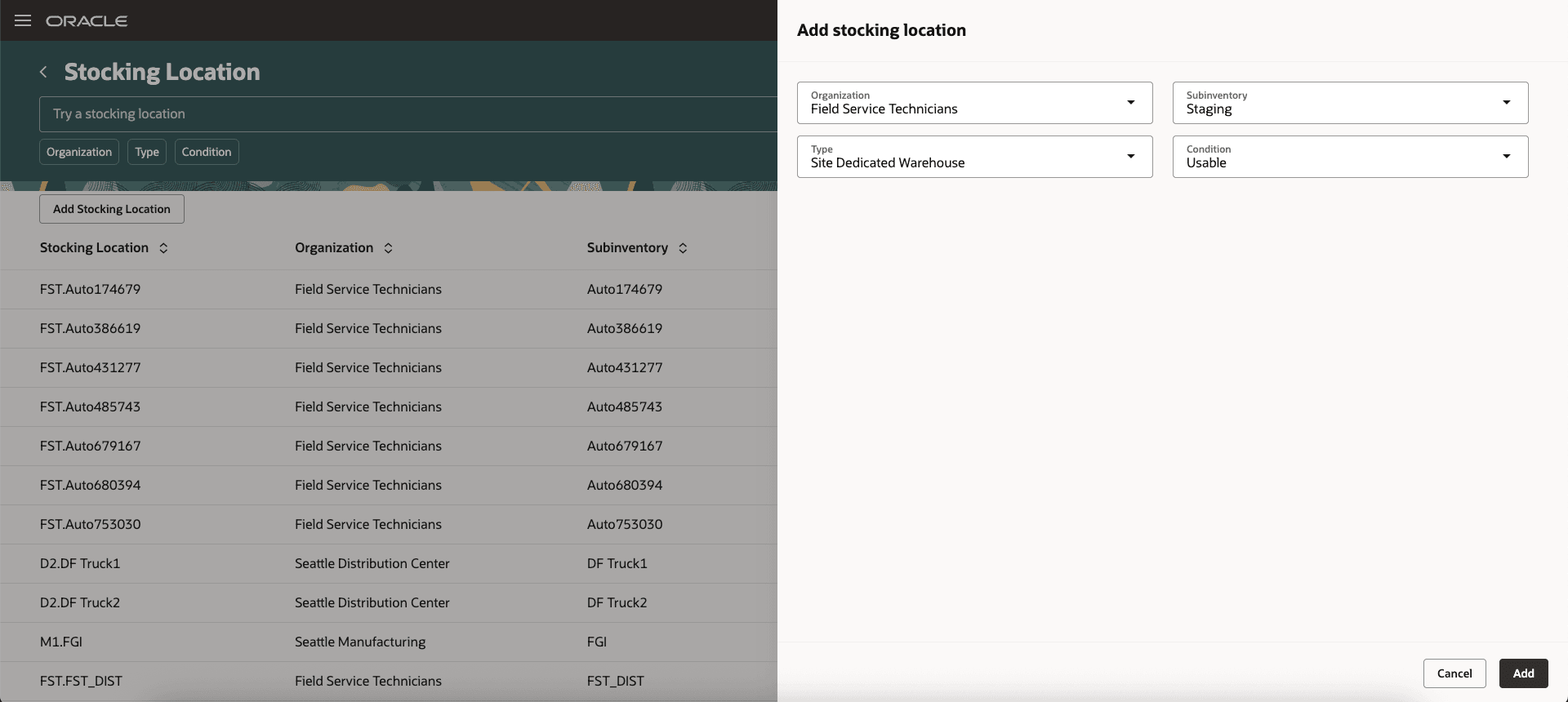
Add or Edit: Stocking Location with Redwood UI
4. Enhanced Resource to Item Mapping Redwood UI
The new Resource to Item Mapping interface streamlines the process of searching for and creating mappings that associate an organization and resource with an item.
The enhanced search functionality allows users to easily locate existing resource to item mappings using attributes such as Organization, Resource, and Item. Once a record appears in the search results, users can perform actions such as Edit or Delete. The Edit action allows users to update all association details, while the Delete action permanently removes the mapping.
To create a new mapping, click Add Resource to Item Mapping on the search page, and link the relevant organization, resource, and item.
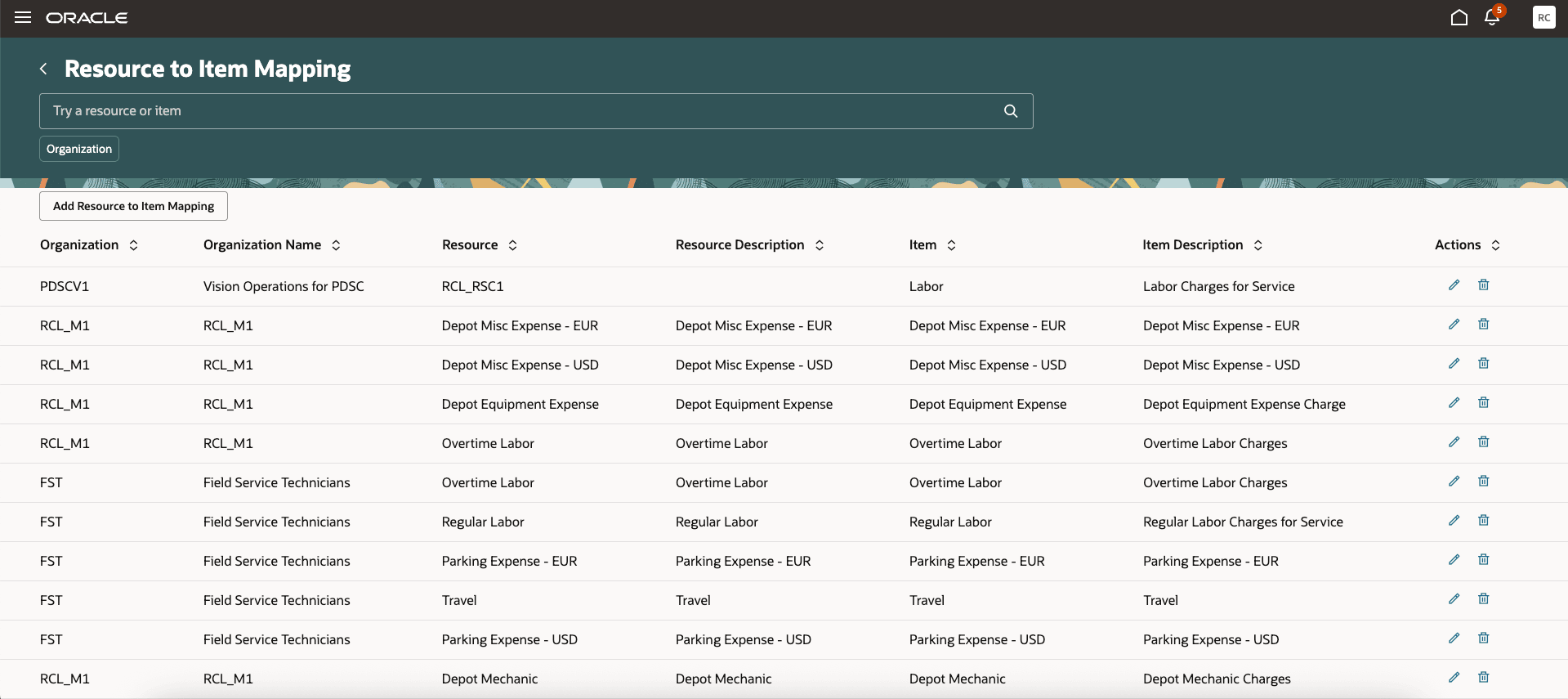
Search List: Resource to Item Mapping Redwood UI
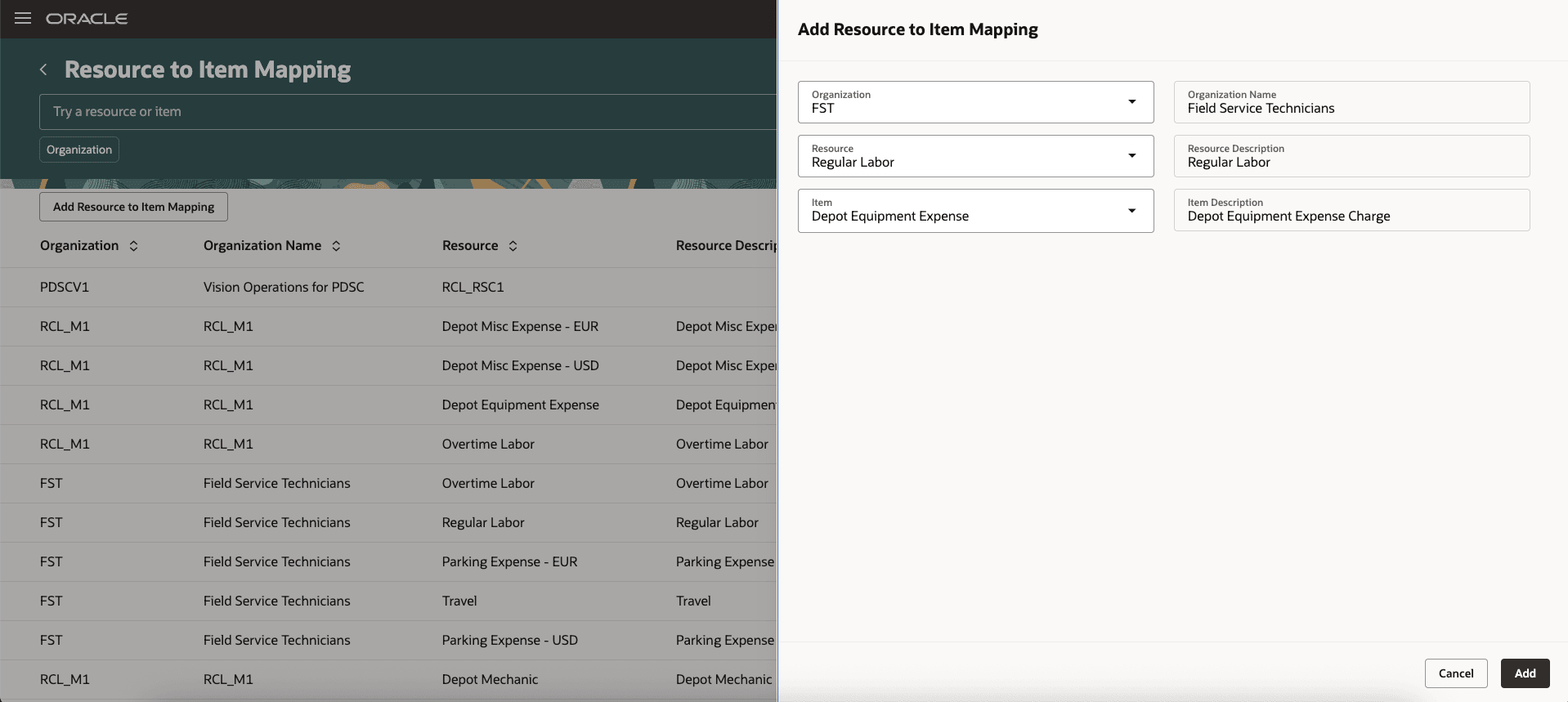
Add or Edit: Resource to Item Mapping Redwood UI
5. Enhanced Billing Types Redwood UI
The new Billing Types interface, built on Redwood UI, streamlines the process of searching for and creating billing types and associating them with billing categories.
The enhanced search functionality allows users to easily locate billing types using search parameters such as Billing Type and Billing Category.
To add, edit, or disable billing types, use the edit options and icons on the search page.
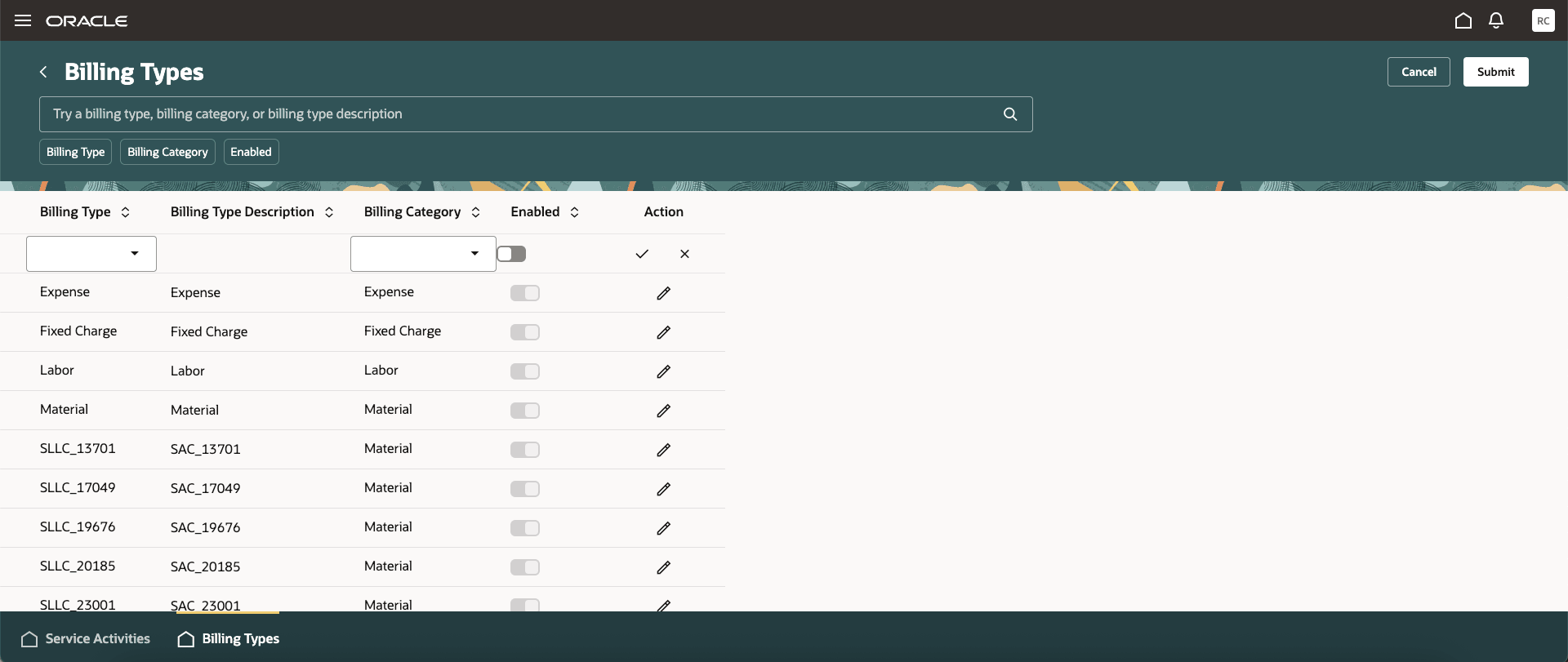
Search, Add, Edit: Billing Types Redwood UI
6. Enhanced Service Activities Redwood UI
The new Service Activities interface, built on Redwood UI, simplifies the process of searching for and creating service activities with defined tasks or actions to service a customer.
Users can now easily search for an existing service activity using attributes such as Transaction Category, Business Process, Order Type, Order Line Type, Resource Activity. Once a service activity is located in the search results, user can edit the details or disable the rule to prevent further use.
To add a service activity, click Add Service Activity on the search page. Users can define the how the activity information defaults.
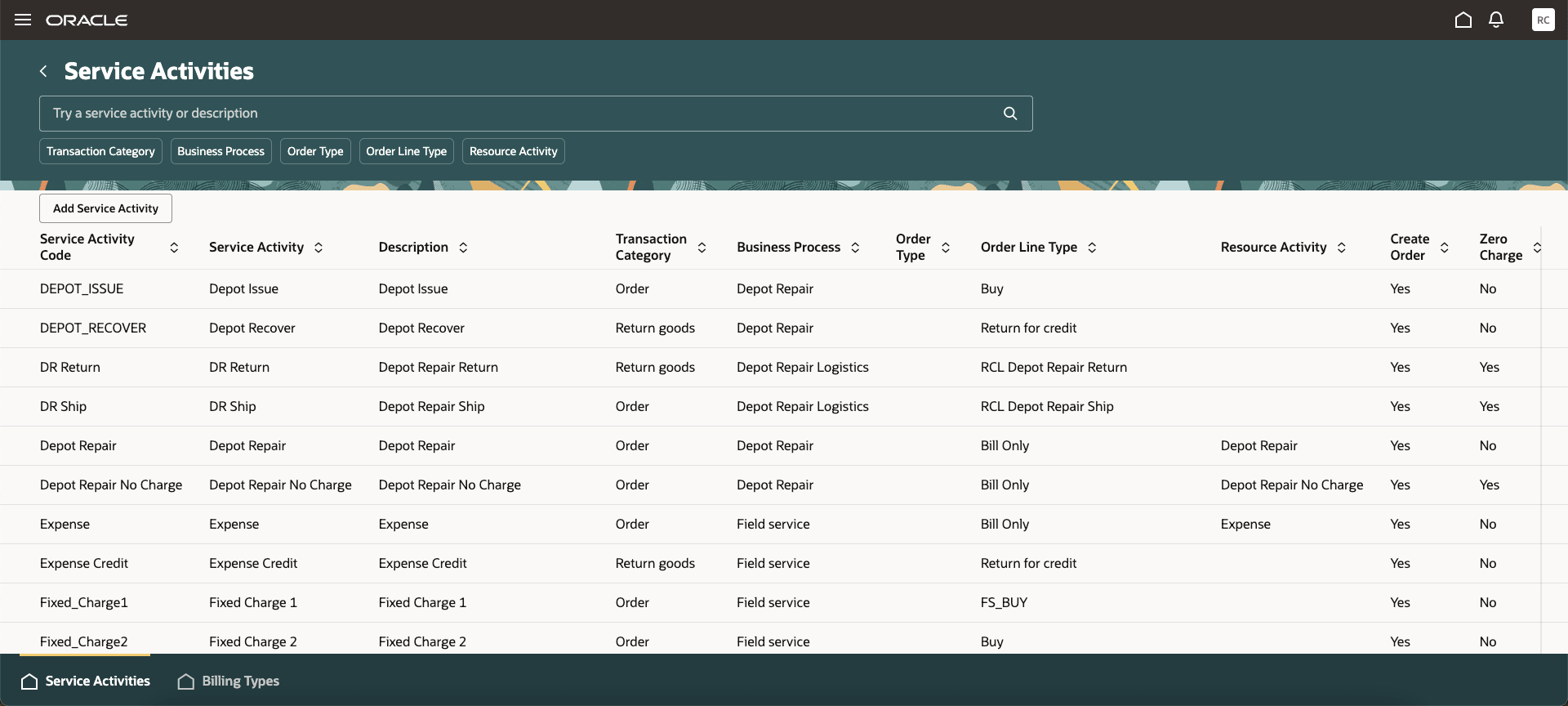
Search List: Service Activities Redwood UI
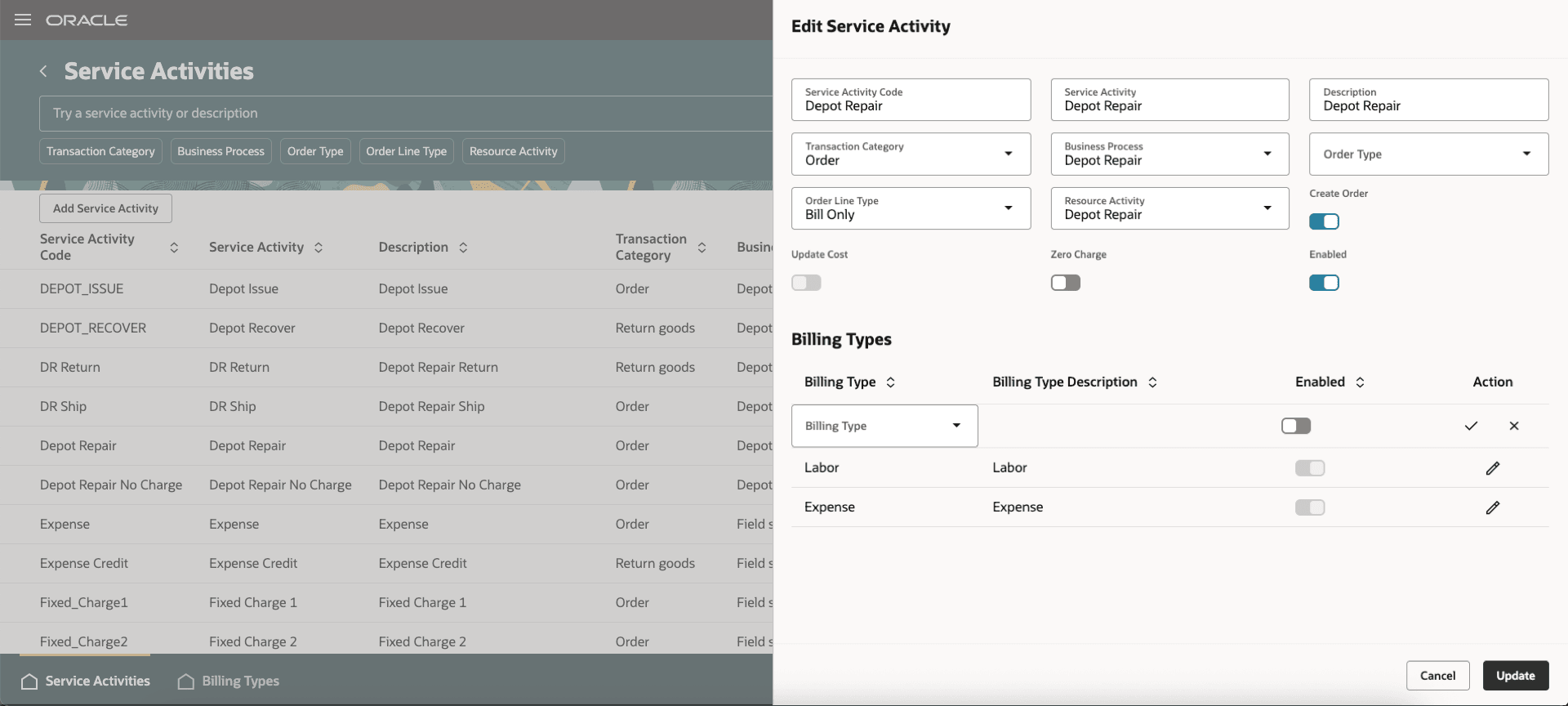
Add or Edit: Service Activities Redwood UI
Service Logistics setup pages in Redwood provide improved usability including more intuitive user interactions.
Steps to enable and configure
You don't need to do anything to enable this feature.
Access requirements
Existing Privileges:
- Setup Name: Auto Processing Rules for Charges
Privilege: RCL_AUTO_PROCESSING_RULES_PRIV
- Setup Name: Field Service Technician
Privilege: RCL_TECH_SUBINVENTORIES_DETAILS_BY_SERVICE_PRIV
- Setup Name: Setup Technician
Privilege: RCL_TECHNICIAN_SETUP_PRIV
- Setup Name: Stocking Location
Privilege: RCL_STOCKING_LOC_SETUP_PRIV
- Setup Name: Access Customers Using Web Service
Privilege: RCL_VIEW_CUSTOMER_LOV_WEB_SERVICE_PRIV
- Setup Name: Resource to Item Mapping
Privilege: RCL_RESOURCE_ITEM_MAPS
- Setup Name: Billing Types
- Privilege: RCL_BILLING_TYPES_SETUP_PRIV
- Setup Name: Service Activities
Privilege: RCL_SERVICE_ACTIVITIES_SETUP_PRIV