Redwood: Manage Asset Groups
The Asset Group Rules and Asset Groups pages are available in the new Redwood experience. The Asset Group Rules page lets you define asset group rules and the new Asset Groups page helps you create and edit asset groups, and manage assets assigned to an asset group.
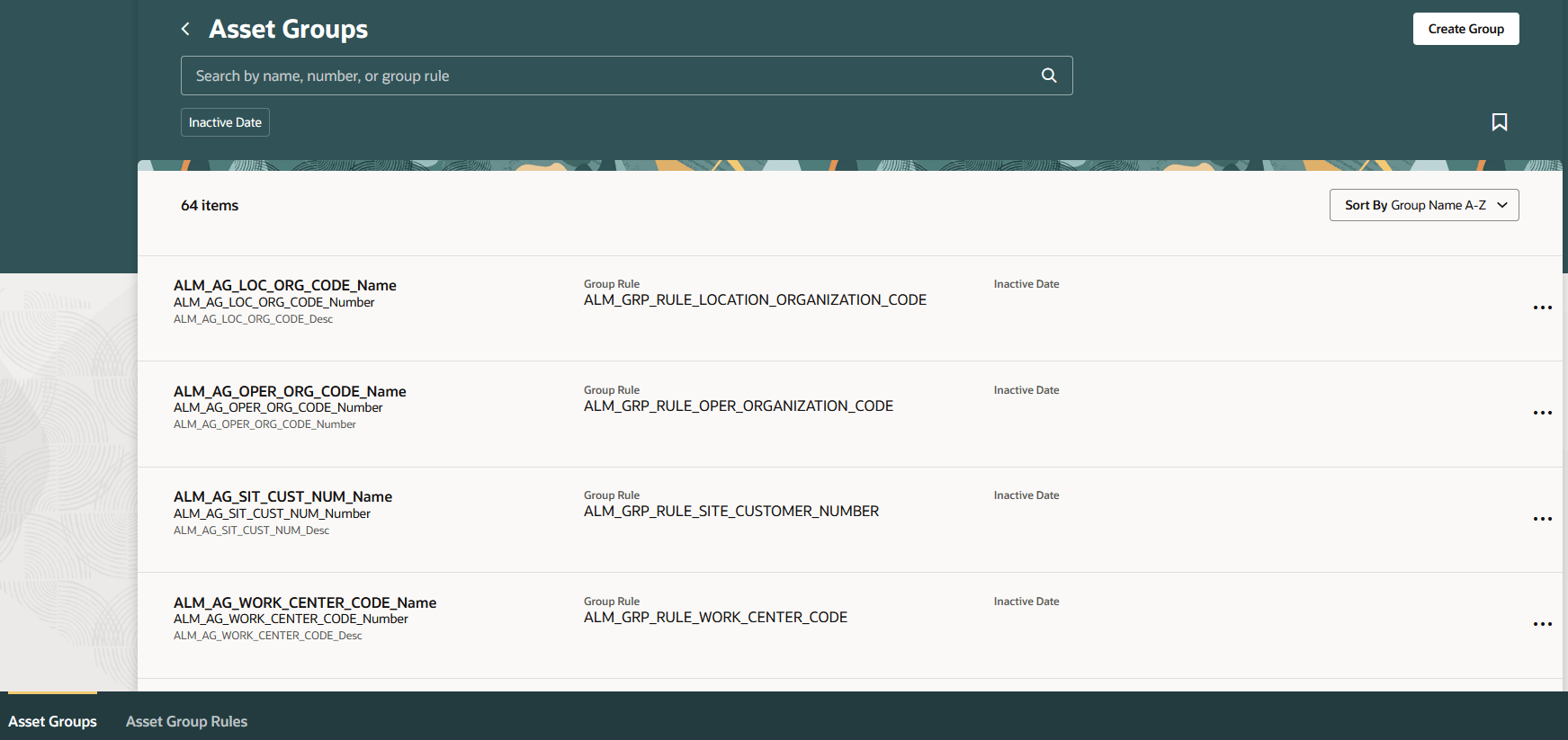
Asset Groups Redwood Page
Asset Group Rules
Define rules to group your assets by common characteristics such as asset location or your customer's account number.
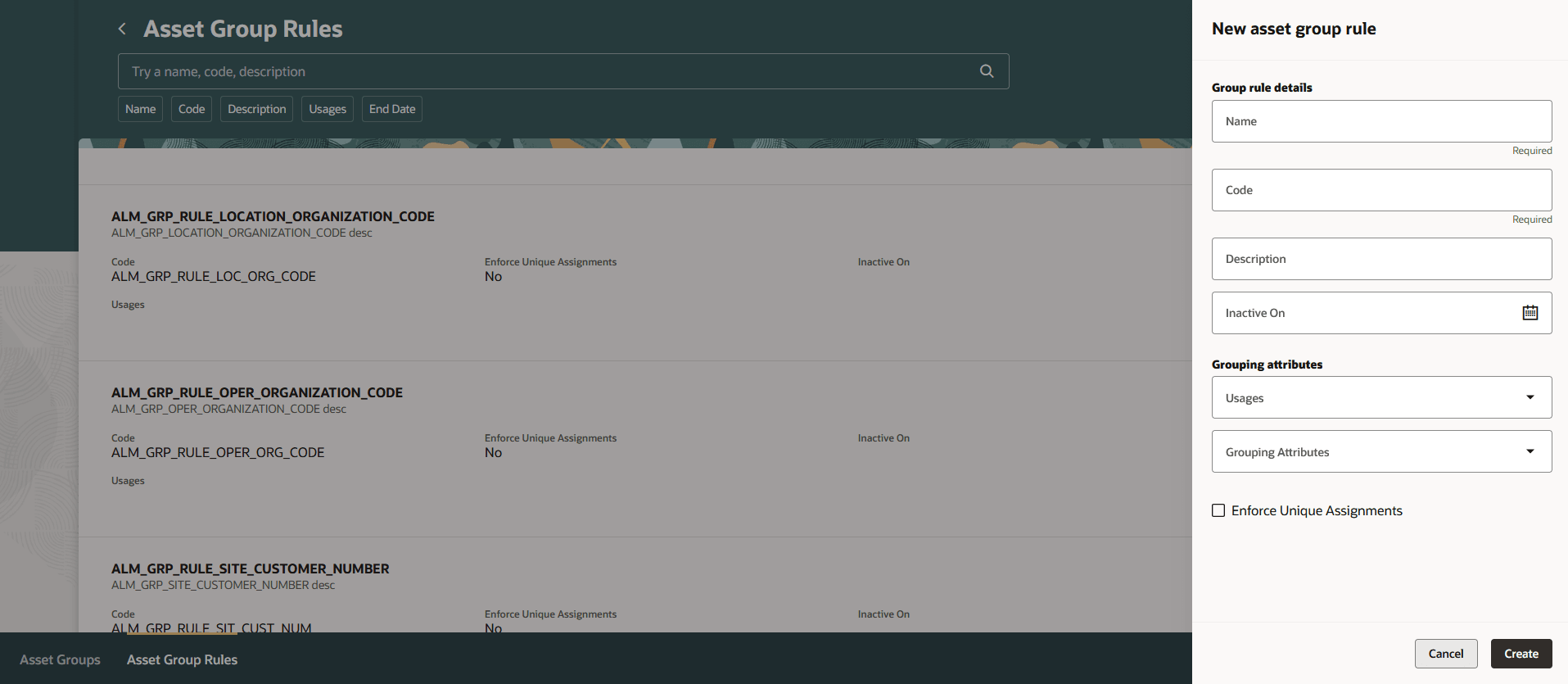
Create Asset Group Rule
You now have 13 grouping attributes to group your assets. These are enabled based on the selected usage, as shown in the table below. When enabled, you must provide a value for the selected attribute while creating a group for the group rule. Assets assigned to the group must match the attribute values. For example, Bill to Customer Site Number can be used if No Usage, Order Entry, or Subscription are selected, whereas this option is disabled if Customer Asset Status is selected.
Asset Grouping Attributes
| Attribute | No Usage | Order Entry | Subscription | Customer Asset Status |
|---|---|---|---|---|
| Bill to Customer Site Number | Yes | Yes | Yes | No |
| Bill to Customer Number | Yes | Yes | Yes | No |
| Business Unit Name | Yes | Yes | Yes | No |
| Customer Account Number | Yes | Yes | Yes | No |
| Customer Account Site Number | Yes | Yes | Yes | No |
| Customer Number | Yes | Yes | Yes | No |
| Customer Site Number | Yes | Yes | Yes | No |
| Site Customer Number | Yes | Yes | Yes | No |
| Internal Location Code | Yes | No | Yes | No |
| Item Number | Yes | Yes | Yes | No |
| Location Organization Code | Yes | Yes | Yes | No |
| Work Center Code | Yes | No | Yes | No |
| Operating Organization Code | Yes | Yes | Yes | No |
Create and Edit Asset Groups
You can create an asset group based on a group rule.
Note: An asset can belong to one or more asset groups.
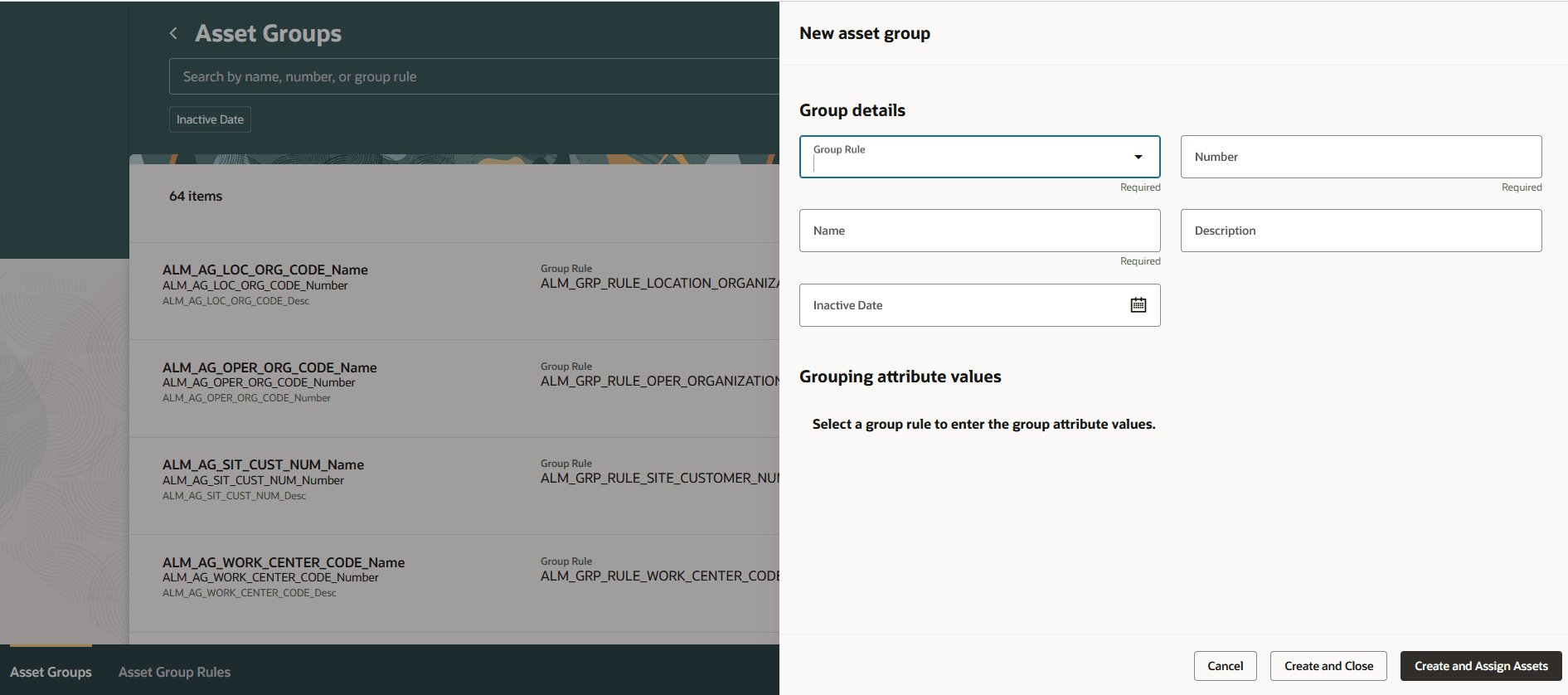
Create Asset Group
Edit an asset group on the Asset Groups page by selecting the group name in the search results to open the page for editing.
Note: You can edit an asset group only if there are no assets assigned to it.
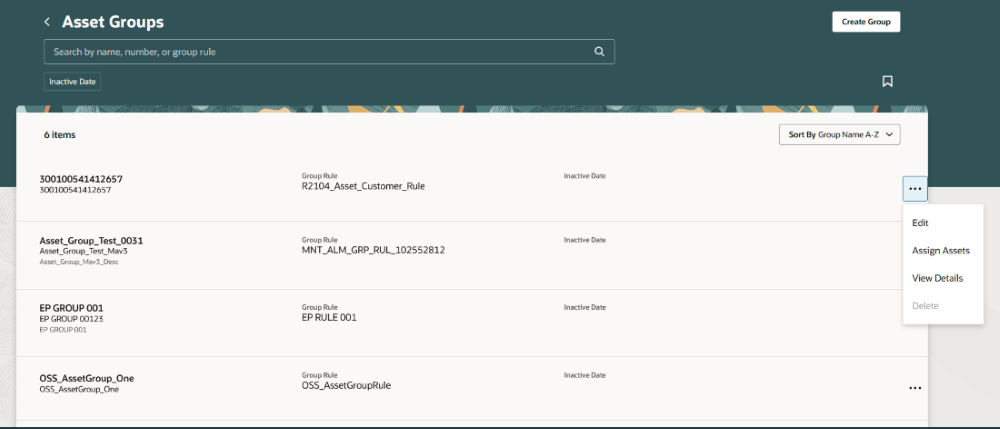
Asset Group - Edit Asset Group
Manage Asset Assignments
Assets can be assigned to an asset group if they meet the group rule criteria. From the Assets Group page, you can assign assets to a new asset group or to an existing asset group.
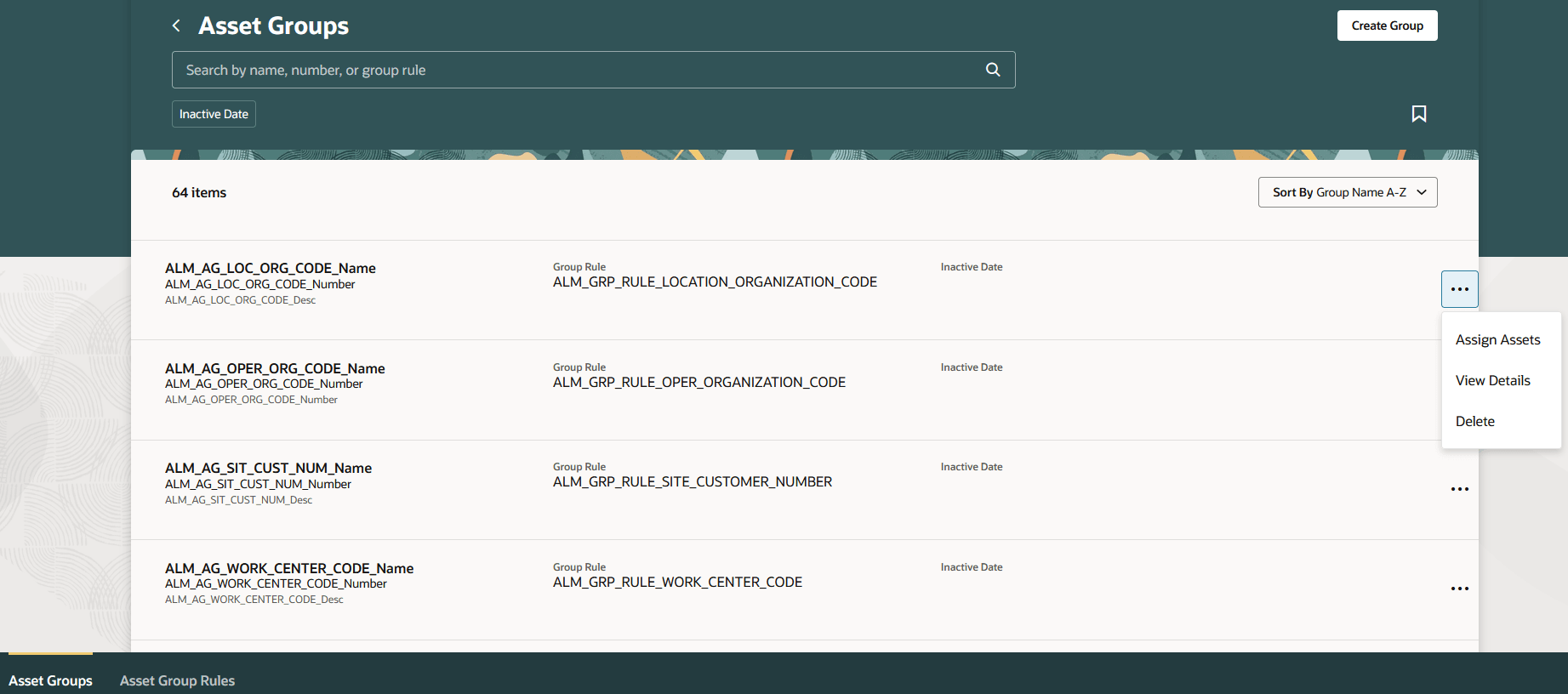
Assign Assets to an Asset Group
You can reassign assets to another asset group and also unassign assets from an asset group.
With the new Redwood experience, you can efficiently manage your assets by classifying them into groups and set group rules according to your business needs.
Steps to enable and configure
- In the Setup and Maintenance work area, search for and select the Manage Administrator Profile Values task.
- On the Manage Administrator Profile Values page, search for and select the profile option code, ORA_CSE_GROUP_RULE_REDWOOD_ENABLED.
- In the Profile Values section, set the Site level to Y or Yes. The default value of the profile option is N.
- Y = enables the feature
- N = disables the feature
- Click Save and Close. Changes in the profile value will affect users the next time they sign in.
Access requirements
Users who are assigned a configured job role that contains these privileges can access this feature:
- Manage Customer Assets (CSI_MANAGE_CUSTOMER_ASSETS_PRIV)
- Manage Maintainable Assets (MNT_MANAGE_MAINTAINABLE_ASSETS_PRIV)
- Manage Asset Groups by Service (CSE_MANAGE_ASSET_GROUP_BY_SERVICE_PRIV) Not sure if this is the one one item 7 instead
- Manage Asset Group Rules by Service (CSE_MANAGE_ASSET_GROUP_RULES_BY_SERVICE_PRIV) Not sure if this is the one or the item 5 instead
- CSE_MANAGE_ASSET_GROUP_RULES_PRIV
- CSE_VIEW_ASSET_GROUP_RULES_PRIV
- CSE_MANAGE_ASSET_GROUP_PRIV
- CSE_VIEW_ASSET_GROUP_PRIV
These privileges were available prior to this update.