Redwood: Manage Maintenance Programs
Use the redesigned Redwood workspace for defining and managing maintenance programs. The new page consolidates all the configurations tasks of maintenance programs—including calendar patterns, PM programs, and work requirements—into a single navigation flow.
Select Maintenance Programs from the Maintenance Management task menu to go to the Maintenance Work Requirements landing page. This is the starting point of the Maintenance Programs workspace that has all the PM modeling components accessible through the three tabs at the bottom of the page: Calendar Patterns, Programs, and Work Requirements.
The redesigned workspace includes smart-enabled search, filter chips, advanced side-panel filtering, inline editing, and an interactive forecast preview. These enhancements allow you to create, update, review, and validate PM structures more efficiently across maintenance organizations.
Using the new workspace, you can:
- Define and maintain maintenance program structures using a modern Redwood-native interface.
- Create, update, search, and navigate work requirements using keyword search, filter chips, advanced filters, and saved searches.
- Define and manage both global and organization-specific calendar patterns for use across PM Programs.
- Review the requirement modeling details and preview the forecasted due dates using an interactive forecasting tool.
- Transition the requirements through the PM lifecycle—from initial modeling tto promotion into planning and execution.
In-App Navigation for Managing PMs Across Organizations
The Maintenance Work Requirements landing page provides a consolidated Redwood workspace for building and maintaining maintenance programs. The workspace organizes PM configuration and daily maintenance planning activities into three tabs:
- Calendar Patterns
- Programs
- Work Requirements
These tabs represent the complete maintenance programs modeling framework within a single page, eliminating the need to navigate across multiple setup screens.
In the screenshot here you see the landing page, Maintenance Work Requirements, with the Calendar Patterns, Programs, and Work Requirements tabs:
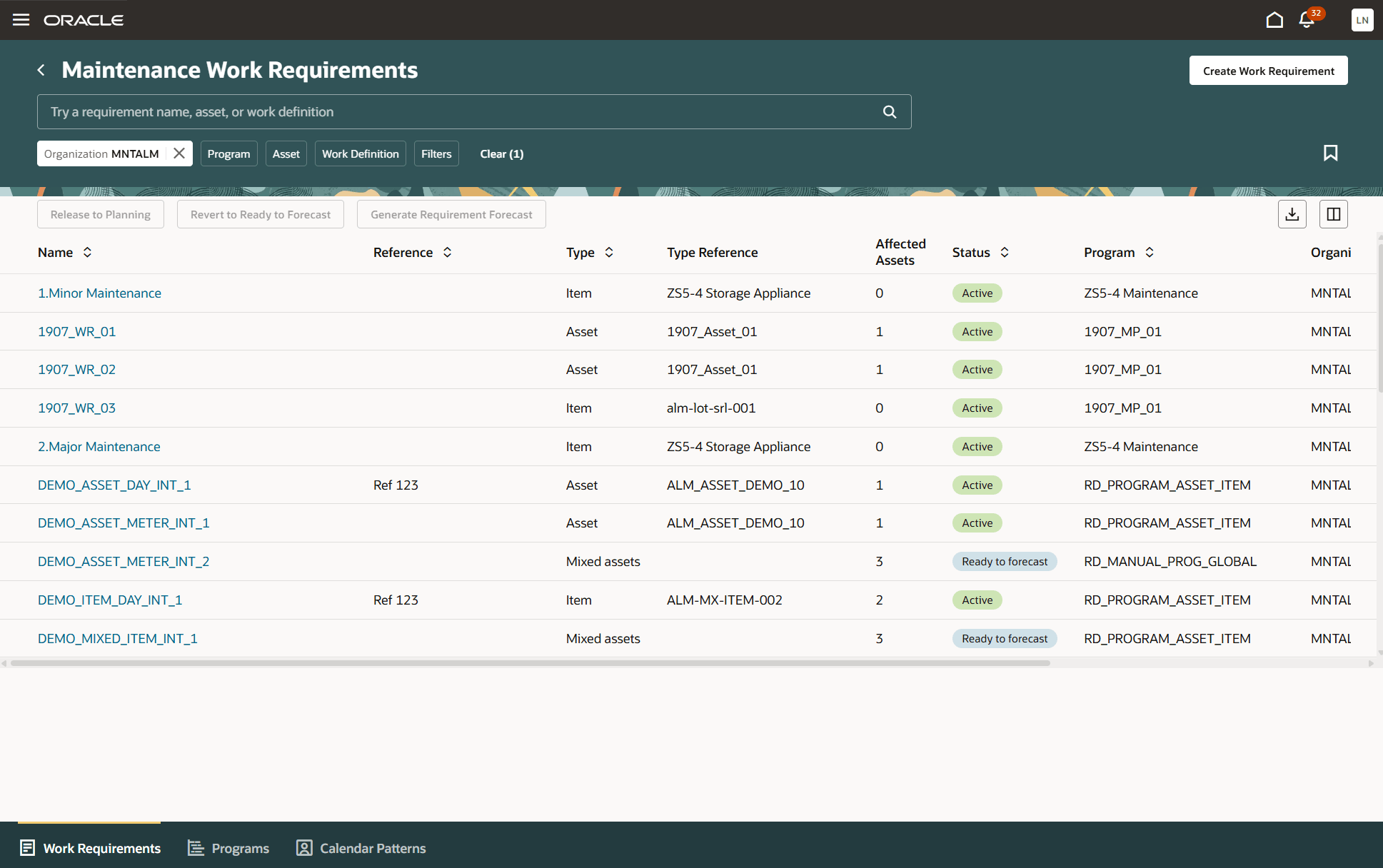
Maintenance Work Requirements
Although the workspace opens on the Work Requirements tab by default, this document follows the typical Maintenance Program modeling flow—beginning with Calendar Patterns and Programs, then progressing to Work Requirements, where you review, refine, forecast, and promote the requirements.
Across all three tabs, the Redwood workspace provides:
- A consistent three-tab navigation structure
- Inline editing and slide-in panels for creating and updating PM elements.
- Smart-enabled search with keyword search and filter chips.
- Advanced side-panel filters for narrowing and refining search results.
- Responsive list and table layouts supporting cross-organization PM modeling.
- Seamless movement between patterns, programs, and requirements within a single page.
This unified layout allows PM administrators and planners to configure preventive maintenance structures one-time, reuse them across organizations, and perform day-to-day planning tasks from a single integrated workspace.
Managing Calendar Patterns
The Calendar Patterns tab provides a centralized view of all recurrence calendars used in maintenance programs across maintenance organizations. These calendars define the timing rules for Preventive Maintenance activities, such as daily, weekly, monthly, or seasonal schedules.
Users can define global patterns that are shared across organizations and more importantly, reused across multiple programs. They can also create organization-specific patterns when unique scheduling rules are required.
In the screenshot here, you see the Calendar Patterns tab showing the list of global and organization-specific patterns.
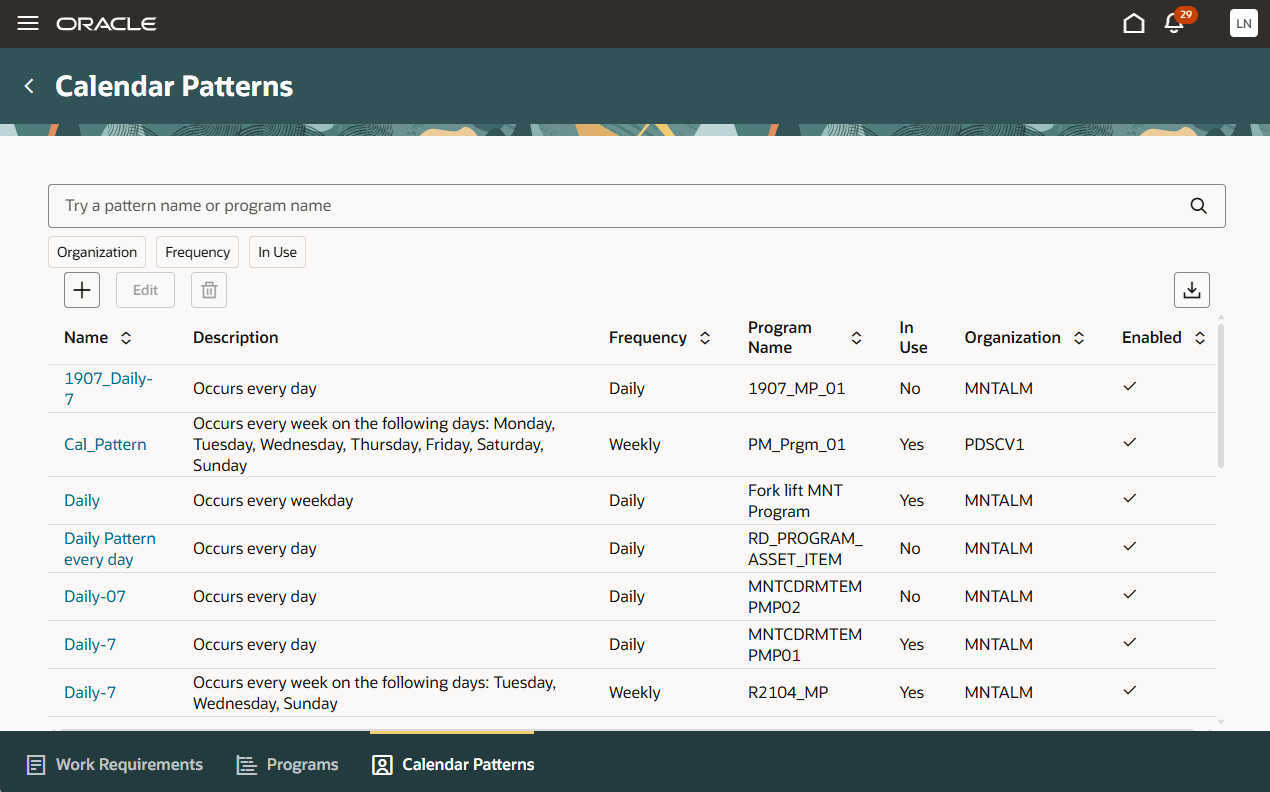
Calendar Patterns
From this tab, users can:
- Search patterns by name, frequency, organization, or usage.
- Filter using frequency, organization, and “In Use” indicators.
- Create new patterns using a Redwood slide-in panel.
- Edit existing patterns inline or through the slide-in panel.
- Review whether a pattern is in use across maintenance programs.
This tab replaces multiple pages with a single consolidated Redwood experience, making it easier to standardize PM schedules and ensure consistency across organizations.
Programs
The Programs tab provides a consolidated Redwood view of all the maintenance programs across maintenance-enabled organizations. A maintenance program defines the preventive maintenance strategy for one or more assets and provides the scheduling logic required to generate the daily PM forecast.
From this tab, users can:
- View all maintenance programs in a single list.
- Expand a program to examine its structure and scheduling rules.
- Create new programs using a Redwood slide-in panel, whether defining organization-specific programs or global programs shared across organizations.
- Update program attributes inline.
- Export the list.
- Identify which calendar patterns and usage rules drive the program’s forecast logic.
This tab provides a clean, structured way to manage preventive maintenance strategies across organizations and ensures that PM forecasts are generated based on consistent, reusable program definitions.
Work Requirements
The Work Requirements tab is the primary workspace where planners and administrators build, model, refine, and validate Preventive Maintenance requirements across organizations. This tab introduces major enhancements including an index-based smart search page, a new Ready to Forecast modeling status, mixed-asset support, row-level lifecycle actions, and a detailed forecast preview.
In the screenshot here you see the Work Requirements tab with keyword search, filter chips, and multi-column results.
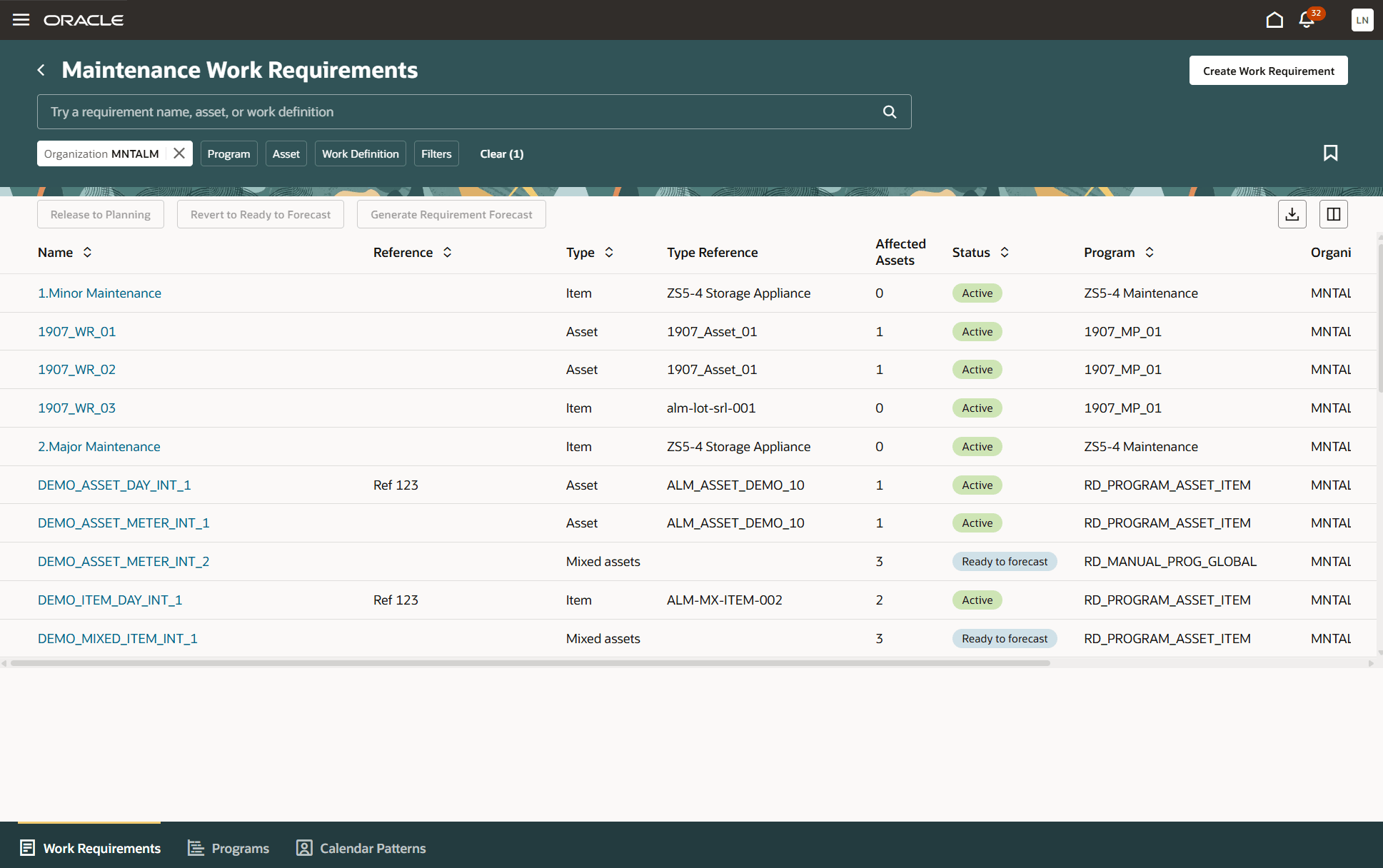
Work Requirements Tab
Using these tools, you can:
- Search by requirement name, asset, work definition, or keyword.
- Filter by organization, program, asset, requirement type, or status.
- Use the side-panel filter drawer for additional refinement.
- Apply and reuse Saved Searches.
- Clear the default keyword filter to view where an asset appears across multiple work requirements or programs.
- Export filtered results.
This flexible search experience supports efficient PM modeling and cross-organization visibility.
Creating and Editing Work Requirements
Users can create new work requirements using the Create Work Requirement action. The creation flow uses a Redwood slide-in panel followed by a full-page editor for defining requirement details.
During creation, you can:
- Enter a unique name, reference, and start date.
- Select a maintenance program (filtered by organization).
- Choose the requirement type: asset, item, mixed asset, asset route, or condition-based.
- Define the forecast method: calendar, meter, combined calendar + meter, or condition event.
- Create the requirement and enter the modeling workspace.
After you create work requirements, configure these using the editor's tabs:
- Pattern – define day intervals, meter intervals, meter rates, and base intervals.
- Work Definition – select definitions, set cycles, and determine suppression behavior.
- Assets – add, remove, or exclude assets (mixed-asset selections occur after the header is created), and initialize forecasts.
- Options – set work order and forecast-related settings such as forecast windows and creation rules.
You can adjust any part of the requirement and preview the impact using the forecast preview tool before releasing it to planning.
Validate Forecast Methods and Preview the Forecast
The Forecast tab provides an interactive preview that shows how the forecast method generates due dates for each asset before the requirement is released to planning.
In the screenshot here, you see the Forecast tab with detailed forecast lines and column selectors.
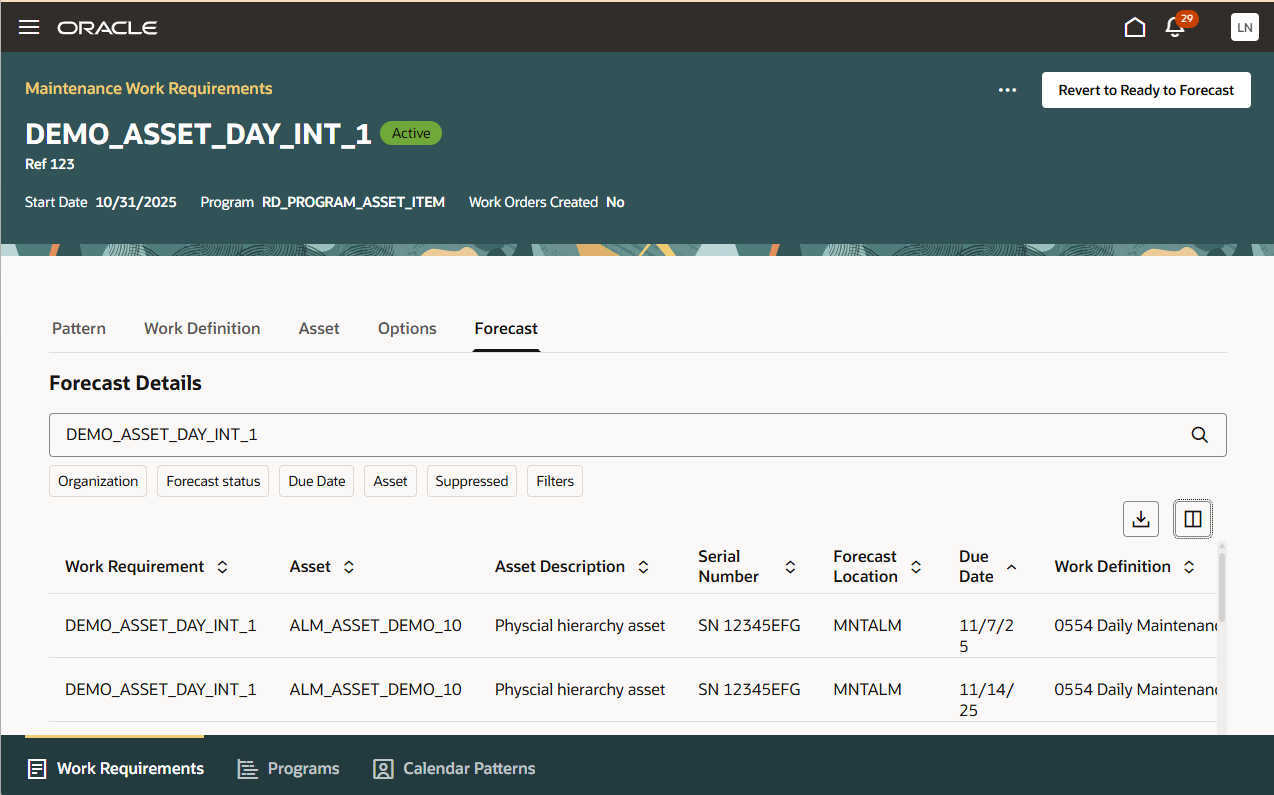
Forecast Preview
From this tab, you can:
- Generate a forecast for the requirement and selected assets.
- Review forecast lines including intervals, due dates, work definitions, and suppression results.
- View meter-based calculations when applicable.
- Manage visible columns for deeper analysis.
- Filter by asset to analyze a single asset’s PM schedule.
- Clear default filters to see where assets appear across multiple requirements.
- Export the preview.
The preview supports an iterative modeling process—users can adjust interval logic, change patterns, update cycles, or refine assets, then regenerate the preview to validate the results.
When a work requirement has been modeled and its forecast validated, users can promote it from Ready to Forecast to Active. Activating a requirement finalizes its configuration and makes its forecasted due dates eligible for the Maintenance Forecast and work order creation processes.
Users can:
- Release a requirement to planning.
- Activate forecast statuses for each associated asset.
- Make the requirements forecast eligible for work order creation.
- Revert an active requirement back to Ready to Forecast when updates are needed.
Promoting a requirement ensures that only validated PM logic becomes part of the organization’s maintenance plan.
Business Benefits
- Single-page PM management: Calendar Patterns, Programs, and Work Requirements are unified into one intuitive Redwood workspace.
- Improved search and filtering: Keyword search, filter chips, advanced filters, and saved searches allow rapid navigation across PM definitions.
- More accurate forecasting: Users can preview and validate forecast logic before releasing PMs to planning.
- Higher planner productivity: A fast, responsive Redwood interface streamlines PM modeling, review, and forecasting.
Steps to enable and configure
-
There is an opt-in to enable the new Redwood Maintenance Programs page, which disables the previous ADF-based page.
-
There is no separate Redwood enablement profile option.
-
You must provision the smart search index for Work Requirements by running the initial ingestion, as described in the Maintenance chapter of Implementing Manufacturing and Supply Chain Materials Management.
-
After provisioning, run the bulk ingestion whenever programs or work requirements are created or modified using File-Based Data Import or patch-driven updates.
-
Always enable and verify the feature in a test pod before promoting to production.
-
This feature introduces a new Work Requirement status that is not compatible with the existing page; ensure full understanding of the new capabilities before enabling it in Production.
-
Grant a data security policy (DSP) to your users so that they have all the required privileges to view the pages and search results. See the Enable and Set Up Redwood Pages topic in the Maintenance chapter of Implementing Manufacturing and Supply Chain Materials Management for more details.
Tips and considerations
-
Test in the Dev Pod First: Before enabling Redwood: Manage Maintenance Programs in production, run initial testing in your development pod using the latest data snapshot to validate navigation, search behaviors, and forecast results.
-
Review the New Ready to Forecast Status: Maintenance teams should become familiar with the new Ready to Forecast status introduced for Work Requirements, as it affects when requirements can be previewed, validated, and promoted into planning.
-
Avoid Switching Back to Previous UX in Production: After Redwood is enabled, switching back to the legacy pages in production is strongly discouraged, as it may cause inconsistent behavior, disrupt user adoption, and lead to supportability issues.