Redwood: Manage Materials Availability and Allocation
Use the new action for Material Availability under Quick Actions to experience Material Availability Assignments in Redwood. Review the prioritized list of work orders and the materials assigned to them to quickly identify material availability and shortages per the material availability rules.
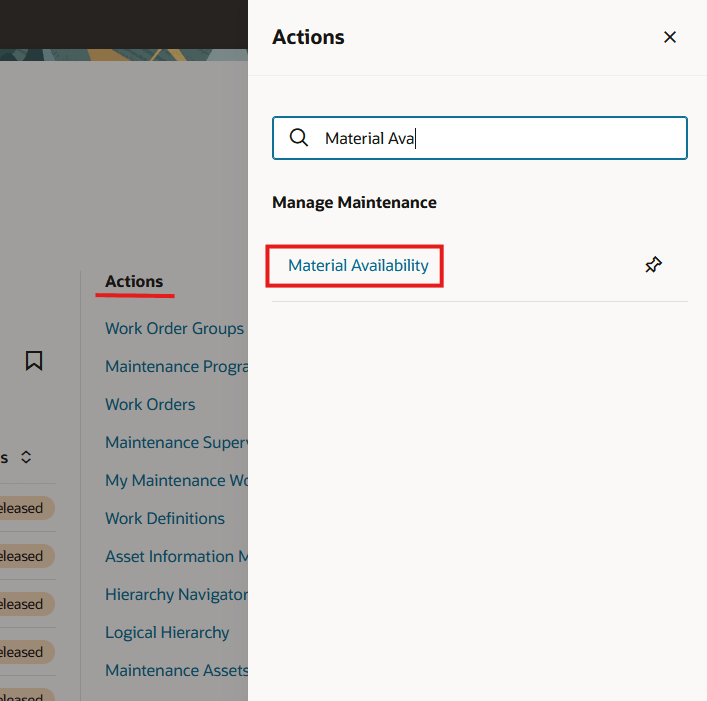
Quick Action Navigation to Material Availability
The new in-app navigation to Assignments lets you review material shortages, work orders, and expected supplies affected by these shortages. This visibility enables you to decide whether to release or unrelease work orders as needed. You can also adjust material assignments to prioritize work orders and preview the effects of force assigning or unassigning work orders.
This screenshot shows the Work Orders tab with the actions for View Assignment Details, Force Assign or Unassign and Reserve Materials Manually for a selected work order.
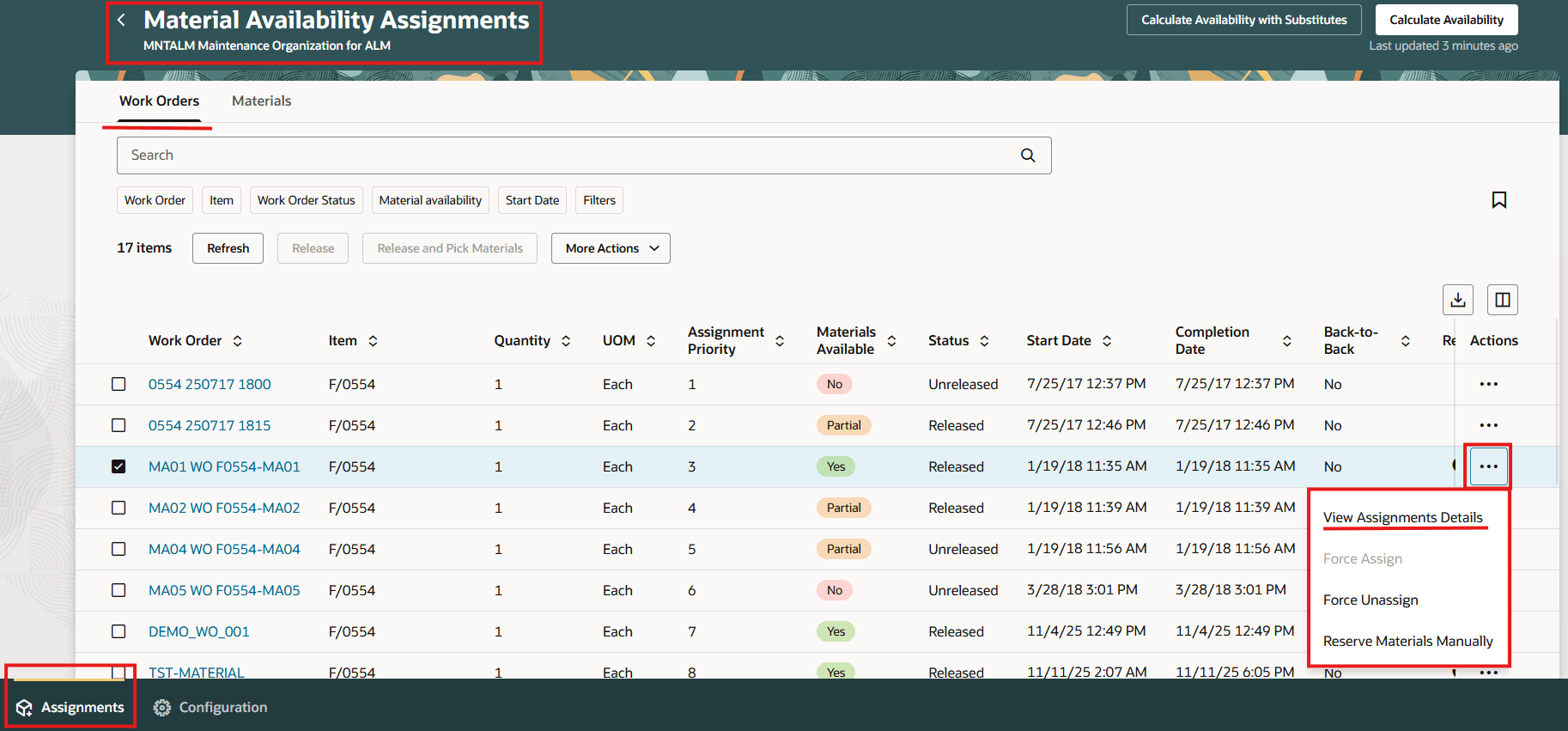
Work Orders Tab in Material Availability Assignments
This screenshot shows the assignment details for a work order.
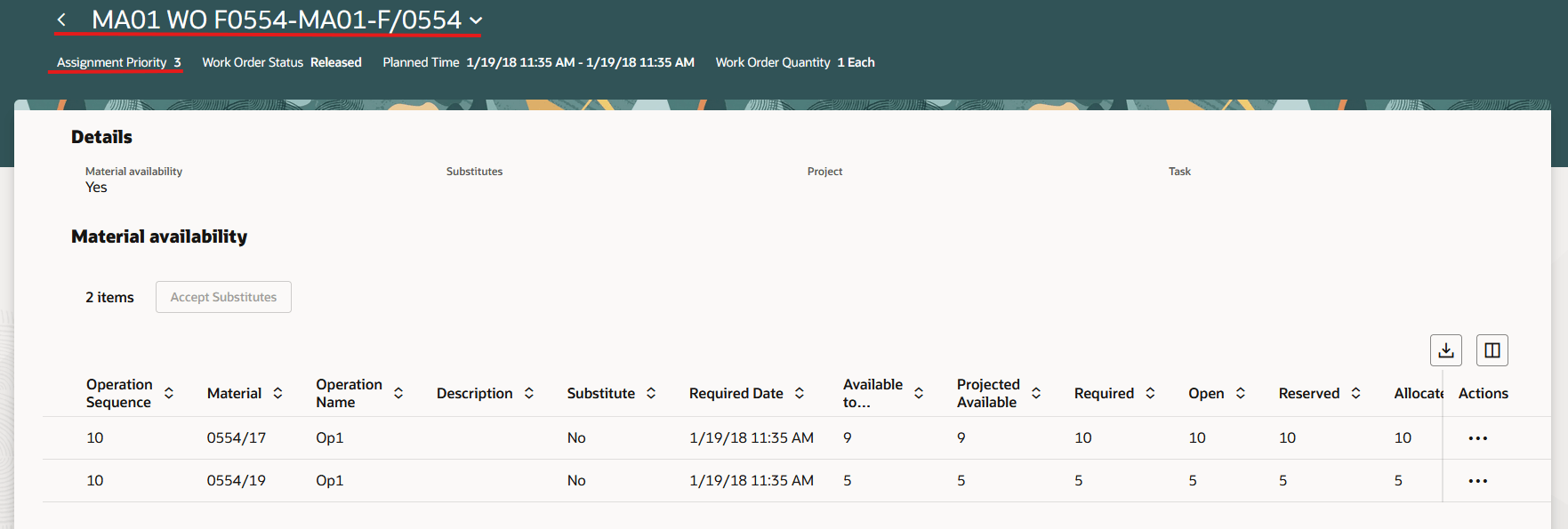
Assignment Details for a Work Order
This screenshot shows the Materials tab within the in-app tab for Assignments. On this page, you can view and search for materials. For each material, there is information for Material, Material Description, and additional information about Reserved, Allocated, and Picked Quantity. You can track shortages and Expected Supplies for all the materials.
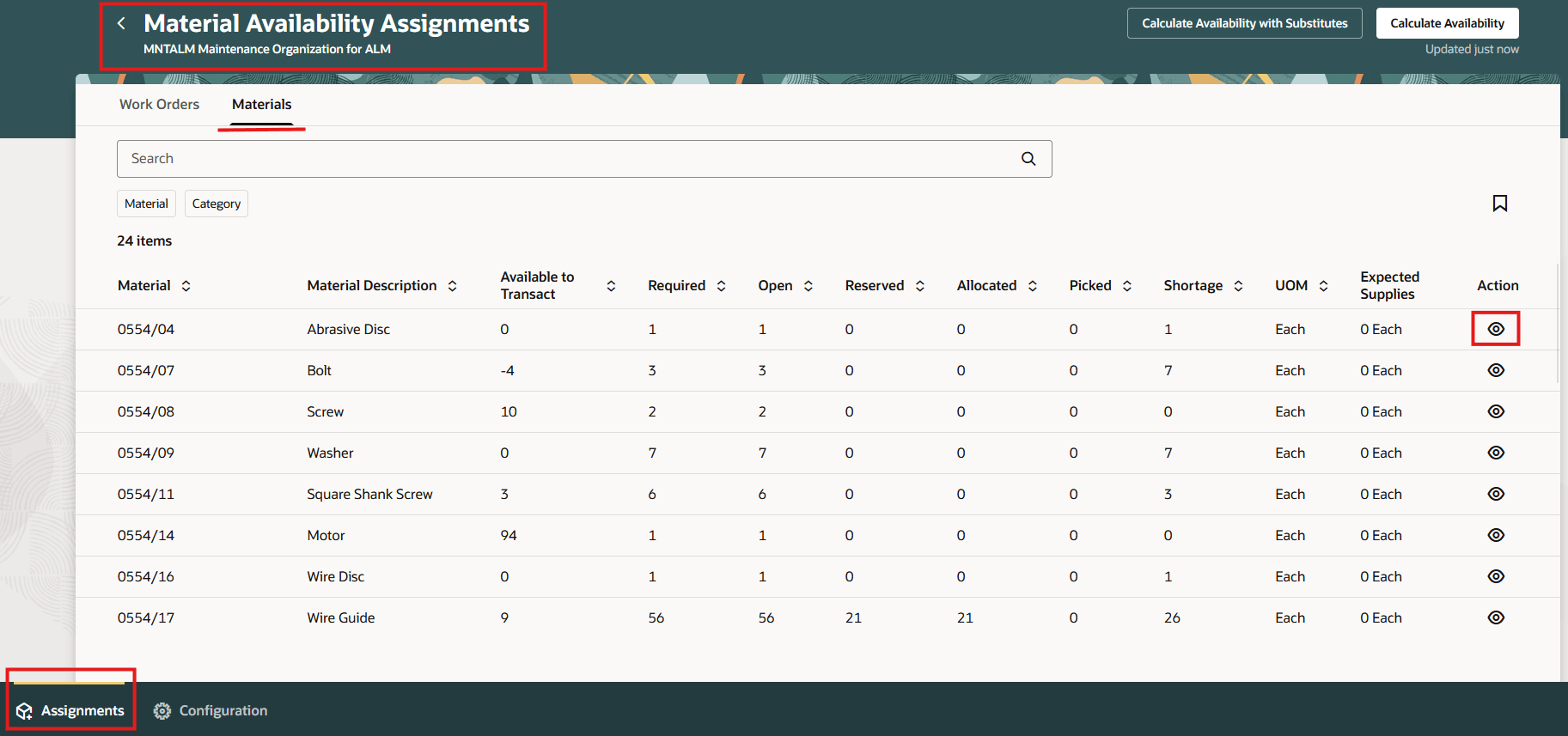
Materials Tab Within the In-app Tab for Assignments
For each material, you can view the Material Details page which shows additional details about the materials and the work orders that may be affected by each material item.
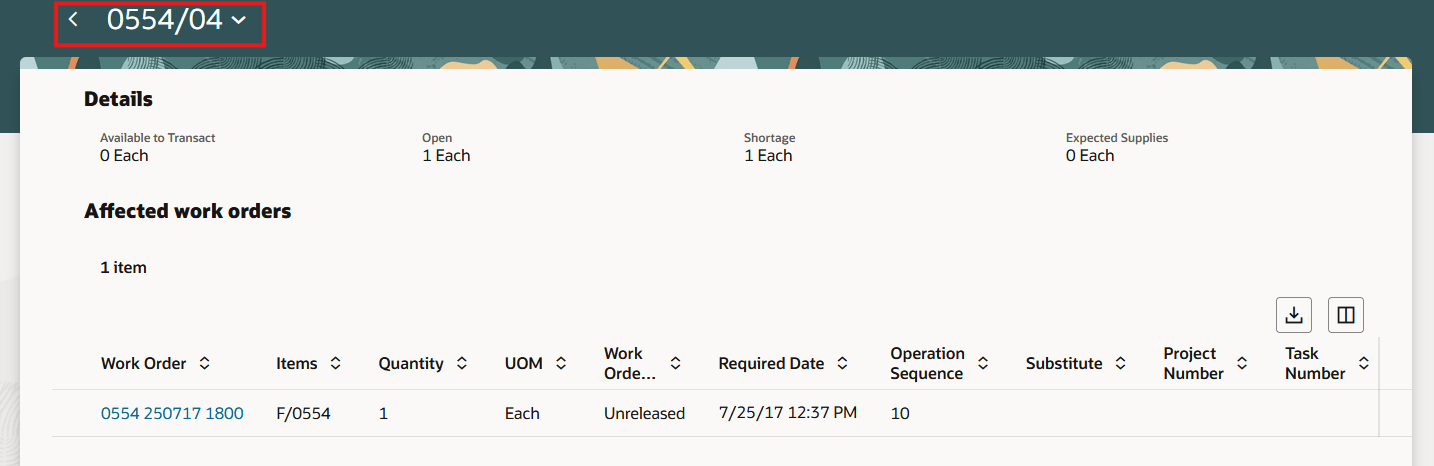
Material Details Page
With the new Redwood experience, organizations can easily manage material availability and assignments to optimize work order release decisions during material shortages, ensuring that critical work is prioritized and resources are allocated more effectively.
Steps to enable and configure
- In the Setup and Maintenance work area, search for and select the Manage Administrator Profile Values task.
- On the Manage Administrator Profile Values page, search for and select the profile option code for Redwood Material Availability Rules and Assignments Enabled(ORA_WIE_MATERIAL_AVAILABILITY_REDWOOD_ENABLED).
- In the Profile Values section, set the Site level to Y or N. The default value of the profile option is N.
- Y = enables the feature
- N = disables the feature
- Click Save and Close. Changes in the profile value will affect users the next time they sign in.
Tips and considerations
The two separate ADF tasks for Material Availability Rules and Material Availability Assignments have been consolidated into a new task for Material Availability. The new Material Availability Assignments experience now provides in-app navigation for Configuration or Rules and Assignments.
Access requirements
Users who are assigned a configured job role that contains these privileges and codes can access this feature:
- Manage Material Availability Rules and Assignments (WIP_MANAGE_MATERIAL_AVAIL_RULES_AND_ASSIGN_PRIV)
This privilege was available prior to this update.