Redwood: Reserve Materials for Work Orders in Maintenance Supervision
You can now reserve materials, review reservation details, and initiate the material picking process directly from Maintenance Supervision.
Key Capabilities:
- Create Reservations - Create reservations automatically for all materials on a work order, or perform manual reservations at detailed levels such as sub inventory, locator, lot, or serial. You can reserve all materials for the work order or reserve specific materials at the operation level.
- Manage Reservations - View and edit existing reservations and adjust attributes such as supply source, lot, serial, and other inventory details.
- Pick Materials - Initiate the material picking process for a work order directly within the Maintenance Supervision page.
Create Reservations from Maintenance Supervision
From the Maintenance Supervision page, select a work order and choose Reserve Materials Automatically from More Actions, to generate organization-level reservations for all material requirements. This action launches an ESS process and displays a confirmation message when complete.
Here's a screenshot of a work order on Maintenance Supervision that highlights More Actions meant to reserve materials automatically or manually.
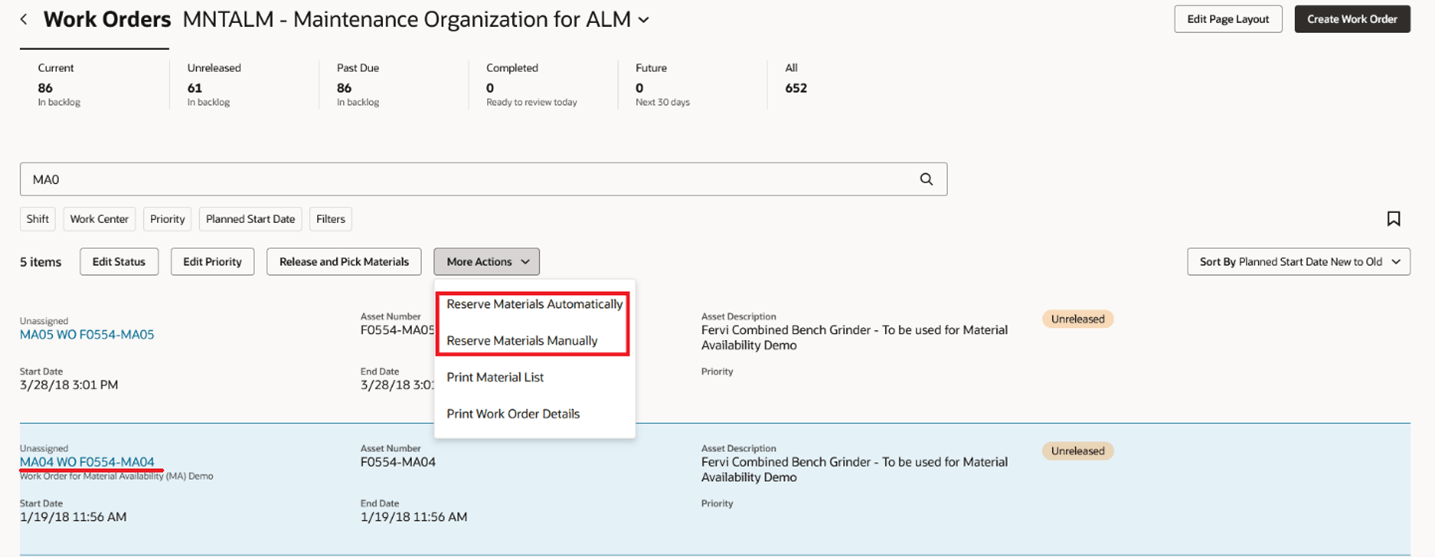
Maintenance Supervision Mass Actions to Reserve Materials
While doing an automatic reservation from the work order list, you receive a message indicating that the process was initiated.
In this screenshot, you see the confirmation message for the Automatic Reservation Action.
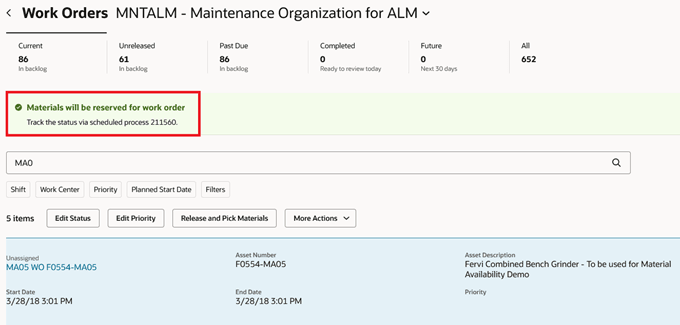
Maintenance Supervision Work Orders
Manual Reservation
When performing a manual reservation, you can choose the specific supply source—such as on-hand inventory, purchase orders, transfer orders, or another work order—and reserve the exact quantity needed. Manual reservation also allows you to allocate part of a supply document or distribute a single supply document across multiple work orders.
When you select Reserve Materials Manually, you are taken to the Work Order Demand page, which shows the material demand for the work order. From here, you can select an item and reserve it automatically, or choose View Reservation Details to review any existing reservations, edit them or create a new reservation, and select the appropriate supply source.
In this screenshot, you can see the Work Order Demand page with options to reserve automatically or open the View Reservation Details page, both accessed through the Manual Reserve action.
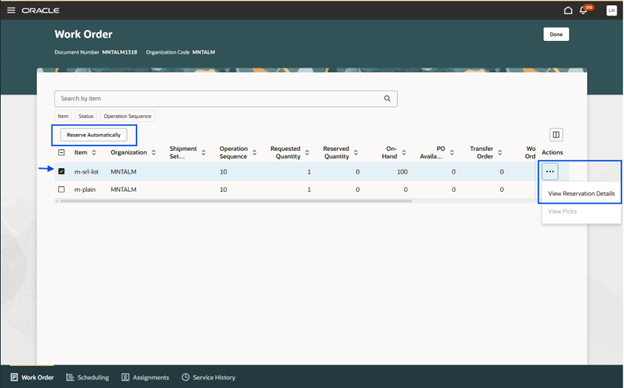
Work Order Demand
By selecting the View Reservation Details, you can create a new reservation and select the reservation supply source in the side panel. The Select Reservation Supply Source panel lets you choose document type and number, then enter details such as lot, serial, and other attributes.
In this screenshot, you see the Select reservation supply source side panel.
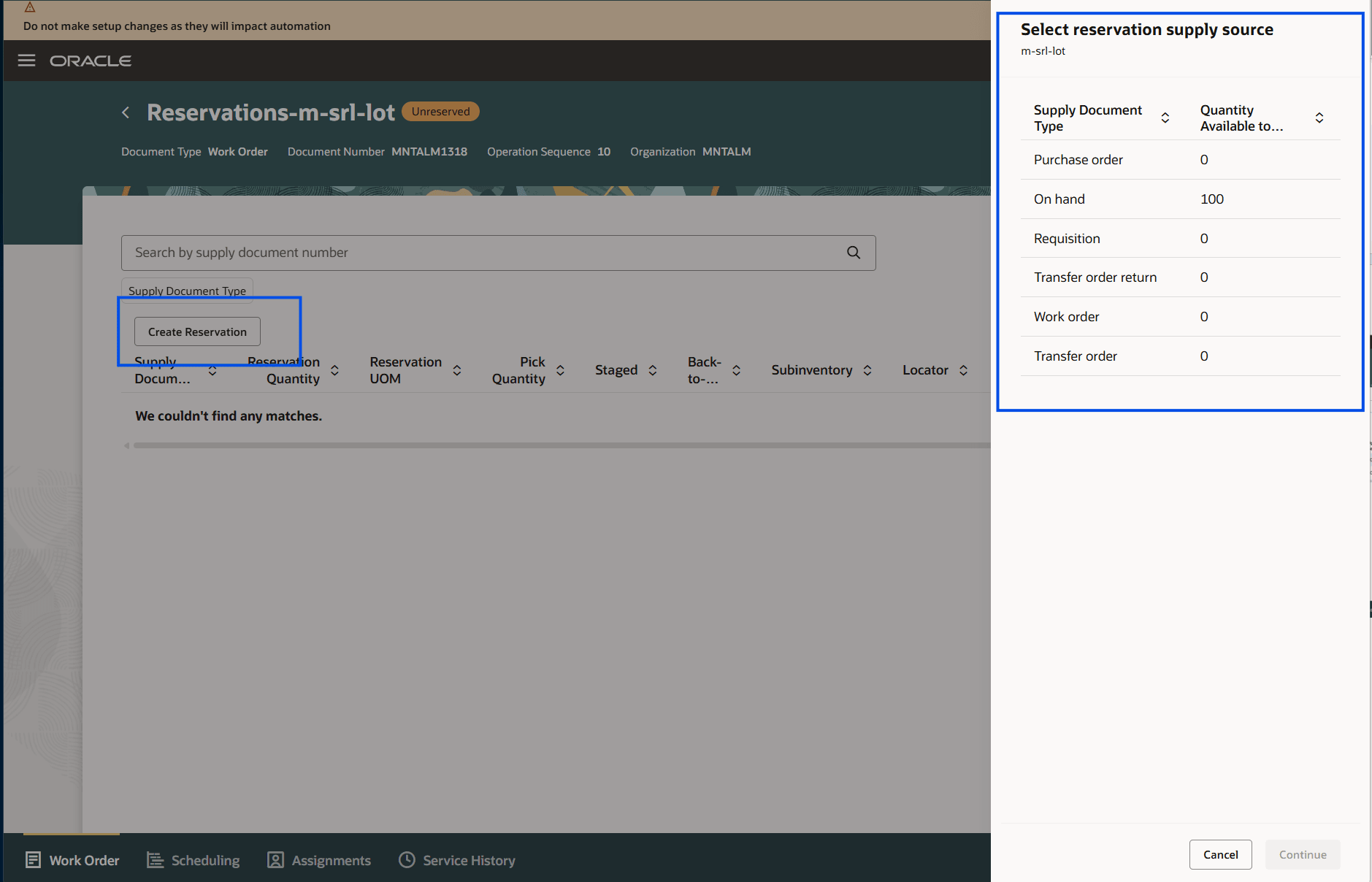
Select Reservation Supply Source
After you select the reservation supply source, you can enter the reservation details selecting the lot, serial number, and other inventory data fields.
In the screenshot, you see the Create Reservation page.
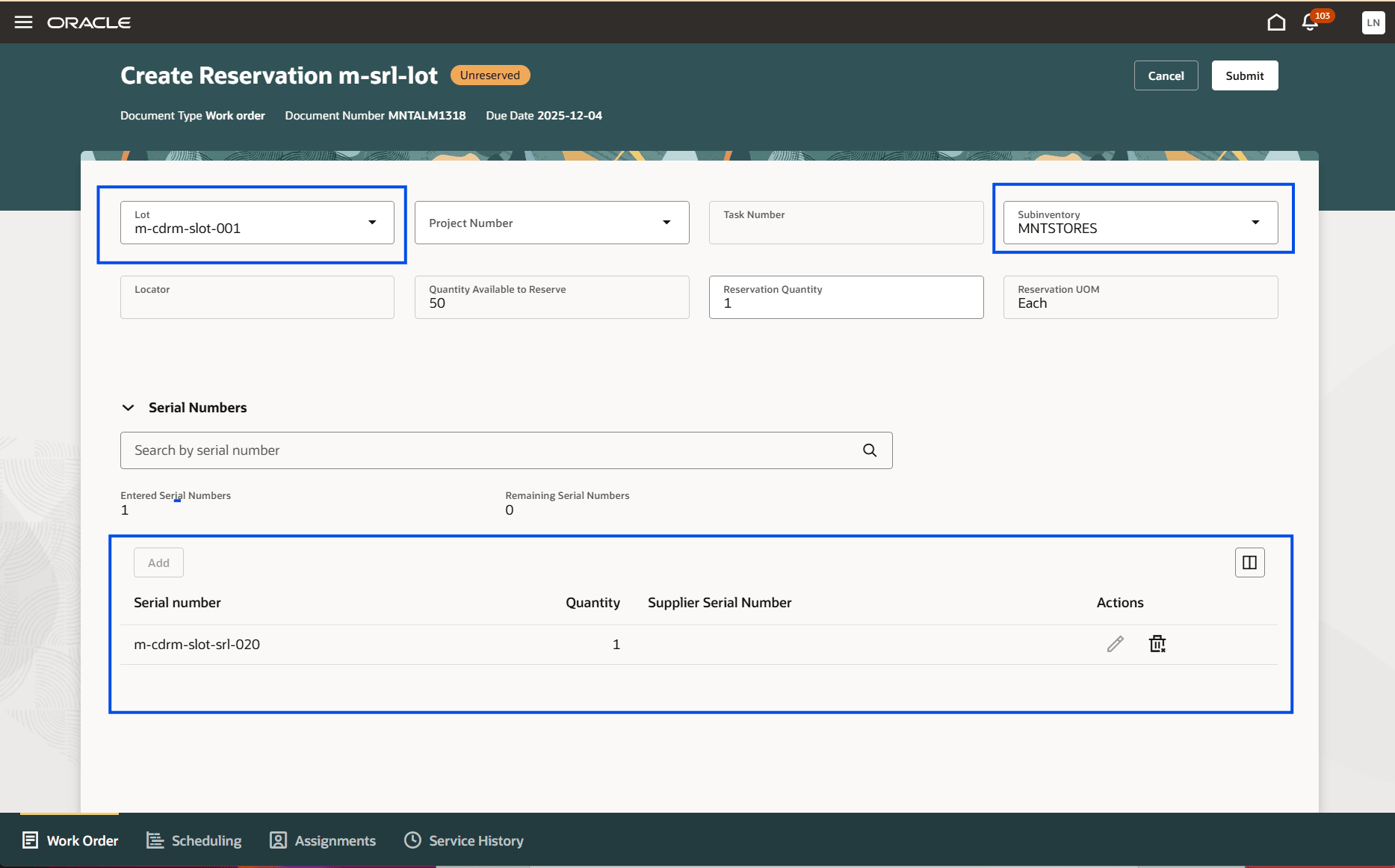
Create Reservation
Operation-Level Manual Reservation
You can also reserve materials manually at the operation level. In the Edit Work Order page, open the Operations tab and select Reserve Materials Manually. This action is shown only when the operation has material demand.
You are taken to the Work Order Demand page, filtered specifically to the selected operation’s material requirements, where you can create or manage reservations for that operation.
Pick Materials for a Work Order
You can initiate the picking process directly from the Maintenance Supervision page. Select Release and Pick Materials to open a drawer where you enter the required picking parameters. After submitting, a scheduled process is launched, and a confirmation message appears in the Maintenance Supervision page.
- Speeds up maintenance execution by centralizing reservation and picking actions.
- Ensures material availability through precise manual and automatic reservations.
- Improves accuracy and control over material sourcing and allocation.
Steps to enable and configure
This feature is available by enabling the Redwood experience for work orders. Follow these steps to enable or disable the profile option:
- In the Setup and Maintenance work area, search for the Manage Administrator Profile Values task.
- On the Manage Administrator Profile Values page, search for and select the ORA_MNT_SUPERVISION_REDWOOD_ENABLED profile option code.
- In the Profile Values section, set the Site level to Y or N. The default value of the profile option is Y.
- Y = Enables the feature.
- N = Disables the feature.Click Save and Close. Changes in the profile value will affect users the next time they sign in.
- Click Save and Close. Changes in the profile value will affect users the next time they sign in.
Tips and considerations
- Enable the plant parameter, Allow reservations for work order materials, to perform actions that reserve materials automatically, reserve materials manually, and reserve serials, as well as to view reservation information.
- For an improved, end-to-end user experience, enable the following Redwood pages:
- My Maintenance Work
- Refer to the 24C Feature: Use the New Maintenance Technician Workbench
- Maintenance Supervision
- Refer to the 25A Feature: Redwood: Use the New Supervisor Workbench
- My Maintenance Work
Access requirements
Users who are assigned a configured job role that contains these privileges can access this feature:
Manufacturing Privileges:
- Create Manufacturing Reservation (INV_CREATE_MANUFACTURING_RESERVATION_PRIV)
- View Reservations (INV_VIEW_INVENTORY_RESERVATION_PWA_PRIV)
- Reserve Materials Automatically for Work Orders (WIP_MANAGE_WORK_ORDER_MATERIAL_RESERVATIONS_PRIV)
- Pick Components for Work Orders (WIP_MANAGE_WORK_ORDER_COMPONENT_PICKING_PRIV)
Inventory Privileges:
- Manage Inventory Reservation and Picks (INV_MANAGE_INVENTORY_RESERVATION_AND_PICKS_PRIV)
- Manage Inventory Reservation Web Service (INV_MANAGE_INVENTORY_RESERVATION_WEB_SERVICE_PRIV)
- Manage Inventory Reservation Using Responsive Inventory (INV_MANAGE_INVENTORY_RESERVATION_PWA_PRIV)
- View Inventory Reservation Using Responsive Inventory (INV_VIEW_INVENTORY_RESERVATION_PWA_PRIV)
In addition to the preceding privileges, you must have the following data security, configured for your role and user:
- Reserve work order materials: INV_MANAGE_INVENTORY_RESERVATION_DATA