AI Agent: Work Order Sync Assist
Use an AI Agent to analyze the impact of making changes to the work definition and implement these changes in unreleased and released work orders.
Business Need
When manufacturing engineers or production supervisors need to make changes to work definitions, understanding the downstream impact on existing work orders is critical. They must understand what happens when components are removed, whether renaming an operation will trigger changes to work orders, how resequencing operations will affect Released and Unreleased work orders, and which work orders are past certain operations but haven't yet reached subsequent steps. Without clear answers, making work definition changes can be risky, potentially disrupting in-flight production, causing material shortages, or creating costly rework situations.
Navigation: You can access the AI agent from the Work Definition > Operations tab.
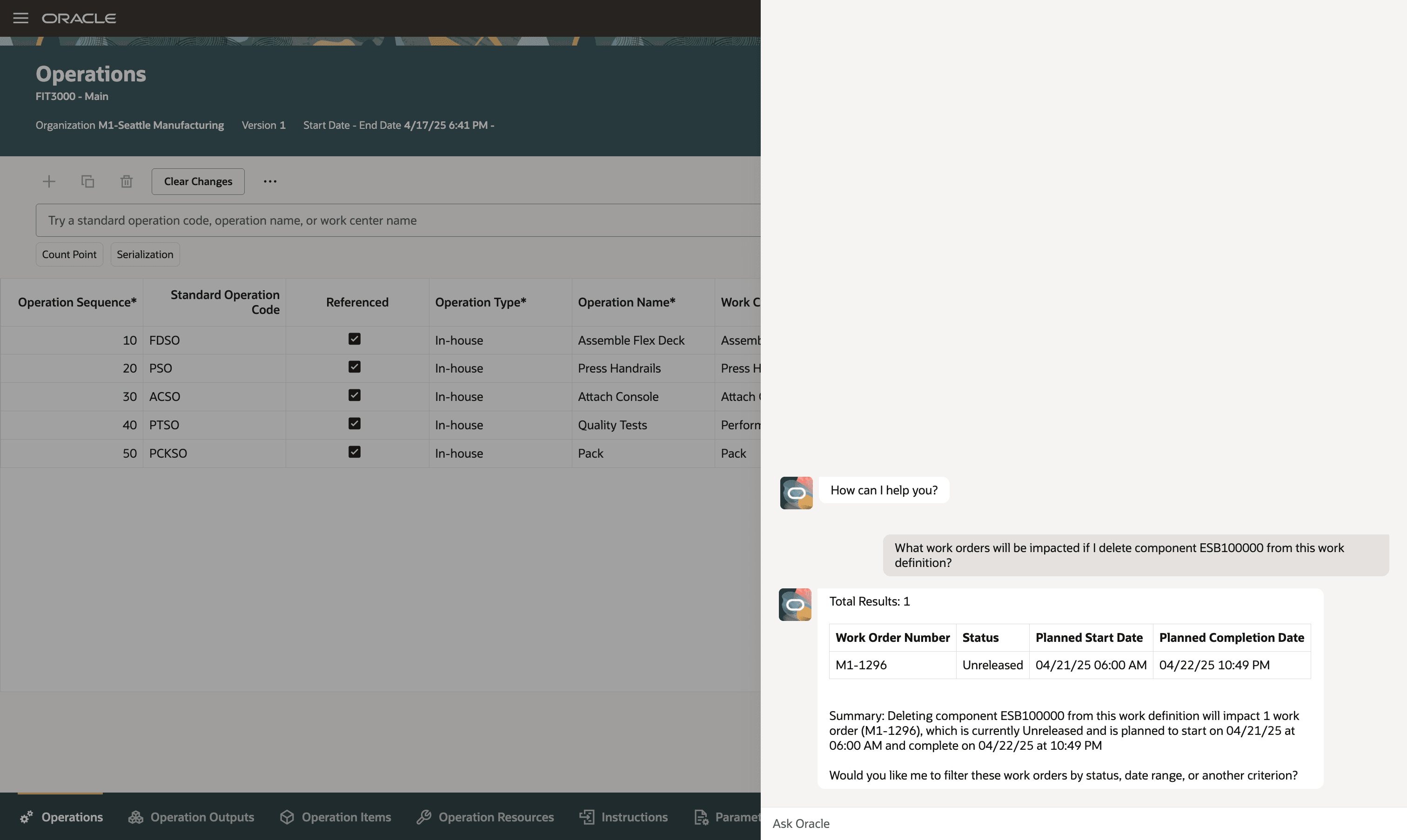
Sync Changes to Work Orders Action
Agent Name:
Work Order Sync Assist
Agent Description:
Work Order Sync Assist helps evaluate what-if scenarios when a work definition is updated and then propagates those changes to the affected work orders.
Agent Use Case:
Work Order Sync Assist helps evaluate and apply updates when a work definition is modified. It identifies all impacted work orders, runs what-if analysis to show the effects of the changes, and presents the information. After the Manufacturing engineer reviews the what-if analysis provided by the agent and understands the impact of potential changes, the Manufacturing engineer manually updates the work definition in the Work Definition UI. Once the edits are complete, the Manufacturing engineer invokes the AI agent again to propagate the revised work-definition changes to all affected work orders.
Agent Tools
| Agent Name | Tool Name | Tool Type | Description | Specifications |
|---|---|---|---|---|
| Get impacted work orders for sync | Get work orders for sync | Business Object | Fetches impacted work orders for a work definition. |
The Get work orders for sync tool supports retrieval of unreleased and released work orders. |
| Get Impacted Process Work Orders | Business Object | Fetches the impacted process work orders for work definition changes. |
The Get Impacted Process Work Orders tool gets the impacted process work orders if the associated work definition was changed. |
|
| Get Process Work Orders for Sync | Business Object | Fetches process work orders for sync. |
The Get Process Work Orders for Sync tool:
|
|
| Get impacted work orders for sync | Business Object | Fetches impacted work orders for sync. |
The Get impacted work orders for sync tool gets all impacted work orders for a work definition and operation sequence numbers. |
|
| Sync Work Orders of a Work Definition | Get Work Orders From A Work Definition | Business Object | Fetches work orders from a particular Work definition. | The Get Work Orders From A Work Definition tool gets all work order of a particular work definition. |
| Edit Work Orders Deeplink | Deeplink | Lets the user navigate to specific work order pages. | The Edit Work Orders deeplink allows the user to navigate to a specific work order page. | |
| Sync Work Definition Changes with Work Orders | Business Object | Syncs work definition changes to work orders by invoking the Sync Work Definition Changes with Existing Work Orders scheduled process. |
The Sync Work Definition Changes with Work Orders tool:
|
The AI Agent: Work Order Sync Assist reduces production disruptions and costly rework by enabling manufacturing engineers and production supervisors to evaluate the full impact of proposed work definition changes on existing work orders before propagating updates, ensuring informed decision making and minimizing the risk to in-flight manufacturing operations.
Here's the demo of these capabilities:
Steps to Enable and Configure
To enable the AI Agent Work Order Sync Assist, you must first enable the parent feature, Sync Work Definition Changes with Existing Work Orders. For instructions, refer to the Optional Uptake of New Features section of this document.
After you enable the parent feature, you need to perform these additional steps to activate the AI agent.
1. Create and Publish Agents Using AI Agent Studio
You can use AI Agent Studio to use or copy a pre-configured agent template to create Agents for your business processes. To automatically add a suffix to all artifacts in your agent team, you can Copy Template instead of Use Template. When you copy a template, you're directly taken to the agent team canvas, where you can edit the agent team settings, agents, tools, and topics. The Use Template option takes you through a step-by-step process for configuring each artifact in the agent team.
For information on using AI Agent Studio, see How do I use AI Agent Studio?
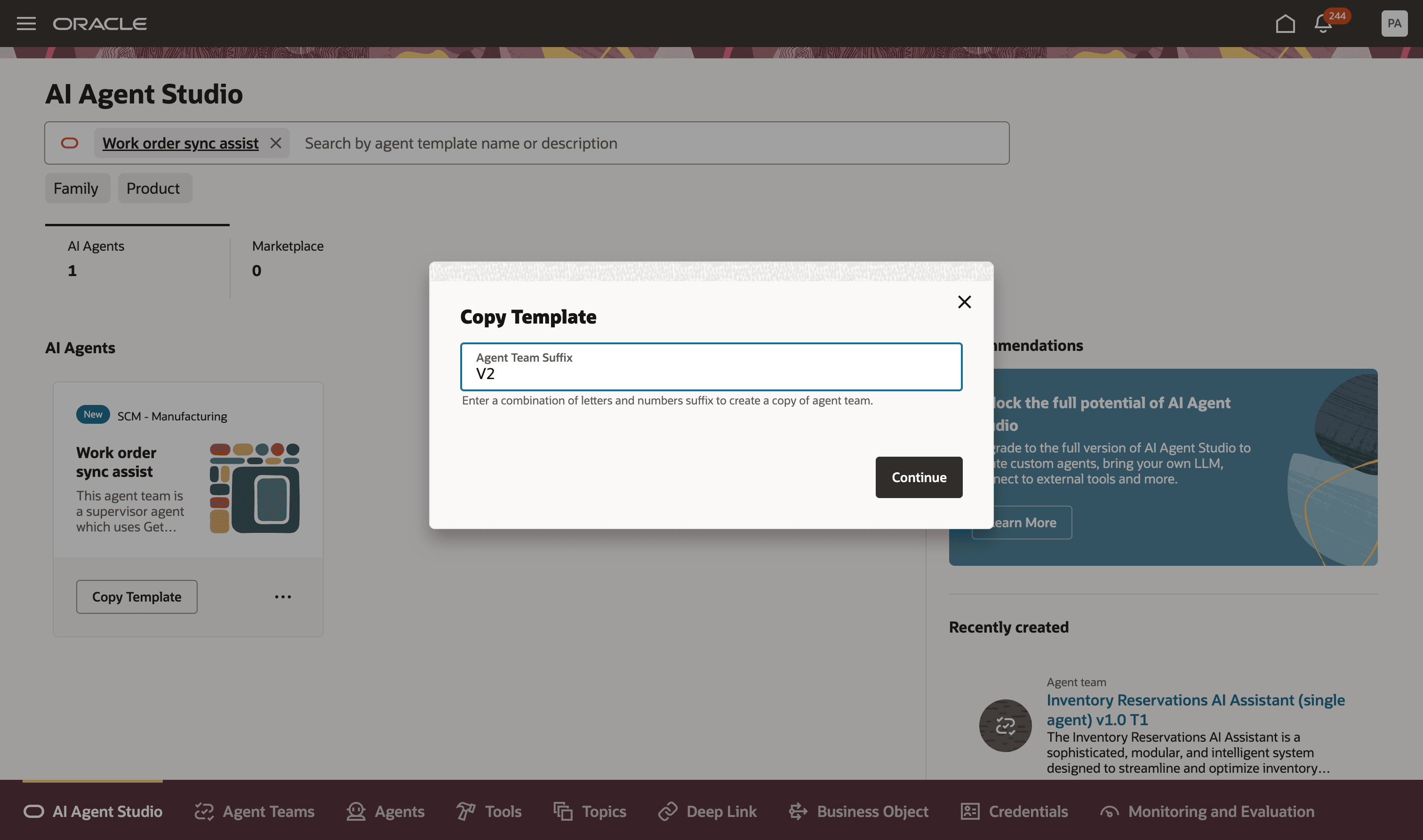
Creating an agent by copying the template
2. Add the Agent Team to the Work Definitions
- Navigate to Visual Builder from the Work Definition Redwood page.
- Find the page Work Definitions page under Supply Chain Management.
- Add the Agent Team Code to the field as shown in this image and publish the changes.
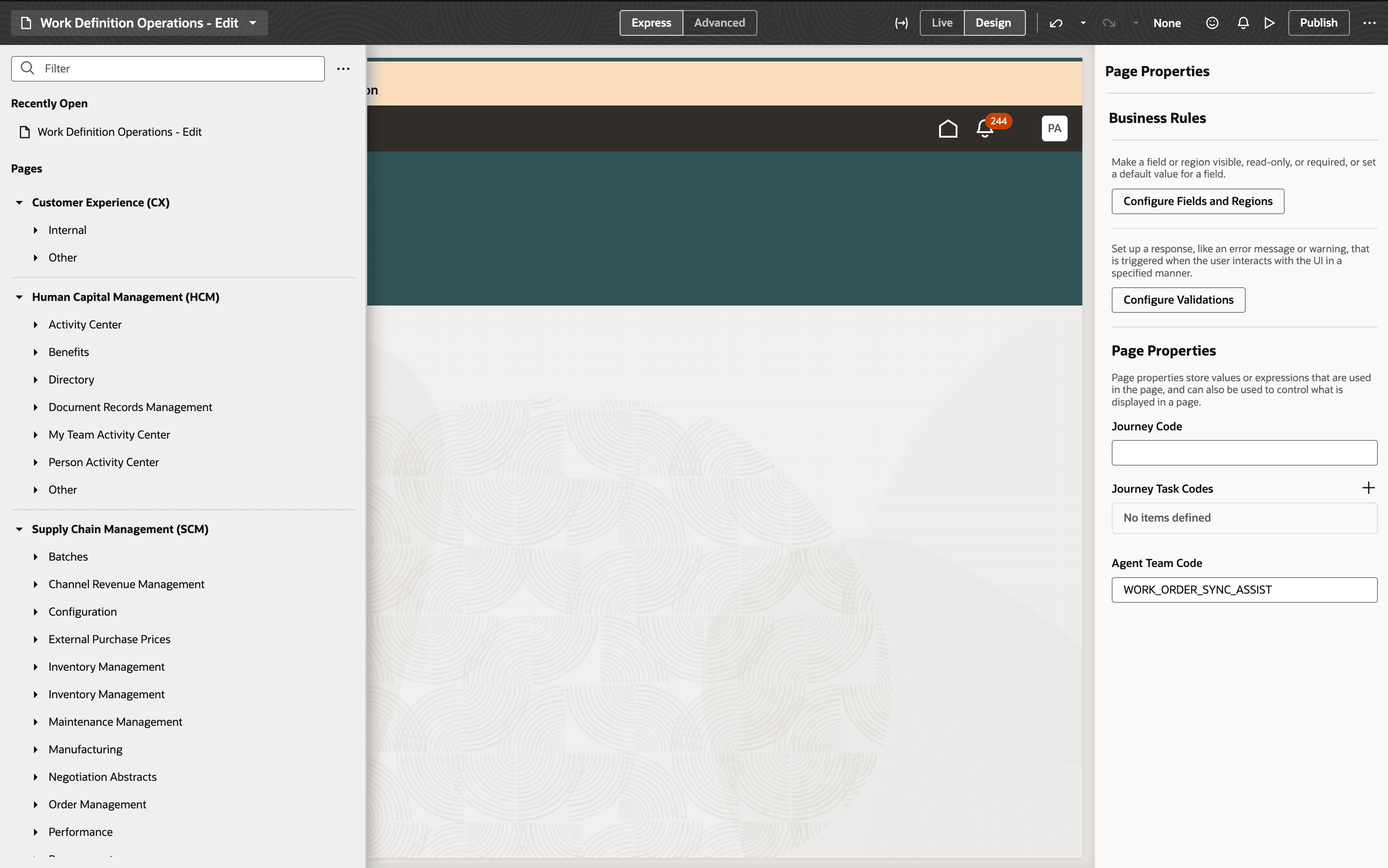
Adding Agent to the Work Definition Operations page
Tips And Considerations
Understanding what changes can be propagated and under what conditions is essential for effectively using the Work Order Sync Assist AI agent.
Selective Propagation
The AI agent provides granular control over which work orders receive changes:
- Selectively propagate changes only to Released or Unreleased work orders.
- Apply filters based on item, date range, or work order attributes.
- Manually exclude specific work orders from propagation even if they meet the criteria.
- Select work orders created or updated within the last 7, 15, or 30 days.
As an alternative to this AI Agent, you can consider using another 26A feature: Sync Work Definition Changes with Unreleased and Released Work Orders.
Key Resources
- Watch the AI Agent: Work Order Sync Assist demo.
- Oracle Fusion Cloud SCM: Refer to the Using Manufacturing guide, available on the Oracle Help Center.
- Oracle Fusion Cloud SCM: Refer to the Implementing Manufacturing and Supply Chain Materials Management guide, available on the Oracle Help Center.
Access Requirements
To access the Oracle AI Agent Studio for Fusion Applications and manage SCM AI agents, users must be assigned a configured job role that contains these duty roles:
- SCM Intelligent Agent Management Duty (ORA_RCS_SCM_AI_AGENT_MANAGEMENT_DUTY and ORA_RCS_SCM_AI_AGENT_MANAGEMENT_DUTY_HCM – both duty role codes are required)
- Fai Genai Agent SCM Administrator Duty (ORA_DR_FAI_GENERATIVE_AI_AGENT_SCM_ADMINISTRATOR_DUTY)
To interact with AI agents in product pages, users must be assigned a configured job role that contains this duty role:
-
Fai Genai Agent Runtime Duty (ORA_DR_FAI_GENERATIVE_AI_AGENT_RUNTIME_DUTY)
These privileges were available before this update.