Redwood: Add Coverages and Subscriptions on Sales Orders
Use Order Management's redesigned pages to add a coverage or subscription on an order line. Specify when the coverage or subscription starts and ends. Add coverage to the order that you're currently editing, another order, or an asset. Negotiate the rate plan for a subscription directly on the redesigned page.
Realize these benefits:
- Simplify how you manage coverages and subscriptions.
- Link subscriptions to assets and sales orders so you can accurately track fulfillment.
- Integrate with Oracle Pricing so you can negotiate and apply rate plans, providing a more flexible and accurate way to manage pricing.
- Improve efficiency, reduce manual effort, and improve customer satisfaction.
Let's take a look at managing a coverage. To start, add a coverage to an order line, such as add the 2 Year Warranty coverage to the Standard Desktop item. Click Associate to associate it with another order line or asset:
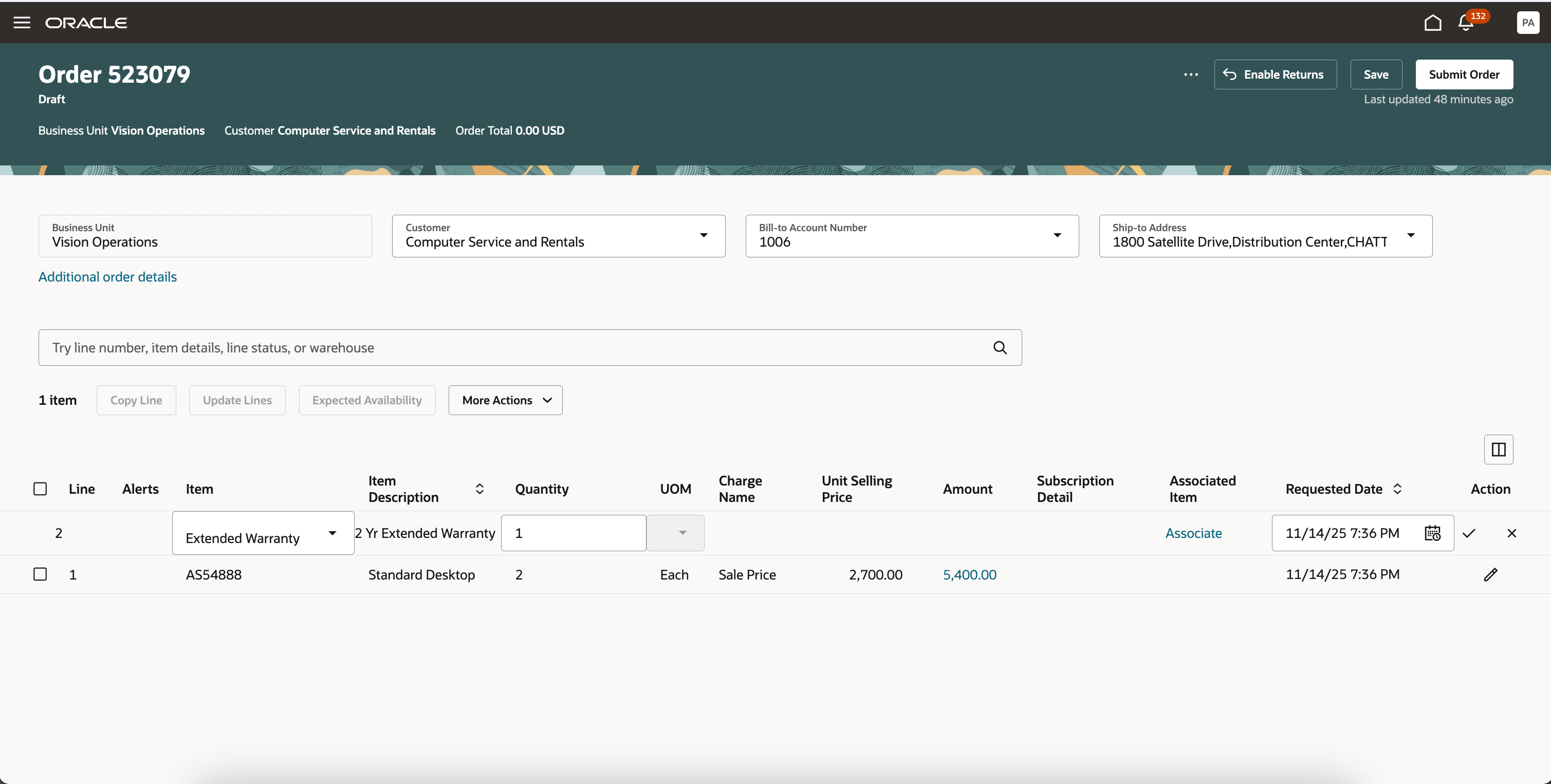
Add Coverage Line
Next, use the Associate Coverage dialog to associate it with the Standard Desktop item:
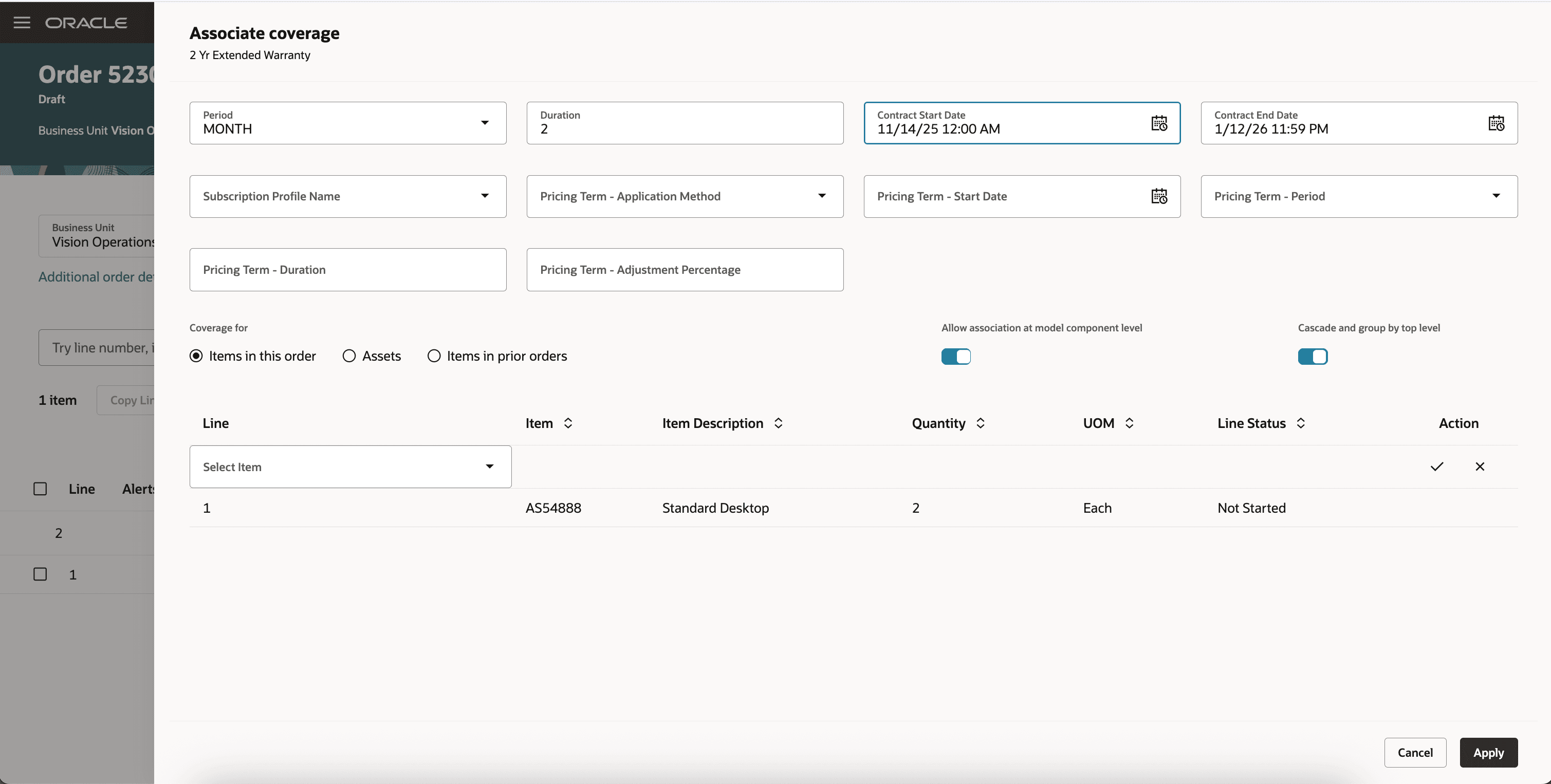
Associate coverage line to product
Click the icon in the Subscription Details column to view details about the coverage or subscription, or to add values for individual attributes on the order line:
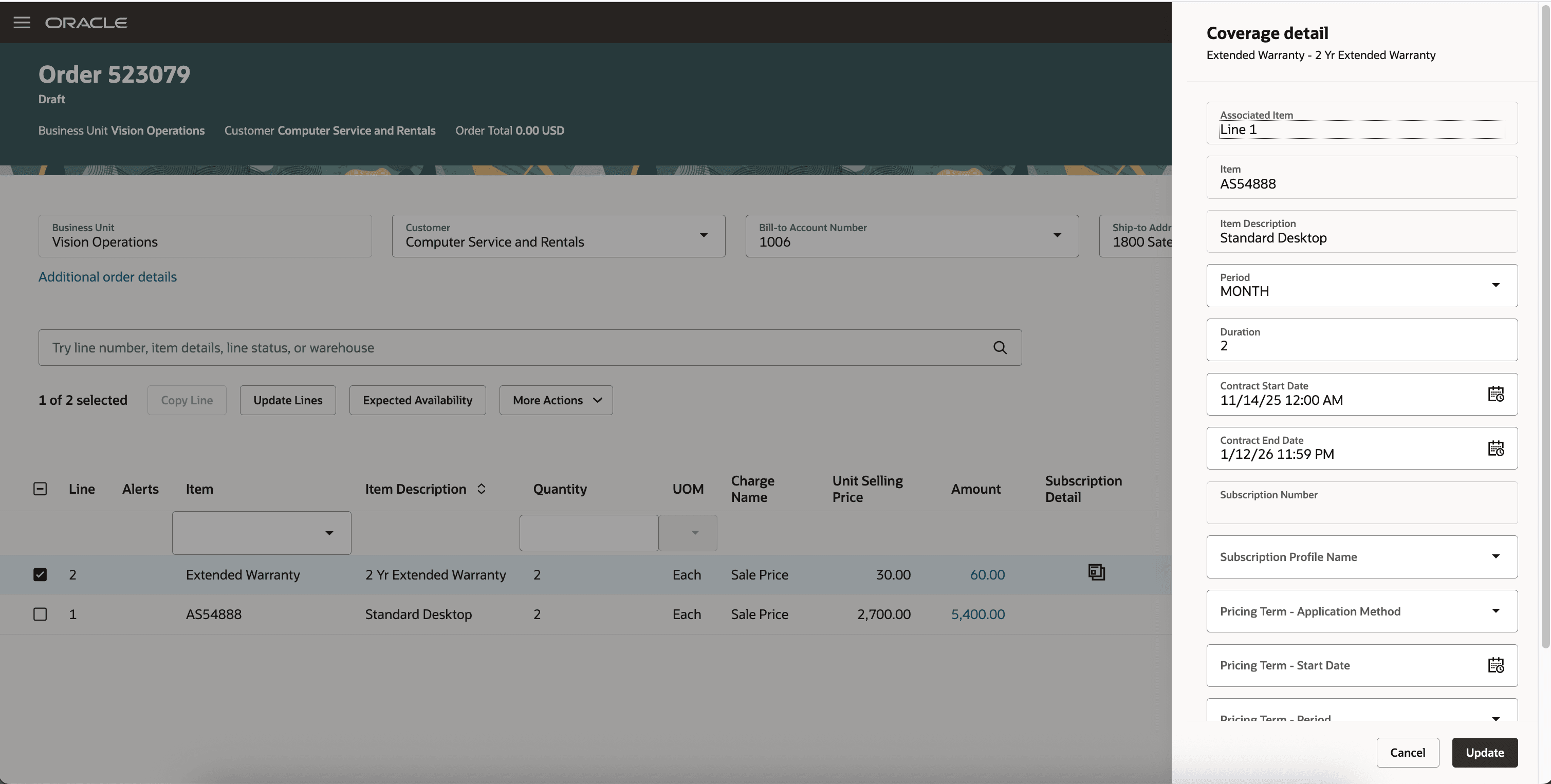
Subscription Details
A subscription works similarly to how a coverage works, but you don't have to associate it with another line. You can associate a subscription with another line on the sales order but not with an asset or another sales order. Click the Subscription Detail icon:
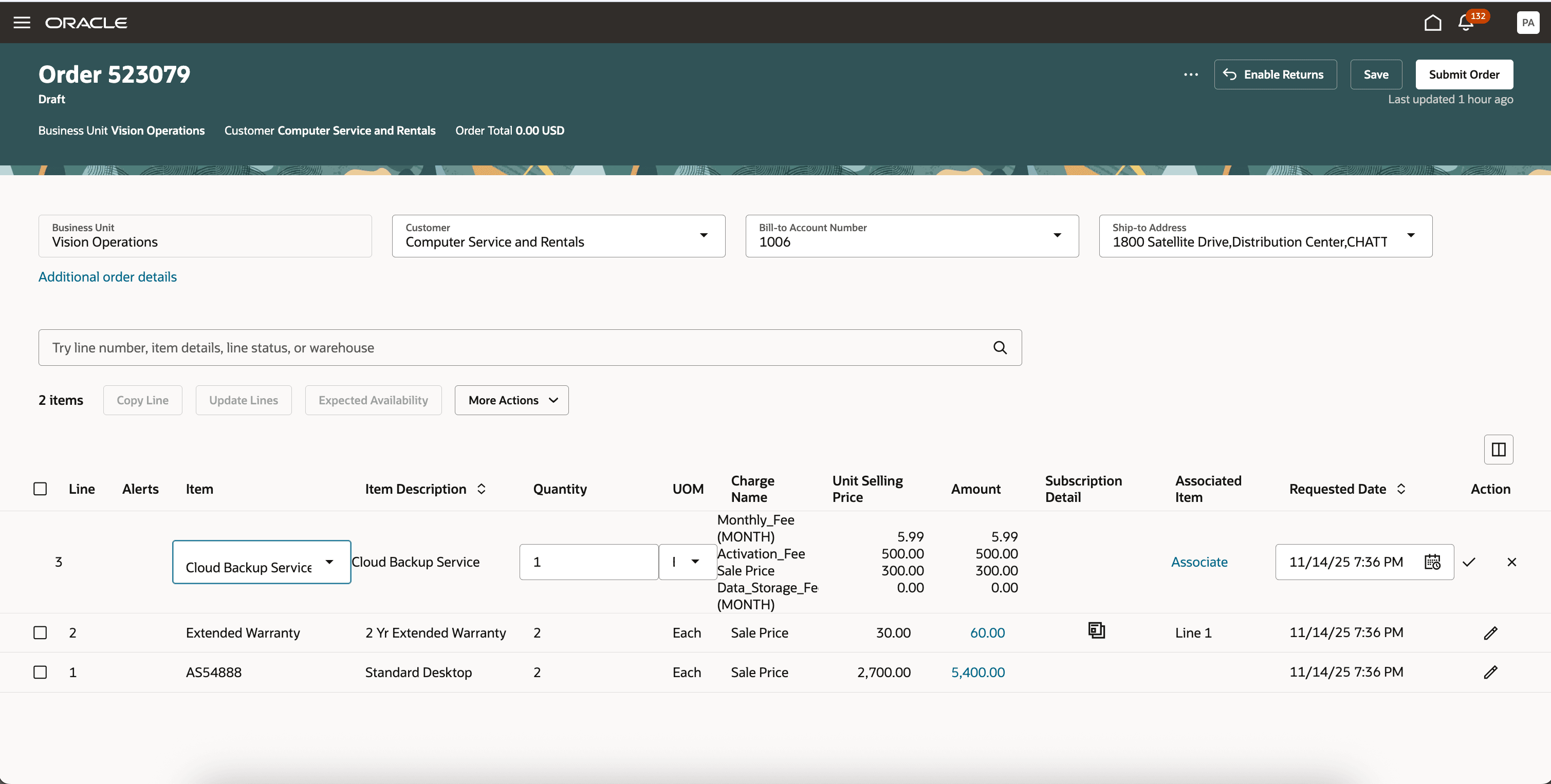
Subscription line on order
Next, view more detail about the subscription. You can also select a rate plan or negotiate one:
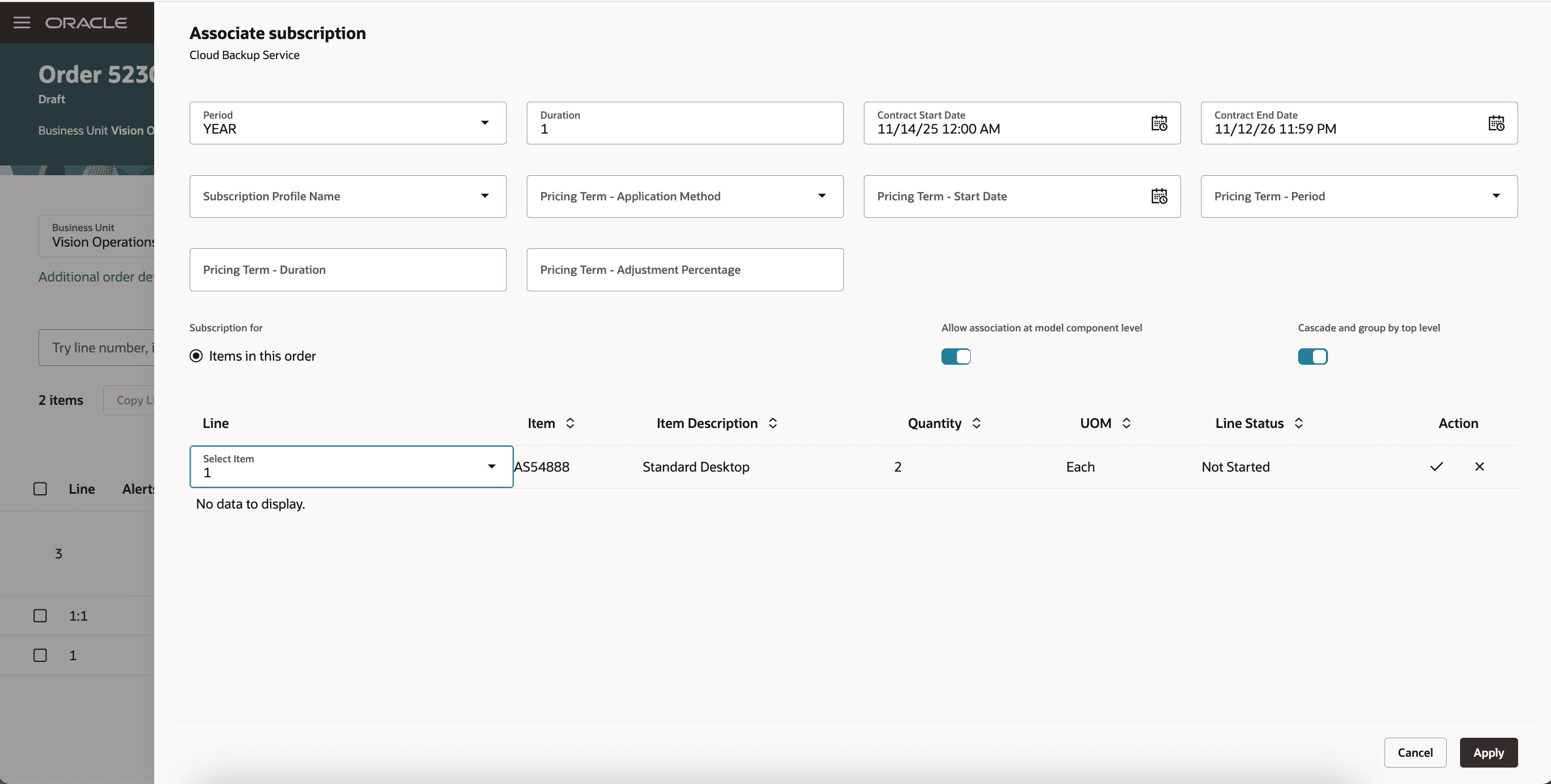
Subscription Association
Steps to enable and configure
Use the Opt In UI to enable this feature. For instructions, refer to the Optional Uptake of New Features section of this document.
Offering: Sales
You must also opt in to these features:
- Order Management > Order Management > Redwood: Create and Manage Sales Orders
- Sales > Subscriptions > Integrate Order Management with Subscription Management
- Integrate Order Management with Subscription Management to Process Subscriptions
- Integrate Order Management with Subscription Management to Process Coverages
Set Up the Index
- Go to Home > Order Management > Show More > Index Management for Sales Orders > Sales Order.
- On the Sales Order - Configure Index page, sort the Attribute column in ascending order, then verify that the index has these attributes:
- Line Category
- Canceled (Order Line Attributes)
- Canceled (Cancellation)
- Open (Order Attributes)
- Open (Order Line Attributes)
- Item
- If any attributes are missing, add them, then click Save > Rebuild. Notice the message, such as Process submitted Job: 237741. If necessary, you can go to the Scheduled Processes work area and monitor the progress.
- Click Cancel > Sales Order Line.
- On the Sales Order Line - Configure Index page, sort the Attribute column in ascending order, then verify that the index has these attributes:
- Line Category
- Canceled
- Open (Order Attributes)
- Open (Order Line Attributes)
- Item
- Item Subtype
- UOM
- If any attributes are missing, then add them and click Save > Rebuild. Notice the message, such as Process submitted Job: 237741. If necessary, you can go to the Scheduled Processes work area and monitor the progress.
Tips and considerations
You can use a referenced return to cancel a coverage or subscription. You can't use an unreferenced return to do this.
Key resources
Access requirements
Users who are assigned a configured job role that contains these privileges can access this feature in the Order Management work area:
- Initiate Order (FOM_CREATE_ORDER_PRIV)
- Revise Order (FOM_REVISE_ORDER_PRIV)
- Monitor Sales Order (DOO_MONITOR_SALES_ORDER_PRIV)
- Update Order Pricing Details (FOM_UPDATE_PRICING_DETAILS_PRIV)