Redwood: Apply Manual Price Adjustment on Multiple Order Lines
Apply manual price adjustments on order lines across sales orders or within a single order. Use this feature on the redesigned Sales Order Lines page or the redesigned Order page that you use to create and manage sales orders in the Order Management work area, or through REST API:
- Apply an adjustment on one or more charges across order lines in a single request. You can apply a one-time, recurring, or usage charge.
- Use different adjustment types to apply an adjustment on all types of items. You can apply an adjustment on the list price or the net price for a percent adjustment.
- As an option, use the Effectivity attribute to apply an adjustment on a subscription's or coverage's usage or recurring charge for a specific period of time. You must enable the subscription feature.
- Use a filter to search order lines that have a manual price adjustment.
Realize these benefits:
- Work more efficiently. Apply a price adjustment on hundreds of lines with a single click instead of doing it one line at a time.
- Improve accuracy. Enter your adjustment value one time, then Order Management will apply that same value to all the lines that you select. Entering the value manually introduces the potential for making errors over hundreds of lines.
- Improve performance when you apply a price adjustment on a large volume of order lines across orders or in a single sales order.
Here's the demo of these capabilities:
Apply Adjustments on Order Lines Across Sales Orders
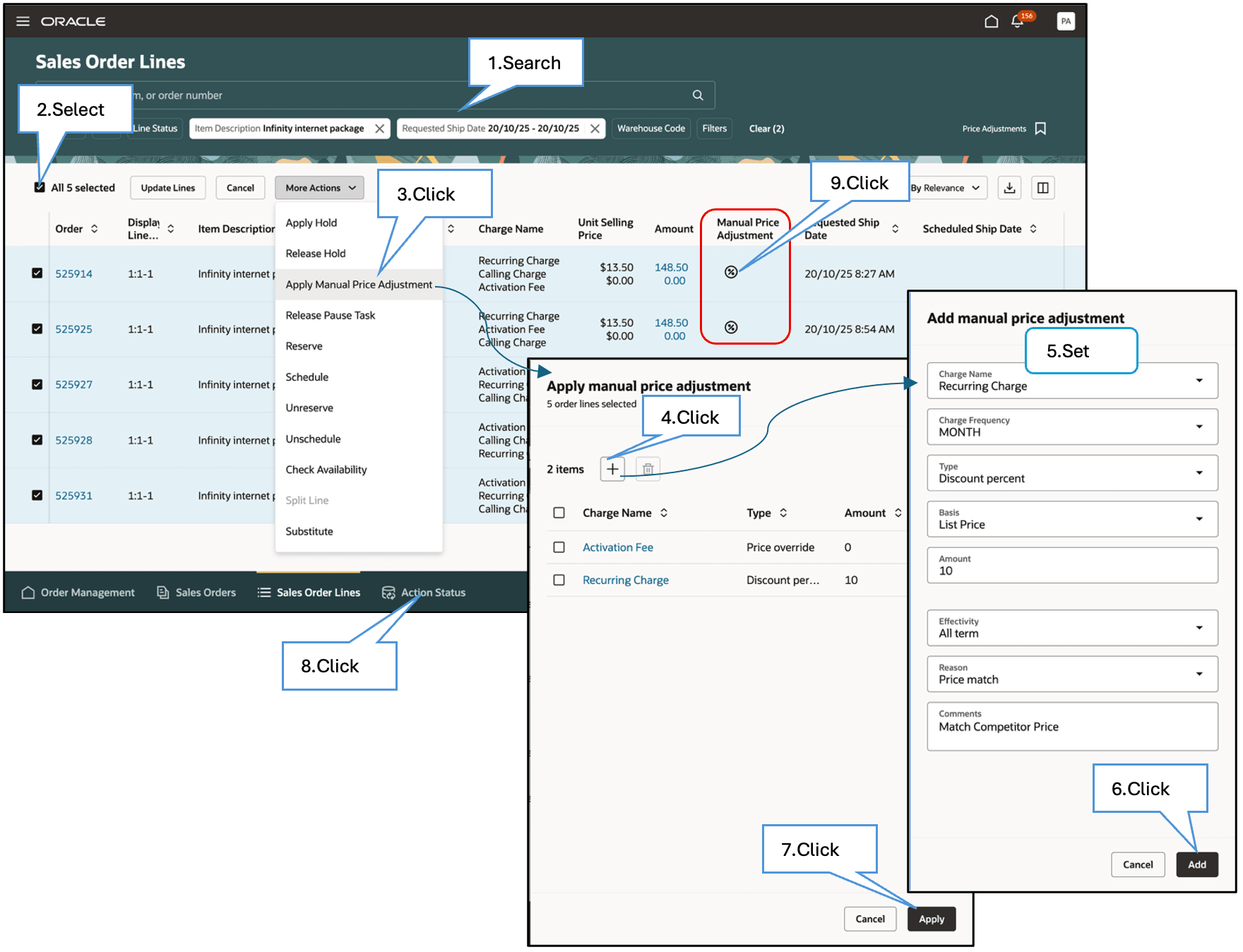
Try it:
- Use keywords or filters to search your order lines.
- Select one or more order lines in the search result. You can select lines across more than one sales order.
- Click Apply Manual Price Adjustment.
- Click + (the plus icon) to add a manual price adjustment. You can add more than one price adjustment.
- Select the Charge Name where you want to apply the adjustment, then set the other attributes for the adjustment. You can set up a business rule and a profile option that sets the attributes' default values.
- Click Add to add the manual price adjustment. Repeat step 4 through 6 to add more adjustments, as needed.
- Click Apply to apply the adjustments on the selected lines.
- Click Action Status to see the result.
- Notice the icon in the Manual Price Adjustment attribute. It indicates that you applied at least one adjustment on one or more charges on the order line. You can click that icon to see the adjustments you applied.
Apply Adjustments on Order Lines on One Sales Order
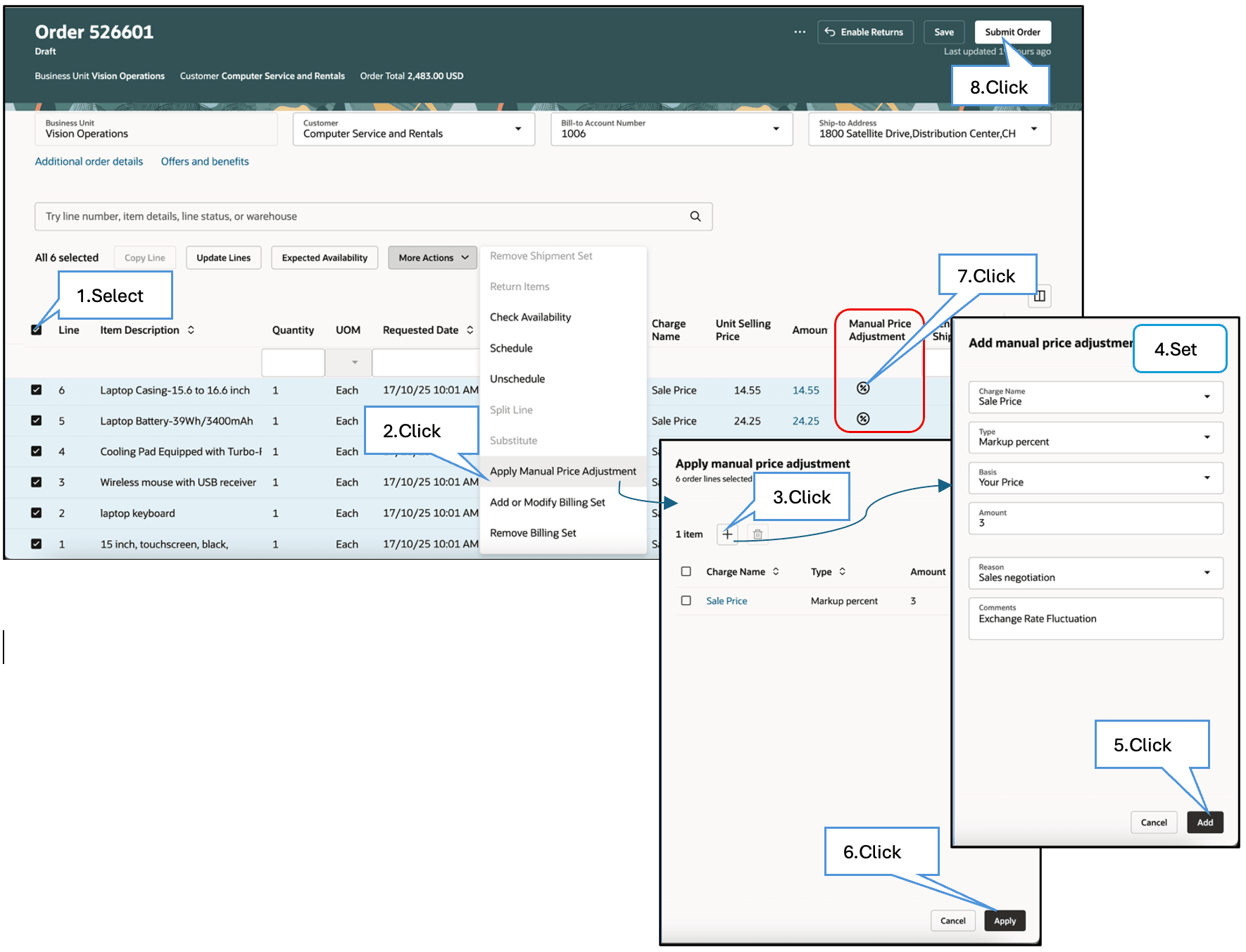
Try it:
- Go to the Sales Orders page and search for your sales order. You can edit a draft or revise an order that you already submitted.
- Do the procedure similar to how you apply an adjustment on lines across sales orders. Select the order lines where you want to apply the adjustment, click Apply Manual Price Adjustment, use the Add Manual Price Adjustment dialog to add adjustments, then click Apply.
- Order Management immediately applies the adjustments to the charges on the order lines that you selected.
- As an option, click the icon in the Manual Price Adjustment attribute to view the adjustments that you applied.
- Click Submit Order.
Steps to enable and configure
You must set up these features:
As an option, set up a business rule that sets the default value for each of these attributes on the Add Manual Price Adjustment dialog:
- Type
- Basis
- Effectivity
- Comments
You can also make the Effectivity attribute and the Comments attribute required, or you can hide them. Order Management displays them as optional, by default.
Use Visual Builder Studio to set up the business rule:
- Go to the Sales Order Lines page or Order page.
- Click Settings and Actions > Edit Page in Visual Builder Studio > Configure Fields and Regions.
As an option, set up a profile option that sets the default value for the Reason attribute on the Add Manual Price Adjustment dialog:
- Go to Home > My Enterprise > Setup and Maintenance > Manage Administrator Profile Values.
- Search for the ORA_FOM_DEFAULT_ADJ_REASON profile.
- Set this value:
| Profile Level | Product Name | User Name | Profile Value |
|---|---|---|---|
| Site | Price Match |
You can also specify a value for the user name, as needed.
Tips and considerations
You can use these adjustment types:
- Discount percent
- Discount amount
- Markup percent
- Markup amount
- Price override
You can use these values for effectivity attributes to apply adjustments on a recurring or usage charge for a coverage or subscription:
| Attribute Value | For Example, Apply Discount on Monthly Rental of Data Plan For |
|---|---|
|
First Periods |
The first 3 months. |
| Last Periods | The last 6 months. |
| Specific Periods | The second through to sixth month. |
| First Full Periods | The first 3 full months. |
| All Term. This is the default. | All months. |
More:
- You can use the Sales Order Action Requests REST API to apply a manual adjustment on a large volume of order lines across sales orders.
- If you attempt to apply the adjustment on two or more lines for a sales order on the Sales Order Lines page, and if Order Management can't apply that adjustment on at least one line for some reason, then it won't apply the adjustment on any line.
- If you attempt to apply a adjustment on two or more order lines on the Order page, then the adjustment might apply on some lines but fail on others. Order Management will display an error message for the failed lines. You can submit the sales order to process the successful updates.
- You can apply an adjustment on order lines only if Oracle Pricing prices the order.
- Order Management has added two new attributes that you can add in your sales order line search view. Use these attributes to search for your order lines on the Sales Order Lines page:
| Attribute | Attribute Group | Keyword Search | Filter Chip | Display columns |
|---|---|---|---|---|
| Manual Price Adjustment | Pricing and Promotions | Disabled | Enabled | Enabled |
| Charge Name | Pricing and Promotions | Enabled | Enabled | Enabled |
You can’t apply a manual price adjustment on:
- A line on a sales order that already has a revision that's in Draft status. You must discard that revision, and then apply the adjustment on the line.
- An included item, option class, or optional item in a configured item or kit. You must apply the adjustment on the configured item or the kit. If the optional item is eligible for an adjustment, then Order Management will apply that same adjustment on the item.
- A transfer order.
Key resources
- Go to REST API for Oracle Supply Chain Management Cloud, then expand:
-
- Order Management > Sales Order Action Requests
- Use Cases > Order Management
- Implementing Order Management
- Using Order Management
Access requirements
- Users who are assigned a configured job role that contains these privileges can access the Apply Manual Price Adjustment action on the redesigned Sales Orders Lines page in the Order Management work area:
- View Orders (FOM_VIEW_ORDERS_PRIV)
- Update Pricing Details in Bulk (FOM_UPDATE_PRICING_DETAILS_BULK_ORDERS_PRIV)
- Users who are assigned a configured job role that contains these privileges can access the ORA_FOM_APPLY_MANUAL_PRICE_ADJ action in the Sales Order Action Requests REST API:
- Update Pricing Details in Bulk (FOM_UPDATE_PRICING_DETAILS_BULK_ORDERS_PRIV)
Oracle has added the new Update Pricing Details in Bulk (FOM_UPDATE_PRICING_DETAILS_BULK_ORDERS_PRIV) privilege to support this feature. Users who are assigned the Order Manager (ORA_DOO_ORDER_MANAGER_JOB) job role can automatically access this feature.
- Users who are assigned a configured job role that contains these privileges can access the Apply Manual Price Adjustment action on the redesigned Order page that you use to create and manage sales orders in the Order Management work area:
- View Orders (FOM_VIEW_ORDERS_PRIV)
- Revise Order (FOM_REVISE_ORDER_PRIV)
- Update Order Pricing details (FOM_UPDATE_PRICING_DETAILS_PRIV)
These privileges were available prior to this update.