Redwood: Create One Invoice for Physical Items, Coverages, and Subscriptions
Create one invoice for physical items, coverages, and subscriptions. Use a billing set to group these order lines.
Realize these benefits:
- Create one invoice for each sales order. Combine physical items, coverages, and subscriptions into a single invoice even when you send lines to Oracle Receivables for billing at different times or from different sources. Use it even if your order contains only physical products.
- Monitor billing readiness. Use billing sets to monitor when lines across Oracle Order Management and Oracle Subscription Management are ready for billing.
- Get more control. Create more than one billing set on the same sales order to control exactly which lines you want to invoice together.
- Reduce invoice volume. Create a consolidated invoice for the lines that you assign to a billing set only when the billing set's status is complete, and not as soon as each line in the set is interfaced to Receivables.
- Exclude lines from Invoice consolidation. Use an order management extension to evaluate the billing term's rules for the bill-to account, and to prevent lines that fail those rules from being assigned to the billing set.
- Use more than one channel. Use the redesigned pages, or import through REST API or FBDI.
Try it:
- Go to Home > Order Management > Order Management (New) > Create Sales Order (New).
- Specify the Customer, ship-to and bill-to details on the order. Click Additional Order Details, then turn on the Bill Lines Together attribute:
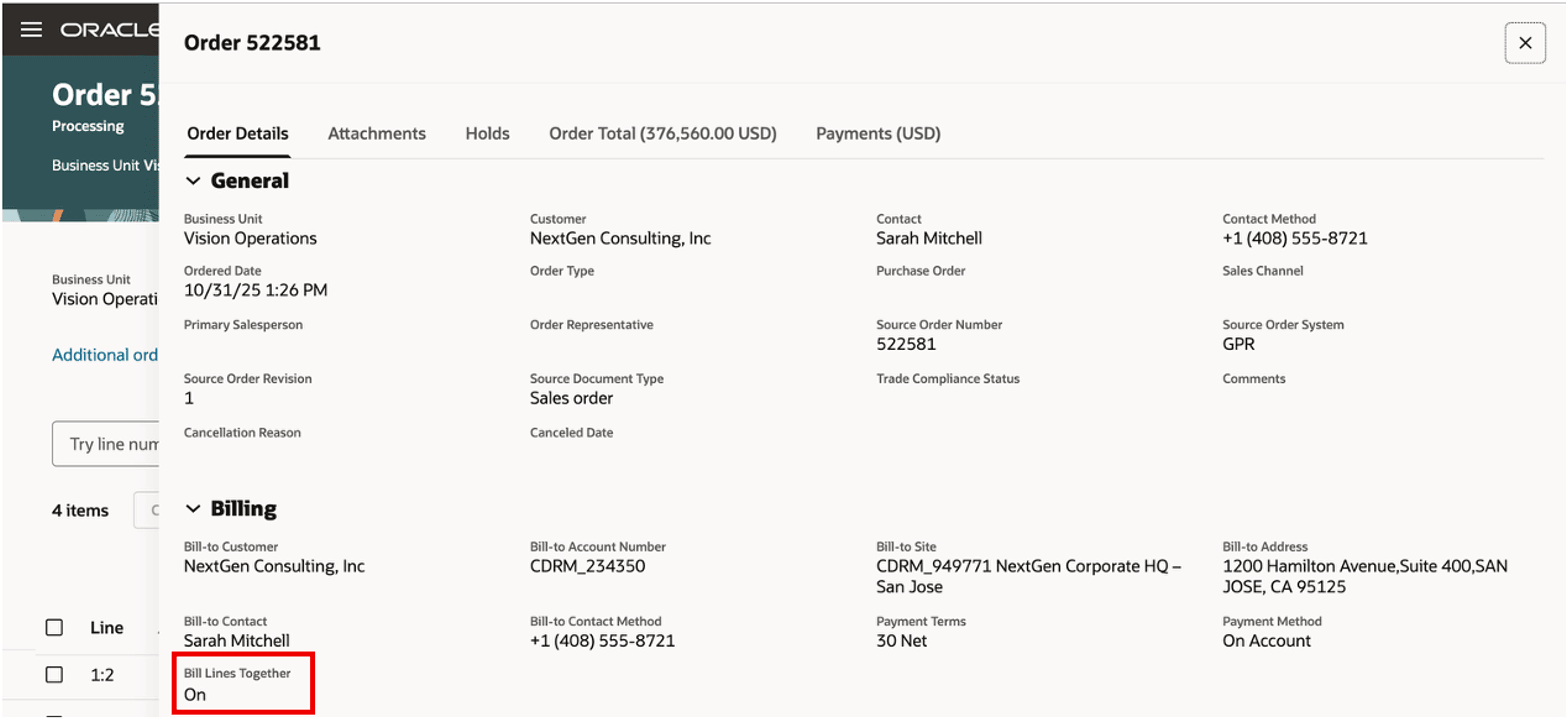
If you add an order line after you turn on the attribute, then Order Management will automatically create a billing set and add the line to that set. For example:
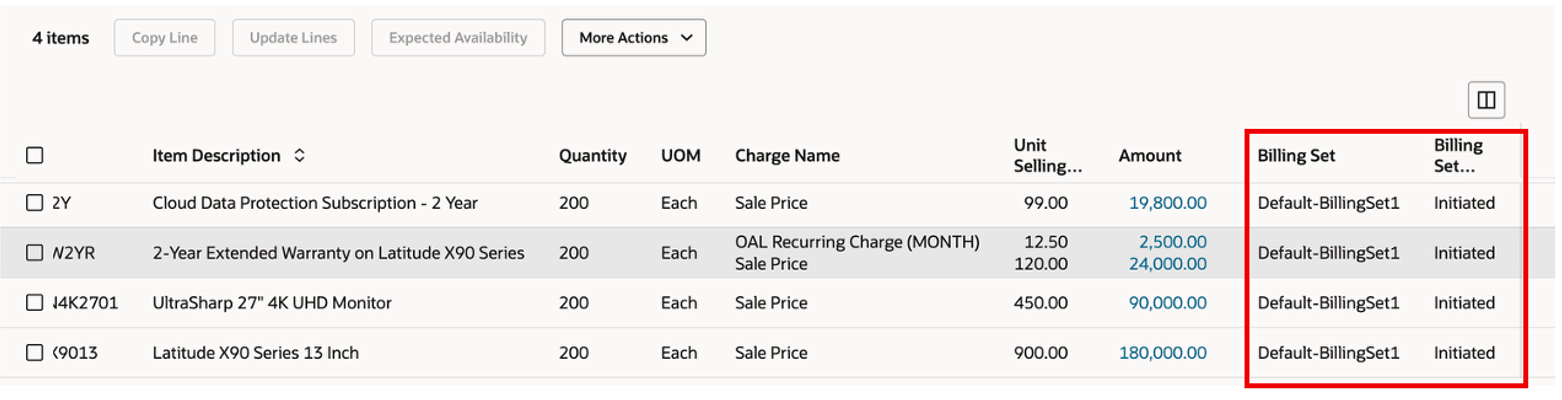
Note this:
- You can specify your own billing set name on the order line even if you don't turn on Bill Lines Together. Enter it directly on the line or use the Add or Modify Billing Set action on the line.
- Create more than one billing set in the same sales order when you need more detailed control and flexibility to group the lines that you must invoice together.
- If your sales order has a configured item or kit, then Order Management will automatically cascade the billing set to each component in that item or kit.
- You can view the billing set's status on the order line only after you submit the order.
Example
Assume your Computer Service and Rentals customer requests a sales order that includes:
- Laptop
- Warranty for the Laptop
- Keyboard
- Headset
Computer Service and Rentals wants to receive one invoice for the laptop, warranty, and keyboard, and another invoice for the headset. You create and submit this sales order:
| Item | Billing Set | Billing App | Related Line |
|---|---|---|---|
| Laptop | BS1 | Order Management | - |
| Warranty | BS1 | Subscription Management | Laptop |
| Keyboard | BS1 | Order Management | - |
| Headset | BS2 | Order Management | - |
Order Management sends these details to Receivables, and Receivables creates the billing sets:
| Source Order | Billing Set | Status |
|---|---|---|
| 523456 | BS1 | Initiated |
| 523456 | BS2 | Initiated |
Here's what happens next:
- Order Management continues to interface the shipped lines, their charges, and billing set details to Receivables during fulfillment.
- Subscription Management activates the warranty for the Laptop. It also interfaces the warranty line and its billing set to Receivables when billed. Subscription Management notifies Order Management when Subscription Management bills and interfaces the warranty line to Receivables.
- Order Management sets the billing set's status to Complete after all lines in the set are interfaced to Receivables.
- Receivables creates one consolidated invoice for all lines assigned to a billing set once that billing set is marked complete.
- In this case, the order includes billing sets BS1 and BS2, so Receivables creates two invoices, one invoice for each set. It does this after all lines in each set are interfaced to Receivables and after the billing set is complete.
You can use this feature to consolidate invoices into a single invoice even when the order includes only shippable items.
Exclude Lines from Billing Sets
You might need to bill and invoice some lines on a schedule that's different from other lines in the billing set. You can specify a condition that prevents Order Management from assigning a billing set on these lines. Use the condition to make sure your invoice is timely and accurate. For example, when you set the Payment Term on the line to Immediate so you can immediately bill that line.
Try it:
- Set up an exclusion criteria on the billing term for the line's bill-to account. See Consolidated Invoices with Charges from Multiple Sources.
- Create an order management extension that evaluates the criteria. The extension validates all order lines against the criteria and identifies lines that you don't want to assign to the billing set.
You can use these attributes in your criteria:
- Bill-to Account
- Business Unit
- Legal Entity
- Receipt Method
- Payment Terms
- Subscription or coverage that you don't associate with a shippable item.
For example, you can set up this criteria for the billing term:
- If the line's Payment Term equals Immediate, then don't add the line to the billing set.
Next, use an order management extension to evaluate that condition, and use this method to determine whether to exclude the order line from the billing set:
header.evaluateBillingSetExclusionCriteria()
Use one of these arguments with the method:
- ContinueSaveOrSubmission. Remove the line from the billing set.
- HaltSaveOrSubmission. Reject the order and notify the user that they must manually remove the line from the set.
For example, if the order line doesn't meet the exclusion criteria, then this extension will automatically remove that line from the billing set:
header.evaluateBillingSetExclusionCriteria("ContinueSaveOrSubmission");
Note this:
- If you use an extension to set the billing set's default value on the order line, then use the getTerminalBillingSets() method to get the completed or canceled billing set. Make sure you don't reuse the value that the method returns.
- You can use any extension point. If you use the On End of Submission Request point, then you must use HaltSaveOrSubmission.
See Overview of Creating Order Management Extensions.
Here's the demo of these capabilities:
Steps to enable and configure
- If you want to use the Redwood: Create One Invoice for Physical Items, Coverages, and Subscriptions feature, then you must opt in to the Redwood: Create and Manage Sales Orders feature. If you’ve already opted in, then you don’t have to opt in again. You must opt in even if you only use REST API or file-based data import (FBDI).
- You must enable the Consolidated Invoices with Charges from Multiple Sources feature in Oracle Receivables. See the Steps to Enable subtopic in Consolidated Invoices With Charges from Multiple Sources. Make sure you also enable the bill-to account for consolidated billing in Receivables when you do this step.
Consolidate Your Invoices
- Enable the bill-to account for consolidated billing in Receivables.
- Set the Consolidation Method attribute to fulfillment based when you set up the consolidated billing term for your customer. Order Management doesn’t verify that the bill-to account is enabled to consolidate the invoice, so you must do this step so you can assign lines to a billing set.
For details about how to do these steps, see the Fulfillment-Based Consolidated Invoices with Charges from Multiple Sources feature on the 26A What’s New readiness content on Oracle Help Center.
Tips and considerations
Add Lines to Billing Sets
- You can’t use the Add Billing Set action on a redesigned page to specify a billing set that already exists in the sales order.
- All components in a configured item or kit share the same billing set. You can’t add different billing sets to individual components in a configured item or kit.
- If you turn on the Bill Lines Together attribute, and if Order Management already interfaced all lines in the billing set to Receivables, then the set is complete. Assume Default-billingSet1 is complete. If you add a new line to the order, then Order Management will automatically create a new billing set, such as Default-BillingSet2, and will add the new line to the new set.
- If the billing set's status is Complete or Canceled, then you can't add a new line to the set.
- You must not use the word Default as the first word of a billing set name when you assign lines to the billing set.
Use REST API or FBDI
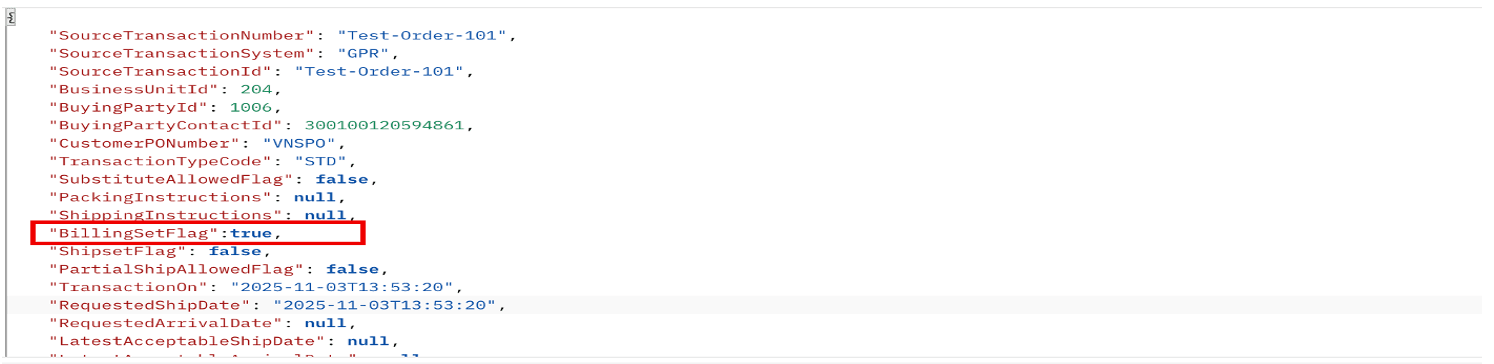
You can import through REST API or FBDI instead of using the redesign pages. Set the BillingSetFlag attribute to true on the order header to add all of the order's lines to the billing set:
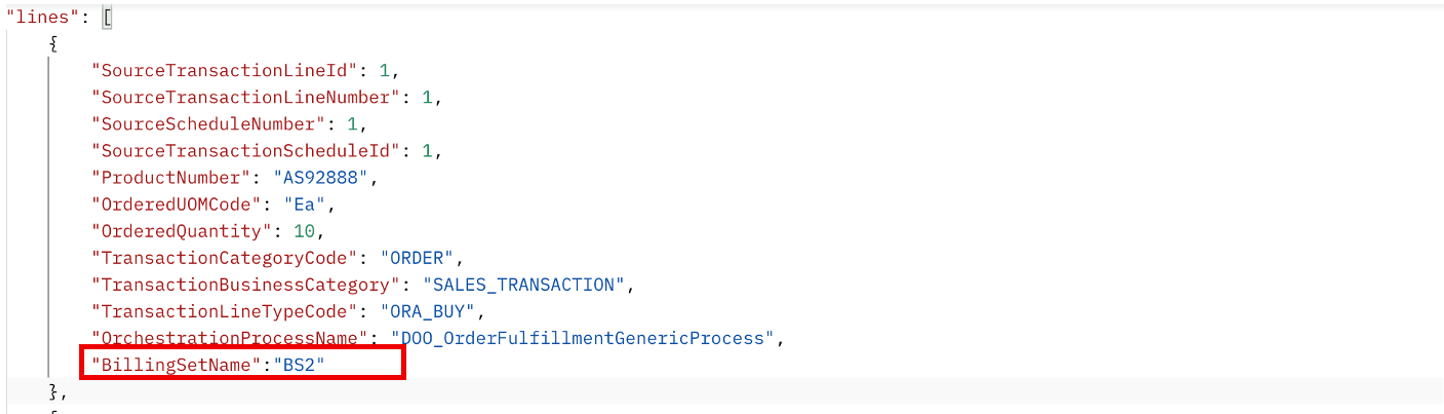
As an alternative, set the BillingSetName attribute to a custom value on the lines entity:
Edit or Revise Sales Orders
Use only Order Management's redesigned pages to edit, revise, or cancel a sales order that has a billing set. You can't use Order Management's classic pages to do this.
You can add an order line to a billing set when you revise a sales order if:
- The billing set's status isn't Complete or Canceled.
- The line isn’t canceled, closed, or interfaced to Accounts Receivables or to Subscription Management.
You can’t modify or remove an order line from a billing set if:
- The billing set's status is Complete or Canceled.
- Line is interfaced to Receivables or to Subscription Management.
- Line status is already closed or canceled.
How Order Management Determines the Billing Set's Status
- Order Management sets the Invoice Interface Status attribute to one of:
- Interfaced by Order Management. Order Management interfaced the lines in the billing set to Receivables.
- Interfaced by Subscription Management. Subscription Management interfaced the lines in the billing set to Receivables.
- Skipped. Applies for a component that you don't bill, such as a component of a pick-to-order configured item. Order Management ignores these lines when it determines whether the billing set it complete.
- Canceled. Order Management canceled the billing set.
- Order Management evaluates those invoice interface statuses for all billable lines in the billing set to determine these billing set statuses:
- Initiated. Order Management hasn't interfaced all billable lines in the set to Receivables.
- Complete. Order Management has interfaced all billable lines in the set to Receivables.
- Canceled. Order Management removed or canceled all lines in the set during a revision.
Use Order Management to Bill Nonshippable Items
If you use Order Management to bill shippable and nonshippable items, and if you add these lines to a billing set, then Receivables will use the transactionDateBasis attribute that you specify in the billing term to determine the shippable items' general ledger date and transaction date. Oracle recommends that you use Subscription Management to bill the nonshippable items, such as coverages and subscriptions. See Overview of Integrating Order Management with Subscription Management.
Wait to Process Updates from Subscription Management
You can use the Wait to Process Updates from Subscription Management profile option (ORA_FOM_WAIT_TO_PROCESS_SUBS_UPDATES) to control how Order Management handles the updates that it receives from Subscription Management when it interfaces lines that are in a billing set to Receivables. You can set it to:
- Yes. Defer processing. Use this value when you process a large volume of subscriptions together. The Process Responses from Order Fulfillment scheduled process will process these according to its schedule. Yes is the default setting.
- No. Process immediately. The Process Responses from Order Fulfillment scheduled process will run as soon as Order Management receives a response from Subscription Management. Use this value only when updates are infrequent and when it won't cause congestion if you frequently run scheduled processes according to Oracle Enterprise Scheduler Services.
Process Responses from Order Fulfillment
Set these values for the Process Responses from Order Fulfillment scheduled process when you process updates from Subscription Management for the lines assigned to a billing set:
- Schedule it to run at least one time each day or more frequently, depending on your transaction volume.
- Set the Fulfillment Response Type parameter to Process Lines Sent to Receivables by Subscription Management.
- Set the Record Set parameter to Process Records That Are Not Yet Processed. If you need to reprocess records that failed during an earlier instance of running this process, then set it to Process Records That Failed.
Enable the Fulfill Large Volume of Sales Orders Feature
If you import sales orders that have billing sets through file-based data import (FBDI), then make sure the Import and Fulfill Large Volume of Sales Orders feature is enabled. It comes predefined as enabled starting in update 24B. However, if you used a profile option to opt out of it as a temporary workaround, then you must enable the feature first, and then import.
Use Oracle Receivables and Oracle Subscription Management
If you want to use billing sets to consolidate your invoices, then you must use Oracle Receivables and Oracle Subscription Management. You can't use any other invoicing or subscription management application. However, if Order Management continues to interface all of its billing set lines to Oracle Receivables, and if you invoice through Oracle Receivables, then you don't have to use Oracle Subscription Management. You can use some other subscription management application.
Restrictions
You can't:
- Add a billing set on a return line in the sales order to consolidate a credit memo.
- Use a billing set on an order line that has project details.
- Use the same billing set for order lines that belong to different Receivables organizations. Each order line gets its Receivables organization from the order header. If you add lines to different organizations, then make sure all lines in each set belong to the same organization.
- Use fulfillment actions in the classic Order Management pages when the sales order has a billing set. Use the redesigned pages instead. Some example fulfillment actions include Schedule, Reserve, Split, Unschedule, Unreserve, Edit, Apply Hold, Release Hold and Remove from Shipment Set.
- Add a line that amends or renews a coverage or subscription and add that line to a billing set on the redesigned pages. Use REST API or FBDI instead. This capability might be available on the redesigned pages in a future update.
- Add a billing set on a redesigned page when you add a configured item and you use the classic Oracle Configurator to configure that item. Add or update that billing set through REST API or FBDI instead. For more, see Tips and Considerations in Redwood: Manage Configured Items on Sales Orders.
- Edit, revise, or cancel an order that contains a billing set on a redesigned page when that page doesn't support all of the order's detail. If the order has details that the redesigned page doesn't support, then use REST API or FBDI to change values instead.
More:
- If you set up a service mapping to send values to Receivables that are different from the ones than you set on the order line, then this feature might not consolidate the invoice. This might happen when line values in the same billing set are different when Order Management interfaces the line to Receivables.
- You can use the Update Lines action on the redesigned Search Order Lines page only to remove a line from a billing set. You can't use it to add or modify a billing set.
You can’t view or update a sales order that has a billing set on a redesigned page when the sales order has:
- Payment method that uses a credit card
- Recurring billing plans
- Incentives in Channel Revenue Management
- Project details
These features will be available in subsequent updates.
Consolidate Invoice for Lines Assigned to Billing Set
- Invoice consolidation happens in a single sales order. You can’t use this feature to consolidate lines assigned to a billing set across different orders.
- Make sure all lines meet the grouping criteria. Assigning lines to a billing set indicates that you intend to create a consolidated invoice. However, Receivables will consolidate only if all lines in the billing set satisfy the grouping criteria.
- Don't disable the Receivables feature after you enable it. If you enable the Consolidated Invoices with Charges from Multiple Sources feature, submit a sales order that includes a billing set, and disable that feature before Receivables creates the invoice, then Receivables will create separate invoices instead of a single consolidated one.
Key resources
Access requirements
Users who are assigned a configured job role that contains these privileges can access this feature:
- Initiate Order (FOM_CREATE_ORDER_PRIV)
- View Orders (FOM_VIEW_ORDERS_PRIV)
- Revise Order (FOM_REVISE_ORDER_PRIV)