Redwood: Use Price Books to Price Sales Orders
Use a price book to price each of your sales orders more efficiently. Look up discounts and shipping charges that Oracle Pricing already calculated and combine them at run time with manual price adjustments and tax calculations.
Realize these benefits:
- Centralize how you manage price. Maintain all of your precalculated pricing data in one location so your sales orders have accurate pricing.
- Improve efficiency and performance. Calculate your pricing data in the price book one time in Oracle Pricing, then reference that data from the sales order in Oracle Order Management instead of having to calculate it at run time for each sales order.
For example, go to the Order Management work area, open a sales order where you use a price book to price the order, then examine line 1 that has the Custom Laptop item. Notice the line includes the sale price, duties, and freight charges. You can examine each of them. For now, click the 4,750 link in line 1's Amount column:
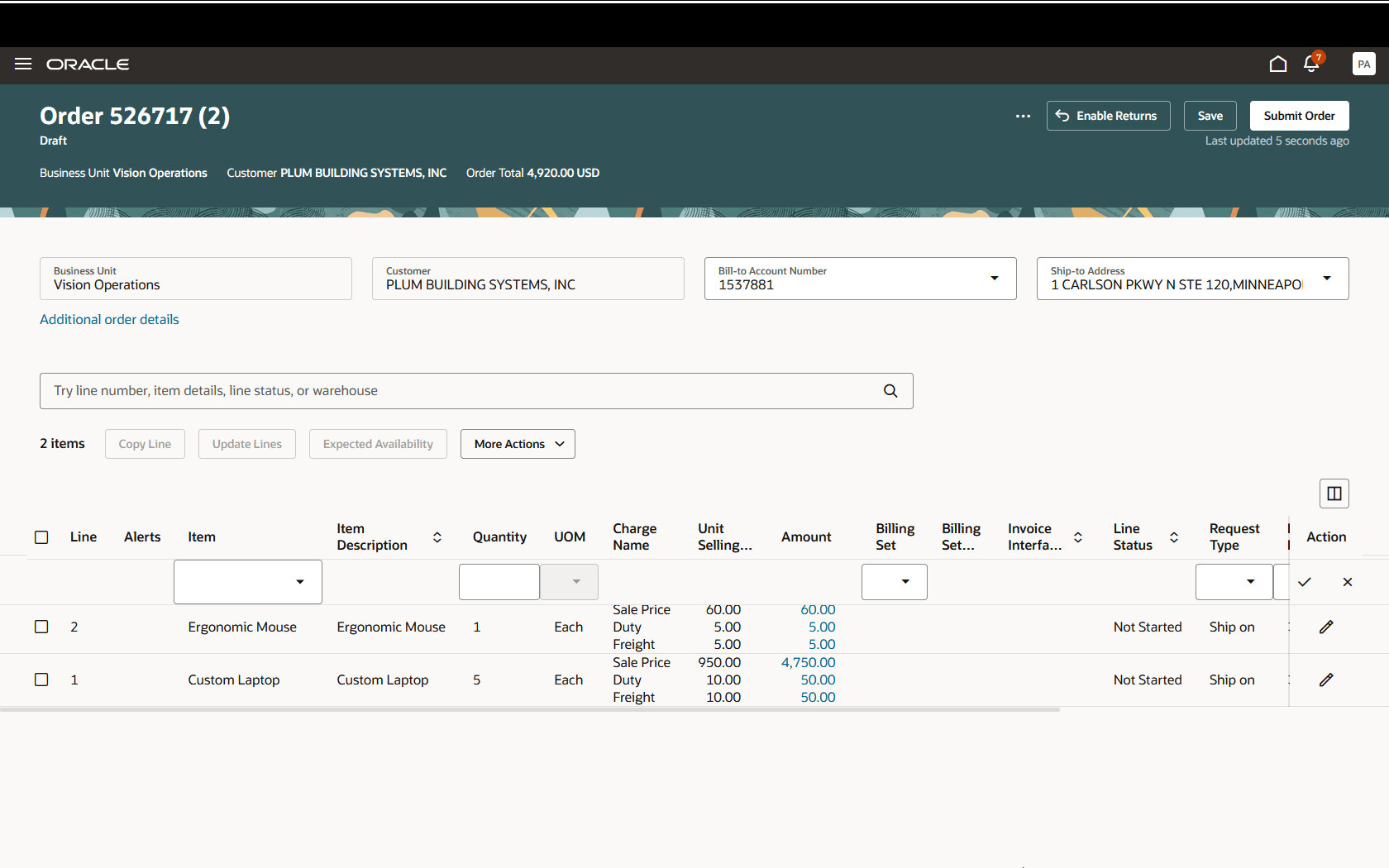
The price book already has the sale price, duty charge, and freight charge so no calculation happens at run time. Instead, Order Management gets that data from the price book and displays it on the sales order:
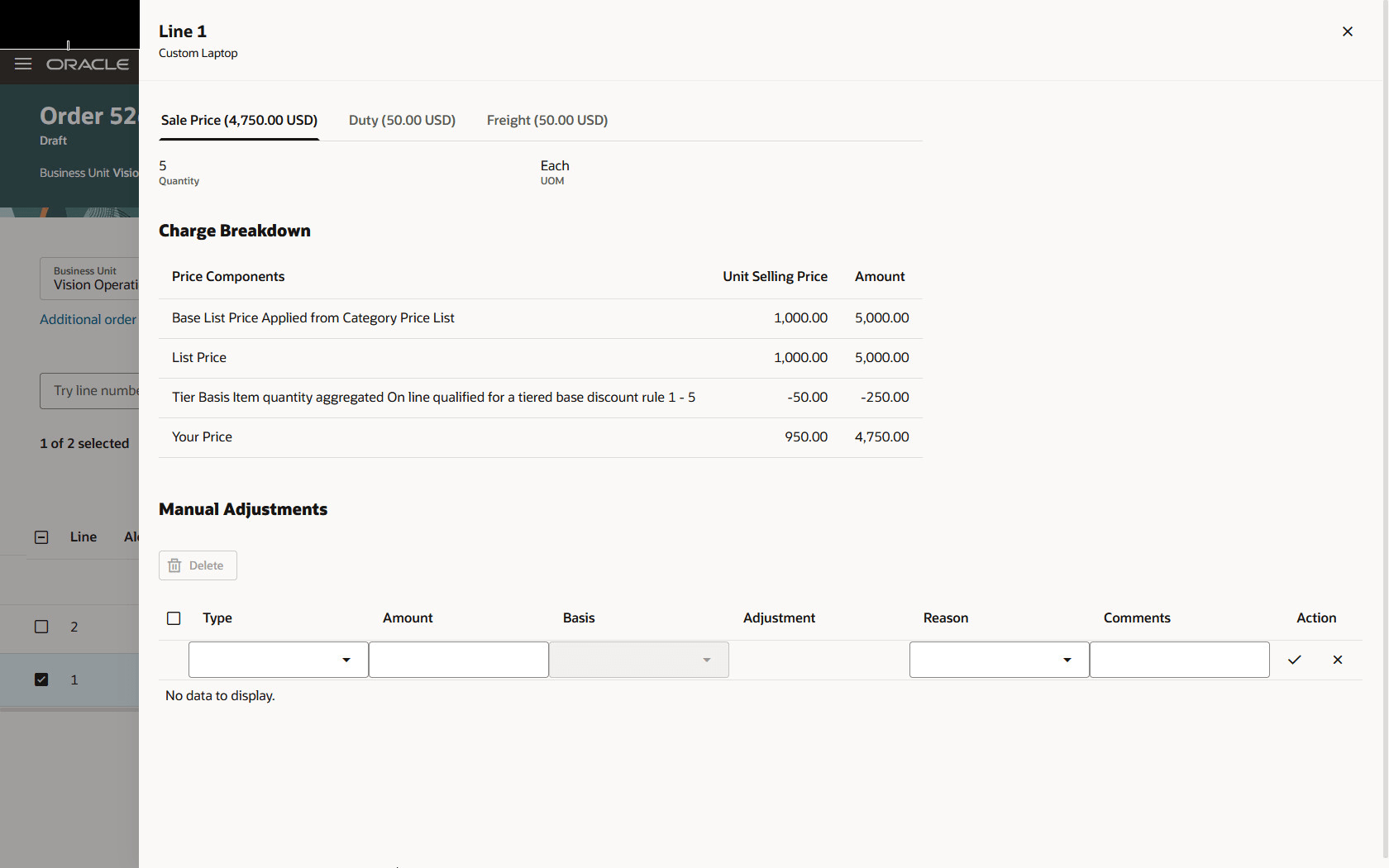
You get the same pricing details when you price with a price book that you get when you don't price with a price book. In this example, a tier discount in a discount list reduces the list price by 5%. If you have tax determinants or manual adjustments, then Pricing will add them after the sales order gets values from the price book.
Steps to enable and configure
If you want to use the Redwood: Use Price Books to Price Sales Orders feature, then you must opt in to it, and you must also opt in to its parent Redwood: Create Price Books to Price Sales Orders feature. If you already opted in to the parent, then you don't have to opt in to the parent again.
Tips and considerations
- You must generate the price book before you can use it in Order Management. See Redwood: Create Price Books to Price Sales Orders.
- You don't need to make any changes in Oracle Order Management to use this feature. If you opt in and generate the price book, then Pricing will use that book if it's available. Otherwise, Pricing will use the item's standard pricing.
- You can create and use a price book only on Pricing's and Order Management's redesigned pages.
You can't include these items or pricing on a price book in update 26A:
- Configured item
- Coverage
- Usage charge in a rate plan
- On document level discount on a pricing tier
- Amount from a tier adjustment that you apply on the line or document
If your sales order has one of these items or pricing features, then Pricing won't use the price book but will use standard pricing instead. These items or pricing features, even if set up on a price list, will not be used in generating the price book, but Pricing will not be restricted to the price book at runtime.
Key resources
Access requirements
- Manage Pricing Rules (QP_MANAGE_PRICING_RULES)
- View Price Lists (QP_VIEW_PRICE_LISTS_PRIV)
- Manage Price Lists (QP_MANAGE_PRICE_LISTS_PRIV)
- Manage In-Progress Price Lists (QP_MANAGE_IN_PROGRESS_PRICE_LISTS_PRIV)
- Generate Price Book (QP_GENERATE_PRICE_BOOK_PRIV) Generate a price book from user-selected parameters.
- View Price Books (QP_VIEW_PRICE_BOOKS_PRIV) Allows viewing of price books.
- Manage Price Books (QP_MANAGE_PRICE_BOOKS_PRIV) Allows creation, update, deletion, and viewing of price books.
- Delete Price Books (QP_DELETE_PRICE_BOOKS_PRIV) Allows deletion of price books.
These privileges were available before this update.
- Publish Price Books (QP_PUBLISH_PRICE_BOOK_PRIV) Publish a price book that was previously generated.
These privileges are new for this feature in this release.