Redwood: Publish Price Books for Sales Orders
Publish your price book so you can share it with trading partners. Publish the entire price book or publish only part of it according to your specific needs. Choose the format that you want to use when you publish. Add more discount setups to your price book when you generate it.
In update 25D, Oracle Pricing introduced a feature you can use to set up a price book that calculates price according to your pricing strategy, and you could use a new REST API to get your price book's data. See Redwood: Create Price Books to Price Sales Orders.
Starting in update 26A, you can now:
- Publish that data to a PDF or CSV file and send it to your customers and partners.
- Use BI Publisher to customize the PDF's format.
- View the price book's data from the Price Books page in the Pricing Administration work area.
- Calculate price according to a percent discount for simple, matrix, and tier pricing.
- Set up a price book for more than one pricing strategy, an item, item category, unit of measure, and so on.
- Revise your price book at any time.
Realize these benefits:
- Get quick access to prices that Oracle Pricing already priced across more than one price list.
- Improve visibility and collaboration through published, downloadable price books.
- Increase pricing accuracy and consistency across orders and channels.
- Use a transparent, detailed, price structure to improve customer satisfaction.
Try it:
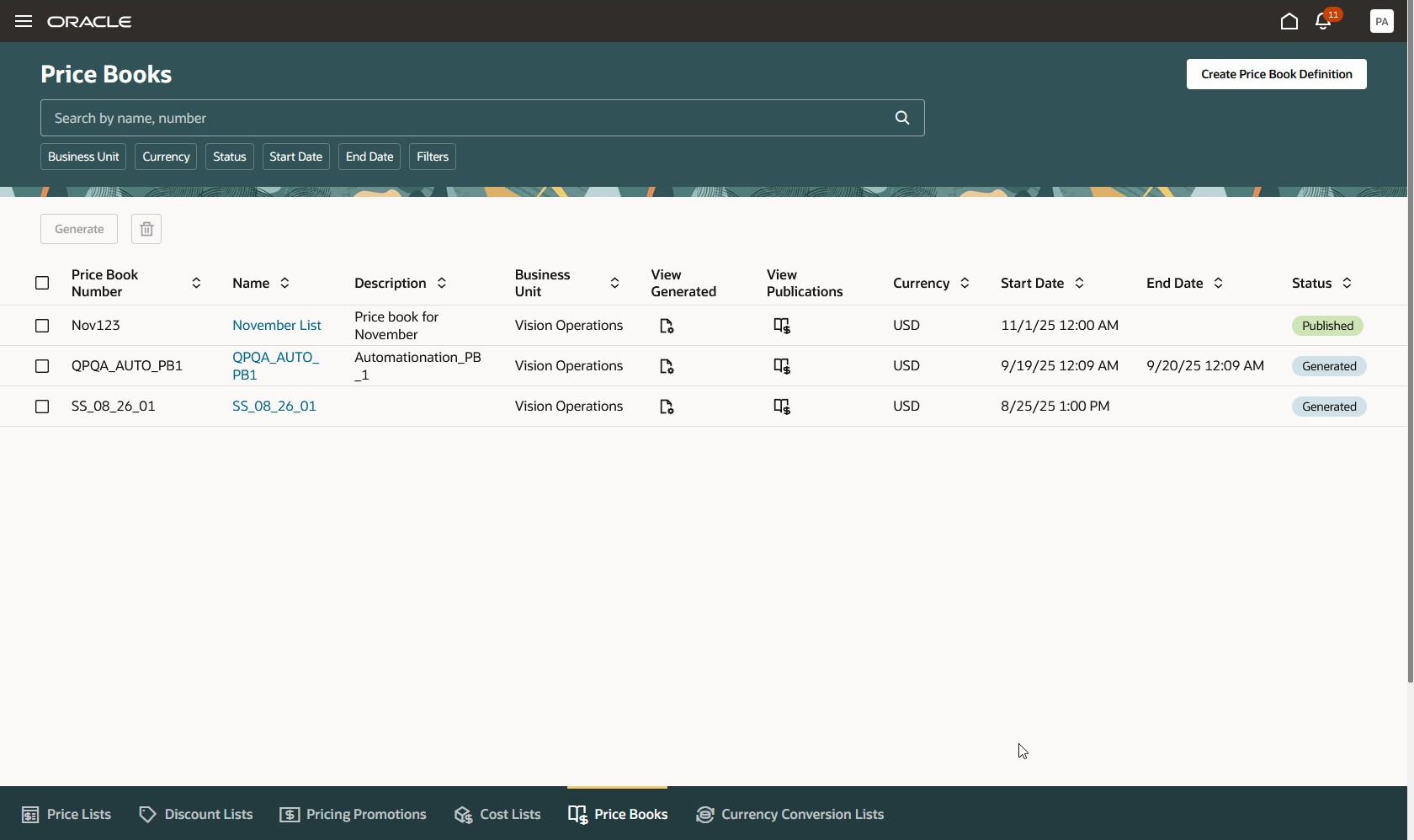
- Go to Home > Order Management > Show More > Manage Price Books. Notice the new attributes for this update, such as the status. Next, click the icon in the View Generated column to get more detail:
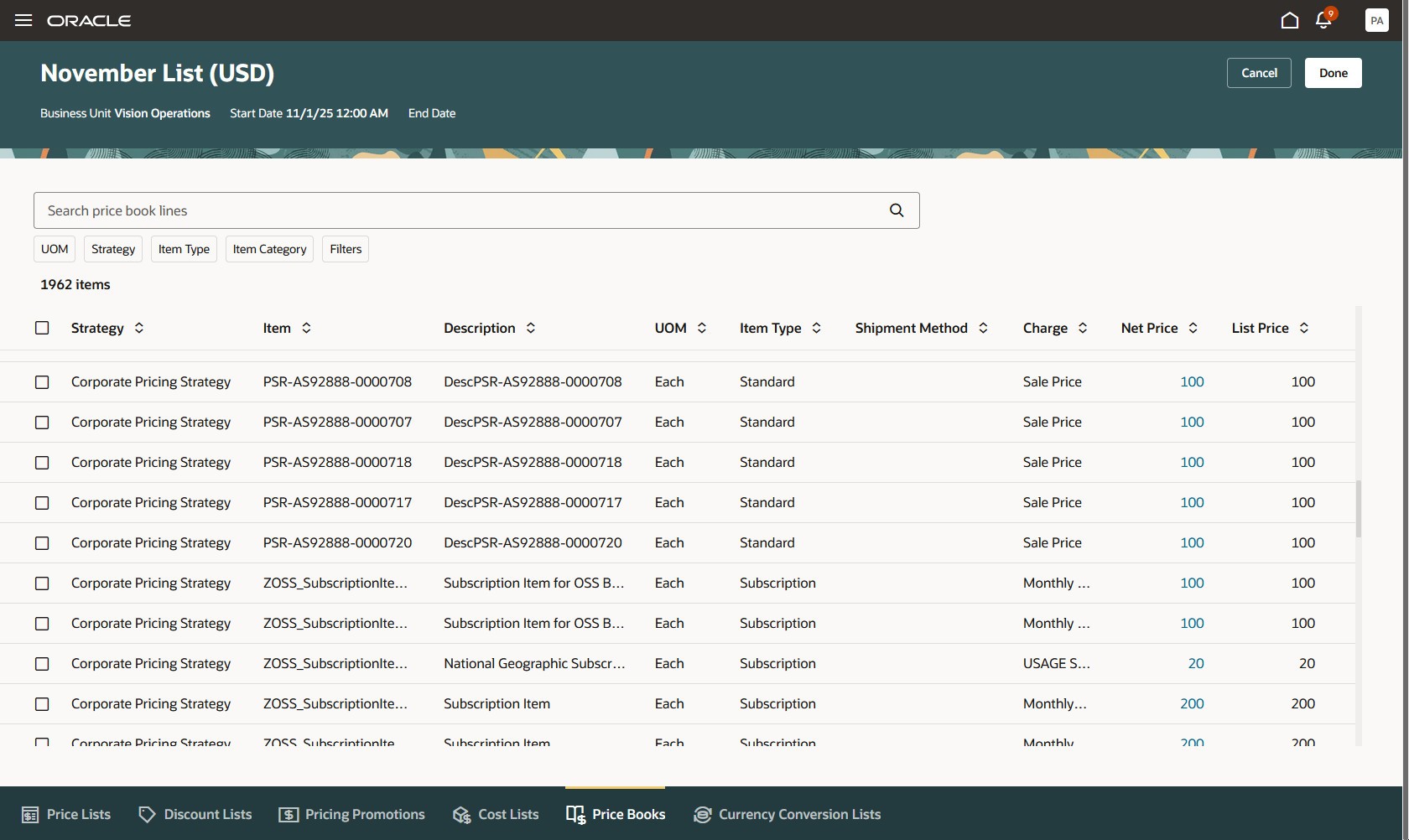
- Notice that each line includes the item's calculated list price and net price, and other attributes, such as the unit of measure, item type, and charge type. Next, click the link in the Net Price column:
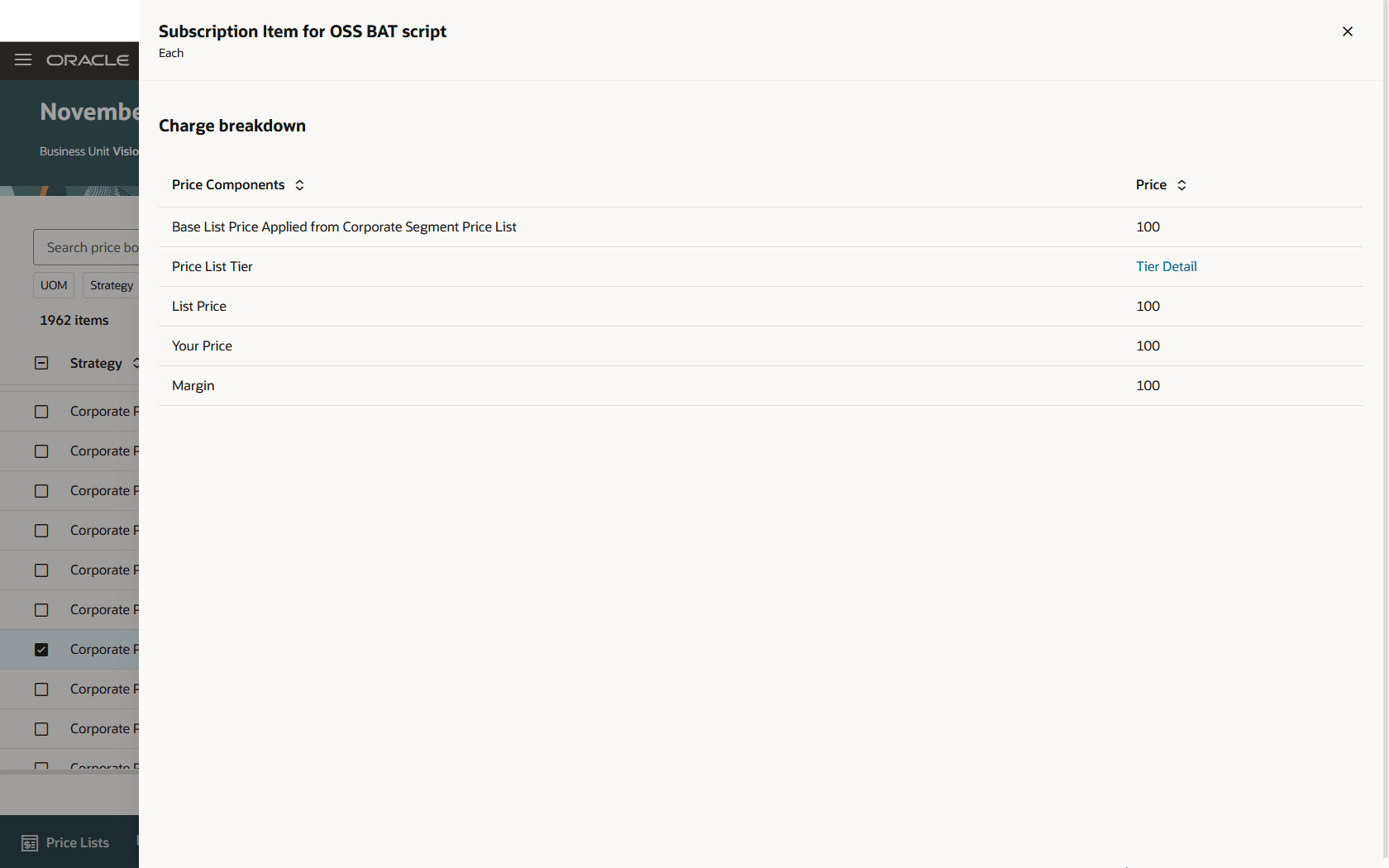
- Examine the charge breakdown. It's similar to how you view it on a sales order, but the price book only represents a unit price because the quantity isn’t known. Next, click Tier Detail:
- Examine the tier discounts that are available for this item:
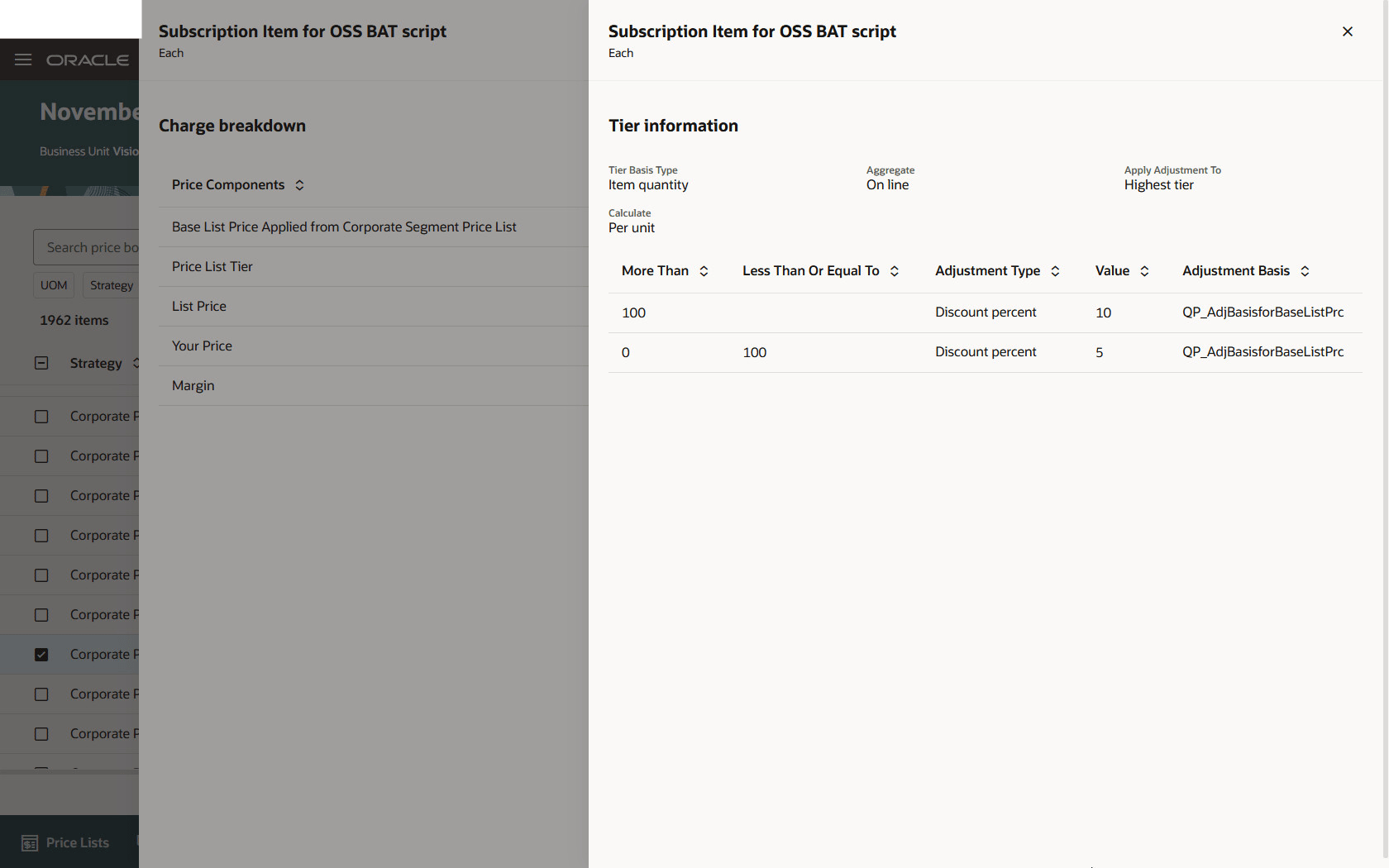 Pricing applies a tier discount according to the quantity purchased. The price book uses a placeholder to represent the price's potential impact. In this example, Pricing uses two tiers to increase the discount when the purchase amount increases. The price book displays a matrix discount in a similar way.
View and Publish
- Go to Home > Order Management > Show More > Manage Price Books, then click View Publications on the line that has your price book.
- Examine the Published Price Books dialog to view the documents that you can publish and download. Notice that the download icon on the first line is grey, which means the publication is still in progress:
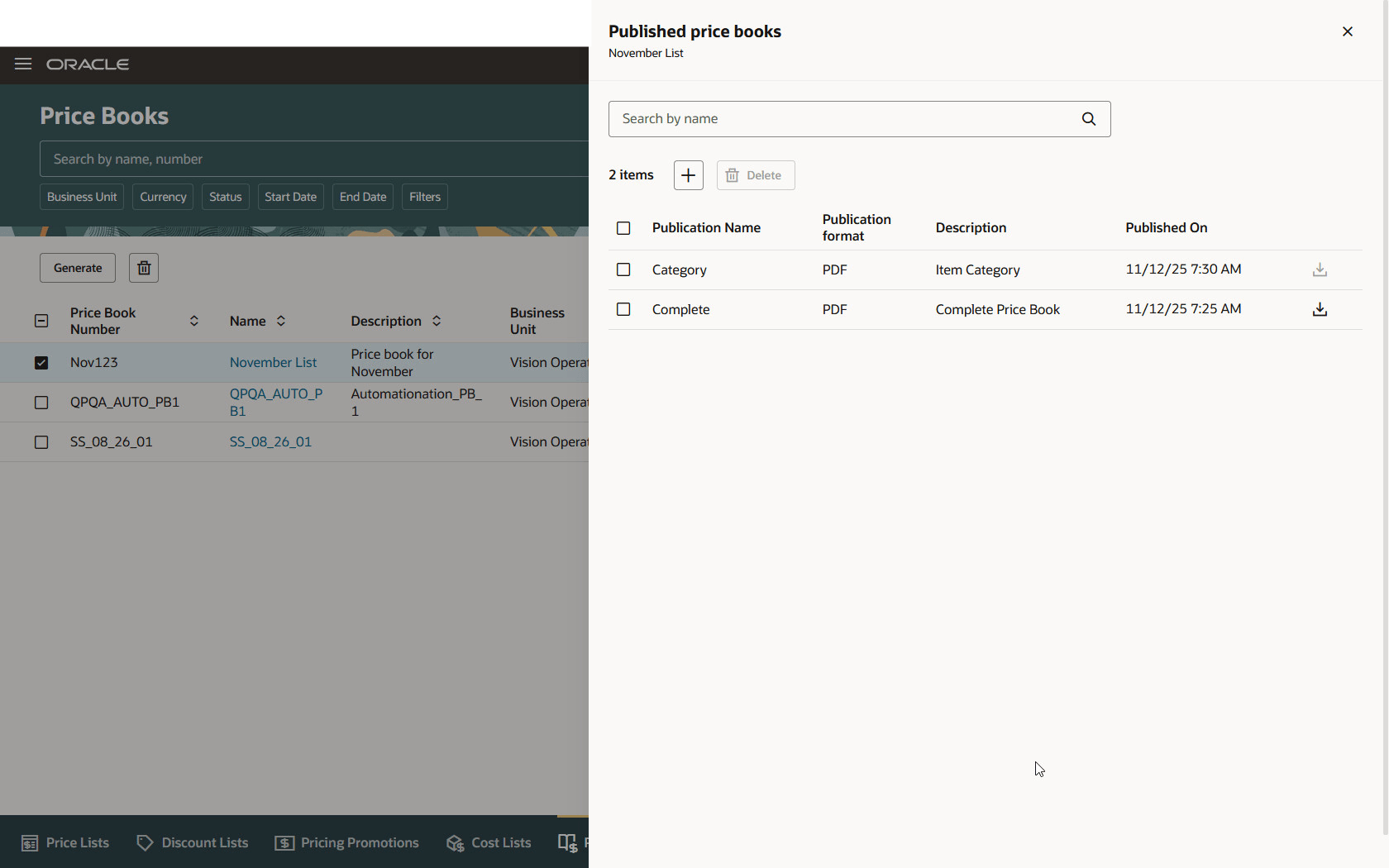
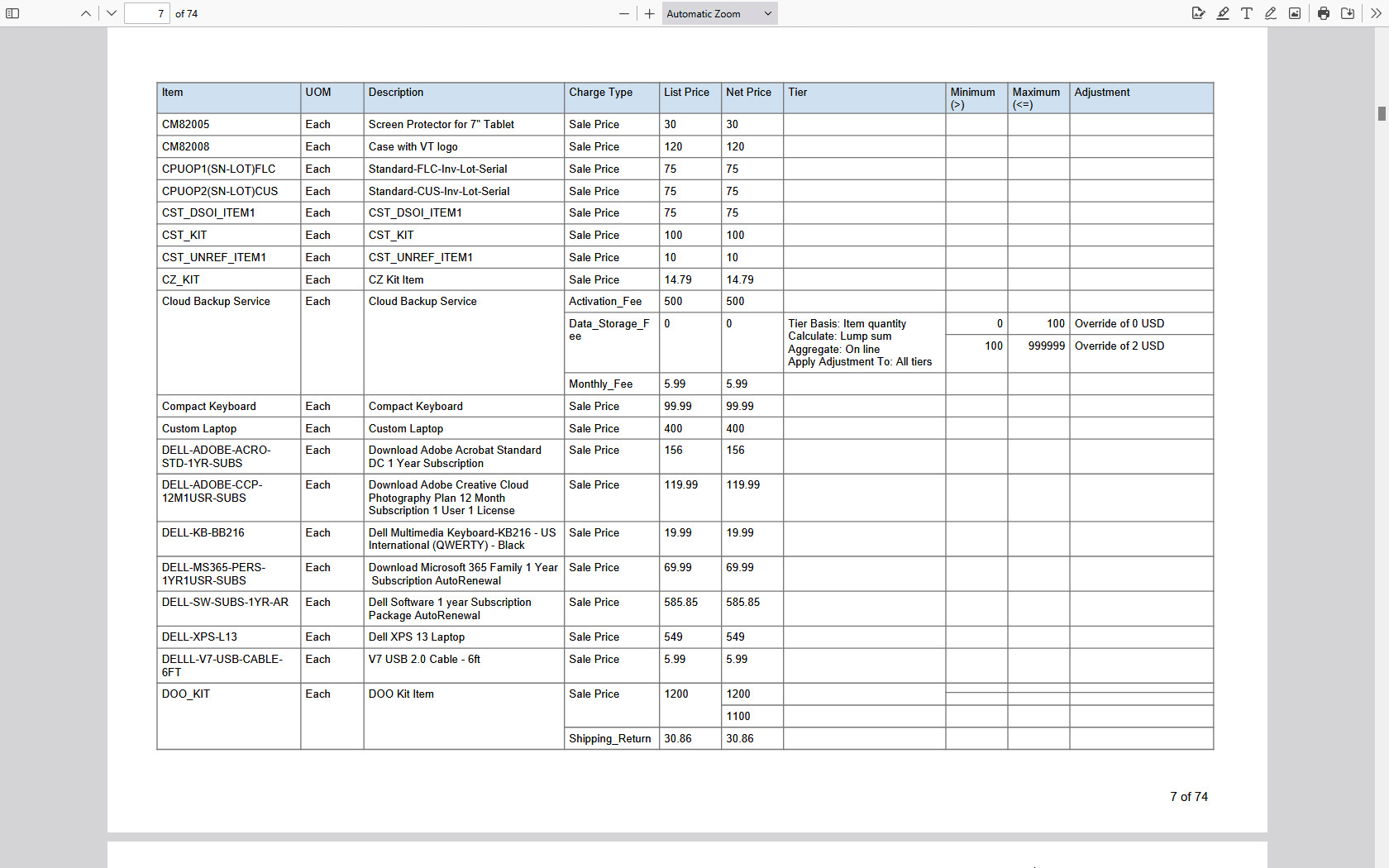
- Click the download icon on the second line, then examine the downloaded file. This example uses a report's predefined template to publish the price book. You can use BI Publisher to apply your own, custom template. This report is sorted by item and UOM, and it includes the item's description. The line that has the list price and net price also has the tier detail:
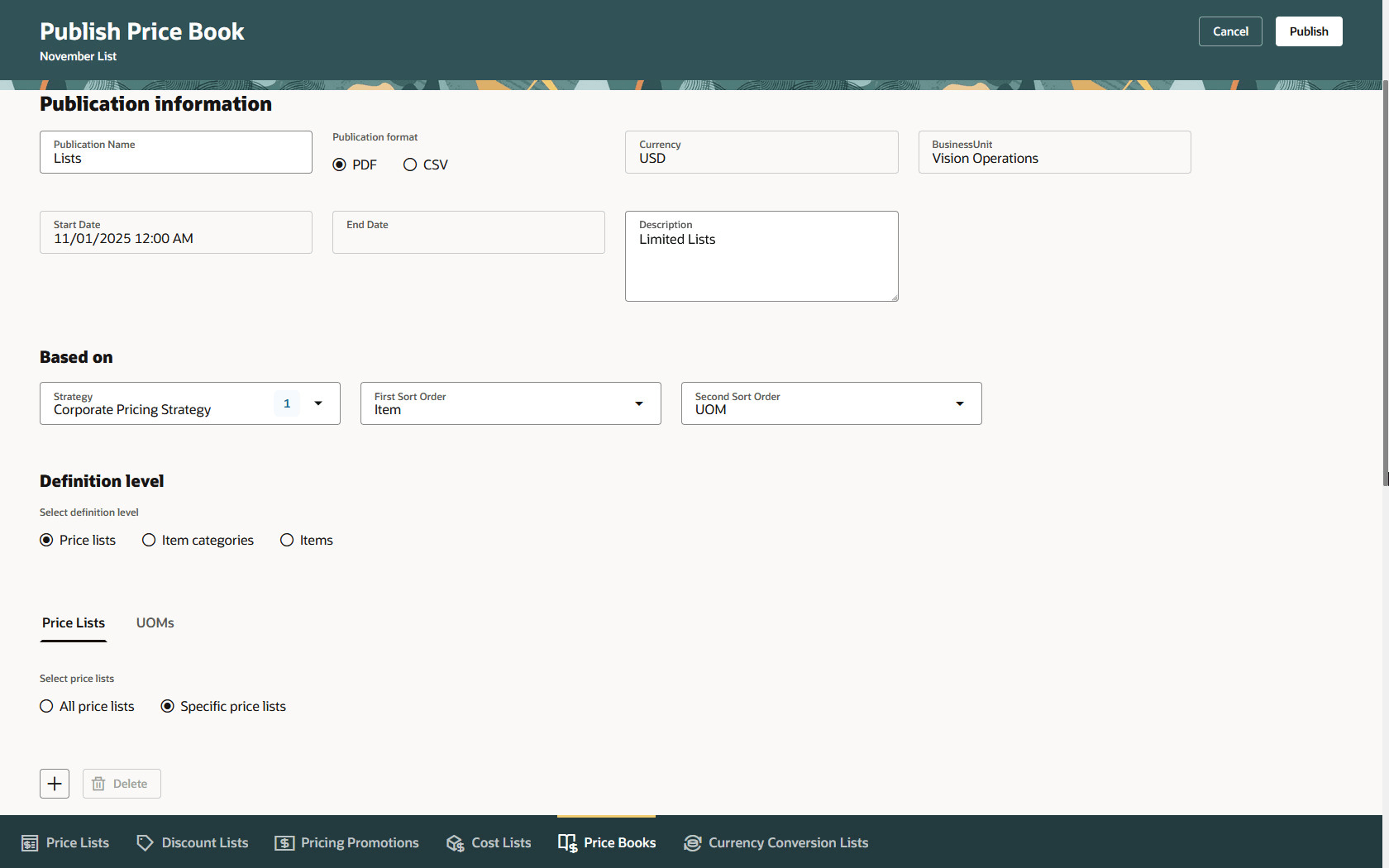
- Click Add (+ icon) on the Published Price Book dialog, then use this page to specify how you want to publish:
Note this:
- Provide a name and description for your publication. This page sets a default value for some attributes, such as currency, business unit, and dates. You can't change them.
- You must select a strategy that's available in the list, but you can leave all other selections at their default values. The price book provides these default values.
- You don't have to publish all of the book's contents. You can filter it according to strategy, price list, item category, unit of measure, and item.
- Click Publish, then a schedule process will start to publish the book according to your selections.
- The page displays a message when the process finishes. The message includes the process Id. That's how you know you can download the report.
Steps to enable and configure
If you want to use the Redwood: Publish Price Books for Sales Orders feature, then you must opt in to its parent Redwood: Create Price Books to Price Sales Orders feature. If you already opted in to the parent, then you don't have to opt in again.
Tips and considerations
You can create a price book only on Pricing's redesigned pages.
You can't include these items or pricing set ups on a price book in update 26A:
- Configured item
- Coverage
- Usage charge in a rate plan
- On document level discount on a pricing tier
- Amount based tier adjustment on a pricing tier for both line and document
If your price list has one of them, then the price book won't include it. The price book generation report will display an error but you can still generate the book, the report will list what it didn't include, and you can use the book for pricing.
Key resources
Access requirements
Users who are assigned a configured job role that contains these privileges can access this feature:
- Manage Pricing Rules (QP_MANAGE_PRICING_RULES)
- View Price Lists (QP_VIEW_PRICE_LISTS_PRIV)
- Manage Price Lists (QP_MANAGE_PRICE_LISTS_PRIV)
- Manage In-Progress Price Lists (QP_MANAGE_IN_PROGRESS_PRICE_LISTS_PRIV)
- Generate Price Book (QP_GENERATE_PRICE_BOOK_PRIV) Generate a price book from user-selected parameters.
- View Price Books (QP_VIEW_PRICE_BOOKS_PRIV) Allows viewing of price books.
- Manage Price Books (QP_MANAGE_PRICE_BOOKS_PRIV) Allows creation, update, deletion, and viewing of price books.
- Delete Price Books (QP_DELETE_PRICE_BOOKS_PRIV) Allows deletion of price books.
These privileges were available before this update.
- Publish Price Books (QP_PUBLISH_PRICE_BOOK_PRIV) Publish a price book that was previously generated.
These privileges are new for this feature in this release.