Redwood: Apply Pricing Formulas with Mass Actions on Price Lists
Use the new Pricing Formula dialog to create a mathematical expression that meets your specific, custom pricing requirements. You can use the formula to drive your mass actions using costs in a cost list and prices in another price list.
Realize these benefits:
- Maintain price more efficiently. Use a mass action to apply one formula to more than one line so you can update all of your price lists in minutes, not days.
- Improve margin control. Calculate price according to cost, regional factors, tariffs, so you protect targets across markets.
- Keep pricing consistent. Reuse the same formula across price lists so you reduce drift and keep rules consistent.
- Cut errors. Use stored variables, such as cost, list price, or charge, so pricing pulls the correct, current values and applies the formula accurately.
- Reduce maintenance overhead. Set up one formula that calculates one variable and reuses that variable so you avoid copying it in more than one equation.
Assume you need to add a custom formula for a recycling fee on the AS54888 item:
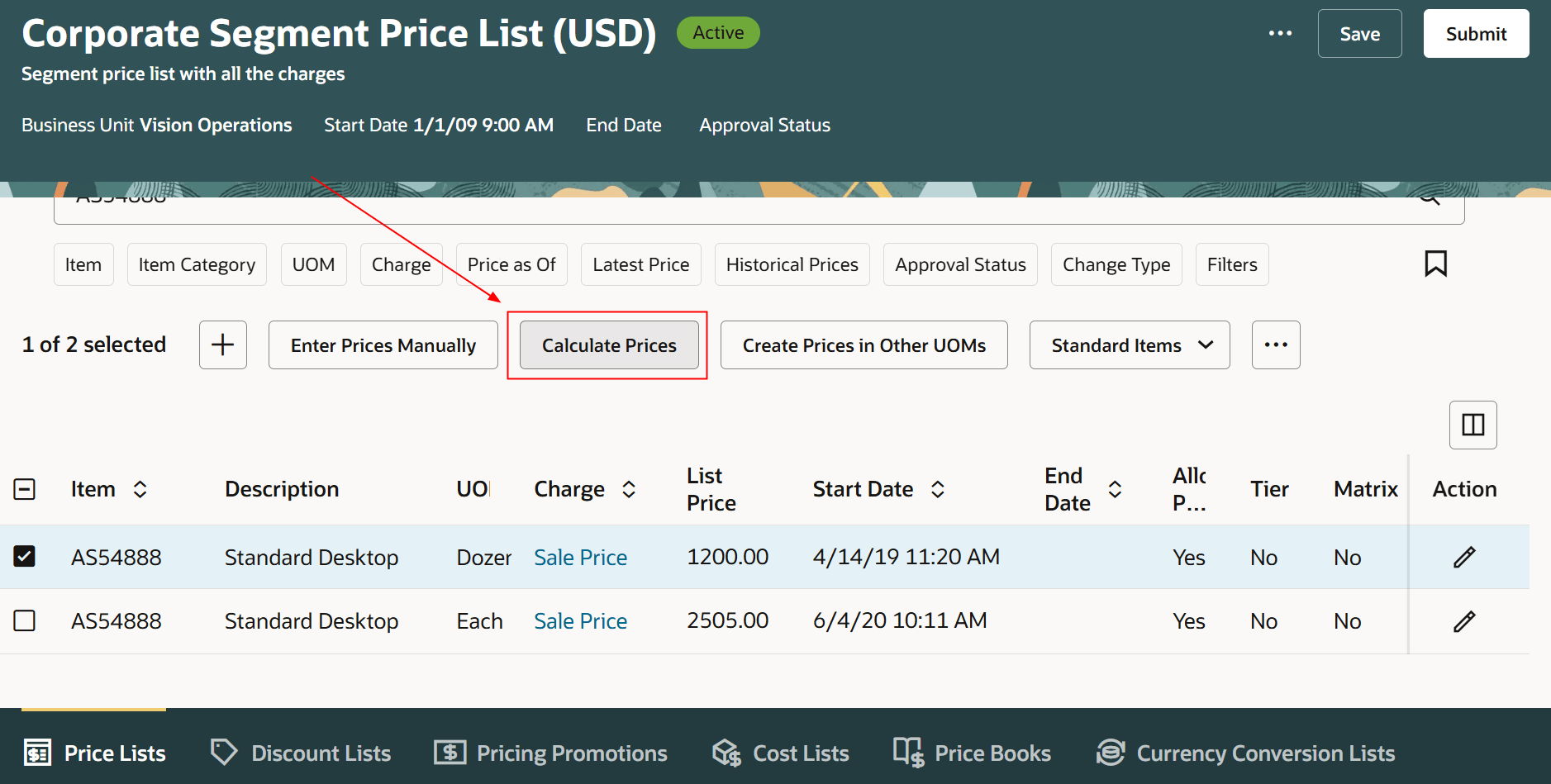
- Go to Home > Order Management > Pricing Administration > Show More > Manage Price Lists – New > Corporate Segment Price List.
- Search for the AS54888 item, then click Calculate Prices:
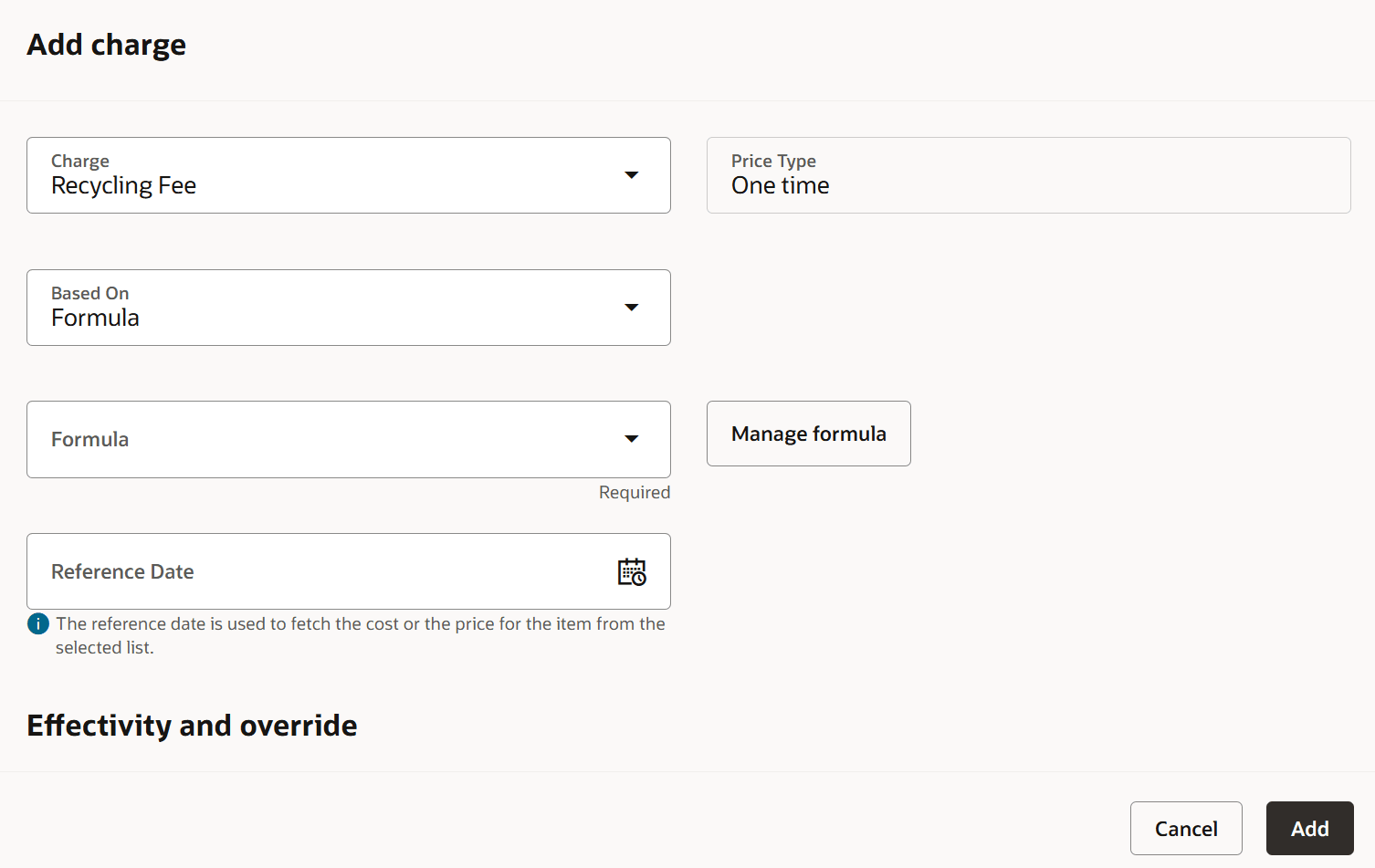
- Click Add, set these values, then click Manage Formula:
For example: Calculate the Recycle Fee as a 10% markup over the item cost from the QP Cost List:Attribute
Value
Charge
Recycling Fee
Based On
Formula
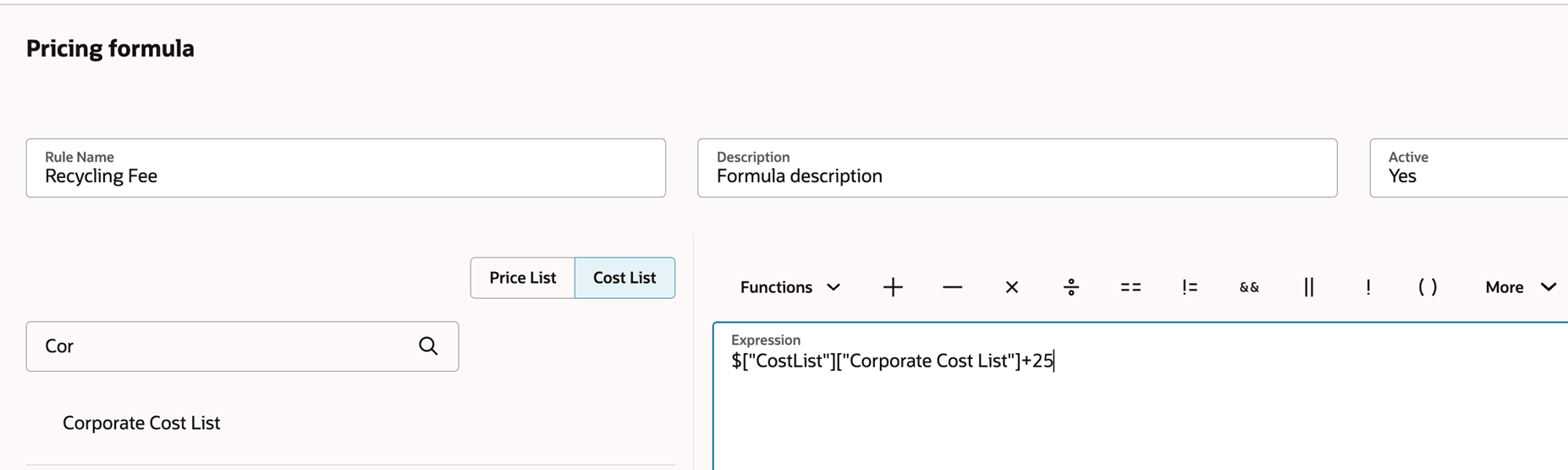
- Enter your expression, then click Save:
General Operations
Use standard mathematical operators in your formula so you can calculate price directly. For example:
- Sale Price = Cost + 25
- Sale Price = Cost + (Cost * 10%)
Set up a formula to calculate one variable on your price list. For example:
-
Sale Price = Cost + (Cost *10%)
Refer to one or more stored variables when you create the formula, such as cost, a list price, or charge. Pricing will get each stored value and apply the formula. For example:
- Sale Price = (Cost * 20%) + (Master Price * 80%)
- Sale Price = (Labor Cost) + (Handling Cost) + (Service Fee)
Set up one formula and reuse it for any line on a price list so you can maintain consistent pricing without creating more than one equation. For example:
- List Price = Cost + 10%
markup applies to each selected line.
Cost Plus Pricing Use Case
Use this formula to add a profit margin to the item’s cost and overhead to calculate the selling price:
- (Item Cost + Overhead) / (1 - Profit%)
For example:
- (Item Cost + Overhead) / (1 - 0.3)
Assume you have:
- The Standard Laptop item.
- The item's cost is 100 USD, from the master cost list.
- The overhead is50 USD, from the overhead cost list.
Try it:
- Set up cost in the master cost list and overhead in the overhead cost list.
- Add the formula to the corporate price list.
- Run a mass update.
- Price the item in a sales order.
And the result is list price = 214.30 USD.
Regional Pricing Use Case
Use this formula to apply a regional factor to the item’s price to calculate a regional selling price:
- (Item Price + Item Price * Regional Factor)
For Example:
- (Item Price + Item Price * 0.8)
Assume you have:
- The Standard Laptop item.
- The item's price is 100 USD from the master price list.
Try it:
- Set up item prices in the master price list.
- Add the formula to the regional price list.
- Run a mass update.
- Price the item in a sales order.
And the result is list price = 80 USD.
Steps to enable and configure
You don't need to do anything to enable this feature.
Tips and considerations
- You can create a pricing formula one time, and then use Calculate Prices to apply that formula in subsequent mass actions.
- Apply the formula on one item to verify the calculation, and then apply it on multiple items.
- Use the Validate action to make sure your pricing formula is valid.
Key resources
Access requirements
Users who are assigned a configured job role that contains these privileges can access this feature:
- Manage Price Lists (QP_MANAGE_PRICE_LISTS_PRIV)
These privileges were available before this update.