Redwood: Manage Trading Partner Items
You can standardize trading partner items in alignment with existing items to support taxonomical classification using advanced trading partner items. This provides a foundation to improve the functionality and features associated with the existing trading partner items.
As an administrator, you can do the following:
- Use trading partner item classes to simplify and organize classification across trading partners.
- Create child trading partner item classes based on the following predefined trading partner item classes:
- Competitor Trading Partner Item Class
- Manufacturer Trading Partner Item Classes
- Customer Trading Partner Item Classes
- Supplier Trading Partner Item Classes
- Manage attachment categories that you can associate for a trading partner item in the trading partner item class.
- Manage trading partner item numbering and item description generation schema for a trading partner item class.
As a business user, you can do the following:
- Search for trading partner items and personalize the Trading Partner Item Search page.
- Create and manage trading partner item views.
- Create and manage trading partner items that involves managing the attributes, relationships, and attachments.
Trading Partner Item Classes:
In the Setup and Maintenance work area, go to the Product Management offering and search for the Manage Item Classes task. On the Manage Item Classes page, query the Root Trading Partner Item Class.
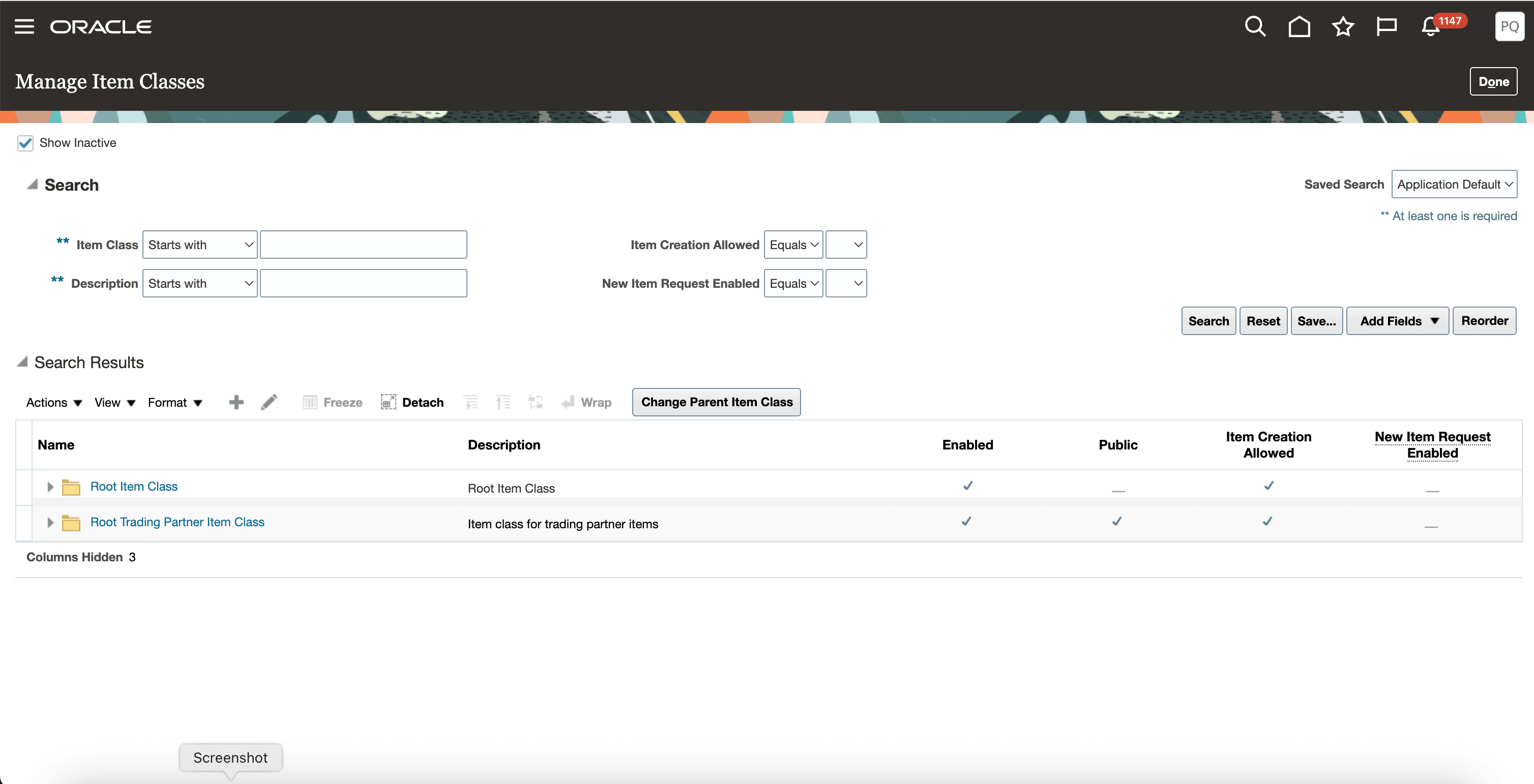
Manage Root Trading Partner Item Class
The Root Trading Partner Item Class has four predefined item classes as shown in the following screenshot:
- Competitor Item Class
- Customer Item Class
- Manufacturer Item Class
- Supplier Item Class
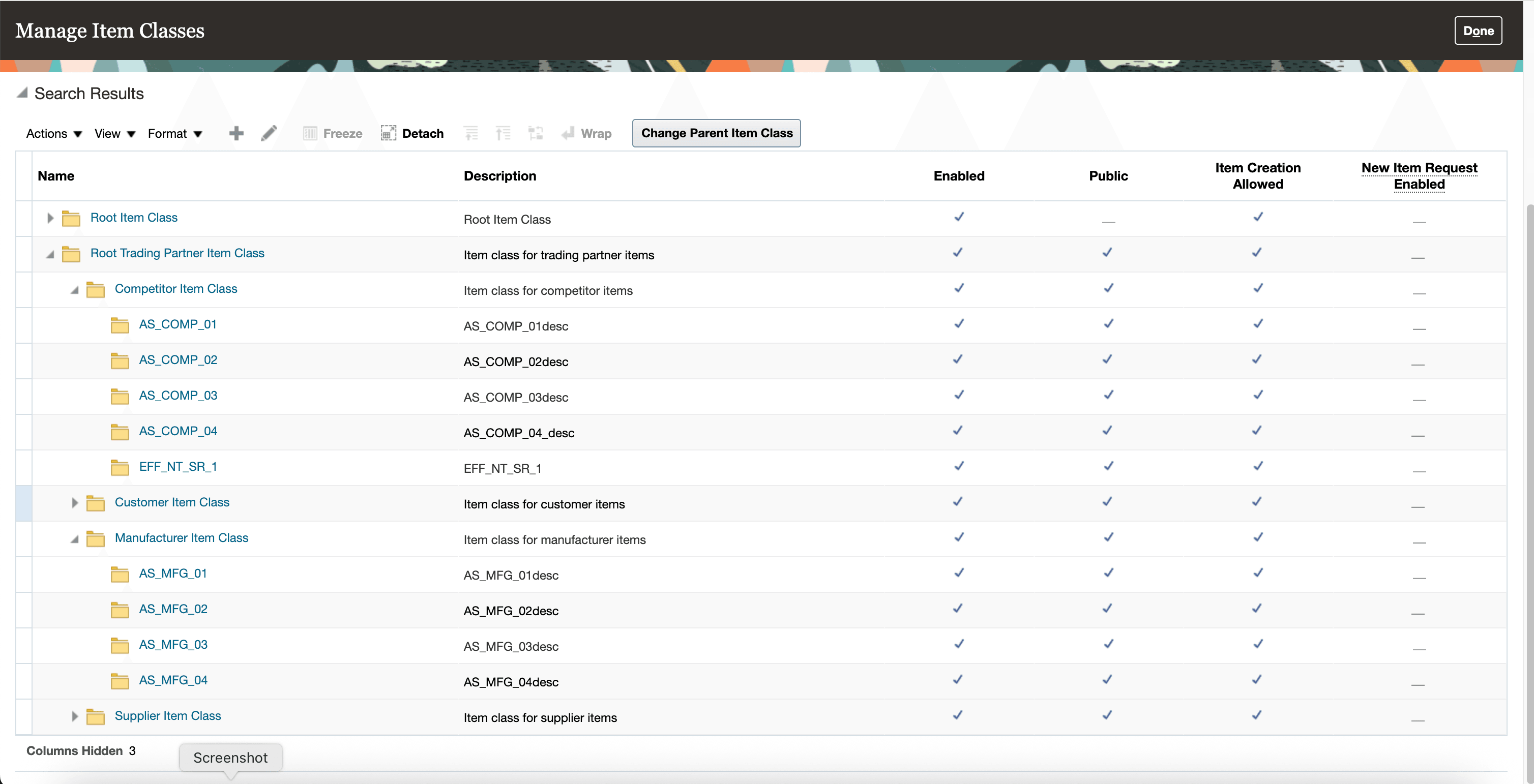
Predefined Trading Partner Item Classes
You can create new child trading partner item classes based on any of these four predefined trading partner item classes. Select the trading partner item class based on which you want to create a new item class and from the Actions menu, click Create. In the Create Item Class dialog box, provide the necessary details and click Save and Add Details. The Edit Item Class page is displayed.
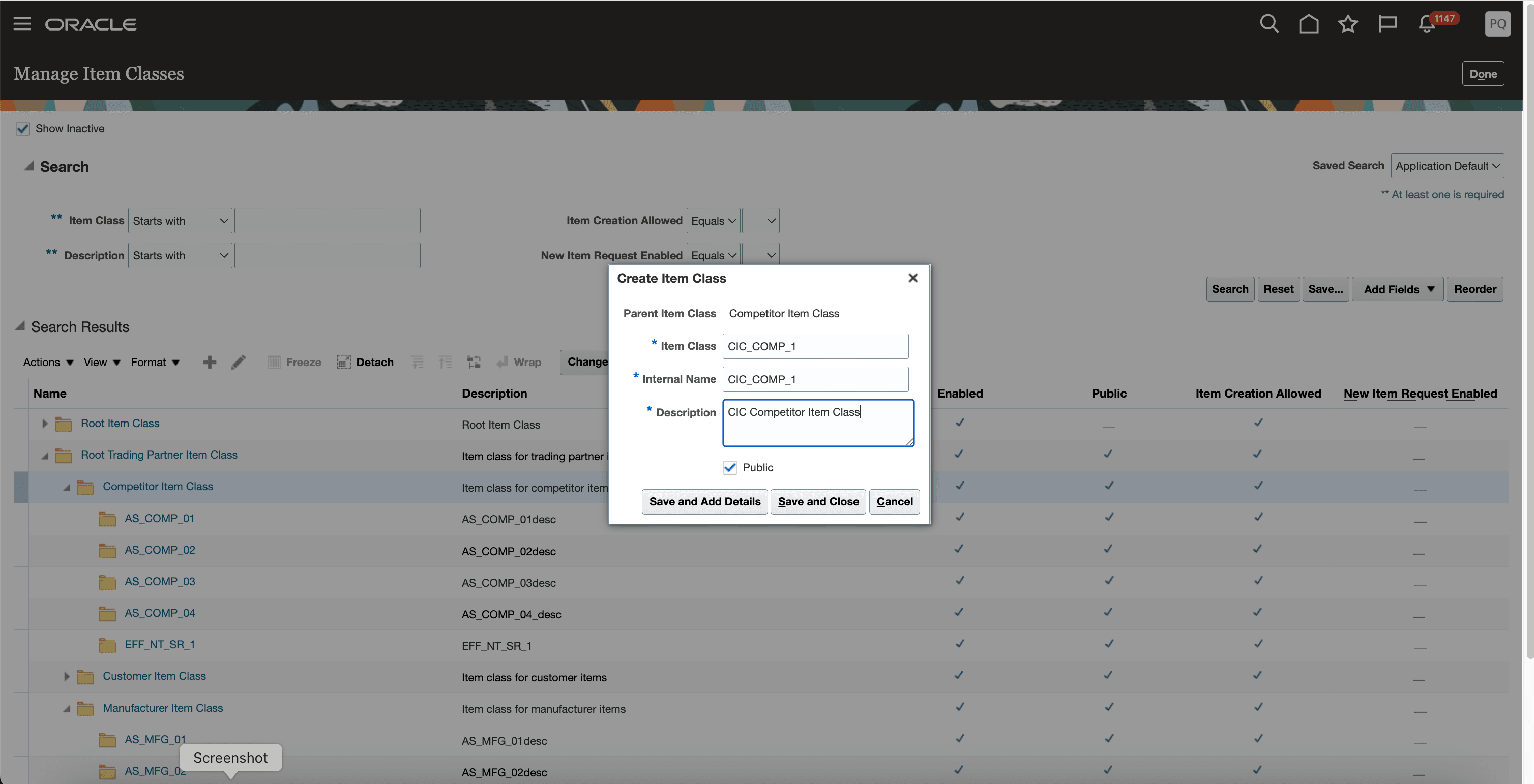
Create Trading Partner Item Class
Under the Basic tab, you can view additional information and attachment categories. You can also provide the necessary attachment categories that can be used for associating to trading partner items.
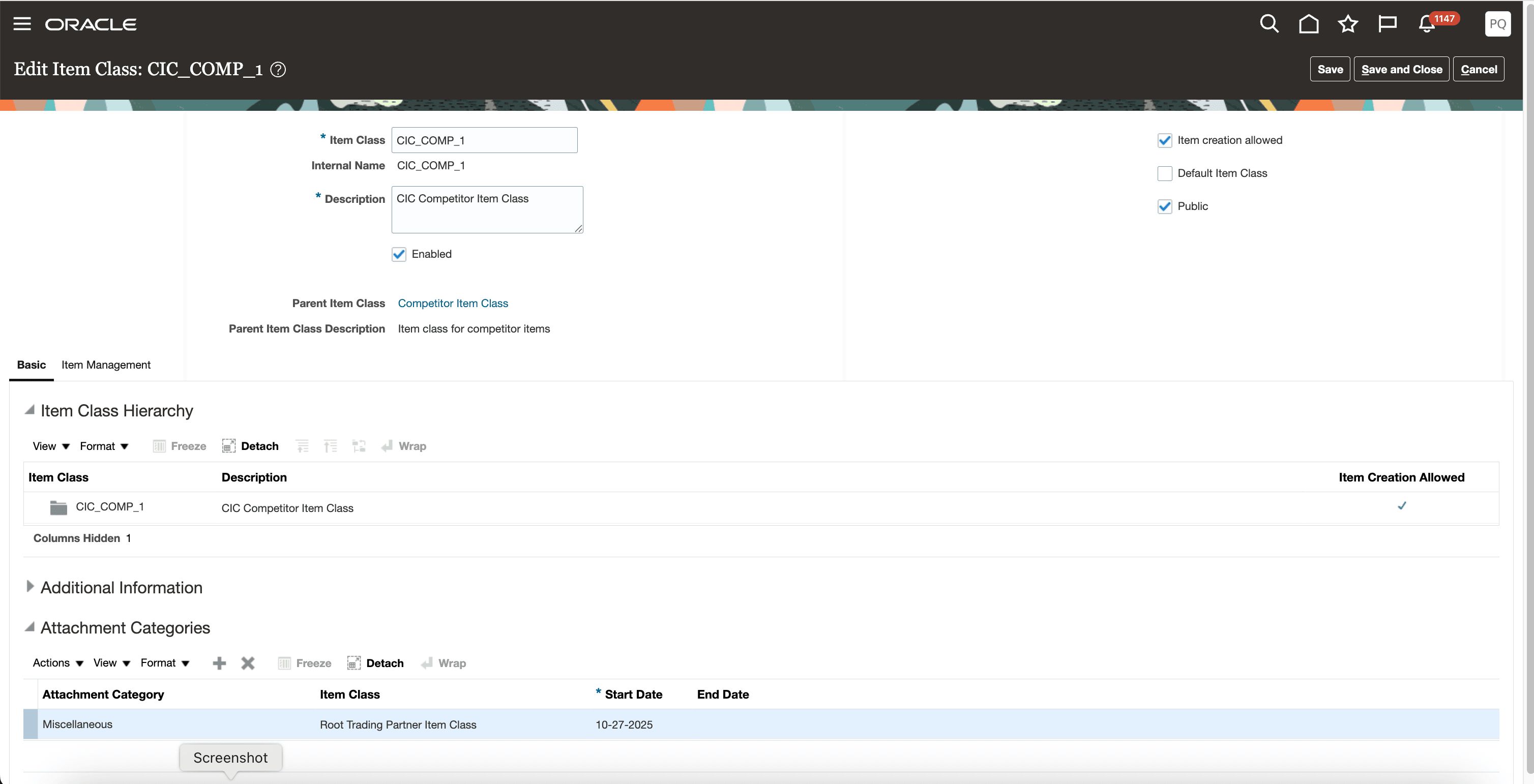
Edit Trading Partner Item Class
On the Edit Item Class page > Item Management tab, you can set up the number and description generation schema.
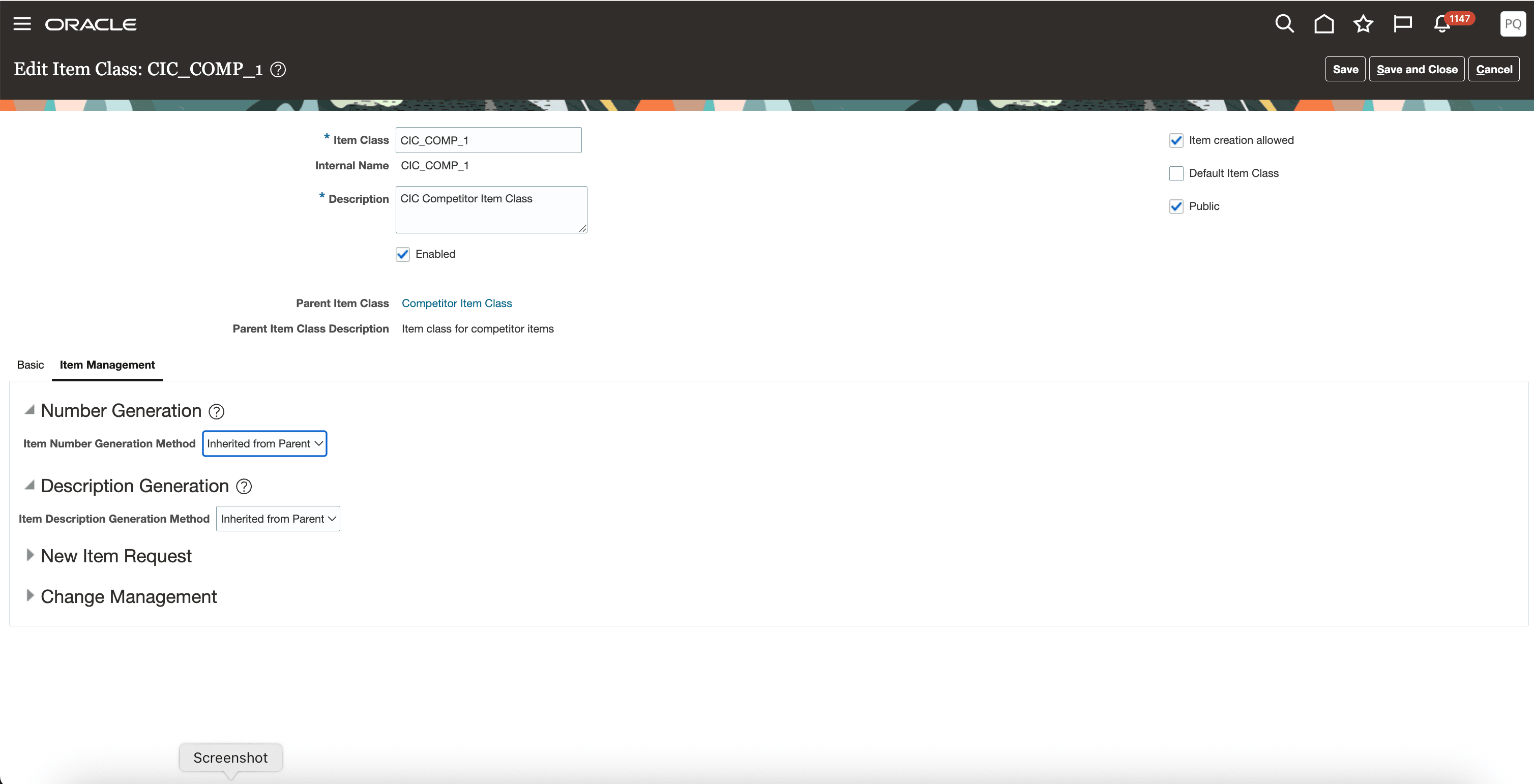
Item Management - Trading Partner Item Class
Configure Index for Trading Partner Items
To configure the index for trading partner items:
- On the Product Management page, in the Actions section, click View all actions. The Actions drawer is displayed.
- Click Indexes.The Index Management page is displayed.
- Click the Trading Partner Item index. The Trading Partner Item Configure Index page is displayed.
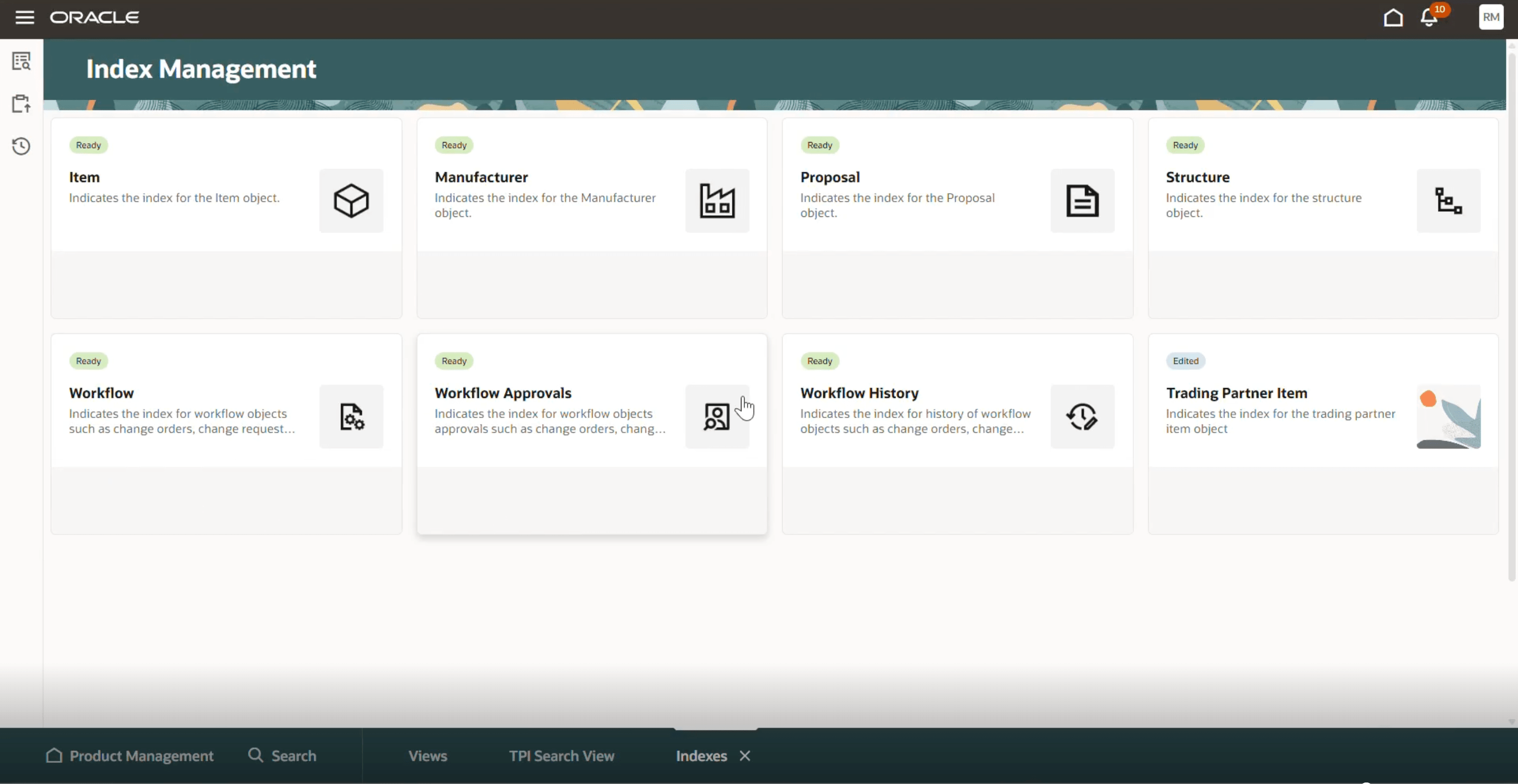
Trading Partner Item Index
- Click the Add icon to select the attributes in the trading partner item object that needs to be indexed. After you select and add the attributes, from the More Actions menu, click Rebuild to rebuild the index and wait for the rebuild process to complete.
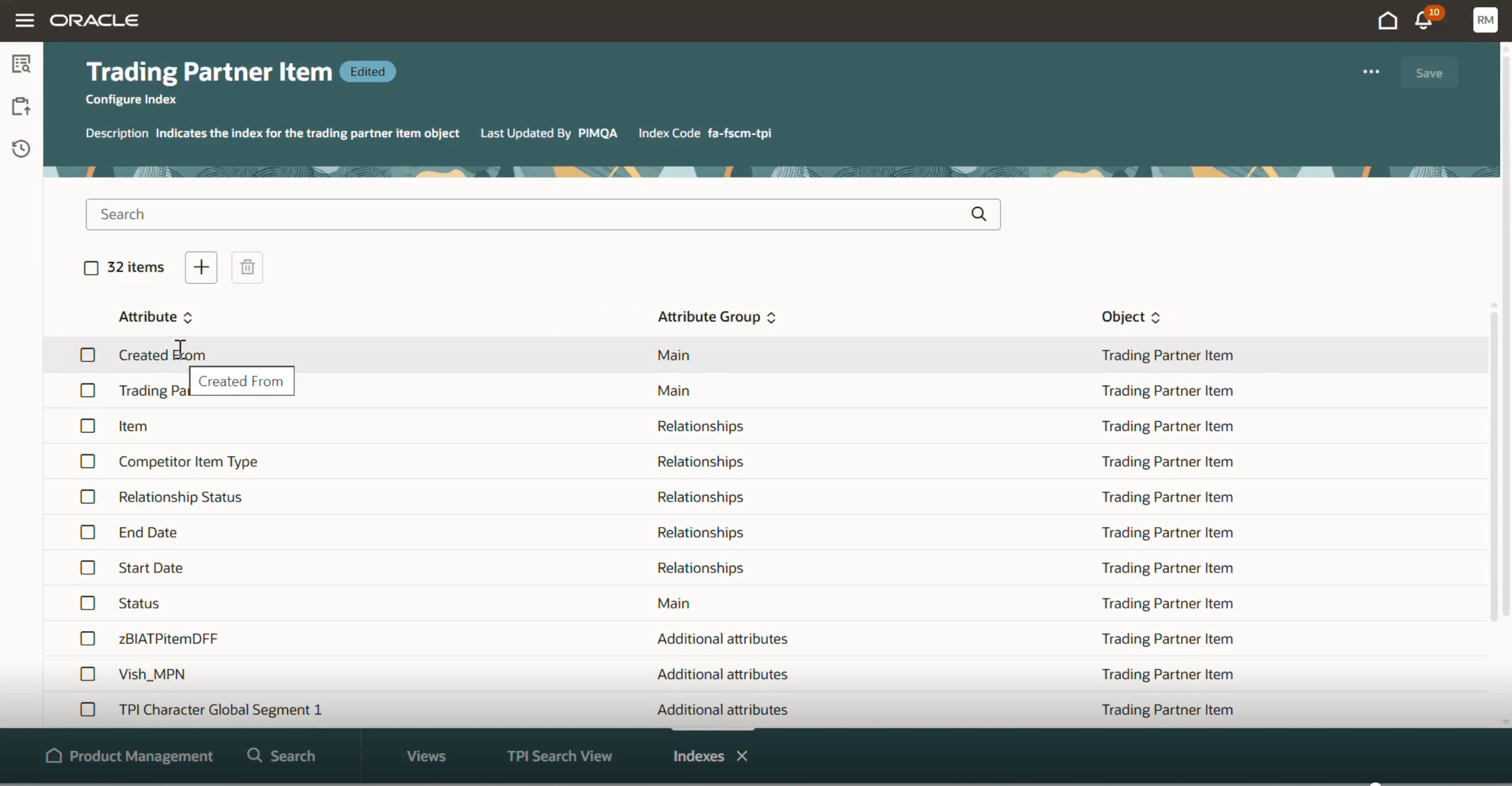
Configure Index
Configure View for Trading Partner Items
To configure views for trading partner items:
- On the Product Management page, in the Actions section, click View all actions. The Actions drawer is displayed.
- Click Views. The View Management page is displayed
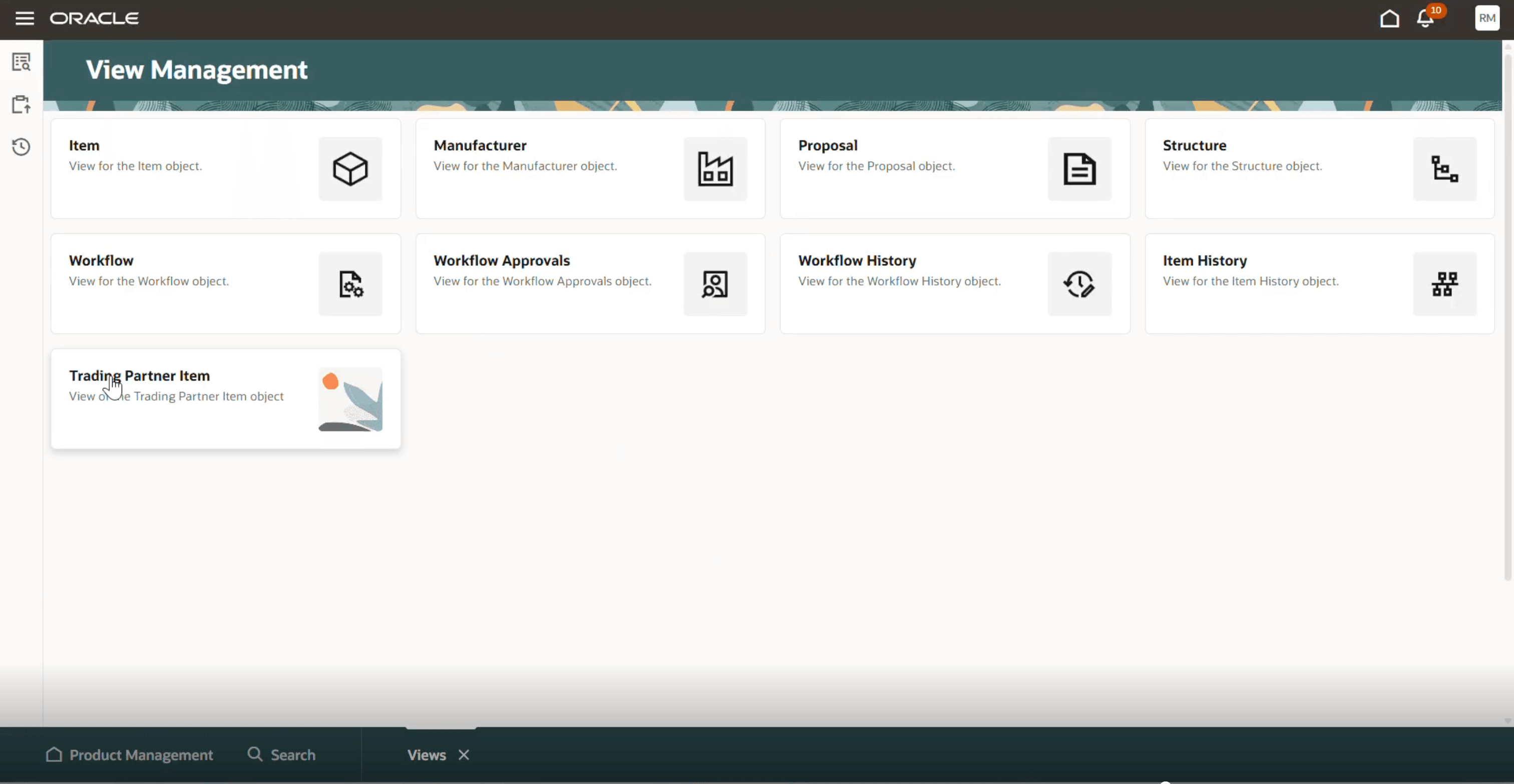
View Management
- Click the Trading Partner Item view. The Views Trading Partner Item page is displayed, where the trading partner item views are listed.
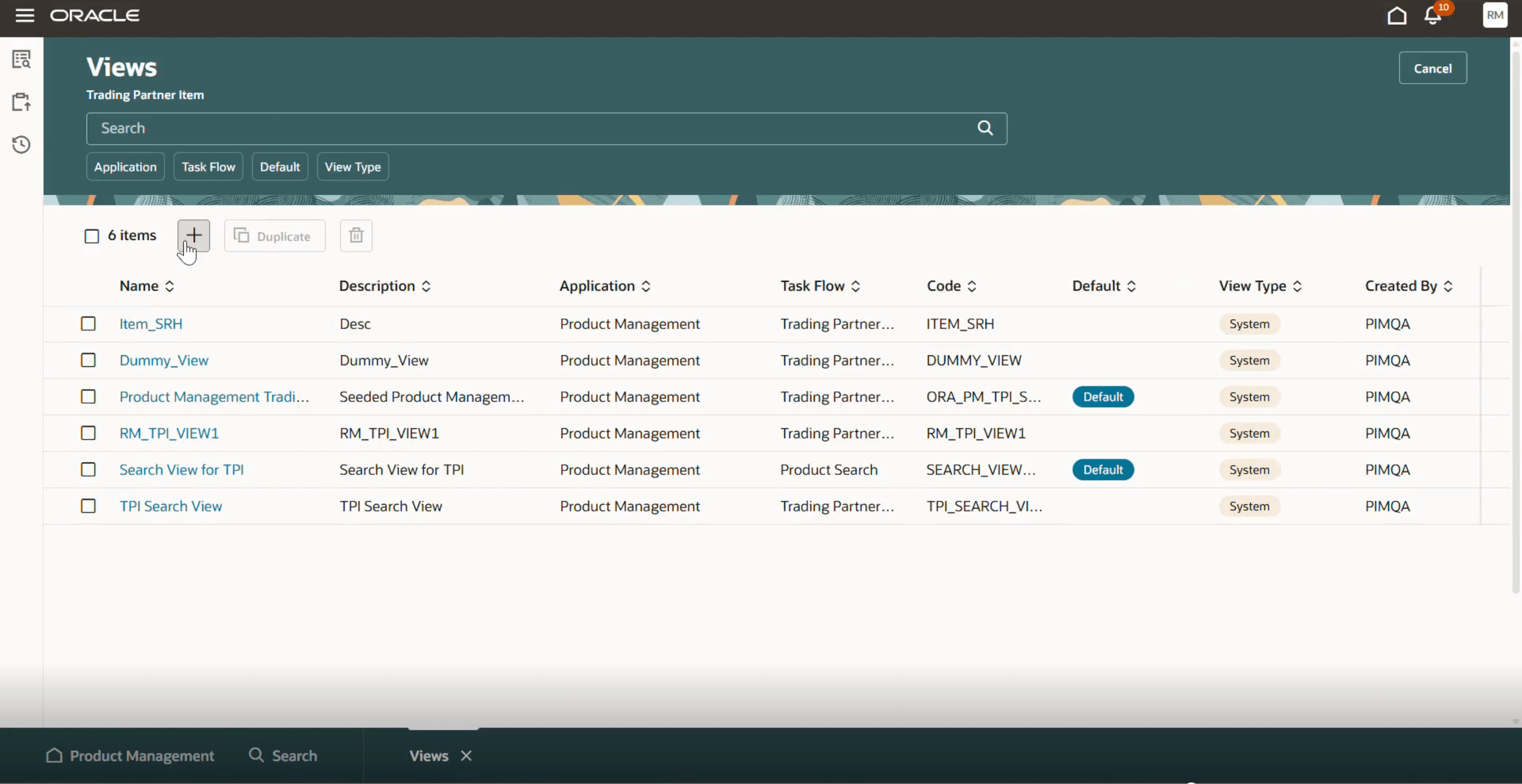
Views Trading Partner Item Page
- Click the Add icon to create a new view. The New view drawer is displayed.
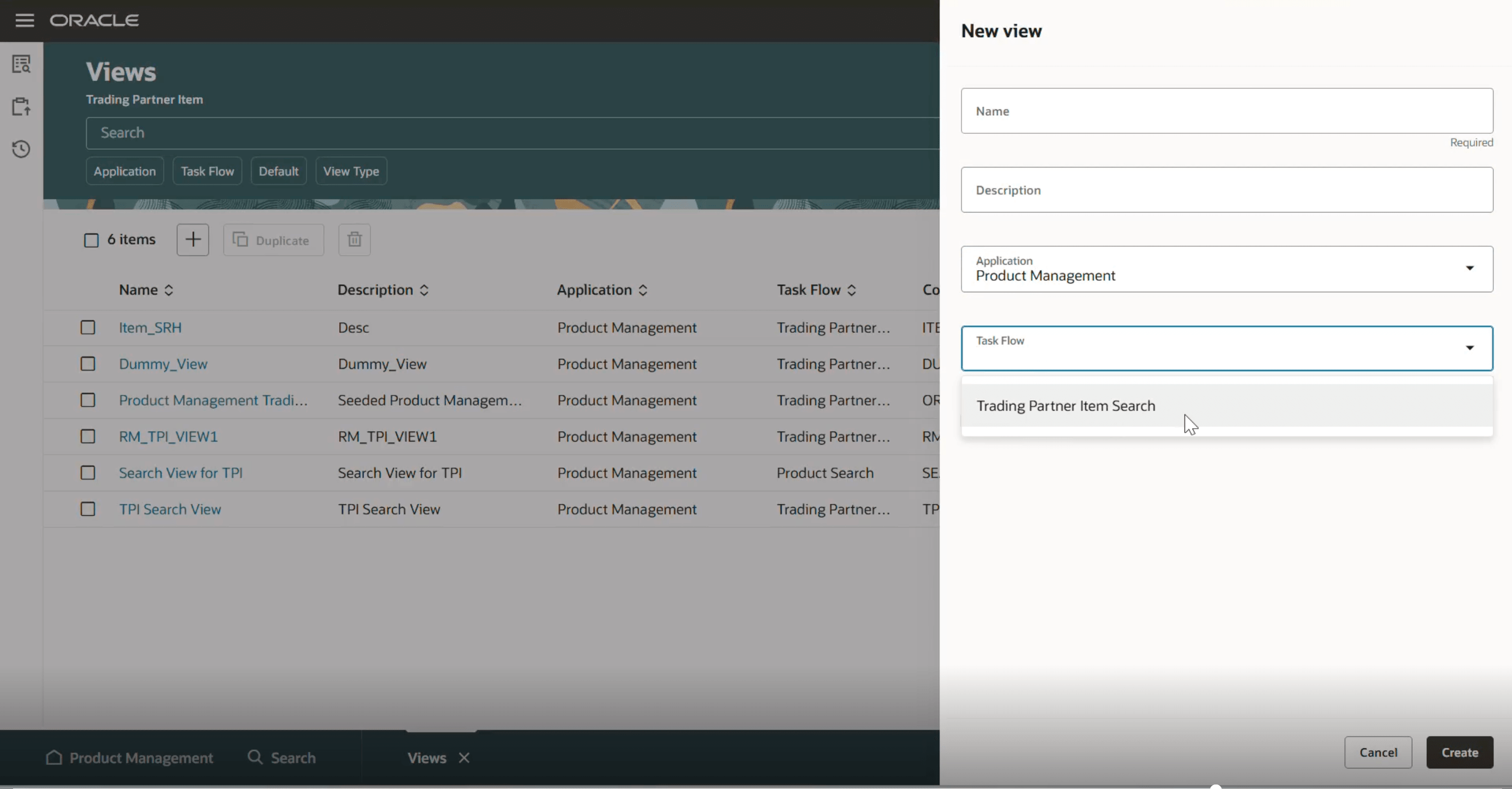
New View Drawer
- Provide the necessary details and click Create. The view page is displayed.
- Click the Add icon. The Select and add attributes drawer is displayed.
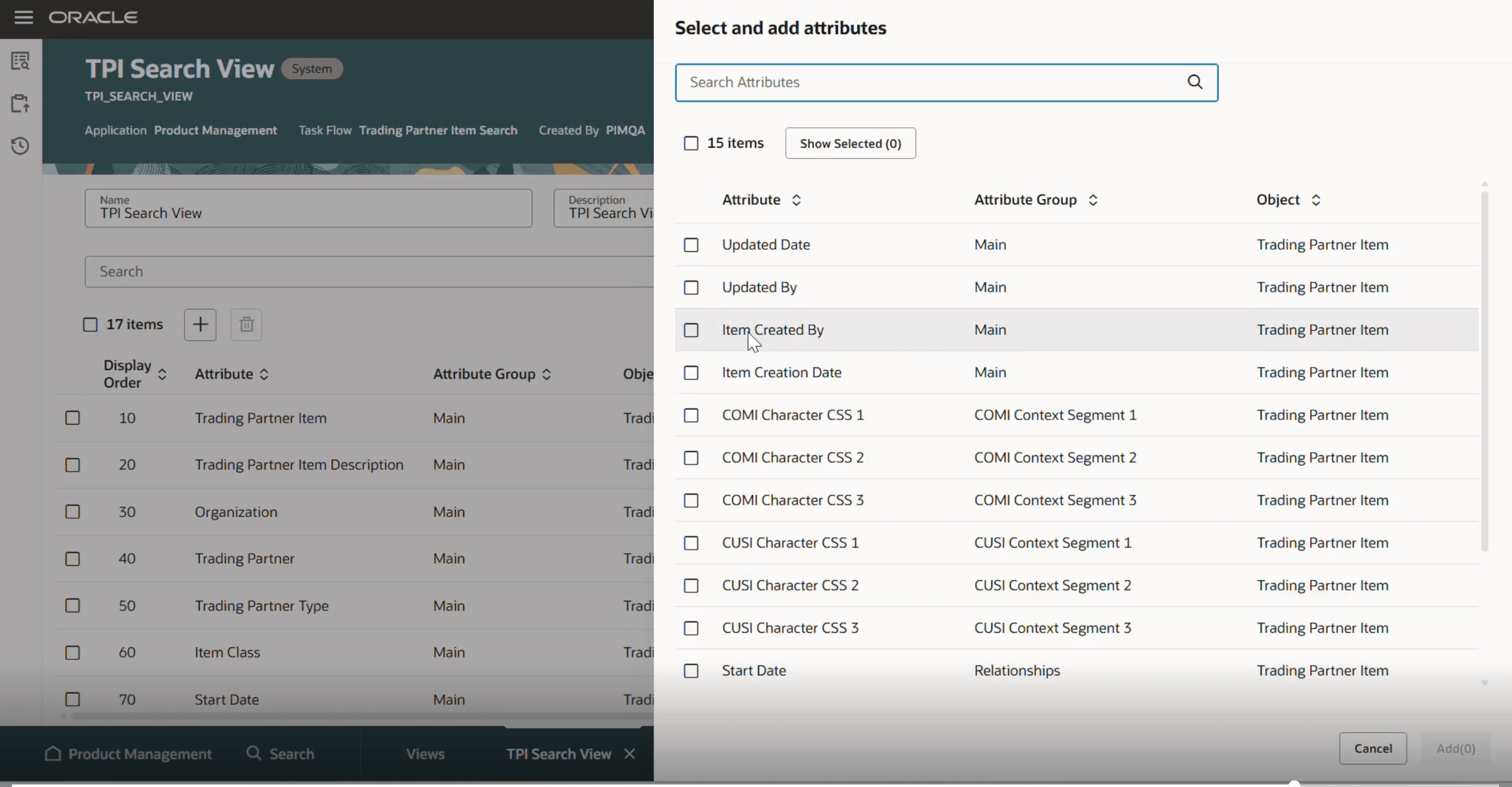
Add Attributes to View
Search Trading Partner Items
On the Product Management Search page, select the Trading Partner Items object as shown in the following screenshot. The page displays all the existing trading partner items.
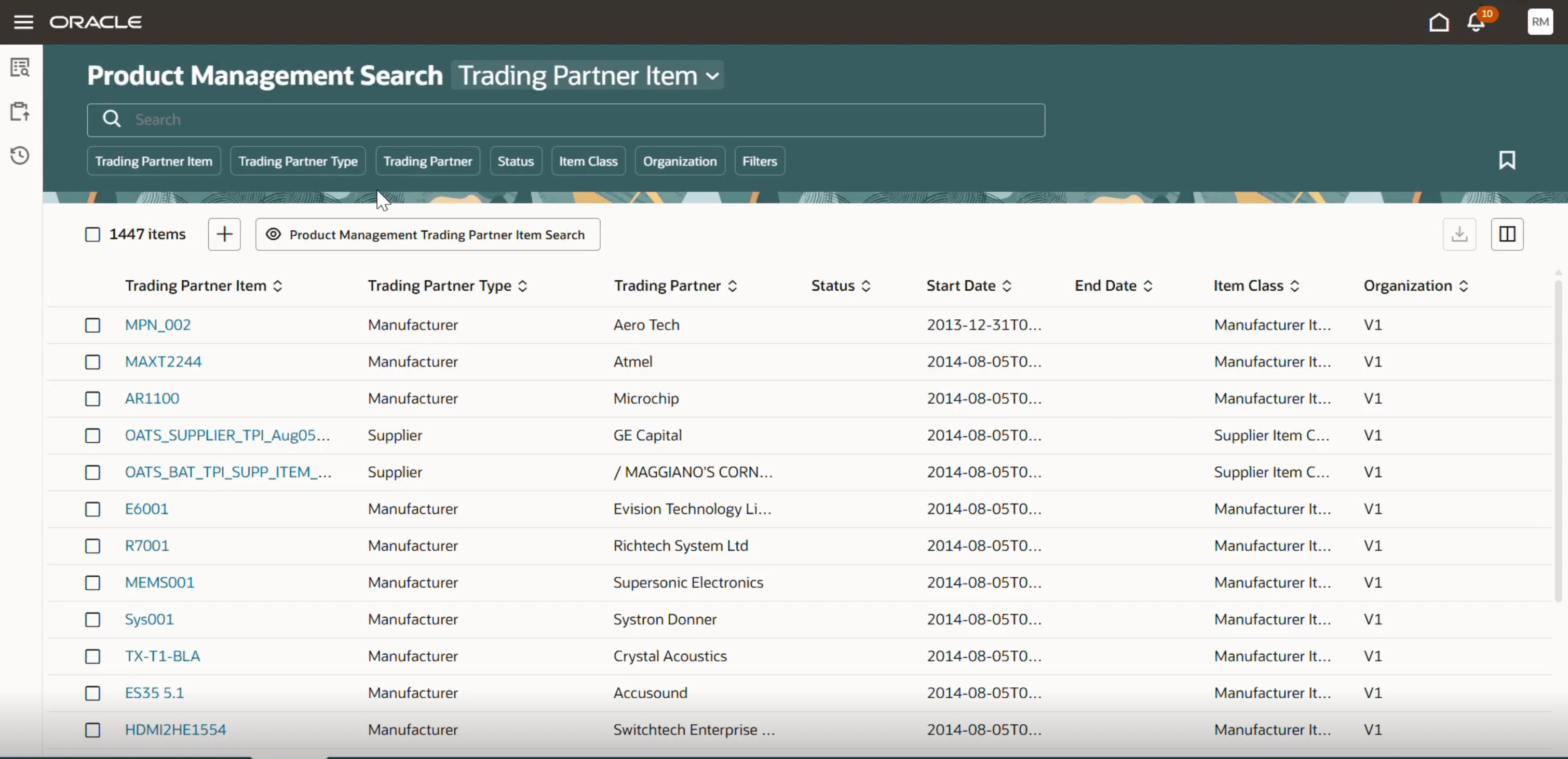
Search Trading Partner Items
On this page, you can search for trading partner items using the suggested filters beneath the Search box.
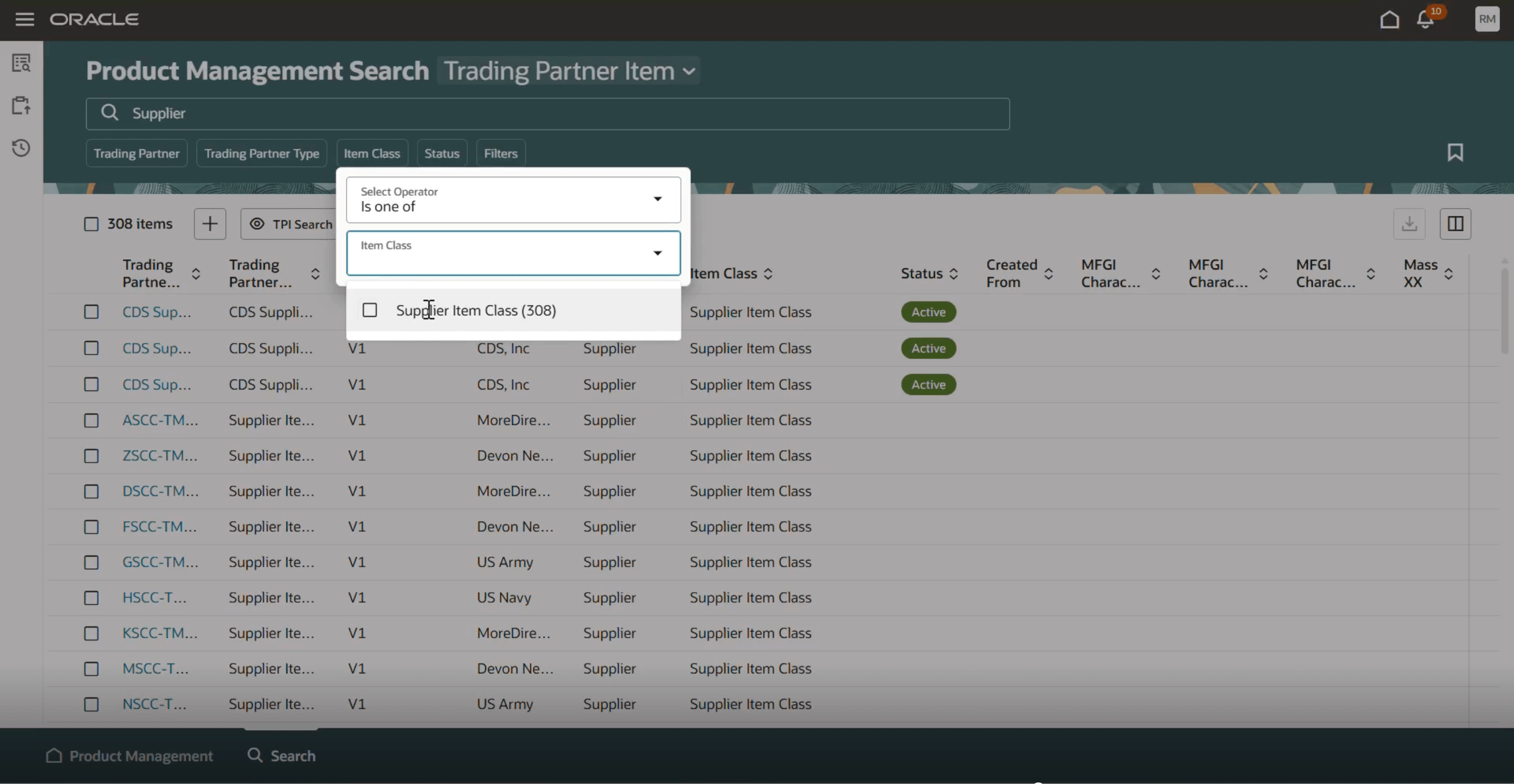
Search Trading Partner Items Using Suggested Filters
You can create new suggested filters using the Filters option beneath the Search box to open the Filters drawer as shown in the following screenshot. Select the required options and click See Results. A new suggested filter is created based on the selected values and it appears beneath the Search box.
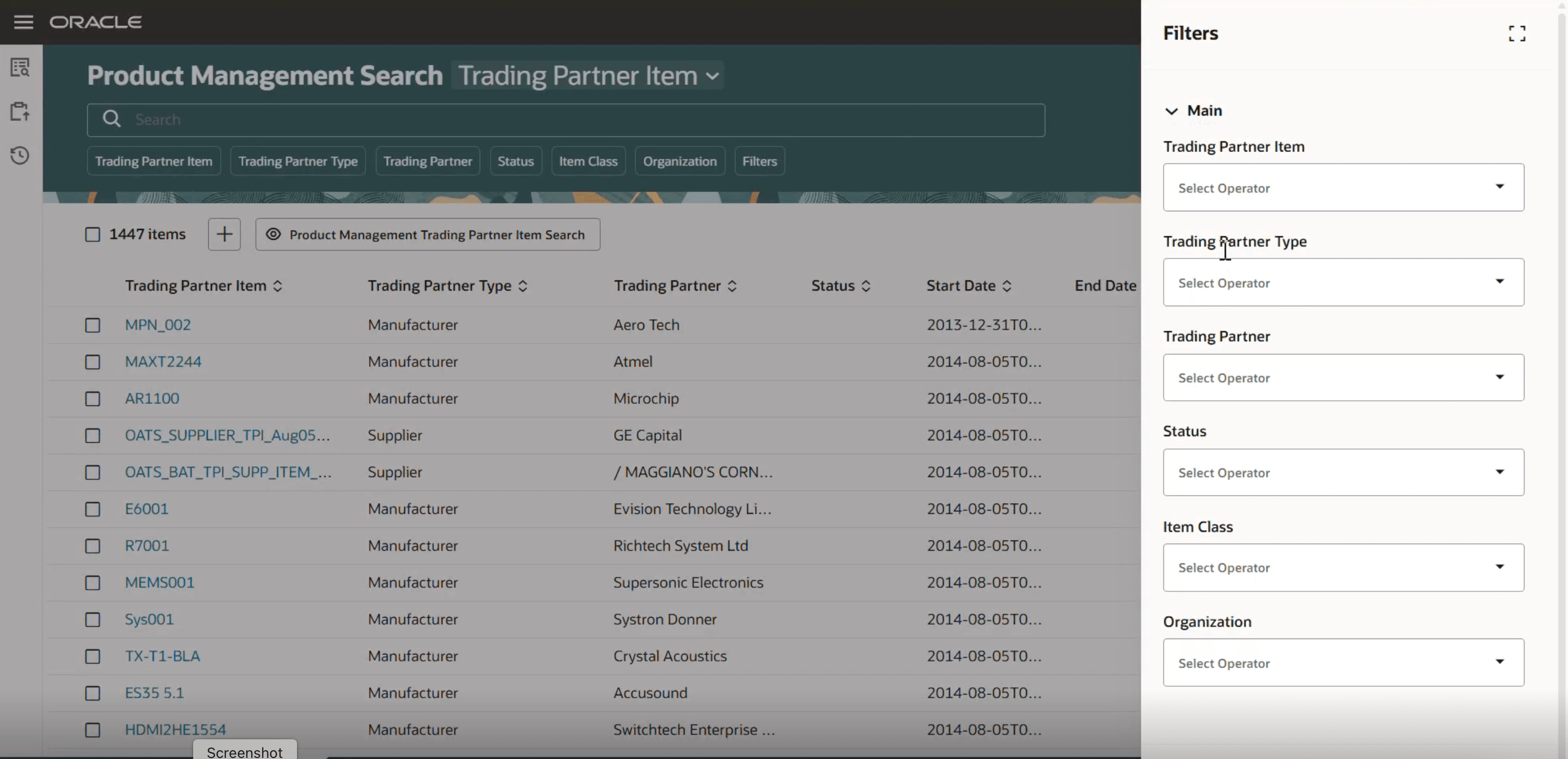
Create Suggested Filter
On the Product Management Search Trading Partner Item page, click the Add icon, and then select the trading partner item type that you want to create. For example, click Create Manufacturer Item as shown in the following screenshot.
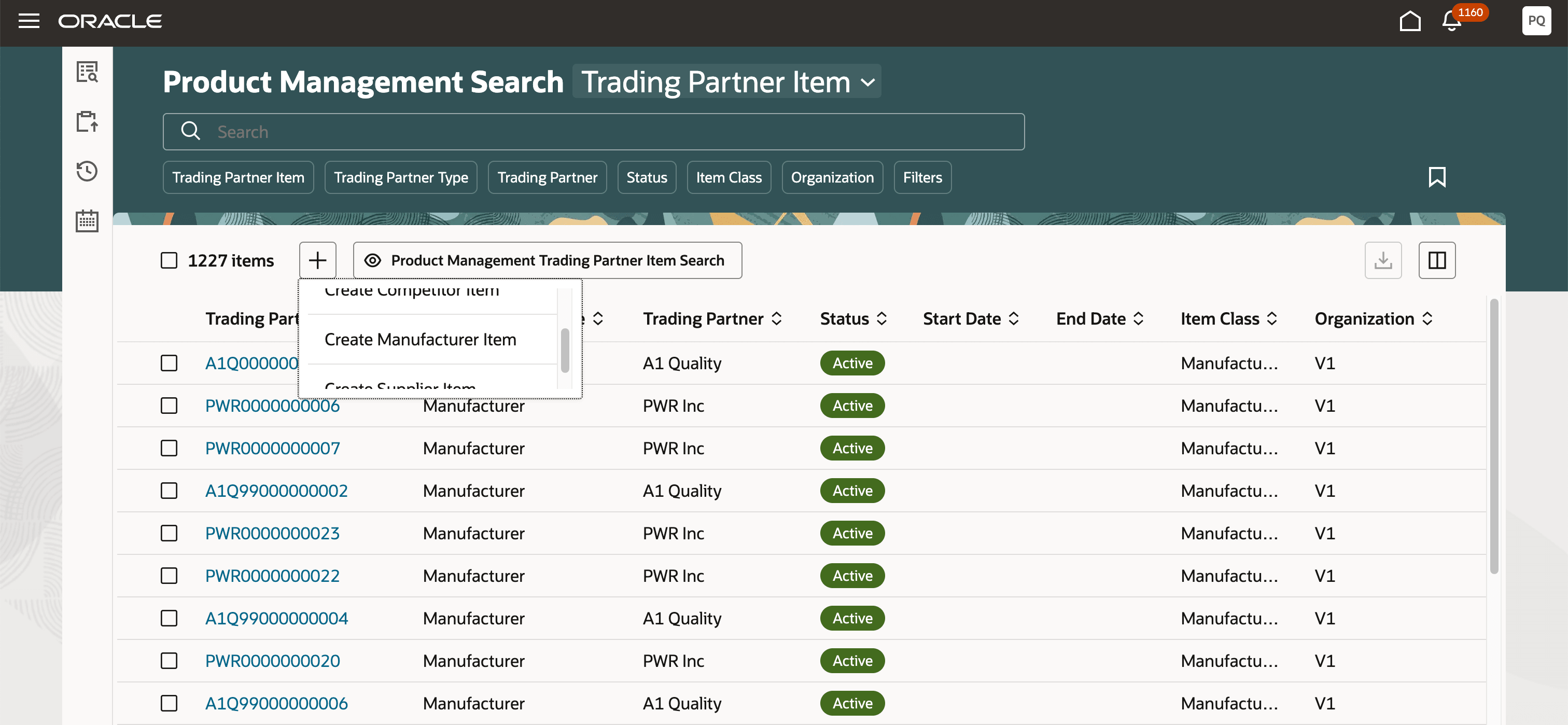
Create Manufacturer Trading Partner Item
The New trading partner item drawer is displayed. Provide the necessary values and click Create.
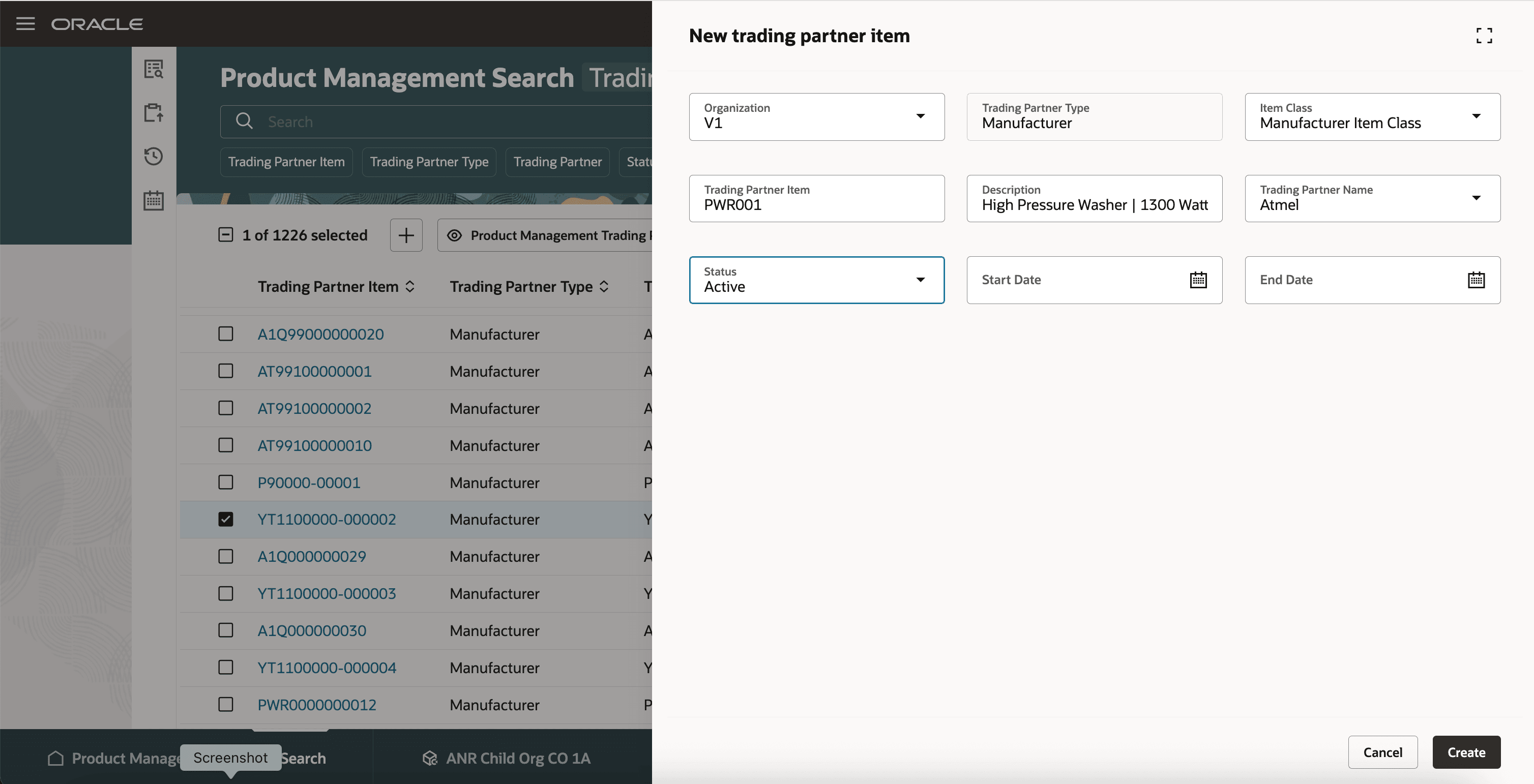
Create Manufacturer Trading Partner Item
The trading partner item page is displayed, where you can edit the attributes, manage relationships, and manage attachments. To edit the attributes, on the Attributes tab, click the Edit icon.
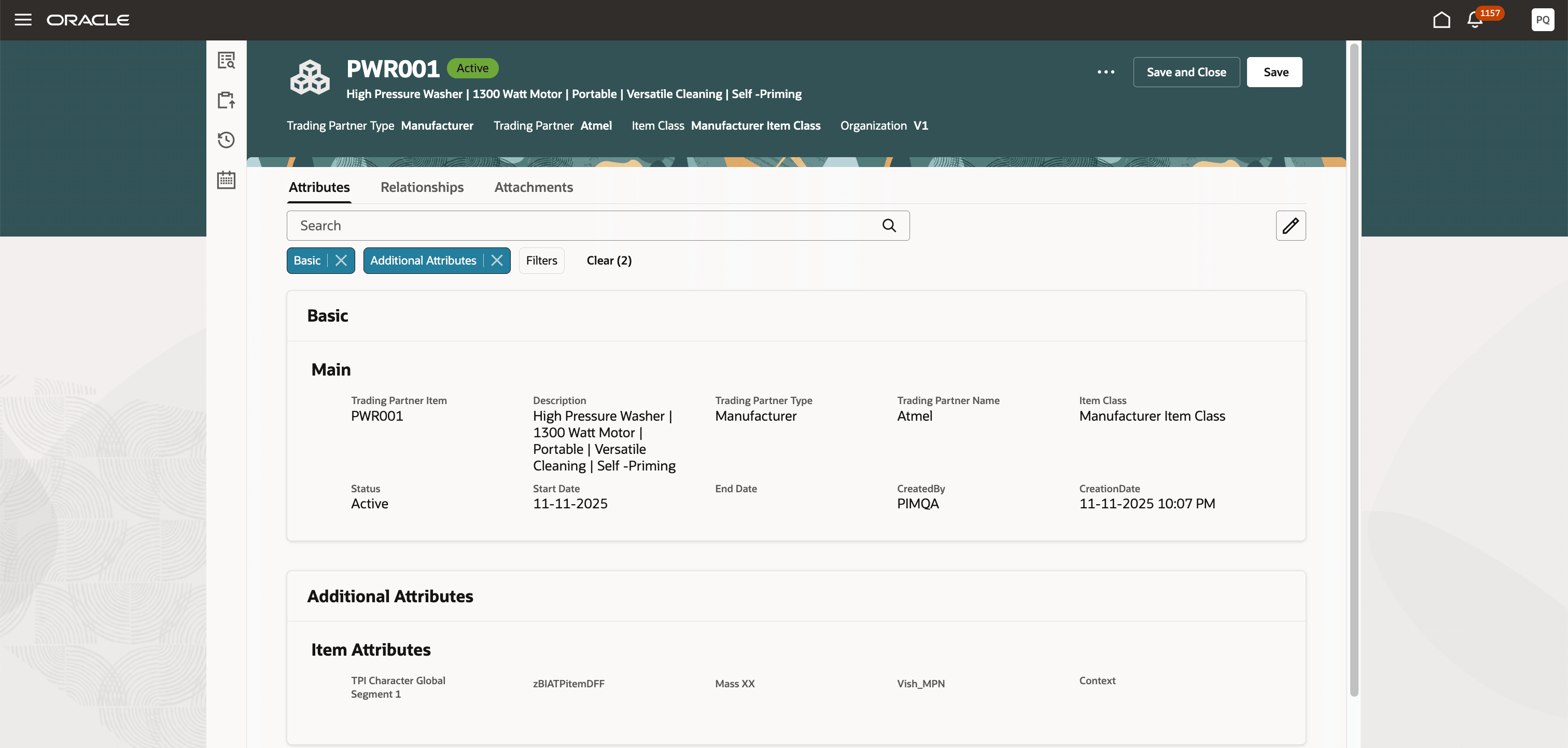
Trading Partner Item – Attributes Tab
On the Relationships tab, you can view all the trading partner item relationships for the item.
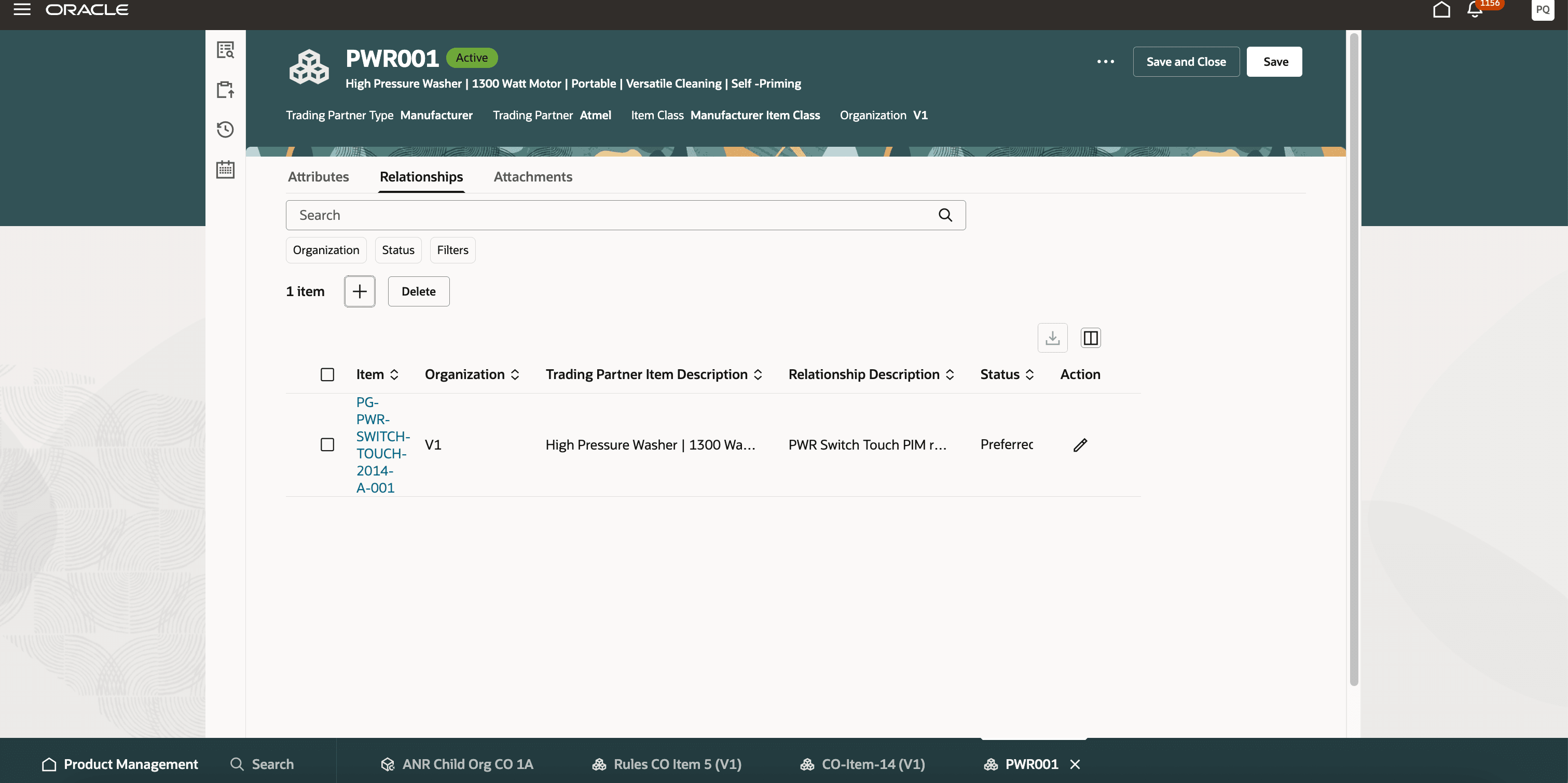
Trading Partner Item - Relationships Tab
Click the Add icon to open the New relationship drawer, where you can create a trading partner item relationship as shown in the following screenshot.
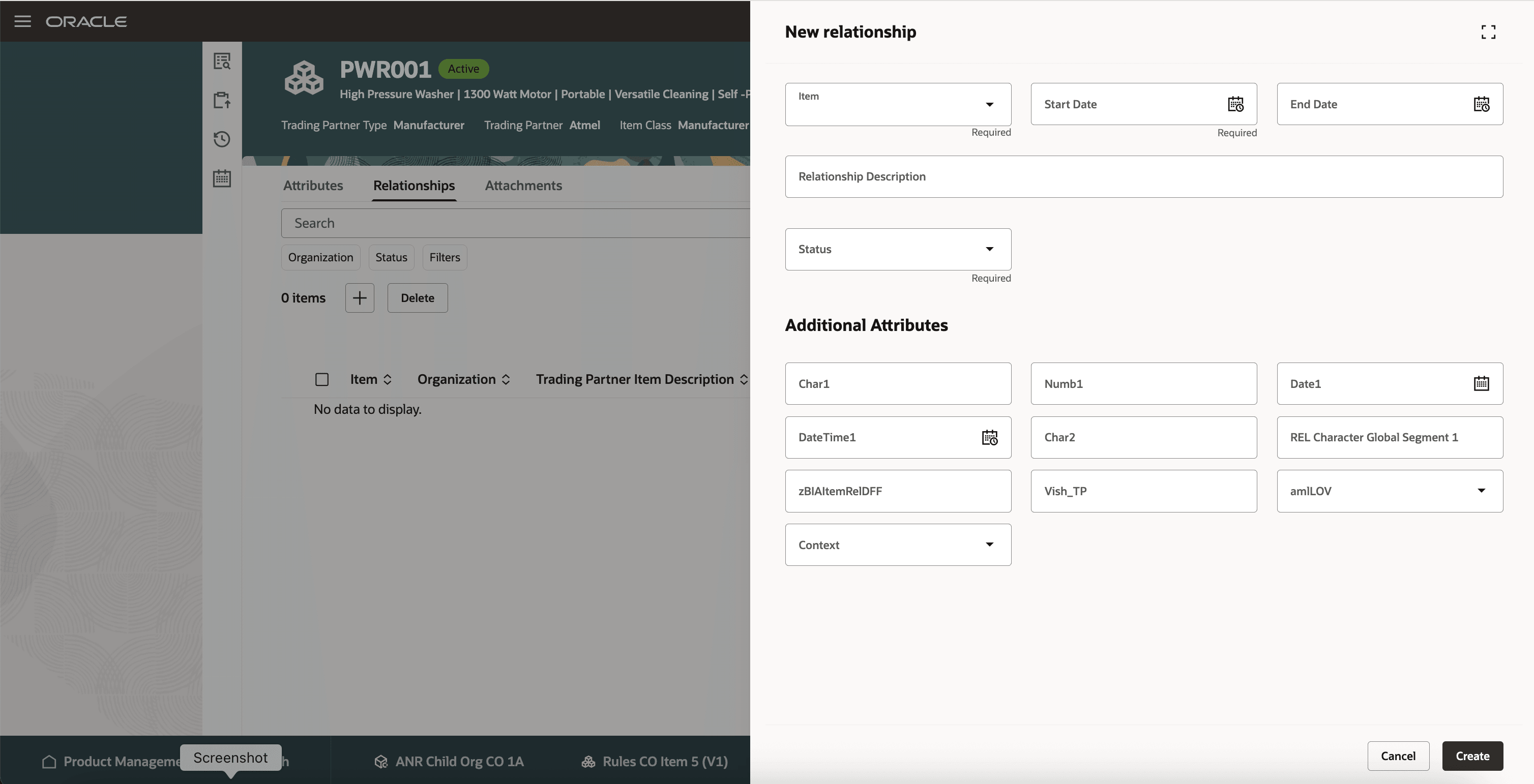
Trading Partner Item - New Relationship Drawer
On the Attachments tab, you can view all the attachments associated with the created trading partner item.
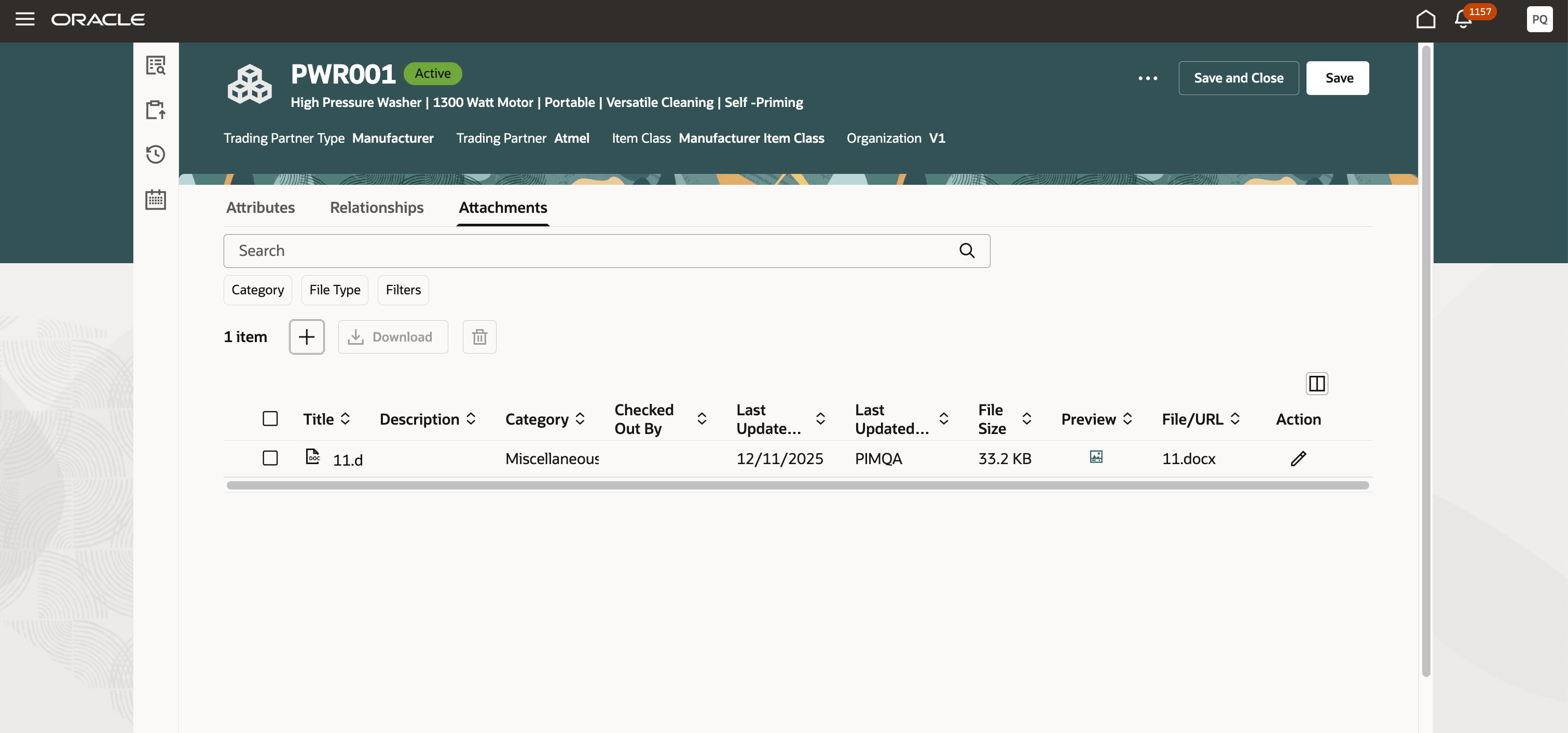
Trading Partner Item - Attachments Tab
Click the Add icon to open the Attachment details drawer, where you can associate attachments as shown in the following screenshot.
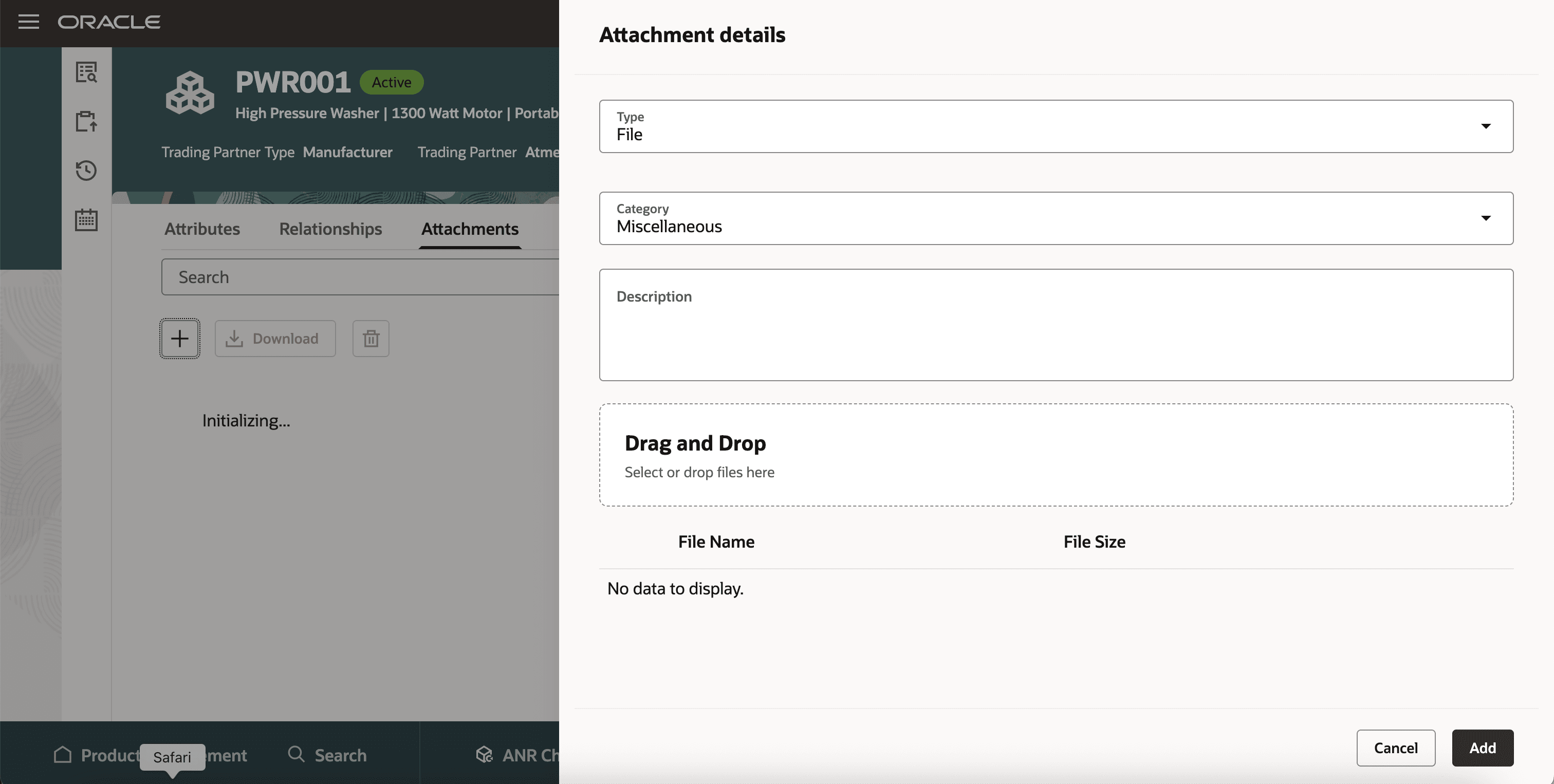
Trading Partner Item - Associate Attachment
Trading Partner Item Data Security
The Redwood user interface doesn't use data security to control access to trading partner items. All users can access trading partner items. Support for criteria-based access (using access control list) for trading partner items is planned for a future update.
The feature provides the following business benefits:
- Builds a foundation for enhanced functionality of trading partner items.
- Increases productivity by using trading partner item search and retrieval allowing filtering capabilities.
- Strengthens compliance tracking based on the trading partner item class taxonomy improving data governance.
- Simplifies integration with other external systems.
Here's the demo of these capabilities:
Steps to enable and configure
To enable the Advanced Trading Partner Items feature and use the advanced capabilities, you must follow these steps exactly in this sequence:
- Identify the trading partner item data profile. This information is essential to understand the steps that must be followed after migration. Users may have one of the following types of data profile:
- Each trading partner item is associated to only one item and the items belong to only one master organization in the enterprise. For example, trading partner items TPI1, TPI2, TPI3 are associated with items PIM1, PIM2, PIM3 respectively and PIM1, PIM2, and PIM3 belong to only one master organization V1.
- Each trading partner item is associated to multiple items and the items belong to only one master organization in the enterprise. For example, trading partner item TPI1 is associated to multiple items PIM1, PIM2, PIM3 belonging to only one master organization V1.
- Each trading partner item is associated to only one item and the items belong to multiple master organizations in the enterprise. For example, trading partner items TPIX, TPIY, TPIZ is associated to multiple items PIM1, PIM2, PIM3 belonging to multiple master organizations V1, V2, V3 respectively.
- Each trading partner item is associated to multiple items and the items belong to multiple master organization in the enterprise. For example, trading partner items TPI1 is associated to multiple items PIM1, PIM2, PIM3 belonging to multiple master organizations V1, V2, V3.
- Trading partner items aren’t associated with any items in the enterprise, and no trading partner item relationships exist in the enterprise.
- Run the Upgrade Product Management Data scheduled process. This process associates the existing trading partner items with the items table, allowing you to use the advanced trading partner item functionality.
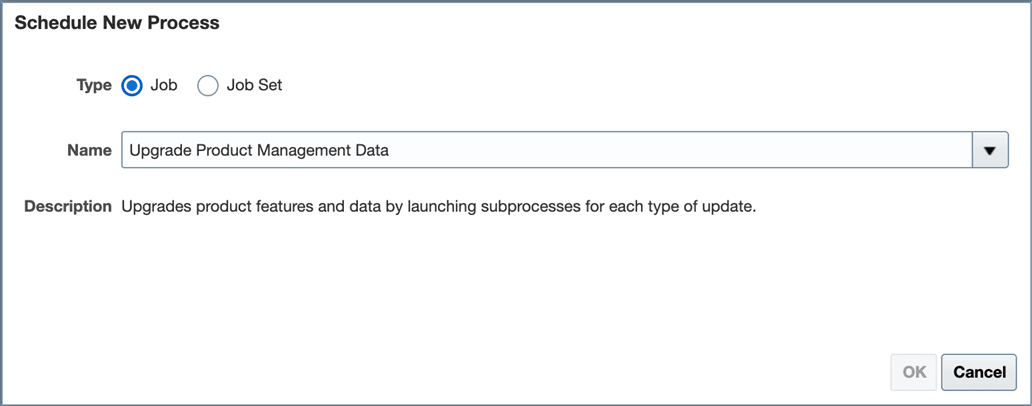
Upgrade Product Management Data Scheduled Process
You must set the Functional Area to Trading Partner Items and set the Feature to Migrate trading partner item data to items table as shown in the following screenshot. Parameter 1 must be the master organization ID. This master organization is used as the default master organization when creating the trading partner item.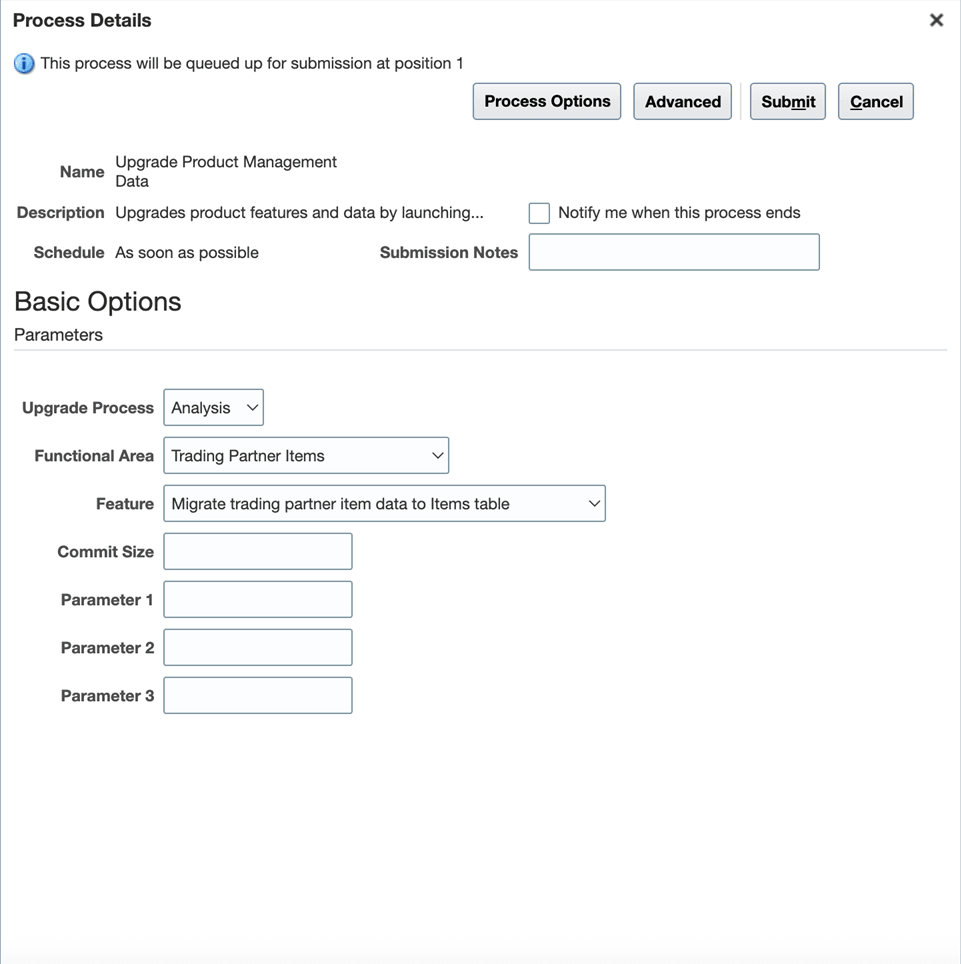
Upgrade Product Management Scheduled Process Parameters
This scheduled process migrates all the existing trading partner item data to the new tables and the Advanced Trading Partner Items capability is enabled. You may have to take necessary actions based on the results of the scheduled process and they’ll be available in the scheduled process log page.
- If the scheduled process job is successful, the Default Organization of Trading Partner Items profile value is set appropriately. All new trading partner items that are created in the system will have this organization. Go to the step 5.
- If the scheduled process job has failed, then review the scheduled process job log file for the necessary instructions and steps. Users with data profiles C and D typically experience this issue:
- Users with profile C must set the Default Organization of Trading Partner Items profile manually and then run the Upgrade Product Management Data scheduled process again. The trading partner items are automatically migrated to the corresponding master organization. In the preceding example, if the users set the profile to V1, then TPIX will be V1, TPIY will be in V2, and TPIZ will be in V3. Trading partner item relationship between the items and the trading partner items will be created for these. All new trading partner items that are created in the system will have this organization V1 to create trading partner items. After this is complete, users can go to step 5.
- Users with profile D will be prompted to delete all except one trading partner item relationships within the enterprise. The list of such items that have multiple relationships are listed in the log file. Users must query such trading partner items and delete all the relationships with items except one relationship. In the preceding example, TPI1 is associated to PIM10 (V1), PIM11 (V2), PIM13 (V3). Users have to retain only one of the relationships and delete the other relationships, and then run the Upgrade Product Management Data scheduled process again. After the migration is successful, the default profile is automatically set, and users can go to the step 5.
- Configure the index. See the Configure Index for Trading Partner Items section for details.
- If views needs to be configured, see the Configure View for Trading Partner Items section.
Data security isn't be available for advanced trading partner items in this update. All the trading partner items remain public. In a future update, you'll be able to secure trading partner items using access control lists.
Tips and considerations
- When you migrate to advanced trading partner items, the attachment categories associated with the existing trading partner items are associated to Root Trading Partner Item Class.
- For new attachment categories to be available in the trading partner items, the new attachment categories must be associated with items in the Attachment category setup and associated with the trading partner item class.
- Trading partner item search is case-insensitive.
- The master organization used to create trading partner item defaults to the master organization specified in the Default Organizations setting of the Trading Partner Items profile.
- Attachment categories for a the trading partner item is restricted to only those that are associated with the trading partner item class.
- Existing descriptive flexfields associated with the trading partner items are also migrated and is available in the Redwood Trading Partner Item page.
- If required, modify the descriptive flexfields using EGP_TPITEM_DFF. Any changes to the previous EGP_TRADING_PARTNER_ITEMS DFF won't be available on the Redwood Trading Partner Item page. Any references to the EGP_TRADING_PARTNER_ITEMS DFF must be changed to EGP_TPITEM_DFF or make sure both are in sync.
- You can’t create child trading partner item class for the Root Trading Partner Item Class. You can only create a child trading partner item class based on any of the four predefined trading partner item classes.
- User defined and sequence generated item number and description generation schema is supported.
- Existing trading partner item pages continues to be available. Usage of the existing import and REST services ensures that the Redwood advanced trading partner item is available.
- Classic trading partner items tasks and pages continue to exist.
- The classic trading partner item pages continue to be available as transitioning to the Redwood Trading Partner Items may have some impact on your existing business processes and integrations. Make sure to evaluate the impact carefully before deciding to adopt Redwood Trading Partner Items.
- It's strongly recommended not to query the base tables. Instead use views. Existing views have been made backward compatible.
- Trading partner item relationship artifacts that are consumed in various processes and flows will continue to work smoothly without any impact.
- After the feature is enabled, its strongly recommended not to use classic UIs and always use the Redwood Trading Partner Items UI.
Key resources
- Watch the Create and Manage Personalized Views in Product Management Search video.
- Manage Item Relationships in the Oracle Fusion Cloud SCM: Using Product Master Data Management guide, available on the Oracle Help Center.
- Oracle Fusion Cloud SCM: Using Product Master Data Management Guide, available on the Oracle Help Center.
- Oracle Fusion Cloud SCM: Implementing Product Management guide, available on the Oracle Help Center.
Access requirements
Users who are assigned a configured job role that contains these duties andprivileges can access this feature:
- View Advanced Trading Partner Item Search (EGP_VIEW_ADV_TPI_SEARCH_PRIV)
- Product Search (ORA_EGI_PRODUCT_SEARCH_DUTY):
- View Advanced Trading Partner Item Search (EGP_VIEW_ADV_TPI_SEARCH_PRIV)
- View Product Management Trading Partner Item Search (EGP_VIEW_PRODUCT_MGT_TPI_SEARCH_PRIV)
- Get Search View REST (EGP_GET_SEARCH_VIEW_REST_PRIV)
- Get Product Management Index REST (EGP_GET_PM_INDEX_REST_PRIV)
- Manage Search View REST (EGP_MANAGE_SEARCH_VIEW_REST_PRIV)
- Get Item Index Available Attributes REST (EGP_GET_PM_ITEM_AVAIL_REST_PRIV)
- Manage System Searches (HRC_MANAGE_SYSTEM_SEARCHES_PRIV)
- Use REST Service - Saved Searches (HRC_REST_SERVICE_ACCESS_SAVED_SEARCHES_PRIV)
These privileges were available prior to this update.
- Redwood Trading Partner Item Duty (ORA_EGP_REDWOOD_TPI):
- View Product Management Trading Partner Item Search (EGP_VIEW_PRODUCT_MGT_TPI_SEARCH_PRIV)
- View Redwood Trading Partner Item (EGP_VIEW_REDWOOD_TPI_ITEM_PRIV)
- View Trading Partner Item Attachment (EGP_VIEW_REDWOOD_TPI_ATTACHMENT_PRIV)
- View Redwood Trading Partner Item Relationship (EGP_VIEW_REDWOOD_TPI_RELATIONSHIP_PRIV)
- Manage Redwood Trading Partner Item (EGP_MANAGE_REDWOOD_TPI_ITEM_PRIV)
- Manage Redwood Trading Partner Item Attachment (EGP_MANAGE_REDWOOD_TPI_ATTACHMENT_PRIV)
- Manage Redwood Trading Partner Item Relationship (EGP_MANAGE_REDWOOD_TPI_RELATIONSHIP_PRIV)
These duties and privileges are new in this update.