Redwood: Augment Structure Creation and Management and Optimize Where Used
Augment item structure definition with the following:
- Create items directly within the structure
- Copy component level attributes when adding from spotlight
- View a summarized list of components across the entire structure
- Filter by columns in the hierarchy view
- Create business rules for reference designators and substitute components
- Use the All view in the Where Used report to see past and future effective parent items.
You can now create a new item or document and add it directly as a component while building your structure. Once created, the component becomes a part of the item structure, and you can modify the component level attributes. In this release, creating a new component is only supported for the single level structure.
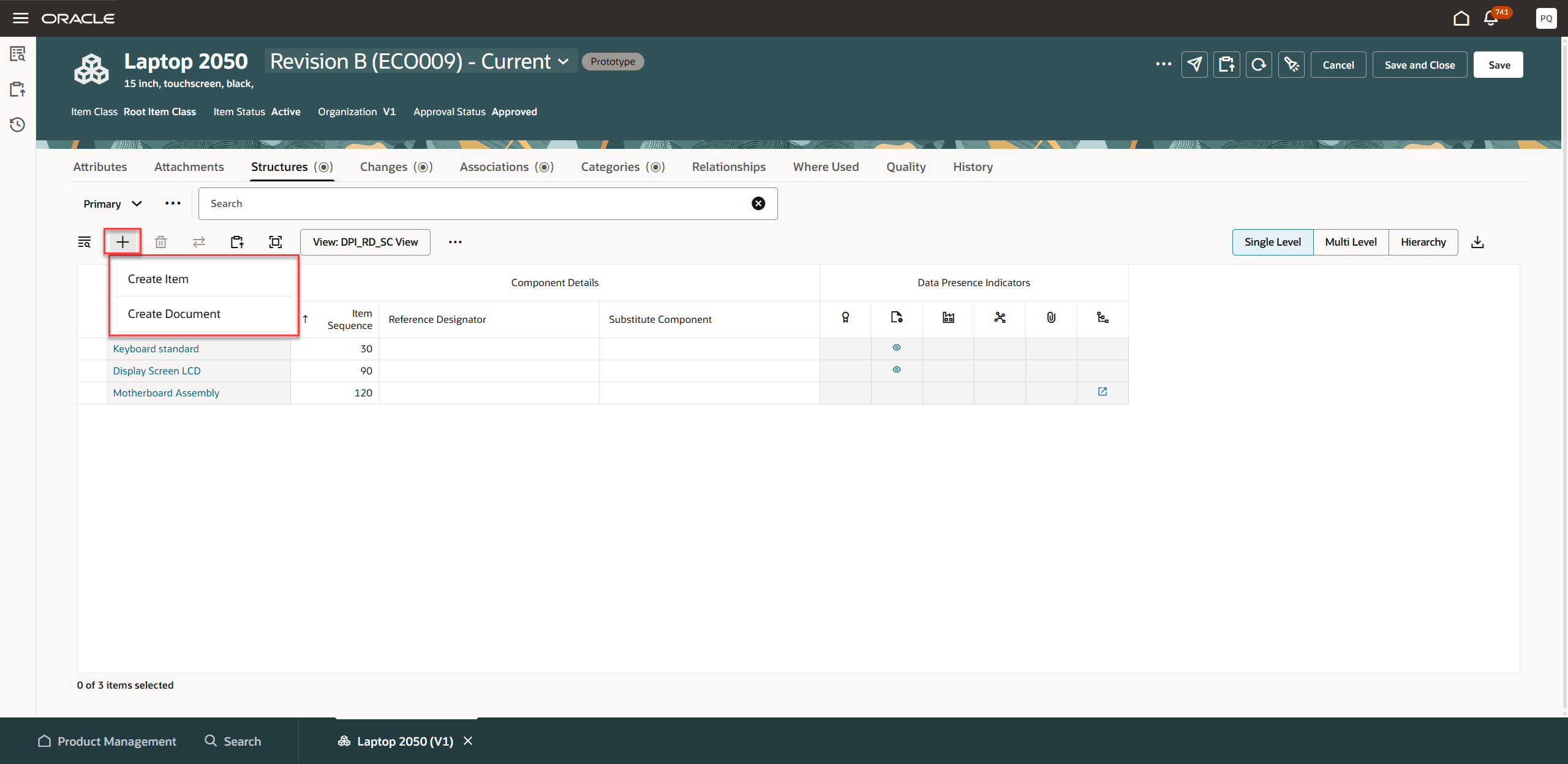
Create New Item in Structure Directly
The enhanced spotlight now includes reference designators, substitute components, component level attributes, component level descriptive flexfields when you drag and drop (select and move) the components to the item or to a change.
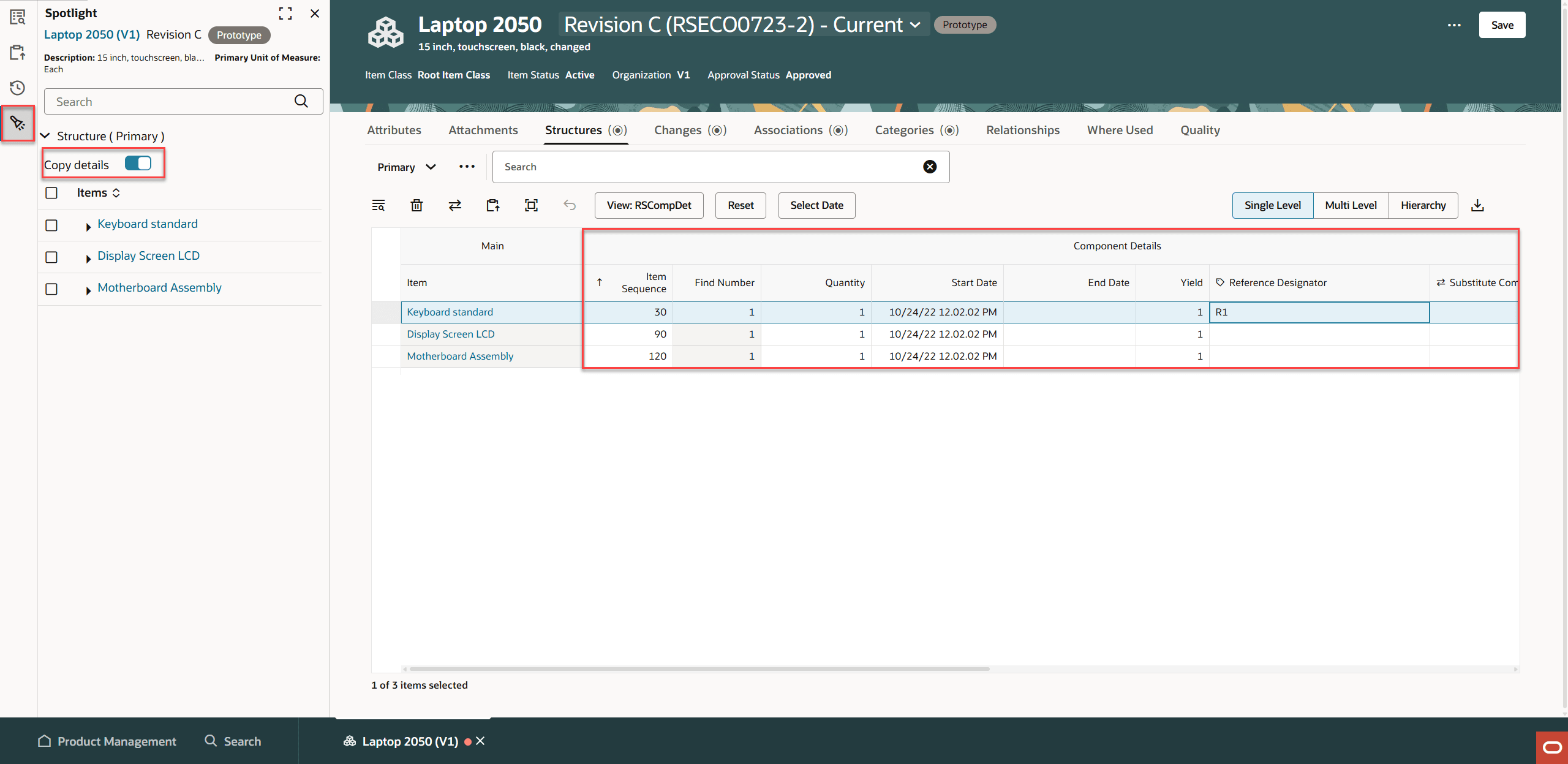
Component Level Attributes Copied When You Drag and Drop from Spotlight
The new Summary view provides us with an aggregate of the components across the entire structure. The summary table displays item attributes that you can configure for the new view, Task Flow - Structure Summary. Click the View Details eye icon to see detailed component-level attributes in the side drawer. The views in the side drawer are the same as those available when you select single level, multi-level, or hierarchy views.
Click the View Details eye icon to view detailed component-level attributes in the side drawer.
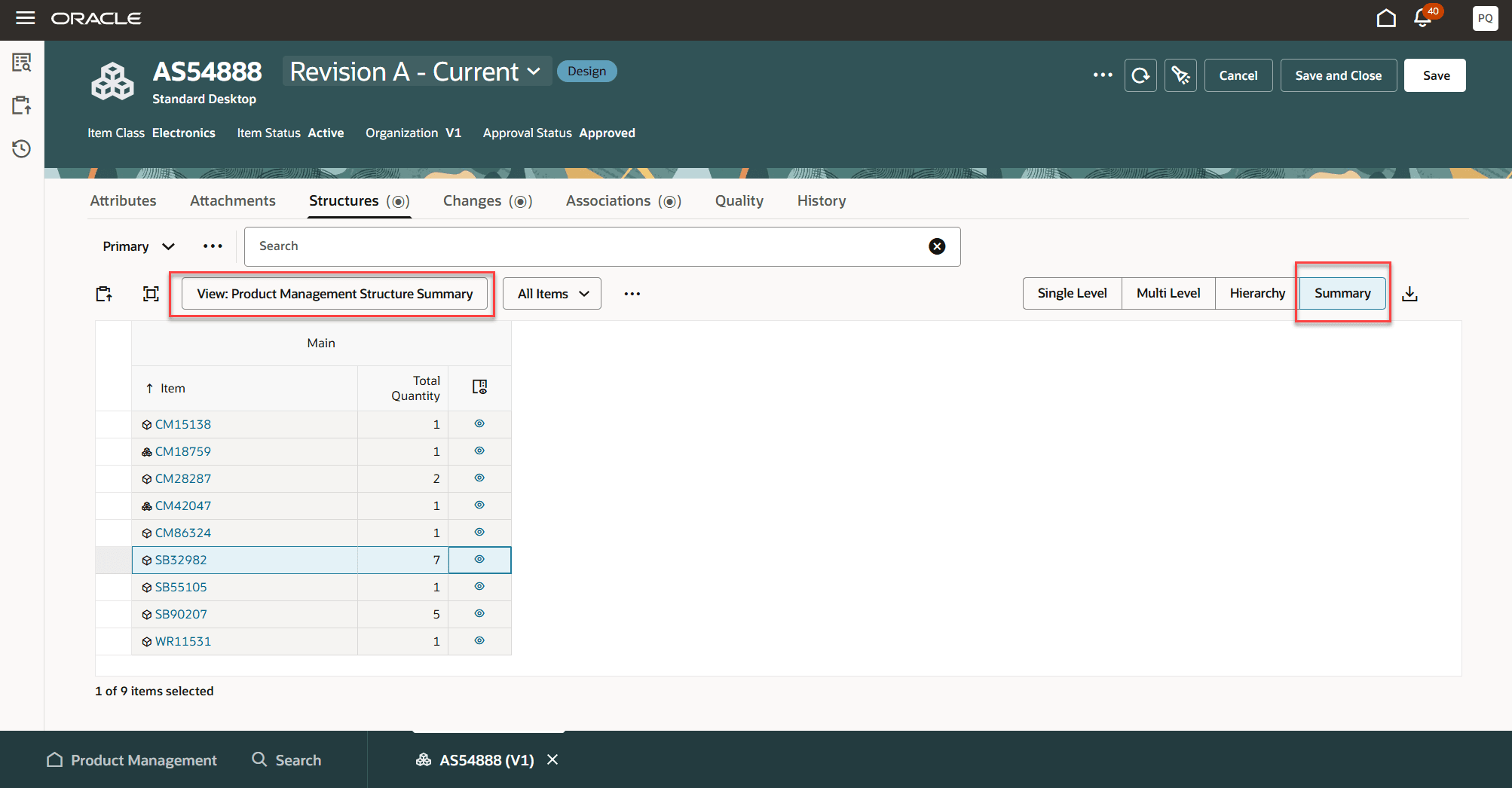
Summary View
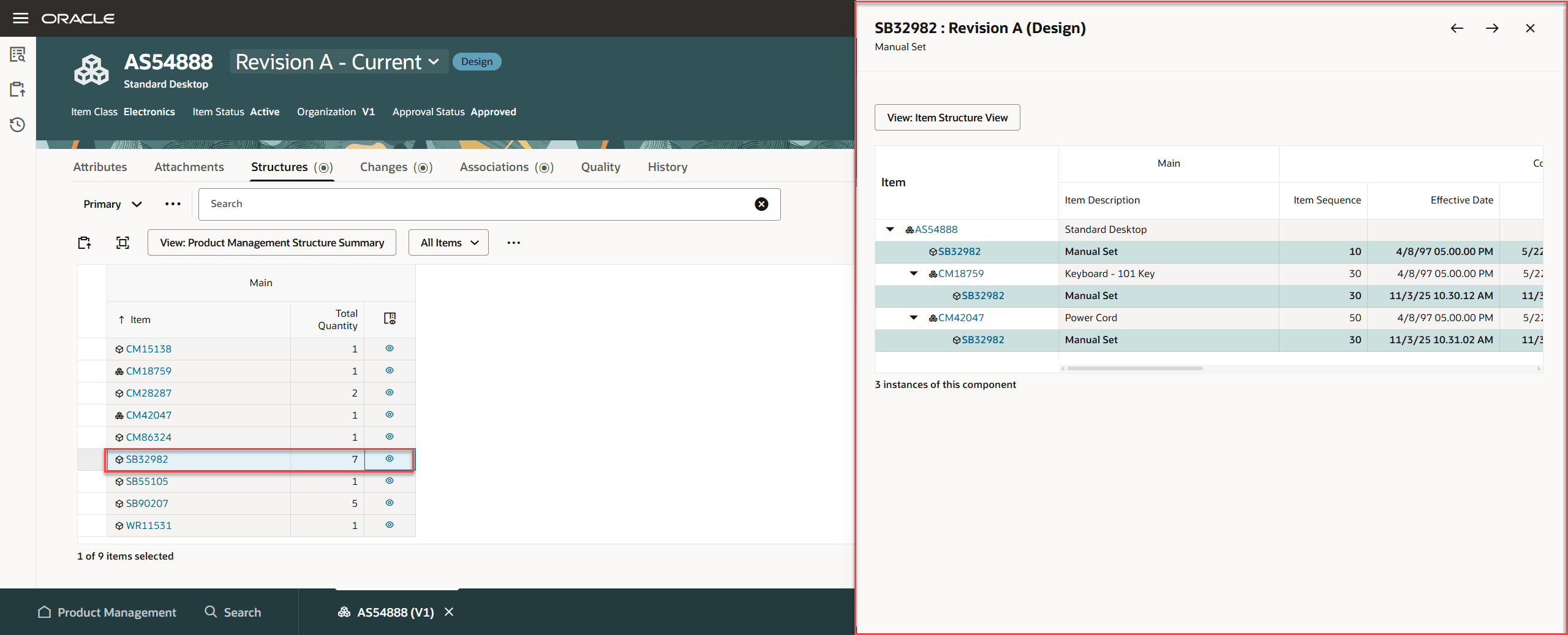
Summary Details Visible in the Side Drawer
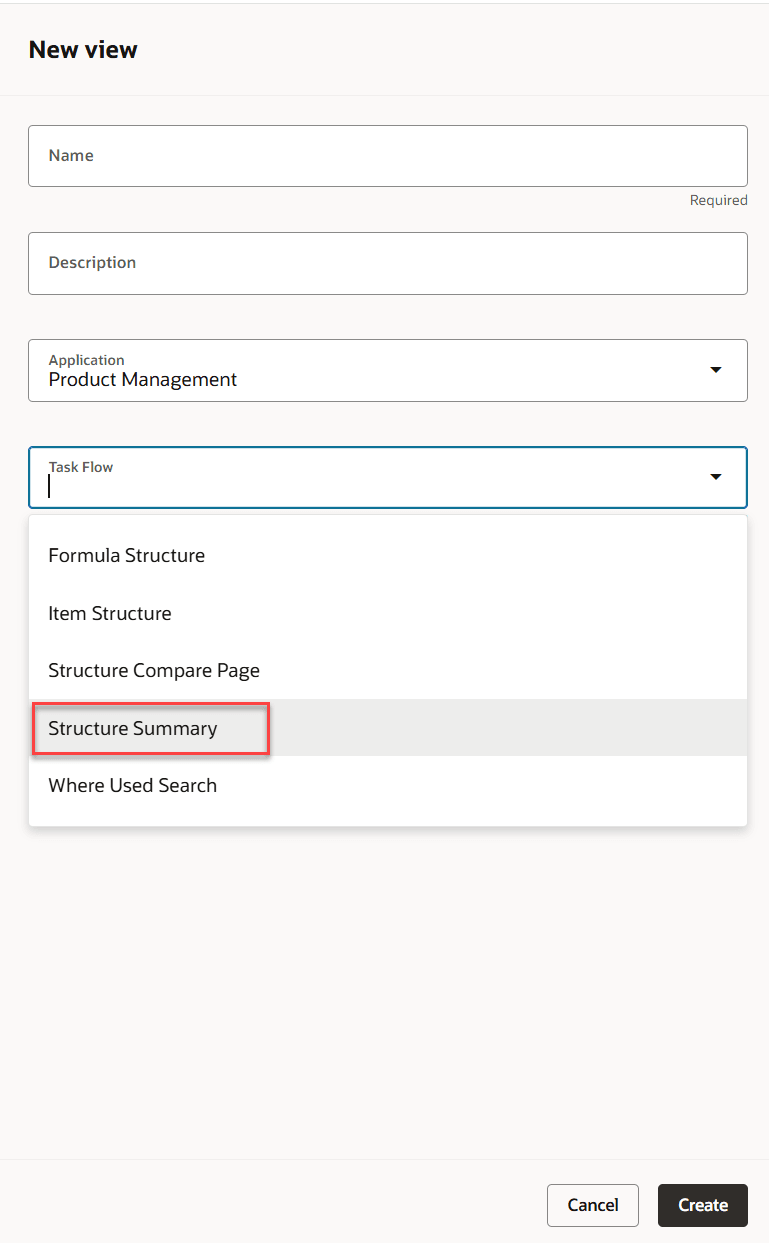
New View - Task Flow for Structure Summary
You can filter the columns in the Hierarchy view to narrow down on components, making it easier to focus on the ones that are most relevant.
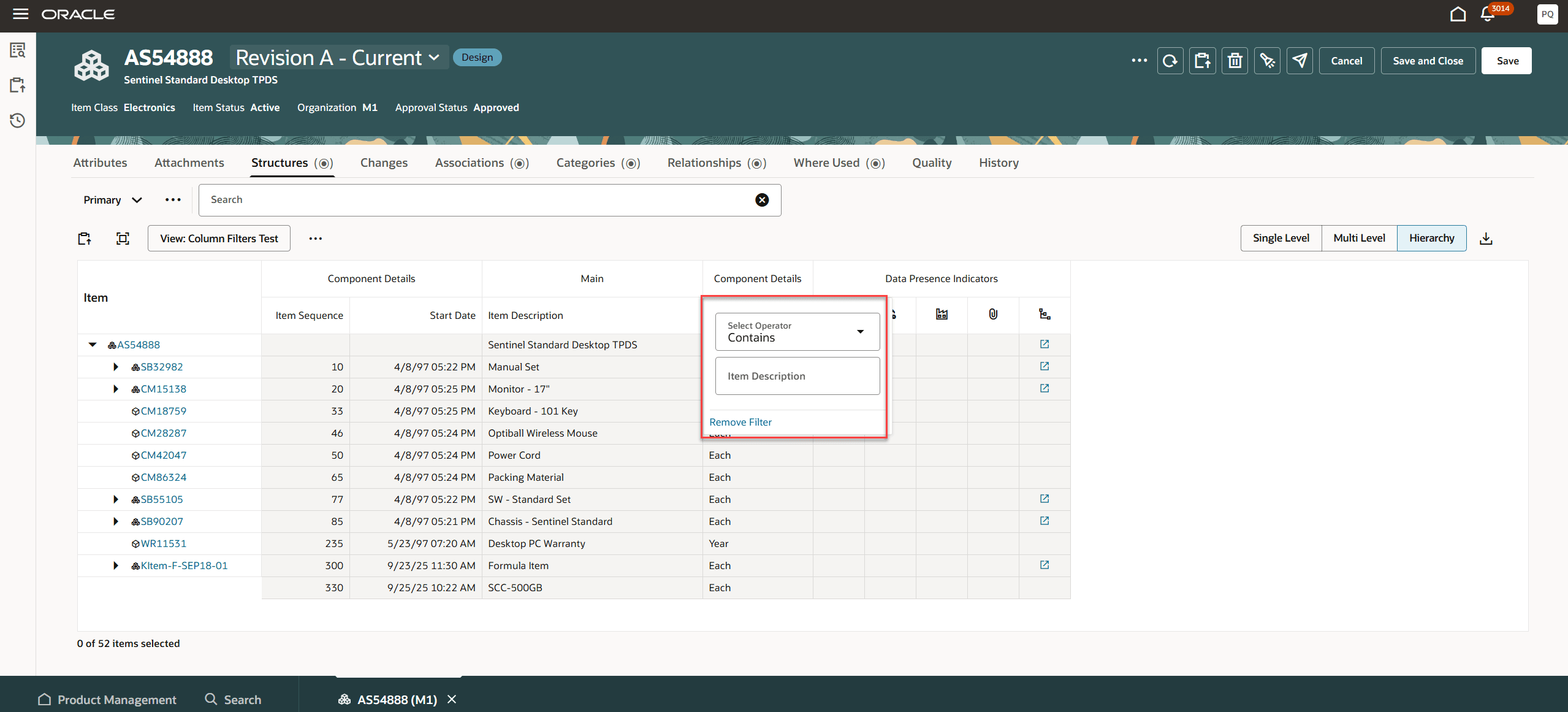
Filter in the Hierarchy View
You can now redline component descriptive flexfields through a change order in the user interface and via the REST API.
You can also configure business rules for reference designators and substitute components.
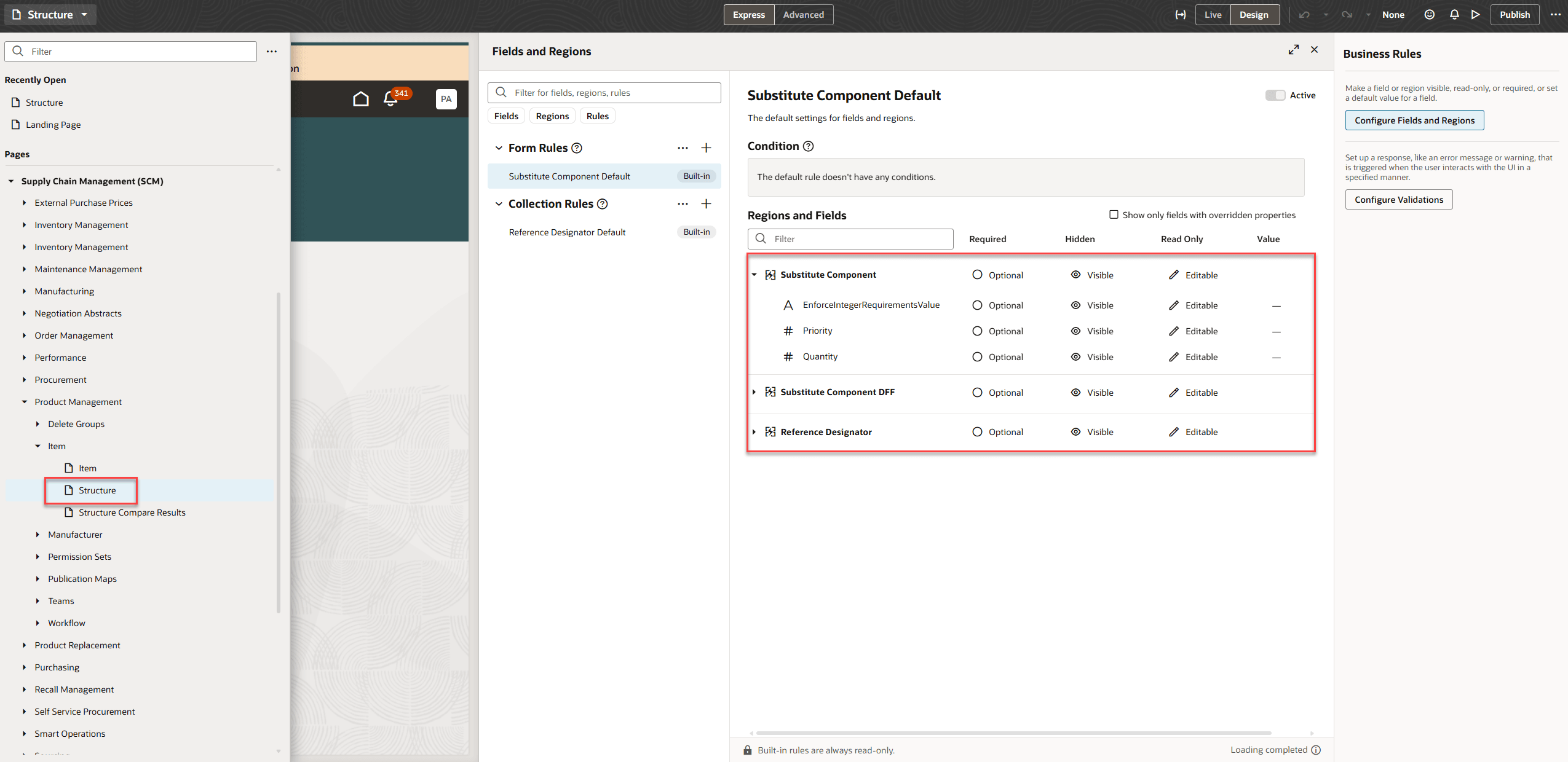
Business Rules for Substitute Components and Reference Designators
Use the All view in the Where Used tab to see future effective parent items.
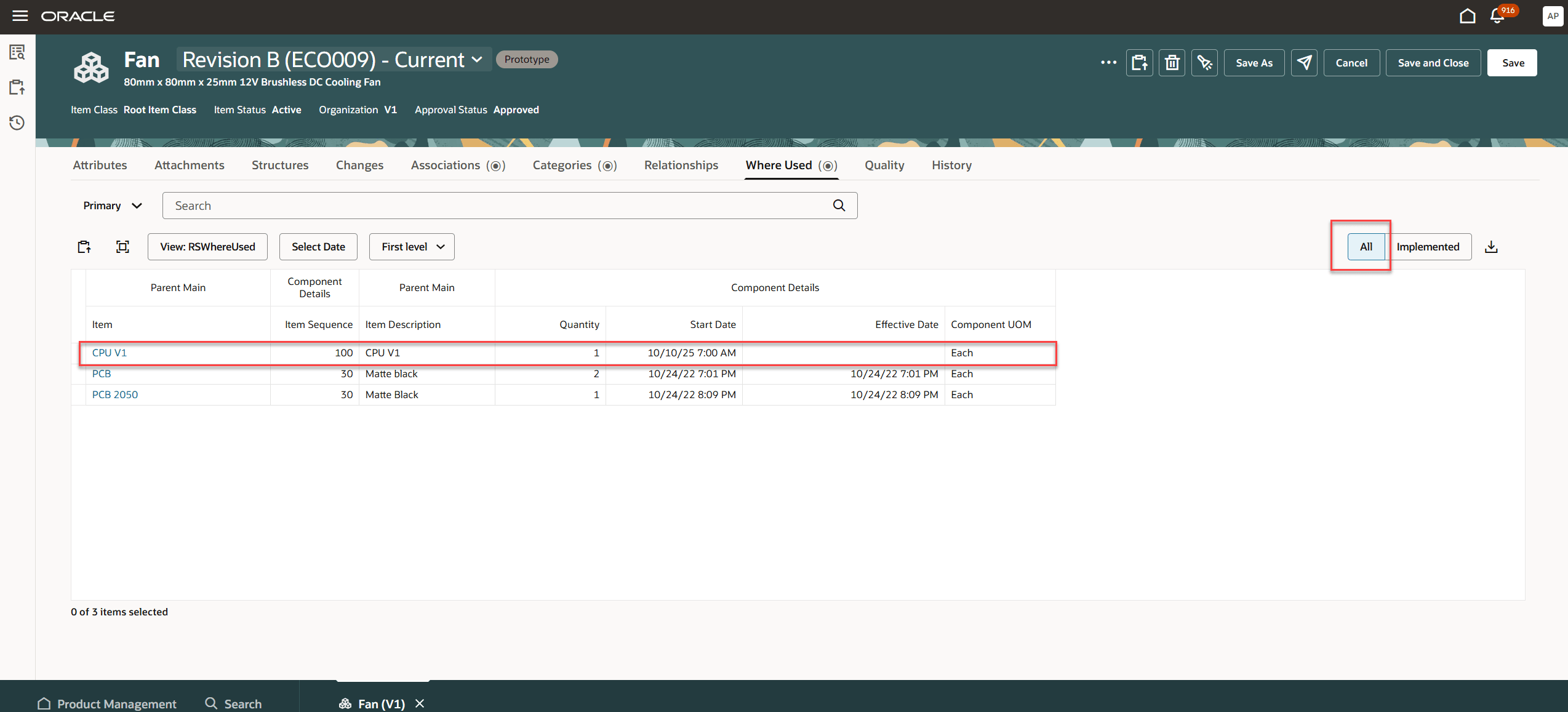
All View Shows Future Effective Parent Items
The updates to this feature benefit your business by the following:
- Enables product engineers to save time by creating components directly within the structure, streamlining their workflow and reducing navigation overhead.
- Provides flexibility by allowing enterprises to control visibility of reference designators and substitute components using business rules.
- Offers an at-a-glance summary of essential component information, reducing unnecessary visual clutter and improving decision-making efficiency.
- Allows users to quickly focus on and analyze only the most relevant component data, improving productivity and clarity.
- Provides a comprehensive where-used view that includes both current and future effective parent items, enabling design engineers to fully assess the impact of structure updates and make more informed design decisions.
- Ensures more robust and auditable change control by allowing redlining of descriptive flexfields during structure modifications.
Steps to enable and configure
You don't need to do anything to enable this feature.
Tips and considerations
- You must rebuild the Structure index to see the Summary view or create a new view.
- Create business rules on the standard attributes and descriptive flexfields of reference designators and substitute components.
- If you select the All view and a specific date, the Where Used results display the current, future effective, and future pending parent items from that date onwards.
- Don't select a date in All view if you want to see past, current, future effective and future pending parent items in Where Used.
Key resources
- Oracle Fusion Cloud SCM Using Product Development Guide, available on the Oracle Help Center.
- Oracle Fusion Cloud SCM Using Product Master Data Management Guide, available on the Oracle Help Center.
- Oracle Fusion Cloud SCM Implementing Product Management Guide, available on the Oracle Help Center.
Access requirements
Users who are assigned a configured job role that contains these functional privileges can access this feature:
- To access the item on the Redwood page:
- View Item Redwood Items (EGP_VIEW_REDWOOD_ITEM_PRIV)
- Manage Item Redwood Items (EGP_MANAGE_REDWOOD_ITEM_PRIV)
- To create, manage, or view the item structure on the Redwood page:
- Create Item Structure (EGP_CREATE_ITEM_STRUCTURE_PRIV)
- Manage Item Redwood Structures (EGP_MANAGE_REDWOOD_ITEM_STRUCTURE_PRIV)
- View Item Redwood Structures (EGP_VIEW_REDWOOD_ITEM_STRUCTURE_PRIV
These privileges were available prior to this update.