Redwood: Use Improved Access Control Lists for Workflows
You can now take advantage of the following updates in access control lists setup for workflows:
- Variable Support: You can now add conditions for the Created by, Assigned to and Requested by attributes in the workflows to enable View or Manage access when the signed in user is the creator, assignee, and requester.
- Multi-select extensible attributes support in conditions: You can now define workflow access control list conditions based on multi-select extensible attributes.
Access control lists are now applicable to the following Redwood pages:
- Workflow Access Control List in Item Import: Workflows created or updated through the Item Import process are secured using access control lists.
- Workflows in Clipboard and Recently Viewed: Contents in the clipboard and recently viewed items are secured using workflow access control lists.
- Workflow information in notifications: Information within the workflow notifications can now be secured using workflow access control lists.
Variable Support
The signed in users can now access workflows they have created, been assigned to, or requested. To enable this capability, select $User as the value for the Created By, Assigned To, or Requested By attributes when defining workflow conditions. For example, by setting a condition such as Assigned To = $User and associating it with a permission set and team, you grant team members access to all workflows assigned to them.
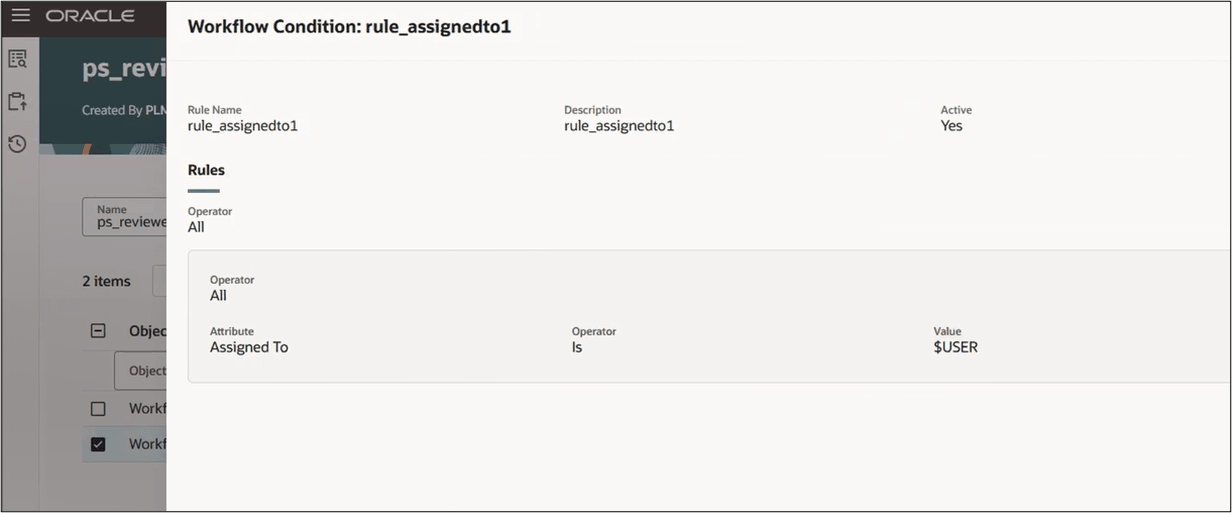
$User Condition for Workflows Applied to the 'Assigned To' Attribute
Multi-Select Extensible Attributes Support in Conditions
You can now select either a single value or multiple values of an attribute, by adding additional rows to the condition. When multiple values are selected, the application supports the ANY operator (match any selected value); the ALL operator (match all selected values) isn't supported.
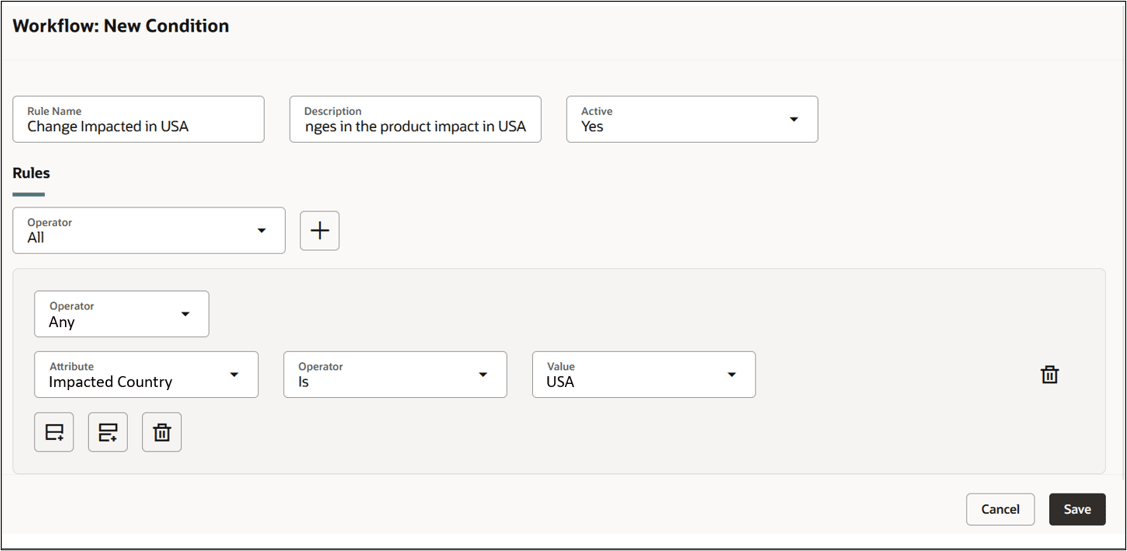
Multiselect Attribute Named 'Impacted Country' in New Condition for Workflow
Workflow Access Control List in Item Import
When items are added or updated through Item Import using a workflow, and, if you don't have the required access control list permissions for that workflow, the import process fails, and the error is recorded in the import error log. The options for adding items to a workflow through an item import batch are as follows:
| Workflow Import Option | Action | Request Access Control list Permission for Workflows | Access To |
|---|---|---|---|
| One per Item | Create New | Create | |
| One per Item Batch | Create New | Create | |
| One per Item Batch | Add to Existing | Manage | Affected Objects |
| One per Item Bundle | Create New | Create | |
| One per Item Class | Create New | Create |
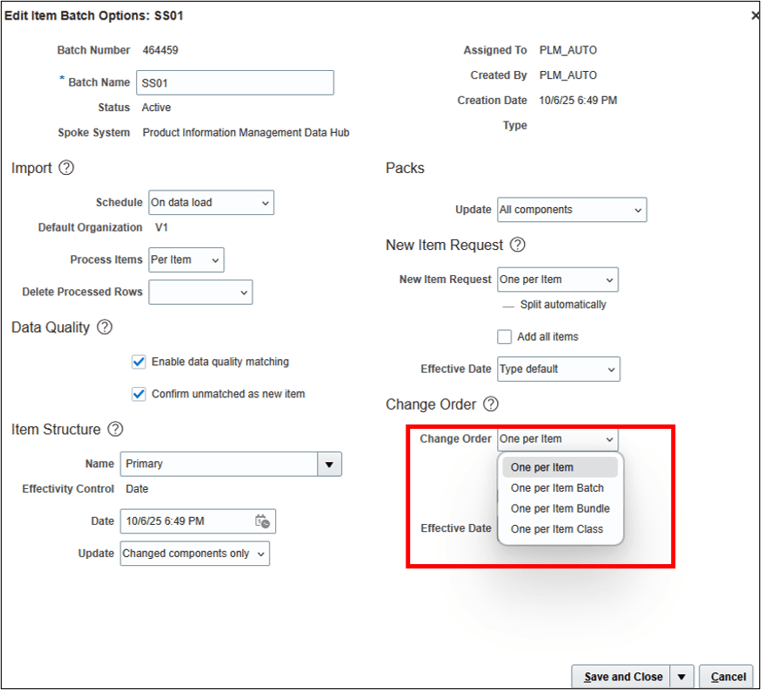
Selection of the Workflow Implementation during Item Import Batch
Workflows in Clipboard and Recently Viewed
You can add workflows to the clipboard only if you have the required View or Manage access.
You can navigate to the desired tab of a workflow object added to the 'clipboard' panel or available in the 'Recently Visited' panel by selecting the tab from a drop-down list. The tabs available for navigation are determined by the view or manage permissions assigned to you for that specific workflow object.
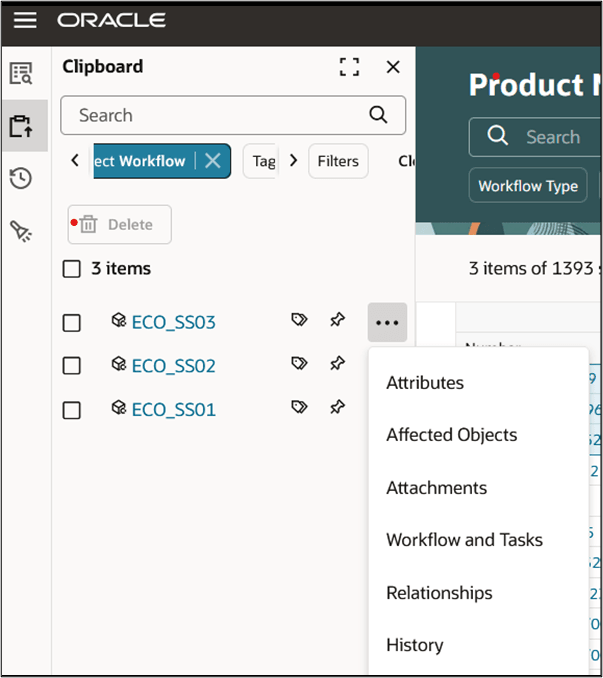
Workflows Added to Clipboard Which Has Access to All Tabs
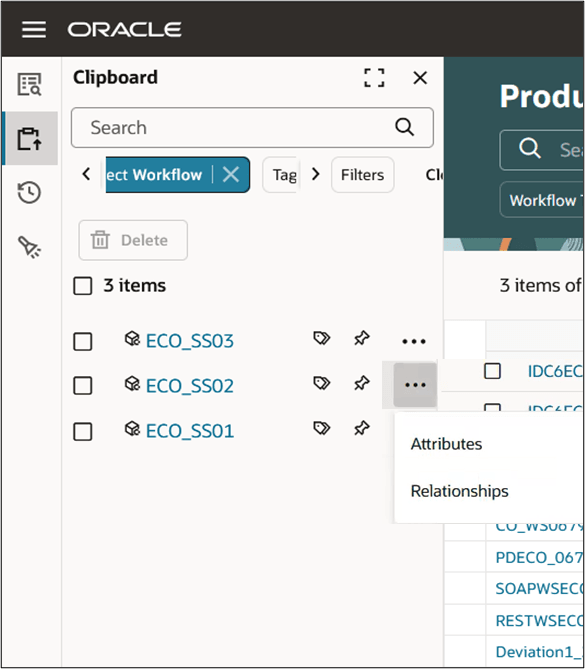
Workflows Added to Clipboard Which Has Access to Only limited Tabs
Workflow Information in Notifications
You can now view the information in the workflow notification based on the workflow access control list configuration. The information shown in the workflow notification is consistent with the workflow object content in Redwood.
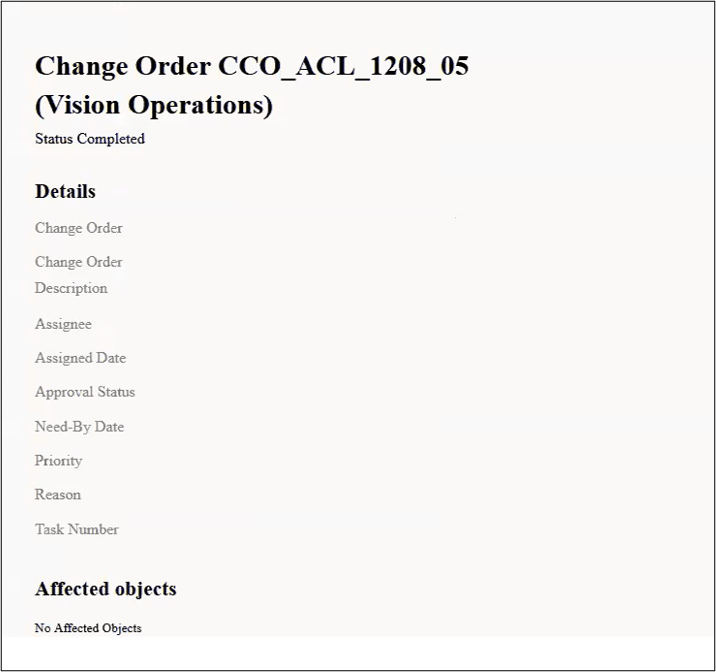
Workflow Notification Where User Has No View or Manage Permission Assigned
For more information on what Affected Objects you can access based on item access control list see here - https://docs.oracle.com/en/cloud/saas/readiness/scm/25d/plm25d/25D-plm-wn-f40207.htm
This update provides the following business benefits:
- Empowers your business with variable support to provide flexibility when granting access based on a dynamic context user for the creator, assignee, or requester attributes.
- Decreases the number of rules to create and maintain, making governance configuration smarter and more efficient.
- Expands workflow governance by allowing conditions to be created to include values in multi-select attributes, enabling additional coverage and precise access control across your data.
- Ensures consistent governance by applying the same access control rules to imported items, eliminating security gaps and standardizing data protection across all entry points.
- Extends workflow security to clipboard and recently viewed content, delivering consistent and reliable access control across every interaction within Product Management.
- Strengthens data protection by securing workflow details within notifications, ensuring consistent, end-to-end governance across all communication channels.
Steps to enable and configure
To use criteria-based access control for workflows, you must enable the profile option Enable Access Control List for Workflows. By default, the profile option is set to No.
On enabling the profile option, the workflow continues to honor the existing security settings till you create a permission and permission set.
Note: After you enable the profile option and define the required workflow permissions, all workflows in the application will become private, regardless of their current public or private settings. You must manually assign user permissions to enable access to the workflows.
Tips and considerations
- Team indicators for workflow access control lists are now available. When you update workflow access control list conditions or permission sets, the status of the related team is automatically updated.
- Before allowing users to access the application, ensure that the team process status shows Completed so users have the correct permissions.
- If a team encounters an error, run the Refresh the Access Control List for the Teams job again for that team.
- After upgrading to 26A, to apply security on workflow objects, run the scheduled process Refresh the Access Control List for the Teams job, and then refresh the following search indexes:
- Workflow index
- Workflow Approvals index
- Workflow History index
Key resources
- Oracle Fusion Cloud SCM Implementing Product Management guide, available on the Oracle Help Center.
Access requirements
Users who are assigned a configured job role that contains these privileges can access this feature:
- To configure conditions for workflows using a filtered list:
- Use REST Service - Identity Integration (ASE_REST_SERVICE_ACCESS_IDENTITY_INTEGRATION_PRIV)
- Use Atom Feed - Employees Workspace (PER_ATOM_WORKSPACE_ACCESS_EMPLOYEES_PRIV)
- Manage HCM Lists (HRC_MANAGE_HCM_LISTS_PRIV)
- Human Capital Management Application Administrator (ORA_HRC_HUMAN_CAPITAL_MANAGEMENT_APPLICATION_ADMINISTRATOR_JOB)
- To configure teams, permission sets, and conditions:
- Manage Landing Page Layout(EGP_MANAGE_LANDING_PAGE_LAYOUT_PRIV)
- Access HCM Common Components (HRC_ACCESS_HCM_COMMON_COMPONENT)
- Manage Search Consumer Applications Rest(EGP_MANAGE_SEARCH_CONS_REST_PRIV)
- Monitor Product Development (ACA_MONITOR_PRODUCT_DEVELOPMENT_PRIV)
- Configure Access Control Teams, Permission Sets, and Conditions (EGP_ACCESS_CONTROL_TEAMS_PRIV)
- Use REST Service - Identity Integration (ASE_REST_SERVICE_ACCESS_IDENTITY_INTEGRATION_PRIV)
- Use Atom Feed - Employees Workspace (PER_ATOM_WORKSPACE_ACCESS_EMPLOYEES_PRIV)
- Manage HCM Lists (HRC_MANAGE_HCM_LISTS_PRIV)
- Manage HCM Rules (HRC_MANAGE_HCM_RULES_PRIV)
- Run Scheduled Processes (HEY_RUN_SCHEDULED_PROCESSES_PRIV)
- Manage Scheduled Processes(FND_MANAGE_SCHEDULED_PROCESSES_PRIV)
- Access Product Management Landing Page (EGP_ACCESS_LANDING_PAGE_PRIV)
- Manage Scheduled Job Definition(FND_MANAGE_SCHEDULED_JOB_DEFINITION_PRIV)
- Access Users (EGP_ACCESS_USERS_PRIV)
- View product management search(EGP_VIEW_PRODUCT_MGT_SEARCH_PRIV)
To view or edit workflows on the workflow pages, or to access notifications, you should have the following privileges:
- For change orders:
- View Change Order (ACA_VIEW_CHANGE_ORDERS_PRIV) or
- Manage Change Orders (ACA_MANAGE_CHANGE_ORDERS_PRIV)
- For change requests:
- View Change Request (ACA_VIEW_CHANGE_REQUESTS_PRIV) or
- Manage Change Requests (ACA_MANAGE_CHANGE_REQUESTS_PRIV)
- For problem reports:
- View Problem Report (ACA_VIEW_PROBLEM_REPORTS_PRIV) or
- Manage Problem Report (ACA_MANAGE_PROBLEM_REPORT_PRIV)
- For corrective and preventive actions:
- View Corrective Action (ACA_VIEW_CORRECTIVE_ACTIONS_PRIV) or
- Manage Corrective Action (ACA_MANAGE_CORRECTIVE_ACTION_PRIV)
To create workflows from the search pages or when using links in Actions in the Product Management home page:
-
Create Change Order (EGO_CREATE_CHANGE_ORDER_PRIV)
To create a change order from the item, either through a Needs Approval rule or by using the Assign to action:
- Create Change Order (EGO_CREATE_CHANGE_ORDER_PRIV)
- Manage Change Orders (ACA_MANAGE_CHANGE_ORDERS_PRIV)
To approve or reject workflows:
-
Approve Item Change Order (EGO_APPROVE_ITEM_CHANGE_ORDER_PRIV)
To move change order lines to a new change order:
- Create Change Order (EGO_CREATE_CHANGE_ORDER_PRIV)
- Manage Change Orders (ACA_MANAGE_CHANGE_ORDERS_PRIV)
To move change order lines to an existing change order:
-
Manage Change Orders (ACA_MANAGE_CHANGE_ORDERS_PRIV)
To reschedule change lines, resolve revision conflict and Fill up-down actions on the affected objects:
-
Manage Change Orders (ACA_MANAGE_CHANGE_ORDERS_PRIV)
To publish changes order:
- View Change Order (ACA_VIEW_CHANGE_ORDERS_PRIV) or Manage Change Orders (ACA_MANAGE_CHANGE_ORDERS_PRIV)
- Publish Change Order (ACA_PUBLISH_CHANGE_ORDER_PRIV)
To change status, delete, terminate, restart or cancel a workflow:
- Manage Change Orders (ACA_MANAGE_CHANGE_ORDERS_PRIV)
- Manage Change Requests (ACA_MANAGE_CHANGE_REQUESTS_PRIV)
- Manage Problem Report (ACA_MANAGE_PROBLEM_REPORT_PRIV)
- Manage Corrective Action (ACA_MANAGE_CORRECTIVE_ACTION_PRIV)
To select or be selected as an Assigned To user or Assignee Role on a workflow:
-
Manage Assignee (EGO_MANAGE_ASSIGNED_TO_PRIV)
To view the history tab on the workflow:
-
View Change History (EGO_VIEW_CHANGE_HISTORY_PRIV)
To run the change order details report:
- Generate Item Change Order Report (EGO_GENERATE_ITEM_CHANGE_ORDER_REPORT_PRIV)
- Get BIP Report Definitions (EGI_GET_BIP_REPORT_DEFINITIONS_REST)
To send a workflow object:
- Use REST Service - Users and Roles Lists of Values (PER_REST_SERVICE_ACCESS_USERS_AND_ROLES_LOVS_PRIV)
- Manage HR Name Format (PER_MANAGE_HR_NAME_FORMAT_PRIV) (optional)
To select users managing participants or changing workflow status:
- Use REST Service - Users and Roles Lists of Values (PER_REST_SERVICE_ACCESS_USERS_AND_ROLES_LOVS_PRIV)
- Manage HR Name Format (PER_MANAGE_HR_NAME_FORMAT_PRIV) (optional)
To search for items on Redwood pages:
-
Product Search (ORA_EGI_PRODUCT_SEARCH_DUTY)
These privileges were available prior to this update.
Additionally, you will require the new privilege Access Users (EGP_ACCESS_USERS_PRIV), to select users in:
- Requested By or Assigned To attributes in the Attributes tab.
- Task assignee in Workflow and Tasks > Create or Edit Task drawers.
- Manage Participants or Change Status drawer.
- Send Object drawer.
To run workflow OTBI reports, you need the following:
- Product Catalog Transaction Analysis Duty (FBI_PRODUCT_CATALOG_TRANSACTION_ANALYSIS_DUTY)
- Product Transaction Analysis Duty (FBI_PRODUCT_TRANSACTION_ANALYSIS_DUTY)
- BI Consumer Role (BIConsumer)