Redwood: Create and Edit Catalogs
You can now use the Redwood user experience to create and manage catalogs and item category assignments. On the Product Management page, in the Actions section, click View all actions, and then click Catalogs. The Catalogs page is displayed, where you can search and select catalogs. Also, you can click the Card option to view the catalogs in card view as shown in the following screenshot.
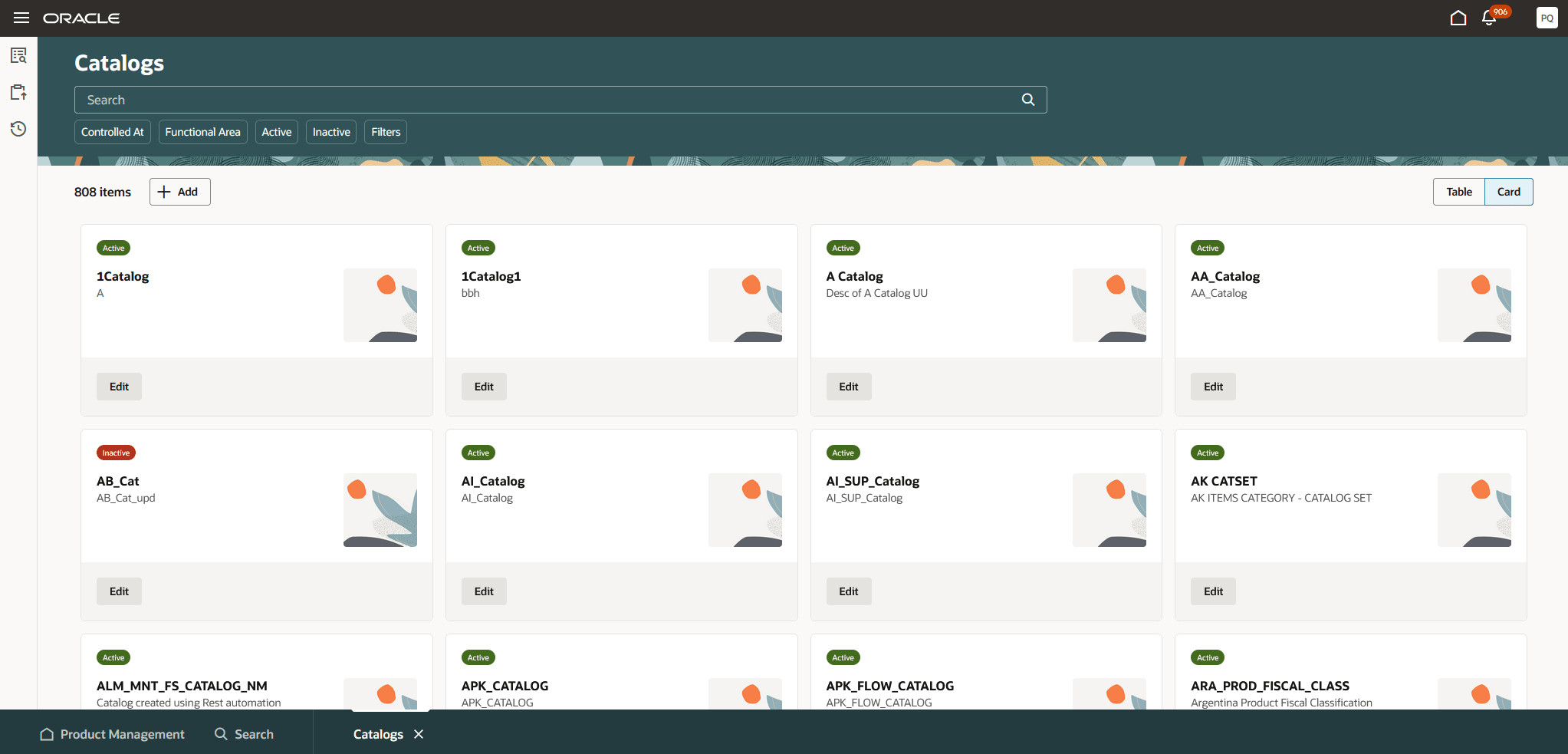
Catalogs Page - Card View
You can click the Table option to view the list of catalogs in a table view as shown in the following screenshot.
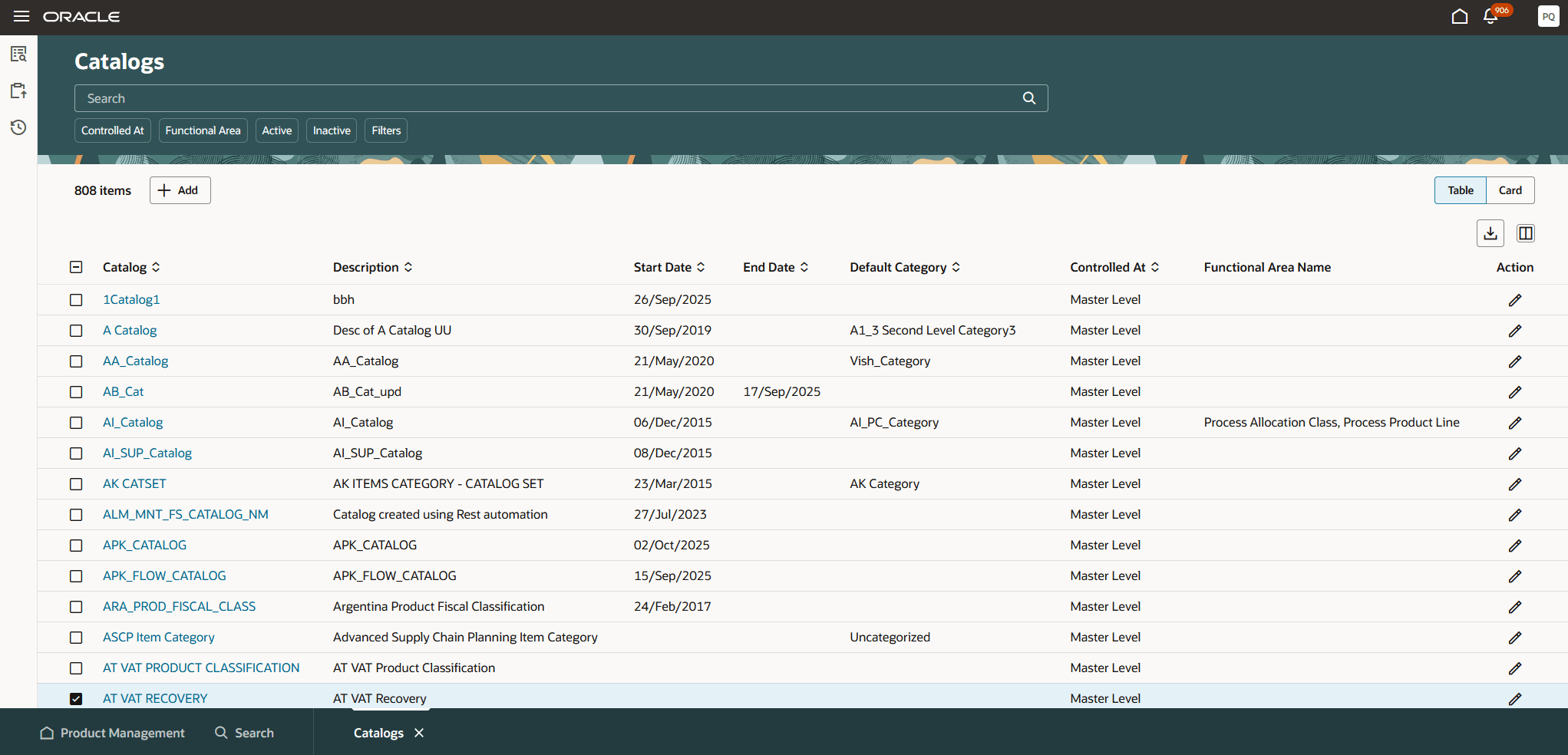
Catalogs Page - Table View
To create a catalog, click Add in the card or table view. The Create catalog drawer is displayed as shown in the following screenshot. Specify the common catalog attributes, catalog level control attributes, and additional attributes for extending the catalog. You can either create another catalog or create the catalog and then continue editing it. Optionally, you can assign the catalog to a functional area.
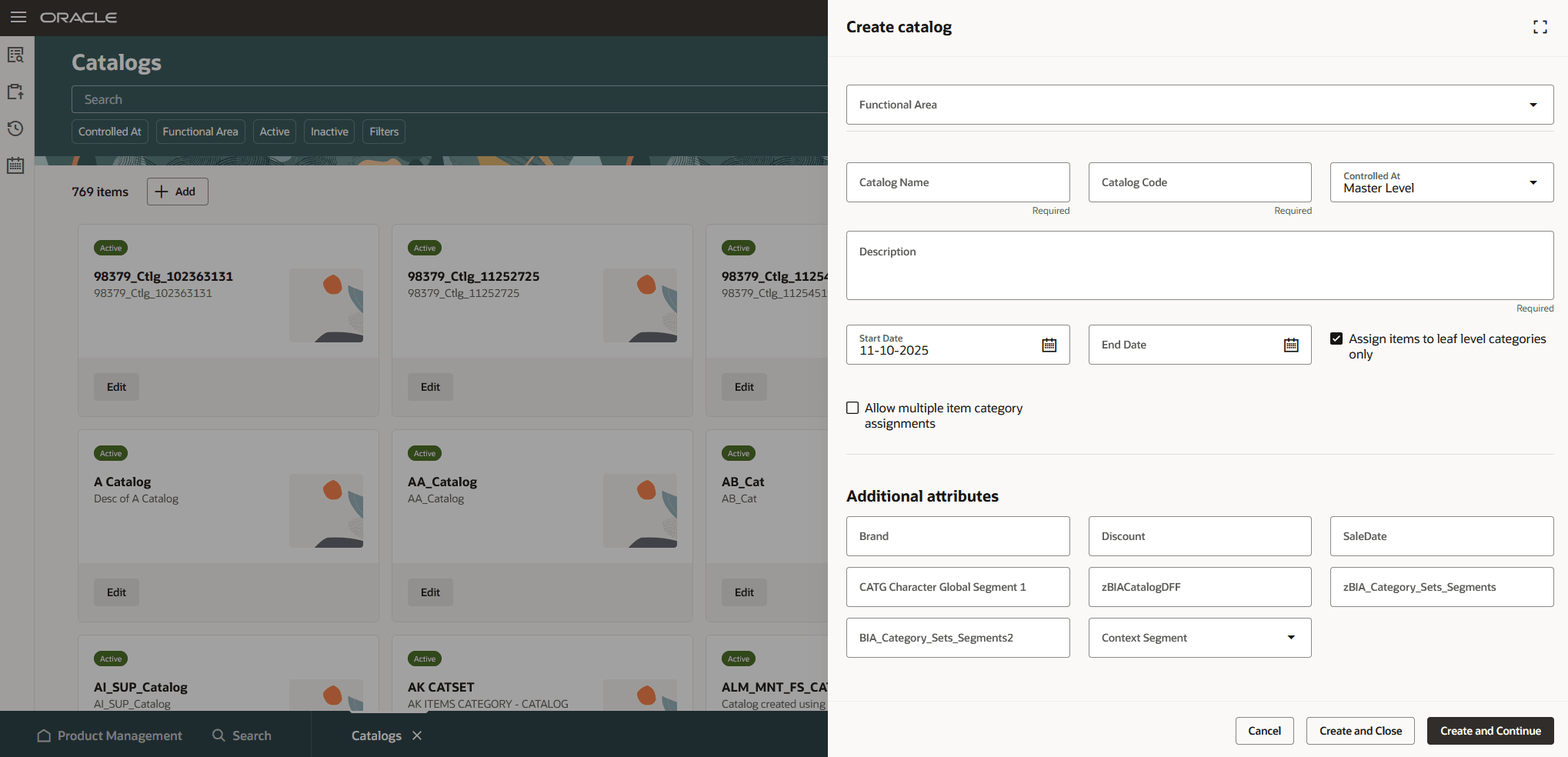
Create Catalog Drawer
When you click a card in the Card view or the catalog name link in the Table view, the catalog details page is displayed that shows the category hierarchy in the left panel and item category assignments or the selected category details in the right panel as shown in the following screenshot.
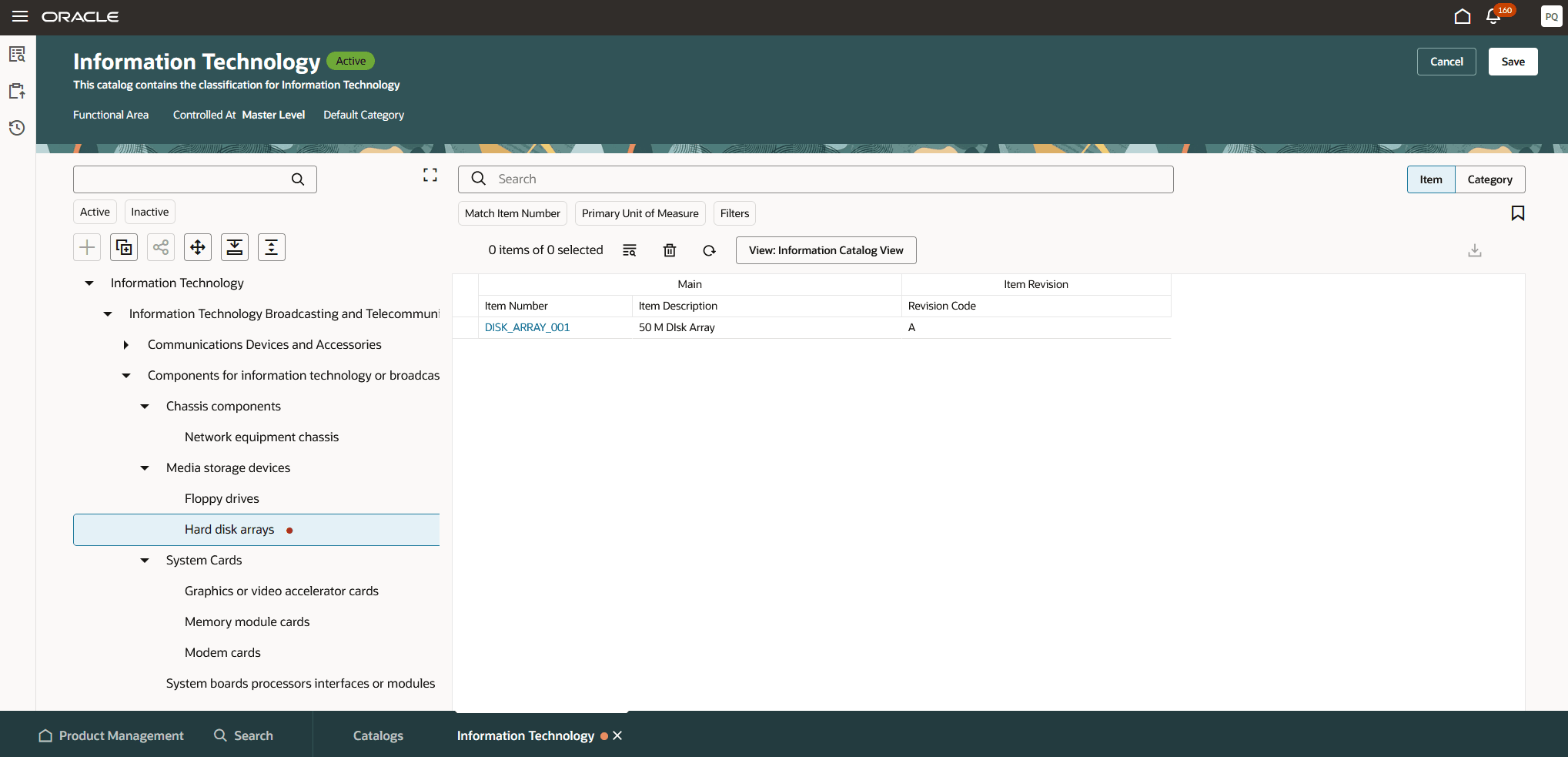
Category Hierarchy and Item Category Assignments
Manage Category Hierarchy
In the Category Hierarchy panel, you can do the following:
- Add category to catalog
- Duplicate category
- Share category
- Move category
- Expand catalog or category
- Expand all Catalogs and categories
Add Category to Catalog
You can create a category at the position of the cursor in the category hierarchy. If the cursor is at category level, the category is created as child of the category. To create a first level category, position the cursor to the root of the catalog. Click the Add icon to add a category. The Add category drawer is displayed as shown in the following screenshot. Specify the information and click Create.
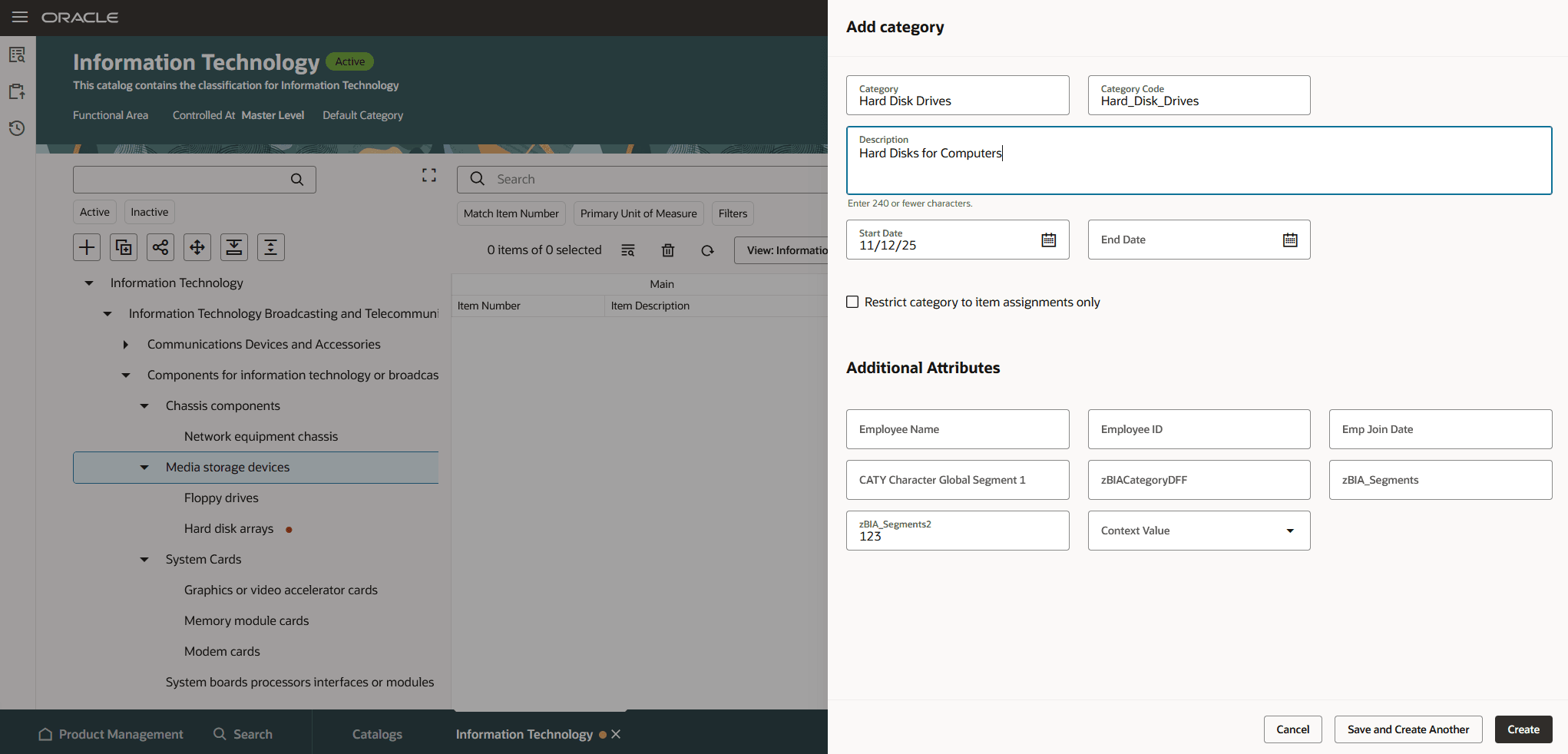
Add Category to a Catalog
Duplicate Category
To duplicate a category, click on the category that you want to duplicate and click the Duplicate category icon. The Add category drawer is displayed. The category details are duplicated but not the item category assignment. Specify the details and click Create.
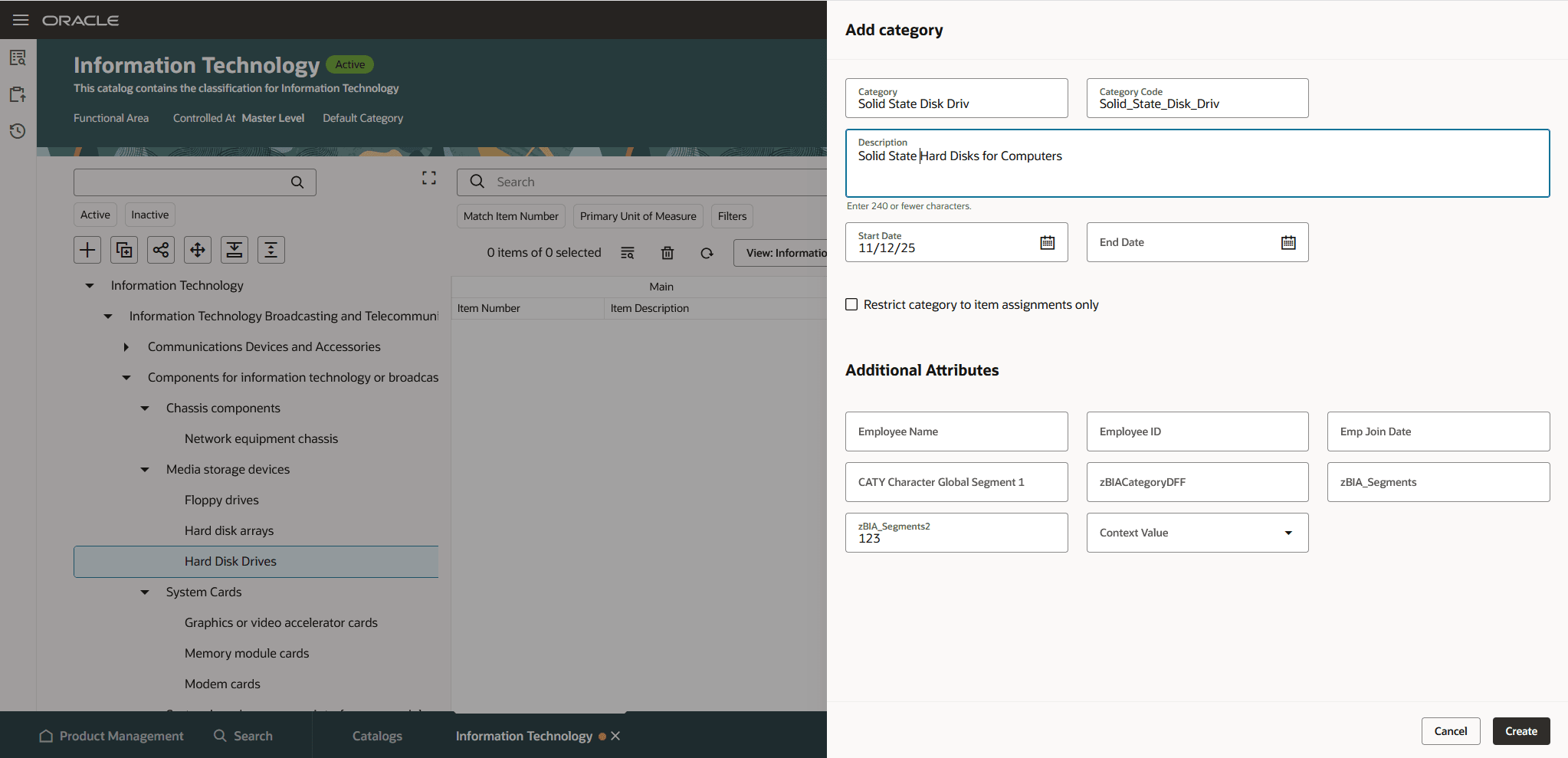
Duplicate Category
Share Category
You can share the category content from other catalogs in two ways:
- Share by reference: You can select a category or category hierarchy including the items assigned to the categories. The shared content in your catalog is read only and identified by a share icon. Any changes made to the content in the source catalog automatically appear in the shared content.
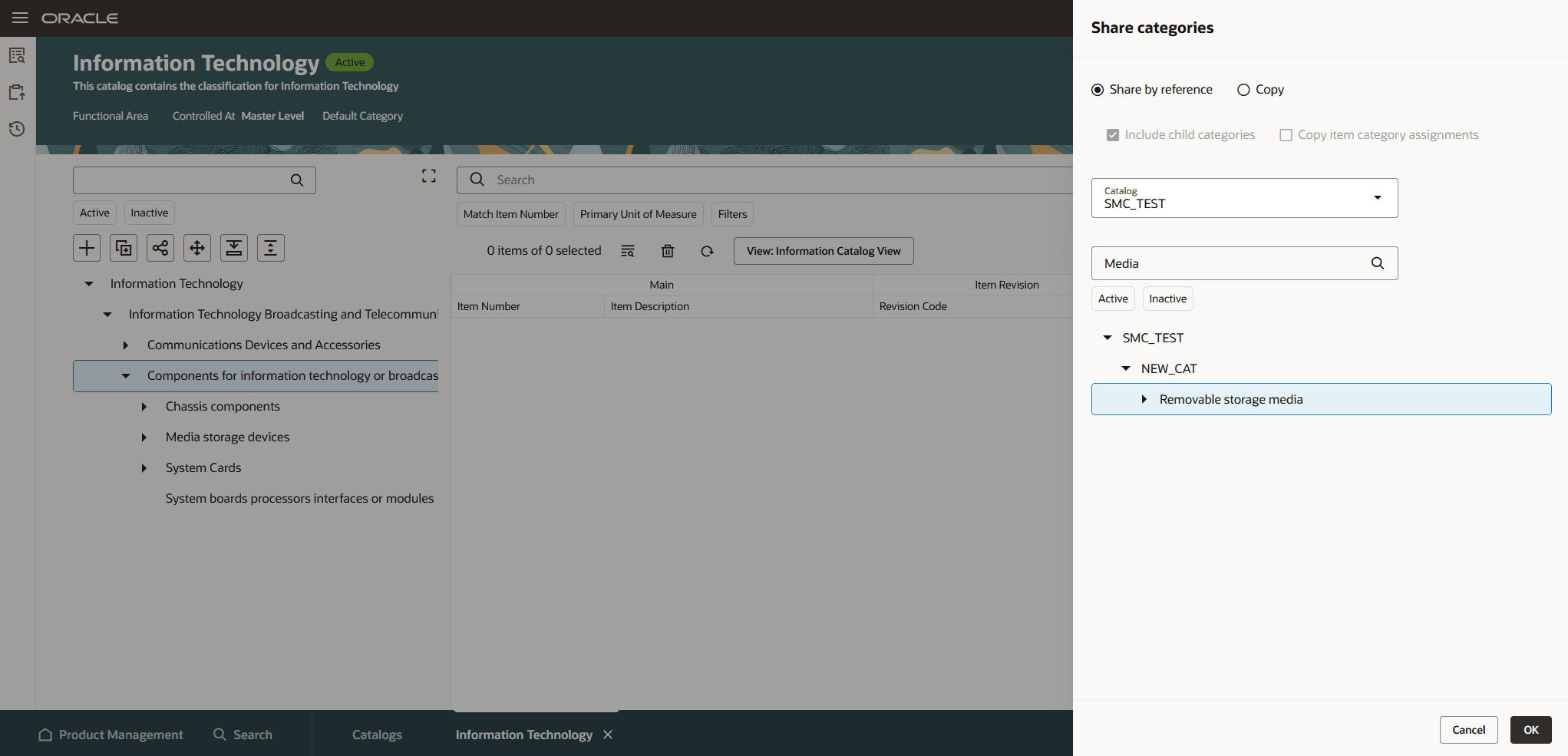
Share by Reference
The category content that’s shared is displayed with share icon in the category hierarchy.
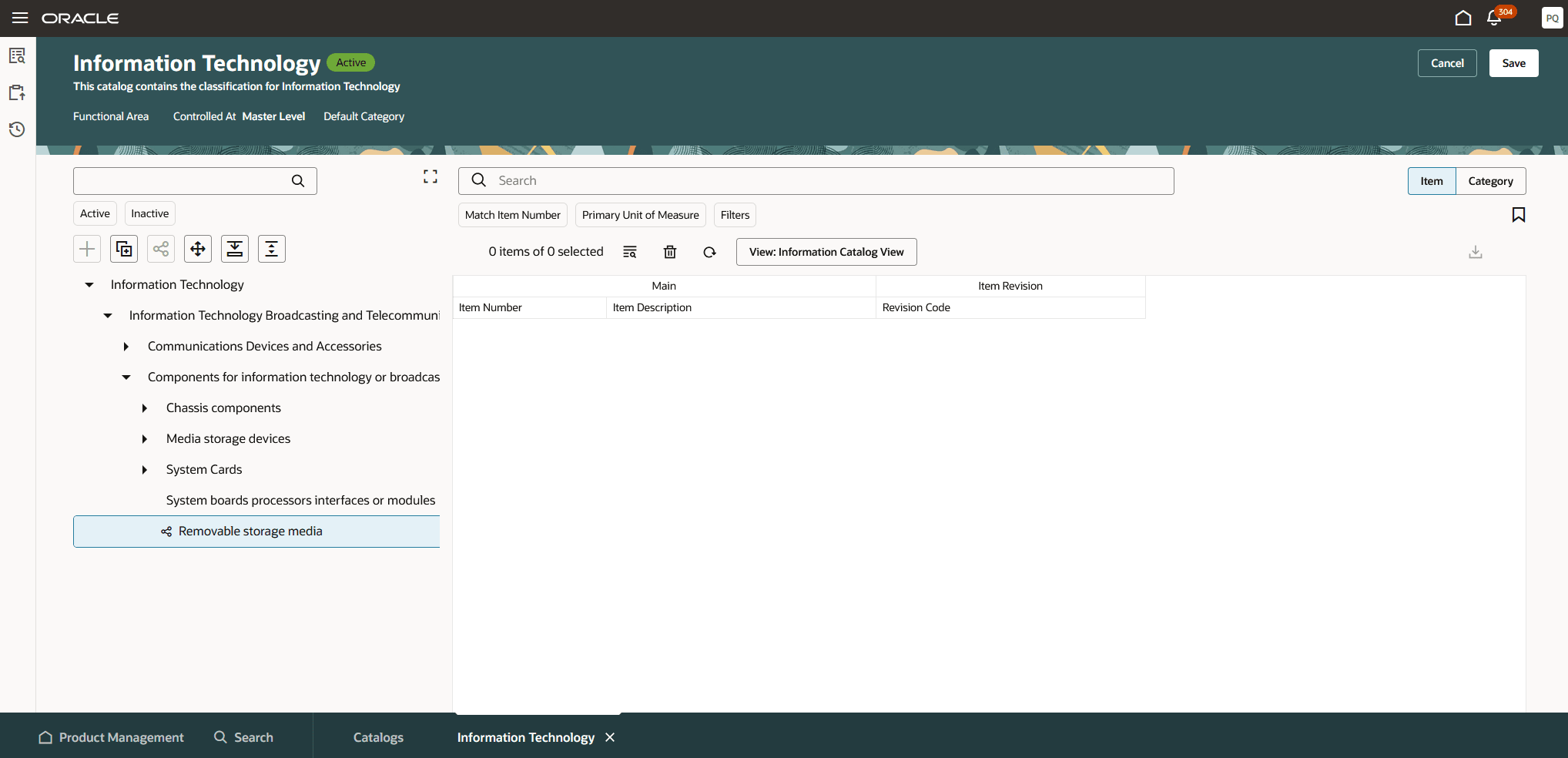
Shared Category
- Copy: You can select a category content and specify if the copied content includes child categories or item categories assignments. The copied content is added to your catalog and you can edit it.
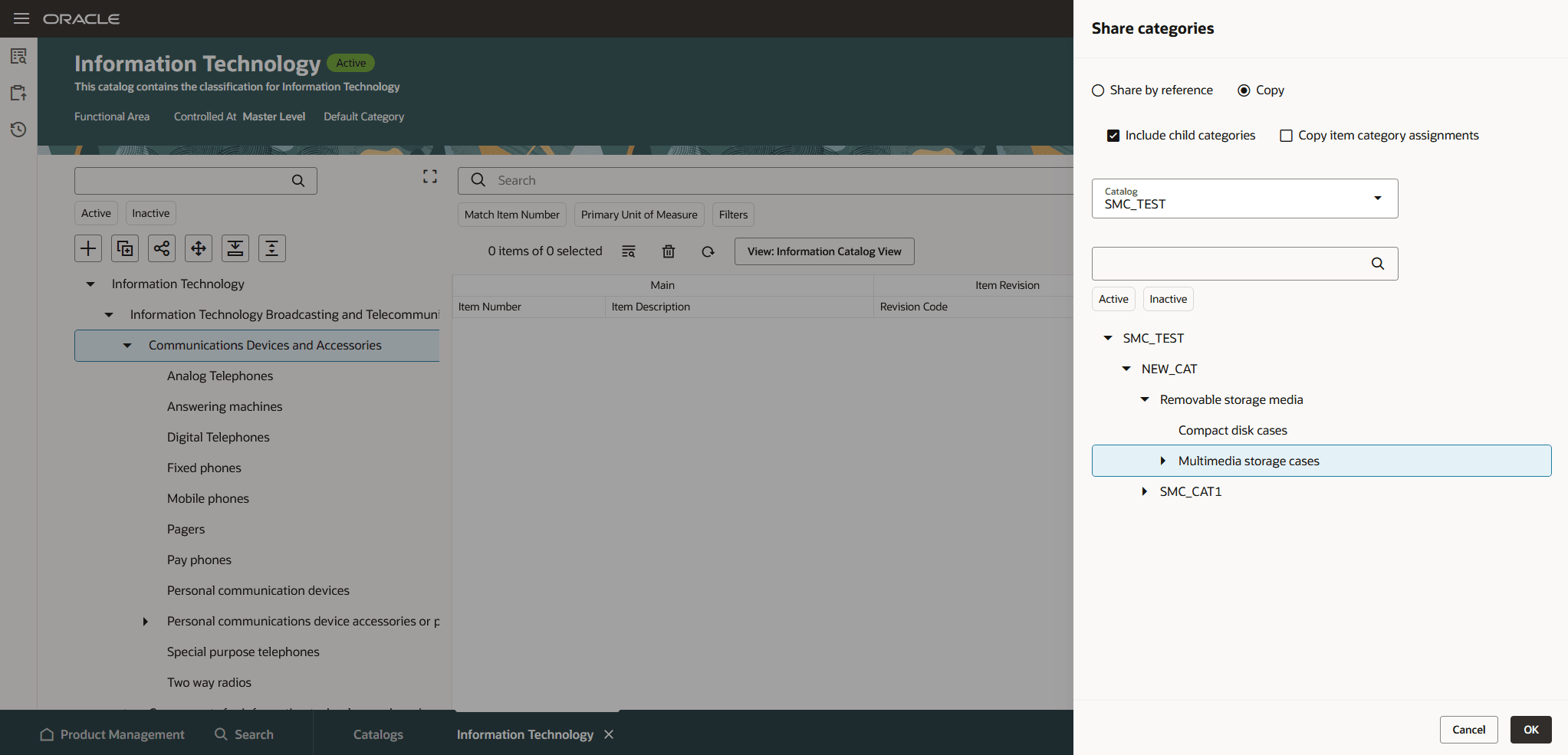
Share By Copy
Move Category
You can move a category by selecting a new parent within your catalog.
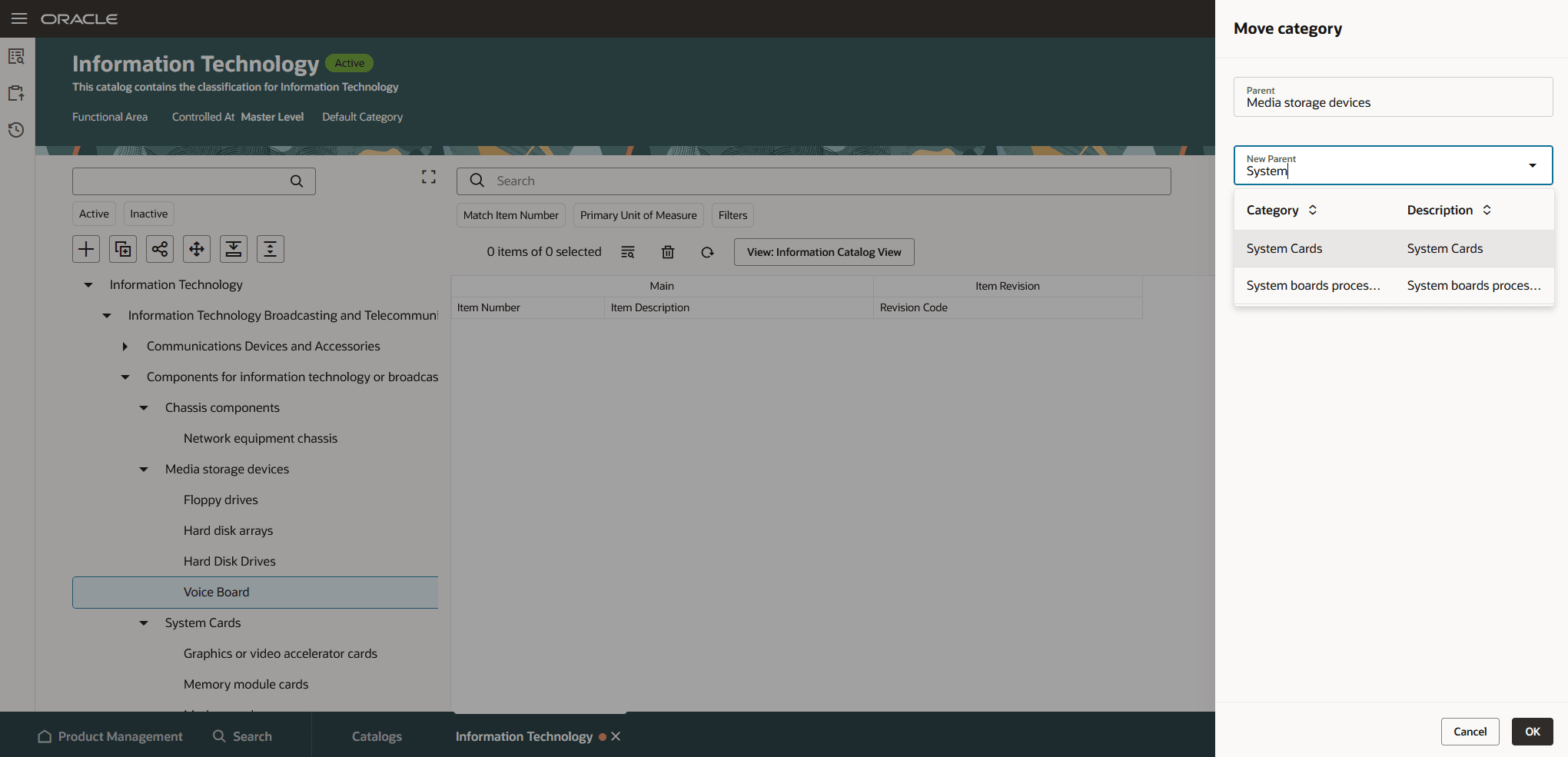
Move Category
Expand or Collapse All Categories
You can select a parent category and expand the display of the child categories.
Expand or Collapse Category Hierarchy
You can use the expand and collapse icons to expand all or collapse all categories in the hierarchy.
Add and Manage Item Category Assignments
In the Item Category Assignment panel, the item category assignments are displayed based on views. The views allow you to control the attributes that are shown for the items. You can search for a specific item using the Search box and use filters to locate the item when many items are displayed.
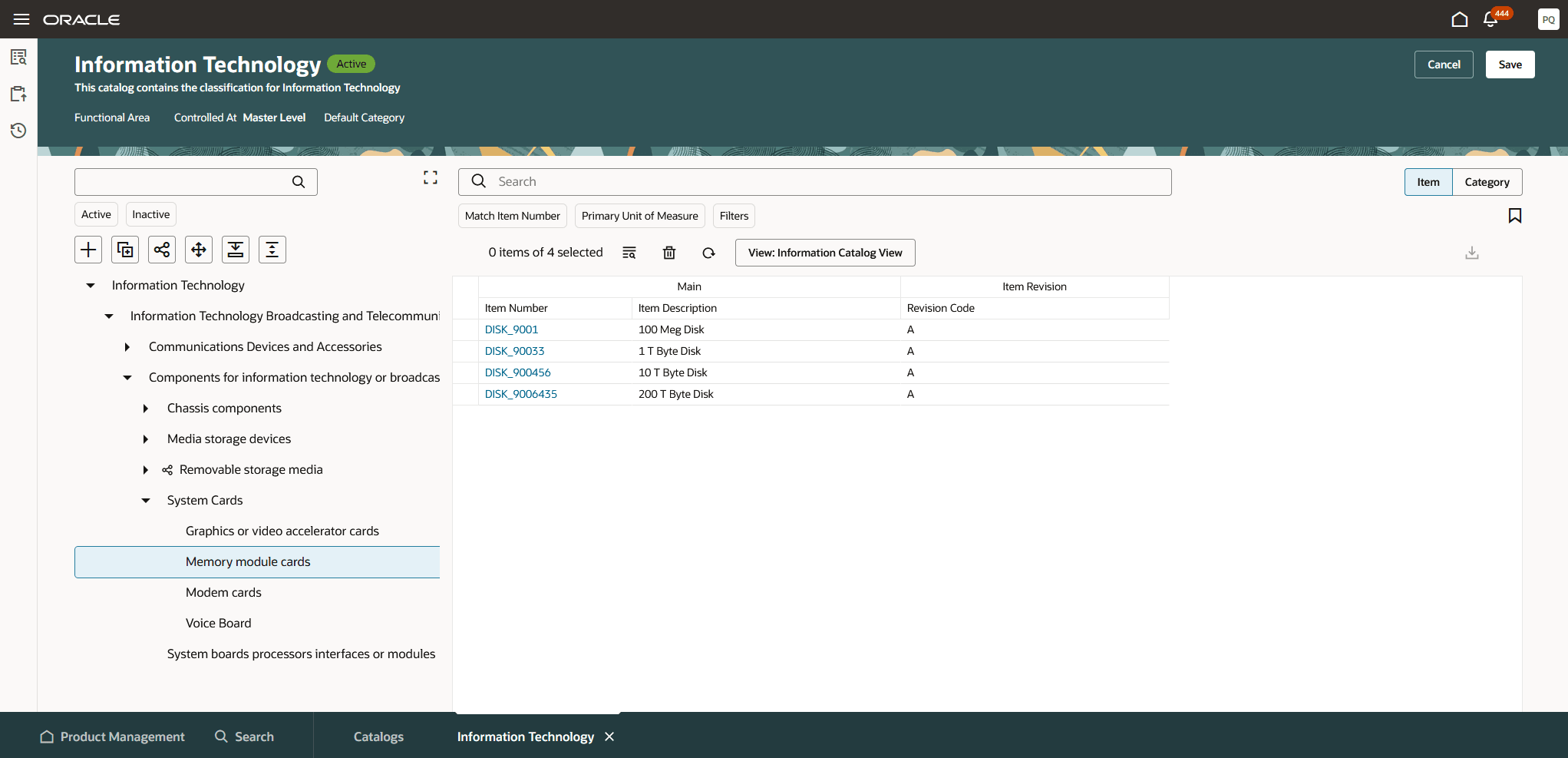
Item Category Assignments
To add an item category assignment, click the Add icon. The Select and add drawer is displayed. Search and select multiple items across multiple searches and click Add.
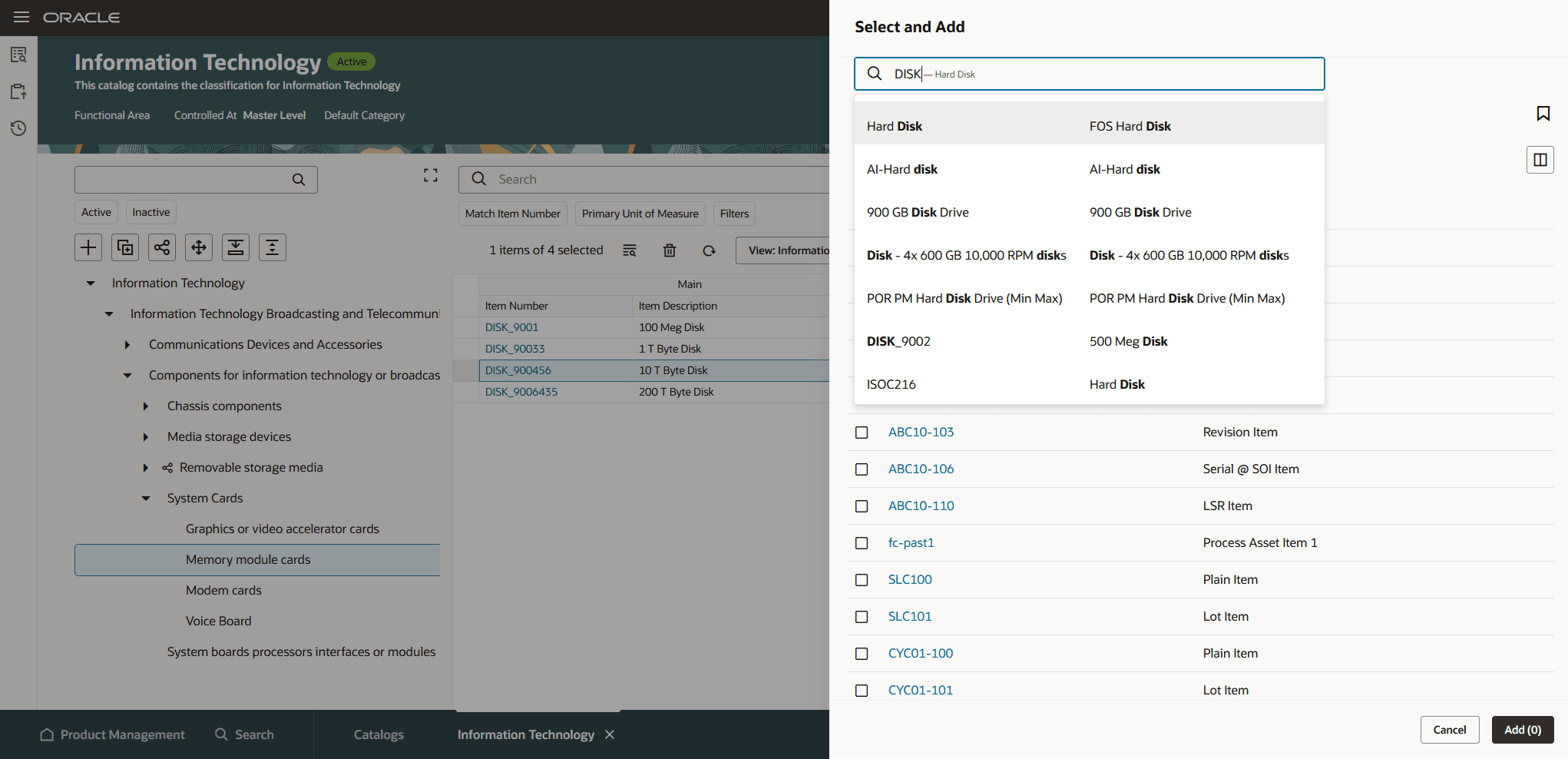
Add Item Category Assignments
To delete an item category assignment, select the item that you want to delete and click the Delete icon.
After you finish, click Save to save the changes for the category.
Manage Category Details
You can select a category within the category hierarchy and then click Category to view and manage the category details such as:
- Category attributes: You can specify the common attributes for category, category level control attributes, and additional attributes for extending the category.
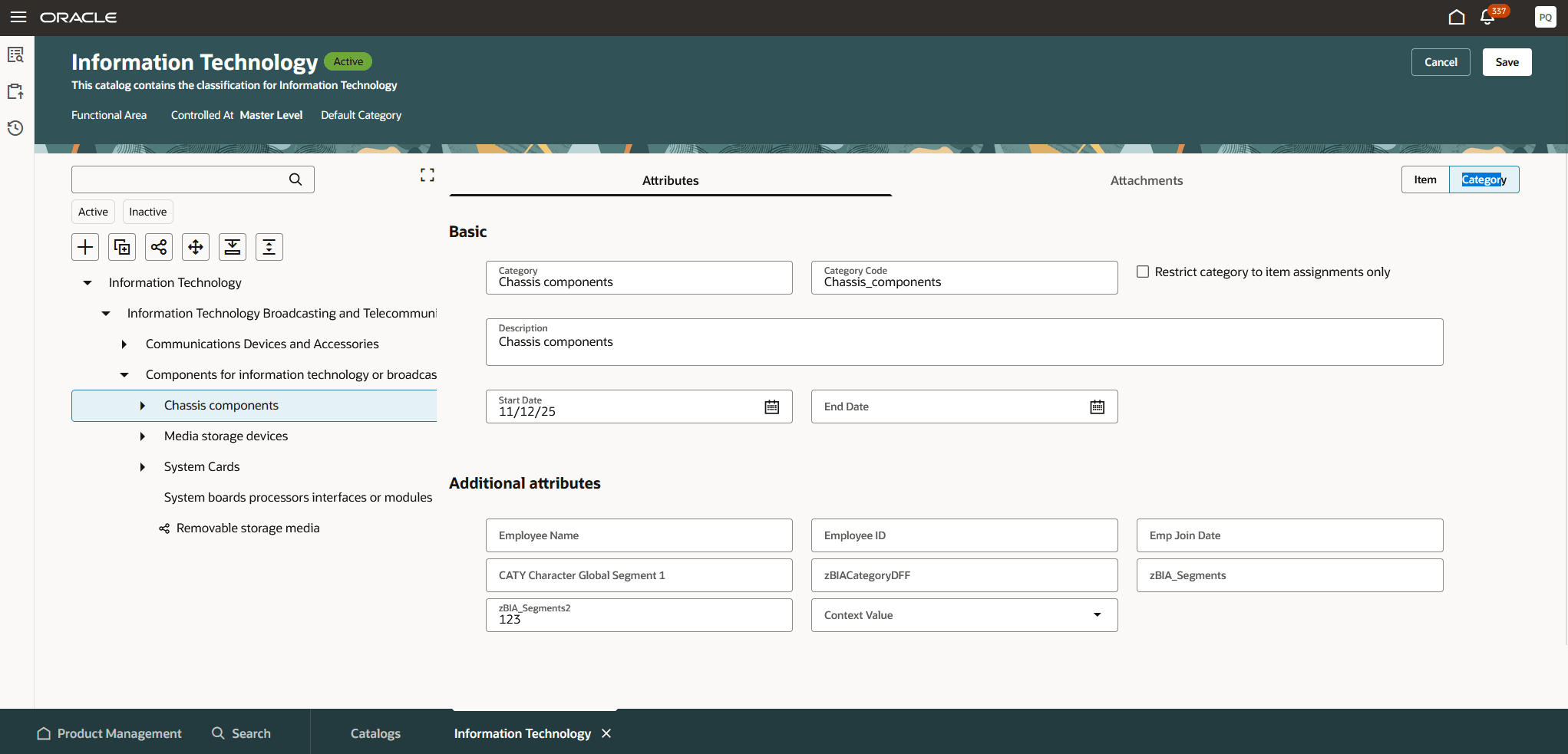
Category Details
- Category attachments: You can add, preview, edit, delete, and download attachments for a category.
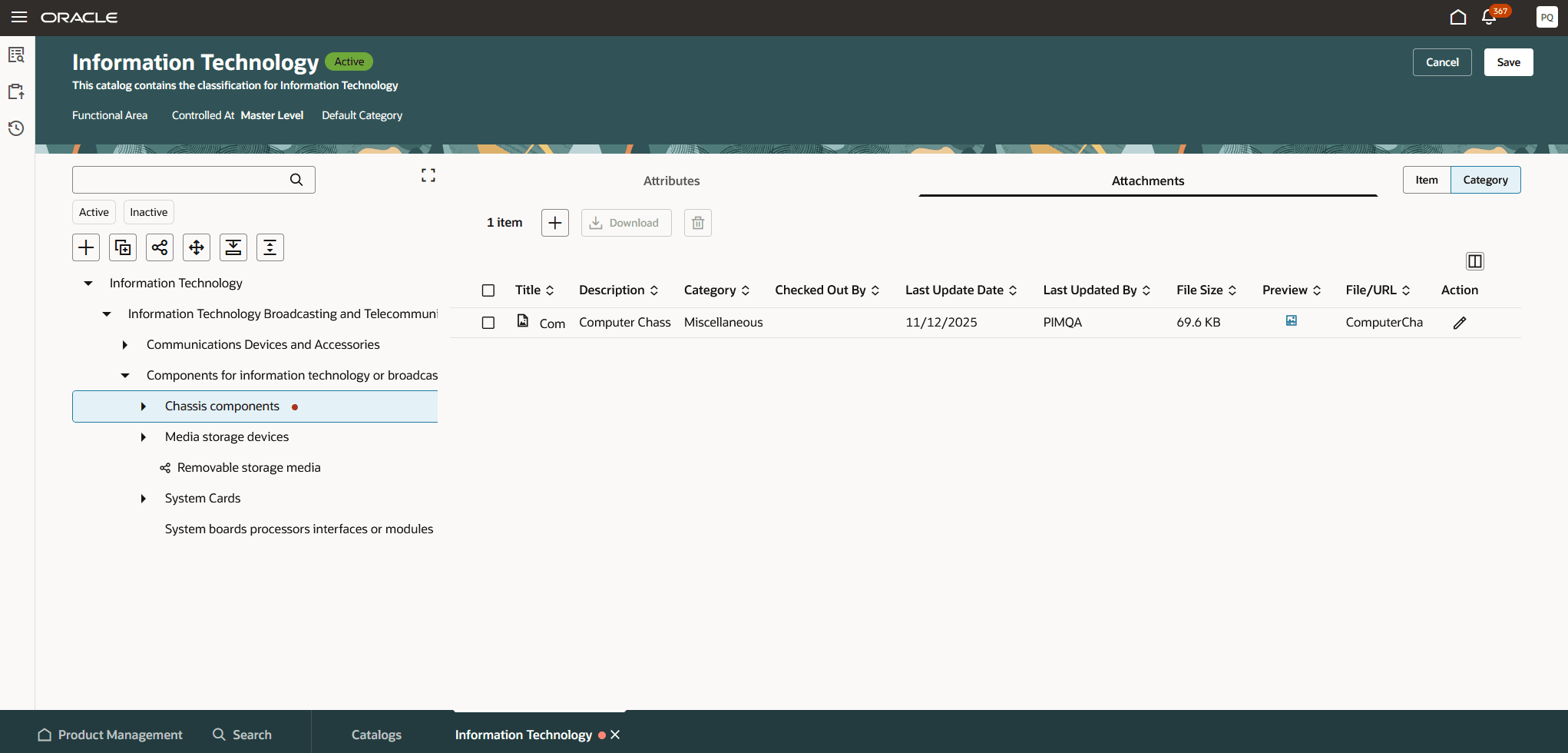
Category Attachments
To add an attachment, click the Add icon to display the Attachment details drawer, where you can select the attachment type as a File, Text, or URL. You can drag and drop or use the local file upload application to add an attachment.
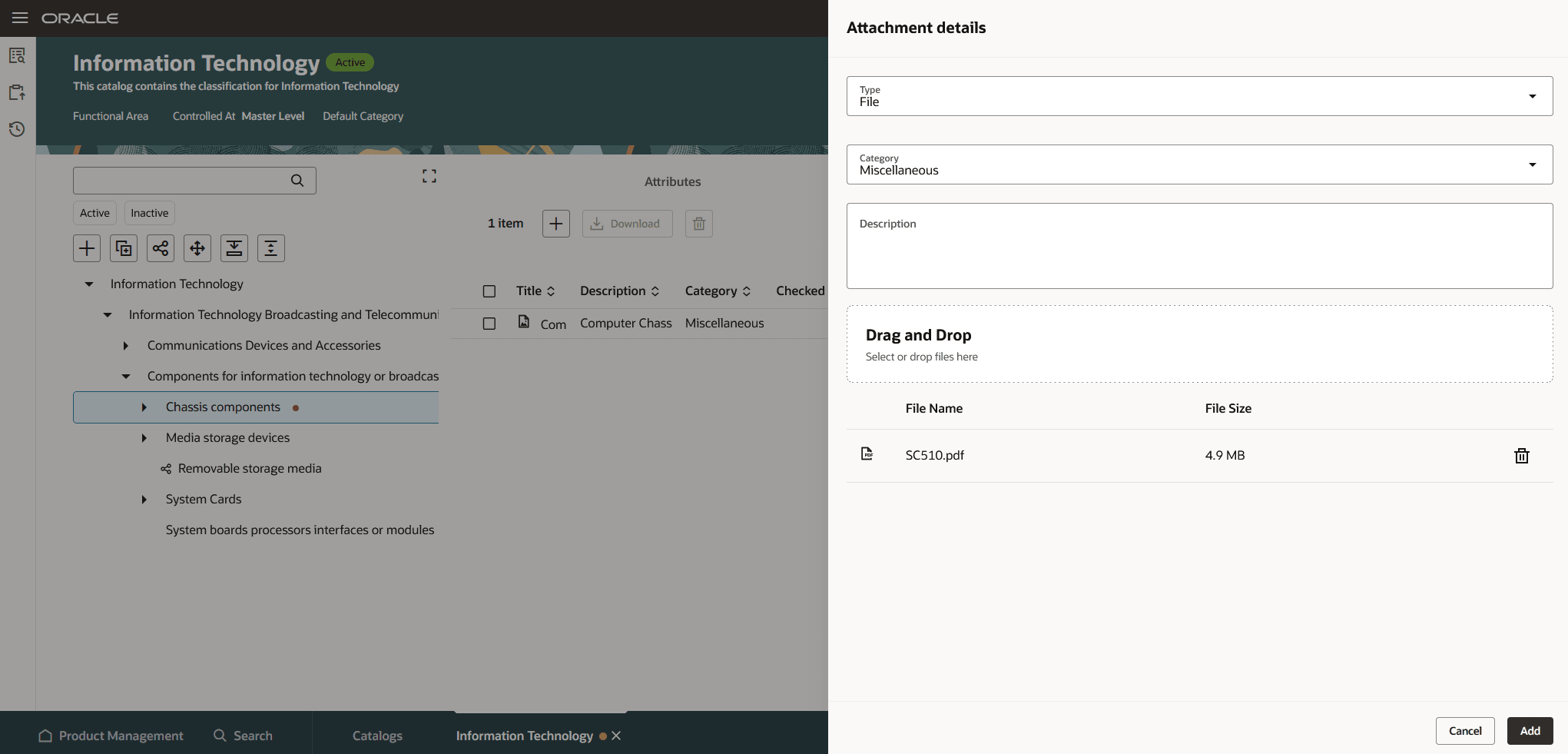
Add Attachment
Catalog and Category Data Security
The Redwood user interface doesn't use data security to control access to catalogs and categories within the catalog. All users can access catalogs and categories. Support for criteria-based access (using access control list) to catalogs and categories is planned for a future update.
This feature benefits your business by providing the ability to model alternate classifications of items using catalogs for analytics and business processes across the enterprise.
Here's the demo of these capabilities:
Steps to enable and configure
Follow these steps to enable or disable this feature:
- In the Setup and Maintenance work area, search for and select the Manage Administrator Profile Values task.
- On the Manage Administrator Profile Values page, search for and select the ORA_EGP_CATALOGS_REDWOOD_PAGES_ENABLED profile option code.
- In the Profile Values section, set the Site level to Y or N. The default value is N.
- Y = enables the feature
- N = disables the feature
- Click Save and Close. Changes in the profile value will affect users the next time they sign in.
Tips and considerations
- You can assign catalogs to one or more functional areas if the catalog adheres to the functional area rules.
- When creating catalog for functional area, select the functional area in the Create Catalog drawer. Any changes to the catalog are validated based on the functional area rules when the catalog is saved.
- A category name and category code are used to define a category for a catalog. You can reuse the category name in other catalogs and at various levels in the category hierarchy of the same catalog.
- Sharing a category or category hierarchy by reference allows you to reuse category content in multiple catalogs. The category content in the source catalog is always the master and the shared content in other catalogs is read only.
Key resources
- Refer to Redwood: Create and Edit Items in the Oracle Fusion Cloud SCM: Using Product Master Data Management guide, available on the Oracle Help Center.
- Watch the Create and Edit Catalogs video.
Access requirements
Users who are assigned a configured job role that contains these privileges can access this feature:
- Access Redwood Catalogs (EGP_RW_READ_ONLY_CATALOGS_PRIV): Give access to users that have read only access.
- Manage Redwood Catalogs (EGP_RW_MANAGE_CATALOGS_PRIV): Gives full access to users.
The duty role Redwood Item Catalogs (ORA_EGP_RW_ITEM_CATALOGS_DUTY) contains both the preceding privileges and can be used directly with Administration users or modified to use with other job roles.